If you run a business on WhatsApp, you’ve probably noticed that many customer questions are repeated. People ask about opening hours, delivery times, pricing, or how to place an order.
Typing the same answers again and again can take up a surprising amount of time, and slow down your response speed.
WhatsApp quick replies solve this problem beautifully. They let you store commonly used responses and send them instantly using simple shortcuts. That means faster replies, more consistent communication, and less time spent typing.
In this guide, we’ll explore how WhatsApp quick replies work, how to set them up, and how businesses can use them to deliver faster and better customer support.
What Are WhatsApp Quick Replies and Why Use Them?
WhatsApp Quick Replies are a built-in feature in WhatsApp Business that allows you to save and reuse frequently sent messages. Instead of typing the same response repeatedly, you can store it as a template and send it instantly using a simple shortcut.
Think of quick replies as pre-written answers for common questions. Many customers ask similar things – about shipping times, product availability, pricing, opening hours, or refund policies. With quick replies, you can respond to these questions in seconds while keeping your replies clear and consistent.
For example, a clothing store might create quick replies for:
- Size guide information
- Delivery timelines
- Return and refund policies
- Order tracking instructions
- Store opening hours
Instead of typing these answers every time, the business simply selects the quick reply and sends it instantly, helping to achieve faster conversations and smoother customer support.
Benefits of Using WhatsApp Quick Replies
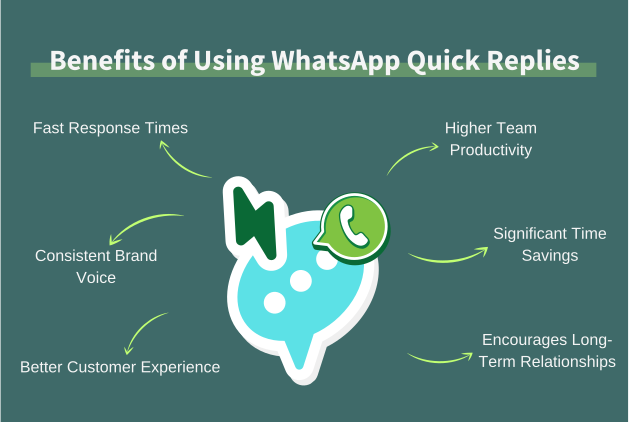
Using quick replies may seem like a small feature, but it can make a huge difference in how efficiently your team communicates with customers.
- Faster response times
When answers are already prepared, you can reply to customers almost instantly. Faster responses improve the overall customer experience and often lead to quicker purchase decisions. - Higher team productivity
Customer service teams often spend a lot of time repeating the same information. Quick replies remove that burden. Instead of typing repetitive answers, your team can focus on more complex questions that require personal attention. - Consistent brand voice
When different team members reply to customers, the tone and wording can sometimes vary. Quick replies ensure that your business communicates in a consistent and professional voice, which helps strengthen your brand image. - Significant time savings
Even small responses take time when repeated dozens of times a day. Quick replies eliminate that extra typing and help your team handle more conversations efficiently. - Better customer experience
Customers appreciate fast and accurate responses. When businesses reply quickly and provide clear information, it increases customer satisfaction and builds stronger brand loyalty.
How to Set Up WhatsApp Quick Replies: 2 Methods
There are two main ways to set up WhatsApp quick replies for your business. The first option is using the WhatsApp Business App, which is ideal for small businesses or teams just getting started.
The second option is through the WhatsApp Business API, which is designed for larger teams that need automation, advanced organization, and the ability to handle many conversations at scale.
Let’s walk through how each method works.
1. Setting Up WhatsApp Quick Replies on the WhatsApp Business App
If you’re using the WhatsApp Business App, creating quick replies is straightforward. The app allows you to save frequently used messages so they can be sent instantly whenever customers ask common questions.
Here’s how to set them up:
- Open the WhatsApp Business app on your device.
- Tap the three dots (More options) and go to Business Tools.
- Select Quick Replies.
- Tap the Add (+) quick reply button.
- Enter a shortcut for your quick reply (for example: /hours).
- Write the message you want to save. You can also attach images or media if needed.
- Tap Save.
Once created, you can edit or update your quick replies at any time.
How to send a quick reply
After setting them up, using quick replies during conversations is easy:
- Open any chat in the WhatsApp Business app or WhatsApp Business Web.
- Tap the paperclip icon and choose Quick Reply, or simply type “/” in the message box.
- Select the quick reply you want to send.
- Edit the message if necessary.
- Tap Send.
This allows you to respond instantly without typing the same message repeatedly.
2. Setting Up WhatsApp Quick Replies Using the WhatsApp Business API
For businesses handling large volumes of conversations, the WhatsApp Business API offers more advanced capabilities. Instead of managing a small list of quick replies, you can create thousands of reusable responses and organize them across different teams such as sales, support, and marketing.
With the API, quick replies can also include dynamic variables (like the customer’s name or order number) and can be triggered automatically based on customer actions.
To set up quick replies using the WhatsApp Business API, you typically need to:
- Register your phone number for the WhatsApp Business API.
- Sign up with an official WhatsApp Business Solution Provider such as DMly.
- Access your dashboard and go to Settings → Quick Replies.
- Create and categorize quick replies for better organization.
- Set up automation triggers so certain replies are sent automatically based on user actions or keywords.
Using the API gives businesses much greater flexibility. Teams can store thousands of quick replies, automate responses, and ensure customers always receive fast and consistent support.
Quick Reply Examples for WhatsApp Business
Quick replies work best when they are used for situations that come up frequently in customer conversations. From greeting new customers to answering questions about orders or payments, having ready-made responses can make your communication much faster and more consistent.
Below are some common scenarios where businesses use WhatsApp quick replies, along with examples of the types of messages you can send.
1. Greeting Messages
Greeting messages are often the first reply customers receive after reaching out to your business. These quick replies acknowledge the customer’s message and let them know that help is on the way.
Shortcut: /hello
Examples:
- Hi {name}! Thanks for messaging us. A member of our team will assist you shortly.
- Hello {name}, welcome! Let us know what you’re looking for and we’ll be happy to help.
- Thanks for reaching out, {name}! How can we assist you today?
- Hi {name}! We’re glad you contacted us. Are you looking for information about a product or service?
A friendly greeting helps set the tone for the conversation and makes customers feel acknowledged immediately.
2. Payment Information
Customers often want to know how they can pay for products or services before making a purchase. Instead of typing this information repeatedly, you can save a quick reply with your accepted payment methods.
Shortcut: /payment
Examples:
- We currently accept payments via credit/debit cards, bank transfer, and PayPal. Let us know if you need help completing your order.
- You can pay using card, online transfer, or digital wallets. Just let us know your preferred option and we’ll guide you through it.
- Our payment options include card payments, bank transfers, and secure online checkout.
This quick reply helps customers quickly move forward in the buying process.
3. Business Availability or Working Hours
Customers sometimes message outside your business hours. A quick reply explaining when you are available helps set expectations and avoid frustration.
Shortcut: /hours
Examples:
- Hi {name}! Our team is available Monday to Friday from 9 AM to 6 PM. We’ll respond to your message as soon as we’re back online.
- Thanks for your message, {name}. Our support team operates from 9 AM – 5 PM on weekdays. We’ll reply shortly during working hours.
- Hello {name}! Our business hours are 10 AM – 7 PM daily. If you’ve sent us a message outside these hours, we’ll get back to you soon.
4. Delayed Reply Messages
Sometimes your team may take longer than usual to respond, especially during busy sales periods or holidays. A quick reply acknowledging the delay can help maintain a positive customer experience.
Shortcut: /delay
Examples:
- Hi {name}, thanks for your patience. We’re currently experiencing a high volume of messages but will get back to you shortly.
- Hello {name}! Apologies for the delayed response. Our team is catching up on messages and will assist you soon.
- Thanks for waiting, {name}. We’ve been a bit busy today but we’re here now. How can we help?
This simple message reassures customers that their inquiry has not been ignored.
5. Order Status Updates
Customers frequently want to know where their order is or when it will arrive. A quick reply can guide them on how to check their order status.
Shortcut: /status
Examples:
- To check your order status, please send us your order number, and we’ll look it up for you right away.
- You can track your order by sharing your order ID here, and we’ll provide the latest update.
- If you’d like an update on your order, simply send your order number and we’ll check it for you.
6. Refunds and Returns
Before making a purchase, customers often want to know about return and refund policies. Quick replies make it easy to provide this information instantly.
Shortcut: /returns
Examples:
- Hi {name}! We accept returns within 14 days of delivery as long as the item is unused and in its original packaging.
- Your return request has been received. Please share a photo of the product and order number so we can assist you further.
- Thank you for contacting us regarding a return. Once we receive the product, refunds are usually processed within 3-5 business days.
Providing clear return information builds trust and helps customers feel more confident about purchasing.
7. Responding to Discount Requests
Customers frequently ask if there are additional discounts available. When your team receives these questions often, a quick reply can help you respond politely without repeating the same explanation.
Shortcut: /discount
Examples:
- Hi {name}! Thanks for asking. All our current promotions are already listed on our website, and there aren’t any additional discounts available at the moment.
- Hello {name}! At the moment, the prices you see online include our latest offers. Let us know if you’d like help choosing a product.
- Thanks for reaching out, {name}. We don’t have any extra discounts right now, but we regularly run special promotions – stay tuned!
8. Informing Customers About Technical Issues
Sometimes websites or systems experience downtime. Instead of answering the same complaints individually, a quick reply can notify customers about the issue and offer alternatives.
Shortcut: /issue
Examples:
- Hi {name}, thanks for letting us know. Our website is currently experiencing a temporary issue and our team is working on fixing it. In the meantime, we can assist you directly here on WhatsApp.
- Hello {name}! We’re currently performing updates on our website. If you’d like, we can help you place an order through this chat.
- Thanks for reaching out, {name}. Our site is undergoing maintenance right now, but feel free to browse our catalog here and we’ll help you with your order.
This keeps customers informed and prevents frustration during service interruptions.
9. Requesting Customer Feedback
Customer feedback is valuable for improving products and services. Quick replies can make it easy to ask customers for reviews after an interaction or purchase.
Shortcut: /feedback
Examples:
- We hope we were able to assist you today. If you have a moment, we’d love your feedback: {link}
- Thanks for shopping with us! Your opinion matters – feel free to share your experience here: {link}
- Hi {name}, we noticed you recently purchased {product name}. We’d appreciate it if you could leave a quick review: {link}
These responses encourage customers to share their experiences while the interaction is still fresh.
10. Product Launch and Restock Notifications
Quick replies can also be used to inform customers when new products launch or popular items return to stock.
Shortcut: /restock
Examples:
- Great news, {name}! The {product name} is back in stock. You can order it here: {link}
- Hi {name}! Our new {collection name} just launched today. Let us know if you’d like a preview or early access.
- Hello {name}, the item you were interested in will be restocked soon. Would you like us to notify you when it’s available?
11. Closing a Customer Conversation
When a customer issue has been resolved, a closing message helps wrap up the conversation professionally.
Shortcut: /close
Examples:
- Glad we could help today! If you have any other questions, feel free to message us anytime.
- Thanks for contacting us, {name}. Let us know if there’s anything else we can assist you with.
- We appreciate you reaching out. Have a great day, and we’re always here if you need help again!
12. Follow-Up After a Conversation
Sometimes businesses want to check back with customers after providing support or sharing information.
Shortcut: /followup
Examples:
- Hi {name}, just checking in to see if everything worked out with your order. Let us know if you need any help.
- Hello {name}! Were you able to find the product you were looking for? We’d be happy to assist further.
- Just following up on our earlier conversation. If you still need help, feel free to reply here anytime.
These follow-up messages show attentiveness and help maintain a strong relationship with customers.
Best Practices for Maximizing WhatsApp Quick Replies
Quick replies can save time and make your customer communication much smoother. But to get the best results, they need to be used thoughtfully. If your replies feel robotic or outdated, they can actually hurt the customer experience instead of improving it.
So, let’s talk about some best practices that can help you make the most of WhatsApp quick replies.
Use warm, natural language
Even though quick replies are pre-written, they should still sound like they were written by a real person. Avoid stiff or overly formal wording. Instead, use friendly and conversational language that reflects how your team normally speaks to customers.
Personalize when needed
Quick replies don’t have to be generic. Whenever possible, personalize your responses with details like the customer’s name, order number, or product information.
Adding small personal touches helps the message feel more tailored and prevents conversations from feeling automated.
Keep responses short and clear
Customers appreciate quick answers, not long explanations. Your quick replies should be clear, direct, and easy to read. Focus on giving the most important information first. If more explanation is needed, your team can always follow up with another message.
Choose memorable shortcuts
The shortcut you assign to each quick reply should be easy for your team to remember. For example:
- /hello for greetings
- /hours for business hours
- /refund for refund policy
Simple shortcuts help your team send replies faster and reduce the chances of selecting the wrong message.
Update quick replies regularly
Businesses evolve over time. Your pricing, policies, promotions, and product details may change. If your quick replies contain outdated information, customers may receive incorrect responses.
Make it a habit to review and update your quick replies regularly so they always reflect the latest information.
Avoid creating too many replies
While it may be tempting to create dozens of quick replies, having too many can make them difficult to manage. Focus on the most common questions your customers ask. A smaller set of well-designed quick replies is often more effective than a huge list that your team struggles to navigate.
Combine quick replies with WhatsApp automation
Quick replies work even better when paired with automation tools. For example, automated chatbots can trigger quick replies based on keywords or customer actions.
This allows businesses to respond instantly to common queries while still allowing human agents to step in when needed.
Monitor customer feedback
Pay attention to how customers respond to your quick replies. If certain messages seem confusing or generate follow-up questions, they may need improvement. Customer feedback is a great indicator of whether your quick replies are actually helping conversations move forward.
Train your support team
Quick replies are most effective when your entire team understands how and when to use them. So, provide clear guidance on which shortcuts to use for different situations. Training your support staff ensures that responses stay consistent and professional across all conversations.
Measure performance
Finally, track how quick replies impact your customer interactions. Look at metrics such as response time, resolution time, and customer satisfaction. If used properly, quick replies should help your team respond faster, handle more conversations, and improve the overall customer experience.
Automate and Optimize Customer Service with DMly
While WhatsApp quick replies help businesses respond faster to common questions, tools like DMly can take things even further. DMly connects your business to the WhatsApp Business API, allowing you to automate conversations, organize thousands of quick replies, and manage customer chats from a shared team inbox.
You can also trigger responses automatically based on customer actions, segment audiences for targeted messaging, and combine quick replies with AI chatbots to handle repetitive queries instantly.
This helps your team deliver faster support, manage more conversations, and maintain a consistent customer experience as your business grows.
FAQs
Can I delete a WhatsApp quick reply?
Yes, you can delete a quick reply at any time. Simply go to Business Tools → Quick Replies in the WhatsApp Business app, select the reply you want to remove, and choose the delete option. This helps you keep your quick reply list organized and up to date.
How many WhatsApp quick replies can you set up on the WhatsApp Business app?
The WhatsApp Business app allows you to create up to 50 quick replies. Each reply can include a shortcut and a pre-written message that you can send instantly during conversations.
What’s the difference between quick replies and automated messages?
Quick replies are manually triggered messages that your team selects during a conversation using shortcuts. Automated messages, on the other hand, are sent automatically based on triggers such as when a customer messages your business for the first time or when you are away.
Can I use quick replies for multiple languages?
Yes. You can create quick replies in different languages depending on your audience. Many businesses set up separate replies for each language and use different shortcuts to quickly select the appropriate message during conversations.