
WhatsApp Error Code 131060: Companion Device Message Visibility Issue
Most of the time, error code 131060 is not a fault and there is nothing for you to fix. It appears, a message is briefly missing from your inbox, and a few seconds later WhatsApp delivers it and everything carries on. That is what Meta’s own documentation says happens, and it is the reason this page starts with an instruction to wait rather than a list of steps.
The rest of the time it is real, it does not clear itself, and the fix is somewhere you would not think to look. This is how to tell the two apart in under a minute.
What Error 131060 Actually Means
131060 is a visibility problem, not a delivery one. The message exists. It reached somebody’s device. What did not happen is the part where WhatsApp hands it to the Cloud API, so it never reaches the inbox you are watching.
You meet it as an unsupported messages webhook carrying the code, and you usually notice it as a conversation that a customer swears they started and you cannot find. It shows up on numbers running in Coexistence, where the WhatsApp Business app and the Cloud API are both live on the same number, because that is the setup where two things are trying to see the same conversation. If any of that is new, the WhatsApp Business API guide covers what the API is and how a small business gets on it.
Nothing has been lost, nobody has been blocked, and your number is not in trouble. Knowing that is most of the value here, because the instinct on seeing an unfamiliar error code is to change something, and changing something is how a working setup gets broken.
Meta Documents Two Causes, and They Need Opposite Responses
Almost every page written about this code gives one cause. Meta’s onboarding documentation gives two, and the second one is the common one.
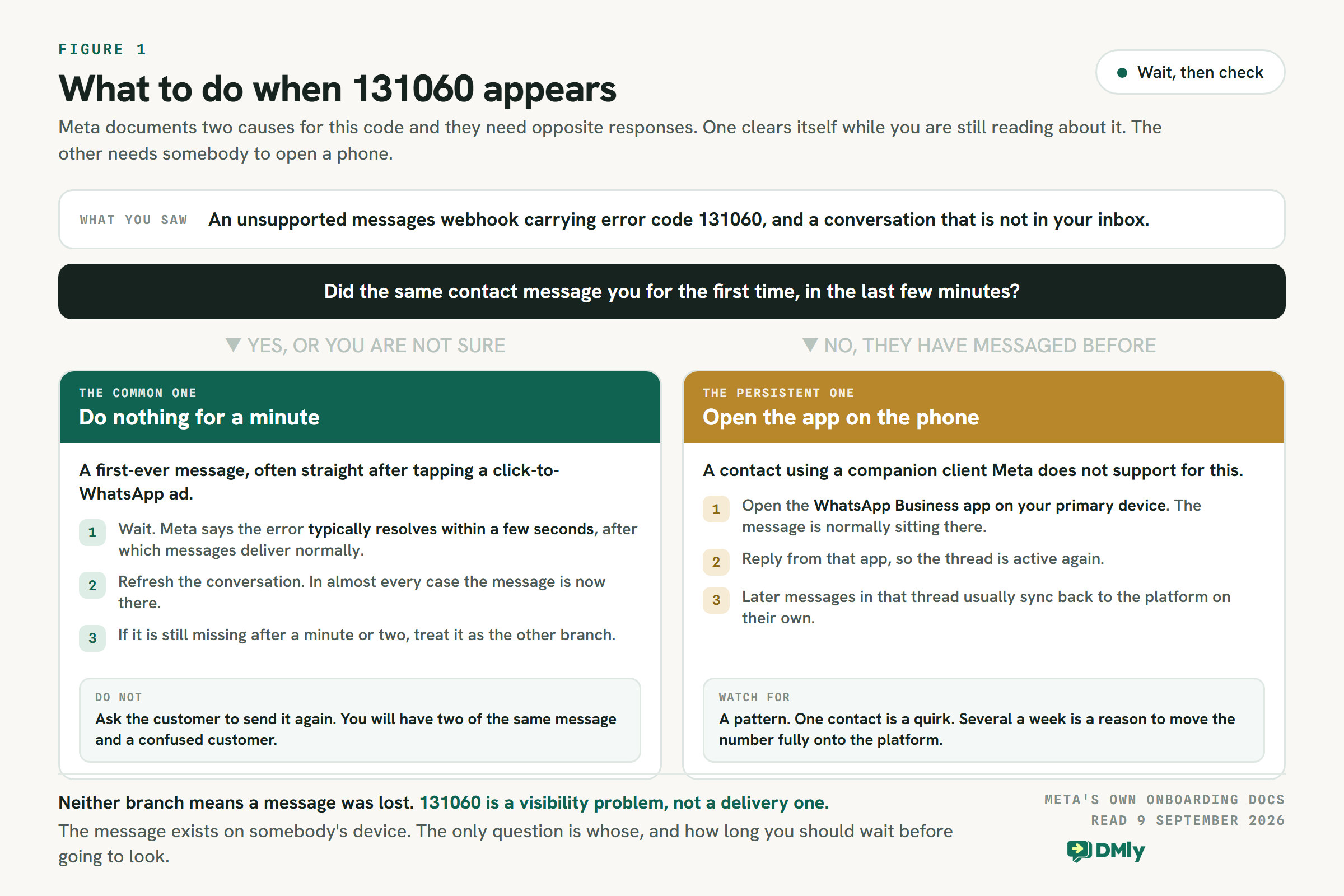
- Somebody messaged you for the first time. Meta names this explicitly and adds that it is “especially common when users tap one of your ads that click to WhatsApp and immediately send a message”. If you run click-to-WhatsApp ads, this is almost certainly the one you are seeing.
- Somebody used a companion device Meta does not support. A message sent or received on one of those never triggers the webhook that would mirror it into your platform.
The first one fixes itself. Meta’s wording is that “the error typically resolves within a few seconds, after which WhatsApp delivers messages normally”. So the correct first response to 131060 is to do nothing at all for a minute and then refresh. The second one does not resolve on its own, and that is where the manual step below comes in.
Which Companion Devices Are Actually the Problem
A companion device is any extra device linked to a WhatsApp account: a browser tab, a laptop app, a second phone, a watch. Most advice about 131060 tells you the culprit is WhatsApp Web. That is wrong, and it sends people to argue with customers about the one client that is fine.
Meta’s wording is that all companion clients are supported except WhatsApp for Windows and WhatsApp for WearOS. Two named exceptions, and the browser is not one of them.
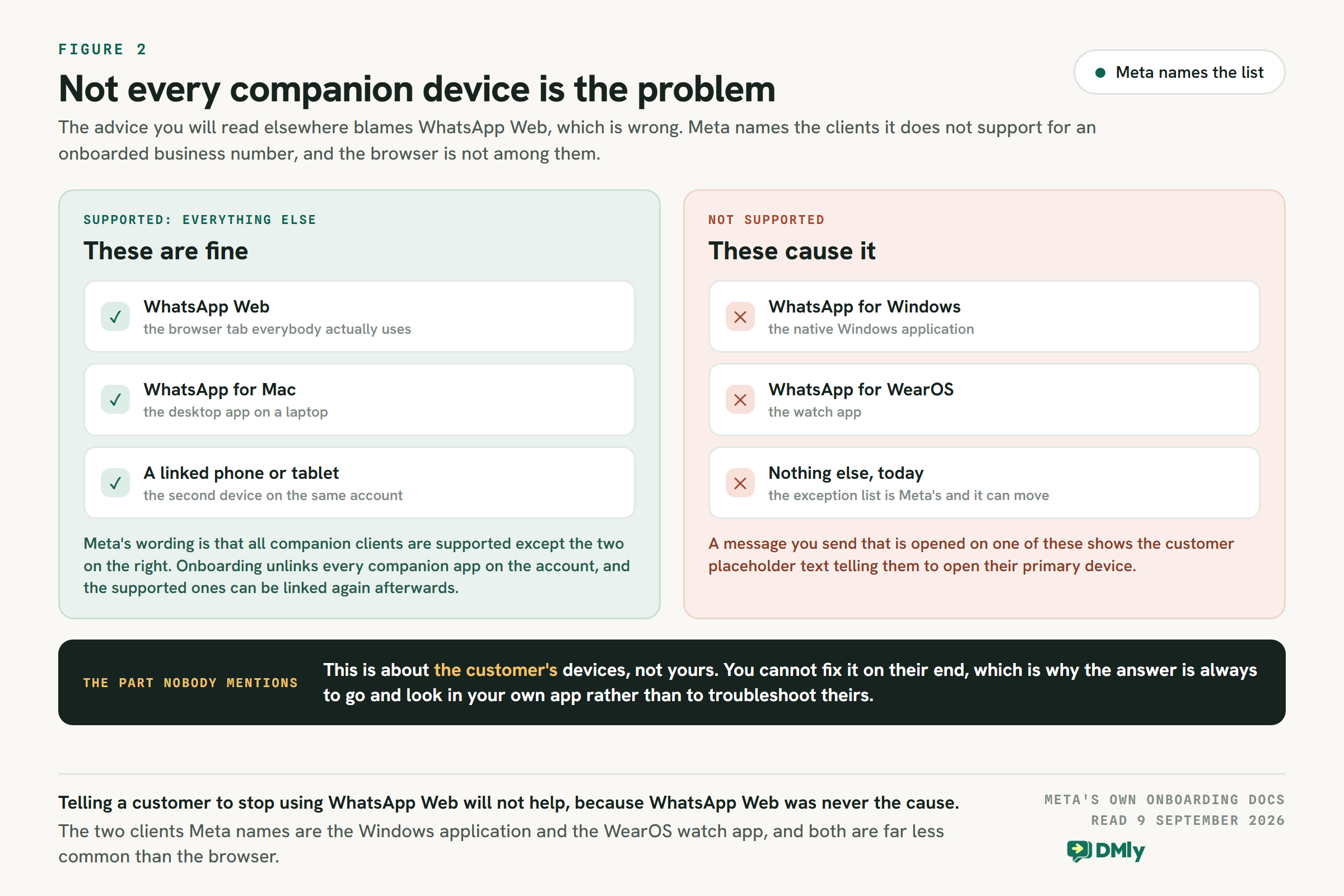
Two consequences worth holding on to. This is about the customer’s devices, not yours, so there is nothing on your side to reconfigure. And a message you send that is opened on one of those two clients shows the customer placeholder text asking them to open their primary device, which explains the occasional “I can see you sent something but I cannot read it” reply.
How to Resolve It, in Order
Step 1: Wait a Minute and Refresh
Genuinely. If the contact is new, or you are not sure, this is the whole fix. Refresh the conversation after a minute and in almost every case the message is there. Do not ask the customer to send it again. When the original arrives you will have two copies of the same message and a customer who thinks you were not paying attention.
Step 2: Open the WhatsApp Business App on the Main Phone
If the message is still missing, it is the companion-device branch, and the fix is not in your platform at all. Open the WhatsApp Business app on the primary device. The message is normally sitting there in the thread, exactly as the customer sent it.
Step 3: Reply From That App, Then Let It Settle
Answer from the app so the conversation is live again. Later messages in that thread usually sync back to the platform on their own. It is a workaround rather than a repair, but the alternative is a customer waiting on an answer that nobody can see.
Step 4: Count How Often This Happens
One contact a month is a quirk of somebody’s watch. Several a week means a share of your inbox is invisible to whoever is meant to be answering it, and the honest answer at that point is to move the number fully onto the platform rather than keep two systems half-aware of each other.
What Coexistence Does to Companion Devices
There is a detail in the onboarding process that explains why this error is a Coexistence story rather than a general WhatsApp one. When a business onboards its existing WhatsApp Business app number to the Cloud API, every companion app on that account is unlinked, and the supported ones can then be linked again.
That is worth knowing on the day you switch, because the laptop somebody on your team relies on stops working until they re-link it, and nobody warns them. It is one of several things Coexistence quietly turns off, along with broadcast lists, disappearing messages, view once and live location. We went through the full list, and what happens to your chat history, in the WhatsApp Coexistence guide.
How to See It Less Often
You cannot eliminate 131060, because it depends on what devices your customers use and on Meta’s own timing. You can make it a non-event.
- Tell your team what it means. The single biggest cost of this error is somebody assuming a message was lost and escalating. One sentence in your handover notes prevents it.
- Keep the WhatsApp Business app to hand. While you are running Coexistence, that app is part of the system rather than a legacy thing nobody opens. Meta also disconnects a primary device that goes unopened for roughly two weeks, so somebody should be looking at it anyway.
- Expect a burst after an ad goes live. If the first cause is the common one, and it is, then a click-to-WhatsApp campaign is exactly the moment you will see a run of these. That is the system working, not a campaign failing. There is more on that ad format in the click-to-message ads guide.
- Reduce the number of layers. Every extra device between a customer’s message and the person answering it is another place for something to sit unseen. A number running fully on the API, with the team in one shared inbox, does not produce this error at all.
Questions People Ask About Error 131060
Has the message been lost?
No. 131060 says a message could not be mirrored to the API, not that it failed to arrive. It is on a device somewhere, which is why the fix is to go and look rather than to ask for a resend.
Is my WhatsApp number at risk?
No. This is not a quality or policy signal and it has no bearing on your messaging limits or your rating. It is a synchronisation gap between two systems that share one number.
Should I tell customers to stop using WhatsApp Web?
No, and it would not help. Meta supports every companion client except WhatsApp for Windows and WhatsApp for WearOS, so the browser was never the cause. In any case you cannot control what a customer uses, which is why every route out of this runs through your own app.
Will this stop if I leave Coexistence?
Yes. A number running fully on the Cloud API, with no WhatsApp Business app alongside it, has nowhere for a message to sit unseen. Be aware that switching a number between modes means disconnecting and reconnecting it rather than flipping a setting, so it is a planned change rather than a quick one.
Why does it happen more after I launch an ad?
Because a click-to-WhatsApp ad produces exactly the situation Meta names first: a person messaging your business for the very first time, immediately after tapping. Meta calls that out specifically. Those clear in seconds.
The short version: wait a minute, then check the phone. If you are seeing this often enough to have looked it up twice, the problem is not the error, it is running two systems on one number. Start a 7-day DMly trial, no card and no code, and put the whole inbox in one place.
Writing about WhatsApp automation, bookings and growth for local business.
Turn WhatsApp into your busiest channel.
Start free and run message, bookings, payments and reviews in one place.
