
Shared Team Inbox for WhatsApp: Seats, Assignment, and Response Times
Two of your team open the same conversation at roughly the same time. One quotes the standard price. The other, who remembers the customer, offers the returning-client rate. Both replies send. The customer now knows something about your business that you would rather they did not, and neither colleague has done anything wrong. This is the moment a shared team inbox for WhatsApp earns what it costs.
That collision is the specific problem a shared team inbox for WhatsApp exists to solve, and it is worth being precise about how it solves it, because the answer is not really the shared list. It is ownership. One conversation, one named person, visible to everyone, with rules about how ownership moves and a way to measure whether the owner actually replied.
This guide covers the three things that decide whether a shared inbox works in practice: who occupies a seat and what they can see, how a conversation gets an owner and how ownership moves, and exactly how response times are measured, which turns out to be more particular than most teams assume.
What a Shared Team Inbox for WhatsApp Actually Changes
It replaces an implicit convention with an explicit record. Before, whoever saw the message first probably answered it, and everyone hoped that worked. After, every conversation has a named owner, a status, and a history that survives someone being off sick.
Four things change concretely:
- Everyone can see everything. Assignment does not hide anything. It changes filters, notifications and webhooks, not access. Any teammate with Inbox access sees every conversation regardless of who owns it, which is the shared-visibility model our omnichannel inbox guide sets out.
- The customer sees nothing. No assignment information reaches them. Handovers are internal furniture.
- Context stops living in someone’s head. Internal notes attach to the thread, so the next person opens the conversation and the context is already there.
- Performance becomes measurable per person, which is useful and also a thing to introduce carefully.
The team inbox is where all of this lives, and the rest of this guide is about configuring it so that it helps rather than merely records.
Who Consumes a Seat in a Shared Team Inbox?
Three different things count against your seat limit, and only one of them is obvious. This is the most common billing surprise in a growing workspace, so it is worth knowing before you hit it.
- Members who have joined. The obvious one.
- Pending invitations that were never accepted. An invite you sent in March to someone who never clicked it is still holding a seat today.
- Unlinked appointment staff without login credentials. The stylist you added to the calendar so bookings could be assigned to them, who has never logged in and never will, is occupying a seat.
When you run out, the interface says Members limit reached, and the fix is usually not an upgrade. It is a five-minute audit: cancel the stale invitations, and check the staff list under Appointments for people who exist only as calendar entries. Most workspaces recover two or three seats that way.
Invitations go out by email from Workspace Settings and then Team Members, an area only admins can reach. Nobody creates an account on someone else’s behalf; each person owns their own password. A pending invitation can be cancelled but its role cannot be changed, so if you invited someone as the wrong role, cancel and re-invite. Removing a member takes effect immediately and they lose access straight away. The workspace owner is the exception: admins cannot remove the owner, and transferring ownership needs support.
Roles and What Each One Can See
There are three base roles, and they are broad rather than granular by design.
| Role | Can do | Typical use |
| Admin | Access and edit everything, including settings, billing and the team itself | Owner, operations lead |
| Member | Everything except the configuration section: inbox, contacts, appointments, campaigns | The default for staff who answer messages |
| Viewer | Read-only across the whole workspace, including Appointments, Offerings, Finance and Reputation | An accountant, a consultant, an owner who does not want to break anything |
On top of the base roles sit a set of fine-tuning controls, available when you are using base roles rather than custom ones. They are worth reading properly because two of them solve real problems that businesses usually solve badly:
- Can approve broadcasts. Separates the person who writes a campaign from the person who lets it out of the building. If you have ever sent something to four thousand people that should have had a second pair of eyes, this is the control you wanted.
- Mask contact phone numbers and Mask contact email addresses. Staff can work the conversation without being able to read or export the customer’s contact details. For a business with seasonal staff, temporary agency cover or a high-turnover front desk, this is the single most useful setting in the workspace.
- No Inbox, Appointments, Broadcast, Automation or Report module access. Five separate switches for hiding whole areas from someone who has no business in them.
The practical default for most small teams is Member plus masking for anyone who is not permanent, with broadcast approval held by one or two people.
How Does a Conversation Get an Owner?
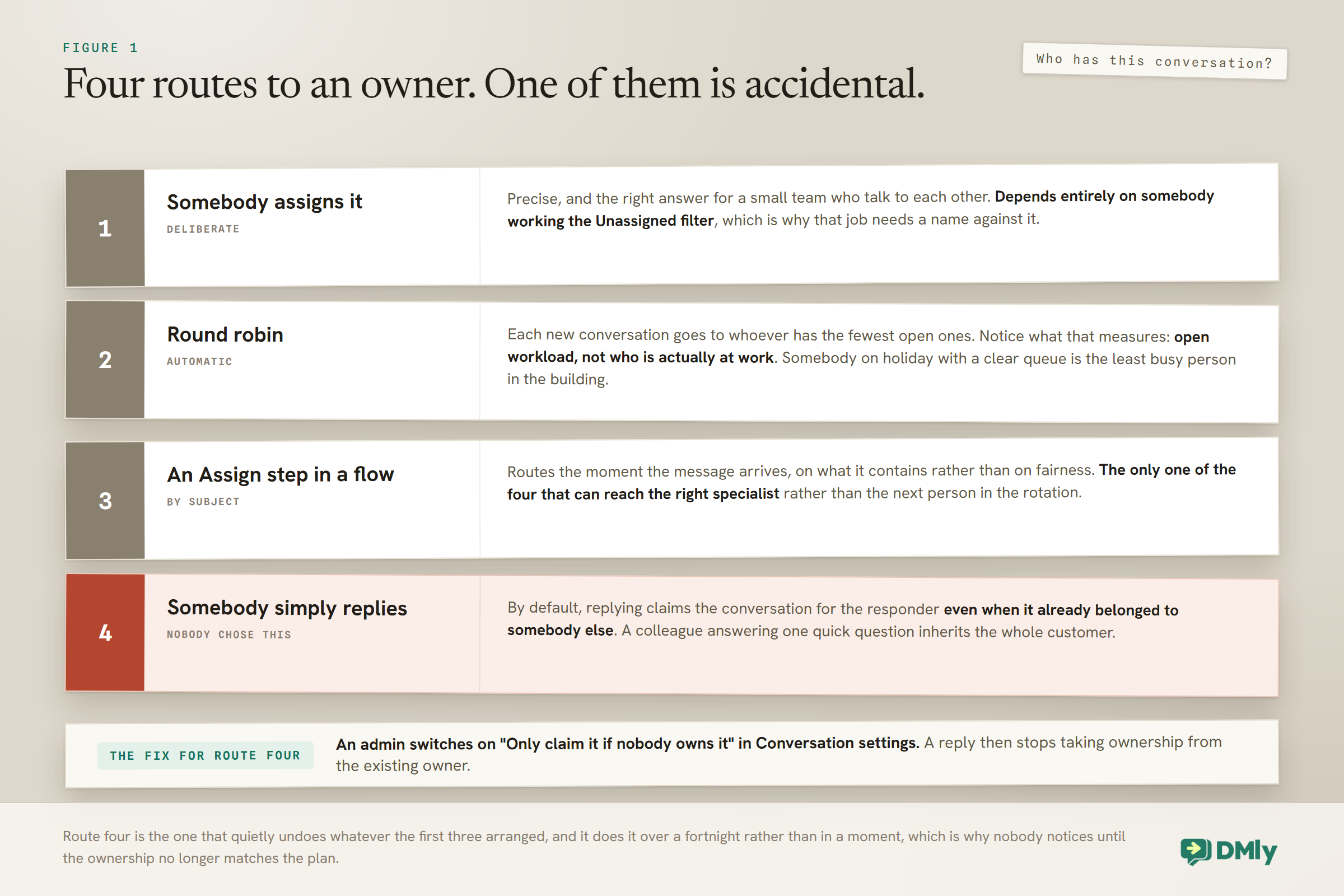
There are four routes, and they behave differently enough that you should pick one as your primary and know what the others do.
1. Manual assignment
The Assigned to dropdown in the conversation details panel. Only workspace members appear in it. This is the triager’s tool and it is the most deliberate route. It creates an in-app bell notification linking to the thread and fires the conversation.assigned webhook, so it is also the only route your integrations will reliably hear about.
One thing to internalise before you use it: assignment is contact-based. Assigning one conversation assigns every thread with that contact, across every channel. The customer’s WhatsApp thread, their Instagram thread and their comment thread all move together. That is almost always what you want and it surprises everyone the first time. Our guide to running the three Meta channels in one inbox covers what that means when you are working several channels at once.
Reassigning to the person who already owns it, or unassigning, happens silently: no notification, no webhook.
2. Round robin
The workspace setting is Give new conversations an owner, and it is off by default, with the default being Leave them unassigned. Switch it to round robin and each new conversation goes to the teammate with the fewest Open conversations. Note that word: Open, not total. Someone diligent about marking conversations done will receive more work than someone who is not, which is a small perverse incentive worth being aware of.
The important limit: round robin fires only on the first inbound message from a new contact. It is a distribution mechanism for new people, not a load balancer for your day. It sends a bell notification naming the source but does not fire conversation.assigned.
3. From a flow
An Assign node or a human handover node sets the owner inside an automation. The human handover node also drops an explanatory note into the thread, pauses bot replies by default, and tells the contact that someone will respond shortly. This is the right route when the assignment depends on something the flow knows, such as the service the customer asked about. Bell notification, no webhook.
4. By replying
The quiet one, and the one that causes the most confusion. When a teammate replies, the conversation reassigns to them, with no notification to the previous owner, no bell and no webhook. It just moves.
This is governed by Who owns the conversation after a reply, which defaults to Whoever replied last. The alternatives are Only claim it if nobody owns it, which is the right choice for a team using a triager, and Replying never changes the owner, which suits a team where a supervisor frequently drops into other people’s conversations.
If your team has ever said that conversations keep moving to the wrong person, this setting is the answer and nobody has changed it.
Triager or Round Robin?
Small teams should almost always use a triager; larger ones should use round robin with a triager watching the queue.
The triager pattern is one person clearing the Unassigned filter, giving each conversation to whoever should handle it, and getting on with their own work. It costs ten minutes a morning and it produces better allocation than any rule, because a human knows that the customer asking about the wedding package should go to the person who did their sister’s wedding, particularly when the contact record carries the tags and notes that say so.
To make it work, set Who owns the conversation after a reply to Only claim it if nobody owns it. Otherwise the triager’s own replies will silently pull conversations back to them and the queue will look wrong.
Round robin earns its place when volume outgrows attention, or when nobody is reliably available to triage. Because it fires only on the first inbound from a new contact, it will not rebalance an existing conversation, so it distributes new relationships rather than workload. Pair it with someone checking Unassigned anyway, because anything that is not a brand new contact still lands there.
How a Shared Team Inbox Measures Response Time
Far more precisely than most teams assume, and the precision has consequences for how you read the numbers. The team performance report shows five cards for the whole team: Assigned, Closed, Replies, Avg first response and Avg resolution. The per-agent breakdown adds Contacts, meaning the distinct contacts that agent replied to.
The two time metrics are defined narrowly:
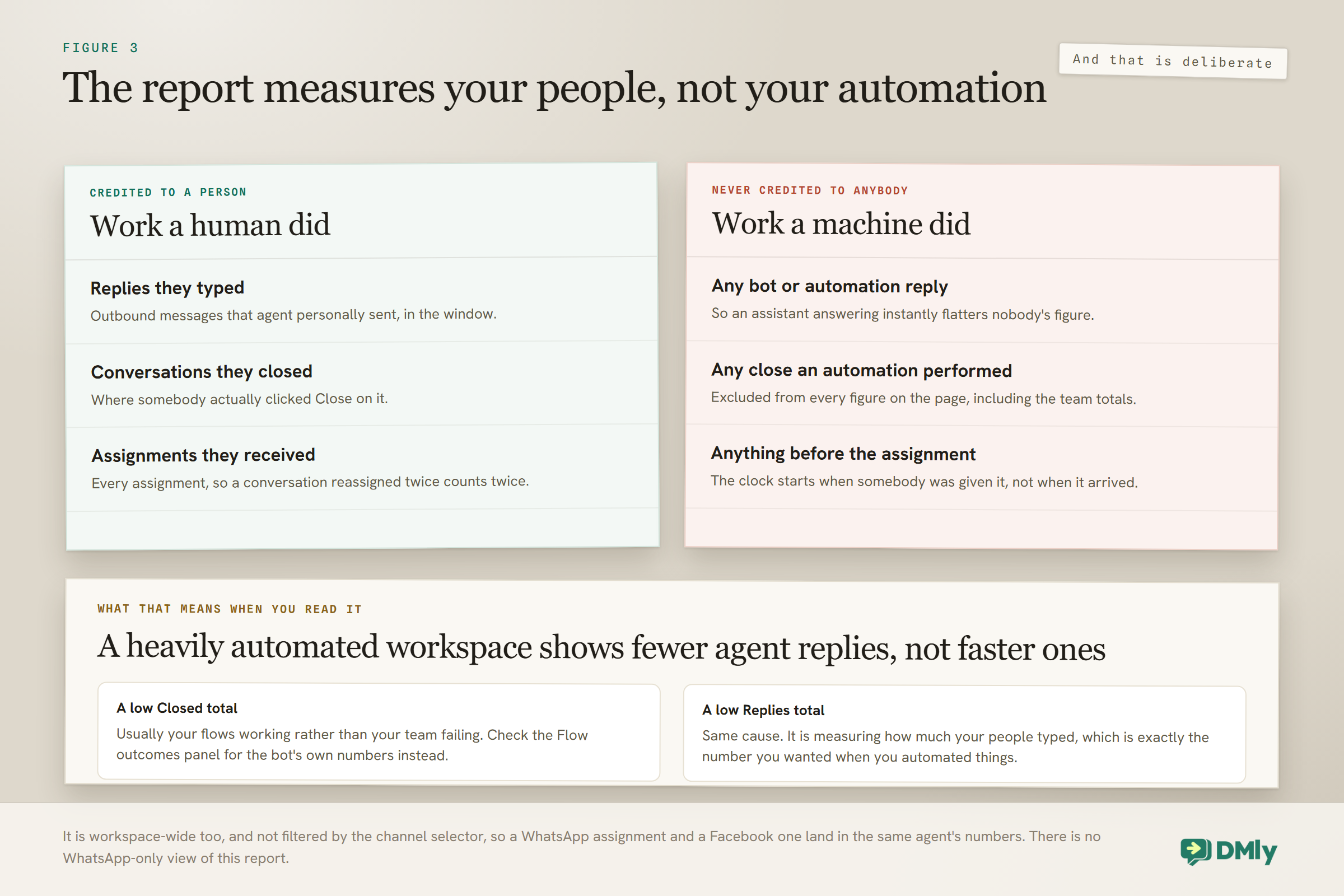
- Avg first response is how long it took an agent to send their first reply after a conversation was assigned to them, counting only replies sent before that conversation moved to someone else.
- Avg resolution is how long a conversation stayed open before that agent closed it, measured from whichever is later: the assignment that gave it to them, or the last time it was reopened.
Three consequences fall out of those definitions, and each one changes how you should read a report:
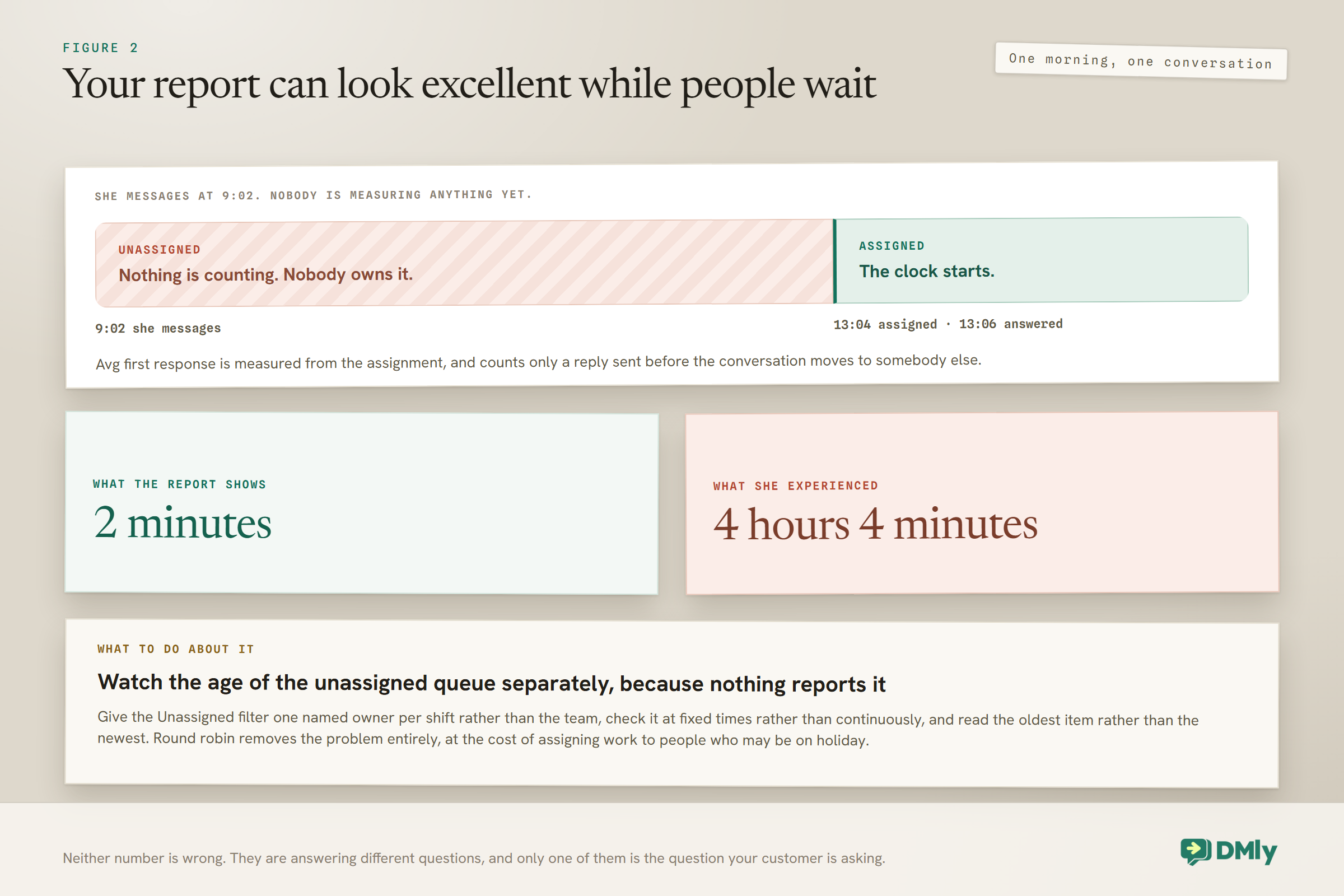
- First response is measured from assignment, not from arrival. A conversation that sat unassigned for four hours and was answered two minutes after assignment shows a two-minute first response. Your report can look excellent while your customers are waiting. Watch the age of the Unassigned queue separately.
- A reassignment before a reply erases that attempt. Only a reply landing before the next reassignment counts. If conversations bounce between people, first response numbers get thin and strange.
- A reopened conversation restarts the resolution clock. The measurement runs from the reopen, not the original assignment, so a long-running issue that reopens twice produces three short resolutions rather than one long one.
Two exclusions matter as well. Only outbound messages the agent personally sent count as a response: bot and automation replies are excluded entirely, which is correct and means a heavily automated workspace will show fewer agent replies rather than faster ones. And conversations closed by automation rather than by hand are not credited to any agent.
Two scope details are worth holding on to. The report is workspace-wide and is not filtered by the channel selector, so a WhatsApp assignment and a Facebook assignment both count toward the same agent’s numbers, and you cannot get a WhatsApp-only view of it. And Assigned counts every assignment rather than every conversation, so a conversation that bounced between two people twice contributes twice, split across whoever received it.
The default window is the trailing 30 days, with custom From and To dates available. Agents with no activity in the window simply do not appear in the per-agent table, and a removed teammate shows as User # with their past activity still counting toward team totals. Exports come as CSV with one row per agent, a formatted PDF, or a workspace report that also covers CSAT and Appointments, plus Finance if you have access.
The Number the Report Cannot Show You
Everything a shared team inbox reports starts at the moment a conversation was assigned, which means the most dangerous delay in your business is invisible to it. A message that arrives at nine and sits unassigned until one has an excellent first-response time, provided somebody answers it quickly after that.
There is no report for the age of your unassigned queue. So you need a habit instead, and it needs to be somebody’s named job rather than a shared intention.
- Give the Unassigned filter one owner per shift. Not the team. One person, by name, whose job is to empty it. Shared responsibility for a queue is how a queue grows.
- Set the check at fixed times rather than continuously. Three times a day, at times everyone knows, beats an intention to keep an eye on it.
- Read the oldest, not the newest. A queue is only as good as its oldest item, and the newest ones are the ones people naturally answer first.
Two structural things reduce the size of the problem rather than managing it. Round robin assigns each new conversation to whoever has the fewest open ones, so nothing sits unassigned at all, at the cost of assigning to people who may be on holiday. And an Assign step in a flow routes by subject the moment a message arrives, which is the right answer when a specific kind of enquiry always belongs to one person.
And one behaviour that quietly redistributes your team’s work: By default, replying to a conversation assigns it to you, even when it already belonged to somebody else. So a colleague answering one quick question inherits the whole customer, and your carefully balanced ownership drifts over a fortnight. If that is not what you want, an admin can switch on Only claim it if nobody owns it in Conversation settings, after which a reply stops taking ownership from the existing owner.
Setting a Response Time Target That Means Something
On WhatsApp, response time is not a service-quality metric. It is a deliverability metric, because the 24-hour window closes and takes your ability to reply freely with it. That gives you a natural, non-arbitrary target rather than a number picked from a benchmark.
A workable set of targets for a small team:
| Measure | Target | Why that number |
| Unassigned queue age | Under 1 hour in working hours | This is the number your report does not show you |
| First response, in hours | Under 30 minutes | Fast enough that the customer is still on their phone |
| First response, out of hours | Answered by automation, human by mid-morning | Keeps the window open without pretending you are staffed at midnight |
| Anything approaching 20 hours old | Answered today, without exception | Four hours of margin before the window shuts |
| Resolution | Whatever your work actually takes | A resolution target invites people to close conversations early |
That last row is deliberate. Resolution time is the easiest metric in the building to game, and the way people game it is by marking conversations done before the customer is done. Watch it, do not target it. If you want the wider picture of what is worth tracking, we set it out in the metrics guide. The window mechanics behind the 20-hour rule are in the 24-hour window guide.
Stopping Collisions
Ownership is what a shared team inbox for WhatsApp gives you, and it prevents most double-answering. Three things prevent the rest.
Typing indicators show when a colleague is composing on the same thread. Cheap, effective, and the last line of defence when two people open the same conversation in the same minute.
At-mentions instead of reassignment. When you need a colleague’s input but not their ownership, mention them. Reassigning to ask a question moves every thread with that contact and muddles your response times.
The bot pause. The most common collision is not two humans, it is a human and the assistant. The workspace default pauses the bot and the running flow when a teammate replies, and keeps it paused until someone resumes it. If you are seeing double replies, that setting has been changed. We cover the full behaviour, including the quiet-period option, in the guide to pausing AI when a human takes over.
Covering the Hours Nobody Is Working
A shared inbox does not create staff, and the honest answer to nights and weekends is a combination of automation and expectation-setting rather than pretending someone is there.
The reason this matters more on WhatsApp than on email is arithmetic. A message arriving at seven on Friday evening has a window that closes at seven on Saturday evening. If nobody works Saturday, that conversation is template-only by the time anyone opens it on Monday, and a template is a worse instrument than a reply.
Three practical layers, in order of effort:
- An out-of-hours reply that says something true. Not we will get back to you shortly, which is false at nine on a Friday night, but a message naming when you actually open. Customers forgive a wait they were told about.
- Automation that does the easy work. Prices, hours, directions, the booking link. On a Saturday this is not a downgrade from a human; for those questions it is better than one, because it is instant.
- A first-thing routine on the next working morning that goes oldest first. This is the only reliable defence against the Friday-evening window, and it works because the oldest conversations are the ones closest to closing.
If your trade genuinely needs weekend cover, round robin plus a single person on a rota beats everyone half-watching. A conversation owned by one named person on a Saturday gets answered; a conversation owned by the whole team does not.
The Limit You Will Meet When You Get Busy
The conversation list shows the 100 most recent conversations and there is no paging. For most teams this is invisible. For a busy WhatsApp number it is a real operating constraint, and it changes how people work: finding an older conversation is a search or a filter, never a scroll.
Teams that hit this usually conclude something is broken, then start keeping notes elsewhere, which defeats the point of the shared inbox. Teach it early. Combine the assignee filter, the channel pills, tags and Unread only and you can construct any working view you need without scrolling for it.
The related habit is marking conversations done. An Open folder that only grows stops carrying information, and because round robin distributes by fewest Open conversations, a team that never closes anything also breaks its own distribution.
Onboarding a New Agent Into a Shared Team Inbox
- Invite as Member, not Admin. Admin is for people who change settings, not people who answer messages.
- Apply masking if they are temporary, seasonal or agency. Phone and email masking are separate switches.
- Show them the three views: Open assigned to me, Open unassigned, and Comments.
- Explain that replying takes ownership, or that it does not, depending on what you set. This is the single most confusing behaviour for a new starter.
- Show them Mark as done and explain why it matters for distribution.
- Show them notes and mentions, and make it clear that internal notes never reach the customer and never reach the AI.
- Give them the 20-hour rule for WhatsApp. It is the only deadline in the inbox that the platform enforces.
Mistakes Worth Avoiding
- Paying for seats held by stale invitations and calendar-only staff. Audit before you upgrade.
- Leaving reply-ownership on the default while running a triager model. The triager’s own replies will steal the queue back.
- Expecting round robin to balance workload. It fires only on the first inbound from a new contact.
- Reading Avg first response as customer wait time. It starts at assignment, so an unassigned backlog is invisible in it.
- Targeting resolution time. You will get faster closes, not faster help.
- Giving everyone Admin. Member does everything an agent needs.
- Reassigning in order to ask a question. Mention instead; reassignment moves every thread with that contact.
Frequently Asked Questions
How many people can use a shared team inbox for WhatsApp?
As many as your plan’s seat limit allows. Remember that three things consume a seat: joined members, pending invitations that were never accepted, and unlinked appointment staff who have no login. When you see Members limit reached, audit those before upgrading.
Can I stop staff from seeing customer phone numbers?
Yes. Mask contact phone numbers and Mask contact email addresses are separate access controls available on the base roles. Staff can work the conversation without being able to read or export the contact details.
Why do conversations keep moving to whoever replied last?
Because that is the default. The setting is Who owns the conversation after a reply, and the alternatives are to claim only unowned conversations, or for replying never to change the owner at all. Change it to match how your team actually works.
Does assigning a conversation hide it from everyone else?
No. Assignment changes filters, notifications and webhooks, not access. Everyone with Inbox access sees every conversation regardless of ownership, and the customer sees nothing about assignment at all.
How is first response time calculated?
From the moment a conversation was assigned to an agent to their first reply, counting only replies sent before it moved to someone else. It does not start when the customer’s message arrived, so a slow Unassigned queue does not show up in it.
Do bot replies count toward response time?
No. Only outbound messages an agent personally sent count. Bot and automation replies are excluded, and conversations closed by automation are not credited to any agent.
What happens to the numbers when someone leaves?
Their past activity still counts toward team totals and they appear in the report as User # followed by an identifier. Agents with no activity in the selected window do not appear in the per-agent table at all.
Configure Ownership Before You Grow
The shared list is the easy part of a shared team inbox for WhatsApp, and every tool has one. What decides whether a team inbox works is a small number of settings that most workspaces never open: who owns a conversation after a reply, whether new conversations get an owner automatically, and whether a human reply pauses the bot.
Set those three deliberately, run an Unassigned queue that someone owns, and read the response-time report knowing what it does and does not measure. That is genuinely most of it, and it takes an afternoon rather than a project.
Writing about WhatsApp automation, bookings and growth for local business.
Turn WhatsApp into your busiest channel.
Start free and run message, bookings, payments and reviews in one place.
