

Almost everyone arrives here hunting for one field. Something that says deposit: 25 per cent, sitting on the service next to the price, taking a quarter up front and the rest on the day. It is such an obvious thing to want, and it does exist, but only on one kind of service, which is why people miss it.
Here it is. The Deposit field only appears on a service set to Pay before booking. Type a percentage from 1 to 99 and the booking page charges just that share up front, with the rest due at the appointment; leave it blank and the full price is charged. That field is the first of three ways to take appointment deposits, and the other two still earn their place for regulars and quoted work.
This guide covers everything appointment deposits actually involve: what the three payment modes really do for you, the fifteen minutes after somebody clicks pay when almost nothing happens, the deposit field and the two other deposit methods, and what each one costs you, gateways, tax, and the refund behaviour that catches every business exactly once.
The one that catches everybody, said early: The Refund button in DMly is bookkeeping only. It marks the payment refunded in your records and never contacts your payment provider, so no money moves. You refund in Stripe, PayPal or whoever you use, then mark it in DMly so the two agree. Nobody reads this in advance and everybody meets it once.
The Three Payment Modes Behind Appointment Deposits
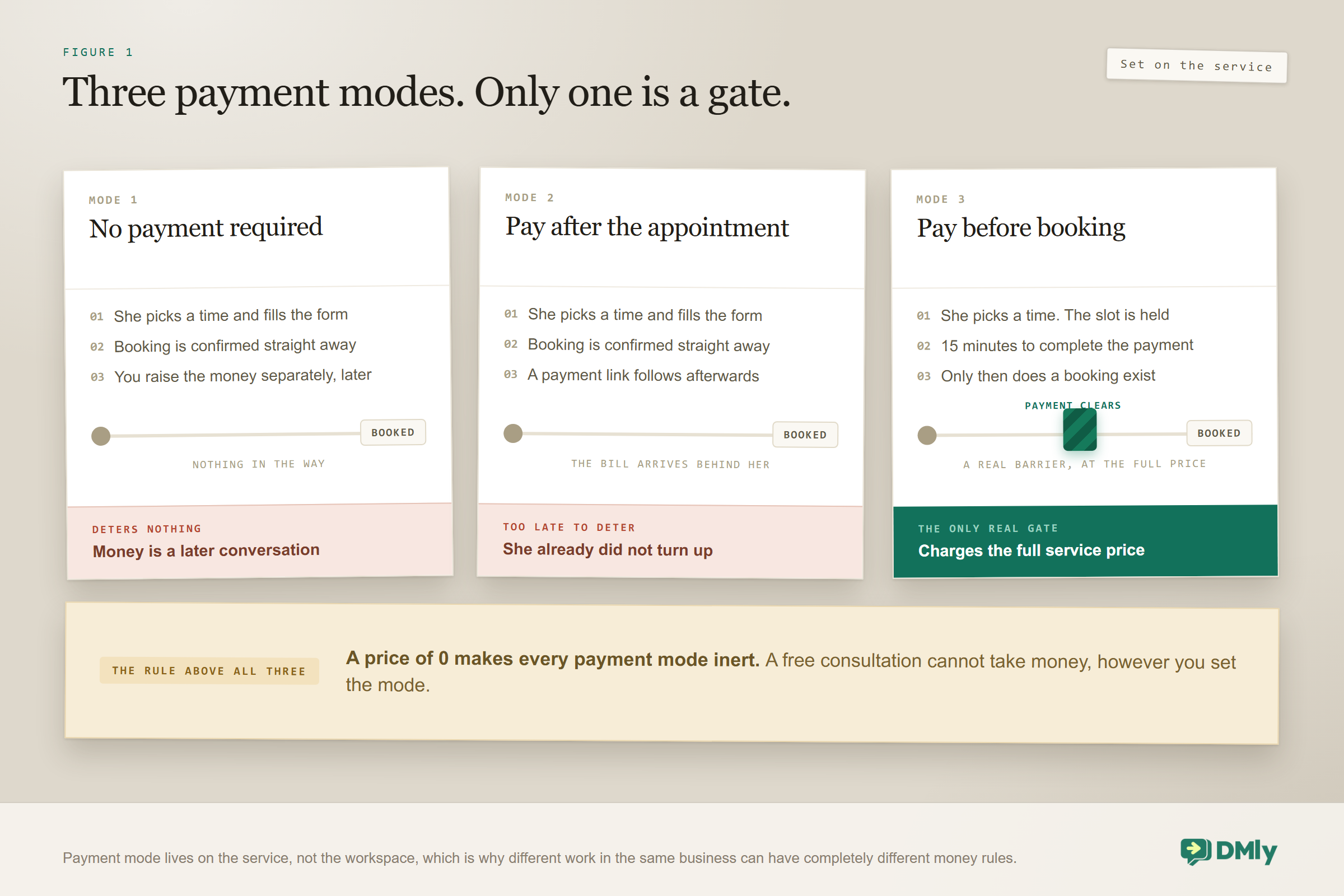
Payment mode decides whether money is a condition of the booking or an afterthought, and you set it on the service rather than on the appointment. There are three, and they are not three strengths of one idea. They are three different products.
| Mode | What happens | Does it stop a no-show? |
| No payment required | The default. The booking confirms straight away and the money is a separate conversation | No |
| Pay after the appointment | The booking confirms first, then a payment link follows | Barely. They have already not turned up |
| Pay before booking | The slot is held for 15 minutes and becomes a real booking only when the payment clears | Yes. This is the only one that does |
One rule sits above all three: a price of 0 makes every payment mode inert. A free consultation cannot take money however you set the mode. Obvious once said, quietly baffling when you are staring at a service that stubbornly refuses to charge anybody.
Payment mode lives on the service, under Offerings and then Services, next to the price and the tax rate. That location is the whole trick, as you will see: because money rules live on services rather than on your workspace, different work can have completely different rules, and that is what makes a deposit possible at all.
The Fifteen Minutes When Almost Nothing Happens
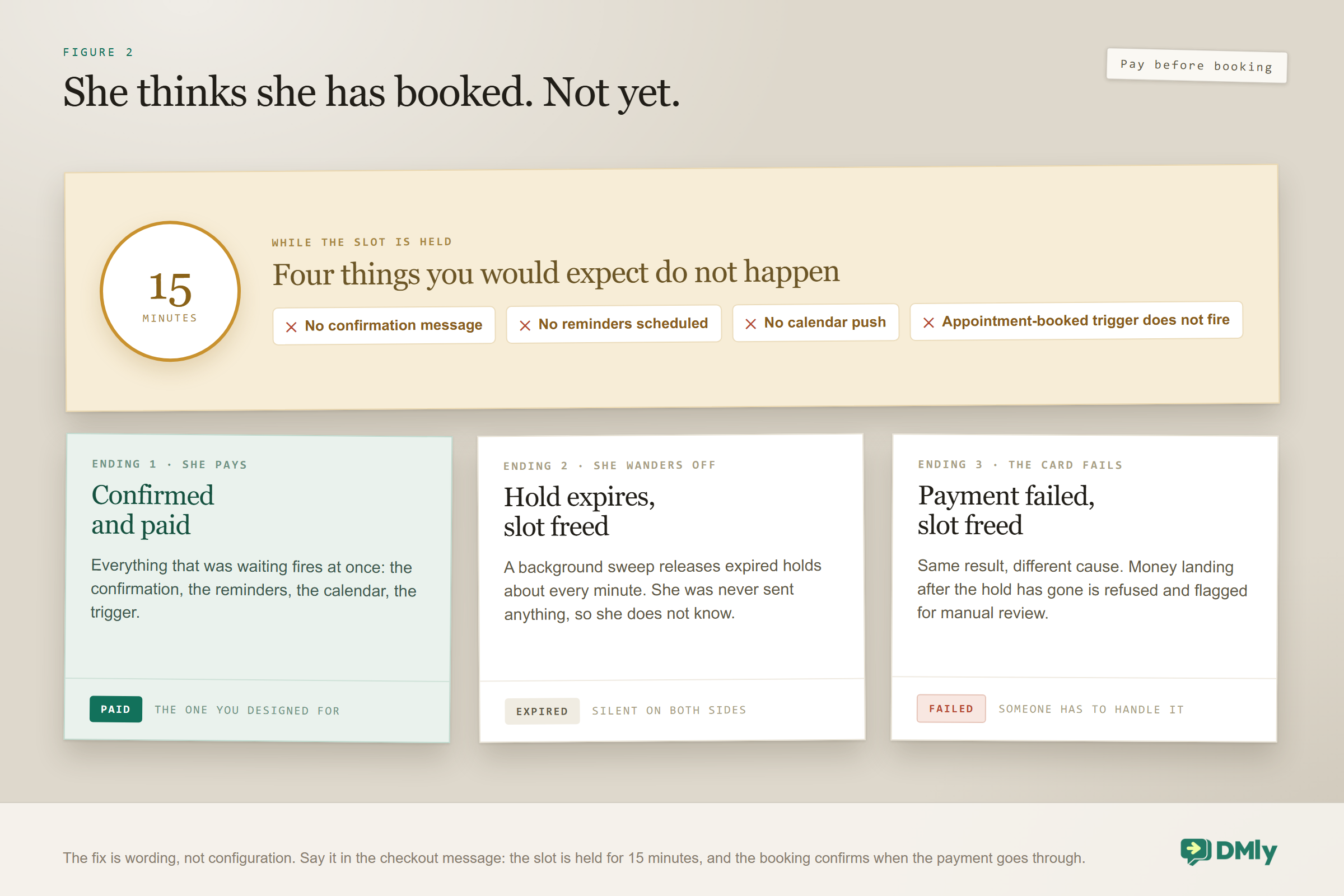
Pay before booking holds the slot for fifteen minutes, and during those fifteen minutes your customer thinks they have booked and your system does not agree. This is the most surprising behaviour in the whole appointments system, and building around it without knowing it produces some strange conversations.
While the hold is running, none of this happens:
- No confirmation message goes to the customer.
- No reminders are scheduled.
- No calendar push, so it does not appear on a connected calendar.
- The appointment-booked trigger does not fire, so nothing you built on it runs.
All of it waits for the payment to clear. If the fifteen minutes pass unpaid, the hold expires, the booking is marked expired and the slot is freed automatically, with a background sweep releasing expired holds about every minute. A failed payment frees the slot the same way.
The practical fix is wording, not configuration. A customer who has chosen a time and reached a checkout believes she is finished. Tell her she is not, in the message that takes her there: your slot is held for 15 minutes and the booking is confirmed as soon as the payment goes through. Somebody told that will finish paying. Somebody who assumed she was done will find out at the worst possible moment, which is usually the following Tuesday at ten to nine.
Two smaller behaviours, worth knowing once: The charge uses a price snapshot taken when the slot was held, not the live price, so putting your prices up mid-checkout does not affect somebody already paying. And if a payment lands after the hold has expired and the slot has gone, DMly will not resurrect the booking. It flags it for manual review with a timestamped note, and you sort it out with the customer yourself. Expect that to happen occasionally, and decide in advance who handles it.
Three Ways to Actually Take Appointment Deposits
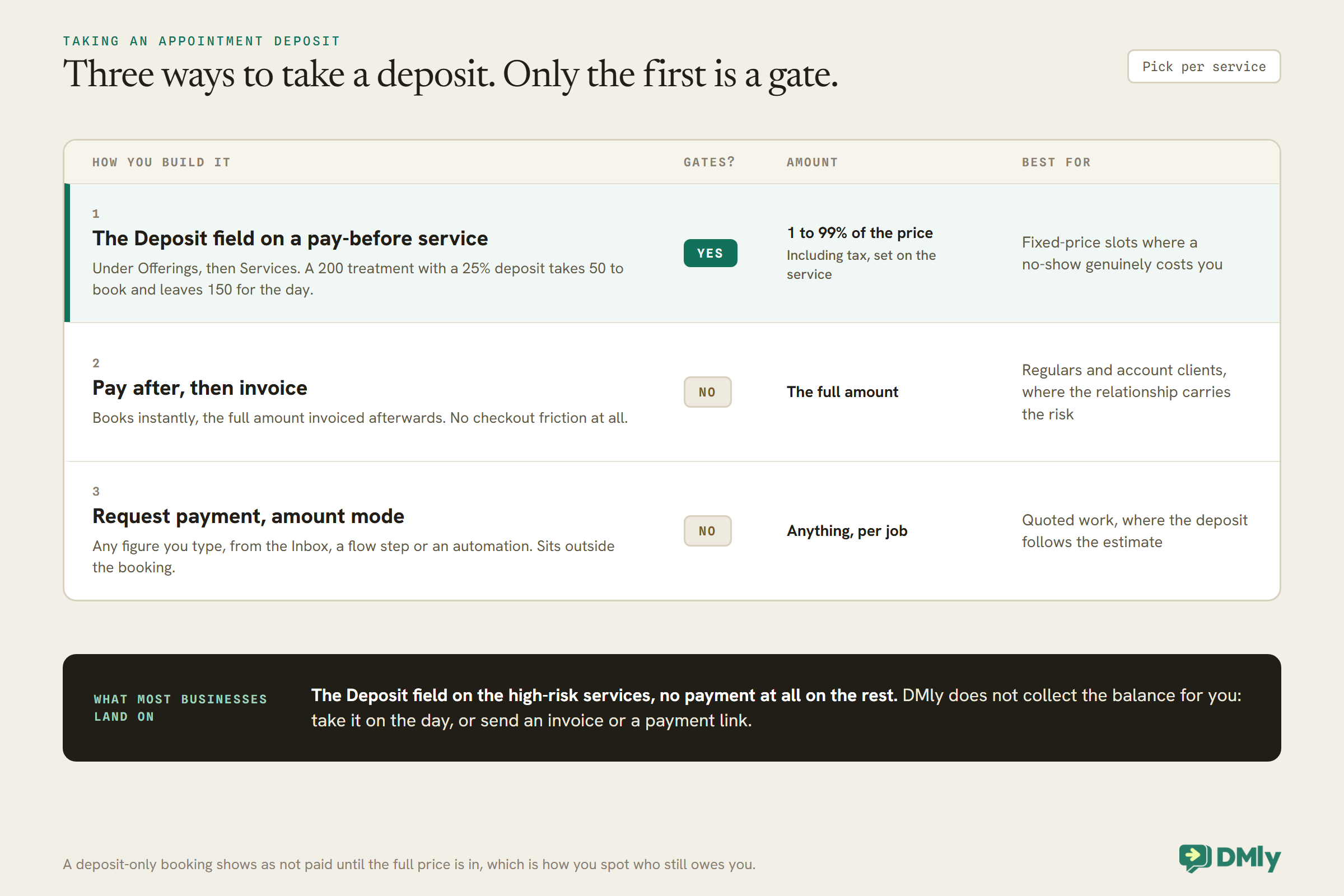
The deposit field is the first way, and the three ways of taking a deposit suit genuinely different businesses. Read all three before choosing, because the obvious one is not always right.
1. The Deposit field on a pay-before service
Set the service to Pay before booking, then type a percentage from 1 to 99 in its Deposit field, under Offerings and then Services. The editor shows the split for you: what the customer pays to book, and what is left to pay at the appointment. The percentage is taken of the full price including tax, and the checkout charges exactly that amount.
So a colour treatment that costs 200 with a 25 per cent deposit takes 50 to book and leaves 150 for the day. DMly does not collect that balance for you: take it at the appointment, or send an invoice or payment link yourself.
This is the field people go looking for, and it is what most businesses settle on. It keeps the real price on the service, so your service list stays honest. Its one quirk is bookkeeping: a booking counts as paid only once the full price is collected, so a deposit-only booking shows as not paid, which is how you spot who still owes you the balance. Refund a deposit and the full price is owed again.
2. Pay after, with an invoice
Set the service to Pay after the appointment, let the booking confirm immediately, and invoice for the whole amount afterwards. Not a deposit at all, strictly, but for established clients it is often the right answer, and it takes every scrap of checkout friction out of the booking.
Use it where the relationship carries the risk: regulars, account clients, the woman who has been coming every six weeks for three years. Do not use it for a first-time booking on your most expensive slot, which is precisely where the money goes missing. Our guide to sending invoices through WhatsApp covers the collection side properly.
3. Request payment, in amount mode
Separately from the booking flow, DMly can send a payment request for any amount you like, from the Inbox, from a step in a flow, or as an automation action. Send payment link has an amount mode that takes whatever figure you type.
That is a genuine deposit mechanism, and it is more flexible than the percentage field, because the amount can follow the job rather than a rule. A wedding photographer quoting 1,800 can ask for 300; the same photographer quoting 600 can ask for 100. A fixed percentage on the service would not let you do that.
The trade is that it sits outside the booking. The appointment confirms whether or not the deposit is paid, so you are relying on a follow-up rather than a gate. Best for quoted work where the deposit is a proportion of an estimate you have just given, rather than for a fixed-price slot on a page.
| Method | Does it gate the booking? | Amount | Best for |
| Deposit field, pay before booking | Yes | A percentage of the price, set on the service | Fixed-price slots where a no-show genuinely costs you |
| Pay after, plus an invoice | No | The full amount | Regulars and account clients |
| Request payment, amount mode | No | Anything, per job | Quoted or variable work |
Most businesses that take appointment deposits seriously end up with the first method on their high-risk services and no payment at all on everything else. That is a better outcome than a blanket policy in either direction, and it is only possible because payment mode lives on the service.
Deposits work best with a written policy. The free cancellation policy generator drafts one with your notice period and fees.
Connecting a Gateway, and the Step Everyone Skips
Appointment deposits collect nothing at all until a payment provider is connected, and there are exactly six DMly can talk to. Stripe, PayPal, Paystack, Razorpay, MyFatoorah and Mercado Pago. If yours is not on that list, taking a deposit through the booking flow is not available to you, and that is a hard limit rather than a setting you have missed. Our guide to setting up payments walks through the connection itself.
Each takes its own credentials, pasted from the provider’s dashboard into Configurations and then Integrations. They are checked when you connect, so a typo fails there rather than at your first real payment.
| Gateway | What you paste in | Worth knowing |
| Stripe | Secret key, webhook secret | Can charge a saved card |
| PayPal | Client ID, client secret, environment, webhook ID | Environment is sandbox or live. Getting it wrong is the classic first mistake |
| Paystack | Secret key | The only one with no webhook secret field |
| Razorpay | Key ID, key secret, webhook secret | Can charge a saved card |
| MyFatoorah | API token, base URL, webhook secret | Can charge a saved card |
| Mercado Pago | Access token, webhook secret | Pay links only. It cannot auto-charge |
The webhook step is not optional, and DMly does not do it for you. After you save the credentials you have to add DMly’s webhook endpoint in the provider’s own dashboard. The gateway tile shows you the URL. Skip it and payments will succeed at the provider and never report back, which looks exactly like nobody paying you, and sends people hunting through the wrong settings for an afternoon.
The second thing to get right is which gateway wins. The Default payment gateway card at Finance, then Settings, then Gateways ships on First connected gateway, and almost nobody changes it. Leave it there and the link is minted on the earliest still-connected gateway. So if you connected PayPal in March to try it and Stripe in June to actually use it, your deposits are going through PayPal until you name Stripe in Charge through, and nothing in the interface is going to mention it.
Tax, Tips and Where the Numbers Come From
Tax on a booking comes from that service’s own tax rate, and falls back to your workspace default. Leave the field blank and the booking uses the default tax rate from your Finance settings, the same fallback invoices use.
That catches people who duplicate a service, for example to keep a version without a deposit for regulars: the copy is a new service, and the tax rate is one of the things you need to check on it. It is a ten-second job that saves a conversation with your accountant.
Tips are worth a mention because they are easy to switch on and easy to misplace. They live under Finance, then Settings, then Invoice, behind a Collect tips at checkout toggle, with presets given as a comma-separated list of whole percentages between 1 and 100. DMly takes up to six, removes duplicates and sorts them for you.
The part that matters here: tips apply to invoice pay links and booking payments only. They do not appear on a Request payment, on a Send payment link in amount mode, on orders or on subscription captures. So if you are taking your deposit by the third route above, no tip prompt is going to appear on it. For a mobile therapist or a hairdresser who does home visits, that is the difference between a tip prompt on every job and none at all, and it is worth choosing your deposit route with that in mind.
The Refund Behaviour That Catches Everyone
Refunding in DMly is bookkeeping. It marks the payment refunded in your records and never contacts your payment provider. No money moves. The customer is still waiting.
This is not a bug, and once you know it the workflow is obvious, but it has to be the right way round: refund in the gateway first, then mark it in DMly. Doing it the other way leaves your records saying the customer has been refunded while your bank says otherwise, and the customer messaging you on Thursday to ask where her 50 is.
Two supporting details. The Issue refunds permission is admin-only by default, which is worth reviewing if the person who actually handles refunds is not an admin. And payment statuses move forward only, along Pending, Failed, Succeeded and Refunded, so a late or out-of-order message from a provider cannot reverse something already marked paid.
Make somebody responsible for the pairing. A five-minute check once a week, comparing refunds marked in DMly against refunds actually issued in the gateway, is the whole of the discipline this needs.
What Happens to the Money When Somebody Cancels
Nothing happens to the money automatically, ever. A customer cancelling from their manage page changes the booking, not the payment. There is no automatic refund, no partial refund, no forfeiture rule.
Which means your deposit policy is not a setting. It is a sentence you write, and it belongs in two places: on the terms page you link from your booking page’s Terms URL field, and in the confirmation message the customer actually reads.
A workable one for a small business, in plain words: your deposit holds the appointment and comes off the final bill. Cancel more than 24 hours before and we will refund it. Inside 24 hours we keep it, because we cannot refill the slot. Whatever you choose, write it before you switch anything on, because the first time you have to decide it is while somebody is upset with you.
Then honour it by hand: refund in the gateway, mark it in DMly. That is the whole mechanism, and it is not going to get more automatic than that.
Deposits, No-Shows, and What They Cost You
A deposit is the bluntest instrument available against no-shows, and it works by making some people not book at all. That is the trade, and it is worth stating clearly because most articles pretend deposits are free.
Taking payment before the booking is confirmed is the only mechanism in DMly that makes the slot cost the customer something before the day. Afterwards there is a second lever: a No-show fee, set on the service or as a workspace default under Appointments, Settings, Booking policy, is charged once when somebody marks the booking a no-show. A saved card is charged if the customer has one, otherwise they are sent a payment link, which is what most customers get. It needs a connected gateway, and it is separate from any deposit, so leave the fee blank if you want the deposit itself to be the penalty.
So point deposits at the slots where an empty chair genuinely hurts: an hour of a specialist’s time, a Saturday, the first appointment of the day, anything three hours long. On a fifteen-minute fringe trim that somebody else will happily take, the friction costs you more than the risk does. The salon automation guide works through the same trade with a real diary attached.
If your no-show rate is the actual problem, deposits are one lever of several, and reminders are the gentler one. Start with the reminders and reach for the deposit on the services where reminders have already failed you.
The Hole in Any Deposit Policy
An appointment created by hand from the Calendar comes with a tick box that skips payment. On a Pay before booking service, DMly holds the slot for two hours and messages the customer a payment link, for the deposit if the service takes one, and the booking confirms once they pay. Tick Payment taken in person and it is confirmed straight away with no link. Booking several slots at once, or a repeating series, takes no payment at all.
The tick box is genuinely convenient when a regular rings up and you do not want to push her through a checkout to book the thing she has booked forty times. It is also the reason appointment deposits quietly stop happening: once your team learns that ticking it is faster than waiting for a payment, half your bookings stop taking deposits, and nothing in your records will explain why the deposits dried up.
There is no setting to hide the tick box, so the fix is a rule. Decide which services must always go through the booking page, say it out loud to the people who answer the phone, and glance at the calendar every couple of weeks for manually created bookings on those services. Two minutes, once a fortnight.
Which Services Should Take Appointment Deposits?
Charge for everything and you lose bookings; charge for nothing and you lose slots. The dividing line is almost always what an empty slot costs you and whether you could refill it.
| Service | Deposit? | Why |
| Long, high-value slots | Yes | Three hours lost cannot be refilled the same day |
| First-time bookings | Yes | No relationship yet, and the highest no-show rate you have |
| Peak times, evenings and Saturdays | Yes | There was a queue for that slot |
| Short, cheap, easily refilled | No | The friction costs more than the risk |
| Regulars with history | No | You already have all the evidence you need |
| Free consultations | Cannot | A price of 0 makes every payment mode inert |
Duplicating a service is a completely legitimate move here. The same treatment can exist twice: once with a deposit for new clients, once without for the people you know, with the second hidden from the public booking page and given out as a direct link. Just check the tax rate on the duplicate, and check the payment mode, because a copy inherits neither of your intentions.
If you keep customer history in one place, deciding who gets which version becomes much less of a guess. Our WhatsApp CRM guide covers keeping that history where the person answering the phone can see it.
Testing It Without Charging Yourself
Sandbox mode exists exactly for this, and it will only ever show you the happy path. In sandbox no gateway is contacted at all, the pay links are fake and predictable, shaped like https://pay.demo/<provider>/<reference>, and a charge always succeeds.
Which is useful and also the limitation: you cannot test a failure in a system where nothing fails. Test the unhappy paths on a live gateway with a small real amount, on a service nobody can see. Half an hour, once.
- Book a pay-before service and complete the payment. Confirm the booking appears, the confirmation sends and the reminders schedule.
- Book one and walk away. Wait out the fifteen minutes and confirm the slot comes back and nothing was sent to the customer.
- Check the appointment-booked trigger fired after payment, not before, so anything you built on it runs at the right moment.
- Do a real refund end to end, in the gateway and then in DMly, so somebody on your team has done it once before a customer needs it.
- Check which gateway minted the link if you have more than one connected. On the default Charge through setting, the earliest still-connected one wins.
- Check the tax on the receipt against that service’s own Tax rate field, especially on a duplicated service.
- Create a booking from the Calendar on a pay-before service and check the payment link arrives for the deposit, then try one with Payment taken in person ticked, so you have seen both paths with your own eyes.
What You Can Honestly Measure
DMly has an appointment report now, so most of what follows is read off a screen rather than counted by hand. It lives under Configurations, then Reports, then the Appointments tab: cards for total bookings, completed, no-show rate and revenue paid, plus a By service table with bookings, completed, no-shows and revenue for each service. Filter it by date, staff, service and status. It has no separate deposit view, so the payments list with its statuses, and the report’s CSV export (one row per booking, with its source, price and amount paid), fill in the rest.
Four things worth checking, once a month, in about twenty minutes:
- How many pay-before bookings never completed payment. Count the expired and failed ones against the succeeded ones. A high share usually means the price was a surprise rather than that anybody changed their mind, which is a wording problem you can fix.
- Bookings on a service before and after you added a deposit. In the report, filter by that service and set the dates to the month either side. Deposits suppress some bookings, and you want to know how many rather than assume none.
- No-shows on deposit services against the rest. Compare the rows in the By service table. This is the number that says whether the policy earns its friction, and it is only as good as your marking: about a day after an appointment, DMly moves any booking still sitting at confirmed or pending to completed, so a no-show nobody marked counts as a completed visit.
- Manually created bookings on deposit services. The report has no source filter, so use the CSV’s source column or the Bookings list filtered by source. This is your policy leak, and it is the one nobody thinks to look for.
And one pairing check rather than a metric: refunds marked in DMly against refunds actually issued in your gateway. Because refunding here is bookkeeping only, those two lists can drift apart silently, and the first person to notice should not be a customer.
Mistakes Worth Avoiding
Every one of these is common, and all of them are cheaper to read about than to meet.
- Looking for the deposit percentage on the wrong service. The Deposit field only appears once the service is set to Pay before booking.
- Assuming the Refund button refunds anything. It is bookkeeping only. Refund in the gateway first, then mark it.
- Letting a customer believe she has booked during the hold. Fifteen minutes, and nothing has been sent to her.
- Skipping the gateway webhook step. Payments will not report back and it looks exactly like nobody paying.
- Never setting Charge through. On its First connected gateway default, the earliest connection mints the link.
- Forgetting the service’s own tax rate. A blank field uses the workspace default, and a rate on the service wins over it.
- Setting a payment mode on a service priced at 0. Every mode is inert without a price above zero.
- Letting the team tick Payment taken in person by habit. That box confirms a Calendar booking with no deposit taken, and a repeating series skips payment too.
- Expecting a tip prompt on an amount-mode payment request. Tips only appear on invoice pay links and booking payments.
- Writing the cancellation policy after the first argument. Write it before you switch the deposit on.
Frequently Asked Questions
Can I charge a percentage as one of my appointment deposits?
Yes. Set the service to Pay before booking and type a percentage from 1 to 99 in its Deposit field, under Offerings and then Services. The booking page shows what the customer pays now and what is due at the appointment, and the checkout charges exactly the deposit. DMly does not collect the balance, so take it on the day or send an invoice. Leave the field blank to charge the full price.
What happens if the customer does not pay within fifteen minutes?
The hold expires, the booking is marked expired and the slot is freed automatically, with a background sweep releasing expired holds about every minute. A failed payment frees the slot the same way. If the money arrives after the slot has gone, DMly will not resurrect the booking: it flags it for manual review with a timestamped note and you sort it out with the customer.
Does the customer get a confirmation while she is paying?
No, and this surprises everybody once. During the hold there is no confirmation message, no reminders, no calendar push and the appointment-booked trigger does not fire. All of it waits for the payment to clear, so say in the checkout message that the slot is held rather than booked.
Does refunding in DMly return the customer’s money?
No. Refunding is bookkeeping only: it marks the payment refunded in your records and never contacts the gateway. You have to issue the real refund in your payment provider’s dashboard, then mark it in DMly so the two agree. The Issue refunds permission is admin-only by default, so check that the person who handles refunds actually has it.
Which payment gateways can I use?
Six, and nothing else: Stripe, PayPal, Paystack, Razorpay, MyFatoorah and Mercado Pago. Paystack is the only one with no webhook secret field. Mercado Pago is pay-link only and cannot charge a saved card. If your provider is not on the list, the booking flow cannot take payment for you.
Why is my deposit going through the wrong gateway?
Because the Default payment gateway card at Finance, then Settings, then Gateways is still on First connected gateway, so the link is minted on the earliest still-connected provider, very often one you connected months ago to try out and then forgot about. Set Charge through to the one you want, then disconnect the one you are not using.
Can I charge a customer for a no-show?
Yes. Set a No-show fee on the service, or a workspace default under Appointments, Settings, Booking policy. It is charged once, only when somebody marks the booking a no-show, by saved card if the customer has one and otherwise by a payment link. It needs a connected gateway and is not subtracted from any deposit. An appointment nobody marks is never charged, so set Appointments nobody marked to Wait for review.
Does a deposit get refunded automatically when somebody cancels?
No. Cancelling changes the booking, not the payment, and there is no forfeiture rule or automatic refund of any kind. Your deposit policy is a sentence you write, put on the terms page you link from your booking page and repeat in the confirmation message, then honour by hand in the gateway.
Set the Deposit Where It Lives: on the Service
The field everybody wants is there, on any service set to pay before booking, and once you know where it lives the shape of this gets simple. Put a deposit percentage on the services that gate the booking. Keep the full amount on the services where a relationship already carries the risk. Use an amount-mode payment request for anything quoted.
Then write down the two things no setting will decide for you: what your message says during those fifteen minutes, and what happens to a deposit when somebody cancels. Both of those are policy, both live outside the software, and both are what people will actually argue with you about.
The rest of appointment deposits is configuration, and most of it sits on a booking page you have already built. Half an hour of testing with a real card, on a service nobody can see, and you will know exactly what your customers get.
Writing about WhatsApp automation, bookings and growth for local business.
Turn WhatsApp into your busiest channel.
Start free and run message, bookings, payments and reviews in one place.
