
How to Build an AI Website Chatbot That Can Book Appointments
Every other channel you automate gives you an identity for free. A WhatsApp contact is a phone number. A Messenger contact is a Meta ID. Both of them persist, and both of them let you write back tomorrow. A website visitor gives you none of that. They are a token in a browser’s storage, and a different browser, a different device, a private window or cleared site data all read as somebody new. None of that stops you building an AI website chatbot that can book appointments. It changes what the chatbot has to do before it books one.
That is the constraint that shapes an AI website chatbot that can book appointments, and it inverts the usual priority. On Instagram the hard part is reaching someone after the window closes. On your website there is no window at all, and the hard part is that the person may cease to exist the moment they close the tab. If the conversation ends without a name, an email or a number, your contact record is a visitor called four random characters who can never be contacted again.
So this guide is organised around capture as much as around booking. Installing the widget, deciding what to ask and when, wiring the booking tools, where and when the widget appears, and the daily limit that fails silently and catches busy sites off guard.
How the Widget Differs From a Messaging Channel
It is the same Inbox, the same flows and the same AI, sitting on a channel with completely different physics. Worth being explicit about the differences before you build against the wrong assumptions.
| Messaging channels | Live Chat widget | |
| Identity | Phone number or platform ID, persistent | Browser session token, easily lost |
| Reply window | 24 hours to 7 days depending on channel | None. There is also nowhere to reply to |
| Reaching them later | Templates, broadcasts, sequences | Only if you captured a name and a way to contact them |
| Who starts | Almost always the customer | You can, using display rules and a teaser |
| Volume limits | Tiers and per-minute rates | 500 brand-new visitors per workspace per day |
| Attachments | Trigger flows normally | Never run the bot at all |
The row that changes your design most is the third. On every other channel, a conversation that goes nowhere today can be picked up next week. Here it cannot. Everything else follows from that.
Getting the Snippet Onto Your Site
The install is one line: an async loader script pasted before the closing body tag on every page you want it on. If your site builder has a footer code or custom code box that applies site-wide, that is the right place, and one paste covers the whole site.
The widget loads in an isolated frame, so it cannot clash with your site’s styling, and it counts against your plan’s channel limits in the same way a WhatsApp number or a Facebook Page does. Budget for that before you add it as a fifth channel.
Customisation is deliberately narrow. You choose a Design, either Classic, which opens straight into a conversation, or Home, which shows a landing screen with your channels. You choose an accent colour from five swatches or a custom hex, an agent name and a greeting. Then layout details: gradient or solid header, channels as buttons or icons, dock left or right, and whether a greeting teaser shows. The typefaces, the warm neutral background and the bubble colours are fixed. The Powered by footer can be rebranded but not removed, which is worth knowing before you promise a client an unbranded widget.
Everything else about the setup lives on the live chat page.
The Identity Problem Every AI Website Chatbot Has
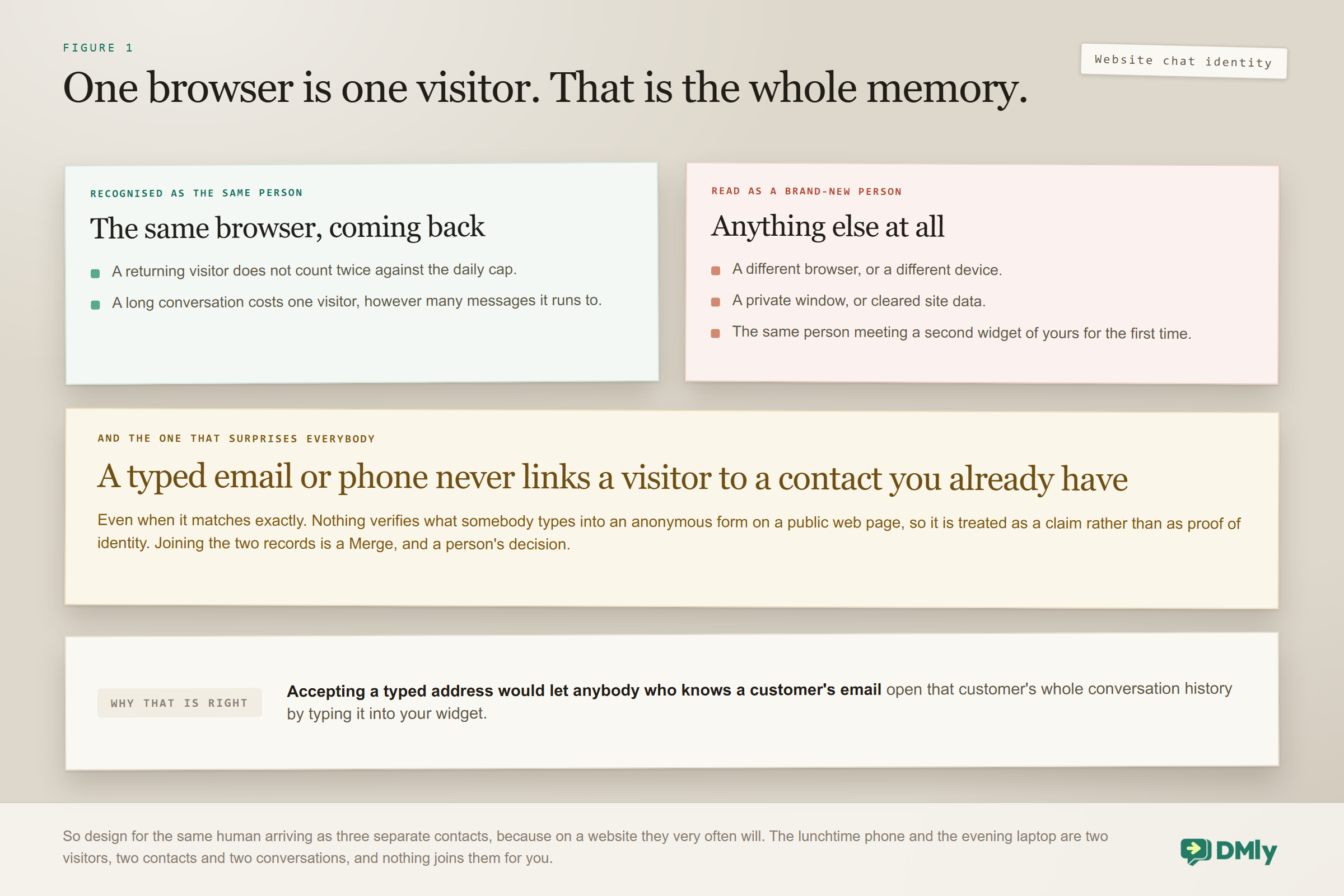
DMly remembers a visitor in their browser’s storage, so a returning customer does not count twice, but that is the full extent of the memory. A different browser, a different device, a private window and cleared site data all read as a new person.
Three consequences you have to design around:
- The same human can become several contacts. They browsed on their phone at lunch and their laptop in the evening. Those are two visitors, two contacts, two conversations, and nothing joins them.
- Anonymous visitors are named for you. If you ask for nothing, DMly names the contact Website visitor followed by four characters. That is a perfectly reasonable placeholder and a completely useless contact record.
- Contacts are not linked across channels. The customer who chats on your site and then messages your WhatsApp number is two records, and the platform does not join them automatically. Merging is a deliberate act, covered in our contacts and CRM guide.
And this is the one that surprises everybody: A typed email or phone number does not link the visitor to a contact you already have, even when it matches one exactly. Nothing verifies what somebody types into an anonymous form on a public web page, so DMly treats it as a claim rather than as proof of identity. The reasoning is sound and worth understanding: accepting it would let anyone who knows a customer’s email address open that customer’s conversation history by typing it into your widget. When a visitor turns out to be somebody you already know, you join the two records with Merge, which is a decision a person makes.
Which brings us to the thing most people get wrong about the pre-chat form.
What the Pre-Chat Form Will and Will Not Do
All four pre-chat fields are off by default, and the three behaviours that surprise people are worth learning before you rely on them. The fields are Name, Phone with a country code picker, Email with a format check, and a Consent tick box with text you write.
The surprises:
- The widget never overwrites a filled field. If a contact already has a phone number, what the visitor types does not replace it. This is protective and correct, and it means the form is for capture rather than correction.
- A typed email or phone does not link the visitor to a contact you already have. Someone typing the exact email address you already hold does not get joined to that record. The web session is still its own identity. If you expect the form to deduplicate for you, it does not.
- The consent tick is stored on the message record and surfaced nowhere. Not in the Inbox, not in exports, not through the API. If you need a defensible record of consent for a regulator, this box is not it. Use it as a courtesy, and keep your real consent record where you keep the rest of them.
A fourth practical note: the pre-chat labels, meaning Name, Phone number, Email and Start Conversation, are English only and cannot be translated. For a business serving a non-English audience that is a genuine consideration, and the workaround is usually to ask inside the conversation rather than on the form.
So what should you actually switch on? For a booking-led business, name and one contact method. Asking for everything reduces the number of conversations that start, and a conversation that never starts cannot be captured at all. If your booking flow will collect an email anyway, consider leaving the form off entirely and letting the assistant ask conversationally, which converts better and gives you a chance to explain why you are asking.
One nice touch worth using: the pre-chat screen also shows your Channels deep links, so a visitor who would rather use WhatsApp can jump straight there. That is often the better outcome, because it hands you a phone number and a persistent identity in one tap.
If you are ticking the consent box for compliance reasons, read this first: A ticked consent box is stored on the message record and surfaced nowhere. Not in the Inbox, not in exports, not through the API. So it is a courtesy to the visitor rather than retrievable evidence, and if you need to be able to produce proof of consent later, the widget is not where that proof lives.
Two smaller behaviours to design around. What you collect lands on the contact record, and a field that is already filled is never overwritten, so a returning visitor cannot correct their own phone number by typing a new one. And a name only fills in while the contact is still the Website visitor placeholder. Both are sensible defaults and both mean the first capture is the one that counts.
Wiring the Booking
An AI website chatbot that can book appointments uses the same built-in booking tools as every other channel, and none of them are on by default. The default tool set is five CRM tools: get contact information, add a note, add tags, hand over to a human, and move to the unassigned queue. The booking tools have to be switched on deliberately.
The ones you need are list bookable services, list staff for a service, check available times, book an appointment, and usually reschedule and cancel. There are class equivalents if you run group sessions.
A booking conversation on a website tends to run in a particular order, and the difference from other channels is where the capture sits:
- The visitor asks something. Usually a price or availability question rather than the word book.
- The assistant answers it properly, because the answer is what earns the next step.
- list bookable services It offers to check availability, and calls and check available times.
- It asks for a name and an email or phone before confirming, framed as where the confirmation should go. This is the step that must not be skipped.
- book an appointment It calls and confirms in the thread.
- Your post-booking automation sends the confirmation, the manage link and the reminders to the contact method you just captured.
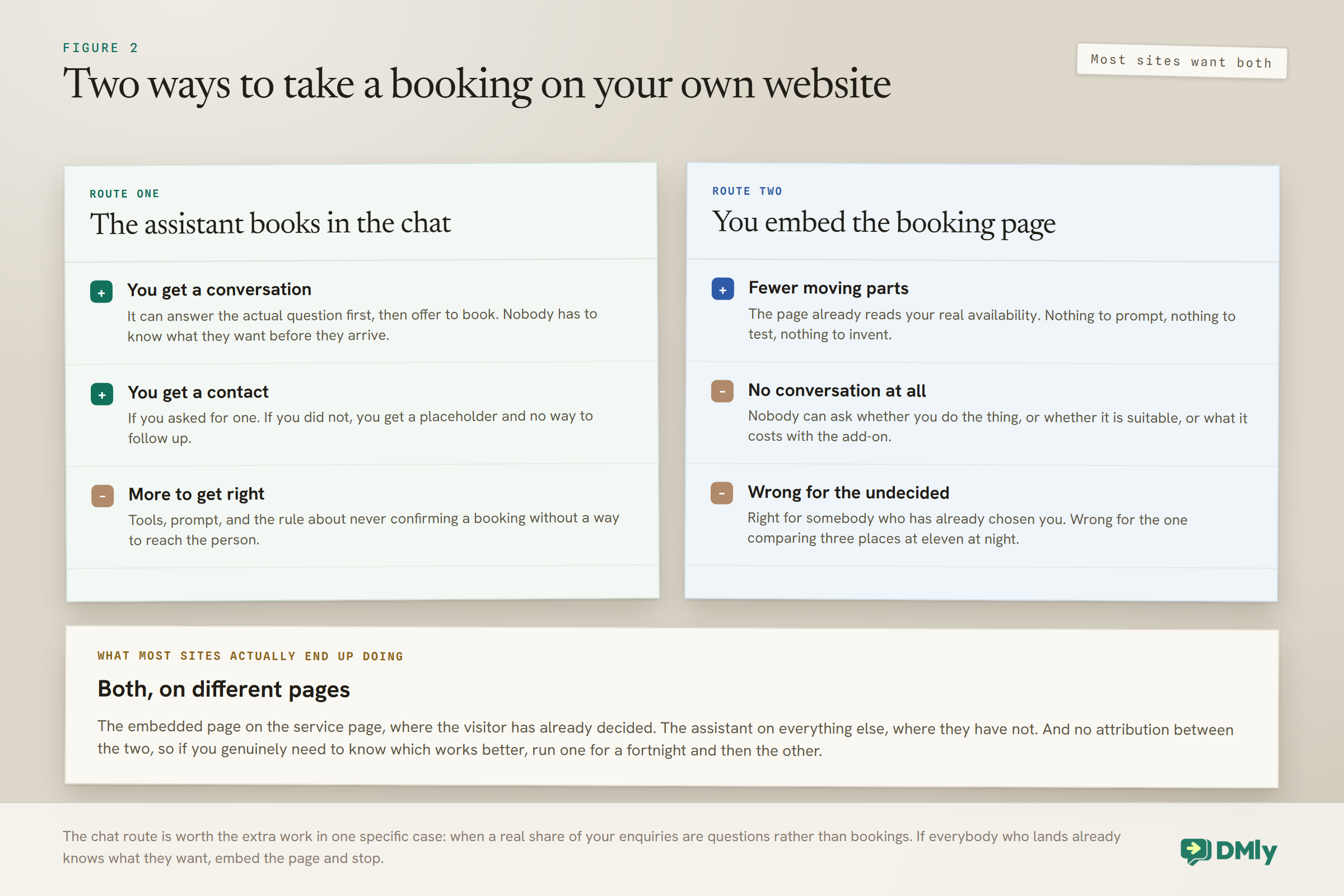
Step four is the whole difference between this and the equivalent build on WhatsApp, where the phone number arrived with the conversation and nobody had to ask for it. Put it in the prompt explicitly: the assistant must not confirm a booking without a way to reach the person.
The wider guardrails set out across the AI agents documentation apply here as they do everywhere. Tell the assistant what it must never do, tell it what to do when it does not know, and keep the knowledge scope narrow. Build the routing in the flow builder and let the assistant handle the unpredictable middle.
Or Embed the Booking Page Instead
On a website you have an option the messaging channels do not: you can put the booking page directly on the page rather than linking out to it. There are three embed modes.
- Inline. Resizes to fit its content and sits in the page like any other section. The right choice for a dedicated Book page.
- Popup button. A compact centred card up to 480 pixels wide, rounded, with a drop shadow. Good for a Book now button in a header or on a service page.
- Lightbox. A full-screen overlay. Use it when the booking should dominate, such as at the end of a long service description.
One security behaviour to know: payment gateways bypass the embed frame and go to the browser’s top-level window for upfront payments. That is correct and expected, and it means a customer paying a deposit will visibly leave your embedded frame. Do not treat that as a bug and do not try to hide it.
The pragmatic setup for most sites is both. Embedded booking on the pages where someone arrives ready, and the assistant in the widget for everyone still deciding. The appointments setup covers services, staff and availability, which both routes depend on.
The First Message and the Six Chips
Before a visitor sends anything, you can offer up to six tappable quick reply chips. They disappear the moment the visitor sends anything, so they are a one-time opportunity to shape the conversation.
Use them for intent, not for greeting. Book an appointment, See prices, Opening hours, Talk to someone. A tapped chip tells you what the person wants before the assistant has to guess, and on a website that matters more than elsewhere because you have no profile, no history and no phone number to reason from.
The typing indicator is on by default via the Show typing indicator toggle, and it is worth leaving on. It makes the assistant’s pause feel like composition rather than failure.
Where and When the Widget Appears
Display rules are hard gates, and they are more powerful than most people use them for.
Show on pages takes All pages, which is the default, or Only matching, or Except matching, with up to 50 URL patterns and a wildcard that matches anywhere in the full URL, so a pattern like */pricing* works as you would expect. One warning: Only matching with an empty list hides the widget everywhere, which is an easy way to switch off your own lead capture without noticing.
Device targeting offers All, Desktop or Mobile, guessed from the browser and screen size.
Timing gives you a delay from 0 to 300 seconds, defaulting to 0, and a desktop-only exit intent option that reveals the widget when the pointer leaves the page.
The useful pattern for a booking business is not to show the widget everywhere at zero seconds. It is to show it immediately on service and pricing pages, after twenty or thirty seconds elsewhere, and on exit intent on desktop for the pages where people research and leave. That way the widget interrupts people who are deciding and stays out of the way of people who are reading.
One operational detail: the install snippet loads these rules from a script cached for about a minute, so a saved change can take up to a minute to reach visitors. If a change appears not to have worked, wait sixty seconds before changing it again.
The Limit That Fails Silently
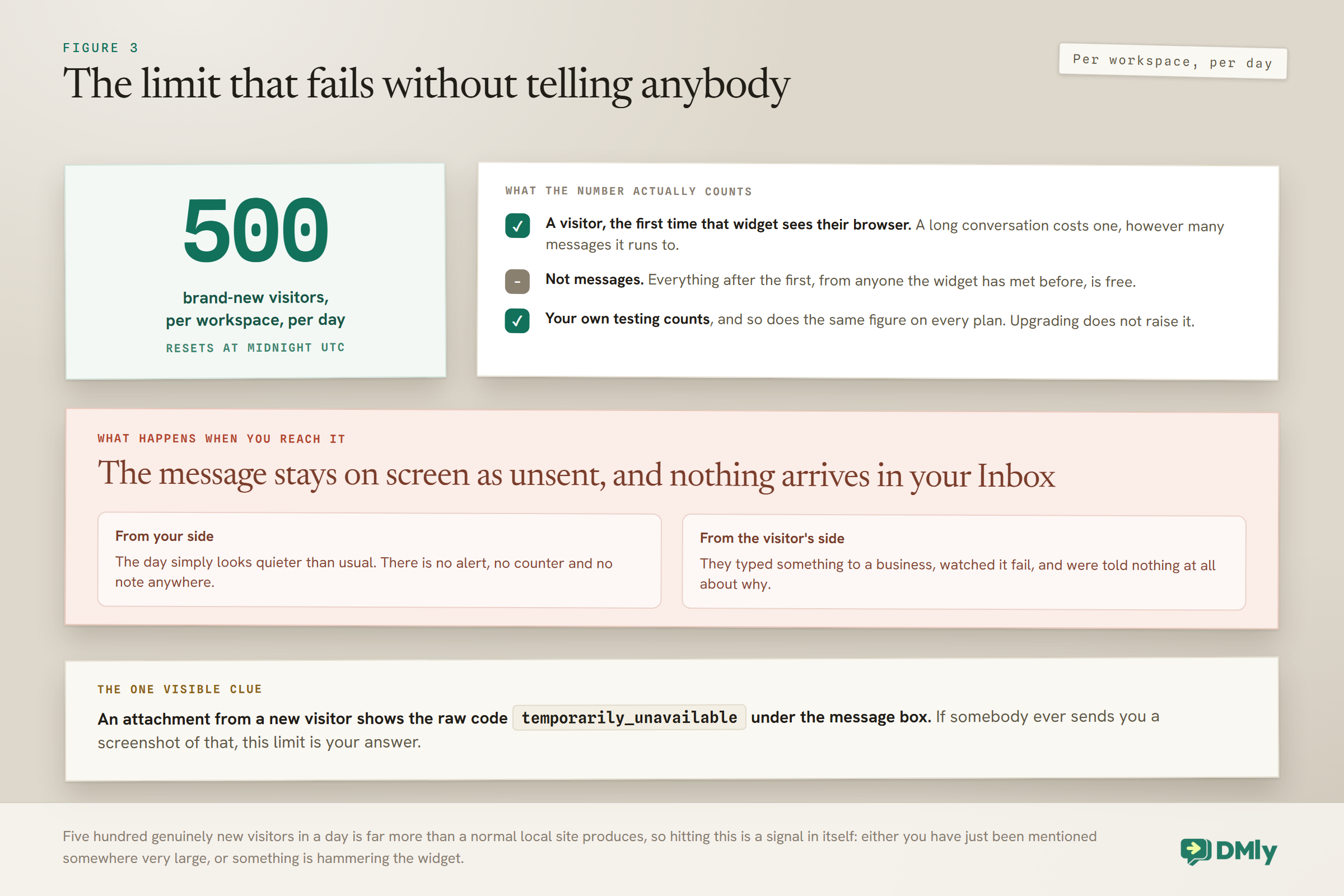
An AI website chatbot has a hard cap of 500 brand-new visitors per workspace per day, resetting at midnight UTC, and hitting it is close to invisible. This is the single most important operational fact about the widget and it deserves its own section.
What counts: new visitors, not messages. Per workspace, per day, across every widget you run. Only the first message is checked. And your own testing counts.
What happens at the limit is the part to worry about. The new visitor’s message is refused. In the widget it stays on screen outlined as unsent, with no explanation offered. Nothing at all arrives in your Inbox. From your side the day simply looks quieter than usual. From the visitor’s side your business appears broken.
Attachments from new visitors in this state show a temporarily_unavailable error, which is the one visible clue.
Five hundred genuinely new visitors a day is a lot for a local business, so most readers will never meet this. If you run a high-traffic site, or several client sites from one workspace, plan for it: watch new-visitor counts, and remember that a marketing push that triples your traffic can push you over on a single day.
Offline, and Saying So Honestly
Under Behavior there is an Online toggle that sets the green presence dot. When online, the default status line is Online, replies in a few minutes; when away it is Away, leave us a message. You can replace either with custom Status text, and set an Offline message that appears as a band above the message box.
The advice here is the same as for any channel and gets ignored just as often: say when, not soon. A visitor at nine on a Sunday evening does not need to be told you will reply shortly. They need to know you open at eight on Monday, and that the assistant can book them in right now if they would rather not wait.
This is also where handover matters. When a teammate replies, the workspace default pauses the bot and the running flow, which is what you want: the flow keeps its place rather than being cancelled or restarted, and a banner in the conversation offers Resume, Skip this step and End automation.
What an AI Website Chatbot Cannot Do
- Attachments never run your bot. A picture or video is recorded and shown in the Inbox, but it does not match a keyword trigger, does not start a flow and does not advance a flow that is waiting. If your booking flow is waiting for an answer and the visitor sends a photo, it keeps waiting.
- Documents are rejected outright, with the message that only pictures and videos can be attached. Pictures cap at 10MB in JPEG, PNG, GIF or WebP; video at 50MB in MP4, MOV or WebM.
- The pre-chat labels cannot be translated. English only.
- The Powered by footer cannot be removed, only rebranded.
- Deleting a widget deletes everything that came through it, meaning every conversation and every contact, permanently, and the snippet on your site goes dead. This is not a reversible tidy-up.
Testing an AI Website Chatbot That Can Book Appointments
There is a hosted test page showing the real widget rather than a mockup, with your logo, business name and a heading saying Try the chat. It ignores display rules and always shows the launcher immediately, though layout offsets still apply. The link needs no login, because it carries the widget’s public key, the same key that already sits in your site’s page source, so anyone you send it to can start a conversation.
Two things to remember about it: a test conversation creates a real contact and appears in your Inbox, and it counts toward the daily new-visitor limit. Test deliberately rather than repeatedly.
The tests worth running:
- Book an appointment end to end and confirm the slot disappears from availability.
- Try to book without giving contact details and confirm the assistant asks rather than proceeding.
- Send a photo mid-flow and watch the flow fail to advance. Now you know the behaviour rather than discovering it later.
- Open the site in a private window and confirm you arrive as a new visitor, which is the behaviour your real customers will hit.
- Check the widget appears where you intended, after waiting a minute for the rule cache.
- Reply as a teammate and confirm the assistant goes quiet.
Two Numbers You Can Get, and Two You Cannot
It is worth being clear about which of these an AI website chatbot actually reports and which is a habit, because only two of them are numbers you can read.
Countable, from segments. A segment is a saved filter that rebuilds itself and carries a live contact count beside it in the list, which is how you count things nothing reports on.
- Your anonymous pile. Build a segment for contacts whose name still begins Website visitor. That count is a direct measure of lost opportunity, and watching it fall is the single best signal that your capture is working.
- Capture rate, near enough. Compare that count against all contacts created on the widget channel. On a website this is the number that matters most, because a conversation you cannot follow up is a conversation you half had.
Not countable anywhere. Chip taps are not reported, and neither is conversations-per-new-visitor. If you want to know which of the six chips people use, the honest route is to have each one start a flow that tags the contact, and then count the tags as segments. That is a build rather than a report, and it is worth doing only for the chips you are actually considering replacing.
One more thing you cannot read: bookings made in the widget against bookings made on the embedded page. There is no attribution between the two. If you genuinely need to know, run one route for a fortnight and then the other, which is cruder than a report and more honest than a guess.
Mistakes Worth Avoiding
- Letting the assistant confirm a booking without contact details. The single most expensive mistake on this channel.
- Expecting the pre-chat form to deduplicate. A typed email does not link to an existing contact.
- Relying on the consent tick as a compliance record. It is stored but surfaced nowhere, including in exports and the API.
- Turning on all four pre-chat fields. Every field costs you conversations that never start.
- Setting Only matching with an empty pattern list. The widget disappears everywhere.
- Assuming a photo will advance your flow. Attachments never run the bot.
- Deleting a widget to tidy up. It takes every conversation and contact with it, permanently.
Frequently Asked Questions
Can an AI website chatbot really book appointments on its own?
Yes. With the built-in booking tools enabled, the assistant can list services and staff, check genuine availability and create the booking inside the chat. The booking tools are off by default, so switch them on first.
How does DMly identify a website visitor?
By a token in their browser’s storage. A returning visitor on the same browser is recognised, but a different browser, a different device, a private window or cleared site data all read as someone new. Anonymous visitors are named Website visitor followed by four characters.
If someone types their email, does it link to their existing contact?
No. A typed email or phone number does not link the visitor to a contact you already have, and the widget never overwrites a field that is already filled. Merging duplicates is a separate, deliberate step.
Is there a limit on how many people can chat?
Yes, a hard cap of 500 brand-new visitors per workspace per day, resetting at midnight UTC and counting across every widget you run, including your own testing. Beyond it, a new visitor’s message is refused, shows as unsent with no explanation, and never reaches your Inbox.
Can I use the consent tick box as proof of consent?
Not reliably. The tick is stored on the message record but surfaced nowhere: not in the Inbox, not in exports and not through the API. Keep your defensible consent record wherever you keep the rest.
Should I use the chat widget or embed the booking page?
Both. Embed the booking page on pages where visitors arrive ready to book, using inline, popup or lightbox mode, and use the assistant in the widget for people still deciding. They serve different moments.
Why did my flow stop when the visitor sent a picture?
Because attachments never run the bot. A picture or video is recorded and shown in the Inbox but does not match a keyword, start a flow or advance one that is waiting. Design your prompts so the assistant asks again in words.
Capture First, Book Second
An AI website chatbot that can book appointments is unlike every other channel you automate. The others hand you an identity and then make reaching the person conditional. The website hands you nothing and makes reaching the person impossible unless you asked.
Build accordingly. Get the booking tools switched on, embed the booking page where people are ready, and put one instruction above all others in the assistant’s prompt: never confirm anything without a name and a way to reach them. That single line is worth more than any amount of tuning.
Writing about WhatsApp automation, bookings and growth for local business.
Turn WhatsApp into your busiest channel.
Start free and run message, bookings, payments and reviews in one place.
