
How to Set Up WhatsApp Payments, and Where They Break
There is a failure in this area that is almost invisible from the inside, and it goes like this. Your customer pays. Their card is charged. The payment provider shows the money. And your system still says the invoice is unpaid, so an automated reminder goes out that evening asking them to pay again.
Nobody lost any money. The customer is furious anyway, and your team spends twenty minutes proving to themselves that the payment happened.
That is the shape of most WhatsApp payments problems, and it explains how this guide is organised. Getting money out of a customer is genuinely easy now, and the payment provider does that part. The harder half is making sure your own records find out about it, in time, exactly once, so that everything hanging off the payment (the confirmation, the booking, the receipt, the reminder that should now stop) does the right thing.
So we will do the setup properly, and then spend real time on the plumbing that decides whether it works on a Tuesday afternoon when nobody is watching.
What “WhatsApp Payments” Means, and the Two Countries Where It Is Literal
The phrase covers two completely different things, and which one you get depends on where your business is registered rather than on how you set it up.
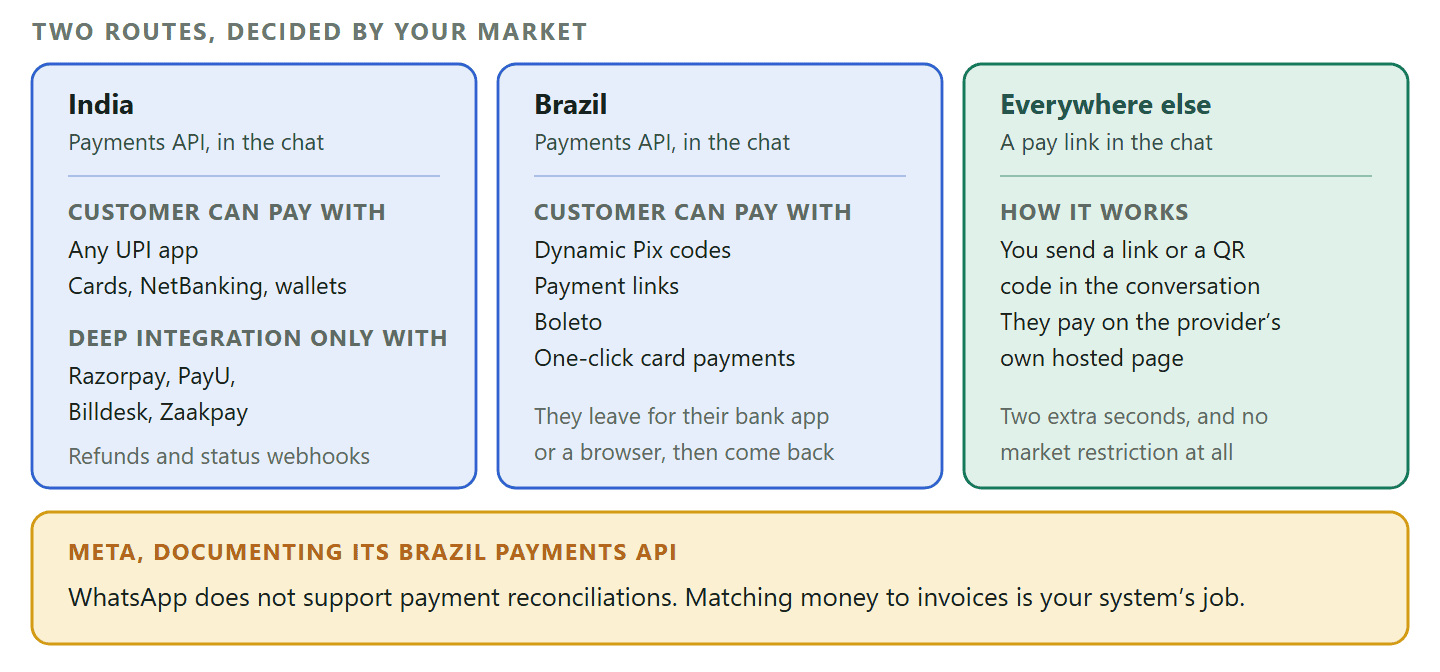
In two markets, Meta documents a genuine payments API where the transaction happens inside the conversation.
- India. Meta’s Payments API lets a business accept payment “through all UPI apps”, and also supports cards, NetBanking and wallets. You send an order message and get payment status back through webhooks. There are two integration shapes: a UPI Intent mode that works with any gateway able to generate a UPI intent, and a deeper gateway integration that supports refunds and payment status notifications, currently only with Razorpay, PayU, Billdesk and Zaakpay.
- Brazil. The Payments API supports dynamic Pix codes, payment links, Boleto and one-click card payments. The customer picks what they want, gets an order message, and completes payment by switching to their bank app for Pix or a browser for a payment link.
Outside those two, and despite a lot of writing that implies a longer list, I could not find a Meta-documented Payments API for a third market. This page says so rather than naming countries it cannot source, because the wrong answer here sends a business shopping for a product it cannot buy.
Why that turns out not to matter much: Everywhere else, the answer is not “you cannot take payments on WhatsApp”. It is that the conversation happens on WhatsApp and the checkout happens on a page. The customer taps a link in the chat, pays on the provider’s own secure page, and comes back. For a salon or a plumber, that difference is two seconds of the customer’s time, and it is worth exactly zero arguments about which is the real thing.
There is one line on Meta’s Brazil documentation worth carrying into every market, because it sets the expectation for everything below: WhatsApp does not support payment reconciliations. Meta moves the payment message. Working out whether the money actually arrived, and attaching it to the right invoice, is not its job and never was.
What You Need Before You Take a Penny
Five things, and the fourth one is the one businesses discover afterwards.
- A WhatsApp Business presence that can send templates. Payment reminders and receipts go to people who have not messaged you in the last day, which means approved templates, which means the WhatsApp Business Platform rather than the free app. Our comparison of the three WhatsApp account types covers that choice.
- A profile that looks like a real business. People check who they are paying. A complete business name, category and description does measurable work at exactly the moment money is on the line. See what a customer actually sees of your profile.
- A payment gateway account. In DMly, six are supported and nothing else is: Stripe, PayPal, Paystack, Razorpay, MyFatoorah and Mercado Pago. Pick one you can actually get approved for in your country before you plan anything around it.
- Somewhere to put the webhook. This is the step nobody lists. Your gateway has to be told where to send the “this payment succeeded” message, and you add that endpoint yourself in the provider’s dashboard. Skip it and everything else in this article still appears to work while quietly failing.
- Written prices, deposit terms and a refund policy. Before money moves, not after the argument.
Setting Up WhatsApp Payments, Step by Step
Setting up WhatsApp payments takes about twenty minutes if your gateway account already exists, and the only fiddly part is copying credentials accurately.
- Connect the gateway. There is no “sign in with Stripe” button anywhere in this process. Connecting means opening your provider’s own dashboard, copying the API credentials, and pasting them in. Stripe wants a secret key and a webhook secret; PayPal wants a client ID, a client secret, an environment and a webhook ID; Paystack wants a secret key; Razorpay wants a key ID, key secret and webhook secret; MyFatoorah wants an API token, base URL and webhook secret; Mercado Pago wants an access token and webhook secret. The credentials are checked at the moment you connect, so a typo fails there rather than at the first real payment.
- Add the webhook endpoint at the provider. Do this now, while you are already in their dashboard, because it is the single step that decides whether any of this works. Nothing in DMly registers it for you.
- Decide what you are charging for. An invoice for a job, a payment link for an amount, or a booking that has to be paid before the slot is held. These are three different objects and they behave differently, which the next section covers.
- Send it into the conversation. On an invoice, Payment link and QR gives you the link, and Share link offers WhatsApp, SMS or email, plus a copy option and a QR code you can print or hold up on a phone. The QR is just the pay link in visual form, which makes it useful on a counter as well as in a chat.
- Let the customer pay, and do not touch anything. The link opens the gateway’s own hosted checkout. When the payment succeeds, the provider calls the webhook, the payment is recorded against the invoice and the balance recalculates. You do not mark it paid yourself, and doing so by hand is how invoices end up showing as paid twice.
- Test it with your own card before a customer sees it. Not just the success path. Deliberately fail a payment and watch what your reminders do afterwards.
The gateway trap nobody expects: The setting that decides this is the Default payment gateway card at Finance, then Settings, then Gateways, and it ships on First connected gateway. Leave it there and the pay link is minted on the earliest gateway you connected that is still connected, whatever you add later. So connecting a second provider expecting new links to use it does nothing until you name it in Charge through, and disconnecting the one that was minting silently hands everything to the next-earliest. If money is landing in the wrong account, that is why.
The Webhook Is the Whole Thing
If you only read one section of this guide, read this one. Almost every problem businesses have with WhatsApp payments traces back to a single message you have to configure yourself.
The webhook is the message your payment provider sends to say that money moved. Everything downstream hangs off it: the invoice going to paid, a held appointment slot being confirmed, the receipt, the reminder that should now stop. So a webhook problem does not lose the customer’s money. It loses your system’s knowledge of the money, which is worse in practice, because the money being gone is at least obvious.
There are four ways it fails and they have four different fixes.
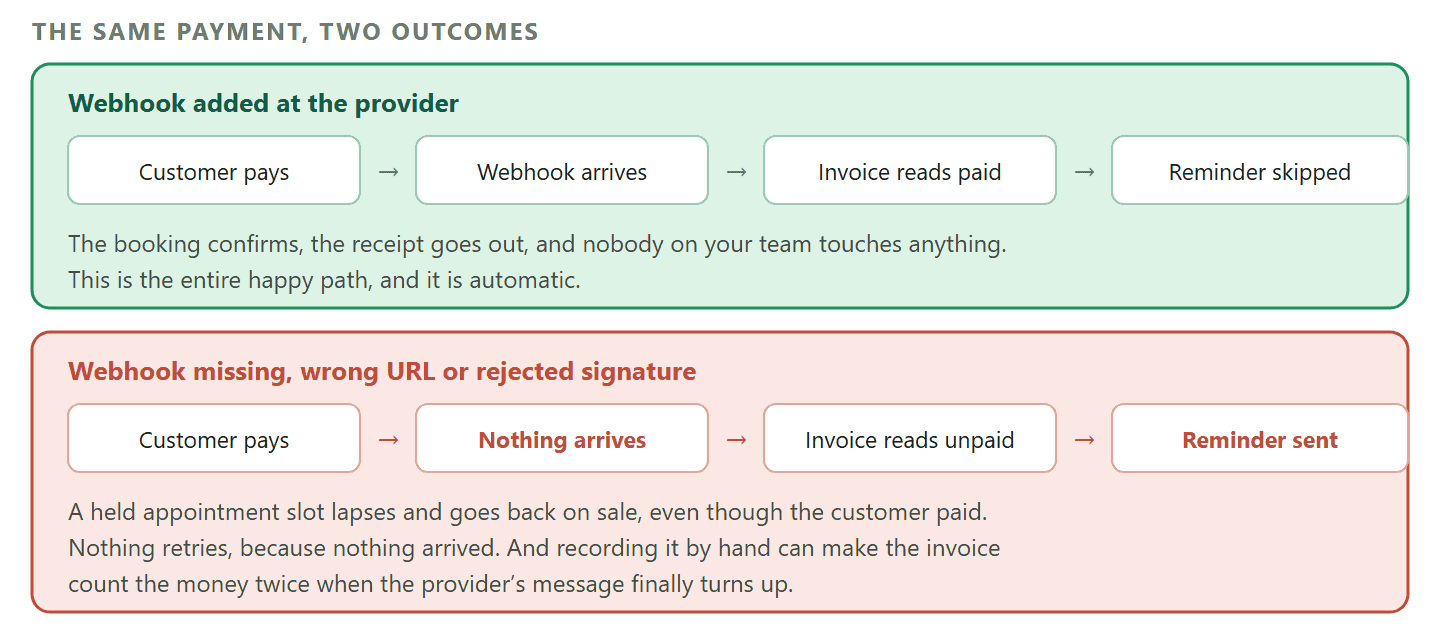
- It never arrives. The endpoint was never added in the provider’s dashboard, or the URL is wrong. The customer is charged, the provider shows the payment, your invoice still says unpaid, and nothing retries, because nothing arrived. Fix the endpoint and new payments reconcile on their own.
- It is rejected. The signing secret is wrong, or was copied from the test environment into the live one. Same visible symptom: paid at the provider, unpaid in your records. Re-copy the secret.
- It arrives and errors. This one is fine. It gets retried, and a payment message that failed mid-processing is not treated as already handled, so it is not silently dropped.
- The credentials stop working. A revoked or rotated key means the integration flips to an error state and emails your admins once, naming what has stopped working. One email per outage rather than one per failure, so a dead key does not bury you.
The instinctive fix that makes it worse: When a payment is missing, the natural move is to record it manually so the invoice looks right. Do not. An invoice adds up every succeeded payment against it, so if you record the money by hand and the gateway’s message later arrives, the customer shows as having paid twice, and you have created a refund conversation out of nothing. Fix the webhook instead.
One more consequence worth knowing before you set up paid bookings. On a booking that must be paid before the slot is held, the slot is only confirmed when the payment succeeds, which your system learns from the webhook. If the webhook does not arrive, the hold lapses and the slot goes back on sale even though the customer paid. A payment that lands after the slot is released is flagged for manual refund or review rather than quietly applied, and nobody is messaged automatically. That is the right behaviour, and it is also a bad afternoon, so add the endpoint first.
Deposits: What You Can Actually Take
This is where guides on this subject, including an earlier version of this one, describe something that does not exist. Here is the accurate version, which is still perfectly workable.
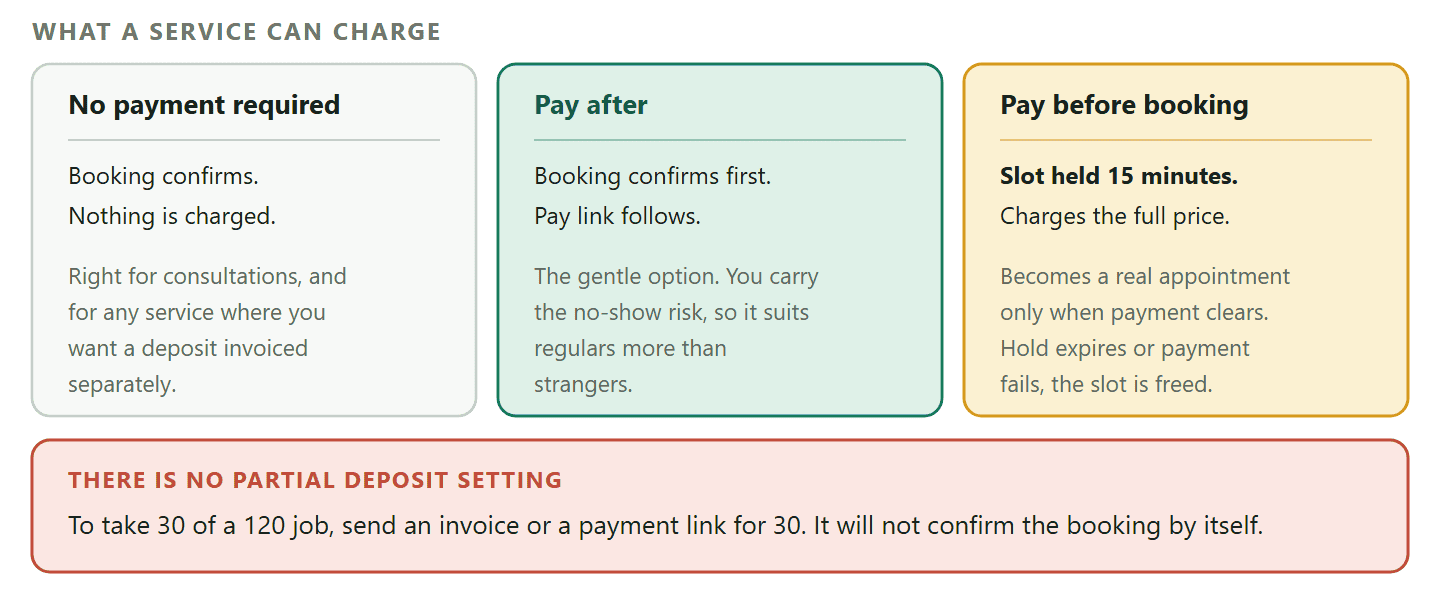
A service in DMly has one of exactly three payment modes, and the mode belongs to the service rather than to the individual booking.
- No payment required. The booking confirms and nothing is charged.
- Pay after the appointment. The booking confirms straight away and a pay link follows.
- Pay before booking. The slot is held for 15 minutes while the customer checks out, and only becomes a real appointment once the payment clears.
What pay-before charges is the full price of the service, taken from a price snapshot made at the moment the slot was held. There is no field anywhere that says “take 25 per cent now”. If somebody has told you that you can set a deposit percentage on a booking, they are describing a different product.
How to take a deposit anyway, honestly: Send an invoice or a payment link for the deposit amount. Both mint a link for any amount you choose and both land in the same ledger, so the money and the record are real. What you do not get is the booking confirming itself off the back of it: set the service to No payment required so the appointment is made, and treat the deposit as a separate invoice you chase like any other. The balance can then be a second invoice on the day.
Two more rules on pay-before worth knowing before you turn it on. A payment mode on a service priced at zero does nothing at all, and the editor tells you so. And a booking you enter yourself from the calendar never takes payment whatever the service says: it is created confirmed and unpaid, which is usually what you want when you took a card in person, but it does mean the mode is not a guarantee that every booking on that service was paid for.
What Happens After the Money Lands
The payment is a fact. Everything useful is what you attach to it, and there are only four states it can be in.
A payment sits in one of four statuses: Pending when a link exists but no money has arrived, Succeeded when it is paid, Failed when the attempt was declined or abandoned, and Refunded. They only ever move forward, so a late or out-of-order message from the provider cannot drag a paid invoice back to pending. An invoice’s paid and outstanding amounts are worked out from succeeded payments only.
The invoice above it has its own set: draft, sent, partially paid, paid, overdue, void, refunded and partially refunded. Overdue is stamped by a nightly job rather than the instant the clock passes midnight, and an invoice paid in the meantime is skipped.
What makes this worth automating is that a successful payment can start something. There are triggers for payment succeeded, payment failed and payment refunded, and separate ones for an invoice being created, sent, paid, going overdue or being voided. So the follow-up stops being somebody’s job.
- Payment succeeded can send the receipt, thank the customer, and tag them so the next campaign knows they bought.
- Invoice paid can confirm the thing the money was for.
- Invoice overdue fires once per invoice, on the same nightly sweep that stamps it, so an escalation flow never re-fires day after day on the same bill. Build the follow-up cadence inside the flow rather than relying on the trigger to repeat.
There is a ready-made reminder worth using rather than rebuilding: it starts when an invoice is sent, waits until the day before it is due, and messages the customer with the amount, the date and a pay button. The part that makes it safe to leave running is that when the wait ends it looks at the invoice again, and if the money has arrived, or you voided it, the reminder is skipped rather than sent. That single check is the difference between helpful and infuriating.
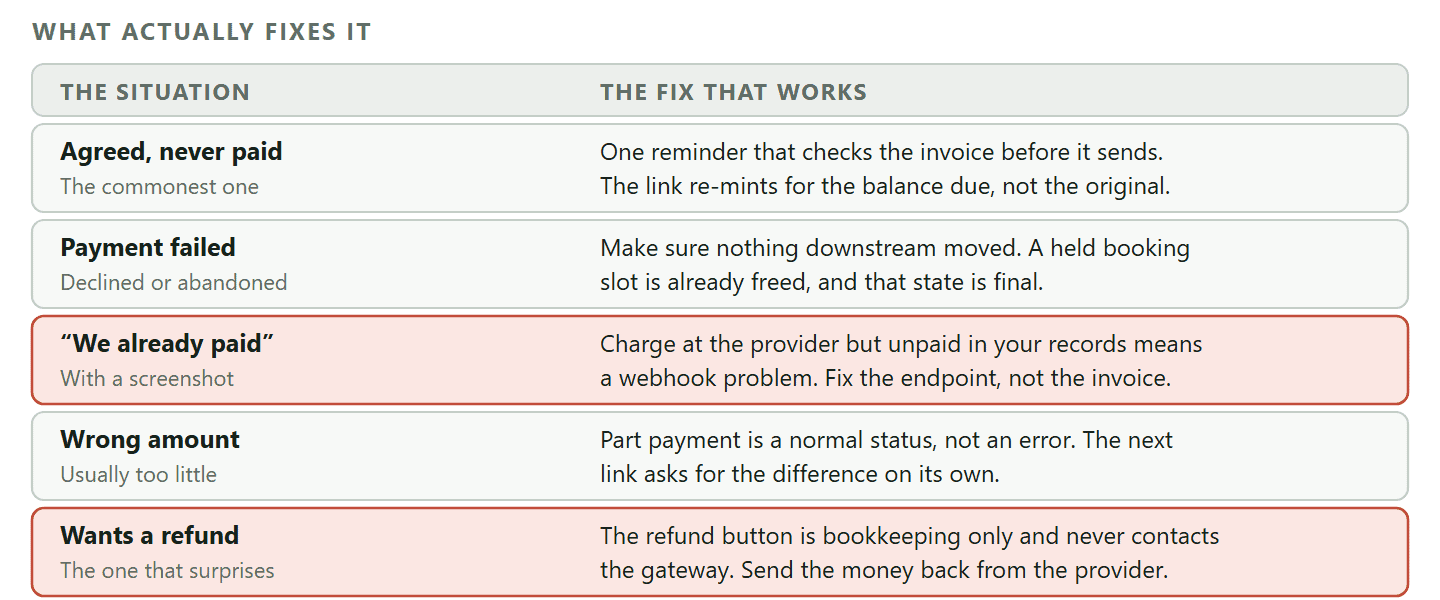
Five Ways WhatsApp Payments Go Wrong, and the Real Fix
Every one of these has a proper mechanical answer, and in four of the five the answer is not the one people reach for.
1. They agreed, then never paid
A reminder recovers most of these, and the pay link is always minted for the current balance due rather than the original amount, so re-sending it after a part payment asks for what is still owed instead of charging the whole thing again. Send one useful reminder, make sure it stops when the money arrives, and resist the second and third.
2. The payment failed
Tell them plainly, give them a way to try again, and make sure nothing downstream moved. A failed payment must never confirm a booking or release an order. If it was a pay-before booking, the slot is already freed and both the expired and failed states are final: your system will not re-hold it or chase them, so if they still want the appointment they book again.
3. “We have already paid, here is the screenshot”
Your payment record is the source of truth, and if it disagrees with the customer, the odds are the webhook rather than the customer. Check the provider’s dashboard: if the charge is there and your records say unpaid, you have a webhook problem and every payment since is affected too. Fix the endpoint, do not patch the one invoice.
4. They paid the wrong amount
Part payments are a normal state rather than an error. The invoice reads partially paid, the balance is the difference, and the next pay link asks for that balance. Overpayments are the awkward direction and need a refund, which brings us to the fifth.
5. They want a refund
Pressing refund does not send the money back. The refund button marks the payment refunded and reverses it on the customer’s statement, and it never contacts the gateway, so the card is untouched. The actual refund has to be issued in the provider’s own dashboard. The reverse direction does work on its own: a refund you issue at the provider arrives as a webhook and flips the payment to refunded automatically, which is the better habit for exactly that reason.
Refunding is admin-only, and that is deliberate: The permission to issue refunds is admin-only out of the box. A teammate without it does not see the option at all, and the action is refused on the server as well, so it cannot be reached another way. Grant it per role if somebody other than an owner needs it, and think about who that is before you do.
If You Bill the Same Customer Every Month
Recurring payments change which gateway you can use, and one of the six cannot do it at all.
Subscriptions can charge a saved card automatically on Stripe, PayPal, Paystack, Razorpay and MyFatoorah. The card is captured through a separate setup link, and no payment is recorded at that point. If a renewal charge fails, it is retried every two days and the subscription pauses after three failures, with the customer notified each time.
Two details that decide the customer’s experience. Stripe, PayPal and Razorpay capture the card without charging it, so nothing appears on the customer’s statement at signup. Paystack and MyFatoorah tokenise the card with a small real charge on the hosted page, so on those two the customer does see a charge and should be told to expect it.
Mercado Pago cannot auto-charge: It supports pay links only, so a subscription on Mercado Pago has to be collected with a fresh link every cycle rather than renewing on its own. If recurring billing is the point of your setup, that decides your gateway before anything else does.
The Practices That Are Actually About Money
Most payment advice is about tone. These six are about not losing money or trust.
- Never ask for card numbers in a chat. Not the number, not the security code, not a photo of the card. A message is not a secure channel and a WhatsApp thread is stored on two phones. Always send a link to a hosted checkout instead.
- Test the failure path, not just the success path. Anybody can watch a payment succeed. Deliberately abandon a checkout and see whether your reminders behave.
- Say what a payment is for, in the message that carries the link. The amount, the service, the date. A link with no context looks like a scam, and increasingly is one.
- Make the refund policy visible before the money moves. Especially on deposits and bookings, where the argument is not about whether you did the work.
- Check who can issue refunds. Admin-only is the default and it is the right default. Widen it deliberately if at all.
- Reconcile weekly rather than never. Compare your provider’s dashboard against your own records for a five-minute window each week. Webhook faults are silent and this is the only cheap way to notice one before a customer does.
DMly connects the conversation, the invoice, the booking and the payment, so a successful charge can confirm the appointment, send the receipt and stop the reminder without anybody checking. See the plans, or read how it handles bookings and paid appointments.
Frequently Asked Questions
Can businesses accept WhatsApp payments anywhere in the world?
Payments inside the chat, where the customer never leaves WhatsApp, are documented by Meta for India and Brazil. Everywhere else the conversation happens on WhatsApp and the checkout happens on your payment provider’s hosted page, reached by a link or a QR code in the chat. That route has no market restriction and, for most small businesses, no meaningful downside.
Do I need the WhatsApp Business API to take payments?
Not to send somebody a link. You can paste a pay link into an ordinary WhatsApp Business chat today. You need the Business Platform for the parts around it: reminders and receipts that reach people who have not messaged you in the last 24 hours, several staff working the same inbox, and automation that reacts to a payment landing.
Can I take a deposit for an appointment on WhatsApp?
You can take the money, but not as a percentage of the booking. A bookable service is set to no payment, pay after, or pay before, and pay-before charges the full price. To collect a deposit, send an invoice or a payment link for that amount and leave the service on no payment required, so the appointment is confirmed while the deposit is chased like any other bill.
Why does my invoice say unpaid when the customer has definitely paid?
Almost always the webhook. If the charge is visible in your payment provider’s dashboard but your records say unpaid, the message that tells your system about the payment either never arrived or was rejected. Fix the endpoint or the signing secret in the provider’s dashboard rather than marking the single invoice paid by hand, because a manual entry plus a late webhook makes the customer look like they paid twice.
Does clicking refund actually return the customer’s money?
No. It marks the payment refunded in your records and reverses it on the customer’s statement, and it never contacts the payment gateway, so their card is untouched. Issue the real refund in the provider’s own dashboard. If you do it that way round, the webhook flips the record for you.
Which payment gateway should I connect?
Whichever one will approve your business in your country, from the six that are supported: Stripe, PayPal, Paystack, Razorpay, MyFatoorah and Mercado Pago. If you plan to bill customers monthly, rule out Mercado Pago first, because it cannot charge a saved card automatically. And name the one you intend to use in Charge through, under Finance, then Settings, then Gateways, because until you do, links mint on the earliest connected gateway.
Is it safe to take WhatsApp payments from customers?
Yes, provided the money moves on a hosted checkout rather than in the conversation. The risk in this area is not the payment rail, it is businesses asking customers to send card details or bank credentials as messages, which trains customers to do exactly what a scammer will ask them to do next.
Set Up the Boring Half First
If you have an hour to give WhatsApp payments, spend ten minutes connecting a gateway, five minutes adding the webhook endpoint, and the remaining forty five deciding what a successful payment should trigger.
The charge itself will work on the first try. What separates a payment setup that helps from one that generates complaints is entirely in what your own records know, and how quickly they know it.
Writing about WhatsApp automation, bookings and growth for local business.
Turn WhatsApp into your busiest channel.
Start free and run message, bookings, payments and reviews in one place.
