
There is a line on a lot of restaurant table cards that needs to come off: “Leave us a review and your next dessert is on us.” It is well meant, and it probably works, which is exactly the problem. Google’s rules for reviews on Maps prohibit offering anything in exchange for a review, free food included. A restaurant that keeps the line risks the reviews it earned that way, and it did not need the dessert in the first place. Asking at the right moment, every time, in a message that takes ten seconds to act on, gets reviews without bending anything.
You can get more restaurant Google reviews automatically by making that ask part of how every meal ends: a WhatsApp message after a booked dinner, a request after a delivery arrives, and a code on the table for everyone who walked in. None of it needs a server to remember, and none of it offers a reward.
This guide builds it in DMly: the rules, what to set up first, the three routes for booked, delivery and walk-in guests, timing, the regulars you should not ask every week, the CSAT template to change, replies (including the hard ones about food), and the numbers that tell you it is working. For the full review playbook across industries, see our guide to an automated review funnel, and for everything else a restaurant can automate, our WhatsApp automation for restaurants guide.
The Rules Your Restaurant Has to Stay Inside
Google is happy for you to ask for reviews. It is strict about how.
Google’s Maps User Generated Content Policy allows businesses to ask customers to review genuine experiences, and prohibits a few things that restaurants do surprisingly often:
- Incentives. No payment, discount, free goods or services in exchange for a review. A free dessert, a drink, a discount code or entry to a prize draw all count.
- Asking only the happy ones. The policy says businesses must not “selectively solicit positive reviews from customers”. Sending the link only to diners who said the meal was great is exactly that.
- Pressure. Google says merchants “should not require or pressure users” to leave reviews. Standing over a table while a guest types counts.
- Scripting. Ask for an honest review. Do not ask for five stars, and do not tell guests what to mention.
An automated WhatsApp request that goes to every guest after they have left, with nothing attached, sits comfortably inside all four. That is the whole design.
Before You Automate Restaurant Google Reviews
Three things must be in place, or the requests will not go out.
- Connect your Google Business Profile under Reputation. The review link comes from it; without it, there is nothing to send.
- Reputation & Reviews is on. Review requests are part of the Reputation & Reviews feature, which is included on every DMly plan.
- Check the review template is approved. On WhatsApp, requests go out on DMly’s
dmly_review_requesttemplate, which is what lets them arrive after the guest last messaged you.
One more thing to know from the start: DMly records dmly_review_request as a marketing template, and Meta holds it as marketing whatever it is declared as. So review requests are billed at the marketing rate, and should only go to guests who agreed to receive that kind of message from you.
Three Kinds of Guest, Three Routes
A restaurant serves booked tables, orders and walk-ins. Each needs its own way to be asked.
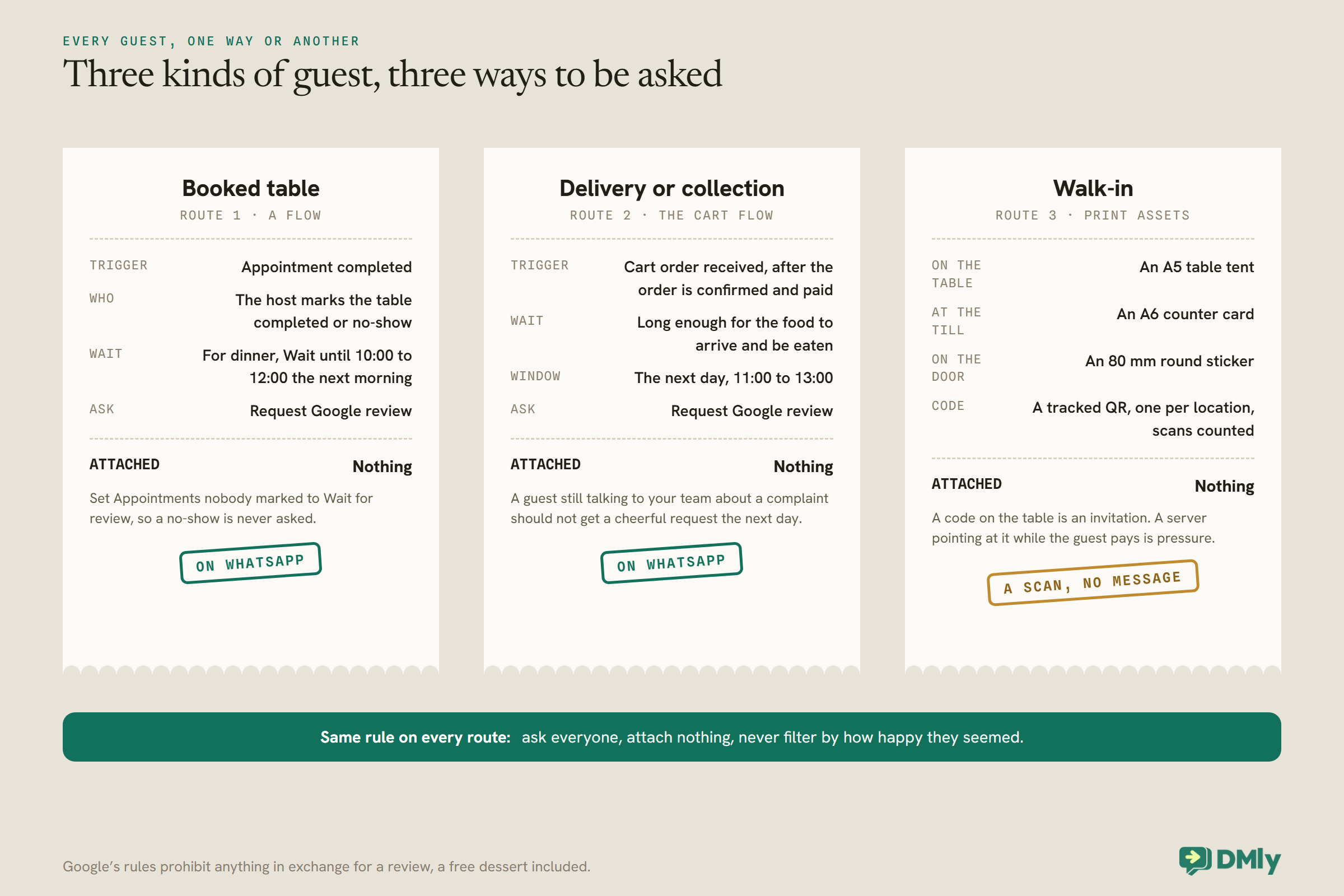
Route 1: Booked Tables
A reservation that ends is the cleanest trigger a restaurant has, as long as someone marks it.
If your tables are booked through DMly, build a flow with three steps:
- Trigger: Appointment completed. It fires when a booking is marked completed on the Calendar, by a flow or through the API. Under the default setting it also fires when DMly closes a past booking nobody marked, about a day later, even if the table never showed, and a no-show asked for a review is a bad look. So set Appointments nobody marked (Appointments, Settings, Booking policy) to Wait for review, and have your host mark each table completed or no-show, which is best done as the table is cleared or at the close of the night.
- Wait. A Smart Delay so the request arrives when the guest is home and relaxed, not as they reach the door. For dinner, the next morning is a good default: set a Wait until window such as 10:00 to 12:00 so a request never lands at midnight.
- Request Google review. Leave Send on at Contact’s active channel, which sends on WhatsApp for your WhatsApp guests, and Review template at the default, which uses the guest’s name, your business name and your review link. The step never stops a flow: whether it sends, is skipped or fails, the outcome is written to your logs.
If you would rather the request sounded like your restaurant, create your own template, get it approved, and pick it in the step. Keep your own wording inside the rules: ask for an honest review, name nothing to mention, and attach no offer.
Route 2: Delivery and Collection Orders
An order is a good moment to ask, once the food has actually been eaten.
If you take orders through a WhatsApp cart, the flow that catches the cart can also ask for the review. Add a Smart Delay after the order is confirmed and paid, long enough for the food to arrive and be eaten, then a Request Google review step. A Wait until window works well here too, for example the following day between 11:00 and 13:00, so a late-night order is not followed by a request at 1am.
Two cautions. A guest who ordered, complained about a cold delivery and is still talking to your team should not get a cheerful review request the next day. DMly’s docs do not describe cancelling a single waiting flow run, so whoever handles a complaint should check whether that guest has a review request due, and a longer delay gives them time to do it. And guests who order every week will be asked every week; see “Do not ask your regulars every time” below.
Route 3: Walk-Ins and the Table Tent
Most diners never message you. A code on the table reaches them without asking anyone to do anything.
Under Reputation → Request reviews, Print assets turns your review link into a tracked QR code with three ready-made designs: an A5 table tent for tables, an A6 counter card for the till, and an 80 mm round sticker for the door or window. Each carries your business name, logo and brand colour, and every scan is counted, so the card shows “N scans so far”. You can also download the raw QR as a PNG to put on your bill folder or takeaway bags.
Three practical notes. Generating the QR needs the Send review requests permission. The QR is stored as a growth tool on your connected Google profile, so do not delete its card under Growth Tools, or you delete the code. And if you have more than one location, generate a code per location, because each QR belongs to the location selected when it was made.
Let the table tent do its job quietly. A code on the table is an invitation; a server pointing at it while the guest pays is pressure.
For walk-ins who give you their WhatsApp, for example to join a specials list, you can also send requests by hand from Request reviews, to up to 200 contacts at a time.
Timing: When to Ask After a Meal
The best moment is after the guest has got home and before they have forgotten the evening.
| Visit | A good time to ask | Why |
| Lunch | Mid-afternoon the same day | Back at their desk, meal still fresh |
| Dinner | The next morning, 10:00 to 12:00 | Never at midnight; the evening is still remembered |
| Delivery | The next day, late morning | After the food was eaten, not while it is on the way |
| Special occasion | The next day | A memorable evening is worth a day’s reflection |
These are starting points to test, not rules. Use Smart Delay‘s Wait until mode to hold a request to a daytime window, and Duration mode for a simple fixed wait.
Do Not Ask Your Regulars Every Time
A weekly regular asked for a review every week soon stops reading your messages.
DMly’s booking and cart triggers cannot tell a first visit from a twentieth, and DMly’s docs do not describe a condition that checks a tag, so an automatic flow asks every time. Three ways to deal with it:
- Accept it for occasional guests only. If most of your trade is one-off diners, the problem is small.
- Use the Review request sent trigger. Each successful send fires it; a flow on it can add a tag such as
review-asked, so your team can see who has been asked and when. - Send to regulars by hand, occasionally. Keep the automatic flow for reservations or orders from new guests where you can, and once a season, send a hand-picked list of regulars a request from Request reviews, with a personal line if you like.
What Your Team Can Say at the Table
Servers can mention reviews. They cannot make them part of the bill.
A friendly mention is fine; pressure is not. Give your team one line and one rule:
- The line: “If you enjoyed tonight, we’d really value an honest review on Google. There’s a code on the table, or we’ll send you a link on WhatsApp tomorrow.”
- The rule: never wait at the table while a guest writes, never ask for five stars, never offer anything for it, and never ask a guest who has just complained.
Staff who are named in reviews often like to see them. Share the good ones in the team chat; it rewards great service without attaching anything to the review itself, and it keeps the team asking in the right way.
More Than One Location
Each restaurant has its own listing. Make sure each guest is asked about the one they visited.
Connect one Google Business Profile per location. With two or more, a Switch location picker appears at the top of the Reputation pages, and everything below it follows the location you pick: reviews, requests sent by hand, posts and the review QR. Generate a table tent per location, so a code in one restaurant never sends guests to another’s listing, and check which location is selected before sending requests by hand. For automatic requests from flows, test with a booking at each location that the link in the message opens the right listing before you rely on it.
One Polite Nudge, at Most
A second request can help. A third turns a thank-you into a nuisance.
Each successful send of a review request fires the Review request sent trigger. A flow on it can wait a few days and send one short reminder to guests who have not got round to it. Keep it gentle (“no pressure at all, the link is here if you’d like it”), send it once, and remember it is another marketing template on your bill. DMly cannot tell you whether a particular guest has already left a review, so the nudge will also reach people who did; word it so that reads well to them too, or skip the nudge altogether and let the table tent and the next visit do the work.
Guests You Cannot Ask on WhatsApp
Some guests will never receive a WhatsApp request. Make sure they still have a way in.
A request is marked Failed when DMly cannot reach the guest on the channel, for example a guest who booked with only an email address and has no WhatsApp identity, or one who opted out; opted-out contacts are never sent a request on any channel, and failed requests are not retried. For those guests, the table tent is the answer, and so is your raw Review link, copied from the top of Request reviews and printed on receipts or the back of a takeaway menu. The raw link is not tracked, but it works anywhere. You can also send requests by hand by SMS or email from Request reviews; the flow step itself cannot send email.
If You Use DMly’s CSAT Template, Change One Branch
DMly ships a template that only sends the review link to happy customers. Google prohibits exactly that.
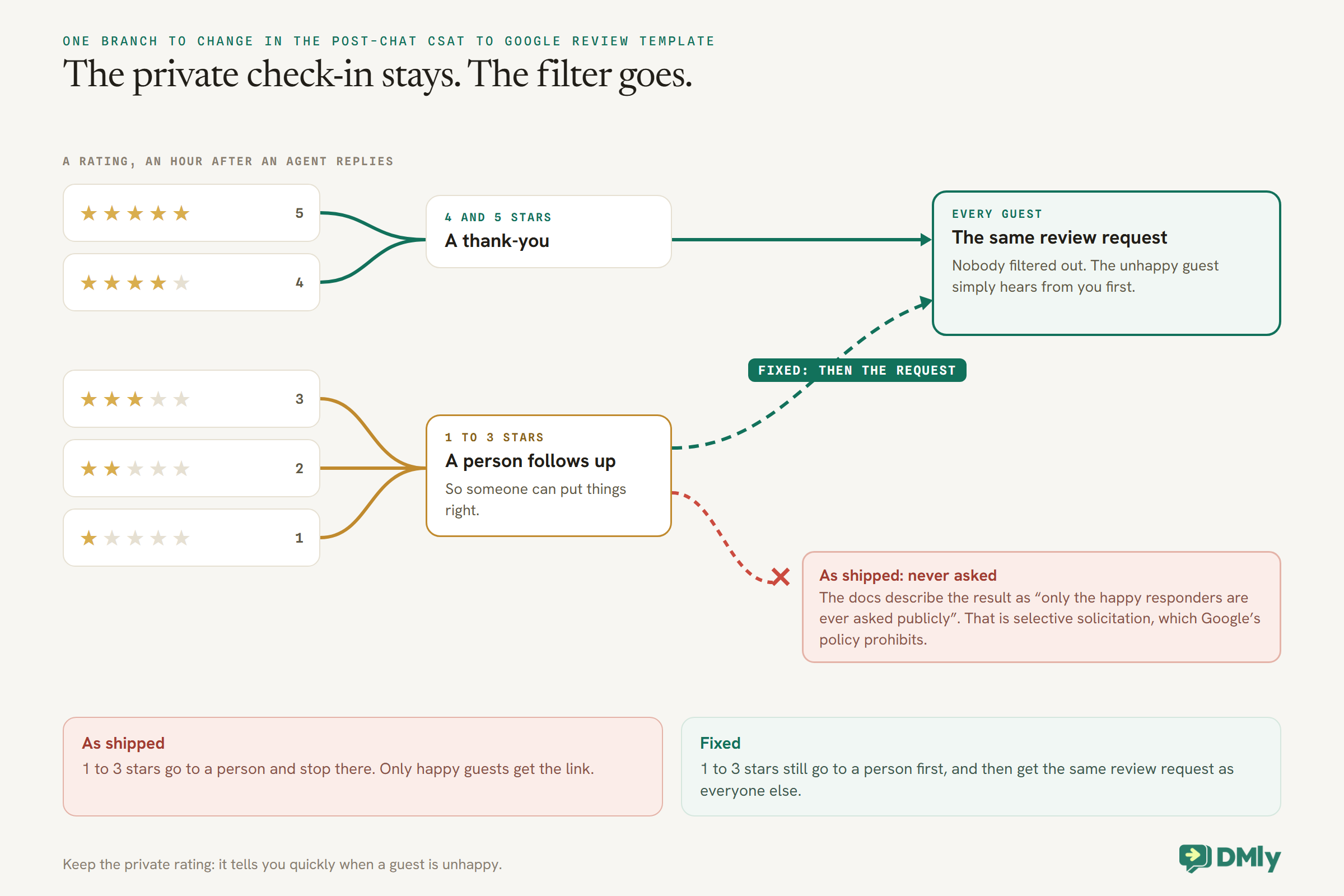
The Post-chat CSAT to Google review template asks a customer to rate a conversation from one to five stars an hour after an agent replies. One to three stars go to a person; four and five stars get a thank-you and then the review request. DMly’s docs describe the result as “only the happy responders are ever asked publicly”. That is selective solicitation, which Google’s policy prohibits.
The private rating is still useful: it tells you quickly when a guest is unhappy, so someone can put things right. Keep that part, and change the low-rating branch so that, after a person has been in touch, that guest is sent the same review request as everyone else. Nobody is filtered out; the unhappy guest simply hears from you first.
Reply to Every Review, Carefully
Replies are read by the diners deciding whether to book. Write them for that audience.
Once your profile is connected, DMly pulls your Google reviews in under Reputation → Reviews, and also polls them into the Inbox as one-shot threads roughly every half hour, so new reviews reach your team where they already work. To reply, open the review, write into Write a public reply… and select Post reply. Three things to know before your first one:
- There is no draft or approval step. Post reply publishes to Google immediately, under your business name. If more than one person replies, agree who, and read it twice.
- One reply per review. Editing overwrites the original; it does not add a second.
- You cannot delete or change a review from DMly. Only the reviewer can.
For the good ones, a short, specific thank-you: name the dish they mentioned, not a template line. For a disappointing meal, apologise for the experience, say what you are doing about it, and invite them to get in touch directly. Never argue in public, and never reveal anything about the guest’s booking or order.
A small reply library
Replying to every review is easier with a handful of starting points your team adapts each time, never pastes unchanged:
- Five stars, a dish mentioned: thank them by name, mention the dish, and say who in the kitchen will be pleased to hear it.
- Five stars, no detail: a short thank-you and an invitation back for something seasonal.
- Mixed: thank them for the kind words, acknowledge the part that fell short, and say what you have changed.
- Poor service or a long wait: apologise without excuses, and invite them to contact you directly so you can make it right.
Because Post reply publishes immediately, have the person replying read each one aloud before posting. It is the only draft step there is.
Reviews that mention illness or food safety
Occasionally a review says a meal made someone ill. Treat it seriously and carefully. Reply briefly and calmly, say you take it seriously and ask them to contact you directly so you can look into it, and do not admit fault, dispute the details or discuss what they ate in public. Then look into it properly with your team, and follow any obligations you have to your local food safety authority. If the review may have legal consequences, take advice before saying more.
Keep the Rest of Your Google Listing Alive
Reviews are one part of how diners choose. The rest of your listing does the other part.
A diner who reads your reviews also sees your opening hours, your photos and your recent posts, and all of those can be kept fresh from DMly.
- Posts. Under Reputation → Posts, New post publishes an Update, an Offer or an Event to your listing, with an optional photo and button link. Offers and events need a title and a date range. Google has no scheduled posting of its own, so DMly holds scheduled posts and pushes them when due, checking every five minutes, in your workspace’s timezone. A weekly post with this week’s special keeps the listing current. There is no editing a post: delete it and publish again.
- Business info. You can edit your phone, website, description and opening hours from DMly, which matters on bank holidays; your business name, address and category go through Google’s own verification.
- A WhatsApp button on your listing. WhatsApp on Google asks Google to add a chat button to your listing in Search and Maps, so a diner can message you to book in one tap. Whether Google offers it depends on your category and region; if it declines, DMly shows the reason and suggests putting your WhatsApp link in the website field instead. A new contact who arrives this way is attributed to Google Business Profile as their source.
- Performance. The Performance tab shows how many people found you and then called, tapped through to your website or asked for directions, which is the clearest sign of whether more reviews are turning into more visits.
Read the Restaurant Google Reviews Numbers That Mean Something
Only one of the four numbers on the Request reviews tab tells you what happened; your logs are the other place to look.
- Opened is real: the tracked link in each message records the first open.
- Sent counts request rows, including ones marked Failed and ones that were dropped without an error, such as a template not yet approved and a closed window.
- Delivered is stamped when DMly hands the message off, not when the phone receives it.
- Responses is never filled in and stays at 0, whatever happens.
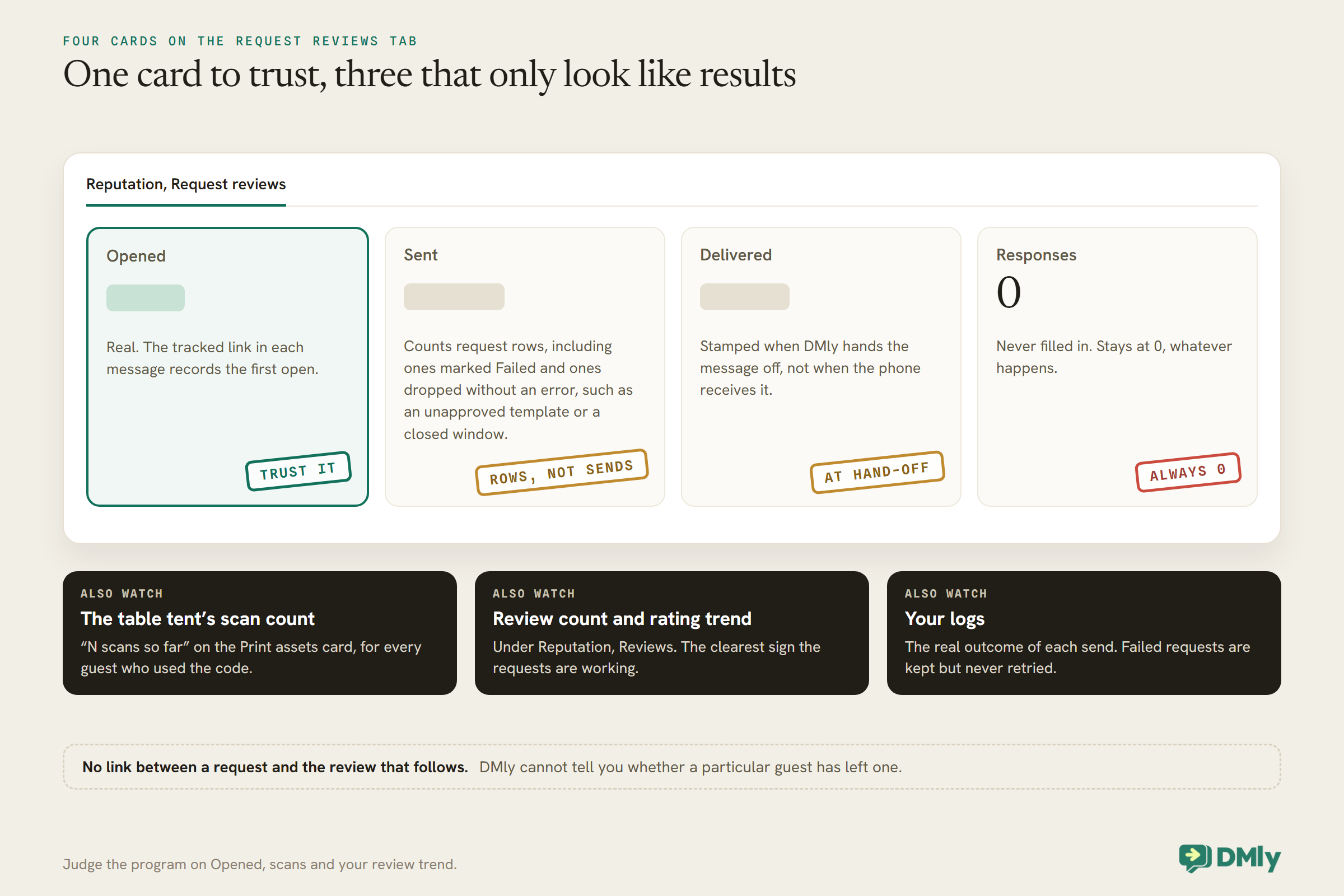
There is also no link between a request and the review that follows. To see whether it is working, watch Opened, your table tent’s scan count, and the review count and rating trend under Reviews. A request marked Failed means DMly could not reach the guest on that channel, for example because they have no WhatsApp identity or have opted out; failed requests are kept but never retried.
Test It Before Your Guests See It
- Book a test table on a staff phone, mark it completed, and check the request arrives in the window you set.
- Send a test cart and check the request follows at the right delay.
- Scan the table tent and check the scan count moves and the right location’s review page opens.
- Open the request and check Opened moves.
- Check your logs for the outcome of each send.
What It Costs
Review requests on WhatsApp go out on dmly_review_request, a marketing template, billed by Meta at your market’s marketing rate and counted against your DMly plan’s broadcast and template allowance. The table tent costs a print run. Replies to reviews cost nothing but a few minutes. Our explainer on WhatsApp pricing from October 2026 has the per-message detail.
Restaurant Google Reviews Mistakes to Avoid
- A free dessert for a review. Google prohibits incentives, food included.
- Asking only happy guests. Change the CSAT template’s low branch.
- Tables never marked completed. Under the default setting the automatic close fires the review flow for no-shows too, a day late. Choose Wait for review and mark every table.
- Requests at midnight. Use a Wait until window.
- Asking weekly regulars every week. Ask them occasionally, by hand.
- Pointing at the table tent while the guest pays.
- Trusting Sent or Responses. Watch Opened and your review count.
- A defensive public reply. Take the difficult ones offline.
Frequently Asked Questions
Can we offer a discount or free dessert for a review?
No. Google’s policy prohibits incentives for reviews, including discounts and free goods or services. Ask every guest, and attach nothing.
How do we ask diners who did not book?
With the table tent, counter card or sticker from Print assets, which carries a tracked QR code to your review page. Let it sit on the table; do not pressure guests to use it.
When should the review request go out?
After the guest is home: mid-afternoon for lunch, the next morning for dinner, the next day for delivery. A Wait until window keeps requests to daytime.
Why did our review request not arrive?
The guest may have no WhatsApp identity or have opted out, the review template may not be approved, or their active channel may be something other than WhatsApp. Your logs record the real outcome.
Is a review request a marketing message?
Yes. DMly records dmly_review_request as marketing, so it is billed at the marketing rate and should go only to guests who agreed to that kind of message.
Can we remove a bad review?
Not from DMly; only the reviewer can change or delete it. Reply calmly and publicly, and take the conversation offline.
The Line, Taken Off the Card
Go back to the table card promising a free dessert for a review. Take the line off. In its place, a table tent with a QR code for walk-ins, a WhatsApp message the morning after for every booked table, and a request the day after every delivery. Every guest is asked, nobody is paid, and the reviews that come in are ones you can stand behind.
That is how to get more restaurant Google reviews automatically: ask everyone, at a good moment, within the rules, and reply to what they say as if the next diner is reading, because they are.
Writing about WhatsApp automation, bookings and growth for local business.
Turn WhatsApp into your busiest channel.
Start free and run message, bookings, payments and reviews in one place.
