
A customer rings on a busy night and orders two chicken wraps, one with no onion. By the time the order reaches the kitchen it has become two wraps with no chicken. Nobody was careless. The phone line crackled, the person taking the order was also serving the counter, and the note was written on the back of a receipt. Trace the mistake back and it was never really about the wrap: it was about an order that passed through three pairs of hands and one bad line before anyone cooked it.
A WhatsApp ordering system for a restaurant removes most of those hands. The customer picks dishes from your real menu inside the chat, the order arrives as structured data with quantities and a total, and a flow confirms it back in writing before anything is cooked. What the customer sent is exactly what the kitchen sees.
This guide builds that system in DMly: the menu as a WhatsApp catalogue, switching commerce on, showing the menu, catching the cart, taking payment or cash on collection, delivery pins, getting orders to the kitchen, keeping customers updated, allergens, sold-out dishes, records and costs. It sits under our guide to WhatsApp automation for restaurants.
The other way: let AI take the order: This guide builds ordering on WhatsApp’s own catalogue and cart, where the customer builds the order. DMly can also take the order in conversation: its AI Food Ordering Assistant builds the order from dishes you set up in DMly, with add-ons and pickup, delivery or dine-in details, and hands a draft to your team to confirm. Unlike a cart, that creates an order in DMly’s Finance. Our guide to a WhatsApp AI chatbot for a restaurant covers that route; the rest of this guide is the catalogue route.
What a WhatsApp Ordering System for a Restaurant Is Made Of
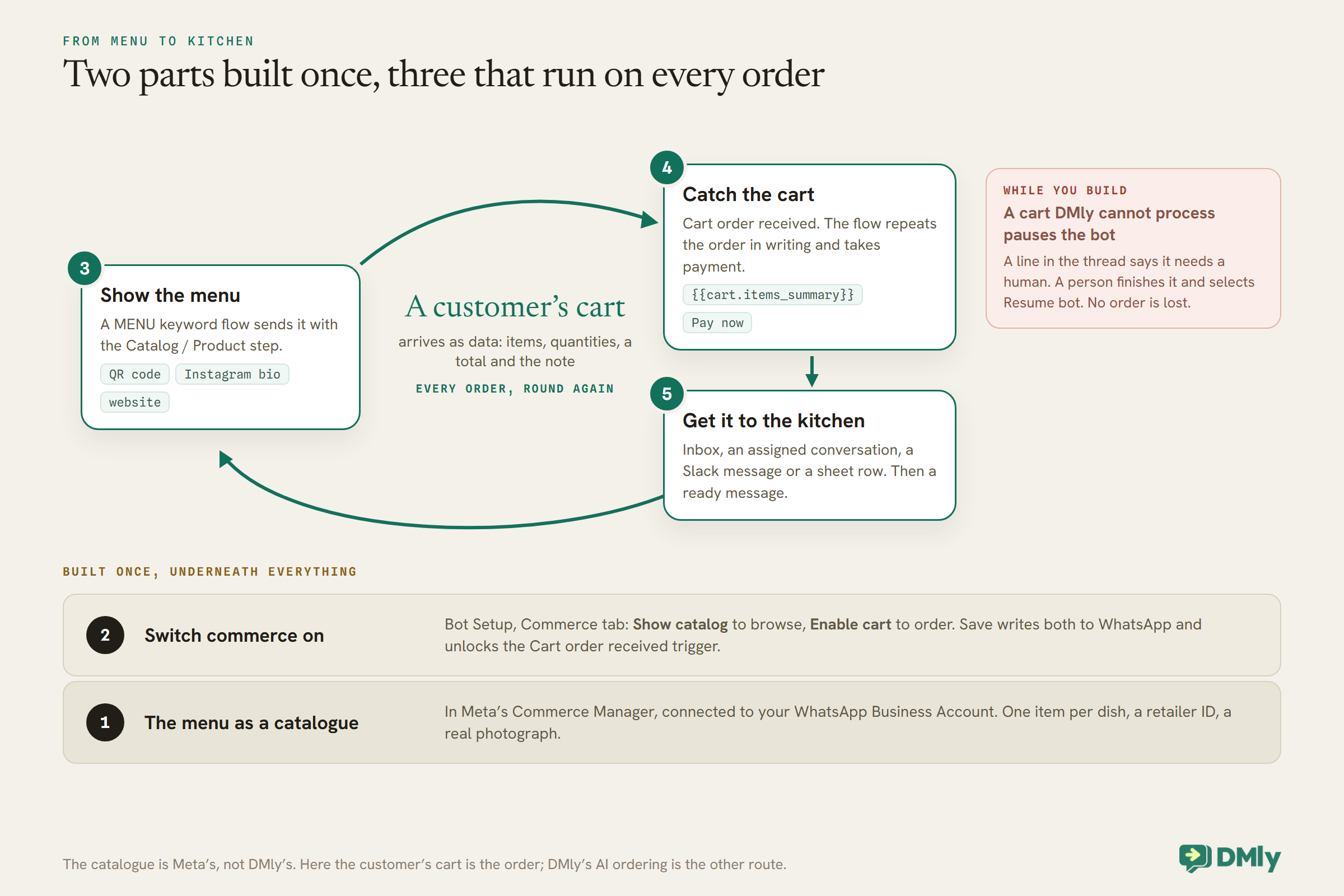
Five parts, each doing one job. Build them in order.
- The menu, as a catalogue in Meta’s Commerce Manager, connected to your WhatsApp Business Account.
- Commerce switched on for your number, so customers can browse and fill a cart.
- A way to show the menu in the chat: a keyword, a QR code, a button.
- A flow that catches the cart, confirms the order and takes payment.
- A route to the kitchen, and a way to tell the customer when the food is ready.
Step 1: Build the Menu as a Catalogue
The catalogue is Meta’s, not DMly’s. It is your menu inside WhatsApp.
WhatsApp ordering runs on a product catalogue you build in Meta’s Commerce Manager and connect to your WhatsApp Business Account. Each item has a name, description, price, image and availability. Meta’s documentation says WhatsApp reviews items added to a catalogue automatically and flags any that break its commerce policies, which you can appeal in Commerce Manager.
Build it the way a customer reads a menu:
- One item per dish, with the price the customer pays. Give each a retailer ID (SKU) you will recognise, because DMly’s product steps refer to items by it.
- Descriptions that answer questions: size, what comes with it, spice level, and dietary labels such as vegetarian or vegan.
- Allergen information, or a clear pointer to it. More on this below; for many restaurants it is a legal duty, not a nicety.
- Real photographs. The catalogue is the only view of your food the customer gets before ordering.
If a dish sells out, mark it unavailable in the catalogue. Meta’s documentation describes what happens next: a customer who has not added it sees it as unavailable, and one who already has it in their cart sees it removed, with a notice that items in the cart have been updated. That is far better than confirming an order the kitchen cannot cook.
Step 2: Switch Commerce On in DMly
Two switches, written straight to your WhatsApp number’s own settings.
In DMly, open Bot Setup on your WhatsApp channel and go to the Commerce tab. Show catalog lets customers browse your connected catalogue; Enable cart lets them add items to a cart and send it as an order. Without the cart, customers can look but not order. Save changes writes both to WhatsApp for you, and enabling the cart is also what makes the Cart order received trigger available in DMly’s automation builder.
You will also need a payment gateway connected in DMly if you want to take payment in the chat, which Step 5 covers.
Step 3: Show the Menu in the Chat
Customers should never have to ask twice to see the menu.
The Catalog / Product step, in the flow builder’s WhatsApp group, sends your menu into the conversation in one of three shapes:
- Full catalog: a browsable view of the whole menu. The default and the reliable choice.
- Single product: one dish, by its product ID. Good for “tonight’s special”.
- Product list: a titled section of several dishes, by comma-separated IDs, such as “Lunch deals”. Meta’s documentation caps a multi-product message at 30 products.
The step’s body text takes variables, so “Hi {{first_name}}, here’s tonight’s menu” works. Put it behind a MENU keyword flow, and then put that keyword everywhere:
- A QR code on the table, the door and the takeaway bag, made with a DMly growth tool. On WhatsApp, the code’s prefilled message doubles as a keyword, so a code that prefills
MENUbrings up the catalogue with a scan and a tap on send. - Your Instagram bio, Google Business Profile and website, with the same link.
- Your AI chatbot’s instructions, if you run one and it isn’t taking orders itself: “for orders, reply: send MENU to see our menu and order”.
Only one automation answers a given message, and DMly blocks publishing a second that also replies to everything on the same channel. A keyword flow and a catch-all chatbot can live side by side; two catch-alls cannot.
Step 4: Catch the Cart
When a customer sends a cart, it arrives as data. A flow turns it into a confirmed order.
A sent cart appears in your DMly Inbox as a cart-order line and fires the Cart order received trigger. In a flow on that trigger, the cart’s details are available as tokens you type into any message:
{{cart.items_summary}}: the order in one line, such as “2× Chicken wrap, 1× Fries”.{{cart.total}}and{{cart.currency}}.{{cart.item_count}}, and{{cart.note}}if the customer attached one, which is where “no onion” lives.
The first message back should repeat the order in writing: “Thanks {{first_name}}! That’s {{cart.items_summary}}, {{cart.total}} {{cart.currency}}. Note: {{cart.note}}.” This is the moment the misheard wrap never happens: the customer reads exactly what the kitchen will cook.
Build this flow in the flow builder, not as a quick automation. A quick automation on the cart trigger does fire, but the cart tokens do not resolve in it, and the customer gets a message with holes in it. The fastest start is DMly’s WhatsApp Cart Checkout template, which wires the thank-you, the payment and a human fallback for you.
The cart’s own rules
Meta’s documentation sets a few rules worth telling your team about. There is one cart per chat thread, on a specific device, with no expiry until it is sent. A customer can add up to 99 units of any one item, with no limit on the number of different items. Once a cart is sent, it cannot be edited: a customer who wants to change their order sends a new cart. And you cannot send a cart to a customer; they build it.
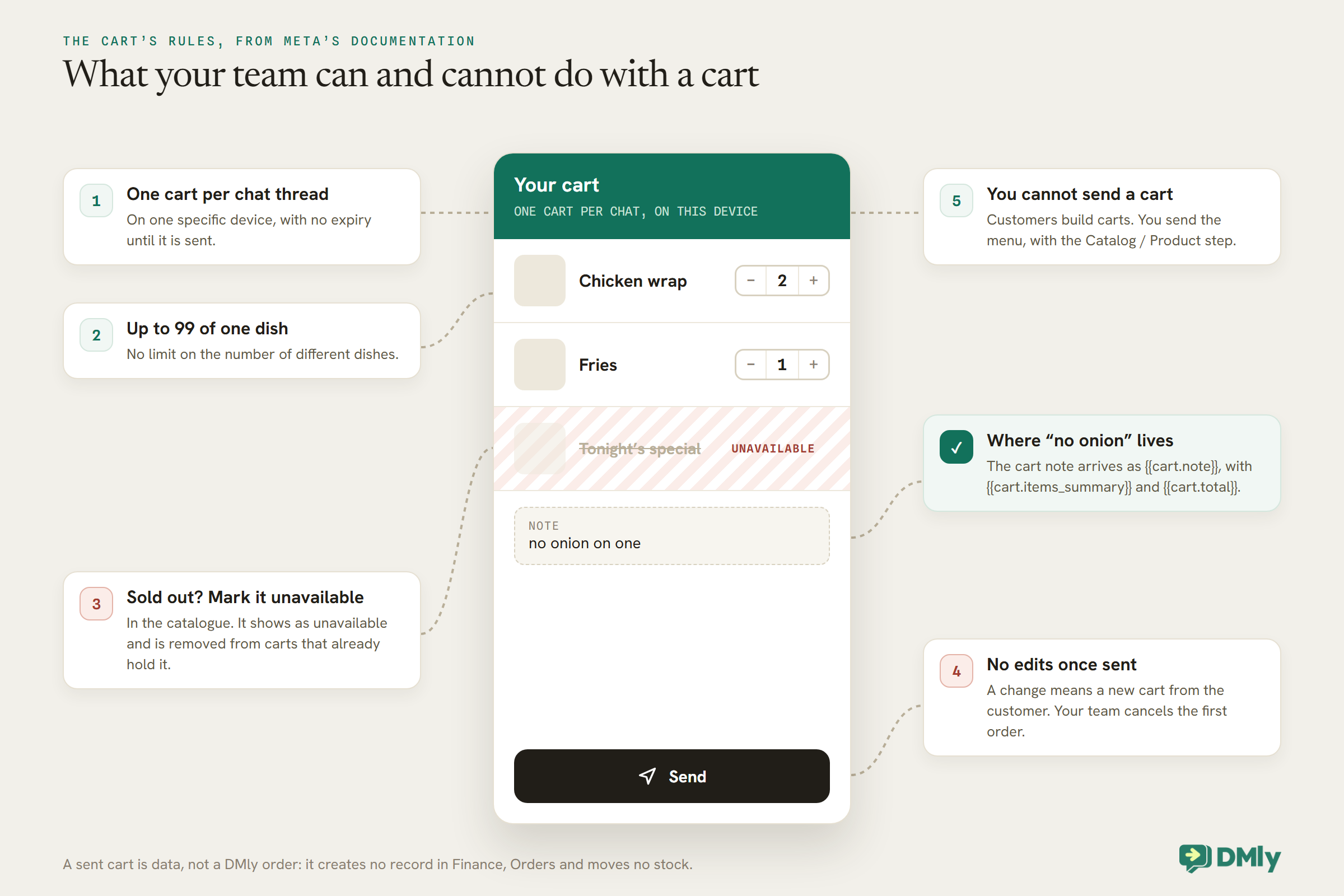
If DMly cannot process a cart, for example because it is empty, in a currency your gateway does not take, or contains an unrecognised product, or because no cart flow is published yet, it pauses the bot on that conversation and adds a line saying the cart needs a human. A person finishes the order and selects Resume bot. Nothing is lost while you build; it is just handled by hand.
Step 5: Take Payment, or Take It at the Counter
A Pay now button for paid-ahead orders, or a branch for customers who pay on collection.
The Request Payment step, in the Finance group, turns the cart into a payment. Give it the amount {{cart.total}}, the currency {{cart.currency}} and your gateway, and it sends the customer a tappable Pay now button. When they pay, the payment lands in Finance → Payments, and the Payment succeeded trigger can drive a follow-up. The step has a FAILED output for when a link cannot be created; wire it to a handover rather than leaving the customer at a dead end.
If you want an automatic “payment received” message, remember that the Payment succeeded trigger fires for every gateway payment, including invoices and paid bookings, not only food orders. Word that message so it reads correctly for any payment, such as “Thanks, we’ve received your payment”, and keep order-specific details in the cart flow itself.
Many restaurants also take cash or card on collection. Before the payment step, add a question with two buttons, Pay now and Pay on collection. A question step captures the reply and can be branched on, so the Pay now branch continues to Request Payment and the other branch confirms the order with the collection time.
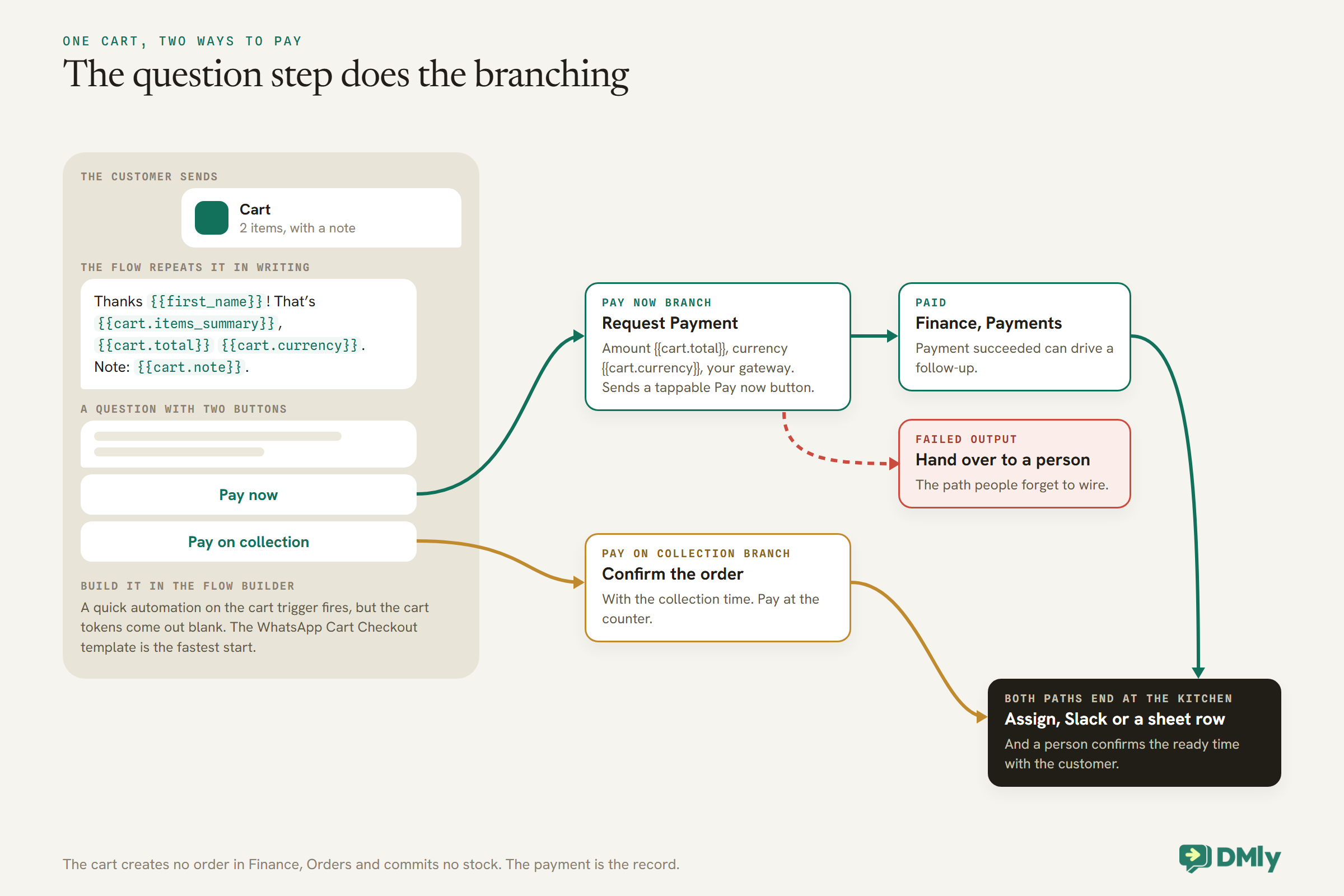
One thing a cart does not do: it does not create an order in DMly’s Finance → Orders. No order record is created and no stock is committed; the money side is the payment. For most restaurants that is fine. If you do track stock through DMly orders, create the order for what sold, remembering that a DMly order moves stock but never collects money on its own.
Step 6: Collection and Delivery
A pin beats a dictated address. Two location steps handle both directions.
- Request Location sends WhatsApp’s native prompt with a one-tap share-location button. When the customer shares, the flow continues on its RECEIVED path with the pin available as
{{location.latitude}},{{location.longitude}},{{location.name}}and{{location.address}}, and the pin appears in the Inbox for your driver. - Send Location drops your restaurant’s pin into the chat, with a place name and address. Put it after the confirmation for collection orders, or behind a
WHEREkeyword.
One behaviour to design around: the RECEIVED path continues on any reply, not only a shared location. If a customer types their address instead of tapping the button, the flow moves on but the location tokens come out empty. Have whoever dispatches the order check that a pin, or a typed address, actually arrived.
Put your delivery area, minimum order and delivery fee in your menu descriptions and your chatbot’s knowledge, so customers outside the area find out before they build a cart, not after.
Step 7: Get the Order to the Kitchen
An order confirmed in the chat still has to reach someone holding a pan.
Every cart already appears in the DMly Inbox. For a small restaurant, that may be enough: whoever runs the pass watches the Inbox on a tablet. For anything busier, add a step at the end of the cart flow that puts the order where the kitchen looks:
- Assign the conversation to the person running orders that shift, so it lands in their queue.
- Send a Slack message to a kitchen channel with the items, the note and the collection time.
- Send to Google Sheets, adding a row per order to a sheet the kitchen keeps open. DMly’s docs confirm the step exists but do not describe its settings panel in detail, so set it up with a test order first.
Whichever you choose, a person should confirm the ready time with the customer, because only the kitchen knows how long the queue is tonight.
Keeping Customers Updated
“Is my order coming?” is the question an ordering system should make unnecessary.
Two updates cover most orders: “your order is being prepared, ready at 7:40” and “your order is ready for collection” or “out for delivery”. Because the customer has just sent a cart, the 24-hour window is open, so these go as ordinary messages, typed by your team or dropped in from a saved reply in the Inbox. Save the three or four you use most, so each takes one tap.
For orders placed well ahead, such as a Sunday lunch ordered on Friday, an update sent outside the window needs an approved template. Messages about the customer’s own order are what Meta’s template guidelines call utility, as long as they contain nothing promotional: “your order is ready” is utility; “your order is ready, and here’s 10% off next time” is marketing.
Allergens and the Two-Stage Rule
An online order is distance selling. Allergen information has to be there before and after.
In England, Northern Ireland and Wales, the Food Standards Agency’s guidance says that when food is sold “online or by phone through distance selling”, allergen information “must be provided at two stages”: before the purchase is completed, which can be in writing such as on a menu or catalogue, and when the food is delivered, such as stickers or an enclosed menu. Its advice is to make written allergen information available at both. Other countries have their own rules; check yours.
For a WhatsApp ordering system, that means three things. Put allergen information in each dish’s catalogue description, or a clear line pointing to where it is. Include it with the food when it goes out. And make sure any allergy question that arrives in the chat, including in a cart note, reaches a person who knows the kitchen, rather than being answered by an automation. A note such as “nut allergy” on a cart is a reason for your team to call or message the customer, not just a line on a ticket.
Closing Time, Busy Nights and Sold-Out Dishes
An ordering system has to cope with the kitchen being closed, full or out of something.
- Sold out: mark the dish unavailable in the catalogue, and it drops out of open carts.
- Closed: DMly’s docs do not describe an opening-hours setting for the cart, and the catalogue stays browsable. Say your ordering hours in the MENU message, and put a Smart Delay set to Wait until after the cart flow’s first reply, with your ordering days and hours as its window: a cart sent when you are closed is acknowledged straight away, and the rest of the flow waits until you open, while a cart sent during opening hours carries straight on. On nights you do not take orders at all, switch Enable cart off.
- Busy: be honest about wait times in the confirmation. A customer told “about 45 minutes tonight” is happier than one told nothing.
Records, Regulars and Reporting
Every paid order leaves a trail. Use it.
Payments taken through the Pay now button appear in Finance → Payments like any other gateway payment, which gives you the order money in one place. Each customer who orders becomes a contact with the conversation, the cart lines and the payment on one record.
That record is the start of a regulars list. A flow on Cart order received can add a tag such as ordered-online, and a question after the first order, “want our weekly specials on WhatsApp?”, can tag a yes as specials-opt-in. Promotions to that list are marketing messages, so send them only to customers who said yes. Our guide to sending bulk messages on WhatsApp covers doing it safely.
Orders for Later: Pre-Orders and Collection Times
Not every order is for right now. Ask when, and write it on the ticket.
A cart has no field for “when”. Customers who want food for later will often say so in the cart note, which arrives as {{cart.note}}, but many will not. For collection orders, add a question to the cart flow before payment, “When would you like to collect? Reply with a time, or ASAP”, and include the answer in whatever you send to the kitchen. For large orders for an event, such as trays for an office lunch, a person should confirm the details and the time, so let the flow hand over any order above a size your kitchen needs to plan for; your team can see the item count in {{cart.item_count}} on the cart line.
Cancellations and Refunds
Refunding in DMly records the refund. The money moves in your payment provider.
Sooner or later a customer cancels a paid order, or an order goes wrong. Two things to know before it happens:
- The Refund button in DMly is bookkeeping only. It marks the payment refunded and reverses it on the customer’s statement, but it never contacts the gateway, so the customer’s card is not touched. Issue the actual refund in your payment provider’s own dashboard. A refund issued there comes back to DMly on its own and flips the payment to Refunded.
- Refunding needs the Issue refunds permission, which only admins have by default. Decide who on shift can refund, and grant it to them, rather than leaving the customer waiting for the owner.
When you cancel, tell the customer in the same chat what happens to their money and when to expect it. And if the order was part of a loyalty programme, remember that refunding a payment takes back the loyalty points it earned.
Test the Whole Pipeline Before Launch
- Scan your own QR code from a staff phone and check the menu appears.
- Send a small cart with a note, and check the flow repeats it exactly.
- Pay with the Pay now button, and check the payment appears in Finance, Payments, then refund it in your provider’s dashboard.
- Choose pay on collection on a second test, and check the kitchen gets the order.
- Mark a dish unavailable and check it disappears from an open cart.
- Share a location, then type an address instead, to see what the kitchen receives in each case.
- Send a cart with the cart flow paused, to see the handover line your team will get if the flow is ever off.
What It Costs
DMly, Meta and your payment gateway each take a part.
The ordering conversation happens inside the 24-hour window the customer opened. From 1 October 2026, Meta charges for free-form service messages beyond the first 1,000 per business phone number each month, and for utility templates, including those sent in response inside an open window. A customer who arrives from a Click-to-WhatsApp ad or a Page button and gets a reply within 24 hours opens a 72-hour window in which your messages are free. Your payment gateway charges its own fee on each Pay now payment. Our explainer on the October 2026 pricing change has the detail.
Mistakes to Avoid
- A cart flow built as a quick automation. The cart tokens come out blank.
- No written repeat of the order. The confirmation is where mistakes are caught.
- An unwired FAILED output on Request Payment. Hand it to a person.
- Sold-out dishes left available in the catalogue.
- No allergen information in the catalogue or with the food.
- Answering allergy notes automatically. A person checks every one.
- Assuming a cart creates a DMly order. It does not; the payment is the record.
- Two catch-all automations on one number. Only one answers.
Frequently Asked Questions
Can customers order food directly in WhatsApp?
Yes. With your menu as a WhatsApp catalogue and the cart enabled, customers browse, add dishes to a cart and send it in the chat, and a DMly flow confirms the order and takes payment.
How do customers pay for a WhatsApp order?
A Request Payment step sends a Pay now button for the cart total through your connected gateway. You can also offer pay on collection with a two-button question before the payment step.
Can a customer change an order after sending it?
Not the sent cart; Meta does not allow edits once a cart is sent. The customer sends a new cart, and your team cancels the first order.
What happens when a dish sells out?
Mark it unavailable in the catalogue. Customers see it as unavailable, and it is removed from carts that already contain it.
How does the kitchen see WhatsApp orders?
Every cart appears in the DMly Inbox. The cart flow can also assign the conversation, send a Slack message or add a row to a Google Sheet the kitchen keeps open.
Do we need allergen information on the WhatsApp menu?
For food sold by distance selling in England, Northern Ireland and Wales, the Food Standards Agency says allergen information must be available before purchase and on delivery. Check the rules where you trade, and put it in your catalogue descriptions.
The Wrap, Ordered Again
Go back to the two chicken wraps. With the system above, the customer taps two wraps into a cart and types “no onion on one” in the note. The flow repeats it back in writing, the customer pays with one tap, and the kitchen sees exactly the same words the customer wrote. Nothing passes through a crackling line or the back of a receipt.
That is the point of a WhatsApp ordering system for a restaurant: fewer hands between the customer and the kitchen, every order confirmed in writing, and your team freed to cook rather than transcribe.
Writing about WhatsApp automation, bookings and growth for local business.
Turn WhatsApp into your busiest channel.
Start free and run message, bookings, payments and reviews in one place.
