
How to Add WhatsApp to Your Website: WordPress, Wix, Squarespace, and Webflow
Open your own website on your phone and try to contact yourself. The contact page offers an email address, a form that promises a reply within two working days, a landline, and a small green WhatsApp icon in the footer. Tap the icon. On many small business sites it opens WhatsApp with a number that is not quite right, or opens a chat with no idea which page you came from, or does nothing at all because the link was copied wrong three redesigns ago. The visitor who wanted to ask one quick question has now tried four ways and left.
This guide shows how to add WhatsApp to your website properly, three ways, from simplest to most capable: a WhatsApp button or link that opens a chat, a live chat widget that lets visitors choose WhatsApp and keeps the conversation going there, and a booking embed so they can book without leaving your page. Then it walks through installing each on WordPress, Wix, Squarespace and Webflow, using each platform’s own instructions, read in September 2026.
For what happens once the conversation arrives, see our guides to WhatsApp AI chatbots and WhatsApp appointment booking.
Three Ways to Put WhatsApp on Your Site
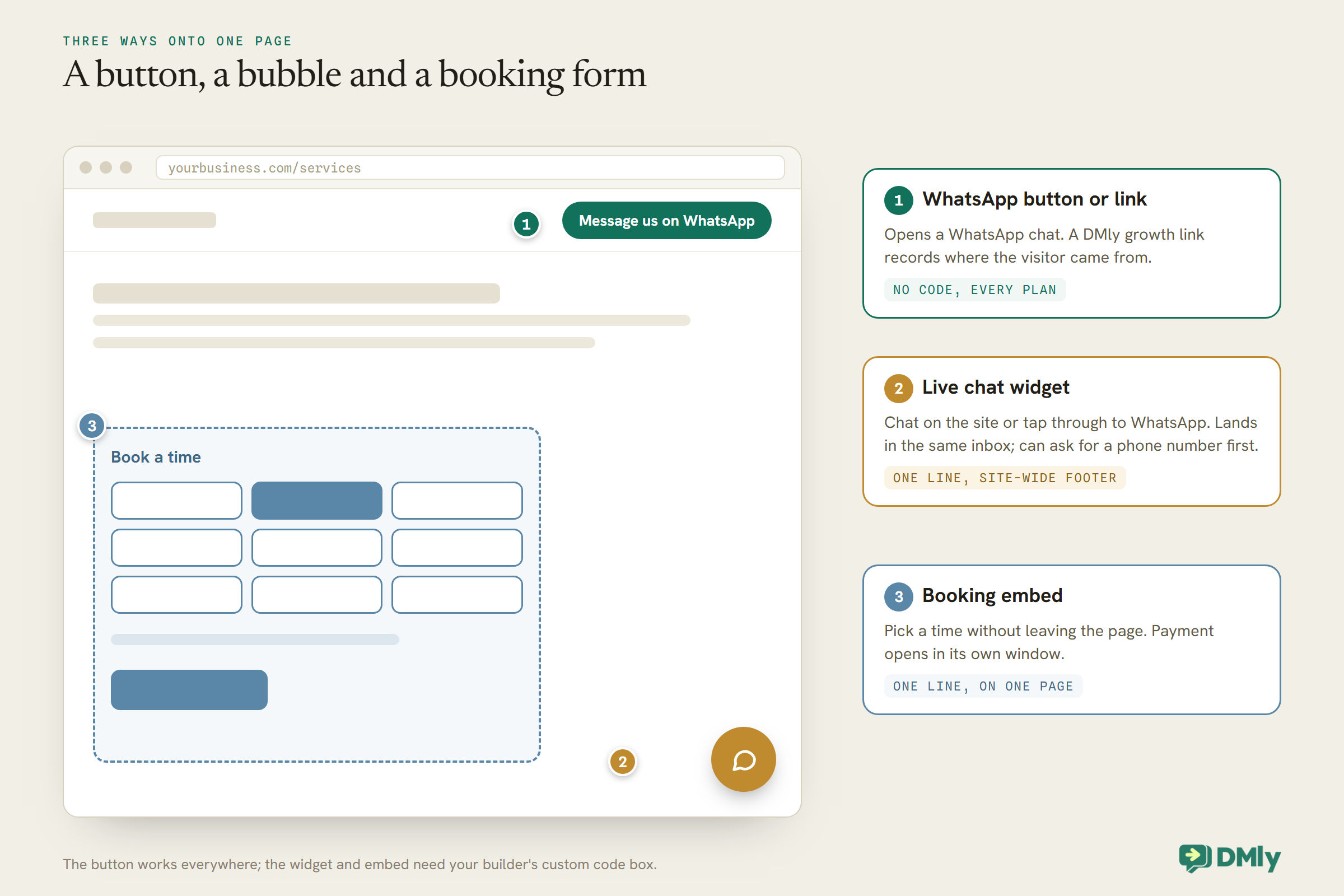
There are three ways to add WhatsApp to your website. Choose by what you want the visitor to do next: message you, chat now, or book.
1. A WhatsApp button or link. A link that opens a WhatsApp chat with your business, placed as a button, an icon or a line of text. It needs no code, so it works on every plan of every website builder. With DMly’s growth tools, the link carries a reference code, so the visitor’s first message is stamped with where they came from and can start an automation that greets them.
2. A live chat widget that hands over to WhatsApp. A chat bubble in the corner of every page. Visitors can type to you on the site, or tap straight through to WhatsApp. With DMly’s Live Chat widget, conversations land in the same inbox as your WhatsApp messages and can run the same automations, and you can ask for a phone number before the chat so the conversation can continue on WhatsApp after they leave.
3. A booking embed. Your DMly booking page placed on your site, inline or behind a button, so visitors book a time without leaving the page. It pairs well with either of the first two: the button or widget for questions, the embed for people ready to book.
Which Option Suits Your Business
Start with the question your visitors most often have, and the plan your website is on.
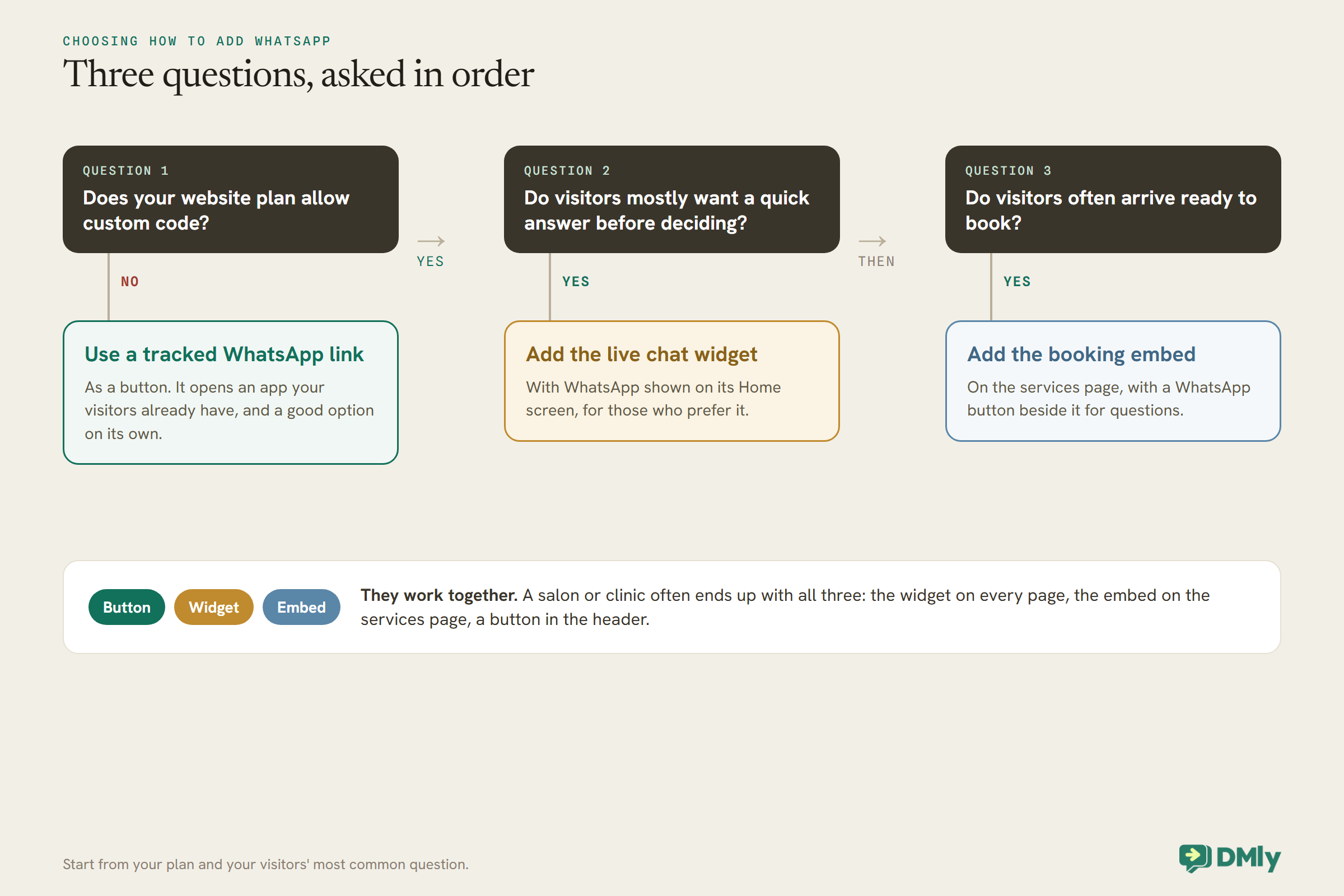
If your plan does not allow custom code, the WhatsApp link is your option, and a good one: it opens an app your visitors already have on their phones. If visitors mostly want a quick answer before deciding, such as a price, whether you are open, or whether you do a particular thing, a chat widget catches them on the page and still offers WhatsApp to those who prefer it. If most visitors already know what they want, put the booking embed on the page they land on and a WhatsApp button beside it for questions. A salon or clinic often ends up with all three: the widget on every page, the booking embed on the services page, and a WhatsApp button in the header.
Option 1: A WhatsApp Button or Link
The simplest version is a link. Make it a link that tells you where the visitor came from.
In DMly, go to Messaging, then Growth Tools, with your WhatsApp number selected in the channel bar, and create a new growth tool of type WhatsApp link. Give it a name you will recognise, such as Website contact button; that name is stamped on every contact the link brings in and appears in your reports. DMly creates a link that opens a WhatsApp chat with your business and a reference code in the first message. An automation on the WhatsApp URL trigger can recognise that link and greet the visitor straight away, for example with your opening hours and a booking button.
Then put the link on your site as a button or icon, using your builder’s normal button or link settings. No custom code is needed, so this works on free and paid plans alike. Make separate links for different places if you want to compare them, such as the header button, the contact page and a product page, since each growth tool is counted separately. There is no limit on how many you create.
A link is only as good as what answers it. Decide what happens when someone taps it at 10pm: an automation that answers common questions and offers booking times, or at least an honest message saying when a person will reply.
Where to put the button, and what it should say
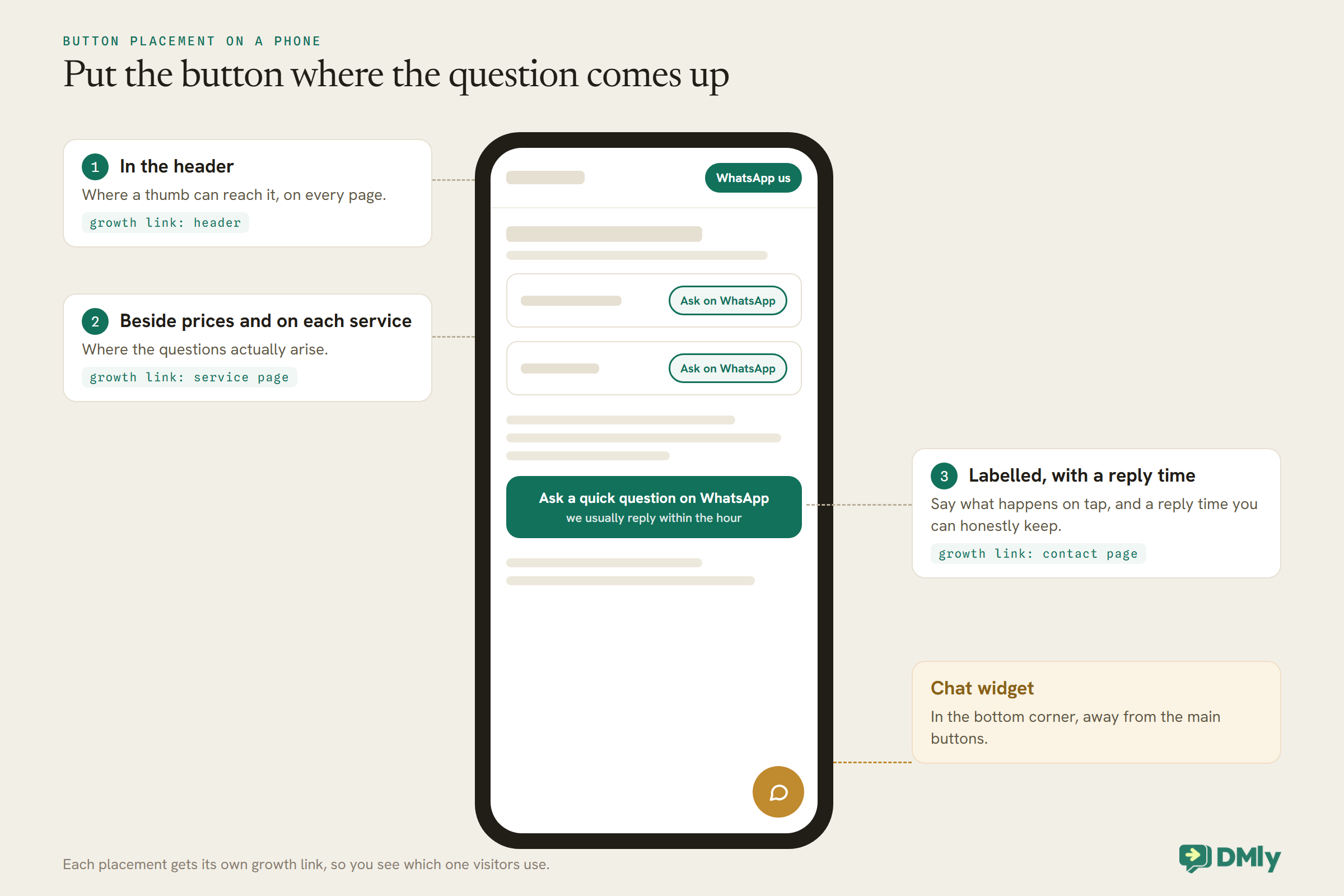
Put the WhatsApp button where the question arises, not only on the contact page: beside prices, on each service page, and in the header on mobile, where it is easy to reach with a thumb. Say what happens when they tap it: “Message us on WhatsApp” or “Ask a quick question on WhatsApp” works better than an unlabelled icon, and adding the reply time you can honestly keep, such as “we usually reply within the hour”, sets the right expectation. Give each placement its own growth link, so you learn which one visitors actually use.
Option 2: A Live Chat Widget That Continues on WhatsApp
A widget catches visitors who will not leave the page to open another app, and hands the rest to WhatsApp.
In DMly, go to Bot setup and select Set up Live Chat, or add it from Integrations, Channels. Name the widget, style it, and copy the one-line snippet from the Install panel. Before touching your site, use Open test page: it shows the real widget on a page DMly hosts, so you can try your greeting and flows. Anything you send there is a real conversation, so delete the test contact afterwards.
Three settings make the widget work with WhatsApp:
- Layout. Home opens on a landing screen showing your channels first, under “Chat with us on your favorite app”, which nudges visitors toward WhatsApp. Classic opens straight into the chat.
- Channels. Your WhatsApp, Messenger, Instagram and Telegram deep links, shown as buttons or icons, so a visitor who prefers WhatsApp can tap straight through.
- Require phone before chat. Asks for a phone number, with a country picker, before the first message, so you can continue the conversation on WhatsApp after the visitor leaves the site. Every pre-chat field is off by default.
Two things to know. A phone number or email typed into the widget does not link the visitor to a contact you already have, even if it matches, because anyone can type anything into a public form; DMly treats it as a claim, not proof. And messaging that visitor on WhatsApp later, outside a conversation they started there, needs an approved template and their permission, like any WhatsApp message to someone who has not written to you recently.
When nobody is available
The widget can say honestly whether someone is around. Its Online switch sets the presence dot in the header, and when you leave the status text blank DMly picks “Online · replies in a few minutes” or “Away · leave us a message” to match. With Online turned off, an Offline message you write appears as a band just above the message box, which is the place to say when you will reply, or to suggest WhatsApp so the conversation is waiting on the visitor’s phone when you answer. An automation can still reply at any hour, so the offline message can promise a person’s reply while the bot handles the simple questions straight away.
Consent in the pre-chat form
If you plan to follow up on WhatsApp with people who chatted on your site, ask for permission at the start. The widget’s Require consent before chat switch shows a tick box with your own Consent text, such as “I’m happy for [Business] to reply on WhatsApp about my enquiry”, and the chat cannot start until it is ticked. DMly stores the ticked box on the message record, but its docs say it is not shown anywhere, not in the inbox, exports or API, so do not rely on it as evidence you can retrieve later; keep your own record of how you collect permission. Keep the wording specific to what you will actually send, and check it against the privacy rules where you and your visitors are.
Option 3: A Booking Embed
For visitors who already know what they want, let them book on the page.
In DMly, go to Business, Appointments, Settings, Appointment, and scroll to Share & embed. Choose a layout: Inline, where the booking page sits in your page and resizes to fit; Popup button, a button that opens the booking page in a centred card; or Lightbox, a button that opens it full screen, which works well on phones. Select Copy snippet and paste the line into your page where you want it. If a service takes payment before booking, most payment providers will not load inside another site’s page, so the embed shows a “Continue to secure payment” screen that opens payment in the browser’s own window; everything before that stays in your page.
Where the Code Goes
The widget goes on every page; the booking embed goes on one page. Each builder has a place for each.
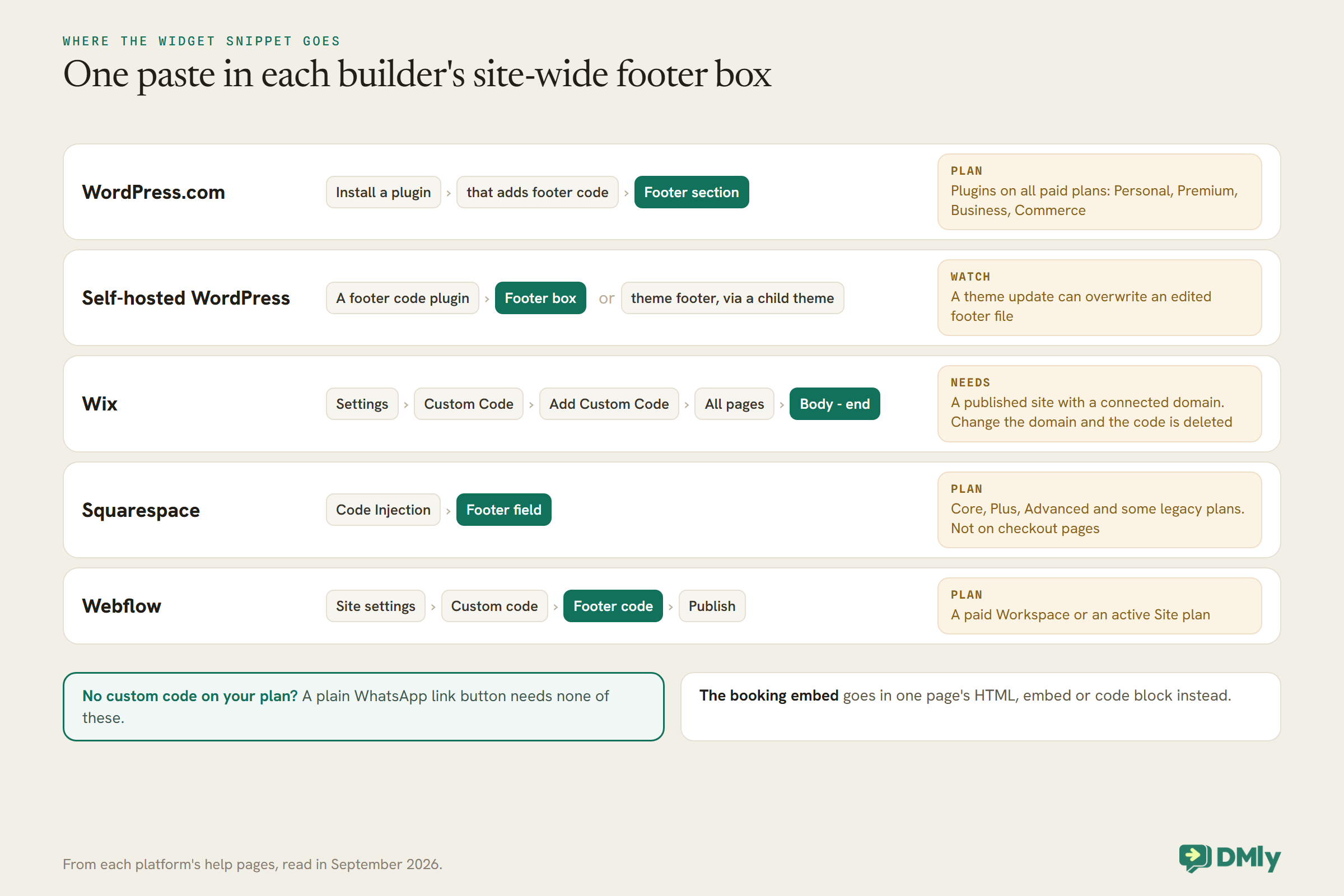
DMly’s widget snippet goes just before the closing </body> tag on every page where you want the bubble. Every builder below has a site-wide “footer code” or “custom code” box that does exactly that, so one paste covers the whole site. The snippet loads the widget in an isolated frame, so it cannot clash with your site’s styles. The booking embed is different: it goes in the body of the specific page where you want the booking form, using the builder’s embed or code block.
WordPress
How you add code depends on which WordPress you have: WordPress.com, or WordPress installed on your own hosting.
The button. In the block editor, add a Buttons block where you want it, type the label, such as “Message us on WhatsApp”, and paste your DMly WhatsApp link as the button’s link. For a button on every page, add it to your header or footer template part in the site editor, if your theme uses one.
The widget, on WordPress.com. WordPress.com’s help centre says plugins can be installed on all its paid plans: Personal, Premium, Business and Commerce. Install a plugin that adds code to your site’s footer, paste the DMly snippet into its footer section and save. On the free plan, plugins are not available, so use the button instead.
The widget, on self-hosted WordPress. The most reliable route is a plugin that adds code to the footer of every page; paste the snippet into its footer box. Editing your theme’s footer file also works, but a theme update can overwrite it, so a child theme or a plugin is safer.
The booking embed. On the page where you want it, add a Custom HTML block and paste the embed snippet. Preview the page to check it loads.
Wix
Wix adds site-wide code from the dashboard, once your site is published with its own domain.
The button. In the Wix Editor, add a button, set its text, and link it to your DMly WhatsApp link as a web address.
The widget. Wix’s help centre says your site must be published and have a connected domain first. Then, in your site’s dashboard, go to Settings, then Custom Code in the Development and integrations section, and select Add Custom Code. Paste the DMly snippet, give it a name such as “DMly chat widget”, choose All pages, choose Body – end as the placement, and select Apply. Wix notes that custom code is tied to your domain: if you change the site’s domain, the snippets are deleted and need adding again.
The booking embed. Wix’s help centre points to an embed or iFrame element for visible content; add an HTML embed element on the page and paste the booking snippet into it, then check it on mobile.
Squarespace
Squarespace calls it code injection, and it depends on your plan.
The button. Add a Button block and link it to your DMly WhatsApp link.
The widget. Squarespace’s help centre says code injection is available on the Core, Plus and Advanced plans and some legacy plans. Open the Code Injection panel and paste the DMly snippet into the Footer field, which Squarespace says injects code before the closing body tag on every page, then select Save. Squarespace notes that checkout pages do not support code, so the widget will not appear there.
The booking embed. Add a Code block on the page where you want it and paste the booking snippet. Squarespace’s own support does not help with third-party code, so test it yourself on desktop and mobile.
Webflow
Webflow adds site-wide code in Site settings, on a paid plan.
The button. Add a Button or Link Block and set its link to your DMly WhatsApp link.
The widget. Webflow’s help centre says site-wide custom code is available with a Core, Growth, Agency or Freelancer Workspace, or on a site with an active Site plan. Go to Site settings, the Custom code tab, paste the DMly snippet into Footer code, which appears before the closing body tag on every page, and select Save changes. Then publish the site, since custom code runs on the published site. Webflow allows up to 50,000 characters per section, far more than the one-line snippet needs.
The booking embed. Use the Code Embed element on the page and paste the booking snippet.
Control Where and When the Widget Appears
Not every page needs a chat bubble. DMly’s display rules decide where it loads and when it shows.
The widget’s Display rules panel sets which devices and pages it loads on, how many seconds to wait before the launcher appears (0 to 300, with 0 showing it straight away), and whether to show it on exit intent. Device and page rules are hard gates: on a page that fails them, the widget does not load at all. Use them to keep the bubble off a checkout or a page where it covers something important, or to show it only on pricing and booking pages, where questions are most likely.
There is also a safety limit: the widget accepts a set number of brand-new visitors a day, 500, so a sudden flood cannot fill your contacts. A normal small business site will never come near it; if you do hit it, DMly’s docs say it is a sign of either sudden fame or something hammering the widget.
Other Website Builders
The same approach works on almost any builder: a link for the button, the footer code box for the widget.
If your site runs on another platform, such as an online shop builder or a hosting company’s site builder, look in its settings or help centre for a box called something like “footer code”, “custom code”, “code injection” or “tracking code” that applies to every page. That is where the widget snippet goes. The booking embed needs an “HTML”, “embed” or “code” block on a single page. If your platform has neither, use the WhatsApp link as a button and a link to your DMly booking page, which needs no code at all; the booking page can also be served on your own domain.
Measuring What Works
Once WhatsApp is on your site, check which placements bring conversations and which bring bookings.
Each DMly growth tool counts its clicks, or scans for a QR code, and every contact it brings in carries the growth tool’s name as its source, so you can see how many enquiries each button produced. Widget conversations arrive on the Live Chat channel, and booking-page bookings are marked with their source in the Bookings list. After a month, compare the placements: keep the buttons that bring conversations, move or reword the ones that do not, and look at how many of those conversations became bookings. Our guide to adding a live chat widget to your website covers the widget in more depth.
What Happens After Someone Messages You
Putting WhatsApp on your site is the easy part. Answering well is what turns visitors into customers.
Messages from your website button arrive in DMly’s inbox as WhatsApp conversations, tagged with the growth tool that brought them; widget conversations arrive in the same inbox as a Live Chat channel. Both can run automations: a greeting, answers from an AI agent that knows your prices and hours, and tappable booking times. Decide who watches the inbox and what the automation says out of hours. A reply that arrives while the visitor is still on your site gives them the least reason to look elsewhere.
Test It From a Phone Once You Add WhatsApp to Your Website
Many of your visitors will be on phones, and that is where a WhatsApp button either works or does not.
- Open your site on your phone and tap the WhatsApp button. Check it opens WhatsApp, to the right business, with the reference code in the first message.
- Send the message and check the greeting arrives and the contact shows the growth tool’s name as its source.
- Open the chat widget on your phone. Check it does not cover your menu or your own buttons, and that the WhatsApp channel button works.
- Fill in the pre-chat form and send a message. Check it lands in your inbox and your flow replies.
- Open the booking embed, pick a time, and if the service is paid, check the payment opens in its own window and returns you correctly.
- Delete the test contacts afterwards.
Mistakes to Avoid
- A plain number link with no tracking. You will never know which button brought the message; use a growth link.
- Pasting the widget on one page only. Use the builder’s site-wide footer box.
- Forgetting the plan requirement. Wix needs a connected domain; Squarespace and Webflow need particular plans.
- Changing your Wix domain without re-adding the code. The snippet is removed with the old domain.
- Deleting and recreating the widget. The old snippet stops working; paste the new one.
- No reply plan. A WhatsApp button that nobody answers is worse than none.
Frequently Asked Questions
How do I add a WhatsApp button to my website?
Create a WhatsApp link, in DMly as a growth tool so it is tracked, and add it to a button or icon with your website builder’s normal link settings. No code is needed.
Can I add WhatsApp to a free Wix, Squarespace or WordPress.com site?
A WhatsApp link button, yes. A chat widget needs custom code: Wix requires a published site with a connected domain, Squarespace code injection is on its Core, Plus and Advanced plans, and WordPress.com plugins are on its paid plans.
What is the difference between a WhatsApp button and a chat widget?
A button opens WhatsApp in a new app. A widget lets visitors chat on your site and choose WhatsApp if they prefer, and can collect a phone number to continue on WhatsApp later.
Where do I paste the widget code?
Just before the closing body tag on every page, which is what each builder’s site-wide footer or custom code box does.
Can visitors book appointments from my website?
Yes, with DMly’s booking embed, inline or behind a button. Paid services open payment in a separate window.
Will the widget slow down my site?
The snippet is one line that loads the widget in an isolated frame, and DMly’s display rules let you delay it or keep it off pages where it is not needed.
Test Your Contact Page Again
Go back to your phone and your own contact page. This time the WhatsApp button opens a chat that greets the visitor and knows which page they came from, the bubble in the corner lets them ask a question without leaving, and the booking button lets them pick a time there and then. That is what it means to add WhatsApp to your website properly. If you are not on DMly yet, see the plans; the Live Chat widget, growth links and booking page are all part of it.
Writing about WhatsApp automation, bookings and growth for local business.
Turn WhatsApp into your busiest channel.
Start free and run message, bookings, payments and reviews in one place.
