
WhatsApp Appointment Booking: Setup, Payments, and Reminders (2026)
The booking doesn’t go to the best salon. It goes to the one that answers first.
Every owner learns that the same way, and it is the whole argument for WhatsApp appointment booking in one story. A message lands after you have locked up: “Hi! Do you have anything Saturday morning for a cut and colour?” You find the photo you took of the diary before you left, zoom in on Saturday, and reply “10:30 with Ade?” the next time you have both hands free. She answers while you are asleep. You answer her back on Tuesday lunchtime, and by then she is booked somewhere else. Nobody outsold you. You were out-answered.
Multiply that by a dental receptionist confirming Thursday’s patients one call at a time, a personal trainer juggling three chat apps for six clients, and a tutor who spent Sunday evening moving lessons around because two parents messaged at once. None of it is hard work. It’s just constant, and it happens in the gaps around the actual job you were trying to do.
WhatsApp appointment booking closes those gaps for you. Your customer asks in the app they already use, sees what is genuinely free, picks a time and gets a confirmation on the same thread, at 9:40pm or 6am, without anyone touching the diary. Reminders, reschedules, payments and follow-ups all run on the same channel.
Here’s what you’ll get out of this guide: what WhatsApp appointment booking actually is and what it isn’t, how it works step by step, why it matters for no-shows and revenue, what to look for in a booking system, how AI changes it, what it looks like across six kinds of business, why DMly’s appointments are the best fit for it, how to set it up in an afternoon, and the mistakes that catch first-timers.
What Is WhatsApp Appointment Booking?
It means your customer can choose a service, a staff member and a time and confirm it, all from inside a WhatsApp conversation, with the confirmation, the reminders and any later changes handled on the same thread. The diary itself lives in a booking system. WhatsApp is the front door.
If you sell seats in a room rather than hours to one person, the arithmetic is different: capacity, waitlists and rosters instead of a single slot. See our guide to building an online class booking system.
In practice a booking starts in one of three ways, and a good setup uses all three, because your customers are not all the same:
- A booking link in the chat. The customer taps a link to your booking page, sent by you, by an auto-reply or by a flow, picks a slot on a mobile page and comes back to WhatsApp for the confirmation. Simple, and it works for every customer you have.
- Booking inside the conversation. An AI agent or a guided flow asks what they want, checks what is really free, offers times in the chat and books the one they pick. Your customer never leaves WhatsApp.
- Your team books for them. Someone calls or walks in, and a staff member adds the booking by hand. The confirmation and reminders still go out on WhatsApp.
What it isn’t: it isn’t the free WhatsApp Business app’s away message plus a paper diary, and it isn’t a bot that says “someone will confirm shortly”. If a person still has to check the calendar and type the reply, you’ve automated the greeting, not the booking. Real WhatsApp appointment booking runs on the official WhatsApp Business Platform (the API), which is what lets software read your availability, write the booking and send template messages after the conversation has gone quiet. Not sure which kind of account you have? Our guide to the three types of WhatsApp accounts walks through it.
| What happens | Phone and manual DMs | Booking page only | WhatsApp booking (page + chat) |
| Where the customer starts | A call or a message someone must answer | Your website or a link | The chat they already opened, or the link |
| Availability | Someone checks the diary | Live | Live, on the page and inside the chat |
| Confirmation | Typed by hand | On WhatsApp, with a manage link | |
| Reminders | If someone remembers | Email, easily missed | Timed WhatsApp templates |
| Reschedule or cancel | Another call | Log in, find the booking | Tap the link or reply in the chat |
| After hours | Voicemail | Works | Works, and answers questions too |
| Cost of a change | Your team’s time | Low | Low, and the diary updates itself |
The takeaway: a booking page on its own fixes availability, but it leaves your confirmations and reminders sitting in email, where they get ignored. WhatsApp appointment booking keeps the whole cycle in the place your customers actually read.
Need a quick starting point? The free WhatsApp booking page generator creates a booking page linked to your WhatsApp number.
How WhatsApp Appointment Booking Works, Step by Step
Every WhatsApp booking follows the same eight moves, whether it started from a link, an AI conversation or your front desk. Here’s the whole run, so you know what you are buying before anyone shows you a demo.
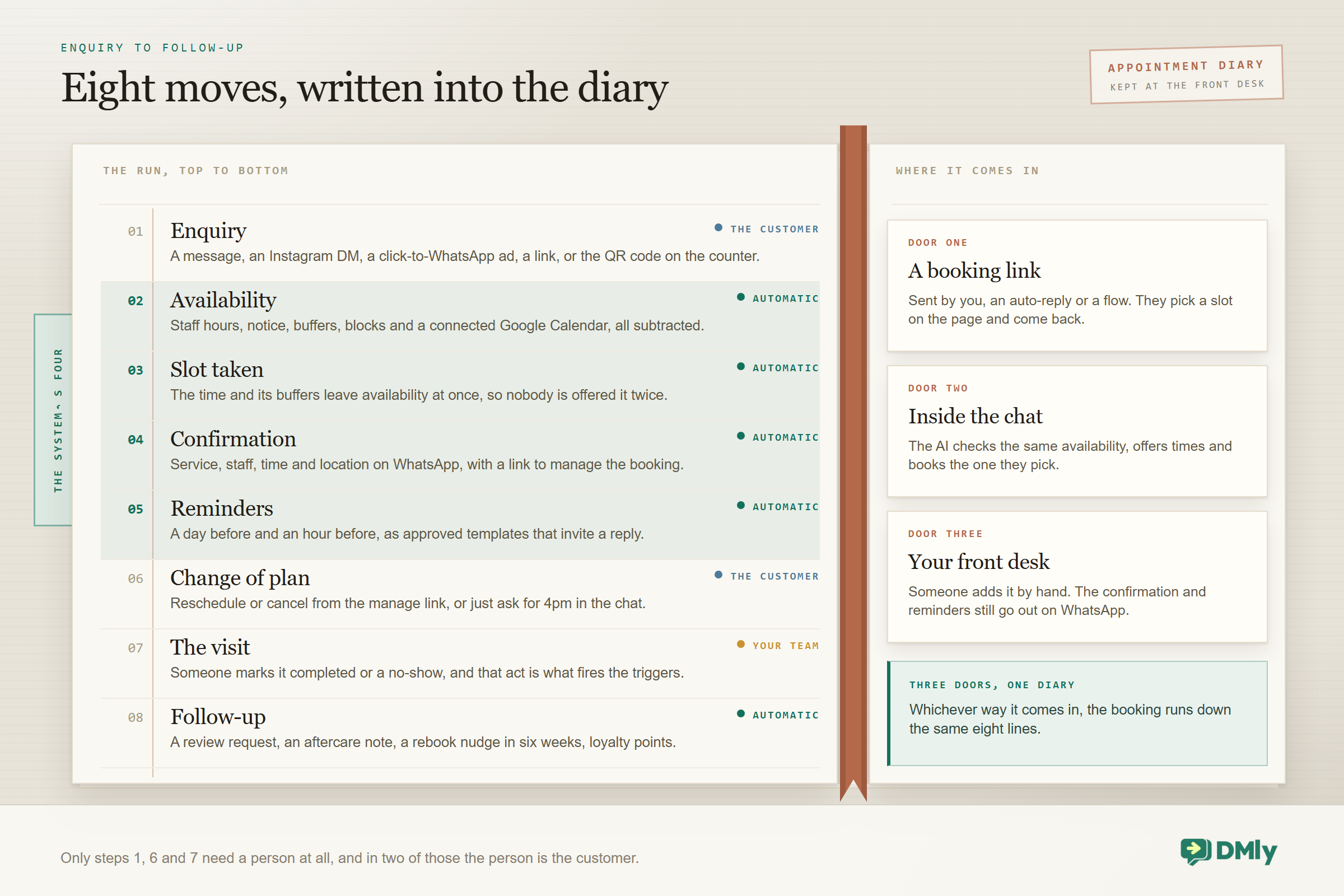
- The enquiry. A customer messages your number, taps a click-to-chat link, scans a QR code at the counter or replies to a click-to-WhatsApp ad. They might ask a question first (“How much is a gel manicure?”) or go straight for a time.
- The availability check. The system works out which slots are genuinely open for that service, with that staff member, on that day: working hours, buffers, minimum notice, blocked time and anything sitting in a connected Google Calendar. More on this below, because it is the step that decides whether the whole thing works.
- The slot is written. The booking is created against that staff member’s diary, and the moment it exists the time it takes up, plus the service’s buffers before and after, drops out of availability, so it stops being offered on the page or in the chat. If the service is set to pay before booking, the slot is held for 15 minutes while the customer pays, and nothing at all runs until the money clears: no confirmation, no reminders, no calendar event.
- The confirmation. Service, staff member, time and location land on WhatsApp with a link to manage the booking. Because your customer has just messaged you, this goes out inside WhatsApp’s 24-hour customer service window.
- The reminders. Typically a day before and an hour before, sent as approved template messages because by then the window has closed. A good reminder invites a reply, and a reply is exactly what you want from someone whose plans have changed.
- The change of plan. The customer taps the manage link, or says “can we do 4pm instead?” in the chat, inside the cancellation and reschedule deadlines you set once for the whole workspace rather than service by service. The diary updates, the Google Calendar event moves if you have push switched on, and an “Appointment rescheduled” trigger is sitting there ready to tell whoever needs to know.
- The visit. They turn up, or they don’t. Someone has to mark the booking completed or a no-show, by hand, from a flow or over the API, because that act is what fires the “Appointment completed” and “Appointment no-show” triggers. Leave it and DMly quietly retires the booking to Completed roughly 24 hours after its time and the customer’s manage link goes read-only, but that tidy-up does not fire the completed trigger, so anything you hung off it never runs.
- The follow-up. A review request, an aftercare note, a “time to rebook?” nudge in six weeks, loyalty points. This is where a booking system starts to feel like a receptionist who never forgets anything.
Put together, a real conversation looks like this:
WhatsApp: “Do you have a 3pm slot on Saturday for a men’s cut?”
→ AI checks Ade’s availability for a 30-minute cut
→ offers 2:30 or 3:30 (3pm is taken)
→ customer picks 3:30, booking created and confirmed
→ confirmation with the manage link, same thread
→ reminder Friday 3:30pm, reminder Saturday 2:30pm
→ visit marked completed, review request Sunday morning
What Makes a Slot Bookable
The step almost everyone underestimates is number two. “Show my availability” sounds trivial until you have three staff on different hours, a colour service that needs a 15-minute clean-down, a therapist who blocks Wednesday afternoons, and a connected Google Calendar with a dentist appointment sitting in it. A booking system that ignores any of those will happily sell a slot you can’t honour, and you will be the one apologising.
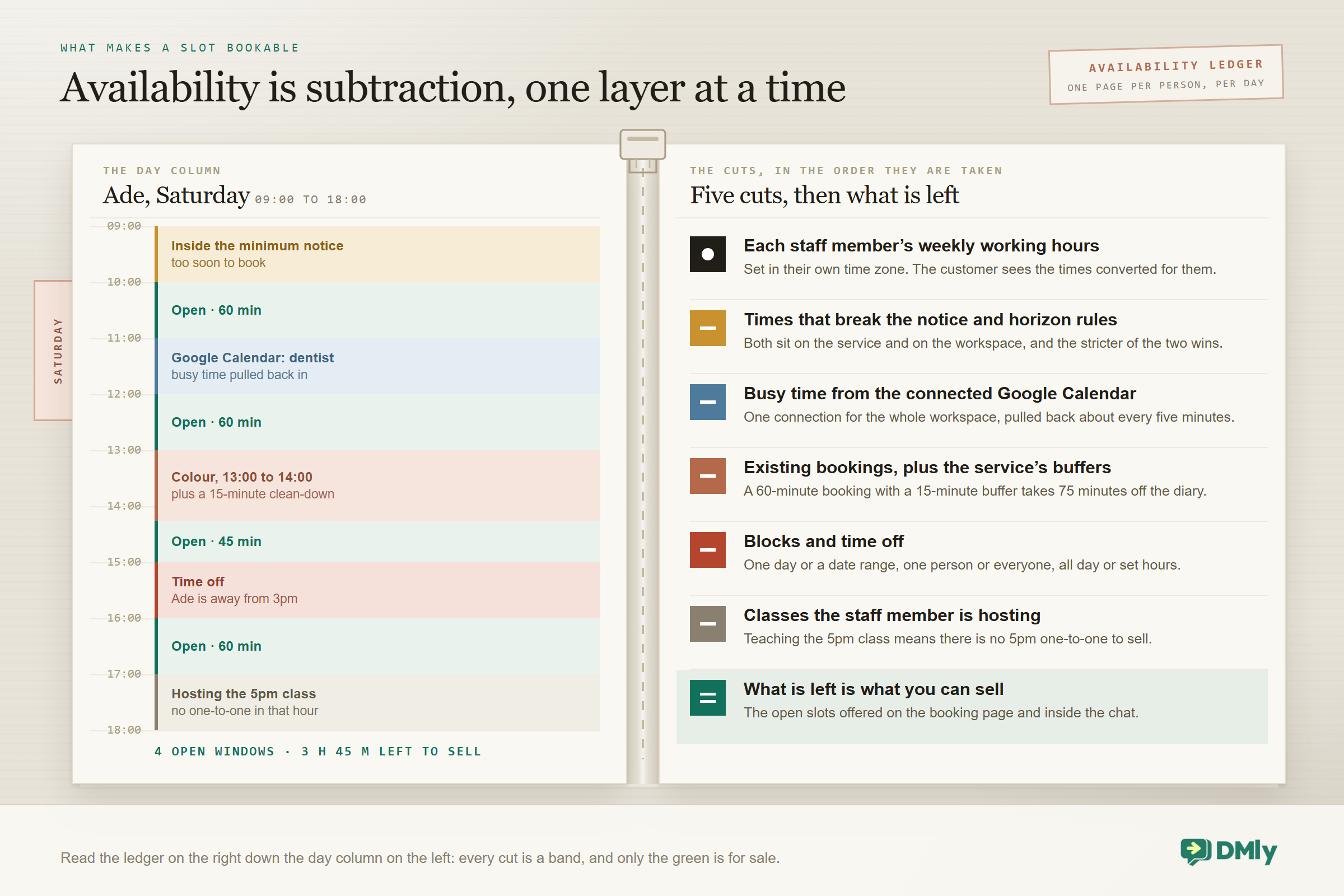
Two details matter more than they look. First, working hours belong to the staff member and live in their time zone. If your therapist works 9:00 to 17:00 in Lagos and the business is registered in London, you set 9:00 to 17:00 on her record and let the system do the conversion. Second, when a service is offered by more than one person and the customer doesn’t mind who, the system should offer everyone’s free times together and pick whoever is available. DMly calls this Anyone available, and it does not pin the booking to one person, so a slot shows whenever at least one assigned staff member is free. One more rule worth knowing before you set anything up: a minimum notice and a booking horizon exist both on the service and on the workspace, and where the two disagree the longer notice and the shorter horizon win. We go deeper on this in our guides on managing staff availability for online bookings, adding buffer time between appointments and preventing double bookings automatically.
Confirmations, Reminders and Meta’s Rules
WhatsApp isn’t email, and two of Meta’s rules shape every message your booking system sends. Meta lets you reply freely for 24 hours after your customer’s last message, which it calls the customer service window. Outside that window, only pre-approved template messages can be sent, in one of three categories: marketing, utility or authentication. Confirmations and reminders follow up on something the customer asked for, which is exactly what the utility category exists for. Meta’s policy also requires opt-in before you start a conversation, and a booking is about as clear an opt-in for its own reminders as you can get. Say so on your booking page anyway.
What all this costs you is changing on a date, so plan for it. Since 1 July 2025 Meta has billed per delivered template message, and a reminder sent a day after the conversation is charged at your country’s utility rate. Until 1 October 2026 a utility template delivered inside an open window costs nothing, and so do your free-form replies inside that window. From that date Meta charges for both, but not on the same terms. Every business phone number gets 1,000 free service messages a month, resetting monthly with no rollover, so Meta only bills your free-form replies from the 1,001st, at your market’s utility rate. In-window utility templates get no allowance at all, which is why, for a booking business sending confirmations and reminders all day, that second change is usually the bigger one. Our guide to the October WhatsApp pricing change works through what it does to a normal month.
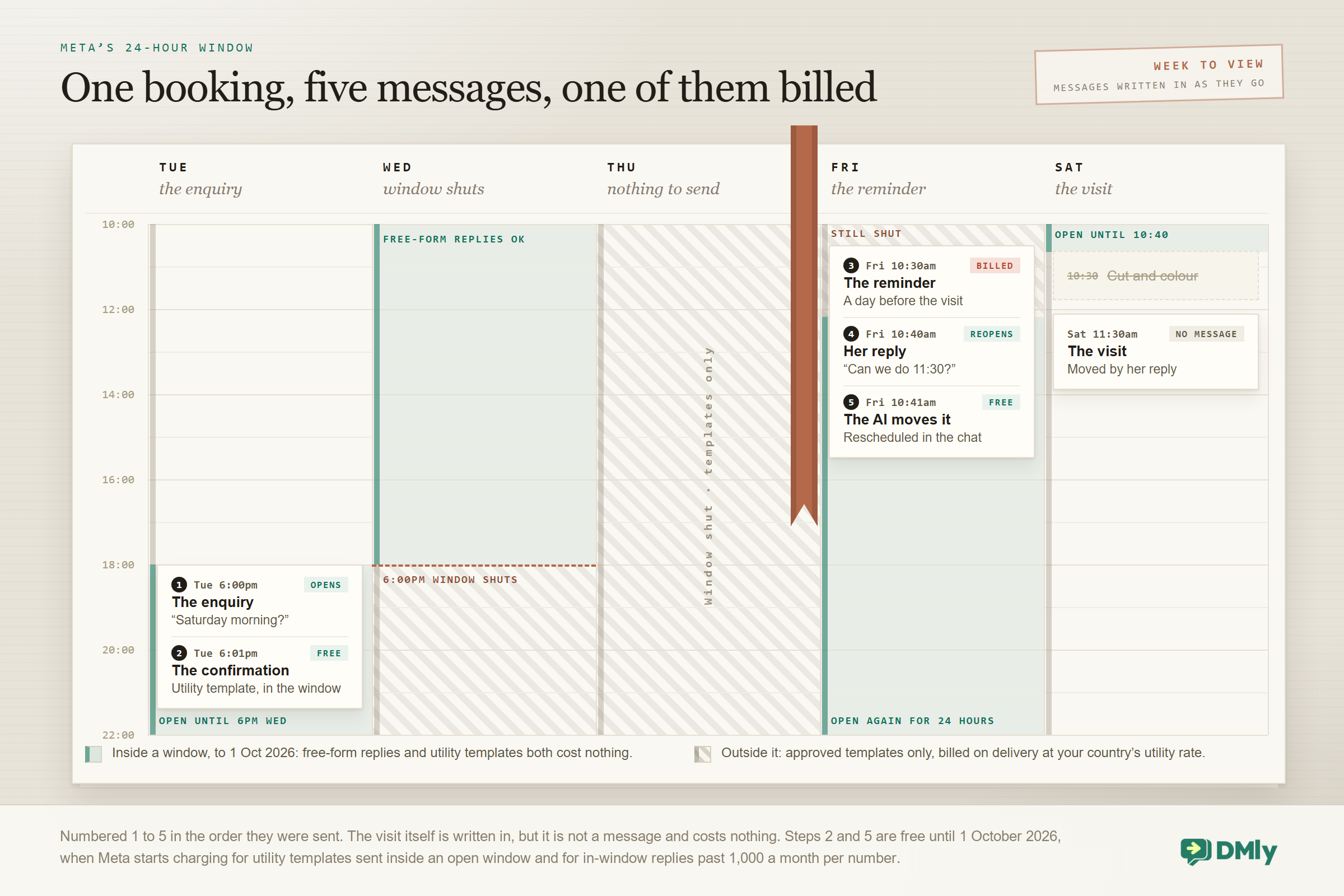
Read that timeline as the position up to 30 September 2026. The template rule it shows does not change: a message outside the window still has to be an approved template, and a customer reply still reopens the window. What changes on 1 October 2026 is the price of the messages it marks as free. From that date the in-window confirmation is billable from the first one, while the free-form reschedule comes out of your 1,000 free service messages a month and only costs anything once you are past them.
Practical consequences for you: get your confirmation and reminder templates approved before you go live, keep them plainly informational, and always give the customer a reason to reply. When to send reminders (24 hours, 48 hours or both) is worth its own guide, and we have one. The short answer is that a day before plus an hour before covers most local businesses.
Why WhatsApp Appointment Booking Matters (With the Numbers)
It’s easy to file booking under admin, but the numbers say it’s revenue. Here are the four that matter most.
- 23% average appointment no-show rate across 105 studies of scheduled appointments, with long lead time and prior no-shows the strongest predictors. Dantas et al., Health Policy, 2018
- +14% higher attendance when text-message reminders were used instead of no reminders (risk ratio 1.14, seven trials, 5,841 people). Cochrane review, 2013
- 90% of consumers rate an immediate response as important or very important when they have a service question; most define “immediate” as ten minutes or less. HubSpot Research
- 1 billion+ active conversation threads between people and businesses every day across WhatsApp, Messenger and Instagram. Meta, Q3 2025 earnings call
Read those together and the case makes itself. Roughly one in four booked slots goes unused when nobody reminds anyone, and the biggest driver is lead time: the longer between booking and visit, the more life gets in the way. Reminders that arrive where people actually look, with an easy way to say “actually, Thursday”, attack that directly. A slot moved is a slot you can resell. A slot silently missed is simply gone.
It also matters what the reminder says, not only that one went out. A hospital that A/B tested the wording of its text reminders across 161,587 patients got no-shows down to 14.2% with its best-performing message against 21.1% in the control group, which is a bigger swing than most businesses get from any other single change to their booking process.
Then there’s speed. Nine in ten people want an answer within minutes, and a booking enquiry is the most perishable message you get, because the person asking is usually asking two other businesses at the same time. An AI agent or a booking link that answers at 9:40pm wins the enquiries your competitor answers on Tuesday. The after-hours share is not a rounding error either: Zocdoc reported that roughly half the appointments booked through it in 2023 were made between 5pm and 9am, and Booksy puts after-hours salon bookings at more than 40%.
And the channel is already open. People hold more than a billion conversation threads a day with businesses on Meta’s apps. You are not asking anyone to learn a portal. You’re meeting your customers where they already are. For a fuller picture of what to measure once bookings are automated, see our post on key metrics to track after messaging automation.
The takeaway: reminders and easy rescheduling are the two levers with real evidence behind them, and everything else in this guide is in service of pulling them reliably. To put a number on your own no-shows, multiply the slots you lose in a month by your average ticket, then check it against the no-show rate under Configurations → Reports → Appointments once bookings are running.
What to Look For in a WhatsApp Appointment Booking System
Plenty of tools will send a booking link on WhatsApp, and far fewer run the whole cycle. Walk through this list with any product you’re considering, and make it show you rather than tell you.
- Services with real settings Duration, slot interval, buffers, minimum notice, how far ahead people can book, price, payment mode and when reminders go out, all set per service. A 20-minute consult and a 3-hour colour should not be sharing one rule.
- Staff calendars, not one shared diary Each bookable person with their own weekly hours in their own time zone, their own time off, and the services they perform. Customers should be able to pick a person or “anyone available”.
- A booking page that works on a phone Because that’s where the WhatsApp link opens. Your logo and colours, your own domain, and an embed for your website.
- Booking inside the chat An AI agent or flow that reads the same availability as the page, offers times in the conversation and books them, then hands over to a human when it should.
- Double-booking protection at write time The slot must be locked while the booking is created. “We check availability first” isn’t enough when two people tap at once.
- Confirmations and reminders on approved utility templates With the details, a manage link and a way to reply. Ideally the vendor ships and maintains the templates for you.
- Money up front, with a real hold A timed hold on the slot while the customer pays, a firm rule about what happens if they don’t, and a pay-after option for clients you invoice.
- Self-service reschedule and cancel With deadlines you control and a client-side page that just works, with no password to remember.
- Google Calendar and Zoom Bookings pushed to Google, Google busy time pulled back, Zoom links created and moved automatically for online services.
- Waitlists, classes and recurring series If you run groups or repeat sessions, capacity and auto-promotion from a waitlist should be built in rather than bolted on.
- A CRM behind the booking Every booking on the contact record, with notes, tags, history and opt-outs respected, so a reminder never goes to someone who said stop.
- Reports and an API No-show rate, revenue by service and staff, CSV export, plus webhooks and an API for anything the product doesn’t do yet.
The takeaway: judge a booking tool by what happens after the slot is picked. Confirmations, reminders, changes, payments and follow-ups are where the value lives, and where the no-shows live too.
Booking Statuses, Deposits and Payments
Once bookings start arriving on their own, you need to know what state each one is in at a glance. DMly uses eight: Confirmed, Pending, Awaiting payment, Completed, No-show, Cancelled, Payment failed and Expired. The one worth understanding properly is Awaiting payment: on a pay-before service the booking is created in that state and holds the slot for 15 minutes while your client checks out, then becomes Confirmed if the money clears, Payment failed if the card is declined, or Expired if nothing arrives. Here is how they connect.
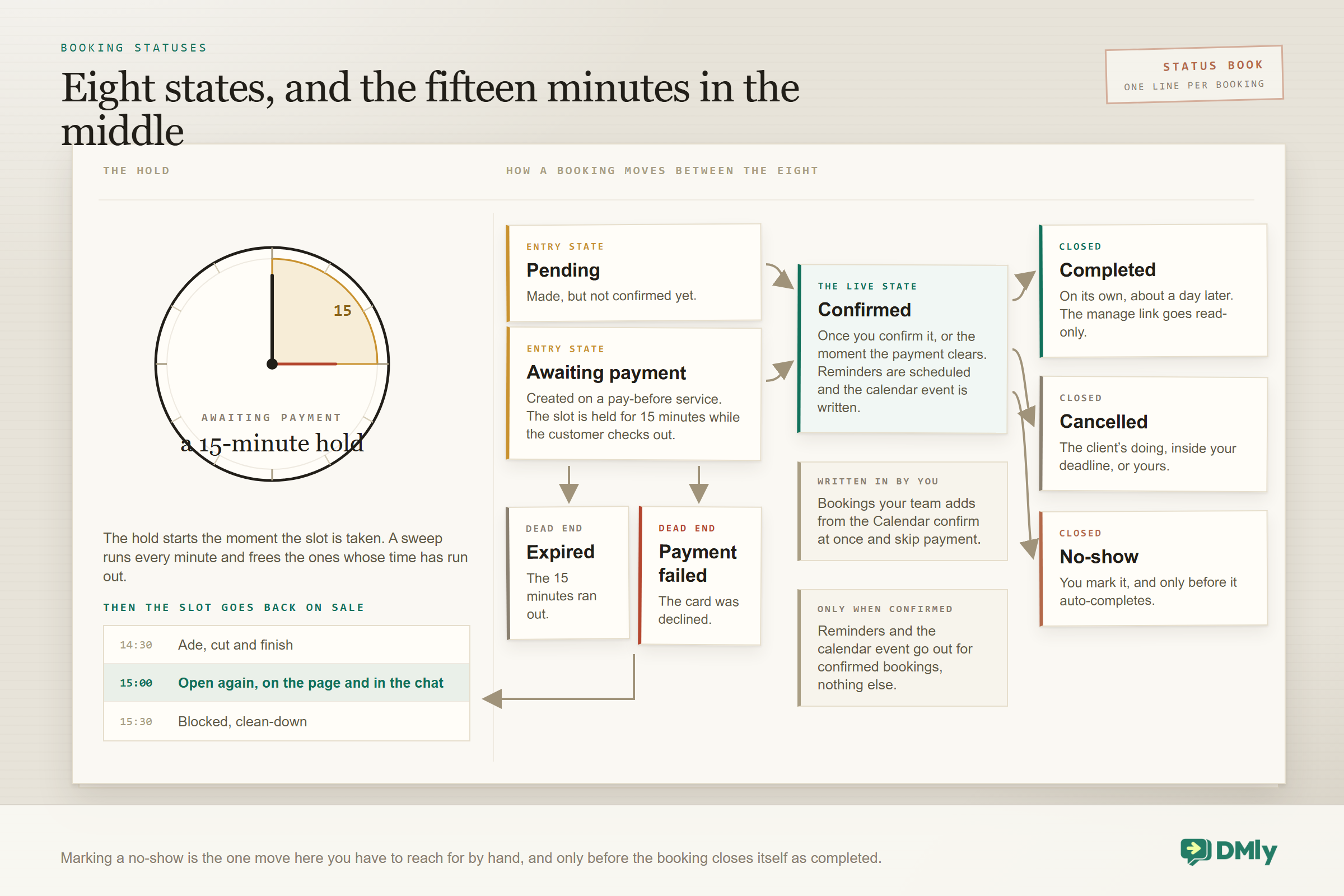
Two of those transitions deserve a note, because they will bite you otherwise. “Completed” usually happens on its own about a day after the appointment time, which is convenient, but it means you have roughly a day to mark a no-show by hand before the booking closes itself as completed, after which the customer’s manage link goes read-only. That tidy-up has a sharp edge worth knowing before you build anything on top of it: DMly retiring a past booking automatically does not fire the “Appointment completed” trigger. Only marking a booking completed yourself, from a flow or through the API, does. So hang your after-the-visit sequence on “Appointment confirmed” with a Smart Delay anchored after the appointment, which also has the happy property of moving with the booking if your customer reschedules. And “Cancelled” can be the customer’s doing, within whatever deadline you set, or yours.
The Three Payment Modes
Money is where WhatsApp appointment booking stops being a convenience and starts protecting your week. In DMly a service can be set to one of three modes, and each behaves differently, so pick per service rather than for the whole business.
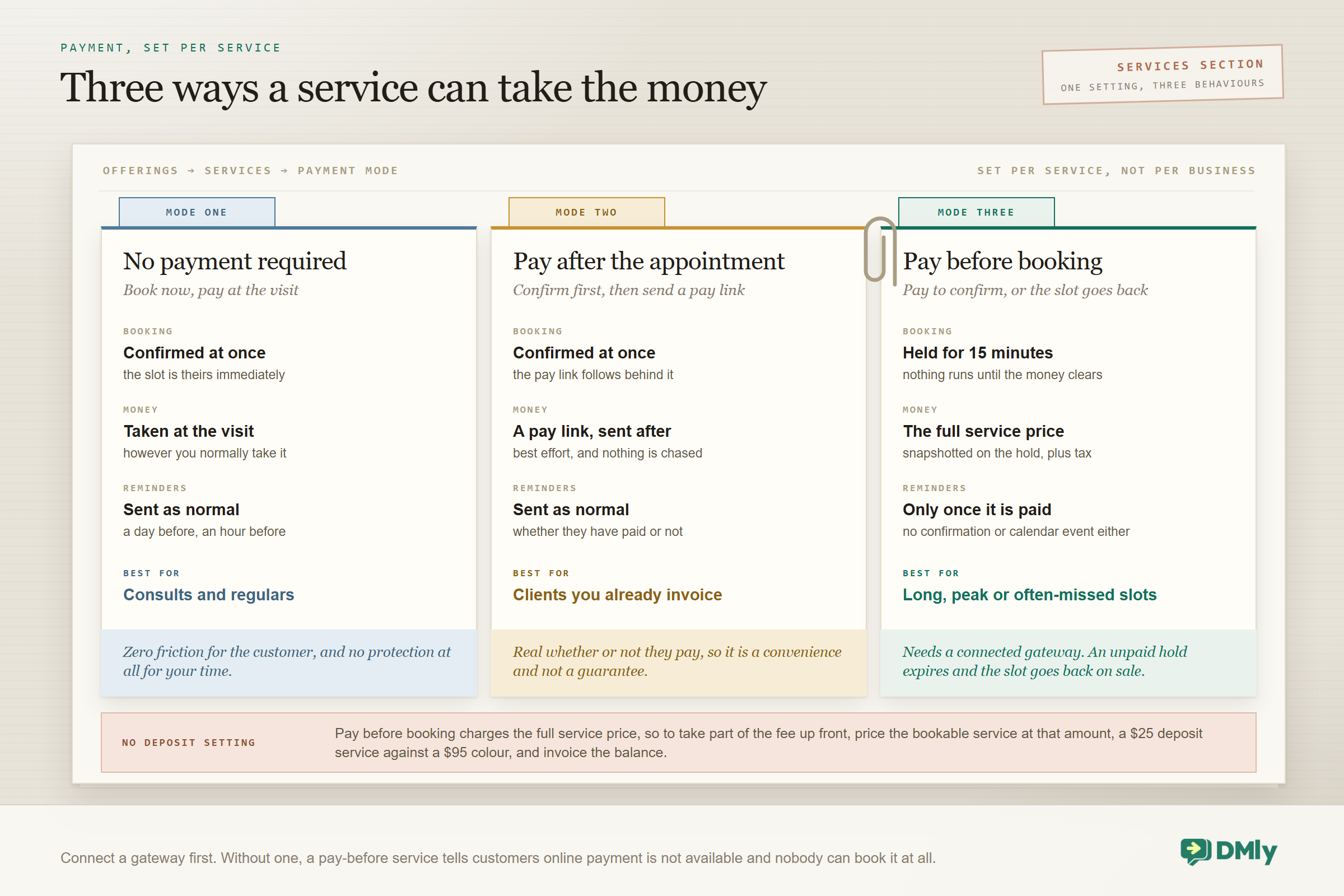
No payment required is the default and right for anything low-stakes. Pay after the appointment confirms immediately and sends a payment link afterwards, which suits clients you already invoice; the booking stays confirmed whether or not they pay, so treat it as a convenience rather than a guarantee. Pay before booking is the one that actually changes behaviour: the slot is held for 15 minutes while your customer pays, nothing at all happens until the money clears (no confirmation, no reminder, no calendar event), and if they don’t pay the hold expires and the slot goes straight back on sale. A background sweep runs every minute to release holds past their deadline, a declined card lands the booking on Payment failed and frees the slot the same way, and the amount charged is the price snapshotted when the slot was held, plus whatever the service’s own tax rate adds. Two edges to know: a payment that arrives after the slot was already released is not applied to the booking, so it is flagged for you to refund or rebook by hand, and a booking your team adds from Appointments → Calendar bypasses payment altogether and confirms unpaid.
So where do deposits fit? “Pay before booking” charges the price on the service, so the cleanest way to take a deposit rather than the full fee is to create the bookable service at the deposit amount you want to secure, say a $25 “Colour appointment (deposit)” for a $95 service, and collect the balance at the visit or through an invoice, whose payment link is always for the balance still due. How much to ask for, and how to ask without losing the booking, are questions we answer in separate guides on how much deposit to charge and asking for a deposit with message scripts. A rule of thumb: the longer the slot and the more often it’s missed, the more sense a deposit makes.
Practical tip: connect your payment gateway before switching any service to “Pay before booking”. Without one, your public booking page tells customers online payment isn’t available for that service, and nobody can book it at all.
One more money detail. In DMly, marking a payment refunded is bookkeeping; the actual refund is issued in your gateway’s dashboard. Write your cancellation and no-show policy down (templates for salons, clinics and trainers are in a companion post), publish it on the booking page, and let the system enforce the deadlines so you never have to have that conversation.
How AI Changes WhatsApp Appointment Booking
Booking links have been around for years; what changed recently is that an AI agent can do the booking inside the conversation, in your customer’s own words, at any hour. Instead of “here’s a link”, the exchange becomes “Saturday morning? Ade has 9:30 and 11:00, which suits?”
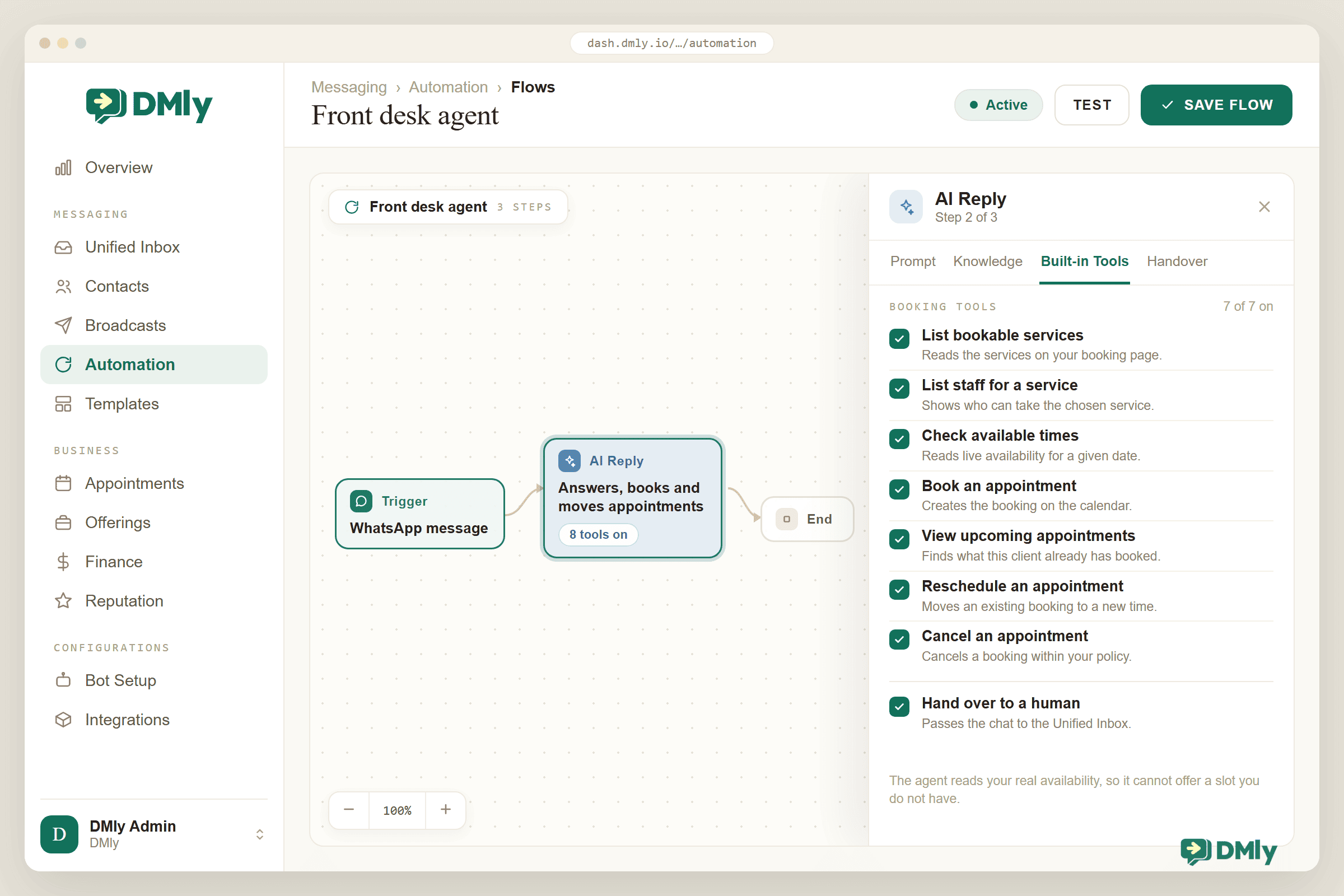
For that to be safe rather than a party trick, the AI needs tools that touch real data, and clear limits. In DMly, an AI Reply step in a flow can be given built-in tools to list your services and staff, check available times, book an appointment, view a contact’s upcoming appointments, and reschedule or cancel one, plus the class equivalents. It can also tag and note the contact and hand over to a human, at which point it stops talking. Feed it knowledge (your price list as a PDF, your FAQ page, pasted policy text) and it answers “do you do balayage on short hair?” before it books.
Here’s the shape of a good AI booking conversation:
Customer: “Hi, can I get a deep tissue massage this week? Evenings only.”
→ AI: lists services, confirms “60 or 90 minutes?”
→ Customer: “90”
→ AI checks available times for the 90-minute service after 5pm → offers Wed 6:00 or Thu 6:30
→ Customer: “Thursday”
→ AI books it → confirmation with the manage link
→ Customer: “Actually, is parking easy?” → AI answers from the knowledge base
→ Anything it can’t answer → “Let me get Tola to help” → human takeover, bot paused
Three guardrails make this work in practice, and you should insist on all three:
- Only offer what you can honour. The AI must read the same availability engine as your booking page. An agent without a “check available times” tool will confidently offer slots you don’t have.
- Payment rules still apply. If a service is pay-before, the AI should hand the customer a payment link and the slot should be held, not confirmed. In DMly, payment modes apply to AI bookings exactly as they apply to the page.
- Know when to stop. Cap the number of tool calls per reply, cap the turns in a conversation, and make handover instant. A customer who says “I’d rather talk to a person” should get one, with the bot paused.
A word on channels, because this catches people out. Booking enquiries increasingly start on Instagram rather than WhatsApp, and the same AI books from there, along with Messenger, Telegram, SMS and the chat widget on your site. But Instagram and Messenger have their own 24-hour rule after the customer’s last message, and outside it there is no equivalent of a WhatsApp template to fall back on, so a reminder a day or two later cannot be delivered on those channels by automation. The fix is simple: capture a phone number in the flow or on the booking form, and let confirmations and reminders go out on WhatsApp or SMS. Our guide on setting up an FAQ and auto-response system covers the question-answering half, and the DMly AI agents page covers what the agent can do.
The takeaway: AI doesn’t replace the booking system, it gives it a mouth. The engine underneath still decides what’s true.
What WhatsApp Appointment Booking Looks Like in Six Businesses
The mechanics are identical everywhere; what changes is which settings carry the weight. Find yourself below.
Salons, barbers and spas
Services per stylist with buffers for clean-down, deposits on long colour and bridal slots, a day-before reminder with an easy reschedule, a “time for your roots?” nudge at six weeks, and a review request the morning after. Instagram DMs are a big entry point for you, so let the AI book from there and confirm on WhatsApp.
Clinics, dentists and therapists
Practitioner-level availability, minimum notice so nobody books ten minutes ahead, an intake or consent form link in the confirmation, two reminders, strict reschedule deadlines, and no-shows marked within the day so your recalls stay accurate. Keep clinical detail out of the templates; the manage link carries it.
Gyms, studios and personal trainers
One-to-one sessions alongside classes with capacity and a waitlist that promotes people automatically when someone drops out. A trainer’s class hours block their PT slots for you, class packs sit next to bookings, and “Class seat opened” triggers fill the gaps.
Tutors and training centres
Recurring weekly lessons booked as a series, Zoom links created automatically and included in the reminder, parents rescheduling by reply, and time zones handled per tutor. Group courses run as classes with a fixed number of seats.
Restaurants and cafés
Table reservations, tasting menus and private-room bookings as services with a booking horizon, deposits on large parties or peak-night tables, a same-day reminder that asks for a confirmation, and a review request after the meal.
D2C brands and consultants
Product demos, fittings and onboarding calls booked from a click-to-WhatsApp ad, with a Zoom link and a calendar event, then a follow-up sequence that turns the call into an order. Everything lands on the contact record, so whoever sells sees the history.
We keep dedicated playbooks for salons, clinics, gyms and tutors in their own guides. The takeaway: decide which two settings hurt most when they’re wrong (for a salon, buffers and payment up front; for a clinic, notice and reminders) and get those two right first.
Why DMly Is the Best Choice for WhatsApp Appointment Booking
Most booking tools were built for websites and added WhatsApp as a notification channel, and DMly was built the other way round. It is a WhatsApp-first platform for local businesses, with the booking engine, the AI, the inbox, the payments and the reviews all on one contact record. Here’s what that means in practice, taken from the product documentation rather than the brochure.
One Booking Engine Behind the Page and the Chat
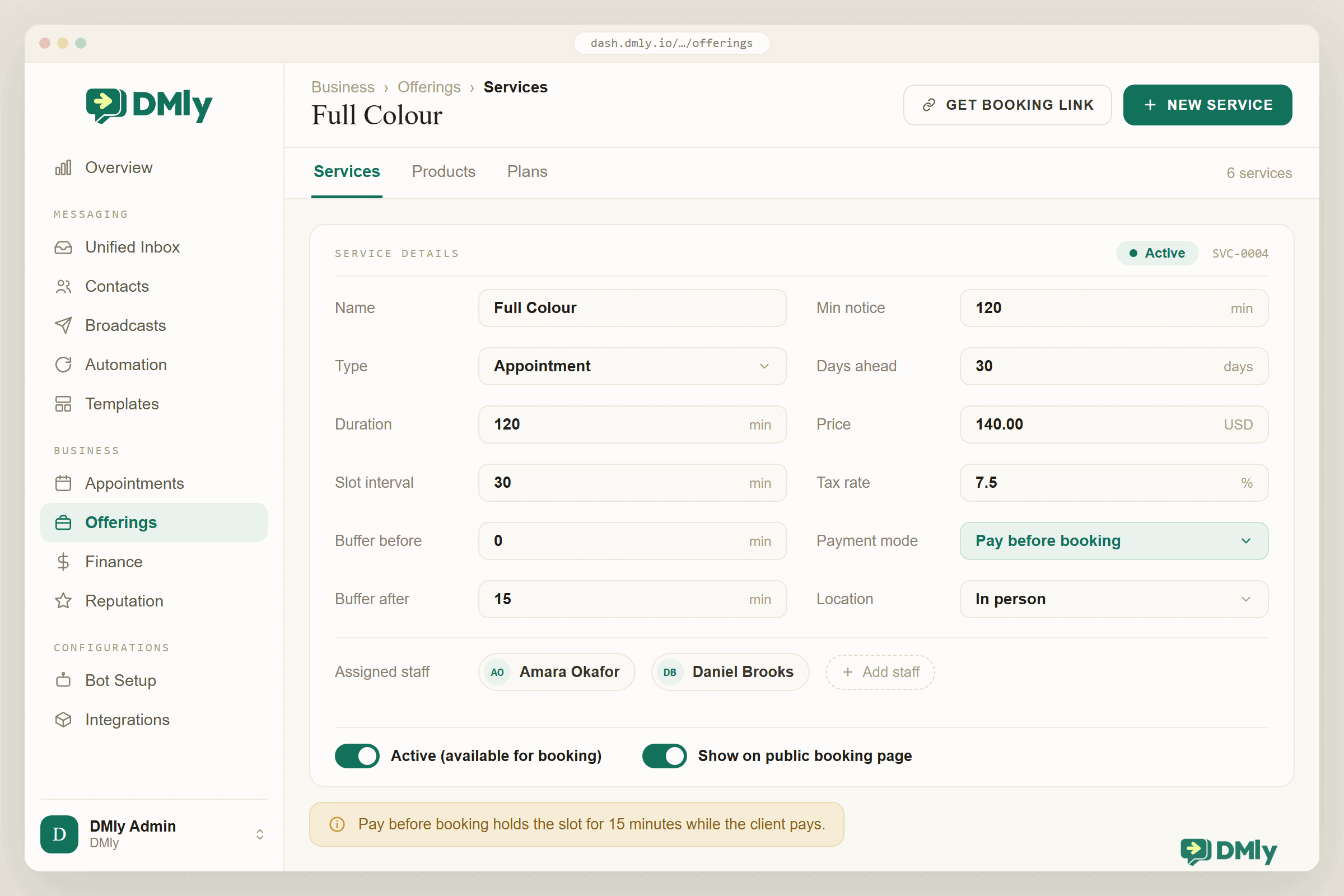
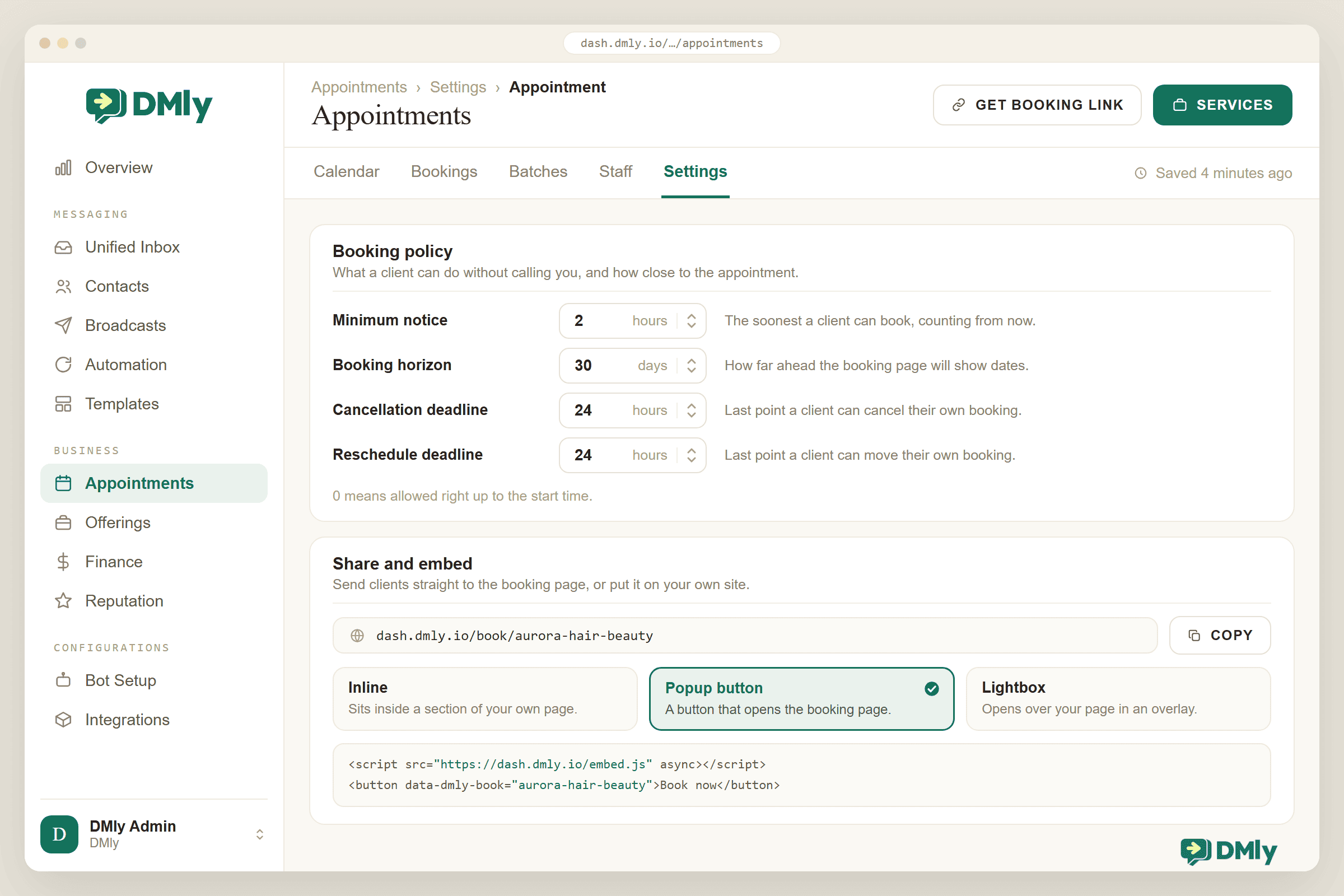
Every door reads the same diary, which is what stops you selling a slot twice. Bookable services live under Offerings → Services, each with a duration, slot interval, buffers before and after, minimum notice, days ahead, price, payment mode and a location (in person, or “Zoom (auto link)”). Staff live under Business → Appointments → Staff, each with their own working hours in their own time zone, an “Accepts bookings” switch and the services they perform, optionally linked to a team login. The booking page, the AI agent and your own team all read the same availability, calculated exactly as in Figure 2, and a booking that exists takes its time and its buffers out of availability at once, so the slot stops being offered everywhere it was on offer. Cancellation and reschedule deadlines live under Appointments → Settings → Booking policy and are set in hours for the whole workspace, not per service. Both default to zero, which means a customer can change or cancel right up to the start time until you decide otherwise.
A Booking Page You Can Brand, Embed and Put on Your Own Domain
The page your customers land on should look like you, not like your software. Every workspace gets a public booking page at dash.dmly.io/book/<workspace>, with a link per service and no login. Under Business → Appointments → Settings → Appointment you set the title, description, logo, brand colour, favicon, terms URL and a redirect back to your site. Booking fields are a separate, shared list under Settings → Booking Fields: a new visitor gives a first name and an email, and Additional Notes is available on appointments. Share & embed gives you a one-line snippet for your website as an inline widget, a popup button or a lightbox, and a Custom domain panel puts the whole thing on book.yourbusiness.com with SSL issued automatically, on every plan from Starter up. Building the page, embedding it and using your own domain each get their own guide in this series.
Booking Inside the Chat, With an AI Agent That Has the Right Tools
This is the part that answers at 9:40pm on your behalf. In the flow builder, the Appointments step group lets a flow book a meeting, send a booking or reschedule link, confirm, cancel, mark a no-show, assign staff and add someone to a class. The Book Meeting step can show tappable times inside the chat on WhatsApp, Messenger and Instagram, or send the hosted booking link instead, which is what happens automatically on SMS where there are no buttons. The AI Reply step goes further: on its Built-in Tools tab you tick what the assistant may do, including list services, list staff, check available times, book, view, reschedule and cancel appointments, and hand over to a human. It runs on OpenAI, Claude, Gemini or DeepSeek, uses your PDFs, web pages and FAQs as knowledge, and stops after at most eight tool-calling rounds per reply, so it cannot loop forever on one message. Start from the “AI Appointment Booking bot” template and edit the persona.
Confirmations and Reminders on Templates DMly Maintains for You
You don’t have to write or chase the templates yourself. When you connect a live WhatsApp number, DMly submits its own managed appointment templates to Meta for you. They are named dmly_… and marked as managed by DMly, and they are what power your confirmations and reminders, so check they show as Approved before you rely on them. Reminders are seeded from each service’s reminder times and go out on the client’s channel. They’re skipped if the booking isn’t confirmed, the contact has opted out, or the bot is paused for that conversation, and if the template isn’t approved yet DMly drops the reminder rather than sending plain text Meta would block. Reminders go to the customer only; they never ping your team. Which channel they take is set under Notification settings, where WhatsApp goes first and email or SMS sit behind it, so a customer WhatsApp cannot reach still gets the message that has to arrive. Zoom links are inserted automatically where a service uses them. And because “Appointment reminder due”, “Appointment starts soon” and “Appointment no-show” are triggers in the flow builder, you can build your own two-way reminder (confirm, reschedule or cancel by reply) or a no-show follow-up around them; both have their own guides in this series.
Deposits, Pay-Before-Confirm and Pay-After, With Your Gateway
Set the price and payment mode per service, and connect Stripe, PayPal, Paystack, Razorpay, MyFatoorah or Mercado Pago under Configurations → Integrations. On “Pay before booking” the slot is held for 15 minutes and everything downstream waits for the payment; an unpaid hold expires and frees the slot within about a minute. On “Pay after the appointment” DMly confirms the booking at once and sends the pay link, best effort, and the booking is real whether or not they pay. Both modes need a price above zero and a connected gateway, and without one, pay-before blocks public booking while pay-after simply sends nothing. Invoices for balances, part payments, subscriptions and loyalty points are the same product; see the invoices page.
Reschedule, Cancel and a Client Portal, No Passwords
Customers change their minds, and the cheapest way to handle that is to let them do it themselves. Every booking gets its own private manage page, where the customer can cancel, reschedule or add the appointment to their calendar, within the deadlines you set. Enable the Client portal and returning customers can enter their phone number on your booking page, receive a six-digit code on WhatsApp or SMS, and see every booking they’ve made with the same manage actions.
Google Calendar, Zoom and Reports
Under Appointments → Settings → Calendar you connect one Google Calendar for the workspace: DMly pushes appointments, classes and blocked time to it as events and can pull the calendar’s busy time back into availability roughly every five minutes. It is one connection for the whole workspace, so its events block every staff member, which is a good argument for pointing it at the business calendar rather than anyone’s personal one. For the personal view, each staff member can subscribe to DMly’s read-only Calendar Feed URL from Google, Outlook or Apple Calendar and see their own bookings alongside the rest of their life. Zoom connects under Integrations → Zoom → Sign in with Zoom, one Zoom account per workspace; set a service’s location to “Zoom (auto link)” and every booking gets its own join link. For classes there is a Zoom Webinar option that issues a personal link per attendee. Under Configurations → Reports → Appointments you get total bookings, completed, no-show rate, revenue paid and average class fill, broken down by service and by staff.
Everything Around the Booking Is Already There
What makes DMly the best fit isn’t any single feature; it’s that they all share a contact record with the team inbox, the CRM, the flow builder, broadcasts and reputation tools. A booking made by the AI at 11pm shows up in the inbox conversation, sits on the contact with the visit history and tags, fires a review request after the visit (see our Google Business Profile automation guide) and respects the same opt-out rules as everything else. The REST API, webhooks and Zapier or n8n connections on the integrations page cover whatever the product doesn’t do yet.
| What you need | Typical booking tool + WhatsApp notifications | DMly |
| Where booking happens | Web page; WhatsApp gets a link | Web page, your domain, website embed, and inside WhatsApp or Instagram with an AI agent |
| Availability engine | Per staff, sometimes buffers | Per staff in their own time zone, service buffers, notice and horizon, blocks, classes, Google busy time; slot locked at write |
| Reminders | SMS or email; WhatsApp via a third-party connector | Managed WhatsApp utility templates submitted for you; skips opted-out contacts; triggers for custom two-way reminders |
| Payments | Card on file or full prepay | Per-service mode: none, pay after (link in chat) or pay before with a 15-minute hold; six gateways; invoices for balances |
| Changes | Log in to reschedule | Manage link, reply in chat (AI reschedules), passwordless client portal, deadlines you set |
| Calendar and Zoom | Usually, per user | Google push and pull for the workspace, Zoom links created, moved and deleted automatically |
| Around the booking | Separate CRM, inbox and review tools | Same contact record: inbox, CRM, flows, broadcasts, invoices, reviews, reports |
| Price of entry | Varies | Bookings, invoices, custom domain and AI replies on the Starter plan; 7-day free trial, no card |
Create your booking page
Services, staff hours, deposits, WhatsApp confirmations and reminders, Google Calendar and Zoom, and an AI agent that books inside the chat. Free 7-day trial on any plan, no credit card.
How to Set Up WhatsApp Appointment Booking With DMly
Here’s the order we recommend, and steps 1 to 5 are an afternoon. The rest is tuning, and you can do it over the following weeks.
- Connect WhatsApp on the official API. Follow the WhatsApp connection guide. When your live number connects, DMly submits its managed appointment templates to Meta; check them under Messaging → Templates until they show Approved. Connect Instagram, SMS or live chat too if enquiries come from there.
- Create your services. Offerings → Services → New. For each one: type (appointment or class), duration, slot interval, buffers, minimum notice in minutes, days ahead (at least 1), price, payment mode and location. Turn on “Active” and “Show on public booking page”. Reminders are seeded from the service’s reminder times, so set those to whatever suits the service; a day before and an hour before is the usual pair.
- Add staff and their hours. Business → Appointments → Staff → New. Name, phone, time zone, then tick “Accepts bookings” and “Active”, set weekly working hours, and assign services. Add blocks and time off from the Calendar. Optionally link each person to a team login.
- Set your policy and brand the page. Business → Appointments → Settings → Appointment: booking policy deadlines, branding, booking fields, and the terms and redirect URLs. Preview the page, then set up your custom domain if you have one.
- Connect a payment gateway. Configurations → Integrations: paste your gateway credentials, add DMly’s webhook endpoint in the provider’s dashboard, and test with a real payment. Only then switch deposit-worthy services to “Pay before booking”.
- Connect Google Calendar and Zoom. Appointments → Settings → Calendar for Google (push, pull, or both). Integrations → Zoom → Sign in with Zoom for Zoom, then set online services to “Zoom (auto link)”.
- Put booking into the chat. Install the “AI Appointment Booking bot” template or build a flow: a keyword or default reply that sends the booking link (Book Meeting → Send hosted booking link), or an AI Reply step with the booking tools enabled and a handover rule. Add automations on the “Appointment booked”, “Appointment reminder due” and “Appointment no-show” triggers as you need them. Share the number with a click-to-chat link and QR code, and embed the page on your site.
- Test the whole loop, then go live. Book yourself from a personal phone and check the confirmation, the calendar event, the Zoom link, the reminder timing, the reschedule from the manage link, and a pay-before hold that you deliberately let expire. Then watch Reports → Appointments for the first month.
Best Practices for WhatsApp Appointment Booking
- Get templates approved first, then announce. Nothing undermines a launch like reminders that never send.
- Two reminders, one that invites a reply. A day before and an hour before, and make the day-before one easy to answer: “Reply if you need to change it.” The reply reopens the window, which lets the AI or your team fix it there and then, with no template charge for the exchange. From 1 October 2026 those in-window replies draw on your 1,000 free service messages a month, which most booking businesses will not get through.
- Deposit the slots that hurt. Long, peak or frequently-missed appointments get pay-before; quick consults stay frictionless. Publish the policy on the booking page.
- Buffers are part of the service. Put clean-down, notes and travel time inside the service’s buffer settings, not in your head.
- Mark no-shows the same day. Bookings close themselves as completed about a day later; a no-show marked in time keeps your reports honest and lets a follow-up sequence run.
- Cancel in the system, not in Google Calendar. Deleting the event in Google cancels the appointment without telling your customer.
- Let the AI book, let a human decide. Give the agent the tools, the price list and the policies, and a one-line handover rule for anything medical, complaint-shaped or unusual.
- Close the loop after the visit. Review request, aftercare, rebooking nudge. Booking is the start of the relationship, not the end of the task.
Mistakes to Avoid
- Automating the greeting, not the booking. An auto-reply that says “we’ll get back to you” on the free WhatsApp Business app is not WhatsApp appointment booking. If you’re still checking a diary by hand, nothing has changed.
- Days ahead set to zero. Zero means no bookable days, so the page shows no times and you assume the tool is broken. Set it to at least 1.
- Staff with no working hours. Availability is built from each person’s working hours, so a bookable staff member without them is the first thing to check when the page shows no times. Set hours on every bookable person, in their own timezone.
- Pay-before with no gateway. The public page tells customers online payment isn’t available for that service, and nobody can book it.
- Marketing language in a utility template. Meta’s test for a utility template is that it must be non-promotional and either specific to the customer or essential to them, so a reminder that ends with “and 20% off if you bring a friend!” is liable to be recategorised as marketing and billed as such. Keep reminders factual and put your offers in a marketing template to opted-in contacts.
- Reminders after the customer said stop. Opt-outs must suppress automated messages, reminders included. In DMly they do; if you’re building your own flows elsewhere, check.
- Sending a hosted link without attribution. An unattributed booking link matches by email and can land on the wrong contact, so send links from the flow and the booking lands on the right person.
- Ignoring the reports. No-show rate by staff and service tells you exactly which slots need a deposit or an extra reminder. Look monthly.
Final Thoughts
WhatsApp appointment booking is not a widget. It’s the whole cycle, enquiry to follow-up, running in the one app your customers actually open, with a real booking engine deciding what’s available and Meta’s rules deciding what can be sent when. Get the engine right (services, staff hours, buffers, notice, payment modes), get the messages right (approved utility templates, a reply always welcome), and the no-shows, the 9:40pm messages and the Sunday-evening diary shuffling mostly take care of themselves.
DMly gives you that engine and those messages in one place: a brandable booking page on your own domain, an AI agent that books inside WhatsApp and Instagram, managed confirmation and reminder templates, payment up front behind a proper hold, self-service reschedules, Google Calendar and Zoom, and the inbox, CRM and review tools around it. Start with one service and one staff member, book yourself, and build out from there. The guides linked throughout this piece take each part deeper.
Frequently Asked Questions
Can customers book an appointment directly on WhatsApp without leaving the chat?
Yes, if your booking system can act inside the conversation. With DMly, an AI Reply step with the booking tools enabled can list services, check real availability, offer times and create the booking in the chat, and a flow can send a hosted booking link for customers who prefer a page. Both use the same availability engine, so neither can offer a slot you don’t have.
Do I need the WhatsApp Business API for WhatsApp appointment booking, or does the free app work?
You need the official WhatsApp Business Platform (API). The free app can set away messages and quick replies, but it can’t read your availability, create bookings or send approved template reminders after the 24-hour window closes. Platforms like DMly connect your number to the API for you, and you keep ownership of the number.
How do WhatsApp appointment reminders work, and what do they cost?
A reminder sent more than 24 hours after your customer’s last message has to be an approved utility template, billed by Meta per delivered message at your country’s utility rate. A confirmation sent right after the customer books, inside the open window, carries no Meta charge until 1 October 2026; from that date the in-window utility template is billable with no free allowance, while free-form service messages are only charged past the first 1,000 a month per business number, as our guide to the October WhatsApp pricing change explains. DMly submits managed confirmation and reminder templates for you when your number connects, so the reminder that has to go out is already approved and waiting.
Can I take a deposit or full payment before confirming a booking?
Yes. In DMly, set the service’s payment mode to “Pay before booking”: the slot is held for 15 minutes while your customer pays through your gateway, and the booking is only confirmed, and the reminders only scheduled, when the payment clears. For a deposit rather than the full fee, price the bookable service at the deposit amount and collect the balance at the visit or by invoice.
What stops two customers booking the same slot?
One diary, read by every door. In DMly the booking page, the in-chat booking step and the AI agent all read the same availability, and a booking that exists removes its time and its buffers from that availability immediately, so the slot stops being offered. Buffers, staff hours, blocks and calendar busy time are removed from availability before slots are ever offered.
Does WhatsApp booking sync with Google Calendar and Zoom?
With DMly, yes. Connect a Google Calendar for the workspace to push bookings, classes and blocked time as events and pull the calendar’s busy time back into availability, and connect Zoom so any service set to “Zoom (auto link)” gets its own join link, carried in the messages your customer receives.
Can customers reschedule or cancel by themselves?
Yes, within deadlines you set. Every DMly booking has its own manage page for rescheduling, cancelling or adding the appointment to a calendar, and a passwordless client portal lets returning customers see all their bookings after a WhatsApp or SMS code. They can also just reply in the chat, and an AI agent with the reschedule and cancel tools can make the change for them.
Writing about WhatsApp automation, bookings and growth for local business.
Turn WhatsApp into your busiest channel.
Start free and run message, bookings, payments and reviews in one place.
