
Why WhatsApp Business API Messages Fail to Deliver: WhatsApp Error Codes and Fixes
On behalf of everyone who builds WhatsApp software, we owe you an apology for WhatsApp error codes. Somewhere in your results today there may be a line that reads, word for word: “This message was not delivered to maintain healthy ecosystem engagement.” It’s accurate. It’s also no help at all to someone who just wants to know whether their customer got the reminder.
That sentence, and the six-digit number that usually travels with it, was written for a developer’s log file. It ends up on the screen of a salon owner, a clinic manager or a shop with a promotion going out, and nobody translated it on the way.
So this is the translation. In this guide, we’ll look at what the ticks tell you before any error does, the four places a message can fail, the codes you’re most likely to see (in Meta’s exact words, then in plain English), which ones to wait out, which to fix and which to leave alone, and where each failure shows up in DMly.
Sent, Delivered, Read, Failed: What the Ticks Tell You First
Every WhatsApp Business API message moves through up to four statuses: sent, delivered, read or failed. A failure can happen at any step, and the step tells you who to look at. You’ll recognise the statuses from your own phone, because Meta maps each one to the WhatsApp screen.
| Status | What Meta means by it | What you’d see on WhatsApp |
| Sent | The message left Meta’s servers | One grey tick |
| Delivered | It reached the customer’s phone | Two grey ticks |
| Read | It was displayed in an open chat on their phone | Two blue ticks |
| Failed | It couldn’t be sent, or couldn’t be delivered | A red error triangle |
Two details catch people out. First, a message can be read without a separate “delivered” ever arriving: if the customer is sitting in your chat when it lands, Meta skips straight to read, because read implies delivered.
Second, “sent” is a promise about Meta’s servers, not about the customer. A message can show sent for a long time and never become delivered, with no error at all. We’ll come back to that, because it’s the most frustrating case of the lot.
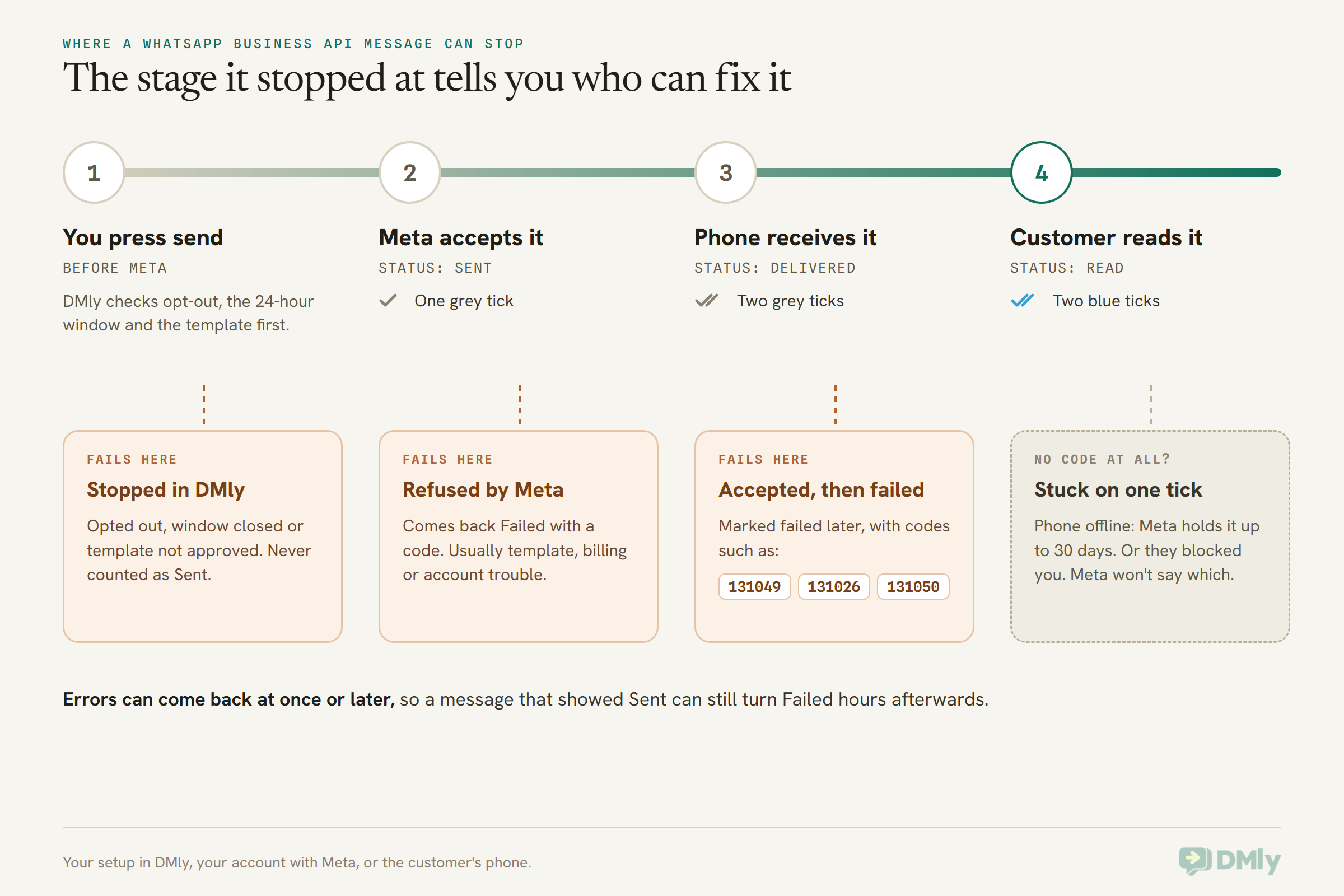
Why WhatsApp Business API Messages Fail to Deliver: the Four Places It Breaks
WhatsApp Business API messages fail to deliver for one of four reasons: something about the customer, something about your message or template, something about your account, or a limit Meta applies to protect people’s inboxes. Before you read a single code, it helps to know which of the four you’re probably dealing with.
- One customer fails, everyone else is fine. It’s almost always that customer: their number, their WhatsApp app, their choices (they opted out, or blocked you).
- Every recipient of one message fails. Suspect the message, not the people. A template that was paused, disabled or never approved fails for everyone at once.
- Everything fails, on every message. That’s your account: billing, an expired connection, an unregistered number, or a restriction from Meta.
- Some of a big send fails, the rest lands. That’s usually a limit: your messaging tier, Meta’s per-user marketing limit, or sending too fast.
That one question (how many people did this hit?) narrows things faster than any of the WhatsApp error codes. Then the code tells you the exact reason. The sections below follow the same four groups.
WhatsApp Error Codes That Come From the Customer’s Side
The customer-side WhatsApp error codes mean your message was fine and your account was fine, but this person couldn’t, or wouldn’t, receive it. You can’t fix these from your dashboard. You can only stop wasting sends on them, or ask the customer to do something.
| Code | What Meta’s reference says | What it means for you |
| 131026 | “Unable to deliver message.” Reasons can include: “The recipient phone number is not a WhatsApp phone number”, “Recipient has not accepted the new Terms of Service and Privacy Policy”, or the recipient is “using an old WhatsApp version” | Wrong or non-WhatsApp number, or their app needs attention. Check the number, then ask them another way |
| 131050 | “Unable to deliver the message. This recipient has chosen to stop receiving marketing messages on WhatsApp from your business.” | They switched off your marketing messages. Meta says don’t retry |
| 130403 | “Unable to deliver the message. This business has blocked the end user on WhatsApp” | Someone on your side blocked this person. Unblock them if that was a mistake |
| 131021 | “Sender and recipient phone number is the same.” | You sent a test to your own business number. Use a different phone |
Error 131026: the one you’ll see most
131026 covers several different situations under one number, and Meta doesn’t tell you which one applies. The number may simply not be on WhatsApp. It may be missing its country code, so it points at a different person or nobody. Or the customer may need to accept WhatsApp’s latest terms, or update an old copy of the app.
Meta’s own advice is to reach the customer by some other route (a call, an SMS, an email) and ask them to check three things: that they can message your business number themselves, that they’ve accepted the latest terms (WhatsApp prompts them under Settings then Help), and that their app is up to date. Retrying the same message before any of that happens just gets the same answer.
A useful habit: when you collect phone numbers, store them with the country code (+1 for the US, +91 for India, +234 for Nigeria, +44 for the UK, +971 for the UAE). A number saved the way people say it out loud is the cheapest 131026 there is.
Error 131050: they’ve said no to marketing
This one is a decision, not a fault. The customer told WhatsApp they don’t want marketing messages from your business, and Meta’s instruction is plain: “Do not retry sending messages to this user as they will not be received.” Respect it. Take them out of your next promotional list, and keep serving them the way they still want, for example when they message you first.
Sent, but never delivered, and no error at all
This is the case that sends people in circles. The message shows one tick and stays there. No code, no reason.
Meta lists the usual causes on its support page, and says plainly that for many of them it “will not disclose the underlying cause”, for privacy and policy reasons:
- The customer’s phone didn’t come online during the 30 days Meta holds messages for offline users.
- The customer has blocked your business number, or another number your business owns.
- The customer is in a restricted or sanctioned country. Meta’s list is Cuba, Iran, North Korea, Syria, and the Crimea, Donetsk and Luhansk regions of Ukraine.
There’s nothing to fix here except your expectations. If it matters (an appointment tomorrow, an invoice due), reach the person another way. And don’t read a single stuck tick as a fault in your setup.
One oddity worth knowing: a customer logged in on several devices can produce both a delivered and a failed status for the same message. Meta’s rule is that anything marked delivered reached at least one of their devices. For the separate case of messages that don’t show on linked devices, we have a whole guide to WhatsApp error code 131060 and companion devices.
Error 131049 and the Limits Meta Applies for Your Customer’s Sake
Error 131049 means Meta held back a marketing template because that customer has already had enough marketing messages for now. It isn’t a fault, and retrying early makes it worse. Meta’s wording for it is the sentence this article opened with: “This message was not delivered to maintain healthy ecosystem engagement.”
Here’s what sits behind it, from Meta’s per-user marketing limits page.
- It’s per customer, not per business. WhatsApp limits how many marketing templates one person receives from all businesses over a period, based on how much marketing they’ve been reading lately and how busy their inbox is.
- It adapts. Someone who reads marketing messages gets more room. Someone who ignores them gets less.
- It only counts marketing templates. Appointment reminders, order updates and other utility messages aren’t part of it.
- Replies change everything. If the customer replies to you, a 24-hour customer service window opens, and marketing messages sent inside that window don’t count towards the limit.
- Some places are excluded. The limit isn’t currently active for messages sent from a business number in the European Economic Area, the UK, Japan or South Korea, or to a WhatsApp user in those countries.
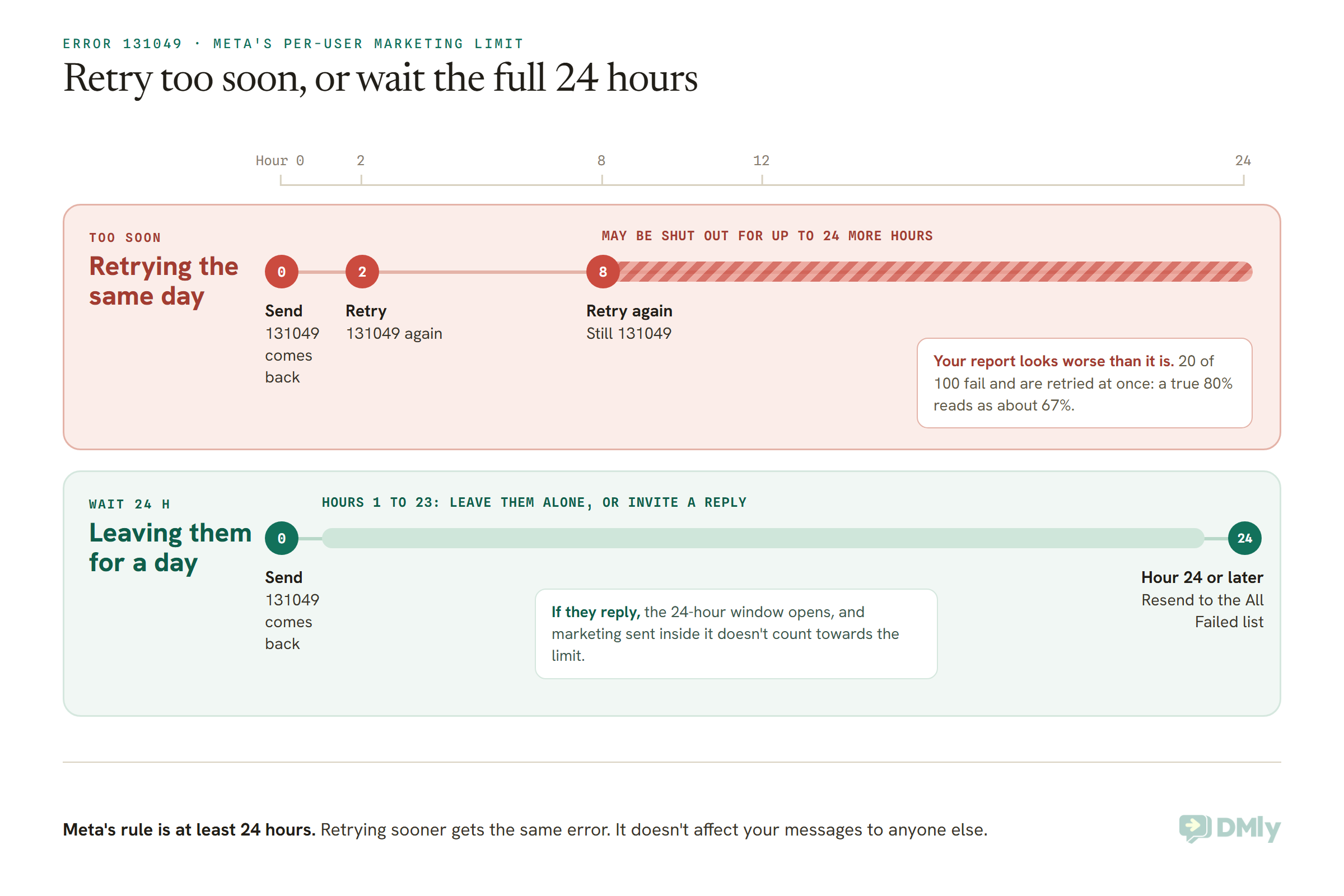
How long to wait after 131049
Meta’s instruction is to wait at least 24 hours before resending a marketing template to that person. Resending sooner “will likely result in additional error responses”. If you keep retrying within the same 24 hours, Meta may stop accepting attempts to those customers for up to another 24 hours, still returning 131049. It doesn’t affect your messages to anyone else.
There’s a reporting trap too. Meta’s support page gives the arithmetic: if 20 of 100 messages fail on the limit and you retry those 20 straight away, your true 80% delivery rate can read as roughly 67% after one retry, because the same people fail again. Count each customer once, not each attempt.
US numbers and marketing templates
If you message customers in the United States, this one matters more than any code. Meta’s per-user limits page states that WhatsApp “does not currently deliver marketing template messages” to WhatsApp users with US phone numbers (a +1 dialing code with a US area code). Trying anyway results in an error.
That’s marketing templates only. Appointment reminders, order updates and replies inside an open conversation still reach US customers normally. So a US salon or dental practice can confirm and remind on WhatsApp; it just can’t push a promotion that way. For promotions to US customers, invite them to message you first (then you’re replying inside the window), or use email or SMS for the push itself. If you’re unsure which category a message falls into, our explainer on marketing, utility and authentication templates walks through it.
Error 130472: a customer in Meta’s experiment
Meta’s wording: “Message was not sent as part of an experiment.” WhatsApp runs an ongoing test in which a very small share of users don’t receive marketing templates from any business unless there’s already an open conversation, or an open free entry point window from an ad or Page button. There are no opt-outs or exceptions.
The good news: Meta doesn’t send the message and doesn’t bill you for it. The bad news: resending gives the same error. If you really need to reach that person, ask them through another channel to message you, then send your template while the conversation is open.
WhatsApp Error Codes Caused by Your Template or Message
Template and message errors mean the problem is in what you sent, so the fix is in your hands, and once it’s fixed the message usually goes through. These often hit every recipient of one message at once, which is the giveaway.
| Code | What Meta’s reference says | What to do |
| 131047 | “More than 24 hours have passed since the recipient last replied to the sender number.” | You sent a free-form message after the window closed. Send an approved template instead |
| 132001 | “The template does not exist in the specified language or the template has not been approved.” | Check the template is approved, in the language you’re sending |
| 132000 | “The number of variable parameter values included in the request did not match the number of variable parameters defined in the template.” | A blank or missing variable, such as no first name on the contact |
| 132012 | “Variable parameter values formatted incorrectly.” | A variable’s value isn’t in the format the template expects |
| 132005 | “Translated text is too long.” | A translated version is over the length limit. Shorten it |
| 132007 | “Template content violates a WhatsApp policy.” | Rewrite the content. See our rejected-template guide |
| 132015 | “Template is paused due to low quality so it cannot be sent in a template message.” | Wait out the pause, or use a backup template |
| 132016 | “Template has been paused too many times due to low quality and is now permanently disabled.” | Build a new template with different content |
| 131053 | “Unable to upload the media used in the message.” | The image, video or document is the wrong type or too big |
| 131051 | “Unsupported message type.” | The kind of message isn’t one WhatsApp supports |
| 131064 | “Message failed to send because this account has reached its messaging limit due to template classification violations.” | Templates filed in the wrong category. Meta lifts it after the enforcement period |
| 131063 | “Your template is categorized as Marketing, but marketing templates are currently disabled for your Cloud API configuration.” | Marketing sends were switched off on the account. Ask whoever manages your Meta setup |
131047 is the 24-hour window, not a broken number
WhatsApp lets you send a normal typed message only within 24 hours of the customer’s last message to you. After that, only an approved template gets through, and 131047 is what you see when a free-form message tries anyway. The clock starts on their message, and only they can restart it. Our guide to how WhatsApp’s 24-hour messaging window works covers the details, including the 72-hour exception for ads.
In DMly you’ll rarely see 131047 itself, because DMly checks the window before anything leaves. A free-form send to a contact whose window has closed is stopped and recorded as failed, rather than handed to Meta to bounce. The Inbox also tells you plainly when the window has closed and asks you to pick a template.
Paused and disabled templates (132015 and 132016)
When a template’s quality rating drops to low, Meta pauses it automatically: for 3 hours the first time, 6 hours the second, and the third time it’s disabled for good. A paused template can’t be sent, and Meta doesn’t charge you for the attempts. It unpauses on its own once the time is up.
You can edit a paused template, but that sends it back for review, and it can’t be sent at all until it’s approved again. So for a short pause, waiting is usually quicker. In DMly a paused template reads Paused by WhatsApp and a disabled one reads Disabled by WhatsApp; Rejected only ever means a failed review. If you’ve had one turned down, our guide to fixing a rejected WhatsApp template walks through the usual reasons.
The timing trap is worth spelling out. DMly checks a template is still approved at the moment a broadcast sends, not when you scheduled it. If Meta pauses it in between, the whole broadcast fails at send time, and DMly doesn’t automatically swap in a different template. Before a big scheduled send, open your templates and check.
Variables and media (132000, 132012, 131053)
A template like “Hi {{1}}, your appointment is on {{2}}” needs a value for every variable. If a contact has no first name saved, or a date field is empty, the numbers don’t match and you get 132000. Two things to know in DMly. The parameter count comes from the highest number used, so a template using {{1}} and {{3}} but not {{2}} still asks for three values. And a send with a blank parameter never reaches WhatsApp, so don’t expect to find it in the template’s Failed sends list.
Media failures are usually a file Meta won’t accept: the wrong format, or too large. Our guide to WhatsApp media file size limits lists what the API allows for each type.
Account, Billing and Number Errors: When Everything Fails at Once
When every message fails, on every template and to every customer, the cause is almost always your account: billing, the connection to Meta, the number’s registration, or a restriction. None of these resolve on their own, and none of them is about the customer.
| Code | What Meta’s reference says | Where the fix lives |
| 131042 | “There was an error related to your payment method.” | Billing in your Meta business account. See our full 131042 guide |
| 190 | “Your access token has expired.” | Reconnect the WhatsApp number |
| 0 | “We were unable to authenticate the app user.” | Reconnect, so a fresh access token is issued |
| 131045 | “Message failed to send due to a phone number registration error.” | Register the number with its 6-digit PIN |
| 133010 | “Phone number not registered on the WhatsApp Business Platform.” | Same: register the number |
| 131031 | “The WhatsApp Business Account associated with the app has been restricted or disabled for violating a platform policy, or we were unable to verify data included in the request…” | Meta’s policy enforcement process, in your Meta account |
| 368 | “The WhatsApp Business Account associated with the app has been restricted or disabled for violating a platform policy.” | Same: Meta’s policy enforcement process |
| 130497 | “The WhatsApp Business Account is restricted from messaging to users in certain countries.” | Meta’s policy on allowed countries for your business category |
| 131048 | “Message failed to send because there are restrictions on how many messages can be sent from this phone number. This may be because too many previous messages were blocked or flagged as spam.” | Your quality status in WhatsApp Manager |
| 131057 | “Business Account is in maintenance mode” | Usually temporary, for example during a throughput upgrade |
Billing (131042)
Meta charges your business directly for WhatsApp messages, so a missing card, an expired one or a credit line over its limit stops sending. Meta lists eight common causes for 131042, from no payment account attached to a timezone or currency that was never set. We’ve written them up in order in our guide to fixing WhatsApp Cloud API billing errors and 131042, so we won’t repeat them here.
An expired connection
The link between your WhatsApp number and the software you send from runs on an access token. When it expires, everything stops. In DMly the channel shows Unauthorized (“Access token has expired. Reconnect your account.”), the workspace admin gets an email, and the fix is to reconnect the number. DMly also warns you ahead of time: in the week before a token lapses, the System category in Logs carries a daily warning naming the connection and its expiry date.
One subtlety. DMly only marks a number Unauthorized when Meta returns an authentication error. A policy block, a quality restriction or a disabled account looks different, so the channel can keep showing Connected while sends fail. If that’s what you’re seeing, check the number’s status in your Meta Business Manager. When Meta refuses API access outright, DMly shows a red banner at the top of Bot Setup → WhatsApp → Configuration reading “Meta refused API access to this WhatsApp Business Account”, with Meta’s reason.
Messaging limits, quality and restrictions
Your messaging limit is how many different customers your business can reach outside an open conversation in a moving 24-hour period. Meta sets it at the business portfolio level and shares it across every number in the portfolio, so one busy number can use up the allowance for the others. New portfolios start at 250. Verifying your business (or completing one of Meta’s other scaling paths) can lift it to 2,000 once Meta has reviewed your message quality, and from there it can rise automatically to 10,000, 100,000 and unlimited as you send good-quality messages.
DMly reads your tier and quality rating from Meta and shows them on Bot Setup → WhatsApp → Configuration, but it doesn’t count your sends against the tier. A broadcast bigger than your limit is handed to Meta in full, Meta rejects the overflow, and the broadcast partly fails while still reporting as sent. If you’re on a low limit, split a big campaign across days. Our WhatsApp messaging limit calculator helps you plan it, and our guide to WhatsApp quality rating, messaging limits and bans explains how limits rise, how quality falls and what restrictions look like.
Temporary Errors: Sending Too Fast and Meta Outages
Temporary WhatsApp error codes mean nothing is wrong with your message, your account or the customer. You hit a speed limit, or Meta’s side had a moment. Waiting is the fix.
| Code | What Meta’s reference says | What to do |
| 130429 | “Cloud API message throughput has been reached.” | Slow down. Try again later |
| 131056 | “Too many messages sent from the sender phone number to the same recipient phone number in a short period of time.” | Wait before messaging that same person again. Others are unaffected |
| 80007 | “The WhatsApp Business Account has reached its rate limit.” | Try again later, less often |
| 131000 | “Message failed to send due to an unknown error.” | Try again. If it keeps happening, it needs support |
| 131016 | “A service is temporarily unavailable.” | Check Meta’s status page, then retry |
| 2 | “Temporary due to downtime or due to being overloaded.” | Check Meta’s status page, then retry |
| 133004 | “Server is temporarily unavailable.” | Check Meta’s status page, then retry |
Meta notes that when it updates the API, there can be up to 5 minutes of downtime, so a burst of these that clears itself is normal. Meta’s public status page for the WhatsApp Business Platform is at metastatus.com, and it’s the first place to look if everything stopped at the same moment.
131056 deserves a special mention for anyone running automations. If one customer triggers three flows in a minute and each one sends a message, you can hit it. It’s a sign to tidy the automations, not to send faster.
Where WhatsApp Error Codes Show Up in DMly
In DMly, WhatsApp error codes show up in four places: on the broadcast, on the template, in the Logs, and in the Inbox. Which one you open depends on what sent the message. Each answers a slightly different question, so here’s which to use when.
On a broadcast: Why messages failed, and Recipients
Go to Broadcasts and select View analytics on the campaign. Once anything has failed, a Why messages failed panel groups the failures by reason, most common first, with a count for each. That’s your quickest read on a campaign: one reason with a big number usually points at one fix.
For names, use the Recipients panel on the same page. It lists every recipient, 50 to a page, and you can filter it by status (for example Failed) to see each contact with their Reason and the time it was sent.
On a template: View performance and Failed sends
Templates go out from more than broadcasts: automations, sequences, Inbox replies and automatic notifications such as appointment reminders and invoices. To see every failure of one template, wherever it was sent from, go to Messaging → Templates, select View performance on its row, then select the Failed tile. A Failed sends list appears with up to the 100 most recent failures, each with the contact, the reason and the date.
Two things to know. The list is per template, not per campaign, so a broadcast’s failures sit mixed in with reminder and flow failures; pick yours out by date. And the reason is whatever WhatsApp returned, which can be a bare error code rather than a sentence. That’s exactly when the tables above earn their keep.
In Logs: Failed WhatsApp send to…
Open Configurations → Reports and select the Logs tab. Select Filters, set Event to Messages and Status to Error. (Not the Errors category, which is for problems processing incoming messages.) A failed send appears as a row starting Failed WhatsApp send to …, with the reason from Meta after it, whatever sent it: an Inbox reply, a booking confirmation, an invoice, an AI reply or an automation step. An automation step also writes a send_failed row with the flow run and step in its details.
Three Logs habits save a lot of confusion:
- Logs shows the channel you have selected. If you’re chasing a WhatsApp send while another channel is selected, the list looks empty. Switch first.
- Logs is short-lived. DMly keeps the newest 300 entries per workspace and trims the rest daily, and a busy workspace can fill that in a day. If you need a record, export the CSV the day you see the problem.
- Use the date range. Errors plus Last 24 hours shows today’s real problems rather than a pile of old ones.
In the Inbox, and the failures that leave no trace
A reply you typed yourself in the Inbox shows as failed in the conversation, so you’ll see it. Automated messages are different, and this is the trap that costs people the most time.
If an automated WhatsApp notification (a booking confirmation, an invoice notification) needs a template that isn’t approved, and the customer’s 24-hour window is closed, DMly skips it entirely. There’s no failed bubble and no row in Logs. DMly does this on purpose, so it never shows you a “sent” for something Meta would have rejected. But it means silence isn’t proof nothing went wrong.
The answer lives on the templates page instead. Open Messaging → Templates, check every template whose name starts with dmly_ reads approved, then open the System tab: Available to install lists DMly templates your number doesn’t have yet, and Refresh templates re-reads the real status from Meta and re-submits anything that never got there.
Reading the numbers honestly
- Sent means accepted, not arrived. On WhatsApp, Delivered and Opened are the numbers that tell you it landed.
- Sent plus Failed can be more than your recipient count. A message Meta accepted (Sent) and later reported as undeliverable also counts as Failed.
- Opted-out contacts inflate Failed. Reachable contacts only is unticked by default, so opted-out contacts are pulled into the audience and then blocked. Tick it to keep the Failed number honest. It doesn’t change who receives the message.
- 100% failed means the broadcast, not the people. A revoked template, a disconnected channel or a broadcast saved with no message.
Does DMly Retry Failed WhatsApp Messages?
DMly retries one kind of failure automatically: a rate limit. Everything else is recorded as failed and stays failed until you act, which is deliberate, because most WhatsApp failures would fail again.
- Rate limits are retried. A rate-limited broadcast message goes back in the queue and is tried again a few seconds later. Nothing is written to Logs while it waits.
- Timeouts and Meta outages are not. They’re recorded as permanent failures straight away.
- No template swapping. If a scheduled broadcast’s template was paused before it sent, the campaign fails; DMly doesn’t try a different template for you.
- No automatic handling of 131049 is documented. DMly records it with Meta’s reason. Waiting 24 hours and resending is your call.
How to resend to the people who failed
You don’t need to rebuild a campaign from scratch. In DMly, a resend is a new broadcast aimed at the failed list:
- Fix the cause first. A resend into the same wall fails the same way. Check the template still reads approved, the number is connected, and for 131049, that 24 hours have passed.
- Create the broadcast. Select New broadcast, set Type to Retarget, pick the original campaign under Retarget broadcast, and choose All Failed as the engagement type.
- Choose the message and send. Nothing is copied from the original, so pick the template again. The failed list is pulled at send time, so anyone whose problem was fixed in the meantime is included.
Before you press send, think about who’s on that list. Anyone who opted out, anyone who returned 131050, anyone in Meta’s experiment and any US number on a marketing template will fail again, by design. Contacts who were deleted aren’t included at all. If you work with a developer, the same list is available through DMly’s API, one row per recipient with its own error.
Are you charged for failed messages?
Meta’s pricing page says you’re “only charged when a template message is delivered”. Meta also states that attempts on a paused template aren’t charged, and that messages withheld for its marketing experiment aren’t billed. So a failure costs you the customer contact, not the message fee. Retrying blindly still costs you something, though: muddier delivery reports, and your own time.
What WhatsApp Delivery Failures Look Like in Real Businesses
The codes make more sense attached to a situation. These are typical shapes, not case studies, and each one points back to a section above.
A salon in Texas sends a holiday promotion
Every US customer fails, while the owner’s two UK clients receive it. Nothing is broken: Meta doesn’t deliver marketing templates to US numbers. The fix is to keep reminders and confirmations on WhatsApp (utility, still delivered) and move the promotion to email or SMS, or invite customers to message the salon first.
A clinic in Mumbai notices some booking confirmations never arrive
There’s no failed bubble and nothing in Logs. The confirmation template is still waiting for approval, so patients who booked online, without messaging the clinic in the previous 24 hours, were skipped silently. Once the template is approved (or installed from Available to install and approved), the confirmations go out to everyone.
A boutique in Lagos sends a new-arrivals broadcast
Why messages failed shows a block of 131049 and a smaller number of 131026. The 131049 group gets a resend through All Failed the next day, not the same afternoon. The 131026 group gets a quick check of how their numbers were saved, several of them without +234.
Two gyms, in London and Dubai, compare their failure reasons
Meta’s per-user marketing limit isn’t active for messages sent from or to the UK, so the London gym’s members don’t hit 131049 at all, while the Dubai gym sees some after a busy week of offers. Both find a block of opted-out members they forgot to exclude. Ticking Reachable contacts only cleans up the report without changing who receives anything.
A restaurant sends its new menu as a large PDF
The broadcast fails across the board with 131053. The file is the problem, not the audience. A smaller file, or an image of the menu, goes through.
A tutor replies to a parent three days later
The typed reply won’t send because the 24-hour window closed. In DMly the Inbox says so and asks for a template. An approved utility template about the lesson reopens the conversation properly.
How to Stop WhatsApp Messages Failing Before They Do
Most WhatsApp delivery failures are preventable with a few habits: approved templates checked before big sends, clean phone numbers, honest audiences, and attention to your account’s connection and billing.
- Check templates the day before a big send, and keep an approved backup ready in case one is paused.
- Install and approve the
dmly_templates you rely on for reminders and invoices, so notifications never skip silently. - Save every number with its country code.
- Tick Reachable contacts only on every broadcast.
- Ask for replies. A reply opens the window, and marketing messages inside an open window don’t count towards Meta’s per-user limit. Our guide to WhatsApp broadcasts for businesses covers opt-in and timing.
- Split big campaigns across days if your messaging limit is low.
- Keep a payment method on file in your Meta business account.
- Watch Logs for the token warning and reconnect before the connection lapses.
- Export Logs the day something goes wrong. It won’t be there next week.
Frequently Asked Questions
Where do I find the WhatsApp error codes for my failed messages?
In DMly, open the broadcast and look at Why messages failed and the Recipients panel; for a template, use Messaging → Templates, View performance, then the Failed tile; for anything else, filter Configurations → Reports → Logs to Messages and Error. The reason shown is the one WhatsApp returned, often the code itself.
Why does my WhatsApp message say sent but not delivered?
Sent means Meta’s servers accepted it. If it never becomes delivered, the customer’s phone may be offline (Meta holds messages for up to 30 days), they may have blocked your number, or they may be in a restricted country. Meta often won’t say which, for privacy reasons.
What does WhatsApp error 131049 mean?
It means Meta held back a marketing template because that customer has hit their per-user marketing limit for now. Wait at least 24 hours before resending to them. Retrying sooner returns the same error and can shut them off for longer.
What does WhatsApp error 131026 mean?
“Unable to deliver message.” The number may not be on WhatsApp, may be missing its country code, or the customer may need to accept WhatsApp’s latest terms or update the app. Ask them through another channel to check, then try again.
Should I retry a failed WhatsApp message?
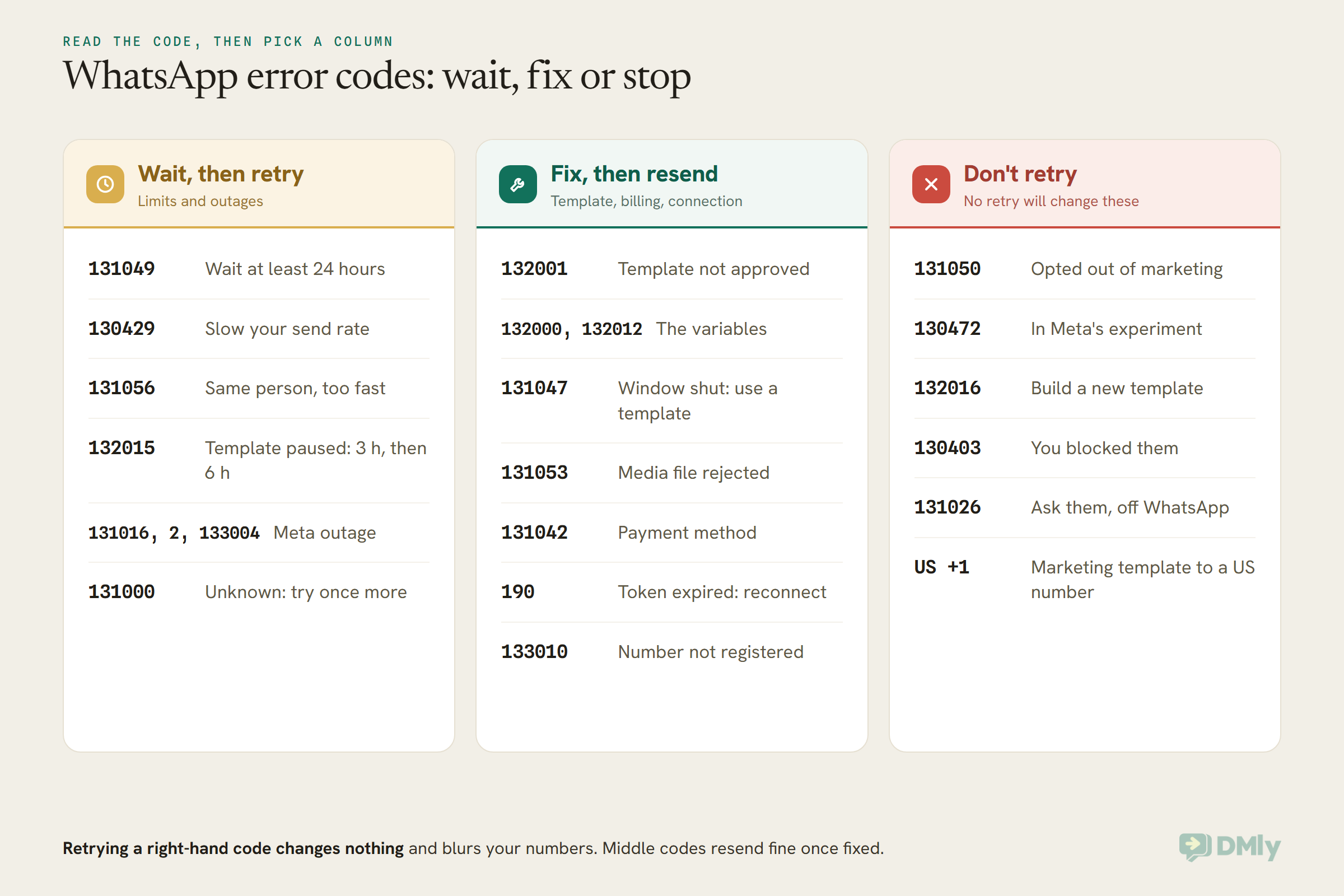
It depends on the code. Wait and retry limits and outages (131049 after 24 hours, 130429, 131056, 131016). Fix and resend template, variable, billing and connection errors. Don’t retry opt-outs (131050), Meta’s experiment (130472), disabled templates (132016) or marketing to US numbers.
Am I charged for WhatsApp messages that fail?
Meta charges for template messages when they’re delivered. It also says paused-template attempts and messages withheld for its marketing experiment aren’t charged.
Can I send WhatsApp marketing messages to US customers?
Not as templates, currently: Meta doesn’t deliver marketing templates to US phone numbers. Utility messages such as reminders and confirmations still deliver, and you can reply inside an open conversation if the customer messages you first.
Does DMly retry failed WhatsApp messages automatically?
Only rate-limited sends, which are re-queued and retried after a few seconds. Timeouts, Meta outages and every other failure are recorded as failed. To resend, create a new broadcast with Type set to Retarget and All Failed as the engagement type, after fixing the cause.
The Apology, and What Comes After It: Reading WhatsApp Error Codes With Confidence
The apology stands. WhatsApp error codes were never written with you in mind, and “maintain healthy ecosystem engagement” will never be a sentence anyone enjoys reading in a campaign report.
But every code means one of three things: wait, fix, or stop. Wait out limits and outages, and give 131049 its full 24 hours. Fix templates, variables, billing and connections, then resend to the failed list. And stop sending to people who opted out, to Meta’s experiment group and to US numbers with marketing templates, because no retry will change those.
If you’d like those answers in one place (the failure reasons on each broadcast, failed sends on each template, and Logs that tell you what Meta said), DMly puts them next to your Inbox and your templates. And if you’re still getting set up on the API itself, our guide to the WhatsApp Business API for small businesses is the place to start.
Writing about WhatsApp automation, bookings and growth for local business.
Turn WhatsApp into your busiest channel.
Start free and run message, bookings, payments and reviews in one place.
