
A live chat widget makes one promise your homepage can’t: somebody’s here.
Every other thing on your website is a monologue. The hero image, the price list, the about page, the contact form that emails a mailbox nobody checks on Saturdays. The little bubble in the corner is the only element that claims a human being, or something close enough, is on the other side right now. That claim is why it works: the visitor with a question they’d never email can ask it in one line and get an answer before they leave. And it’s why the bubble fails so often, because on most sites the promise is a lie, and visitors have learned to close it on sight.
So this guide is in two unequal halves. The short half is installing the live chat widget, which is genuinely ten minutes on any platform, and we’ll do it properly for WordPress, Shopify, Wix, Squarespace, Webflow and plain HTML. The long half is keeping the promise: deciding who answers and when, what you ask before the chat starts, where the bubble appears, how an AI agent answers at 11pm, how the chat continues on WhatsApp after the visitor closes the tab, and how a stranger on your pricing page becomes a contact in your CRM. The worked example uses DMly, where the widget is one channel in the same inbox as WhatsApp and Instagram.
What a Live Chat Widget Is in 2026 (and What It Isn’t)
A live chat widget is a small script you add to your site that draws a chat bubble on every page you choose. Tap it and a chat window opens; what the visitor types travels to you, and what you type travels back, in the window, in real time. That much hasn’t changed in fifteen years.
What has changed is what sits behind it. A live chat widget used to be its own island: its own inbox, its own agents, its own transcripts, disconnected from every other way customers reached you. The useful modern version is a channel: the chat lands in the same shared inbox as your WhatsApp, Instagram and Messenger conversations, the same automations run on it, the same AI agent answers from the same knowledge, and the visitor becomes the same kind of contact, with a record, tags and a history. The widget stops being a support tool and becomes a front door. The direction of travel is clear enough that Gartner, surveying service leaders in 2025, expects live chat and self-service to overtake phone and email as the most valuable service technologies by 2027. And the commercial case has been made for years: Intercom’s analysis of 20 million chat messages (vendor data, 2018, so treat the precision lightly) found visitors who had chatted were 82% more likely to become customers.
Two things it isn’t. It isn’t a chatbot builder in itself: the bot is a flow you build once and point at the widget, exactly as you’d point it at WhatsApp. And it isn’t a popup. A popup interrupts; a widget waits. Keep that distinction and most of the design decisions below make themselves.
One honest limit worth stating early: a website visitor is anonymous until they tell you who they are. On WhatsApp you get a phone number with the first message; on a website you get a browser. Everything about lead capture in this guide follows from that gap, and the best widgets are built to close it gently.
Three Decisions Before You Paste Anything
Here’s the order most businesses do this in: paste the snippet, admire the bubble, forget about it, and discover three weeks later that eleven people asked a question and nobody saw them. Reverse the order. Make three decisions first, and the install takes care of itself.
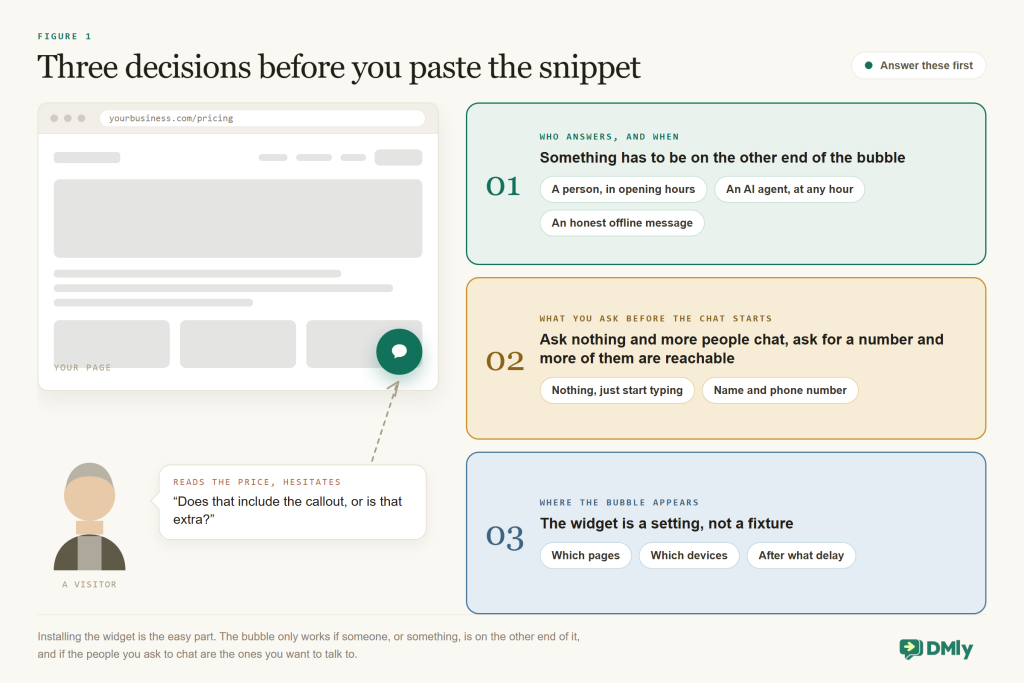
Decision one: who answers, and when? A widget is only as good as its worst unanswered minute. You have three honest options, and they combine: a person during opening hours, an AI agent at any hour answering from your own facts, and an offline message for anything that needs a human when none is there. What you can’t do is leave the green dot on with nobody behind it. In DMly the widget’s availability is a manual Online toggle: on, the visitor sees a green presence dot and a status line (“Online, replies in a few minutes” by default, or your own words); off, they see “Away, leave us a message” and an offline band with whatever message you wrote. The toggle is presentation, not plumbing: your automations and AI answer either way. So treat it as a promise about people, not a switch for the bot.
To add a WhatsApp widget without installing anything, the free WhatsApp widget generator creates the snippet for you. If a simple button is all you need, the WhatsApp chat button generator gives you the code to paste in.
Decision two: what do you ask before the chat starts? Nothing, and you’ll get the most conversations and no way to follow up. A name and phone number, and you’ll get fewer conversations, every one of them a contact you can reach again. DMly’s pre-chat form can require any of name, phone, email and a consent tick, all off by default; the Start Conversation button stays disabled until the required ones are filled. There’s no universally right answer, but there’s a right question: do you want more chats, or more leads? A salon booking from the site wants the phone number. A blog answering reader questions doesn’t.
Decision three: where does it show? Everywhere, immediately, on every device, is the default and the mistake. A bubble on the pricing page is a helping hand; the same bubble over a blog post is noise, and on a phone it covers the button the visitor was about to tap. Decide which pages get the widget, whether mobile gets it at all, and whether it waits a few seconds or appears as the visitor moves to leave. We’ll set each of these in the display rules.
Write the three answers down. They become, respectively, the Online toggle and your AI setup, the pre-chat form, and the display rules. Now the install.
Installing the Live Chat Widget, Platform by Platform
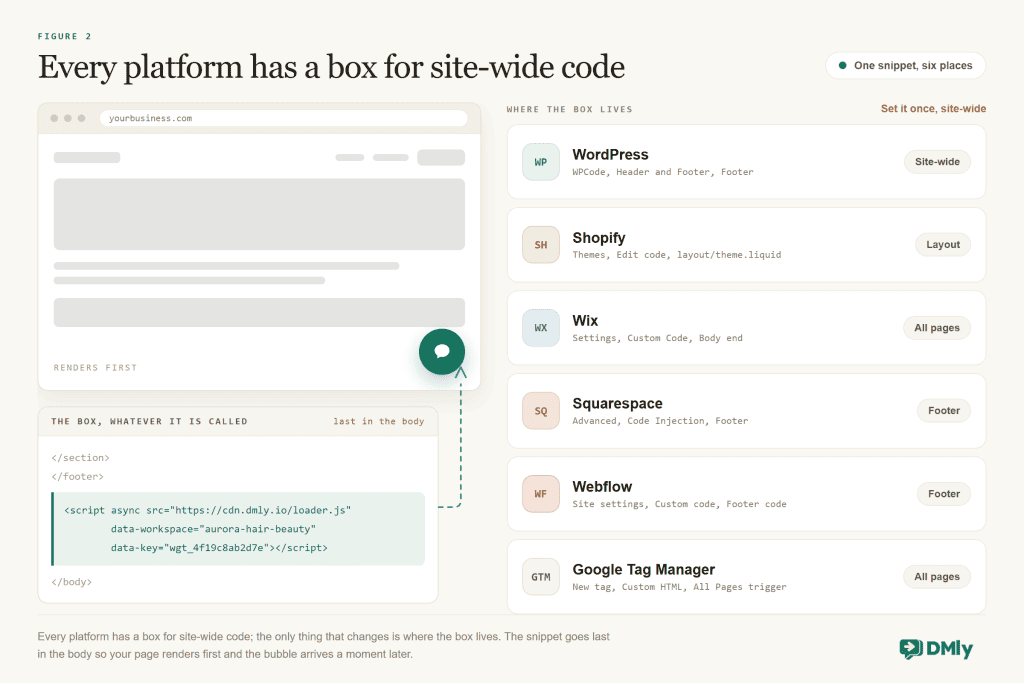
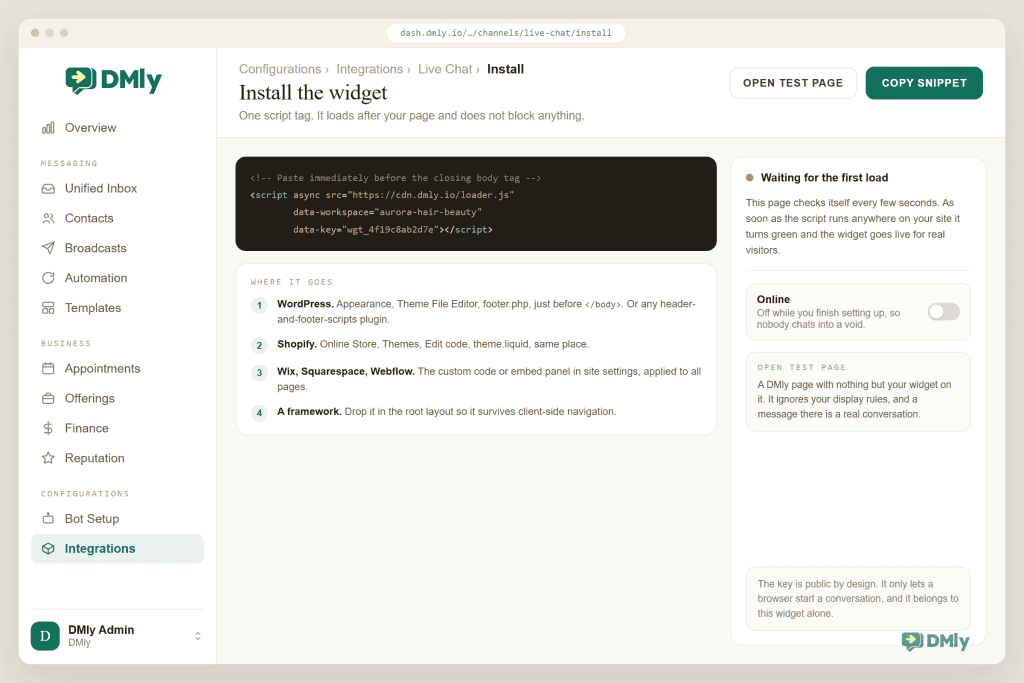
Every live chat widget installs the same way underneath, and it is genuinely one paste. One small <script> tag, placed on every page of your site, ideally just before the closing </body> tag so it loads after your content rather than in front of it. DMly gives you that tag in the widget’s Install panel, one line with async already on it, so it never blocks your page from rendering; copy it once and paste it wherever your platform keeps site-wide code. The widget itself loads inside its own isolated frame, so it doesn’t fight your theme’s styles and your theme doesn’t break it. (DMly’s docs also have a short video walkthrough of the whole install if you’d rather watch than read.)
- Create the widget in DMly. There’s no account to connect; DMly mints the widget. Open Bot Setup, choose Set up Live Chat, give the widget an internal name (visitors never see it; name it for where it lives, since you can run more than one) and create it. Open the Install panel and Copy snippet. Before you paste it anywhere, set the Online toggle to match reality (off, until you’ve finished), so nobody chats into a void while you’re still configuring.
- WordPress. The cleanest route is a code-snippets plugin such as WPCode: add a new snippet, choose the Footer location so it lands before
</body>on every page, paste, activate. If you’d rather not add a plugin, your theme’s footer file or a child theme does the same job; we have a separate guide that walks through the no-plugin route. - Shopify. Online Store, then the theme’s … menu → Edit code (duplicate the theme first, as Shopify suggests). Open
theme.liquid, the layout that wraps every page, paste the snippet just above</body>, save. We cover Shopify end to end in its own guide. - Wix. Settings → Custom Code → Add Custom Code, paste the snippet, choose All pages and the Body, end placement. Wix needs the site published with a connected domain before custom code is allowed.
- Squarespace. Open the Code Injection panel (available on Core plans and above) and paste into the Footer box, which injects before
</body>on every page except checkout. Squarespace itself lists live chat as the textbook use for it. - Webflow. Site settings → Custom code → Footer code, paste, save, then publish; site-level custom code needs a Site plan, and nothing goes live until you publish.
- Any site, via Google Tag Manager. If your site already runs GTM, add a Custom HTML tag containing the snippet and give it a page-view trigger on all pages. Marketers like this route because no developer is needed for changes later.
- Check it twice. First on the Install panel’s Open test page, a DMly-hosted page with nothing but your widget on it: it’s the real thing, ignores your display rules, and a message there is a real conversation that reaches the Unified Inbox in seconds. Then on your own site, in a private window, on desktop and on your phone, where the display rules apply. If the bubble doesn’t show, the snippet is usually in the wrong place or your site’s cache hasn’t cleared; if it shows but nothing arrives, check Logs, which records every inbound live chat message.
A note on speed, because it’s the first question a developer will ask: the snippet carries the async attribute, which lets the browser keep building your page while the script downloads, and the chat interface lives in its own frame, so the cost to your page-load is small. It still goes at the end of the body, for the same reason every platform above puts its footer box there: your content first, the bubble a moment later. One caution: the snippet belongs to that specific widget. Delete the widget and the snippet on your site goes dead, along with every conversation and contact that came through it, so rename rather than recreate.
Designing a Bubble People Actually Tap
The defaults on most live chat widgets are fine, and most widgets are ignored, so the defaults are not the goal. Five settings do the work.
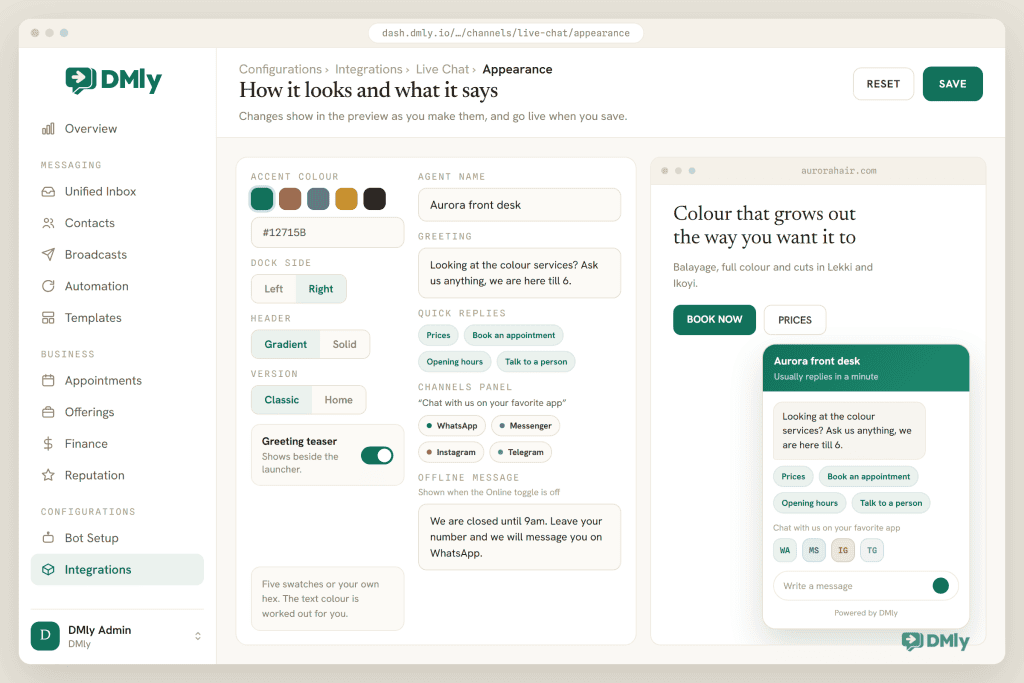
The greeting. The first line in the open chat window, and the words in the teaser bubble beside the launcher. Not “How can we help you today?”, which is furniture, but something that sounds like the person who’d walk over in your shop: “Looking at the colour services? Ask us anything, we’re here till 6.” In DMly the greeting sits beside the Agent name in the Brand settings, with a live preview that toggles between the launcher and the open window so you can read both as a visitor would.
The quick replies. Up to six tappable chips shown before the visitor’s first message and gone the moment they send anything: Prices, Book an appointment, Opening hours, Talk to a person. These are the widget’s menu (there’s no persistent menu or default reply on live chat; the chips do that job), and they do three things at once: they tell a visitor what you can help with, they save them typing, and they route the common questions straight into an automation. Use four or five; six is the limit, not the target.
Colour, side and shape. DMly keeps the palette deliberately small: one Accent colour (five swatches or your own hex, with the text colour worked out for you) over a fixed design, so the widget always looks finished. Pick the accent that matches your brand, choose the Dock side (right unless your site’s own button lives there), a Gradient or Solid header, and whether the greeting teaser shows beside the launcher. Then the one choice that changes the experience: the Version. Classic opens straight into the conversation; Home opens on a landing screen that shows your other channels first.
The channels panel. This is the setting no standalone widget has. Under “Chat with us on your favorite app”, the widget can show deep links to your WhatsApp, Messenger, Instagram and Telegram, as buttons or icons, and they appear on the pre-chat screen too. A visitor who’d rather not chat in a browser tab taps WhatsApp and carries on there, as a contact with a phone number, in your same inbox. We’ll come back to why that matters.
The offline message. This is the setting people forget and visitors remember. When the toggle is off, the band above the message box shows your words. Make them honest and useful: “We’re closed until 9am. Leave your number and we’ll message you on WhatsApp first thing.” Pair it with the pre-chat form asking for a phone number, and an offline chat becomes a lead instead of a loss. One small honesty note of our own: the widget carries a “Powered by DMly” line in its footer, which agencies can rebrand on white-label plans but nobody can remove.
The display rules. Covered next, because they’re the difference between a bubble that helps and a bubble that gets closed.
Where and When the Bubble Appears
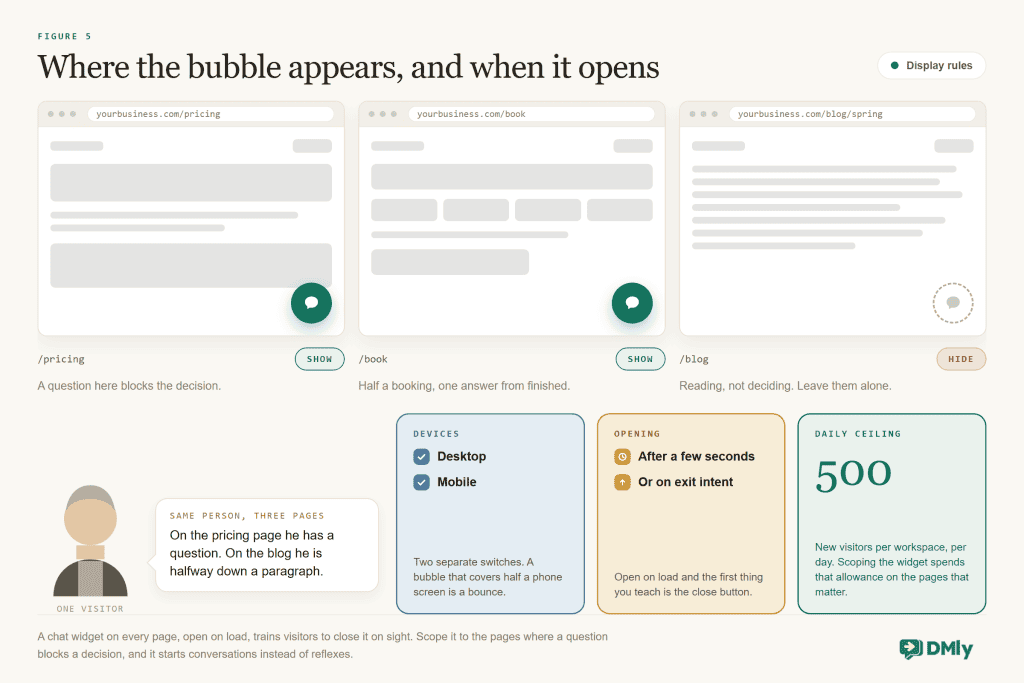
Where the bubble shows, and when, is the difference between a helping hand and something people close on reflex. DMly’s display rules let you scope the widget with up to 50 URL patterns (show only on matching pages, or everywhere except them, with * as a wildcard), target all devices or desktop or mobile only, delay the bubble by anything from 0 to 300 seconds, and show it on exit intent, the moment the cursor heads for the tab bar (desktop only, since phones have no cursor). Page and device rules are hard gates: on an excluded page nothing loads at all, not even a hidden frame. Changes reach live visitors within about a minute of saving, with no re-paste. Use them like this.
Show it where a question blocks a decision. Pricing, services, booking, product pages, the checkout, the FAQ. These are the pages where a visitor is one unanswered doubt away from leaving, and where a quick “yes, we do Saturday afternoons” converts. Hide it where people read rather than decide: blog posts, the about page, legal pages.
Treat mobile as a separate decision. On a phone, a chat bubble sits exactly where the “Book now” button wants to be. Either keep the widget off on mobile and rely on a WhatsApp link there (most mobile visitors would rather chat in WhatsApp anyway), or keep it but delay it so it never covers the first screen. Our guide to adding WhatsApp to your website pairs naturally with this one for exactly that reason; it is worth reading alongside this one.
Use the delay and the exit trigger with restraint. A bubble that opens itself on arrival is the pattern people have learned to swat. A bubble that appears after twenty seconds on the pricing page, or as the visitor moves to leave the booking page, is a question asked at the right moment. Set the delay, don’t auto-open, and save exit intent for the one or two pages where leaving is expensive.
And know the ceiling: DMly’s widget admits up to 500 brand-new visitors per workspace per day across all your widgets, resetting at midnight UTC, and the 501st visitor’s message simply stays unsent with no explanation. For a local business that’s far more than you’ll use; for a site with real traffic it’s a reason to scope the widget to high-intent pages rather than every page, which you should be doing anyway.
Answering: People by Day, an AI by Night, Honesty in Between
Now the half that matters: the widget you install this morning will get its first message tonight, after you have gone home, from the one visitor who was about to book. Here’s how to be there without being there.
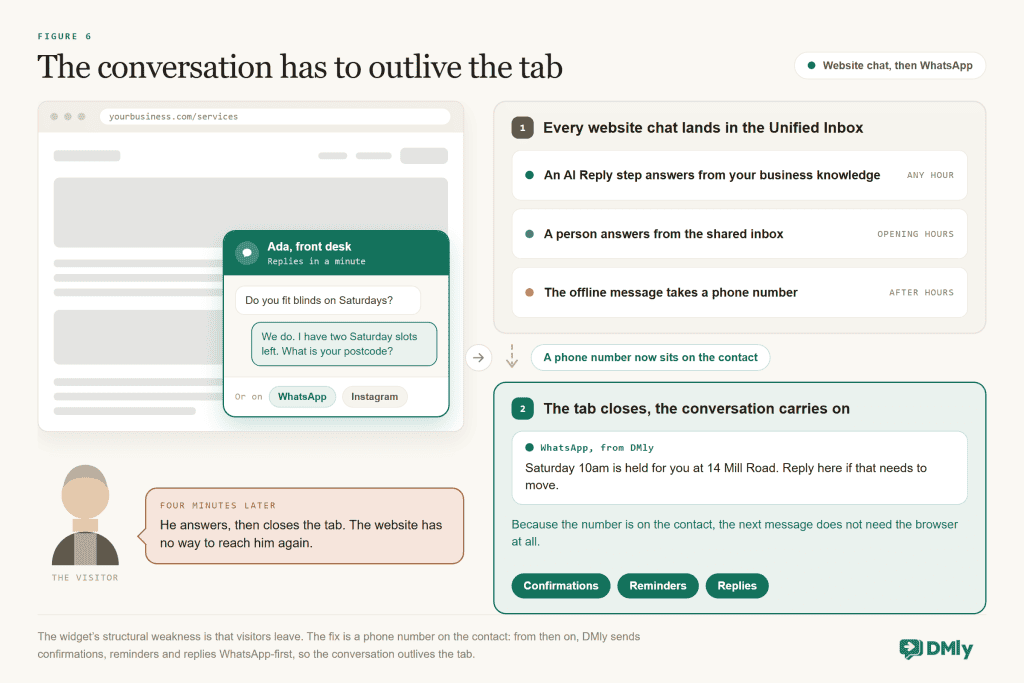
People, in the inbox you already use. Every chat lands in DMly’s Unified Inbox alongside WhatsApp and Instagram, assigned by the same rules, answered from the same screen, with the same saved replies. A new conversation rings the in-app bell for everyone by default, chimes in the browser, and can pop a desktop notification when the tab is in the background; if you want teammates pinged on WhatsApp or email for every new chat, that switch exists too, off by default because it gets noisy. There’s no second app to watch, which is the single biggest reason widget messages stop going unanswered: the person watching WhatsApp is the person watching the site. And speed is the whole point: in HubSpot’s research on chat behaviour, 66% of consumers expect a reply within five minutes.
An AI agent, from your facts. Automations run on the widget exactly as they do on WhatsApp, with a Live Chat message trigger in front and an AI Reply step behind, grounded in your AI Knowledge (prices, hours, policies, what’s included) and instructed to answer only from what it knows and hand over when it doesn’t. The three-layer pattern from our FAQ and auto-response guide transfers whole: quick replies for the common asks, AI for anything typed, a person behind both. We have a separate guide on building the site bot that also books appointments, which is where a website widget earns real money: the visitor on your services page picks a real slot in the chat, without a form, without a call.
Honesty, when neither is available. Some questions need a human and some hours have none. The offline band says so, the pre-chat form captures a phone number, and the automation tags the chat for the morning. That’s not a failure; it’s the thing most widgets don’t do, which is tell the truth and keep the lead.
One craft note for the AI on a website specifically: visitors here know less about you than WhatsApp contacts do. They may be comparing you with two other tabs. So the AI’s first job is orientation, not closing: what you do, where you are, what it costs, how to book. Write the knowledge for a stranger, and the bot will be good with strangers.
Continuing the Conversation on WhatsApp
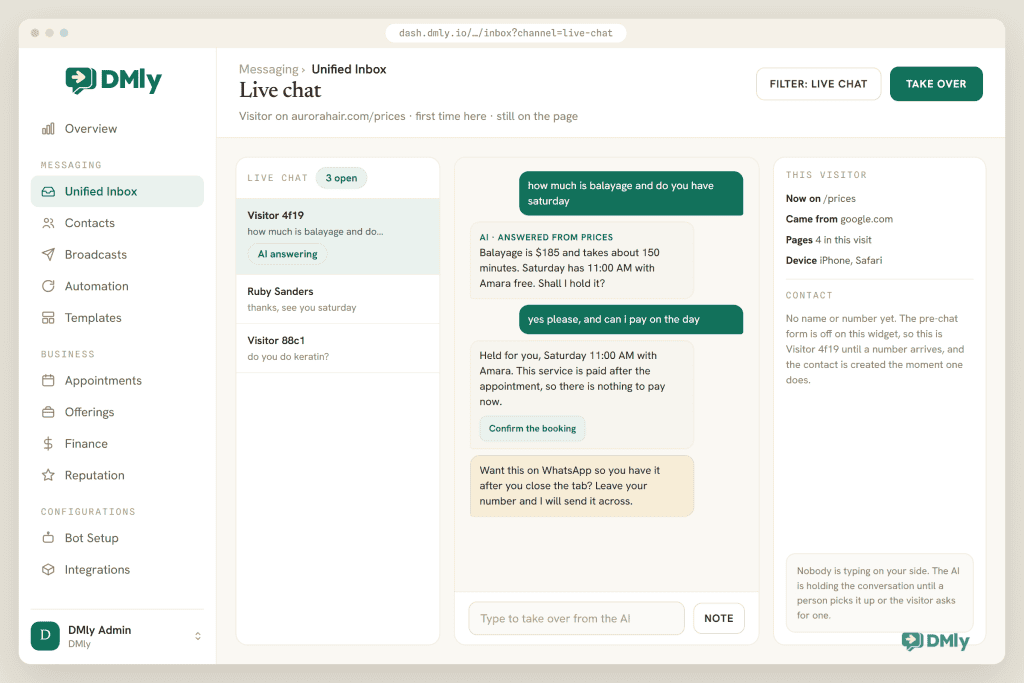
Here is the structural weakness of every live chat widget, and the thing DMly is built to fix: a visitor who closes the tab is gone. The chat window doesn’t follow them. If they asked a question at 5:55 and you answered at 6:05, they will never see it, unless the conversation has somewhere else to go.
That somewhere is WhatsApp, and DMly builds two bridges to it. The first is in the widget itself: the channels panel offers “Chat with us on your favorite app” with a WhatsApp link, on the pre-chat screen and on the Home version’s landing screen, so a visitor who’d rather talk in WhatsApp taps once and the conversation starts there, with a phone number attached from the first message. The second is the phone number you capture in the browser: ask for it in the pre-chat form, or let the AI ask at the natural moment (“Want me to send the booking confirmation to your WhatsApp?”). From then on, the confirmation, the reminder and the answer to the question they left behind can all go out on WhatsApp, where the message waits on their phone instead of in a tab they closed. DMly sends automated notifications WhatsApp-first whenever it has a number and a connected WhatsApp channel, so the handover from website to phone happens without anyone doing anything.
This is why the pre-chat phone field is worth the conversations it costs. A chat with no number is a conversation that dies with the tab. A chat with a number is the first message in a relationship that continues in the app your customer opens thirty times a day. Two further guides go deep on turning site visitors into WhatsApp conversations, including the version where the chatbot itself makes the move.
From Visitor to Contact to Customer
A website visitor is the only kind of customer who arrives anonymous, so your widget has to do the CRM work that WhatsApp does for free.
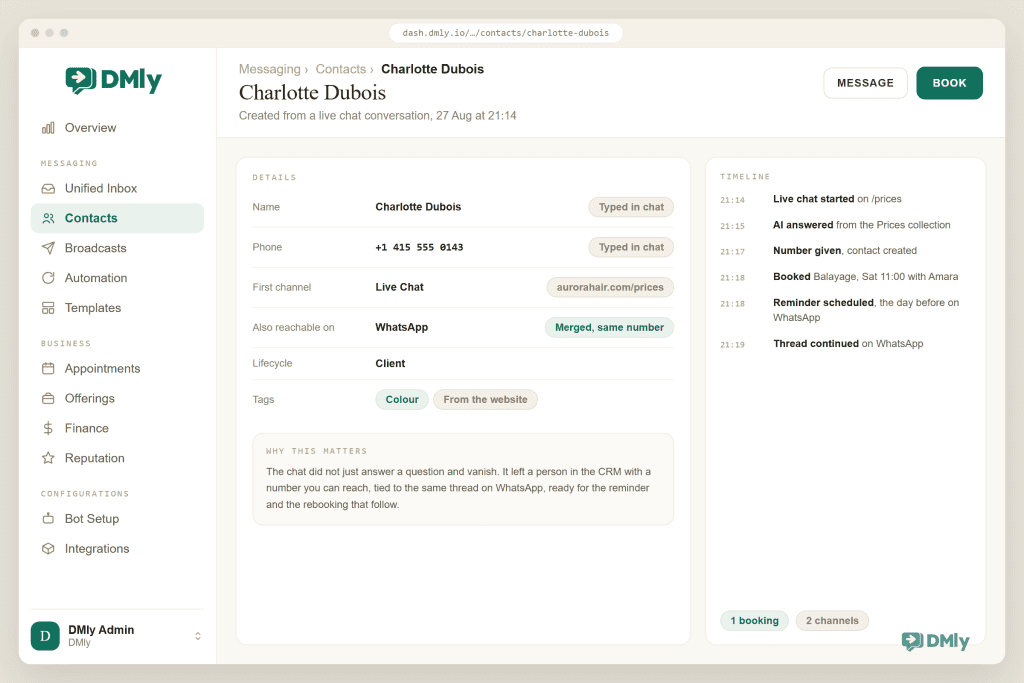
Every chat creates a contact in DMly. Without the pre-chat form, that contact is “Website visitor” plus a four-character tag, tied to a token the browser keeps: the same browser is the same contact across visits, but a different device, a private window or cleared site data reads as a new person. With the form on, the contact arrives with a name, a phone number (the country-code picker guesses from the browser) or an email, saved to the record without overwriting anything already there. Tag them as they come in (Website lead, plus the page they were on if your quick replies reveal it: Asked about colour), set a stage, and let the AI’s lead-qualification tools do what they do on any channel: log what the person wanted, flag the hot ones, move them along the pipeline. Lead capture, the CRM connection and AI qualification each get their own guide.
One housekeeping truth: a typed phone number or email never links a visitor to an existing contact, even on an exact match, because DMly treats what a stranger types as a claim rather than proof. So the person who gives the widget their number and later WhatsApps you from it arrives as two contacts. DMly flags the likely pair (a Possible duplicates prompt appears on the profile when an email or phone matches) and you confirm the merge once; merges are permanent, so look before you click. Do it when the booking lands, and your CRM stays honest. For the record-keeping side: you’re the data controller and DMly the processor, data is encrypted in transit and at rest, and deleting a contact is immediate and permanent.
What the widget can’t do is start a conversation later. There are no broadcasts to website visitors, no trackable links from the site the way there are for WhatsApp, because there’s no address to send to. The widget is an entry door, not a marketing channel. Capture the number, and WhatsApp becomes the marketing channel.
Knowing Whether Your Live Chat Widget Is Working
Most live chat widgets go unmeasured, which is how they end up unanswered. Four numbers, once a month, are enough, and it’s worth knowing where each one lives, because DMly has no widget-specific dashboard: the Overview follows whichever channel you select, and the Team performance report is workspace-wide.
Conversations on the channel. Select the widget in the channel picker and the Overview shows its message volume over the last fortnight, its reply rate and, usefully, its peak conversation hours over the last month, which is the number that tells you when to have a person on the Online toggle. First response time for the human-answered chats, from the Team performance report (it counts from assignment, so pair it with a glance at the inbox timestamps). Leads captured: contacts tagged Website lead that ended the month with a phone number or a booking, which is the widget’s real output. And the unanswered count: Open live-chat conversations in the inbox with no reply, checked weekly. The first three tell you the widget is useful. The last one tells you whether you’re keeping the promise.
Why DMly for Your Website Chat
Standalone live chat tools are good at being chat windows, and that is all they are. The case for DMly’s live chat widget is that it isn’t standalone: it’s the same product that runs your WhatsApp, your AI agent, your bookings and your CRM, pointed at your website.
That buys you four things no separate widget can. One inbox, so website chats get answered by the people already answering WhatsApp. One AI agent with one knowledge base, so the bot that books appointments on WhatsApp books them on your site too. The WhatsApp continuation, so a visitor who leaves the tab isn’t a lost conversation but a contact with a number and a reminder on the way. And one contact record, so the stranger on your pricing page and the regular on WhatsApp can be the same person in your CRM.
Commercially, Live Chat is included as a channel on every plan ($29, $65 and $149 a month billed yearly), the widget is free to run, and the 7-day trial needs no card. Ten minutes to install; the rest of this guide to make it worth installing.
Questions Businesses Ask About Live Chat Widgets
Will a live chat widget slow my website down?
Not meaningfully, if it’s installed right. The snippet loads without blocking your page and the chat interface lives in its own isolated frame. Place it just before the closing body tag so your content renders first and the bubble follows a moment later.
Do I need a developer to install a live chat widget?
No. On WordPress, Shopify, Wix, Squarespace and Webflow it’s a paste into the platform’s site-wide code box, and on any site with Google Tag Manager it’s a Custom HTML tag. The steps for each are above.
What happens when nobody is online?
The widget shows your offline message instead of the green dot, the AI agent can still answer from your knowledge if you’ve set one up, and the pre-chat form captures a phone number so you can follow up on WhatsApp in the morning. Never leave the toggle on with nobody behind it.
Should I make visitors give their name and phone before chatting?
If you want leads, yes; if you want the most conversations, no. A phone number is what lets the chat continue on WhatsApp after the tab closes, which is usually the decider for a business that books appointments.
Can the website bot book appointments?
Yes. The same booking steps that work on WhatsApp run on the widget: the visitor picks a real slot in the chat, and the confirmation and reminder follow, on WhatsApp if you have their number.
Can visitors send me photos through the widget?
Yes: pictures up to 10MB and videos up to 50MB, which is handy for “can you fix this?” conversations. Documents aren’t accepted. An attachment does run your bot, as a message with no text: it never matches a keyword, but it can start a catch-all flow or quick automation, and if a flow is waiting for an answer the photo moves it on with an empty answer, so give that flow a fallback path that hands photos to a person.
Can I remove the “Powered by DMly” line?
Not on a standard plan; agencies on DMly’s white-label plans can rebrand it. Everything else about the widget (colour, side, greeting, agent name) is yours.
Can I message website visitors later, like a WhatsApp broadcast?
No. There’s no address to send to, so there are no broadcasts on live chat. Capture a phone number and the follow-up happens on WhatsApp, which is the channel for that.
Keep the Promise
The bubble’s whole value is the claim it makes, and the claim is only worth making if it’s true. Install it in ten minutes, by all means. Then spend the rest of the afternoon on the three decisions: who answers and when, what you ask first, where it shows. Put an AI behind it for the hours you can’t cover, be honest in the hours nobody can, and make sure every chat worth having ends with a phone number, so the conversation can follow the customer out of the tab and into their pocket. That’s a widget that keeps its promise.
Add live chat to your site. Create the widget in DMly, paste one snippet, and your website joins WhatsApp and Instagram in one inbox, with the same AI, bookings and CRM behind it. Start the 7-day trial, no card needed.
Writing about WhatsApp automation, bookings and growth for local business.
Turn WhatsApp into your busiest channel.
Start free and run message, bookings, payments and reviews in one place.
