
How to Increase Repeat Purchases With WhatsApp Automation
Read a customer’s order history like a story. Chapter one: they found you through an ad, bought a bag of your coffee, and left a kind note at checkout. Chapter two should be the refill a month later, and chapter three the gift box at Christmas. For a great many customers, the story stops after chapter one. Nobody decided to stop reading. The bag ran out on a busy Tuesday, the supermarket was on the way home, and your shop never came up again.
To increase repeat purchases, you do not need to shout louder at everyone. You need to be there for chapter two: a message at the moment the first purchase is likely to run out or wear off, to the customers who have not come back yet, and not to the ones who already have. WhatsApp is a good place for it, because it is where the customer’s order confirmation and tracking link already live.
This guide builds that in DMly: the data problem you need to solve first, a flow that invites first-time buyers back and skips those who already returned, product-aware refill reminders, milestone thanks, restock alerts, discount codes, what not to do, and how to measure it. It builds on our guide to Shopify WhatsApp automation.
To Increase Repeat Purchases, Solve the Data Problem First
DMly’s built-in purchase segments do not see your store’s orders. Store the facts you need yourself.
DMly’s segments have commerce rules that look perfect for repeat purchases: Total spend, Last purchase and Order count. Read their definitions before relying on them. Order count counts confirmed orders in DMly’s own Finance, and DMly’s Shopify docs say synced store orders do not appear there. Total spend is lifetime spend on the contact’s DMly client profile, and a contact with no client profile counts as zero. DMly’s docs do not say which records Last purchase reads. For a shop selling through Shopify or WooCommerce, none of these describes the customer’s store history.
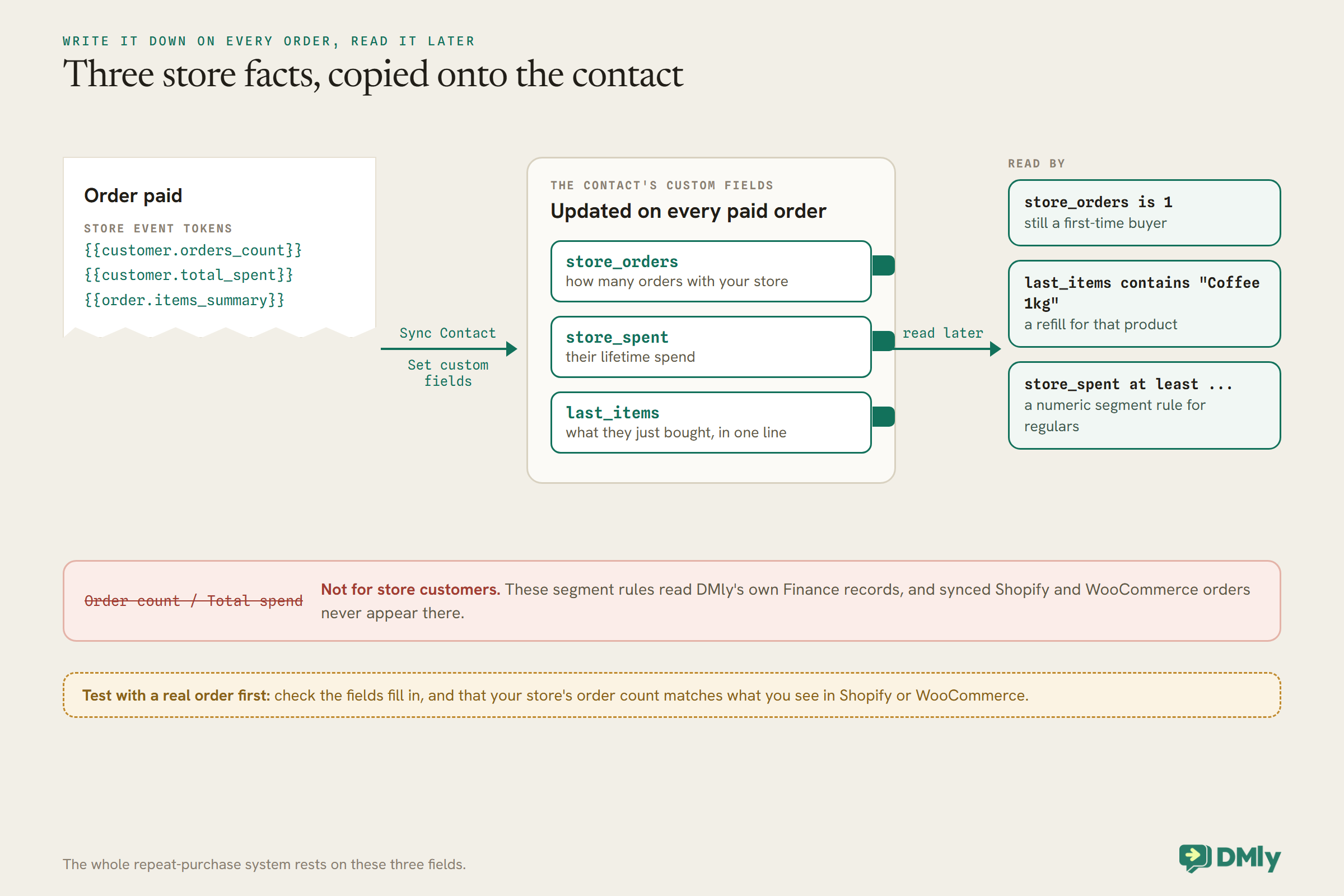
The store does know, and it tells DMly on every order. When a store event starts a flow, tokens such as {{customer.orders_count}} (how many orders the customer has placed with your store), {{customer.total_spent}} (their lifetime spend) and {{order.items_summary}} (what they just bought, in one line) are available. The trick is to write those facts onto the contact, where later steps can read them.
The store’s Sync Contact step does exactly that. It sits in the Store (Shopify / WooCommerce) group and has a Set custom fields list. Put it in a flow on Order paid, and set three custom fields:
store_ordersfrom{{customer.orders_count}};store_spentfrom{{customer.total_spent}};last_itemsfrom{{order.items_summary}}.
Define those fields in your workspace settings first, so segments can select them. Then test with a real order that the fields fill in as expected: DMly’s docs describe the Set custom fields list but not every detail of how it takes tokens, and your store’s idea of an order count is worth checking against what you see in Shopify or WooCommerce.
Before Any Message: Permission
Every message in this guide is marketing. Only send it to customers who said yes.
Meta’s template categorisation guidelines put messages that drive sales, recommend products, retarget people who engaged with you or build customer relationships in the marketing category, even if requested by users. An invitation to buy again, a refill reminder and a thank-you for being a loyal customer are all marketing. They are billed at the marketing rate, and WhatsApp’s Business Messaging Policy expects you to message only people who agreed.
Collect that permission where it is natural, a checkbox at checkout such as “Send me offers on WhatsApp”, and record it on the contact. Because these flows run on store events, the cleanest way to respect it is a custom field such as marketing_ok set to yes when a customer agrees, which a Condition step can test before any marketing message. If customers agree in a WhatsApp chat, a User Input step can save the answer straight into that field; if they agree at your store’s checkout, carry the answer across with the same Sync Contact step once you have checked how your store exposes it, or bring it in with a contacts import. Customers who reply STOP are added to your suppression list, and DMly’s automations skip them automatically.
Start Before the Second Order: Make the First One Go Well
Customers reorder products they enjoyed. The days after delivery decide whether they did.
A second-order invitation works best on a customer whose first order went well. Two things help, and neither is a sales message:
- Good order updates. A confirmation, a shipping message with tracking, and quick answers to “where is my order?” make the first purchase feel safe. Our guide to Shopify WhatsApp automation covers the setup, and it is worth doing before anything in this article.
- Help using the product. A short note a few days after shipping with how to get the best from it: how to brew the coffee, how often to use the serum, how to wash the jacket. Keep it genuinely useful. Meta decides each template’s category from its content: a note that sticks to the product the customer bought and sells nothing is closer to utility, while one that recommends other products is marketing. If in doubt, treat it as marketing and send it only with permission.
And when customers reply to any of these with a question, answer quickly, in the chat. A question answered well in week one is often the reason for the order in week four.
Step 1: The Second-Order Flow
Invite first-time buyers back at the right moment, and skip anyone who already came back.
This is the flow that does the most for most shops. It runs from the same Order paid trigger, right after the Sync Contact step:
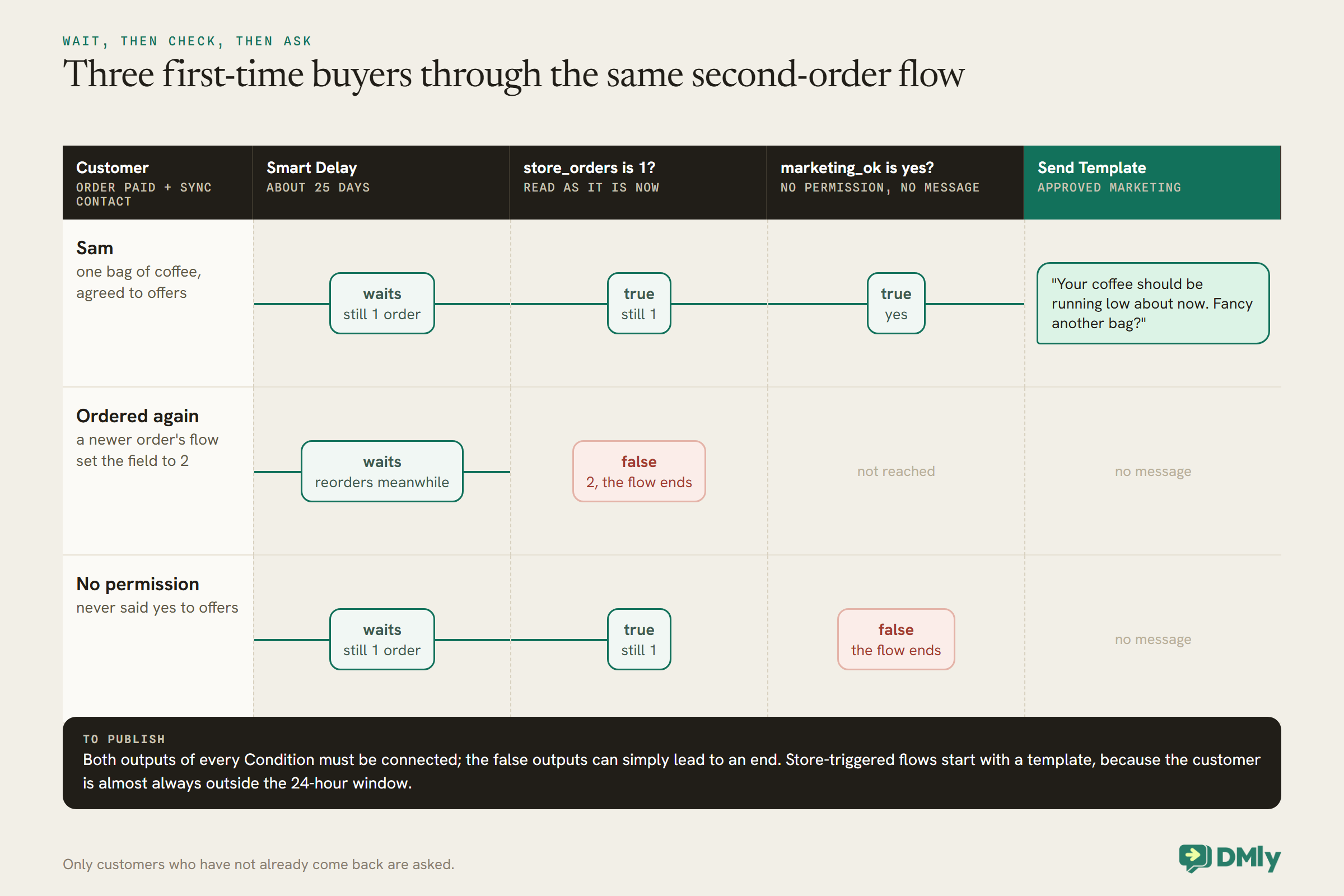
- Smart Delay in Duration mode, set to when a first purchase has had time to be used and enjoyed: 25 days for something consumed monthly, longer for something that lasts.
- Condition: custom field
store_ordersis1. When the delay ends, this reads the contact’s field as it is now. A customer who has ordered again in the meantime had the field updated to 2 by their newer order’s flow, so the condition is false and the flow ends. Only customers still on one order carry on. - Condition: custom field
marketing_okisyes. No permission, no message. - Send Template: an approved marketing template inviting them back. Store-triggered flows must start their messages with a template, because the customer is almost always outside the 24-hour window.
A Condition step must have both its true and false outputs connected before the flow will publish; the false outputs can simply lead to an end.
Choosing the delay from your own data
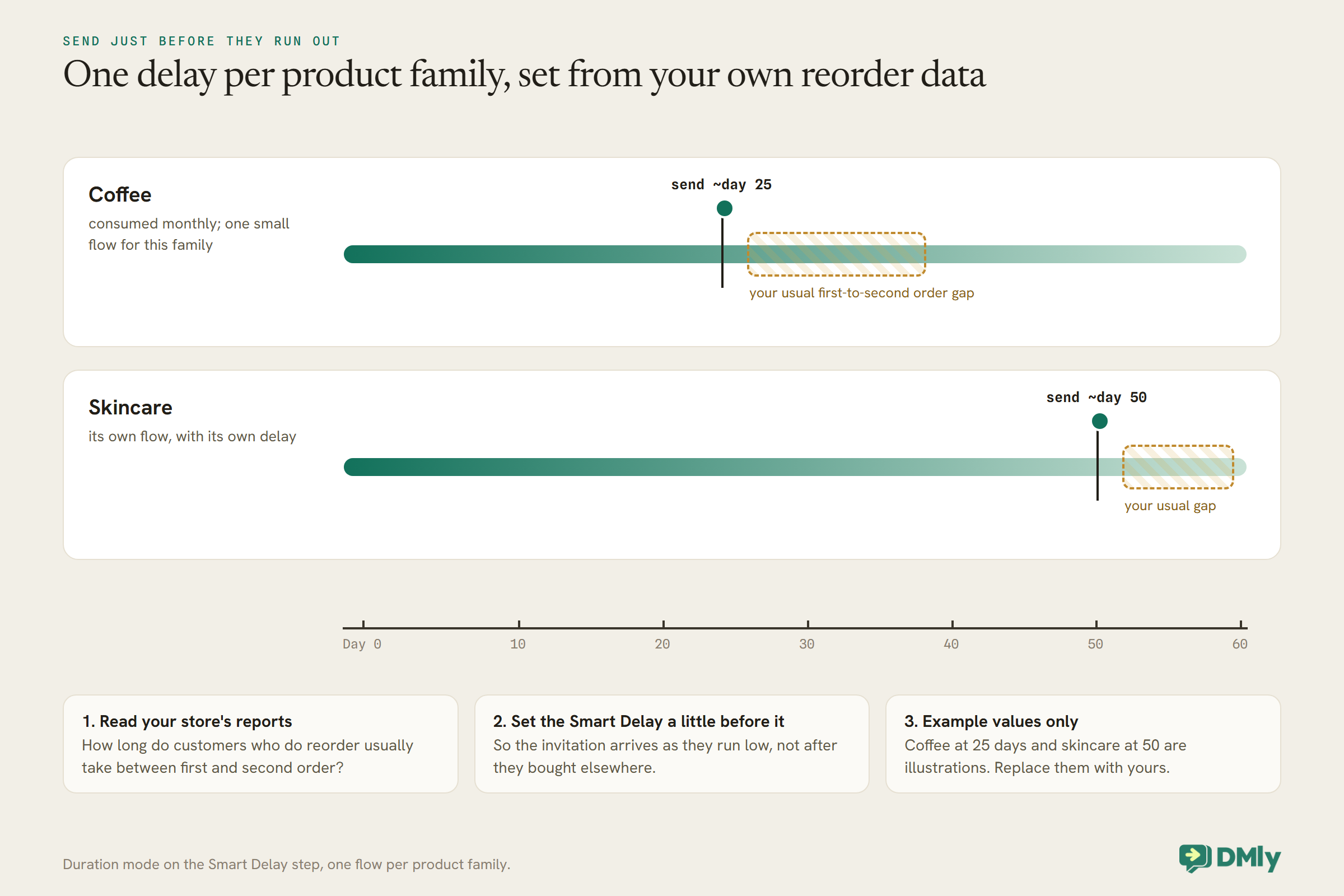
The right delay is not a guess. Your store’s reports can tell you how long customers who do reorder usually take between their first and second order. Set the delay a little before that point for each product family, so the invitation arrives as they are running low, not after they have already bought elsewhere.
What the invitation says
Keep it short and about them: “Hi Sam, your coffee should be running low about now. Fancy another bag? Here’s the shop, and your usual is one tap away.” Link to the product page or your shop. A discount is optional; the right moment often does more than a percentage. If you do include one, see Step 5. Sign it with a real name if a real person will answer the replies, because some customers will reply rather than tap.
Step 2: Refill Reminders That Know What They Bought
A refill reminder for the wrong product is worse than none. Let the last order decide the message.
DMly’s order triggers can be narrowed by store, order total, currency and payment method, but not by product. The last_items field fills that gap. After the delay, a Condition step can test whether last_items contains a product name, such as “Coffee 1kg”, and send a refill reminder worded for that product, with a different branch for another product line, and a generic invitation for everything else.
Two practical notes. Match on a distinctive part of the product name as it appears in the items summary, because a condition compares literal text. And set the delay per product family by building one small flow per family, each filtered sensibly, rather than one giant flow with many branches: a coffee refill at 25 days and a skincare refill at 50 are easier to reason about as two flows.
Refill reminders suit consumables: coffee, supplements, pet food, skincare, printer ink. For products people buy once, the second purchase is usually something related, which is the next idea.
Step 3: Something That Goes With It
For products that last, the second order is a companion, not a copy.
If a customer bought a coffee grinder, the second purchase is beans; if they bought a jacket, it might be the matching gloves in autumn. The same pattern works: a Condition on last_items containing “Grinder” after a delay, and a template that suggests one genuinely useful companion product. One suggestion, not a catalogue. A message that feels like advice from someone who remembers what you bought is welcome; a message that feels like an algorithm is not.
If you run an AI shopping assistant on the same number, shoppers who reply with questions will be answered by it, and a keyword flow can send a product straight into the chat with the store’s send-product step.
Step 4: Thank Your Regulars at Milestones
Repeat customers deserve to be noticed. The store can tell you when they cross a line.
The Customer milestone store trigger fires when a customer’s total spend or order count reaches a threshold you set, such as a fifth order, and it fires once per customer per automation, so the thank-you goes once, not on every order after. Build one automation per milestone you care about: a second order, a fifth, a spend level.
A milestone message is a relationship message, which Meta treats as marketing, so check marketing_ok first. What to send: a genuine thank-you, early access to a new product, or a small gift with the next order. A flow can also add a tag such as regular, which gives you a segment of your best customers to invite first when something new arrives.
Step 5: Discount Codes, Used Sparingly
A discount can tip a first-time buyer into a second order. It can also train everyone to wait for one.
The store’s Create discount step mints a discount code in your store, and {{discount.code}} carries it into the next message in the same flow. That makes a personal code possible: a second-order invitation with a code that works for that customer.
Use it deliberately. A code in every message teaches customers that full price is for people who do not wait. Many shops keep discounts for the second-order invitation only, or for customers who did not respond to a first invitation without one. Whatever you choose, remember that a message with an offer is marketing, and DMly’s own cart discount template, dmly_cart_discount, is filed that way too.
Step 6: Back in Stock for the Ones Who Asked
Some repeat purchases are waiting for a product to return. Let the store tell you when.
The Product back in stock store trigger fires when a product returns, and because a product event has no single recipient, it runs the flow for every contact holding a tag you choose, such as waitlist-blue-linen, capped at 500 contacts per event. Only this product narrows it to one item. Tag customers who ask about a sold-out item, from a keyword, a button or your AI assistant, and they hear first when it is back. A back-in-stock alert for something the customer asked to be told about is about as welcome as a message gets.
Gift Buyers and Seasonal Repeats
Some customers buy once a year, for the same occasion. Remember the occasion.
A customer who bought a gift box in December is a likely gift buyer next December, not a likely coffee subscriber in January. A flow on Order paid can add a tag such as gift-buyer-2026 to December orders; filter the trigger by order total if gift orders tend to be larger, or have your gift-wrap product feed a Condition on last_items containing it. Next November, one message to that tag, sent to customers who agreed to offers, is one of the most welcome marketing messages you can send: “Last year you sent our gift box to someone lucky. This year’s is ready.” DMly’s Scheduled date trigger can run that send as a flow on the date you choose, for an audience you pick, if you want it to happen without anyone remembering.
Your Best Customers, Without Over-Messaging Them
Regulars are the people most likely to buy again, and the easiest to annoy.
With store_spent and store_orders on each contact, segments can find your best customers: a custom field rule such as store_orders at least 5, or store_spent at least a level that matters for your shop. Those segments are ideal for early access to a new product, a thank-you, or a small gift. They are also the customers who receive the most of everything else, because they order most often.
DMly has no documented per-contact cap on marketing messages, so set one as a habit: no more than one marketing message a week to anyone, and fewer to your regulars than you are tempted to. When several flows could message the same customer in the same week, decide which matters most and pause the others. Watching opt-outs after each campaign tells you when you have crossed the line.
Regulars Who Drift Away
The second-order check works because “1” is a fixed value. For customers with many orders, use a rolling tag instead.
A Condition step compares a custom field with literal text you type; DMly’s docs say condition value boxes take no variables. That is why store_orders is 1 works for first-time buyers, and why you cannot write “is still the same order number as before” for a customer on their eighth order. For regulars who quietly stop, a rolling tag does the job:
- The Order paid flow adds a tag such as
ordered-this-quarteron every order. - At the start of each quarter, a recurring Scheduled date flow runs for everyone with that tag and removes it with a Tag action; or someone removes it in bulk from the contacts list, which fires no automations.
- A segment of contacts with
store_ordersat least 3, excludingordered-this-quarterand customers without permission, lists regulars who have not ordered since the quarter began. Late in the quarter, that is who gets a warm “we’ve missed you” message.
It is the same idea as a gym tracking who has not booked this month: let each order mark the customer as active, clear the mark on a schedule, and the list of people who drifted builds itself.
Customers You Cannot Reach on WhatsApp
Some store customers will never receive a WhatsApp message. Plan for them too.
When a store event fires, DMly matches the customer to a contact by phone number, then email, and on a WhatsApp automation creates a contact from the order’s phone number if there is none. A number that is not on WhatsApp, or a customer who has opted out, means the template cannot be delivered, and your logs will show it. On Messenger and Instagram, store events never create contacts at all. For those customers, the same repeat-purchase ideas run through your store’s own email tools; DMly handles the WhatsApp side.
A Note on Loyalty Points
DMly’s loyalty engine counts DMly’s own sales, not your store’s orders.
DMly has a points-based loyalty program, but it awards points on paid DMly invoices, confirmed DMly orders, completed appointments and attended classes. Synced Shopify and WooCommerce orders do not appear in DMly’s Finance, so they do not earn DMly points. If you want a points program for your online shop, use your store platform’s own loyalty tools, and use DMly for the messages around it: the milestone thank-you, the restock alert and the second-order invitation.
What Not to Do
- Do not message everyone on a schedule. A weekly promotion to every customer is how opt-outs happen. The flows above message each customer at a moment that relates to their own purchase.
- Do not skip the “already came back” check. A second-order invitation to someone who ordered again yesterday tells them you are not paying attention.
- Do not chase non-responders repeatedly. One invitation, perhaps one follow-up with a small offer, then stop.
- Do not mix offers into order updates. An offer in a shipping message makes it marketing; keep order updates about the order.
- Do not rely on DMly’s Order count or Total spend for store customers. They read DMly’s own records.
How to Tell Whether You Increase Repeat Purchases
The number that matters is simple: how many first-time buyers place a second order.
- Repeat rate. A segment on
store_orderswith a numeric rule such as at least 2, compared with all customers who have astore_ordersvalue, gives you a rough repeat rate from inside DMly. Your store’s own reports will have the authoritative figure. - Before and after. Compare the repeat rate for customers whose first order came before you launched the second-order flow with those after.
- Opt-outs. A rise after launching a flow means it is too frequent or too pushy.
- Replies. Customers who reply to a refill reminder with a question are engaged; make sure someone, or your assistant, answers them.
What It Costs
Every message here is a marketing template. Make each one count.
Second-order invitations, refill reminders, milestone thanks and discount offers are marketing templates, billed by Meta per delivered message at your market’s marketing rate and counted against your DMly plan’s broadcast and template allowance. The conditions in these flows save money as well as annoyance: every customer skipped because they already came back is a message you did not pay for. Replies inside the 24-hour window are service messages; from 1 October 2026 Meta charges for those beyond the first 1,000 per business phone number each month.
Mistakes to Avoid
- Segmenting store customers on Order count or Total spend. Use the custom fields you write from store tokens.
- Not testing the Sync Contact fields with a real order before building on them.
- A condition with an unconnected false branch. The flow will not publish.
- Refill timing that ignores the product. Use last_items and one flow per product family.
- Marketing without a permission check. Test marketing_ok before every marketing template.
- A discount in every message. Keep them for the moments that need a nudge.
Frequently Asked Questions
How can WhatsApp automation increase repeat purchases?
By inviting first-time buyers back when their first purchase is likely to run out, skipping those who already reordered, reminding customers to refill what they actually bought, and thanking regulars at milestones.
Can DMly tell whether a customer has ordered again?
Yes, if you store it. A Sync Contact step on each Order paid writes the store’s order count into a custom field, and a Condition after the delay checks whether it is still 1.
Why not use DMly’s Order count segment?
It counts confirmed orders in DMly’s own Finance. Synced Shopify and WooCommerce orders do not appear there, so it does not reflect your store customers’ history.
Are refill reminders marketing messages?
Yes. Meta treats messages that drive sales or recommend products as marketing, so send them only to customers who agreed and expect marketing rates.
Can I send a personal discount code?
Yes. The store’s Create discount step mints a code, and the discount code token carries it into the next message in the same flow.
Do store orders earn DMly loyalty points?
No. DMly’s loyalty points come from DMly’s own invoices and orders. Use your store platform’s loyalty tools for store orders.
Chapter Two, Written
Go back to the customer whose story stopped after one bag of coffee. With the flows above, their order wrote “1” into store_orders. Twenty-five days later, the flow checked: still 1, and yes to offers. So a message arrived, about their coffee, with a link to the same bag. They tapped, reordered, and the field became 2. The next time the flow checks, it will know to leave them alone.
That is how to increase repeat purchases with WhatsApp automation: remember what each customer bought, wait for the right moment, check whether they have already come back, and only then ask, politely, once.
Writing about WhatsApp automation, bookings and growth for local business.
Turn WhatsApp into your busiest channel.
Start free and run message, bookings, payments and reviews in one place.
