
“Did my order go through?” arrives an hour after checkout. “Has it shipped yet?” arrives on day two. “Where is it?” on day four, and “It says delivered but I can’t find it” on day five. One customer, one order, the same underlying question asked four times, each time by someone slightly more anxious than the last, and each one answered by a person who had to look the order up by hand. None of those messages needed to be sent. The store knew the answer every time; it just never said.
Automating ecommerce order updates on WhatsApp turns those four questions into four messages the customer receives before they think to ask: a confirmation when the order is placed, a tracking link when it ships, a note when something goes wrong, and an instant answer when they do ask. It is some of the most welcome messaging a store can send, because every word is about something the customer already cares about.
This guide builds that sequence in DMly: what to send and when, connecting the store, the order confirmation, cash-on-delivery checks, shipping with tracking, delivery messages, problem messages, answering “where is my order?” on demand, the templates and their category, testing and costs. For the store setup itself, see our Shopify WhatsApp automation guide or the WooCommerce version.
What Order Updates Customers Actually Want
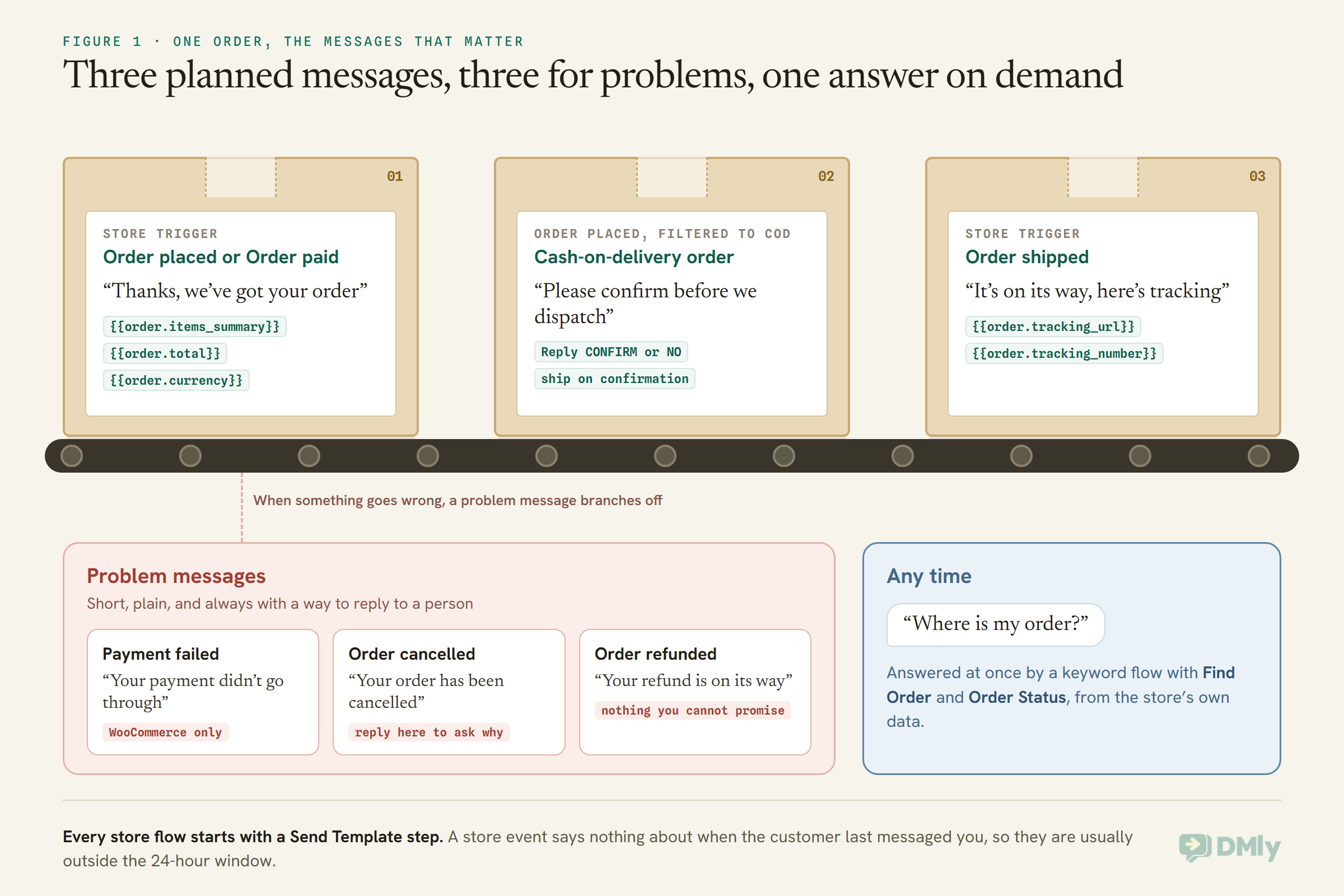
A handful of messages, each tied to a real moment in the order’s life.
| Moment | The message | Store trigger in DMly |
| Order placed or paid | “Thanks, we’ve got your order” | Order placed or Order paid |
| Cash-on-delivery order | “Please confirm before we dispatch” | Order placed, filtered to COD |
| Shipped | “It’s on its way, here’s tracking” | Order shipped |
| Payment failed | “Your payment didn’t go through” | Payment failed (WooCommerce only) |
| Cancelled | “Your order has been cancelled” | Order cancelled |
| Refunded | “Your refund is on its way” | Order refunded |
| Any time | “Where is my order?”, answered | A keyword flow with Find Order |
That is the whole sequence. More messages than that start to feel like noise; fewer leave the customer asking.
Before You Automate Ecommerce Order Updates on WhatsApp
Order updates run on real store events, sent to customers who agreed to hear from you.
Connect Shopify or WooCommerce from DMly’s Commerce integrations. On connect, DMly syncs your products, your customers and the last 90 days of orders, and registers the store’s webhooks so new events arrive as they happen. Two things to know about that first sync: it never fires automations, so connecting a store with thousands of past orders messages nobody; and only events that happen after you connect start flows.
When a store event fires, DMly matches the store customer to a contact by phone number first, then email. On a WhatsApp automation, a customer with no matching contact gets one created from the order’s phone number. On Messenger and Instagram, no contact is ever created and those events are skipped, so order updates are a WhatsApp job.
Permission matters even for helpful messages. WhatsApp’s Business Messaging Policy says businesses may contact people who gave their number and agreed to receive messages. The natural place to ask is checkout: a clear line such as “Send order updates to my WhatsApp” next to the phone field. A customer who ticked it expects these messages; one who did not may be surprised by them.
Two Ways DMly Sends Order Messages
Built-in order templates, and your own flows on store triggers. Know which you are using.
DMly’s system templates include a set for orders and delivery: dmly_order_confirmed on a paid store order, dmly_order_shipped and dmly_order_out_for_delivery carrying tracking, dmly_order_delivered, and dmly_cod_confirmation for cash-on-delivery orders, all filed as utility. The system templates page says each of these “is driven by one card on your store’s Automations tab”, and that DMly fills the template in as soon as Meta approves it. DMly’s store integration pages do not describe that tab, so look for it in your workspace and check what each card does before relying on it.
The other way, fully documented, is to build your own flows on the store triggers. That is what the rest of this guide describes, and it gives you control over the wording, the timing and the filters. Whichever you use, do not use both for the same moment, or customers get two confirmations.
Two rules apply to every store-triggered flow. A store event says nothing about when the customer last messaged you, so they are usually outside WhatsApp’s 24-hour window: the first step after a store trigger must be a Send Template step with an approved template, and the builder warns you if it is not. And every template variable must be filled; a blank one is flagged at publish.
Step 1: The Order Confirmation
The first message after checkout answers the first question: did it go through?
Choose the trigger that matches when you consider an order real:
- Order placed fires when a new order is placed in your store.
- Order paid fires when an order is paid. For card payments this is usually the better moment for “thanks, we’ve got your order”, and it is when DMly’s own
dmly_order_confirmedtemplate is described as sending.
Every store trigger can be narrowed: to one store if you run several, by Min order total and Max order total, and by Currency. Order placed also has Payment method contains, which the builder suggests using with “cod” to target cash-on-delivery orders.
The confirmation template’s body can carry the order tokens, which fill in from the store event: {{order.number}}, {{order.items_summary}} (the items in one line), {{order.total}} and {{order.currency}}, and {{customer.first_name}}. For example: “Hi {{customer.first_name}}, thanks for your order {{order.number}}: {{order.items_summary}}, {{order.total}} {{order.currency}}. We’ll message you here when it ships.” Map each template variable to a token in the Send Template step.
One testing note from DMly’s docs: a token that cannot be resolved becomes empty text rather than showing its braces, so a message can arrive as “your order is confirmed” with a hole in it, and the builder’s preview will not warn you. Test with a real order.
Step 2: Confirm Cash-on-Delivery Orders Before You Ship
A COD order that is never collected costs you the shipping both ways. Ask first.
DMly’s COD Confirmation template triggers on Order placed filtered with Payment method contains “cod”, so card orders never see it. How the customer confirms depends on the window. A buyer who messaged you in the last 24 hours gets a WhatsApp form with a Confirm order button. One who has not, which is usual for a website order, gets the dmly_cod_confirmation template and replies CONFIRM or NO. Either answer reaches the same place: a confirmation writes a note onto the store order where your fulfilment team sees it and assigns the conversation to the teammate you pick; a NO is noted on the order and handed to your team.
DMly never cancels an order by itself, and an order that is never confirmed simply stays without the note. The rule for your warehouse is simple: dispatch on confirmation, not on silence. The form version needs a published WhatsApp Flow; the template card says Requires WA Flow.
Step 3: Shipped, With the Tracking Link
The shipping message is the one customers keep. Put the tracking link in it.
Order shipped fires when an order is fulfilled or shipped in your store. Its template should carry {{order.tracking_url}}, the tracking link once the store has one, or {{order.tracking_number}} for the bare number: “Good news, order {{order.number}} is on its way. Track it here: {{order.tracking_url}} Thank you for your order.”
Tracking links do not always exist at the moment of fulfilment, and an unresolved token becomes empty text. If your fulfilment sometimes marks orders shipped before the carrier assigns tracking, word the template so it still reads well without the link, or have the flow send the status with DMly’s Order Status step instead: it builds one message from the order and, with Append tracking link when available on, adds a tracking line only when the order has a tracking URL, and quietly leaves it off when it does not.
Out for delivery and delivered
DMly’s system templates include dmly_order_out_for_delivery, carrying tracking, and dmly_order_delivered, which deliberately carries no tracking link because a tracking page says nothing useful once the parcel has arrived. The store triggers listed in DMly’s docs, however, stop at Order shipped: there is no documented trigger for out-for-delivery or delivered. If your workspace’s store Automations tab offers those messages, that is where they come from; otherwise, the tracking link in the shipped message is what keeps customers informed from there.
Step 4: When Something Goes Wrong
Problem messages are the ones customers remember. Keep them short, plain and human.
- Payment failed: fires when an order’s payment fails. DMly’s Shopify docs note a gap: this store trigger never fires from Shopify, because Shopify does not report a failed checkout payment as an event. It works on WooCommerce. A good message: “Your payment for order {{order.number}} didn’t go through. You can try again here, or reply and we’ll help.”
- Order cancelled: “Your order {{order.number}} has been cancelled. If that’s unexpected, reply here and a person will look into it.” Never let a cancellation arrive without a way to ask why.
- Order refunded: “We’ve refunded {{order.total}} {{order.currency}} for order {{order.number}}.” Say when to expect the money if your payment provider gives a timeframe, and nothing you cannot promise.
Each of these invites a reply, and a reply opens the 24-hour window, so your team can answer with normal messages. Make sure someone owns those replies; a problem message followed by silence is worse than no message at all.
Step 5: “Where Is My Order?” Answered on Demand
Even with every update sent, customers will ask. Answer instantly, from real order data.
DMly’s template library ships Order Status Self-Service for WhatsApp. A contact whose message contains “order”, “tracking” or “where is my order” is asked for their order number; the Find Order step looks it up, and on the found branch the Order Status step sends the status with the tracking link. The not-found branch does not guess: it hands the conversation to a person and pauses the bot, so a mistyped number ends with a human, not a loop.
Find Order can also look up the latest order for the person you are already talking to, by their phone or email, which saves asking for a number at all; or by order number, email or phone. A leading # in an order number is fine; it is stripped before matching. Both of its outputs, found and not found, must be connected before the flow will publish.
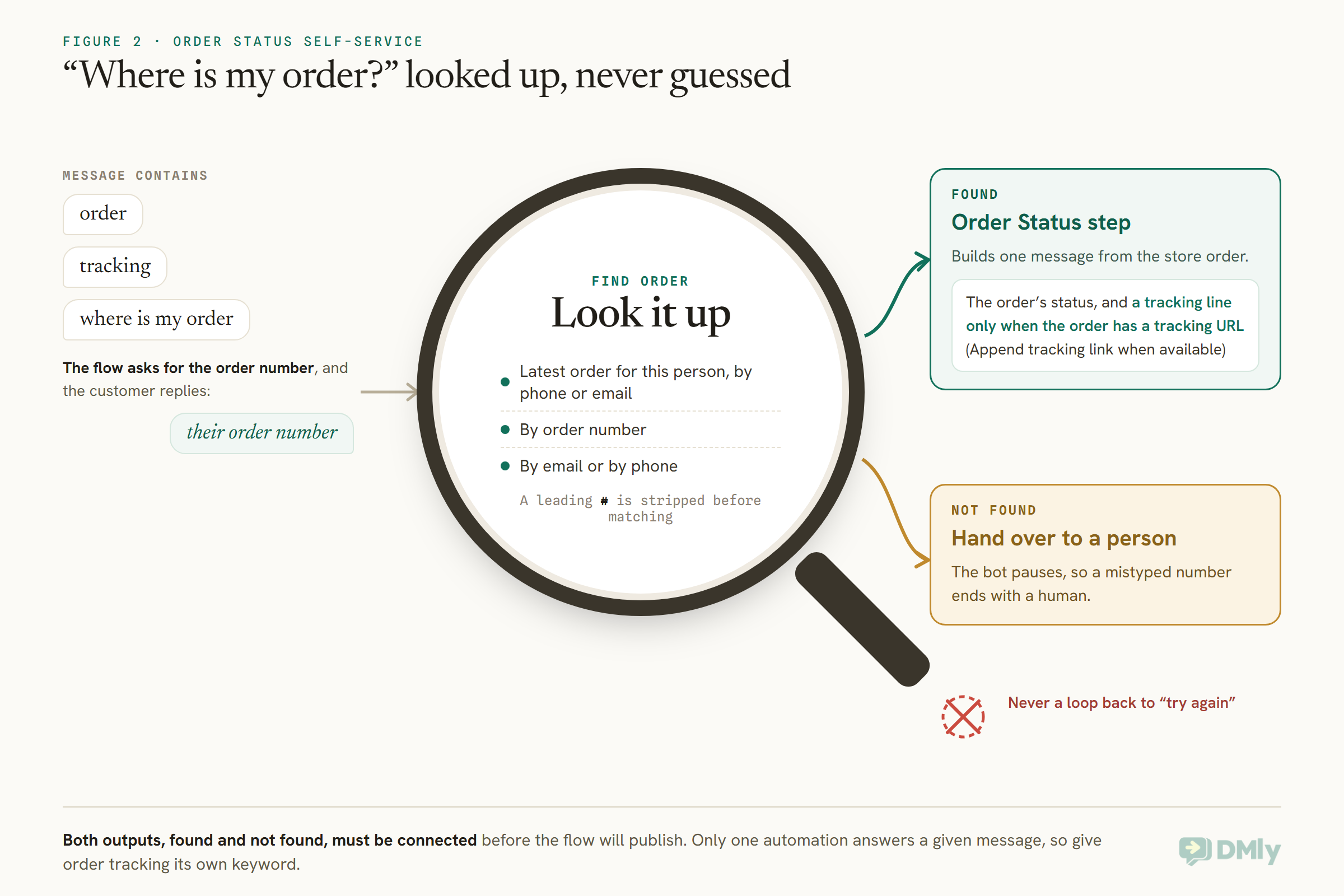
Only one automation answers a given message, so if you also run an AI assistant or a catch-all bot, give order tracking its own keyword and test that “where is my order?” reaches this flow.
When Customers Reply to an Update
An order update invites replies. Decide where they go before the first one arrives.
Customers reply to order messages with things that need a person: “can I change the delivery address?”, “I ordered the wrong size”, “can you add a note for the courier?”. A reply opens the 24-hour window, so your team can answer with normal messages, but only if the reply reaches someone. Two simple rules help:
- Say how to reply in the message itself: “Reply here if anything needs changing.” Customers then know a person is on the other end.
- Route replies to whoever handles orders. A flow can assign the conversation to a teammate as one of its steps, so the reply to a shipping message lands in the fulfilment team’s queue rather than the general inbox.
Changes to the order itself, such as a new address, are made in your store, not in DMly. DMly’s store steps can write a note onto a store order or customer, which is how the COD confirmation records its result; the same idea works for leaving your warehouse a note that the customer asked for something. Whatever you change, confirm it back to the customer in the same chat.
Delivery Problems and Returns
Not every order ends at the doorstep. Plan the messages for the ones that do not.
DMly’s store triggers cover placed, paid, shipped, cancelled and refunded, but not failed deliveries, lost parcels or return requests. Those arrive as customer messages, or as news from your courier, and are handled by people. Make them quick to answer well:
- Saved replies in the Inbox for the common cases: a failed delivery attempt, a parcel stuck in transit, how to start a return. Any teammate can drop one in and personalise it.
- A returns keyword, if you get many return requests: a small flow on
RETURNthat asks for the order number, looks it up with Find Order, and hands the conversation to a person with a note, so the facts are there before anyone replies. - The refund message: once a return is processed and the order is refunded in your store, Order refunded fires and your refund template closes the loop.
High-Value Orders and Milestones
Some orders deserve more than a template. The trigger filters let you spot them.
A Min order total filter on Order paid lets a separate flow act on large orders, for example assigning the conversation to a named person who sends a personal thank-you and checks everything is right before dispatch. Keep the automatic confirmation going to everyone; the extra step is a human touch on top.
The Customer milestone trigger fires once per customer per automation when their total spend or order count reaches a threshold you set, such as a fifth order. It is a lovely moment for a thank-you, but note the category: a thank-you for being a loyal customer is a relationship message, which Meta’s template guidelines classify as marketing, so it needs the customer’s permission for marketing messages and is billed at that rate. Send it only to customers who agreed.
More Than One Store or Currency
Every store trigger can be narrowed to one store, so each shop can speak in its own voice.
Every store trigger’s settings start with Store: Any connected store, or one specific store if you run several. Order and checkout triggers also filter by Currency, using the three-letter code, such as GBP or USD. That lets you run a separate confirmation for each shop or market, with its own wording and, if needed, its own language. If you run one WhatsApp number for several stores, make sure each message names the store, with {{store.name}}, so a customer who shops with two of your brands knows which order a message is about.
When Order Messages Stop Arriving
Most silent order updates come from a handful of causes. Check them in this order.
- Is the store still connected? The Shopify tile’s Synced data panel shows the last sync time and a Sync now button, and Recent activity lists the latest store events as they arrive. Test connection re-checks the credentials. If events stopped arriving, start here.
- Can DMly see the customer’s phone? On Shopify, Protected customer data access must be enabled on your custom app, or Shopify hides customer names, emails and phone numbers and DMly cannot match orders to contacts.
- Is the template approved? A template still pending or rejected cannot be sent outside the window.
- Is the first step a template? The builder warns you, but it is worth checking every store flow.
- What do the logs say? DMly’s logs record the real outcome of each send, including Meta’s own rejections.
Keep Order Updates Utility
An order update is utility only while it sticks to the order. Add a sales line and it becomes marketing.
Meta categorises every template, and the category decides what you pay. Meta’s template categorisation guidelines put order management in the utility category: messages that confirm, update or cancel an order using its specific details. The same guidelines say those messages “should not promote, recommend, upsell, or cross-sell products; include offers; or attempt to secure renewals”. A shipping message with “and here’s 10% off your next order” is mixed content, which Meta treats as marketing.
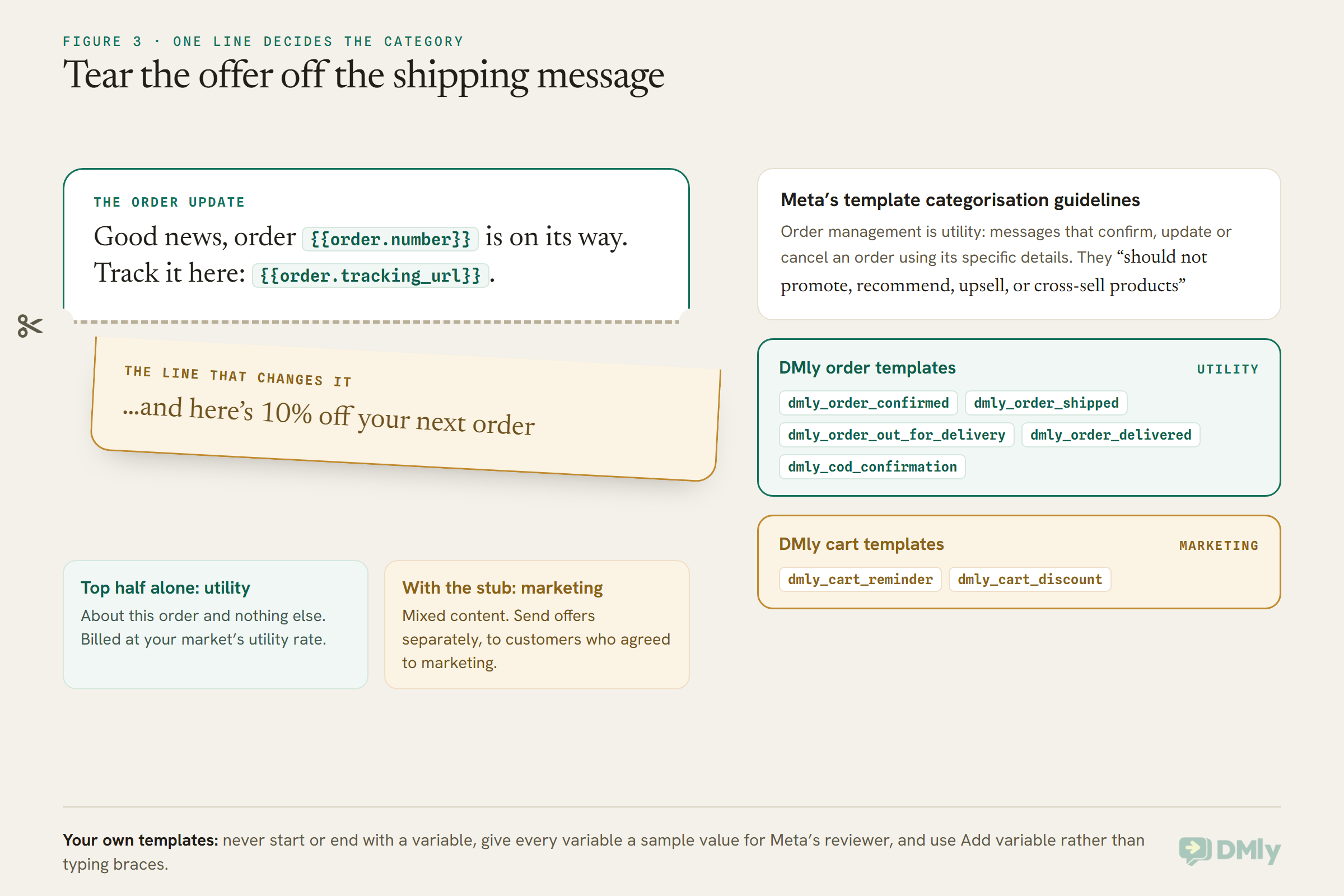
So keep order updates about the order, and send offers separately, to customers who agreed to marketing. DMly’s own cart templates show the line: dmly_cart_reminder and dmly_cart_discount, the abandoned-cart nudges, are filed as marketing, while the order templates are utility.
When you create your own templates, a few rules from DMly’s docs save a rejection: a template cannot start or end with a variable, every variable needs a sample value for Meta’s reviewer, and use Add variable rather than typing braces, because DMly counts variables by the highest number in the body.
Test With a Real Order
The first sync never fires automations, so testing needs a new order.
- Place a test order in your store with your own phone number, after the store is connected.
- Check the confirmation arrives, and that every token filled in: no holes where the order number or items should be.
- Mark it fulfilled with a tracking number, and check the shipped message and its link.
- Cancel and refund it, and check both problem messages.
- Place a COD test order, if you offer COD, and reply CONFIRM and NO on separate tests.
- Send “where is my order” with the right number and with a wrong one, and check the handover.
If a message does not arrive, check that its template is approved, that your test number matches the contact DMly found for the order, and your logs.
What It Costs
Order updates are utility templates, billed per message by Meta.
Most order updates go outside the 24-hour window as utility templates, which Meta charges for per delivered message, at your market’s utility rate. Meta continues to offer volume tiers for utility messages, so the rate can fall as your volume grows. From 1 October 2026, Meta also charges for utility templates sent in response inside an open window, and for free-form service replies beyond the first 1,000 per business phone number each month. A typical order with a confirmation and a shipping update is two utility messages. Our explainer on the October 2026 pricing change has the detail.
Mistakes to Avoid
- Starting a store flow with a normal message. Customers are outside the window; start with Send Template.
- Two confirmations from a built-in card and your own flow for the same moment.
- Expecting Payment failed from Shopify. It never fires there.
- A tracking message with a hole where the link should be. Word it for both cases, or use Order Status.
- An offer in an order update. It becomes marketing.
- Dispatching COD orders on silence. Ship on confirmation.
- Testing with old orders. The first sync never fires automations.
- Problem messages nobody answers. Someone must own the replies.
Frequently Asked Questions
Can I send Shopify order updates on WhatsApp automatically?
Yes. Connect the store in DMly and build flows on the store triggers, such as Order paid and Order shipped, starting each with an approved template filled with the order tokens.
Which order updates should I send?
A confirmation, a shipping message with tracking, and short messages for payment failures, cancellations and refunds, plus an instant answer to “where is my order?”. More than that tends to feel like noise.
Why don’t customers get my order messages?
Usually the first step is not an approved template, the template is not approved yet, or the customer’s phone does not match. Check your logs.
Are order updates marketing messages?
No, as long as they stick to the order. Meta treats order management as utility, but adding an offer or a cross-sell makes the message marketing.
Can customers check their order status themselves?
Yes. The Order Status Self-Service template asks for the order number, looks it up and sends the status with the tracking link, and hands mistyped numbers to a person.
Does it work with WooCommerce?
Yes, with the same store triggers. WooCommerce also supports the Payment failed trigger, which Shopify does not.
Four Questions, Never Asked
Go back to the customer who asked the same question four times. With the sequence above, the confirmation answers “did it go through?” an hour before they would have asked, the shipping message with its tracking link answers “has it shipped?” and “where is it?”, and if they still want to check, one word gets them the status from the store itself. The only messages your team needs to handle are the ones that genuinely need a person.
That is what automated ecommerce order updates on WhatsApp are for: telling customers what the store already knows, at the moment they want to know it, in the app they already have open.
Writing about WhatsApp automation, bookings and growth for local business.
Turn WhatsApp into your busiest channel.
Start free and run message, bookings, payments and reviews in one place.
