
Getting paid in the conversation where the work was agreed is a short path. No emailed invoice waiting to be opened, no card machine. The customer taps, pays, and the thread updates. That is what WhatsApp payment links are for.
When WhatsApp payment links do not work, two causes are worth checking first: you used the wrong kind of link for the job, or a link was never minted in the first place, for one of four reasons.
This guide covers both kinds of link and when each is right, how sending on WhatsApp actually works including the template it uses, the four no-link conditions, how to get paid when you have no gateway at all, what the whole business of chasing will cost you from October, and how to do it without being unpleasant.
Two Different Kinds of WhatsApp Payment Links
One is attached to an invoice and tracks a balance. The other is a bare amount you type. They behave differently and are useful for different work.
| Invoice pay link | Amount-mode payment link | |
| Where it comes from | An invoice you created | Send payment link in amount mode, or Request payment |
| Amount | The invoice’s Balance due | Whatever you type |
| Updates itself | Yes, re-minted after partial payments | No |
| Paper trail | Full: statement, PDF and status | A payment record |
| Best for | Work you have quoted and itemised | Deposits, top-ups, small ad-hoc amounts |
The practical rule: if the customer should be able to see what they are paying for, use an invoice. If the amount is obvious from the conversation you just had, an amount-mode link is faster and creates less admin.
Amount-mode links can be sent from the Inbox, from a flow node or as an automation action, which makes them the right tool for a deposit request inside a conversation. That use is covered in our guide to deposits and payment at booking, and the link as an object, including making one that is attached to no invoice at all, in our guide to creating online payment links.
Sending an Invoice on WhatsApp
WhatsApp is the default channel for sending an invoice, and it goes out on the dmly_invoice_sent template. Sending flips the invoice from Draft to Sent and posts it to the client’s statement.
Three things happen alongside that, and knowing them makes the customer’s experience predictable:
- A public PDF link is generated automatically, needing no login. The customer can open the invoice itself, not just a payment screen.
- If the client’s WhatsApp window is open, the PDF is delivered as a second message. So they get the template and then the document.
- Under Share via you can also send the pay link on SMS or Email, which matters for customers with no WhatsApp thread.
Because the send uses a template, it needs Meta’s approval to reach anyone outside the 24-hour window, where only an approved template can be delivered. Our guides to the 24-hour window and message templates cover the mechanics.
One consequence of using a template: the pay link travels as a template parameter rather than as text you wrote. That is why the next section matters so much. If there is no gateway link to put in the parameter, the message still does not go out blank.
The Four Reasons WhatsApp Payment Links Are Never Produced
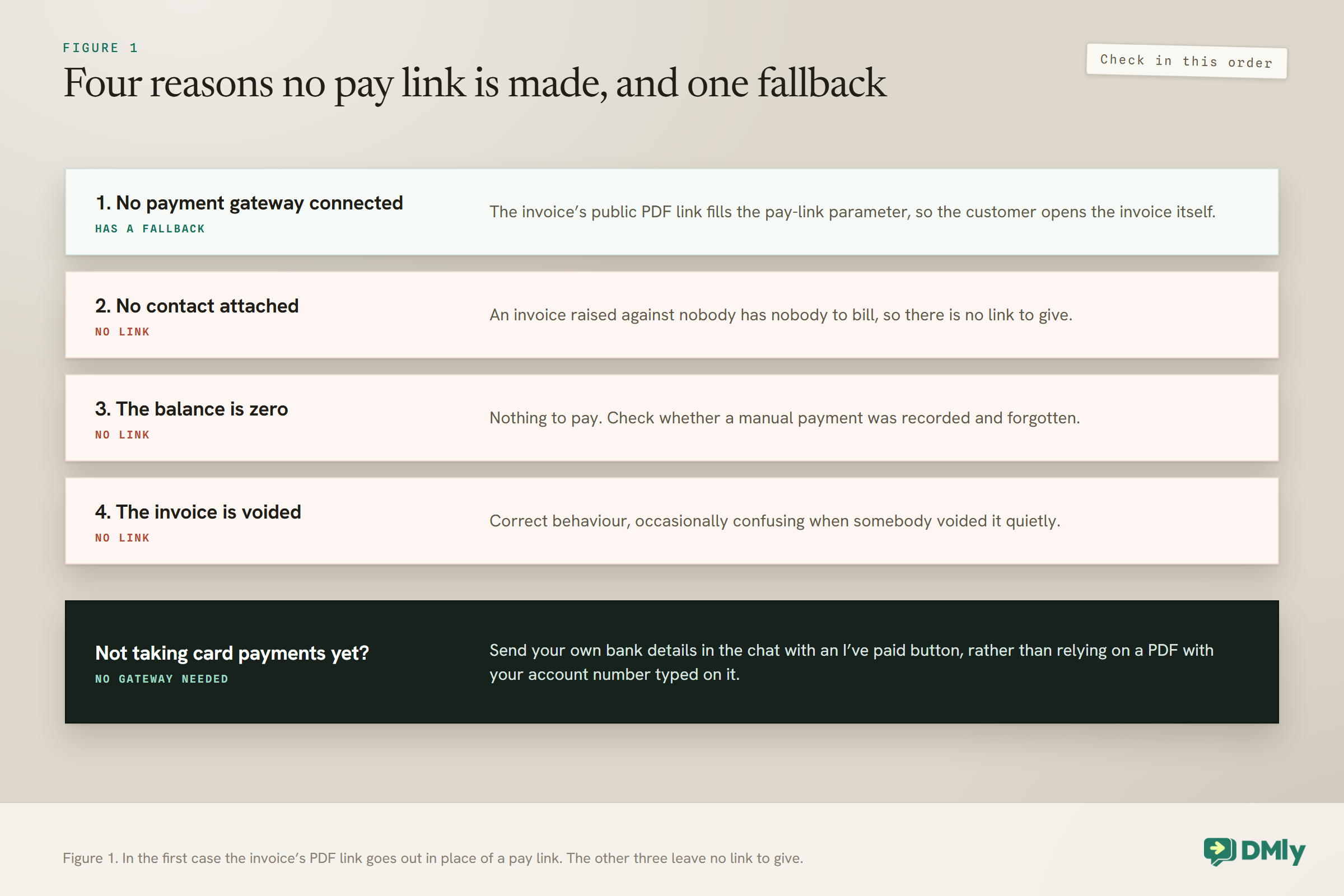
A pay link is not always minted, and there are four conditions behind it. Check them in this order when a customer says they cannot pay.
- No payment gateway is connected. The one with the tidiest fallback, described below.
- No contact is attached to the invoice. An invoice raised against nobody has nobody to bill, so there is no link to give.
- The balance is zero. Nothing to pay. Check whether a manual payment was recorded and forgotten.
- The invoice is voided. Correct behaviour, occasionally confusing when somebody voided it quietly.
The first has a genuinely useful behaviour attached. When no gateway is connected, the public PDF link fills the template’s pay-link parameter instead. So the customer still receives something that opens: the invoice itself, with your bank details or payment instructions on it if you put them there. The message is not broken, it just does something different from what you assumed.
That is worth designing for rather than discovering. And if you are not taking card payments yet, there is a better answer than a PDF with your account number typed on it, which is further down this page.
The Link Follows the Balance, Not the Total
A pay link matches the invoice’s Balance due, not the original total, and it is re-minted after partial payments. That is more useful than it sounds and it explains an otherwise confusing behaviour.
Say you invoice 400, the customer pays 150 by bank transfer, and you record that manually. The invoice moves to Partially paid. Send the link again and it now asks for 250, because it was re-minted against the remaining balance. You never have to calculate anything or issue a second invoice.
The corollary is that an old link is stale. A link you sent last week, before a part payment, is not the link to resend today. Send from the invoice rather than digging a URL out of the thread.
Recording manual payments is what keeps this honest. Six methods are available, Cash, Bank transfer, Credit or debit card, Cheque, EFTPOS and Other, and they can be recorded from the invoice or the client profile. Gateway payments reconcile themselves and need no manual recording at all.
Which Gateway Mints the Link
There is a setting for this. Finance, then Settings, then Gateways carries a card called Default payment gateway. Its Charge through list names every gateway you have connected, and the option it ships on is First connected gateway.
Six gateways are built: Stripe, PayPal, Paystack, Razorpay, MyFatoorah and Mercado Pago. Those six are the whole list, so if the provider you use is not among them, the section further down on being paid without a gateway is the one to read.
Leave the setting on First connected gateway and the earliest one you connected and have not disconnected wins, whichever brand that happens to be. That is how money ends up in an account you did not expect: somebody connects a provider to test with, leaves it connected, adds the one the business actually uses months later, and the money keeps landing in the old account. Two consequences are worth planning around.
- Connecting a second gateway does not move your links to it. New links keep minting on the first one until you choose the new one under Charge through.
- If the gateway you chose is later disconnected, the next earliest connected one silently takes over rather than the link failing. Money keeps arriving. It simply arrives somewhere else.
The same choice covers more than invoices. Invoice pay links, booking payments, the card-capture link on a subscription and the payment steps inside a flow all mint on it, so setting it deliberately once puts everything in one account rather than spread across whichever provider happened to be first.
Connecting a gateway is covered in our guide to setting up payments. The step DMly cannot do for you is the webhook: after saving credentials you have to add the webhook endpoint in the provider’s own dashboard and, except on Paystack, bring back the signing secret, or on PayPal the webhook ID. Miss it, or paste a secret from the test environment into the live one, and the symptom is the same: the customer is charged at the provider and the invoice in DMly still reads unpaid.
Two more things are worth knowing. If the gateway later rejects your key because it was revoked, rotated or expired, DMly flips the integration to Error and emails workspace admins once, naming the gateway and offering a button to reconnect. One email per outage, not one per failed payment. And if a payment is missing because of a webhook problem, fix the webhook rather than recording the same money by hand. An invoice adds up every succeeded payment on it, so recording it yourself and then letting the provider’s message arrive later shows your customer as having paid twice.
Getting Paid With No Gateway At All
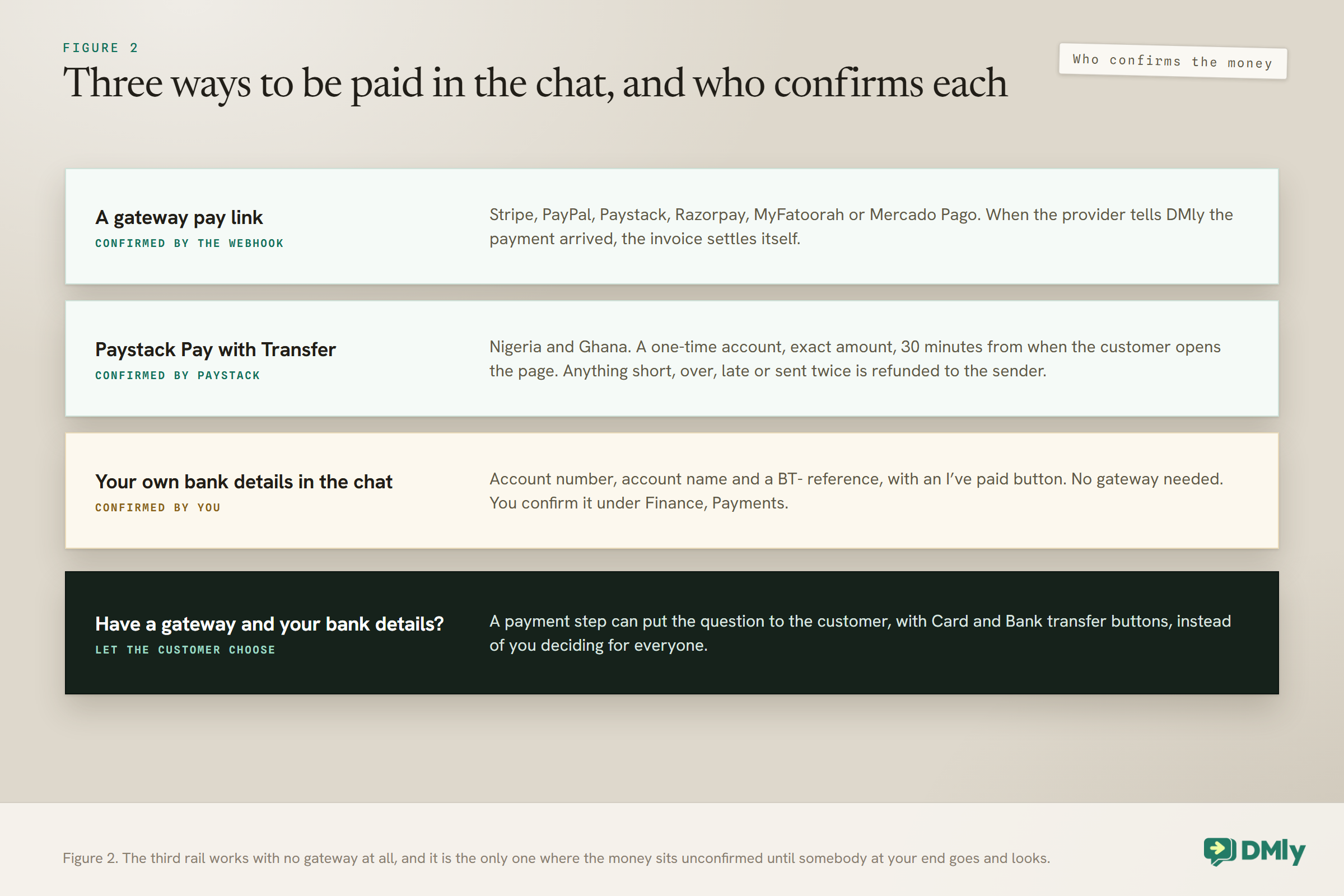
You do not need a payment provider to be paid in the conversation. You need your bank details inside the message and a button the customer can press to say they have sent it.
Turn it on under Finance, Settings, Gateways, in the card called Bank account for manual transfers. Fill in bank name, account number and account name. Instructions is optional and gets added to the end of every message, which is the natural place to say how long you hold a slot while you wait. No gateway needs to be connected for any of this.
Then, on a Request Payment or Send Payment Link step, set Payment method to Bank details in chat. The customer gets the amount, your bank, the account number on a line of its own so it can be long pressed and copied, the account name, and a reference beginning BT- to quote on the transfer. Underneath sits an I’ve paid button, which you can rename. The flow then waits, and when they tap it, or reply paid, they are thanked and told you will confirm shortly. Nothing is settled yet, and that is the honest part of this route: nothing confirms the money except you.
Confirming happens under Finance, Payments, where the payment reads Awaiting transfer, changes to Customer says paid once the button is tapped, and raises a Transfer claimed notification for your team. Find the reference on your bank statement, then Confirm transfer, which marks it Succeeded, settles the invoice and fires the Payment succeeded trigger so receipts and follow-ups run exactly as they would after a card payment. Reject transfer marks it Failed and leaves the invoice open. There is a ready-made flow for the common case too: Send bank details for a new invoice fires on Invoice sent, so the bill and a way to pay it go out together.
The paid-twice trap: Confirming under Finance, Payments is the recording. If you also use Record payment on the invoice for the same money, the invoice adds up both and your customer shows as having paid twice. Pick one place and stay there.
Letting the customer pick
Once you have both a gateway connected and your own bank account saved, a payment step can put the question to the customer instead of you deciding for everyone. Set Payment method to Let the customer choose and they get Card and Bank transfer buttons; typing the word works too, on channels with no buttons. The step works it out when it runs, per customer, so it keeps behaving sensibly as your setup changes.
| What you have set up | What the customer gets |
| A gateway and your bank details | The question, then whichever they pick |
| A gateway only | The pay link, no question asked |
| Your bank details only | Your account details, no question asked |
| Neither | Nothing is sent, and the step takes its failed branch |
The question only gets asked when the two answers genuinely differ. A gateway checkout can offer its own payment options, so DMly will not ask and then send somebody to a page that asks again. What makes the second answer worth offering is that it is your own account: no gateway fee and no settlement wait, which a checkout cannot do.
Paystack Pay with Transfer
If Paystack is your gateway and you are in Nigeria or Ghana there is another rail, and it settles itself. A pay link can open straight onto a bank account rather than a card form, the customer sends the money from their banking app, and when it lands Paystack tells DMly and the invoice settles itself. Two of the three steps happen in Paystack’s own dashboard rather than DMly’s: tick Bank Transfer under Accept payments via, and request a Trading Name under Virtual Accounts, because until Paystack approves one the account your customer is asked to pay reads PAYSTACK CHECKOUT. The third is in DMly, where Bank transfer only sits on the Request Payment and Send Payment Link steps.
Three things are worth telling somebody who has not paid this way before. The account is issued fresh for that one payment. It expires 30 minutes after they open the page rather than when you sent it, so the link can sit in the thread until they are ready. And the amount has to match exactly: anything short, over or late is refunded to the sender automatically, usually within a day, while at your end the payment simply stays Pending with nothing to reconcile. The refusal is written to Reports, Logs as Payment transfer rejected, which is where to look when somebody insists they sent the money.
When the Window Is Closed
Because the invoice send uses an approved template, it reaches the customer whether or not they have messaged you recently. That is what approved templates are for, and it makes invoicing on WhatsApp reliable in a way that free-form messaging is not.
What changes when the window is shut is the extras. The invoice PDF arrives as a second message only when the window is open, so a customer who has not messaged you in days gets the template and its link, without the document alongside it. Nothing is broken; there is simply less in the thread.
If they reply, the window reopens for 24 hours and you can send anything you like, including the PDF, a breakdown, or an answer to whatever they asked. Which is a good argument for inviting a reply in the message rather than only a payment.
The invoice message is dropped entirely when two things are true at once: dmly_invoice_sent is not approved by Meta, and the customer’s window is closed. If the template is pending or rejected but they wrote to you in the last 24 hours, a plain message still goes through. That combination is why this failure looks random rather than systematic: it works for anyone who wrote to you in the last day and does nothing at all for the customer you have not heard from since March. Check the template’s status under WhatsApp, Templates, then check whether that person has messaged you recently, and confirm the contact is reachable on WhatsApp at all, because one with no WhatsApp identity cannot receive anything.
Two more templates cover payment requests sent outside the window, and DMly sends them for you. dmly_payment_request stands in for a gateway pay link, carrying the amount and the link. dmly_bank_transfer_details stands in for your own account details and reference, and asks the customer to reply PAID. New workspaces are given both; an older one has to install each from WhatsApp, Templates and wait for Meta to approve it, and until that happens a payment request sent outside the window is simply not delivered. Only one stand-in goes per flow run, so a flow that already carries a template of its own does not get a second stacked on top.
This matters for deposits, because a deposit request usually falls outside the window: the booking came from your public booking page and the customer has never messaged you at all.
What to Write Around the Link
The template carries the link, but what you say in the conversation around it can change how quickly it gets tapped. Three things make a difference.
- Name the amount in the message. A link with no figure beside it asks the customer to find out what they owe before deciding to pay it, which is one more step than you can afford.
- Say what it is for, in their words not yours. Not invoice INV-0042. The thing you did on Tuesday.
- Say when. A due date in the message is seen before one in a PDF, and it is what makes the pre-due reminder feel like a reminder rather than a surprise.
What to leave out: apologies for sending it, and any suggestion that paying is optional or awkward. You did the work. The message should read like the last ordinary step of the job rather than a favour being asked.
For work agreed in the thread, send the link straight after the agreement, in the same conversation. The gap between yes and the payment request is entirely within your control.
Chasing Without Being Unpleasant
Two automations cover almost all of it, and both are in the template library rather than something you build from nothing.
- Invoice payment reminder. Starts when the invoice is sent, waits until a day before the due date, then messages the amount, the date and a Pay invoice button. The part that makes it safe to leave running is that when the wait ends it looks at the invoice again, and if the money has already arrived, or you voided it, the reminder is skipped rather than sent.
- Overdue invoice escalation. Fires on the Invoice overdue trigger, sends the pay link, and waits three days before the next step.
Two mechanical details shape how these behave. Overdue is applied by a nightly job, not the instant the clock passes midnight. And Invoice overdue fires once per invoice, from that same nightly sweep, so an escalation cannot loop day after day on the same unpaid bill. Build the follow-up cadence inside the flow, as the ready-made one does.
If you would rather build your own, a flow started by an invoice event can use the flow builder’s Smart Delay, set to Until event, to wait until a point before the invoice due date. If the invoice is settled by then, the delay takes its SKIPPED output instead of the main one, so connect SKIPPED to an end step: left unconnected, the flow can fall back to the main output and send anyway.
Keep the tone flat. You have to keep working with this person.
What Chasing Will Cost You From 1 October 2026
Two changes land on the same day, and only one of them comes with an allowance.
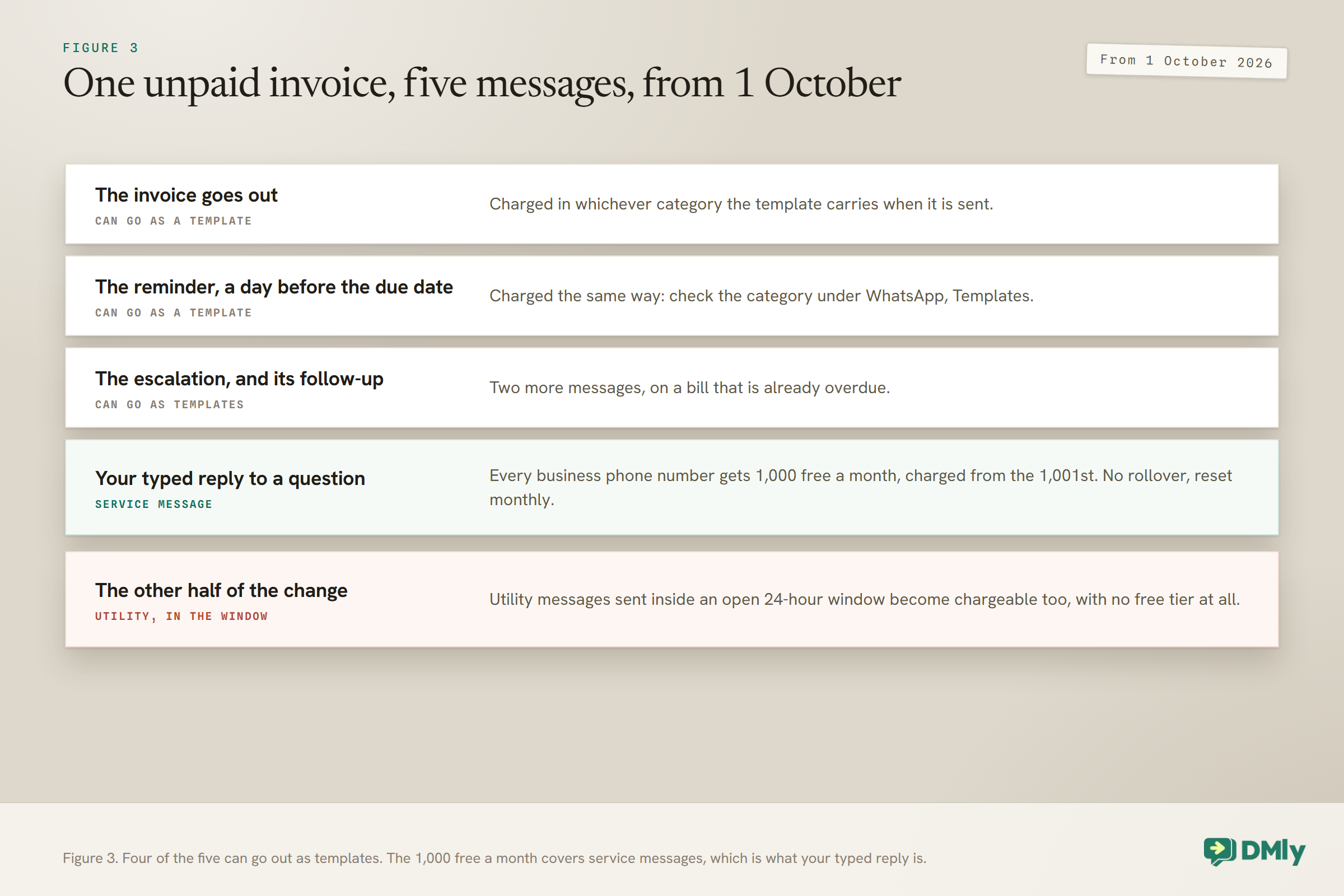
Service messages, meaning a free-form reply you or DMly send inside an open 24-hour window, become chargeable. But every business phone number gets 1,000 free of them a month, with charging beginning at the 1,001st. They do not roll over and they reset each month.
Utility messages sent inside an open window also become chargeable, and that change has no free tier at all. They had been free in the window since July 2025.
Volume tiers, the discounts that arrive as you send more, apply to utility and authentication messages only. Service messages have none, so past the free 1,000 their cost rises in a straight line with how many you send.
For one unpaid invoice, the send, the reminder the day before, the escalation and its follow-up can each go as a template, charged in whichever category the template carries when it is sent. Meta is explicit that businesses are responsible for reviewing the category on their own approved templates, so check yours under WhatsApp, Templates rather than assuming. The conclusion is not to chase less. It is that a message which gets the invoice paid the first time is now worth money as well as goodwill.
None of this touches the free WhatsApp Business app on a phone. This is the WhatsApp Business Platform, the API that DMly connects through. The whole change is covered in our guide to the October pricing change.
Currency, Tax and Discounts
A few rules govern what an invoice can contain, and two of the defaults will quietly break things you assumed were working.
- Default due days ships at zero, and at zero an invoice whose due date you left blank gets no due date at all. An invoice with no due date never goes Overdue, so the Invoice overdue trigger never fires. If your overdue escalation has never once run, check this before you check the automation. Set it to 1 or more.
- A default currency that disagrees with your prices is applied anyway. Lines that disagree with each other are rejected outright, because nothing is converted. But a workspace default that does not match what your Offerings are priced in is accepted, the amounts stay as they were, and the invoice quietly misstates the money. Set it to the currency your prices are in.
- All line items must be in the same currency. A mixed-currency invoice is two invoices.
- Line items are snapshotted from your catalogue. Names and prices are copied at creation, so editing the catalogue afterwards does not change invoices already issued. That is correct behaviour and it means a price rise never rewrites history.
- Coupons discount against the total including tax, and a discount cannot take an invoice below zero.
- Currency and terms are not editable per invoice. They come from your Finance settings, and an empty Default currency is worked out for you, so set them once properly.
The general shape of all of that: settings are copied onto a document at the moment it is created, not linked to it. Change a default tomorrow and every invoice you have already issued keeps exactly what it was given, which is why correcting a wrong default on a sent invoice means voiding and re-issuing rather than editing the setting and refreshing.
Invoice numbers are issued per workspace in the form INV-0001, zero-padded to four digits, and never collide. The prefix is customisable in Finance settings if you need it to match an existing series.
One quirk worth knowing if you run a loyalty programme: paid invoices earn the client loyalty points, except invoices raised from appointments, which award points when the appointment is marked completed rather than when the invoice is paid. So a client who pays for a session up front does not earn until they turn up.
QR Codes and Paying in Person
QR codes are generated in the browser from the link, which makes the same mechanism work across a counter. Raise the invoice, open Payment link & QR, show the code, and the customer pays on their own phone while the invoice reconciles itself.
For a business that takes some payments in person and some remotely, this removes a whole category of reconciliation work: everything arrives through one ledger regardless of where the customer was standing when they paid.
Worth remembering that the QR encodes the same balance-following link, so a code generated before a part payment is as stale as an old URL.
The Tip Step Before the Checkout
Turn tips on and an invoice pay link stops going straight to your provider’s checkout. It lands on a DMly page first. Which is worth knowing before a customer tells you the payment screen looked different from the one you described.
The switch is under Finance, Settings, Invoice, as Collect tips at checkout. Tip presets takes a comma-separated list of percentages, which DMly tidies for you: whole numbers only, duplicates dropped, sorted, up to six, falling back to 10, 15, 20 if you clear the field. The page they land on carries your own name and logo and shows the amount due, a No tip button, one button per preset, a free-text field unless you turned that off, and a running total. Continue to secure payment then mints the real checkout for the amount plus whatever was chosen, and a tip can never be larger than the bill it is added to.
The limit is the useful part. Only an invoice pay link and a booking payment front the tip page, and a gift-card invoice skips it. Request payment, Send payment link in amount mode, an order’s payment and a subscription’s card-capture link all mint a plain checkout even on a workspace with tips turned on, because none of them has an invoice or a booking for a tip to attach itself to. If somebody says they were never offered the chance to tip, check which route minted their link.
Afterwards a tip is never folded into the invoice it rode in on. The invoice’s status and its paid and due figures are worked out from the base amount alone, the client’s statement is credited the base only, and on Finance, Payments the Amount column shows the full charge with a separate Tip column beside it.
What the Customer Actually Sees
WhatsApp payment links produce a short sequence, and it is worth walking it yourself once so you know what you are sending people into.
- The template message arrives, carrying the link.
- The PDF arrives as a second message, if their window was open.
- They tap the link and land on the tip page first if you have tips on, then on the gateway’s own checkout for the balance due, or on the invoice PDF if you have no gateway connected at all.
- They pay. A gateway payment settles the invoice automatically; money paid into your own account is yours to confirm, or to record if it came from the PDF.
One thing to check on your own invoices before you send many: the branding. Logo, address, email, phone, registration number and workspace name all come from your business details, and the public PDF is what a customer forwards to their accountant. It is worth being a document you would be happy to see forwarded.
Voiding, and Why You Cannot Just Delete It
Only a Draft invoice can be deleted. Once an invoice has been sent it can only be voided, and it stays on the record.
That is deliberate: a sent invoice is a document the customer has, so it cannot quietly cease to exist. Voiding cancels it while keeping the history, and a voided invoice reads Void regardless of whether any money moved, because Void outranks every other status.
Two behaviours attached to voiding are easy to miss. Only the unpaid balance is credited back, so a part-paid invoice that is voided does not refund what was already received; if that money should go back, it moves outside DMly. And loyalty points earned on a voided sale are taken back, which is correct and occasionally needs explaining to a customer who watched their balance drop.
The practical habit: keep invoices in Draft until you actually mean to send them. A Draft is editable and deletable, has no public PDF link, and costs nothing to abandon.
Testing WhatsApp Payment Links
- Send yourself an invoice on WhatsApp and confirm the template arrives with a working link.
- Check whether the PDF arrived as a second message, then repeat to a number whose window is closed and confirm it does not.
- Record a partial payment and resend. Confirm the new link asks for the remaining balance.
- Void an invoice and try to share it. Confirm no link is produced, so you recognise the symptom.
- Open Finance, Settings, Gateways and read the Charge through setting, so you know which provider your links are actually minting on rather than guessing.
- Check Default due days is not zero, because at zero an invoice sent without its own due date never goes overdue.
- Open the public PDF link in a private window to confirm it needs no login and looks the way you want.
- Send yourself a bank-details request, tap I’ve paid, and walk the confirm step under Finance, Payments once so the process is familiar before a real customer is waiting on it.
- Let a test invoice go overdue and confirm the nightly job marks it and the escalation fires once.
What to Measure
- Time from invoice sent to paid.
- Share paid before the due date. Which tells you whether the pre-due reminder is doing its job.
- Invoices with no link produced. Any at all means one of the four conditions is in play.
- Manual payments recorded late. Late recording is what produces stale links and awkward chasing.
- Transfers waiting on your confirmation. Anything sitting at Customer says paid is money the customer thinks has arrived and your books say has not.
- Messages per invoice collected. From October more of it is a cost line, not only a nuisance line.
- Overdue rate by service or client type. Which tells you where a deposit belongs instead.
Mistakes Worth Avoiding
- Resending an old link from the thread. Links follow the balance and are re-minted; send from the invoice.
- Assuming a missing link is a bug. Four conditions produce no link; check those first.
- Skipping the gateway webhook step. Gateway payments never report back and their invoices still read unpaid.
- Never opening the Charge through setting. Left alone it uses the earliest gateway still connected.
- Leaving Default due days at zero. An invoice sent without its own due date gets no Overdue and no escalation.
- Recording a bank transfer twice. Confirming it under Finance, Payments is the recording. Doing it again on the invoice bills nobody but confuses everybody.
- Only chasing after the due date. The reminder a day before is sent while the bill is still on time.
- Marking a refund in DMly and stopping there. Refunds are bookkeeping only and never contact the gateway. The action also needs the Issue refunds permission, which is admin only out of the box.
Frequently Asked Questions
How do I send payment links through WhatsApp?
Create the invoice under Finance and Invoices, then send it. WhatsApp is the default channel and the message goes out on the dmly_invoice_sent template carrying the pay link. Share via also offers SMS and Email for customers without a WhatsApp thread.
Why did my customer not get a payment link?
Four conditions produce no link: no gateway connected, no contact attached to the invoice, a zero balance, or a voided invoice. In the first case the public PDF link fills the pay parameter instead, so the customer opens the invoice rather than a checkout.
Does the link update after a part payment?
Yes. The pay link matches the Balance due rather than the original total and is re-minted after partial payments, so resending from the invoice asks for the balance DMly has on record. An older link from the chat thread will be stale.
Can I send a payment link without creating an invoice?
Yes. Send payment link in amount mode, or Request payment, takes any figure you type and can be triggered from the Inbox, a flow node or an automation. It creates a payment record rather than an invoice, so use it where the customer does not need an itemised document.
Which payment gateway will the link use?
Whichever one is chosen under Finance, Settings, Gateways, in the Default payment gateway card. It ships set to First connected gateway, so until you choose deliberately, the earliest provider you connected and have not disconnected is the one taking the money. That same choice also covers booking payments and the payment steps inside your flows.
Can I take payment on WhatsApp without a payment gateway?
Yes. Save your account details under Bank account for manual transfers, then use a payment step set to Bank details in chat. The customer gets your account number, a BT- reference and an I’ve paid button, and you confirm the transfer yourself under Finance, Payments. No gateway is needed for any of it.
Does the customer need to be inside the 24-hour window?
No. The invoice is sent on an approved template, which reaches them regardless. Only the accompanying PDF, delivered as a second message, requires an open window. The message is dropped entirely if the template is unapproved and the window is closed at the same time.
Will chasing an invoice on WhatsApp cost me money?
Yes. Each template message in a chase can be charged in the category it carries when sent, and from 1 October 2026 utility ones are charged inside an open 24-hour window too. Free-form replies you or DMly send are service messages, and every business phone number gets 1,000 of those free each month with no rollover.
When is an invoice marked overdue?
By a nightly job rather than the moment the due date passes. That same sweep fires the Invoice overdue trigger, which fires once per invoice, so escalation automations cannot loop. An invoice with no due date at all, which is what you get if you leave the due date blank with Default due days at zero, never goes overdue.
Send From the Invoice, Not From the Thread
Two habits come out of everything above for WhatsApp payment links. Send from the invoice rather than resending a URL somebody pasted last week, because the link tracks a balance that may have changed. And when a customer says there is nothing to pay with, work down the four conditions before assuming anything is broken.
Beyond that, the setup is small: a gateway you chose deliberately with its webhook actually configured, or your own bank details saved if you would rather skip gateways entirely, an approved template, a due date that exists, and the pre-due reminder switched on. The full invoicing workflow, including what a good invoice looks like, is in our guide to creating and sending invoices from chat.
Writing about WhatsApp automation, bookings and growth for local business.
Turn WhatsApp into your busiest channel.
Start free and run message, bookings, payments and reviews in one place.
