
How to Schedule WhatsApp Messages, and What Delays Them
A scheduled WhatsApp message is a request, not a guarantee. You pick a time, a screen confirms it, and between that confirmation and a phone buzzing in somebody’s hand sit several more things that can quietly decide otherwise. Almost everything in this area reports success early, which is why businesses who schedule WhatsApp messages are often the last to find out that one never arrived.
Most of that pattern belongs to Meta rather than to any one platform, which is why it does not simply go away. The wizard says the broadcast is scheduled. The dashboard says it sent. Neither of those is the same as a customer reading it, and the gap between them is where campaigns go missing.
So this guide is not a list of buttons. It is an account of the clock: what starts it, what can move it, who else gets a vote, and what you can still change after you have pressed save. The buttons are here too, with their real labels, but you can learn to schedule WhatsApp messages in about four minutes, and the rest of this page is the part nobody tells you.
If you only take one thing away, make it this: a scheduled WhatsApp message passes through half a dozen gates between saving and arriving, and most of them belong to Meta rather than to you or to your software.
Why You Cannot Schedule WhatsApp Messages Inside WhatsApp
You cannot schedule WhatsApp messages from inside WhatsApp, and you never could. Every scheduled WhatsApp message in the world is a clock somewhere else, deciding to call WhatsApp at the right moment.
Open WhatsApp on your phone and look for a send-later option. There isn’t one, in the personal app or the free WhatsApp Business app. That absence is not an oversight waiting to be corrected. It goes all the way down to the plumbing.
Meta’s developer documentation for sending a message on the WhatsApp Business Platform, which is the official route businesses use at any scale, describes a request that carries the messaging product, the recipient, the message type and the content. There is no field for a send time. There is nothing in the request that lets you say “deliver this on Friday at nine.” The platform accepts a message and tries to deliver it now.
What this means in practice: Reliability is never a WhatsApp question. If a scheduled message is late, early, duplicated or missing, the thing that failed is the scheduler, not WhatsApp. That is worth knowing before you pick one, because the difference between a phone app that taps buttons for you and a platform that holds a queue on a server is the difference between “usually” and “always”.
Everything below is therefore a description of somebody else’s clock. A shortcut on your handset. A browser extension watching a tab. Or a server that keeps a queue, wakes up on a schedule and hands your message to Meta at the right second. They are not equally good, and they are not equally allowed.
Five Kinds of Schedule, and How to Tell Which You Need
Before you set a time, work out which kind of schedule you actually need, because picking the wrong one is the most common reason a perfectly built campaign lands at the wrong moment or not at all.
People reach for one tool for five different jobs. A salon owner who wants to tell 300 clients about Friday’s late opening needs one thing. The same owner who wants every new enquiry to get a follow-up two days after they first message needs something else entirely, because “two days” means a different Tuesday for every person on the list.
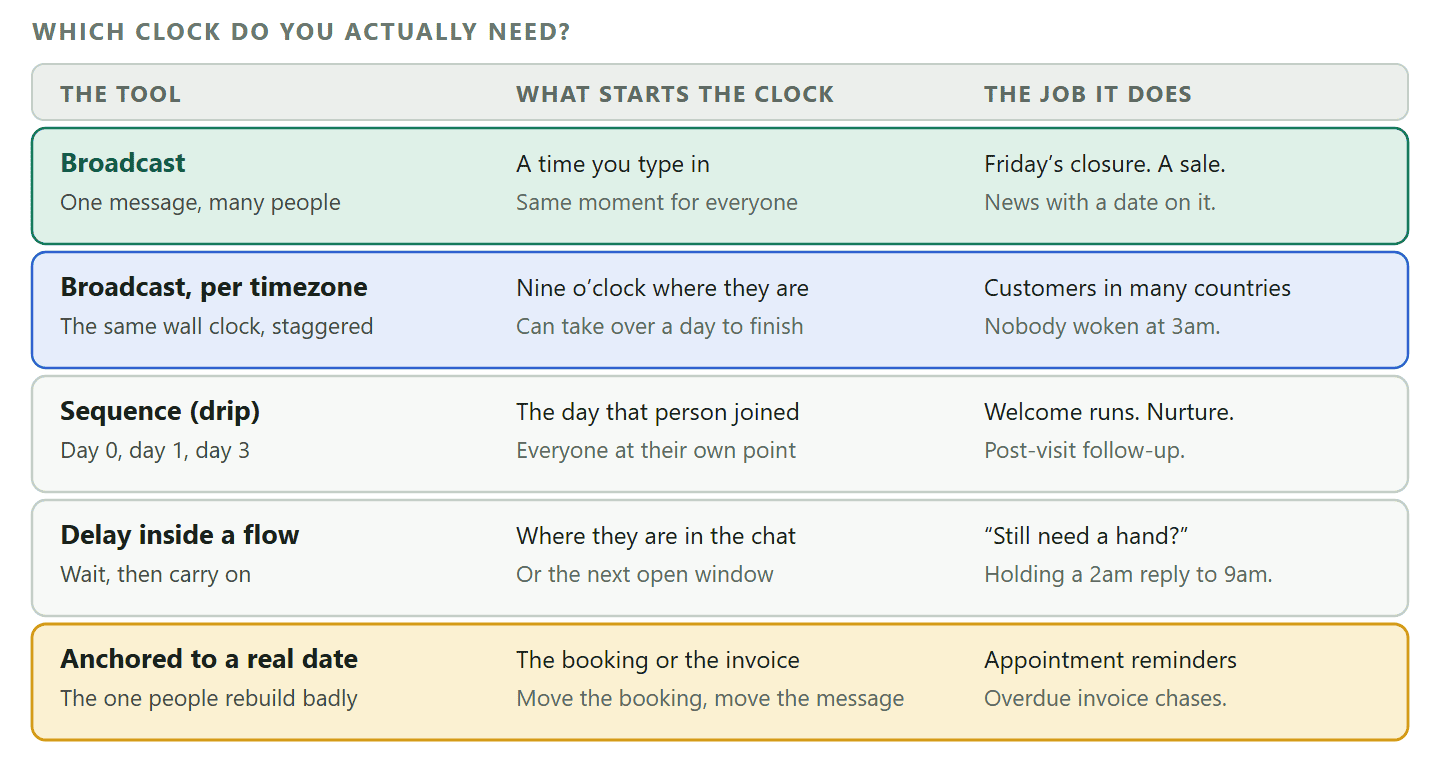
Here are the five ways to schedule WhatsApp messages, in the shape a business actually meets them.
- A fixed moment for everybody. One message, one time, one list. Friday’s closure, the January sale, the new price list. This is a broadcast.
- A fixed moment in each person’s own day. The same nine o’clock, but nine o’clock where they are. Only worth having if your customers are spread across timezones.
- A run of messages counted from when each person joined. Day 0, day 1, day 3, starting whenever that particular customer first appeared. This is a sequence, sometimes called a drip.
- A pause inside a conversation. Wait an hour and then ask if they still need help. Or hold an overnight reply until the shop opens. This is a delay step inside an automated flow.
- A time pinned to a real date on a real thing. Twenty four hours before the appointment. Three days after the invoice was due. The clock is the booking, not the calendar, so if the booking moves the message moves with it.
That last one is the one businesses undervalue and then rebuild badly. If you set a reminder as “send on Thursday” and the customer moves the appointment to Saturday, you have just sent a reminder for an appointment that is not happening. If you set it as “twenty four hours before the appointment”, the message follows the booking without anybody touching it.
How to Schedule WhatsApp Messages on Your Own Phone, Honestly
You can schedule WhatsApp messages from a handset you already own, and for a birthday reminder to your mother that is completely fine. For anything a business depends on, these methods are a trap, and WhatsApp says so in writing.
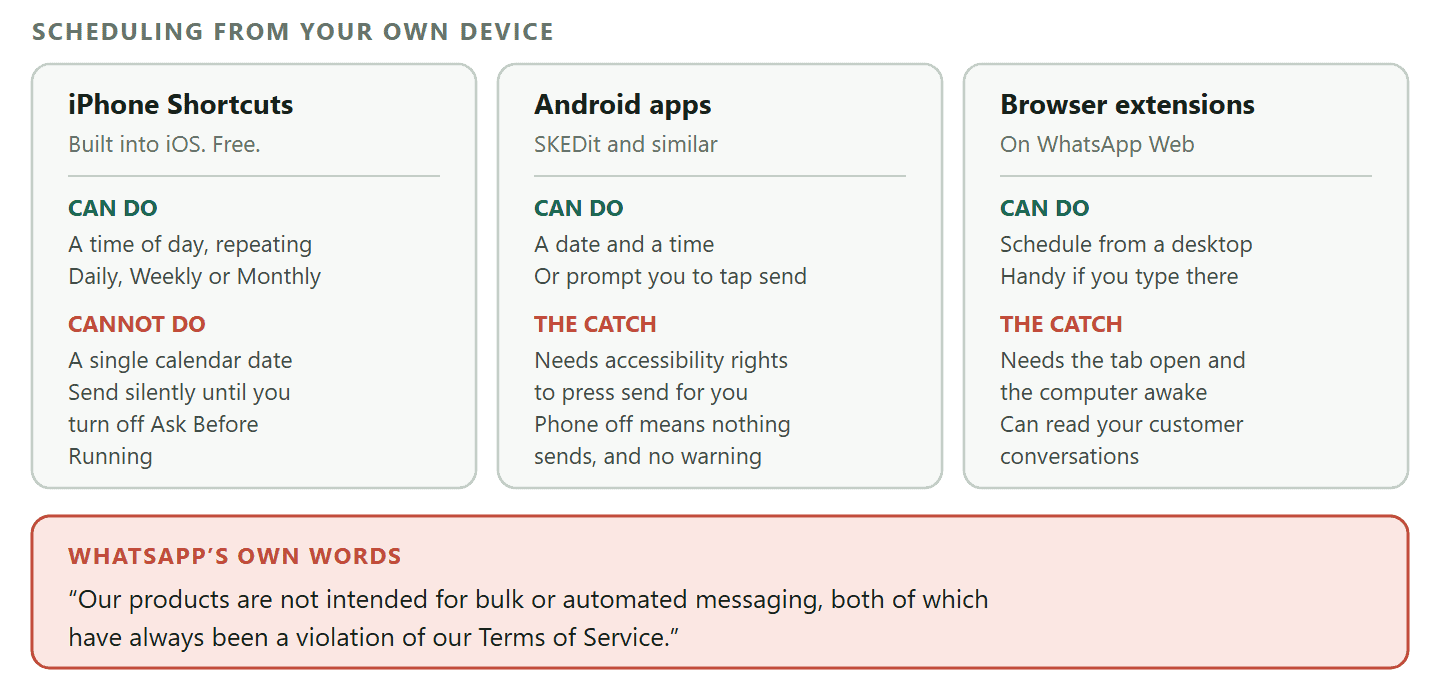
Let us take the honest part first, because it is the part every other guide leaves out. WhatsApp’s help centre says: “Our products are not intended for bulk or automated messaging, both of which have always been a violation of our Terms of Service.” The same page describes WhatsApp taking legal action against companies engaged in that abuse, and says it will act on evidence from outside the platform too, including public claims companies make about their own ability to use WhatsApp in ways that break the terms.
Read that carefully, because it does not say bulk messaging only. It says bulk or automated. A tool that presses send for you is automating messaging. One scheduled birthday message is not going to get anybody banned, and the legal action described in that notice is aimed at the companies selling this at scale. The account bans are a separate thing, decided by automated systems reading behaviour. You should know which side of that line you are standing on before you build your customer communication on top of it.
iPhone: the Shortcuts app, with two corrections
Apple’s Shortcuts app can run an automation at a time of day, and WhatsApp provides an action it can call. The walkthrough you have read elsewhere is roughly right and wrong in two specific places.
There is no date field. Apple documents the Time of Day trigger as a time, or Sunrise or Sunset with an offset, plus a Repeat setting offering Daily, Weekly or Monthly. It does not offer a single calendar date. So a one-off message has to be built as a repeating automation that you remember to switch off afterwards, which is exactly the sort of thing nobody remembers.
It will ask you first unless you tell it not to. By default a personal automation prompts you before it runs. Apple’s instruction is to turn off Ask Before Running and then confirm with Don’t Ask. Do that and it also stops notifying you when it runs, which means a silent failure stays silent.
Where this is genuinely useful: A recurring personal message. The weekly “orders close tonight” note to one supplier. A daily nudge to yourself. It is free, it is on a device you already own, and nothing is at stake if it misses once.
Android: scheduler apps, and the permission they need
Android has no built-in equivalent, so people install a third-party app. SKEDit is the one most guides name. These apps work by asking for accessibility permissions, which is the setting normally reserved for screen readers, and then using it to open WhatsApp and tap the send button on your behalf at the appointed time.
That is what makes them work and it is also the whole problem. The app is driving your WhatsApp account. If the phone is off, locked in a way the app cannot get past, out of battery, or WhatsApp has updated and moved the button, nothing sends and you find out later or not at all. Most of these apps offer a reminder mode instead, where the phone prompts you and you tap send yourself. That mode is slower and it is the honest one, because a human is still sending the message.
WhatsApp Web: browser extensions
Extensions such as Blueticks add a schedule control next to the message box on WhatsApp Web. The same logic applies, one step further removed: the extension needs the browser open, the tab alive and your computer awake. Close the laptop lid and the nine o’clock message becomes a lunchtime message.
There is a second cost that matters more than people expect. An extension that can schedule messages on WhatsApp Web can, by construction, read your WhatsApp Web session. You are handing a third party the ability to see your customer conversations. For a business with any duty of confidentiality, from a clinic to an accountant, that is not a small ask.
The official route exists precisely because of that last line. A business that wants to send planned messages at scale is expected to move to the WhatsApp Business Platform, where scheduled sending is a normal, permitted, supported thing, and where you are not gambling your number. Our guide to sending bulk messages on WhatsApp without getting restricted covers that decision in full, including what the free app can and cannot legitimately do.
How to Schedule WhatsApp Messages to a List in DMly
Once you are on the official platform, you schedule WhatsApp messages to a list in four screens and about two minutes. Here are the real labels, in order, and the two places where people trip.
In DMly a scheduled send to a list is a broadcast, and you build it at Messaging, then Broadcasts, then New broadcast. The wizard has four steps: Audience, Message, Schedule, Review.
- Audience Set Type to Contact, then pick exactly one of All contacts, Active contacts, or a segment you saved earlier. There are no tag or attribute filters here, which surprises people: one segment is the whole targeting model. If you want to reach a tag, build the segment in Contacts first. Tick Reachable contacts only so people who have opted out are dropped from the count rather than counted and then failed.
- Message Give it a Campaign name, which only your team sees. On WhatsApp there is no message box: you pick an approved Message template and fill in its variables, and each variable can take a personalisation token so it resolves per contact. The Channel shown here is read only and cannot be changed later.
- Schedule This step asks When should it send? Choose Send immediately after approval or Schedule for later, which reveals a Send at field and the timezone choice covered in the next section. Pick a time at least a couple of minutes ahead; anything under a minute away is treated as immediate.
- Approval On the same step, Require team approval before sending holds the broadcast until somebody signs it off. If you do not have approval rights you are not offered the choice, and a note tells you it will be submitted for approval anyway.
- Review The summary shows your audience, message, schedule and approval state. Press Create broadcast, or Submit for approval if that is your permission level. You land back on the broadcasts list with the new broadcast and its status.
The two ways to save a broadcast that cannot work: The wizard steps are all clickable, so you can jump straight to Review. A broadcast saved with a campaign name but no template saves, runs, and fails for every single contact. And a broadcast with no campaign name at all refuses to save without showing an error, so the button simply appears to do nothing. If save seems dead, the missing field is the campaign name, and it lives on the Message step.
Now the habit that is worth more than any status screen, and it is the reason this article opens the way it does. Before a broadcast goes anywhere near a real list, send it to a segment that contains only your own contact record, then read what arrives on your own phone. It costs one template message, and it is the only check that shows you what a customer actually receives rather than what a dashboard believes it sent.
There is a second number on those screens worth ignoring. The Audience breakdown shown in the right rail on the Schedule and Review steps is an estimate rather than a count: the deliverable and opted-out figures are a fixed ninety five to five split of the audience size, not a calculation from who has actually opted out. Do not plan against it.
The Timezone Choice That Decides Who Gets It First
Choosing “later” opens a second question most tools never ask: whose nine o’clock did you mean? Getting it wrong is how a promotion arrives in the middle of somebody’s night.
DMly offers two readings of the time you typed, and they produce completely different sends.
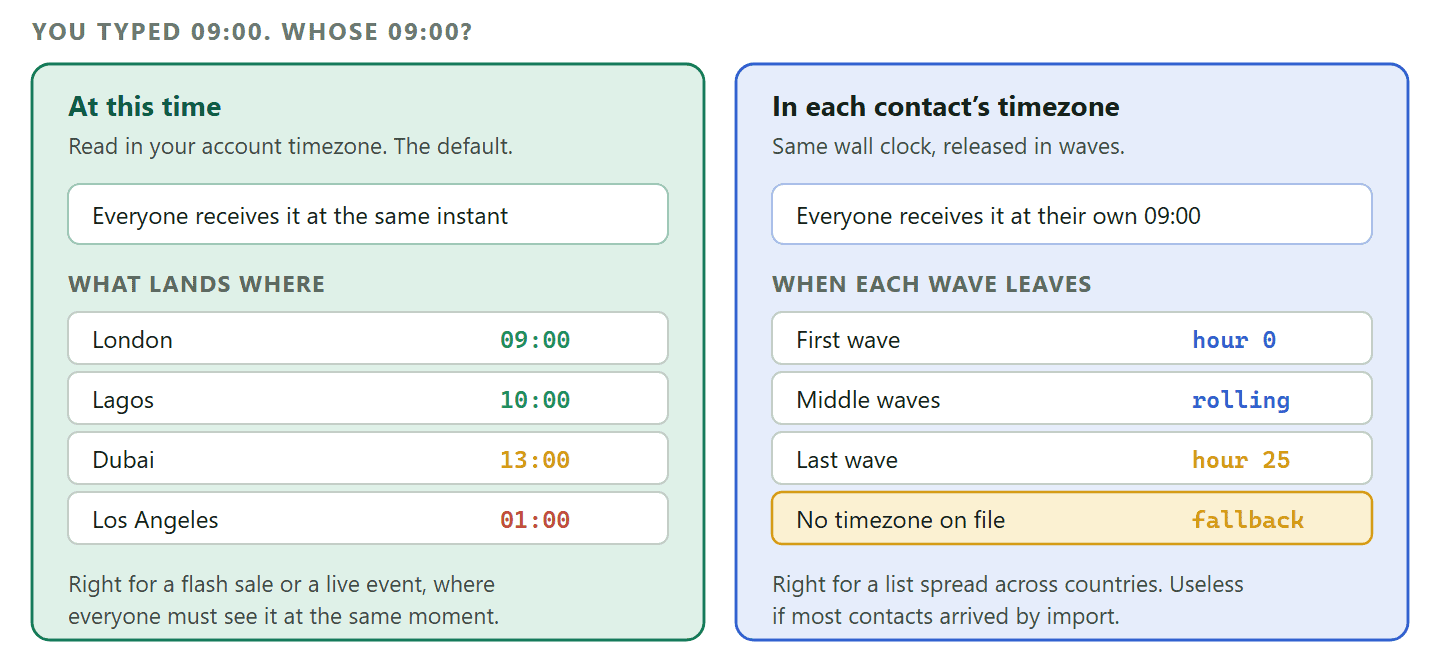
At this time is the default and the simpler one. Your Send at time is read in your account timezone, not your browser’s and not any customer’s. Set your account to London, type 09:00 while you happen to be in Dubai, and it still goes at 09:00 London time, to everybody, at the same instant. Daylight saving is handled for you. Your account timezone lives on your own profile under My Preferences, and it is personal to you, so two colleagues in different countries each carry their own.
At this time in each contact’s timezone sends the same wall clock time, staggered. Type 09:00 once and each contact gets it at 09:00 where they are. Three consequences follow, and all three catch people out.
- The send can take longer than a day. The widest gap between real timezones is about twenty five hours, so the last wave can leave a little over a day after the first. The broadcast stays in a sending state the whole time, with a rolling status showing how many have gone out.
- A time that has already passed locally goes immediately. Schedule 09:00 and save it when it is already 3pm for a contact, and that contact is sent straight away rather than waiting for tomorrow morning.
- Contacts with no timezone on file get a fallback time. DMly tells you how many before you send, which is the number to look at, because it is usually large.
Where a contact’s timezone comes from: It is detected automatically from their browser the first time they book an appointment on your public booking page. There is nowhere to type it in by hand. So a contact who has never booked with you, or who arrived by CSV import or through the API, has no timezone at all and falls back with everybody else. If most of your list came from a spreadsheet, per-timezone sending will do very little for you, and you are better off picking the hour that suits your biggest market.
What Happens Between Save and Send
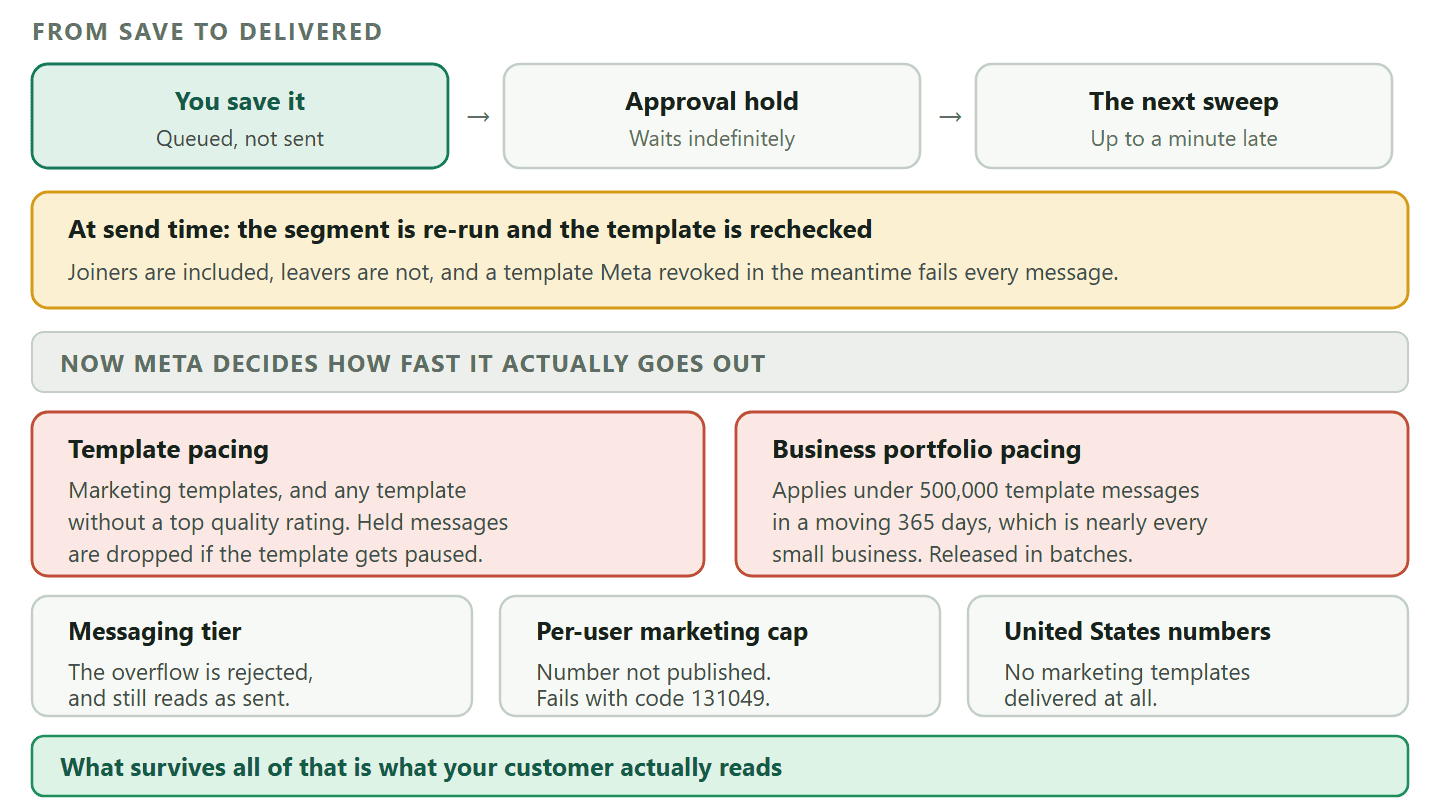
Saving is not sending. In the gap, your audience is recalculated, your template is rechecked, and several things can quietly shrink the number of people who hear from you.
This is the part of the job nobody documents and everybody discovers. Here is what happens, in order, after you schedule WhatsApp messages and walk away.
Nothing is frozen when you save. Saving queues the broadcast rather than parking it. Even Send immediately after approval goes out on the next sweep, so allow up to a minute before the first message leaves. That is fine. It is the next one that matters.
The audience is worked out at send time, not at save time. Your segment is re-run at the moment the broadcast fires. Anyone who joined it after you scheduled is included; anyone who left is not. For most businesses this is a feature. For a segment defined as “clients who have not visited in 90 days”, it means the list you carefully reviewed on Monday is not the list that receives on Friday, and you cannot see the difference in advance.
The template is rechecked for approval. If Meta revokes or rejects your template between scheduling and sending, every message fails. Not some. Every one. This is the single most common cause of a WhatsApp broadcast that fails for the whole audience, and it is why a campaign template should be approved days before the day, not on the morning of.
Opted-out contacts get nothing but still count. They are pulled into the recipient total and then land in the failed column, which is why Reachable contacts only on the Audience step is worth ticking: your numbers then reflect reality instead of flattering you and then disappointing you.
An empty audience is not an error. If your segment matches nobody by the time it runs, the broadcast is simply marked as sent, to nobody. It will not warn you.
Your plan allowance is checked while you compose. If your plan’s broadcast and template message allowance is used up, scheduling, sending or approving a broadcast is refused outright with a message saying so, and where a send would only partly fit, DMly tells you by how much.
Meta Decides When Your Scheduled Message Actually Leaves
This is the section that changes how you plan campaigns. When you schedule WhatsApp messages to a list, you do not control the moment they go out. You propose it, and Meta releases them in batches while it watches how people react.
Meta operates two separate holding mechanisms, and almost every small business is inside the second one permanently.
Template pacing applies to marketing templates, and to utility templates once one of your utility templates has previously been paused. It targets newly created templates, recently unpaused templates and any template that does not hold Meta’s top quality rating. Messages send normally until an unpublished threshold is crossed, and after that Meta holds the rest to allow time for customer feedback. If the feedback is good, the held messages are released. If it is bad, the template moves to paused and every held message is dropped rather than delayed, reported as a failure with error code 132015.
Business portfolio pacing is the one that surprises people. Meta applies it to any business portfolio that has sent fewer than 500,000 template messages across all of its phone numbers within a moving 365-day period, and to any portfolio being monitored for suspicious activity. An initial set of messages is processed normally, the rest are held while Meta watches the response, and they are then released in batches. A salon, a clinic or a driving school will never approach half a million template messages in a year, so this is not an edge case for them. It is the normal state.
What this means for your nine o’clock campaign: Your 400 messages do not all leave at nine. A first batch leaves, the rest wait while Meta reads the room, and the tail arrives over the following minutes or longer. If your message says “first twenty people only” or “today between two and four”, write it so that a message arriving an hour late is still true.
There are three more limits sitting on top of that, and each one silently reduces who hears from you.
- Your messaging tier. Meta caps how many different customers you can start a conversation with in a moving 24 hours. The ladder is 250, then 2,000, 10,000, 100,000 and unlimited, and it is set at the business portfolio level and shared by every number in it, so adding a second number buys you no headroom. DMly does not enforce this: it will hand Meta more conversations than your tier allows and Meta rejects the overflow, so a large broadcast on a low tier partially fails and still reports as sent. If you are on a low tier, split a big campaign across several days rather than finding the ceiling on the day.
- Per-user marketing limits. Meta limits how many marketing templates any one person receives from any business in a period, and adapts that limit automatically based on how engaged that person has recently been. The number is not published. A message stopped this way comes back as a failure with error code
131049. - Marketing templates do not reach United States numbers. WhatsApp paused delivery of marketing template messages to users with United States phone numbers on 1 April 2025, and that pause is still in force with no announced end date. If your customers are American, a scheduled marketing broadcast will not arrive, however well you build it. Utility messages, the ones that carry confirmations and reminders, are a different category and are unaffected.
One more piece of arithmetic worth carrying. If a template’s quality drops far enough, Meta pauses it for three hours the first time, six hours the second time, and disables it permanently the third time. A campaign scheduled for a Saturday morning on a template that got paused on Friday night simply does not exist.
The 24-Hour Window Decides What You Are Allowed to Send
Before you can schedule a message, WhatsApp needs to know what kind of message it is, because the rules for reaching somebody who has gone quiet are completely different from the rules for replying to somebody who just messaged you.
Meta’s rule is one sentence: when a customer messages you or calls you, a 24-hour timer starts, which Meta calls the customer service window. Inside it you can send an ordinary typed message. Once it closes, the only thing WhatsApp will deliver is a template Meta approved in advance.
When you schedule WhatsApp messages this is the constraint that shapes everything. A campaign to a list is, by definition, going to people who have not messaged you in the last day, so it must be a template. That is why the DMly broadcast wizard offers you a template picker rather than a message box on WhatsApp, and it is not a limitation of the software.
It also decides whether the later steps of a drip campaign arrive at all. A step written as free text only reaches contacts who are still talking to you; a step built from an approved template reaches everybody. If your follow-up run goes past the first day or two, build the later messages as templates.
A date to put in the diary: 1 October 2026: From 1 October 2026, Meta will charge for two things that are free today. The first is service messages, the free-form replies you send inside an open 24-hour window, which have not been charged since November 2024. The second is utility messages sent in response to a customer inside that same open window. Both are charged per message. Service messages get no volume discounts at all, while utility and authentication messages keep theirs, so a long back-and-forth conversation now costs in a straight line. The 72-hour free entry point window, the one that opens when somebody taps a click-to-WhatsApp ad, is unchanged. We have worked through what it means for a small business in our guide to the October pricing change.
If you schedule reminders and confirmations, that second change is the one that will show up on your bill, because a reminder that lands while a customer is mid-conversation with you is exactly the shape being repriced.
Changing Your Mind: Pause, Resume, Cancel and Edit
A scheduled broadcast can be edited, held, stopped or deleted right up until it runs, and the four controls behave differently enough that mixing them up costs you a campaign.
To change a broadcast that is still waiting, open it and select Edit. You can change the audience, the message and the send time. The channel is fixed for the life of the broadcast and cannot be changed, so a WhatsApp broadcast can never become an SMS one.
To stop it rather than change it, use the menu on its row in the broadcasts list.
- Pause appears while a broadcast is scheduled or sending. A scheduled one held this way does not go out when it is due. A sending one halts, with the recipients already handed to WhatsApp gone and the rest stopped where they are.
- Resume appears only on a paused broadcast. One that never started goes back to scheduled; one that was mid-send picks up the stranded recipients.
- Cancel send appears on scheduled, sending and paused broadcasts, asks you to confirm, and cannot be undone. Everyone not yet sent to is marked cancelled. Messages already delivered stay delivered, because nothing recalls a WhatsApp message.
- Delete appears on anything that is not actively sending, and removes the broadcast and its recipient records for good.
Pause is a hold, not a postponement: Pausing leaves the send time alone. Pause a broadcast due at nine, resume it at eleven, and it goes out on the next sweep rather than waiting until tomorrow morning. To genuinely move a campaign to a later time, use Edit and change the send time instead. This is the single most expensive misunderstanding on this screen.
Two more behaviours worth knowing before a colleague discovers them for you. Editing a broadcast that requires approval clears the approval it already had, so whoever signed it off has to do it again. And approving a paused broadcast does not resume it: approval only lifts the approval hold, and the broadcast stays paused until somebody resumes it. Those are two separate releases on purpose, so that something a colleague deliberately stopped is never restarted by a sign-off.
Reminders That Follow the Booking, Not the Calendar
The most valuable scheduled messages a service business sends are not campaigns at all. They are the ones tied to a specific appointment, and they should move when the appointment moves.
If you take bookings, your reminder times are a property of the service rather than of any individual booking. In DMly they are set at Offerings, then Services, so a haircut can remind a day ahead while a 150-minute balayage reminds a day ahead and again an hour before. Every booking of that service then inherits the schedule, and the reminders go out on the channel the client uses.
For anything more bespoke, the tool is a delay step inside an automated flow, and it has three modes worth knowing apart.
- A fixed duration. Wait a number of minutes, hours or days from now. Most flows want this.
- Wait until a window. Choose the days of the week and a from and to time, and the flow holds until the next moment inside that window. This is how you stop a two in the morning enquiry getting an automated reply at two in the morning.
- Wait until an event. Anchor the wait to a real date read off the appointment, the invoice or the subscription the flow is about, with an offset. Before the appointment, at the appointment start, after the appointment, before or on or after an invoice due date, before or on a subscription renewal.
That third mode is the one that earns its keep, because the date is read when the step runs. If a client reschedules after the flow started, the reminder moves with the booking. It also knows when to give up: if the appointment has been cancelled, completed or marked a no-show, or the invoice has been paid or voided, the flow takes a separate skipped route instead of sending a reminder for something that is no longer happening.
The failure mode to check for: An event-anchored delay only works if the flow actually has an appointment or invoice in scope. If it cannot find one, or the date has already passed, the step does not wait at all: the flow carries straight on and the reminder fires immediately. Put one of these in a keyword-reply flow and your customer gets tomorrow’s reminder the second they say hello. Check that the trigger really carries the booking before you rely on the wait.
For recurring sends, the tool is a flow started by a scheduled date, which fires at a date and time you set, one-off or recurring, for an audience you choose. Use a broadcast for a one-off announcement to a segment; use a scheduled flow when it repeats every month, or when each contact should go down a different path after they receive it. Our guide to WhatsApp appointment booking covers the booking side of that in full, including deposits and no-shows.
Timing a Drip Run, Where the Clock Is in UTC
A drip run counts days from the moment each person joined, which makes it the right tool for follow-ups and the wrong tool for announcements. It also has one setting that catches out everybody outside Britain in winter.
In DMly a drip campaign is a sequence: an ordered set of messages, each with a Day number counted from zero. Day 0 is due as soon as that contact subscribes, day 3 is three days later, and what sets the wait between two steps is the gap between their day numbers. A run of 0, 1, 3 means on joining, one day later, then two days after that.
Each step also has From and To hours, which stop a message going out in the middle of the night. A step that comes due before the start of the window waits for it; one that comes due after the end moves to the start of the next day.
Those hours are read in UTC: Not in your account timezone, and not in the contact’s. If you are in Lagos, Karachi or Chicago, a window of 09:00 to 20:00 is not your working day and you need to shift the numbers yourself. This is the one setting in the whole of scheduling that is quietly in a different timezone from everything else.
Three more behaviours to plan around. Reordering steps does not renumber their day, so dragging a day 5 step above a day 1 step leaves no gap at all and both messages land together. A step that comes due when WhatsApp will not carry it is held and retried about once an hour for roughly two days, and if the customer never messages you in that time, that person’s run simply stops there. And a template step is silently dropped for any contact whose own channel is not WhatsApp, so a template-based run should only be fed contacts who reached you on WhatsApp.
If you want worked examples rather than mechanics, our collection of WhatsApp drip campaign examples shows what to put in each step.
What You Can Tell Afterwards, and What You Cannot
Check the result the morning after, but check the right numbers, because two of the ones on the screen are not measurements.
On a WhatsApp broadcast, delivered and opened are real: WhatsApp confirms both, and opened is counted once per contact. Sent is not the same thing at all. Sent means DMly successfully handed the message to WhatsApp, which is the point at which every one of Meta’s gates in the previous sections still lies ahead. The distance between sent and delivered is the honest measure of a scheduled campaign.
Two figures on those pages are not measurements. Replies is always zero on every channel, and engagement over time shows the same fixed shape for every broadcast. Read the inbox instead, where every broadcast message is written into the contact’s conversation, so answers arrive there like any other message. We covered what a broadcast report can and cannot tell you in detail in the bulk messaging guide, and it applies unchanged to a scheduled send.
When the failed count is higher than you expected, the reason is almost always one of four things: the template was revoked or paused, you hit your messaging tier, the contacts had opted out, or the marketing category was blocked for those recipients. In that order of likelihood.
The Best Hour to Send, Once the Rules Are Out of the Way
Only now is it worth talking about the hour, because every constraint above matters more than the hour ever will.
Everyone wants a magic hour and there isn’t one, but there are four decisions that reliably beat guessing.
- Schedule around your own capacity, not your customer’s attention. A message that generates twenty replies at nine in the morning is a disaster if nobody is at the desk until ten. Send when you can answer, because on WhatsApp the reply is the point.
- Give it room to be late. Because of pacing, treat your send time as the earliest moment rather than the moment. Never write an offer that expires within an hour of the send.
- Send less, to fewer people. Meta’s per-user cap is driven by how people react to messages, so a smaller, better targeted send protects your ability to send the next one. Volume is not free even when the message is.
- Watch the gap, not the total. If delivered is well below sent, something in the previous sections is biting, and no amount of moving the hour will fix it.
And the rule that outlives every scheduling tool: prepare and approve your templates days ahead. Almost every catastrophic scheduled send in this business is a template problem discovered at the worst possible moment. If you want the fuller argument about what to broadcast and how to write it, our guide to opt-in, templates and broadcast strategy is the companion to this one: it covers whether to send, while this page covers when it actually goes.
DMly holds your queue, resolves your audience at send time, and shows you what was delivered rather than what was attempted. Same wizard, four steps, and no browser tab to leave open. See the plans and work out what a scheduled campaign costs on a list your size.
Frequently Asked Questions
Can I schedule WhatsApp messages for free?
On your own phone, yes. The iPhone Shortcuts app is free, and Android scheduler apps have free tiers. Both depend on your handset being on and unlocked at the right moment, and both automate an account in a way WhatsApp’s terms take a dim view of. For a business list, scheduling is free in the sense that the software does not charge per send, but WhatsApp charges per template message and your plan carries an allowance, so the cost sits with Meta rather than the scheduler.
Does WhatsApp have a built-in scheduling feature?
No, and not in the plumbing either. Meta’s own documentation for sending a message on the WhatsApp Business Platform describes a request carrying the recipient, the type and the content, with no field for a send time. Anything that schedules is doing so outside WhatsApp and calling in at the right moment.
Can you schedule a WhatsApp message to a group?
Not through the official business platform, which does not send to groups at all. You can schedule WhatsApp messages to hundreds of individual chats, but not into a group thread. Some phone-side scheduler apps will drive the app to post into a group, with all the reliability and terms-of-service caveats already described. If the goal is one message to many people, a broadcast to a segment is the supported route, and it reaches each person in their own chat rather than in a group thread.
Can I edit or cancel a scheduled WhatsApp message after saving it?
In DMly, yes, up until it runs. Edit changes the audience, the message and the send time. Pause holds it without moving the time, resume releases it, and cancel stops it permanently. Nothing recalls a message already delivered, on any platform, which is why the audience is worth checking before you save rather than after.
Why did my scheduled broadcast send to fewer people than the list?
Four usual suspects. The segment was re-run at send time and had shrunk. Opted-out contacts were counted and then failed. You were over your messaging tier, so Meta rejected the overflow while the broadcast still reported as sent. Or the message was a marketing template and the recipients were capped, or held United States numbers, which do not receive marketing templates at all.
Is scheduling promotional messages allowed?
Yes, with conditions. Promotional messages must use an approved marketing template, the recipients must have opted in, and Meta applies both a per-user frequency cap and pacing to marketing sends. United States numbers do not currently receive marketing templates. Utility messages, which cover confirmations, reminders and order updates, are a separate category with different rules and better delivery.
What is the best time to schedule WhatsApp messages?
The hour when someone can answer the replies. WhatsApp is a conversation channel, so a scheduled message that lands when your inbox is unattended converts worse than a less convenient hour when a human is there. After that, avoid promising anything time-limited in the message itself, because pacing means your send time is the earliest possible moment rather than a guaranteed one.
Pick the Clock Before You Pick the Time
Almost every problem people have when they schedule WhatsApp messages turns out not to be a timing problem at all. It is the wrong clock: a broadcast used where a sequence was needed, a fixed date used where the booking should have driven it, or a phone app used where a server was needed.
Get the clock right and the rest is a two-minute job. Get it wrong and you will spend months wondering why a perfectly written message keeps arriving at the wrong moment for the wrong people, or not at all.
Writing about WhatsApp automation, bookings and growth for local business.
Turn WhatsApp into your busiest channel.
Start free and run message, bookings, payments and reviews in one place.
