
How to Handle WhatsApp Opt-Out and Unsubscribe Requests Automatically
A customer replies to your WhatsApp reminder with one word: “Cancel.” Every WhatsApp opt-out system has to decide, in a fraction of a second, what that word means. Does she want to cancel Thursday’s appointment, or does she want you to stop messaging her altogether?
She knows exactly what she meant. Your software has to guess. In many platforms, a message that is only the word “cancel” counts as an unsubscribe: she’s opted out on the spot, her reminder for Thursday never arrives, and nobody on your team finds out until she doesn’t turn up. DMly now asks first on WhatsApp and the other chat channels instead of guessing, though on SMS a bare “cancel” still opts her out.
That’s the whole subject in one message. Handling opt-outs automatically isn’t hard to switch on. The hard part is deciding which words mean “stop”, what exactly they should stop, who needs to hear about it, and how a person gets back in when they change their mind.
In this guide, we’ll look at what counts as an opt-out on WhatsApp, the stop button Meta built into WhatsApp itself and the error it produces, how DMly handles STOP on every channel, the words it catches and the ones it misses, footer wording you can copy, confirmation messages, re-subscribing, keeping one person suppressed across channels, and what to keep on record.
What Counts as a WhatsApp Opt-Out?
A WhatsApp opt-out is any clear request from a customer to stop receiving your messages, made by any route, not only a reply that says STOP. Meta’s Business Messaging Policy says you must respect requests to block, discontinue or opt out of your WhatsApp messages “either on or off WhatsApp”, and that includes removing the person from your contacts list.
“On or off WhatsApp” is the part people miss. If a client tells your receptionist “please stop sending me those offers”, that’s an opt-out, even though nobody typed anything. So is an email, a phone call, or a comment on Instagram asking you to stop.
Here are the routes a WhatsApp opt-out can arrive by, and who finds out:
| How the customer says stop | Who sees it | What you need to do |
| Replies STOP, UNSUBSCRIBE or similar in the chat | Your messaging platform | Let it opt them out automatically (most platforms do) |
| Taps an opt-out button on one of your templates | Your platform, as a reply | Make sure the button text is something your platform acts on |
| Uses WhatsApp’s own setting to stop your marketing | Meta. You only see failed sends | Treat failed sends with error 131050 as a marketing opt-out |
| Blocks or reports your number | Meta | Nothing to process, but it hurts your quality rating |
| Writes a sentence (“please stop texting me”) | Your inbox | A person reads it and opts them out by hand |
| Tells you in person, by email or on another channel | Your team | Opt them out in your system the same day |
Automation covers the first two rows completely and the third one partly. The last three need a person, and a habit. Most of this guide is about making the automatic part as wide as it can be and the manual part as small as it can be.
Two Kinds of Stop: Marketing Only, or Everything
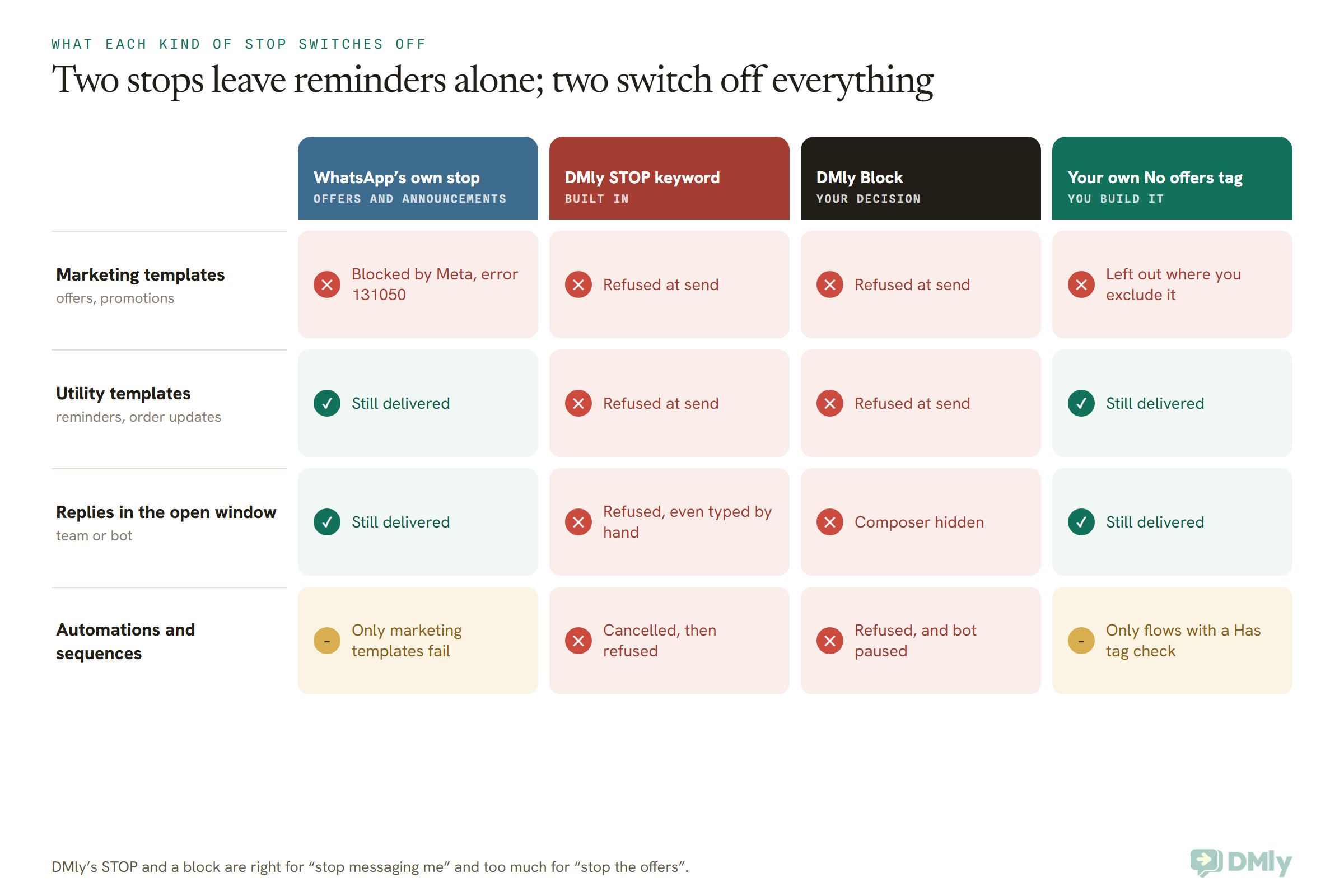
There are really two kinds of WhatsApp opt-out: “stop the offers” and “stop messaging me”. They need to switch off different things.
Think about a client who’s had enough of your promotions but has a facial booked next week. She still wants the reminder. She’d probably like a reply if she asks where you’re located. She just doesn’t want another “20% off this weekend” message.
Meta builds its own stop around exactly that difference. The control inside WhatsApp only stops marketing templates. Reminders, order updates and your replies keep arriving. Meta’s opt-in guidance also suggests giving people clear instructions to opt out of specific categories of messages, not just everything.
DMly’s built-in STOP is the other kind. It’s a full stop: no broadcasts, no automations, no booking reminders, and no manual replies either. That’s the safe default for a word like STOP, but it means a customer who only wanted fewer offers also loses her reminders.
The answer is to run two lanes. Keep DMly’s STOP as the “stop everything” lane, and add a “stop offers only” lane that you build yourself with a tag. We’ll set that up later in this guide. First, here’s what each kind of stop actually blocks.
What WhatsApp Does on Its Side: Offers and Announcements, Error 131050 and Blocks
WhatsApp doesn’t read the word STOP for you. What it does have is a setting called Offers and announcements, where a customer can stop marketing from your business without messaging you at all.
That’s worth saying plainly, because a lot of owners assume WhatsApp handles keywords the way some SMS carriers do. It doesn’t. If a customer types STOP, that message arrives in your chat like any other. Catching it is your platform’s job.
The Offers and announcements setting
According to Meta’s documentation, the setting does two things. A customer can say how interested they are in your marketing (Interested or Not interested), and they can stop or resume your marketing messages entirely.
“Not interested” doesn’t block anything by itself. It can lower how many marketing templates Meta lets through to that person under its per-user marketing limits, and it opens a second screen offering to stop your marketing completely.
Once someone stops your marketing there, Meta keeps accepting your sends but doesn’t deliver them. Each one fails with error 131050: Meta’s wording is that the recipient “has chosen to stop receiving marketing messages on WhatsApp from your business”. Meta’s advice is short: don’t retry, because they won’t be received.
What error 131050 means for you
Treat every 131050 as a marketing opt-out. That person told WhatsApp, not you, that they want no more offers. Reminders and order updates still reach them, because the stop only covers marketing templates.
Developers can subscribe to a webhook Meta calls user_preferences, which fires whenever someone stops or resumes your marketing. It doesn’t fire for the Interested or Not interested feedback, only for a full stop or a resume.
DMly’s documentation doesn’t say that it listens to that webhook or copies a WhatsApp-side stop onto the contact. So for now, plan on spotting 131050 in your failed sends and tagging those people yourself. We’ll show you where to find them in DMly below.
Blocks and reports
A customer who can’t find a polite way out has a rude one: blocking or reporting your number. Meta’s policy says its systems may limit how many messages a business can send based on that feedback. That’s why an easy, visible opt-out protects you. People who can say “stop” rarely need to block. Our guide to WhatsApp quality rating, messaging limits and bans explains how blocks feed into your account health.
One more thing for US readers: Meta doesn’t currently deliver marketing templates to US phone numbers at all. A WhatsApp opt-out from a US customer therefore matters most for the messages you can still send them, which are utility templates and replies.
How DMly Handles a WhatsApp Opt-Out Automatically
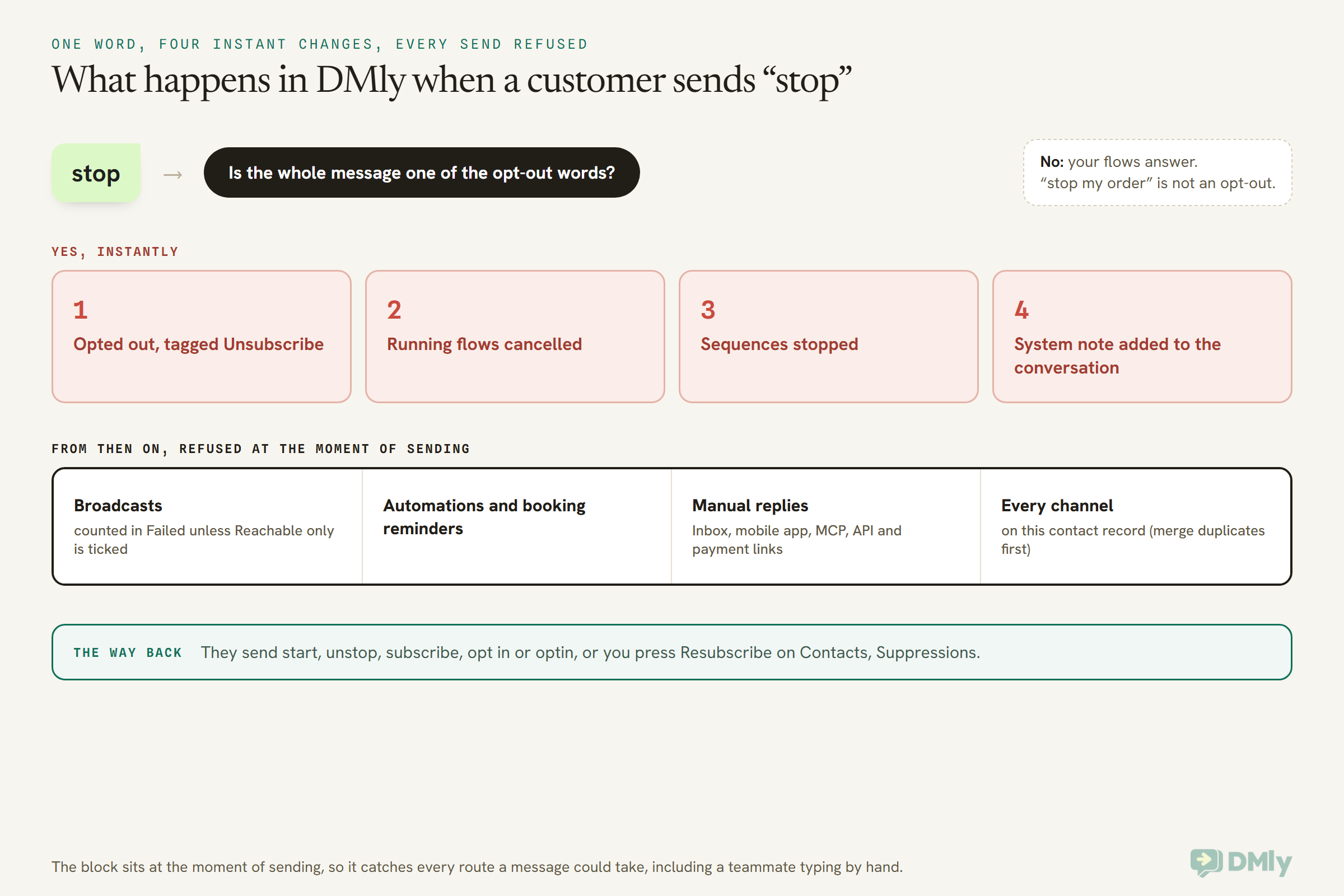
In DMly, a WhatsApp opt-out happens the moment a contact sends one of nine opt-out words as their whole message. From then on, nothing is sent to them on any channel until they opt back in or you resubscribe them.
The words DMly catches
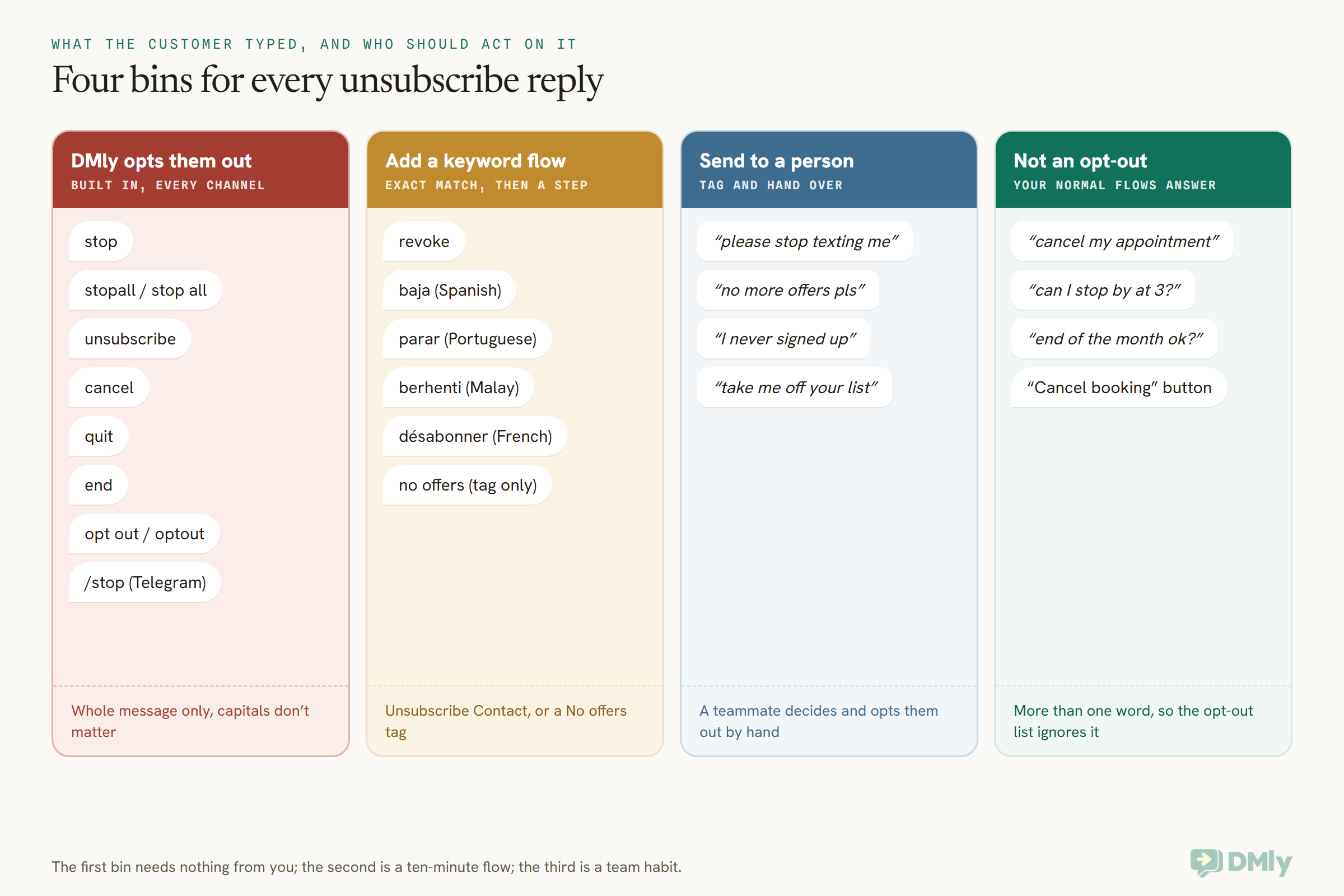
The core list, from DMly’s documentation, is: stop, stopall, stop all, unsubscribe, opt out and optout. Cancel, end and quit are handled differently, as the next sections explain, and STOP OFFERS opts someone out of promotions only. Capital letters don’t matter. It’s the same list on WhatsApp, Instagram, Messenger, SMS, Telegram and TikTok, and Telegram also accepts its /stop command.
The match is on the whole message. “Stop” opts someone out. “Cancel my appointment tomorrow” doesn’t, because the message is more than the word. That’s sensible, and it’s also why a bare “cancel” needs separate handling: on its own, it could mean either.
What happens in that moment
As soon as the word arrives, DMly does four things. It marks the contact as opted out and attaches the built-in Unsubscribe tag. It cancels any flow they’re in the middle of. It stops any sequence they’re enrolled in. And it writes a system note into the conversation so your team can see what happened.
What it stops, including your team
Once someone has opted out, broadcasts don’t reach them, sequence steps skip them, automation send steps refuse, and appointment reminders aren’t sent.
Manual replies are refused too. If an agent types a reply in the Inbox, DMly refuses it with a message telling them the contact opted out and needs resubscribing first. The mobile app, the MCP send tools and the API are refused the same way, and so is a payment link.
If you’ve read elsewhere, including on some older pages of this blog, that your team can still reply by hand after a STOP, that’s changed. DMly’s current documentation is clear that the check runs on the server and covers every route. One catch to brief your team on: the composer isn’t greyed out, so someone can type a whole reply before it’s refused. And the system note DMly writes into the chat still ends by saying agents can reply manually. DMly’s own docs say to ignore that last sentence.
It’s one switch per person, not per channel
The opt-out lives on the contact, not on one channel. A customer who sends STOP on WhatsApp is also opted out on Instagram, Telegram and SMS, as long as those are the same contact record in DMly.
That “as long as” matters. DMly doesn’t join people up across channels automatically. The same person messaging you on WhatsApp and Instagram can arrive as two contacts until someone merges them. We’ll come back to that in the cross-channel section.
Where you see it
Open Contacts → Suppressions. It lists everyone who’s opted out or been blocked, and you can filter it by Unsubscribed or Blocked. Each row has the button for its own switch: Resubscribe for an opt-out, Unblock for a block. They’re separate. Resubscribing someone doesn’t unblock them, and the reverse is true too.
What DMly doesn’t do (yet)
Being straight about the gaps saves you a surprise later:
- No reply to the customer is documented. DMly’s docs describe the internal note, not a message back to the person confirming they’re unsubscribed. We cover how to add one yourself below.
- No documented link to WhatsApp’s own stop. A 131050 failure shows up in your reports, but the docs don’t say DMly opts the contact out or tags them because of it.
- No import of opt-outs. If you’re moving from another tool, there’s no column, field or endpoint that brings opt-out status across. Everyone you import arrives messageable.
- Hand-tagging doesn’t opt anyone out. Putting the Unsubscribe tag on someone yourself only labels them. Only an opt-out word or a flow’s Unsubscribe Contact step actually opts them out.
The CANCEL Problem: When Opt-Out Words Collide With Your Own Messages
Cancel, end and quit are words your customers use about bookings, orders and classes, which is why DMly doesn’t treat them as instant opt-outs on chat channels. On WhatsApp, Messenger, Instagram, Telegram, Live Chat and TikTok, a bare cancel, end or quit makes DMly ask first: Reply STOP to stop all messages, or STOP OFFERS to stop promotions only. Nothing is muted, and the message still reaches your automations. SMS is the exception: there, those words opt the contact out at once.
So asking people to reply CANCEL or END is still a bad idea. On SMS the reply opts them out and kills the flow, which DMly’s SMS docs warn about directly; on WhatsApp it sets off the opt-out question on top of whatever your flow does, which is confusing for someone who only wanted to move a booking.
Go through every template and flow message you send and look for these patterns:
- “Reply CANCEL to cancel your booking.”
- “Reply END to end your membership.”
- “Reply QUIT to leave the waitlist.”
- “Text CANCEL to cancel” in an SMS reminder, where the word still opts the customer out at once.
Then rewrite them so the customer’s answer is never a single opt-out word. Two-word labels are the simplest fix, because the match is on the whole message.
Before and after: a reminder that unsubscribes people
Before: Hi [Name], reminder: your [service] is tomorrow at [time]. Reply YES to confirm or CANCEL to cancel.
After: Hi [Name], your [service] is booked for [day] at [time]. Tap a button below if anything changes.
Buttons: Keep my slot / Change my booking / Cancel booking
Category: Utility (an appointment reminder with no offer in it)
“Cancel booking” is 14 characters, well inside WhatsApp’s 25-character button limit. A customer who taps it gets your cancellation flow, not an unsubscribe: in DMly a tapped button is an answer whatever its label, unless the whole label is an opt-out word such as Stop. If you want ready-made wording for the rest of the reminder, our appointment reminder message templates are a good starting point. Check each one for a bare CANCEL before you use it.
You can’t stop customers typing “cancel” on their own, of course. On WhatsApp and the other chat channels, DMly then asks the question above and the customer chooses; on SMS the contact shows as Unsubscribed straight away and the conversation carries the system note. Ask your team to glance at new opt-outs once a day. If the message before an SMS “cancel” was clearly about a booking, a quick call or email to check is kinder than a missed appointment. Only resubscribe them if they tell you that’s what they want.
WhatsApp Opt-Out Wording: What to Put in Footers and Buttons
Good WhatsApp opt-out wording names a word your system actually acts on, says what it stops, and fits in WhatsApp’s 60-character footer.
A template footer is the small grey line under the message. Meta limits it to 60 characters, and DMly’s template builder shows the same limit. Meta’s own example footer is about managing marketing subscriptions, and its documentation says a common use for a quick-reply button is letting customers opt out of marketing messages.
Put an opt-out line on every marketing template. It’s the easiest exit you can offer, and an easy exit is what keeps people from reaching for the block button instead. DMly’s template library already does this: all 64 of its ready-made marketing templates come with an opt-out footer. If you’re new to template types, our explainer on WhatsApp message templates: marketing, utility and authentication covers which is which.
Rule one: the footer must match your keywords
“Reply NO MORE to opt out” looks friendly, but “no more” isn’t on DMly’s list. A customer who follows your instruction exactly would stay subscribed. Use a word from the list (STOP and UNSUBSCRIBE are the clearest), or build a keyword flow for your own word first, as we’ll show in the next section.
Rule two: say what it stops
DMly’s STOP stops everything, reminders included. So “Reply STOP for no more offers” slightly mis-sells it. Either say it stops all messages, or run the two-lane setup and give offers their own word.
Footers you can copy
Character counts include spaces. Every one is under Meta’s 60-character footer limit.
1. The plain full stop (39 characters)
Reply STOP to stop all messages from us
Use on: marketing templates, when you run a single “stop everything” lane
2. The softer full stop (38 characters)
Not for you? Reply STOP to unsubscribe
Use on: marketing templates for a friendly brand voice
3. Offers only, for the two-lane setup (39 characters)
Reply NO OFFERS to stop promotions only
Use on: marketing templates, only after you’ve built the NO OFFERS keyword flow described below
4. Spanish, for US, Mexico and Latin American customers (32 characters)
Responde STOP para darte de baja
Keeps the English keyword, so DMly’s built-in list still catches it
5. Hinglish, for customers in India (38 characters)
Offers band karne ke liye STOP bhejein
Roman-script Hindi with the English keyword; write it in Devanagari if that’s how your customers message you
6. Arabic, for the Gulf (25 characters)
أرسل STOP لإلغاء الاشتراك
“Send STOP to unsubscribe”, with the English keyword kept so it still matches
7. Portuguese, for Brazil (41 characters)
Responda STOP para cancelar o recebimento
Keeps STOP rather than a Portuguese word, which DMly’s list wouldn’t catch
8. Malay, for Malaysia (35 characters)
Balas STOP untuk berhenti melanggan
Same approach: local sentence, English keyword
9. French (34 characters)
Répondez STOP pour vous désabonner
For customers in France, Belgium, Canada or West Africa
Notice the trick in 4 to 9: the sentence is in the customer’s language, but the keyword stays as STOP. DMly’s built-in list is English, so keeping the English word means it works with no extra setup. Have a native speaker read your lines before you submit them to Meta.
Opt-out buttons
A quick-reply button is easier than typing. When a customer taps one, WhatsApp sends the button’s text back to you as their reply. Meta’s own example label for that kind of button is “Unsubscribe”, which happens to be on DMly’s list.
Two cautions. A label like “Stop promotions” isn’t on the list, so it needs a keyword flow of its own. And DMly’s docs don’t spell out how a button tap is read against keywords, so send the template to your own phone, tap the button, and check that the contact shows up in Suppressions (or gets your tag) before you send it to customers.
Keyword Handling Beyond STOP: Revoke, Other Languages and Plain Sentences
DMly’s built-in list covers the common English words. For anything else, such as “revoke”, another language, or your own “no offers” word, you add a keyword flow that does the opting out for you.
The gaps worth closing
- “Revoke”. US texting rules treat “revoke” as a clear opt-out, and Twilio blocks it by default, but it isn’t on DMly’s list.
- Other languages. A customer in Madrid may write “baja”, one in São Paulo “parar”, one in Kuala Lumpur “berhenti”. None of those will match.
- Your marketing-only word, such as NO OFFERS, if you run two lanes.
- Sentences. “Please stop texting me” is an obvious opt-out to a person and invisible to an exact-word match.
How to add a word that opts people out
- Create a flow with a message trigger on your WhatsApp channel.
- In the trigger, choose Message is an exact match and add your words: for example revoke, baja, parar, berhenti, désabonner.
- Add a Send Message step with a short confirmation (examples in the next section).
- Add an Unsubscribe Contact step after it. This opts them out exactly as STOP would, tag and all.
- Publish, then test it from your own phone.
The order of steps 3 and 4 matters. Once the Unsubscribe Contact step runs, every send to that person is refused, so a confirmation placed after it would never go out.
Use exact match, not “contains”. A flow that opts out anyone whose message contains “stop” would unsubscribe the customer who asks “can I stop by at 3?” Quick automations always match on “contains”, so build these in the flow builder rather than as a quick automation.
One channel can’t do this. On Telegram, the flow builder hides the keyword box on the Telegram message trigger, so a Telegram flow can’t be narrowed to your words. Telegram relies on the built-in list plus /stop.
Sentences go to a person
For the “please stop messaging me” kind of reply, don’t try to automate the decision. A second flow with a contains match on words like “stop”, “unsubscribe” or “no more” can do something safer: add a tag such as Check opt-out and use Handover to Human, which pauses the bot so a teammate reads it. The person decides, and opts the customer out by hand if that’s what they meant.
Keep that flow from competing with your main bot. DMly lets only one automation answer an inbound message, and an exact keyword beats “contains”. Test a few real-looking messages before you rely on it.
Confirming the Opt-Out: One Message, No Offer
A good opt-out confirmation is one short message that says what stopped, how to come back, and nothing else. No discount, no “before you go”, no survey.
A confirmation helps the customer trust that it worked, which is the difference between a clean opt-out and a block. It also catches the “cancel” mix-up early, because the person who meant their booking will reply “no, I meant Thursday”.
In the US, the rules for texting set a useful bar even though they’re about SMS, not WhatsApp. The FCC allows one confirmation text after someone revokes consent, as long as it only confirms the request, carries no marketing, and is the only message sent. If it goes within five minutes, it’s presumed fine. That’s a sensible standard for any channel.
What DMly sends today
For the built-in words, DMly’s docs describe an internal note for your team and no reply to the customer. Since every send to an opted-out contact is refused straight away, you can’t bolt a confirmation onto the built-in STOP either. You can add one to any keyword flow you build, as long as the Send Message step comes before the Unsubscribe Contact step.
If you text through Twilio, there’s a second layer. Twilio’s help centre says it handles STOP-type replies on its long-code and toll-free numbers by default, sends its own unsubscribe reply, and blocks further messages to that number (they fail with Twilio error 21610). So on SMS through Twilio, the customer may already get a confirmation from Twilio itself. Check your gateway’s settings before adding a second one.
Confirmation messages you can copy
Each of these goes out as a normal reply in the open chat, not as a template, because the customer has just messaged you. Since 1 October 2026 Meta charges for these replies (service messages) beyond 1,000 free a month per number, so a confirmation costs at most one service message.
10. Full stop confirmation
Done. You won’t get any more messages from [Business] here. If that was a mistake, reply START and we’ll be back in touch.
11. Offers-only confirmation (two-lane setup)
Got it, no more offers from [Business]. You’ll still get reminders and updates about your bookings and orders. Want those to stop too? Reply STOP.
12. The “did you mean your booking?” check, for a revoke or local-language word
You’re unsubscribed from [Business] messages. If you meant to cancel an appointment instead, call us on [phone] and we’ll sort it out.
Notice message 12 points to a phone number rather than inviting a reply. After the Unsubscribe Contact step runs, your team can’t reply in the chat until the person opts back in.
Re-Subscribing: START, a Fresh Opt-In and the Resubscribe Button
People come back in two ways: they send START (or a similar word) themselves, or you resubscribe them because you have a record of them asking. Never quietly put someone back on your list.
When the customer sends START
DMly’s opt-in words are start, unstop, subscribe, opt in and optin, and Telegram also accepts /start. Sending one clears the opt-out and removes the Unsubscribe tag. They only work while the contact is opted out, so a brand-new contact can’t “double opt in” by typing subscribe.
On Messenger there’s an extra wrinkle. A STOP there also ends every paid marketing subscription the contact holds with your Page, and START doesn’t bring those back. They stay out of paid Messenger broadcasts until they accept a new marketing opt-in.
If your SMS goes through Twilio, note that Twilio treats START, YES and UNSTOP as re-subscribe words. “Yes” isn’t on DMly’s list, so a customer who texts YES could be unblocked at Twilio while still opted out in DMly. That’s the safe direction to be out of step, but it explains a “why didn’t they get it?” puzzle.
When you resubscribe someone
On Contacts → Suppressions, the Resubscribe button clears the opt-out. A flow’s Resubscribe Contact step does the same thing. DMly’s advice, and ours, is to do it only when you have a record of the person asking.
The common case is a customer who opted out of your offers and later writes in about an order: “Is my parcel on its way?” Their message is a clear request to talk about that order, but your reply will be refused until they’re resubscribed. Make it a team rule: resubscribe, add a note saying why, and, if they only ever wanted offers to stop, add your No offers tag in the same moment so the next campaign still skips them.
Coming back to marketing needs a fresh yes
Someone who opted out of marketing and wants it again should say so in a way you can point to later: a reply to a question, a tick box, a form. WhatsApp’s own Offers and announcements setting has a resume option too, which fires the same webhook as a stop. Our guide to WhatsApp opt-in and how to collect customer consent covers what a good opt-in looks like and how to record it.
Build a “Stop Offers Only” Lane in DMly
A marketing-only WhatsApp opt-out in DMly is a tag you apply, plus an exclusion on every marketing audience and flow. It keeps reminders and replies flowing while your offers stop.
This is the build that solves the facial-next-week problem from earlier. It takes about half an hour, and it’s built entirely from standard DMly parts.
- Create the tag. On Contacts → Manage tags, create a tag called No offers. Use your own tag, never the built-in Unsubscribe one, because DMly removes that automatically when someone opts back in.
- Build the keyword flow. A WhatsApp message trigger with Message is an exact match on “no offers” and “stop promotions”. Add a Send Message step with confirmation 11 above, then a Tag step that adds No offers. No Unsubscribe Contact step here: that would stop everything.
- Add the button. On your marketing templates, add a quick-reply button labelled “Stop promotions” and a footer like line 3 above. Test the tap from your own phone.
- Exclude it from every marketing segment. In Contacts → Segments, add both No offers and Unsubscribe to Exclude contacts with tags. The Unsubscribe exclusion is belt and braces, since opted-out people are blocked at send anyway.
- Tick Reachable contacts only on the Audience step of every broadcast. It’s unticked by default. It doesn’t change who receives the message, but without it opted-out people sit in your recipient list and inflate your Failed count.
- Guard your marketing flows. Sequences and automations don’t read segments, so add a Has tag condition for No offers before any promotional step, and route those contacts past it.
- Catch WhatsApp’s own stops. After each campaign, look for 131050 in the broadcast’s failures (more on where below) and add No offers to those contacts.
- Connect your store, if you have one. With Shopify or WooCommerce connected, the store event trigger Marketing opt-out fires when a store customer stops receiving marketing. A flow on it that adds No offers keeps your WhatsApp offers in step with your store’s own list.
One honest limit: this lane only works where you’ve added the exclusion. A new segment built next month without it will include No offers contacts. A full STOP has no such gap, because DMly enforces it at the moment of sending. If you’d like a refresher on building segments, see our guide to customer segmentation by spending, activity and interests.
A note on one of DMly’s segment conditions, because the name misleads. Marketing opt-in (under Engagement) checks whether a contact has opted out, the same state as the Unsubscribe tag. It doesn’t know about your No offers tag, and it isn’t about Meta’s marketing consent either.
Suppression Across Channels: WhatsApp, SMS, Instagram, Messenger and Telegram
An opt-out should follow the person, not the channel they happened to use. In DMly it does, as long as that person is one contact record.
DMly’s opt-out lives on the contact, so a STOP on WhatsApp also stops automated messages on SMS, Instagram, Messenger, Telegram and TikTok for that record. The catch is that DMly doesn’t link channels automatically. Someone who DMs you on Instagram and messages you on WhatsApp usually arrives as two contacts.
Merge duplicates, and the opt-out comes with them
When DMly spots a possible duplicate (an exact email match or the last 10 digits of a phone number, among your 200 most recently active contacts), a Possible duplicates menu appears on the contact’s profile. Merging keeps the most restrictive state: if either profile had opted out, the merged contact is opted out, with the earlier date. A merge can never quietly resubscribe anyone.
Instagram and Messenger contacts often have no phone number, so DMly can’t suggest the match. If a customer tells you they’re the same person on two channels, merge them by hand.
SMS has its own rules
DMly’s SMS channel runs the same keyword list before anything else, even before your bot sees the message. Your gateway may also keep its own block list, as Twilio does. Our SMS marketing automation guide covers gateways and compliance in more depth.
In the US, texting falls under the TCPA. The current FCC rule lists stop, quit, end, revoke, opt out, cancel and unsubscribe as clear ways to revoke consent by text, says other wording must count if a reasonable person would read it as a request to stop, and gives businesses up to ten business days to honour a request. DMly acts on its words instantly. “Revoke” is the one to add yourself with a keyword flow.
What doesn’t travel
- Email you send from other tools. An unsubscribe in DMly doesn’t reach your newsletter software, and the reverse is also true. If someone asks you to stop “all marketing”, update both.
- Opt-outs from your old tool. DMly can’t import opt-out status. Its migration guide suggests leaving those people out of your import entirely, or tagging them Do not contact and excluding that tag everywhere, and blocking anyone who must never be messaged.
- Deleted contacts. If you delete an opted-out contact and they’re later re-imported or message you again, they come back as a fresh, messageable contact. Keeping the suppressed record is usually safer than deleting it, unless the person has asked you to erase their data.
Opt-Out Records: What to Keep and Why
For every WhatsApp opt-out, you want to be able to show when it happened, how the person asked, and that you stopped. Most of that DMly keeps for you.
DMly records a STOP as a withdrawal, with the word the contact used, when it holds a WhatsApp or phone number for them. The Suppressions list shows each opted-out contact with its channel and date. The conversation itself, with the STOP and the system note, stays in the history.
Two gaps to plan around. The contacts CSV export leaves out the opt-out date, so it isn’t the place to prove anything. The API exposes more of the record if you need to pull it out. And opt-outs that arrive by phone, email or in person leave no trace unless someone records them, so ask your team to add a note on the contact saying who asked, how, and when, at the moment they process it.
The law in one paragraph
We cover consent law in depth elsewhere, so here’s only what touches opt-outs. In the UK and EU, the GDPR says withdrawing consent must be as easy as giving it, and once someone objects to direct marketing you must stop using their data for it. In the UK, PECR’s soft opt-in only works if every marketing message gives a simple, free way to refuse, which is what your footer is for. In the US, the TCPA rules above apply to SMS and calls; WhatsApp marketing templates aren’t currently delivered to US numbers anyway. If you sell into other markets, check the local rules with an adviser. None of this is legal advice.
For collecting and proving the opt-in side, see how to collect customer consent and prove it.
Reading Your Opt-Outs in DMly: Counts, Failures and Error 131050
Opt-outs are feedback. A steady trickle is normal; a jump after one campaign tells you something about that campaign.
Here’s where to look in DMly:
- Before you send. The Audience breakdown on a broadcast’s Schedule and Review steps shows how many contacts in the audience are opted out. Deliverable is the audience minus that number.
- After you send. The broadcast’s Why messages failed panel groups failures by reason, and the Recipients panel, filtered to Failed, names each contact with its reason.
- For WhatsApp’s own stop. A template’s Failed sends list shows the reason WhatsApp returned, which can be a bare code such as 131050 rather than a sentence. Those are the contacts to tag No offers.
- Over time. Contacts → Suppressions, filtered to Unsubscribed, shows who opted out and when.
If one broadcast brings in a cluster of STOPs, look at who it went to and how often they’d heard from you that month. Our guides to WhatsApp broadcasts: opt-in, templates and timing and how to send bulk messages on WhatsApp officially cover audience and timing choices that keep opt-outs low. And remember the 24-hour messaging window: an opt-out is a reply, so it opens a window, which is exactly why a short confirmation can go straight back as a normal message.
Six Businesses, Six Opt-Out Setups (Illustrative)
These are made-up businesses, built to show how the same tools fit different markets. None of them is a real customer.
A nail salon in Austin, Texas
Most of her customers text rather than use WhatsApp, and her SMS goes through Twilio. She adds a keyword flow for “revoke” and checks that Twilio’s default unsubscribe reply is on, so she doesn’t send a second confirmation. Her WhatsApp templates are reminders, because marketing templates don’t reach US numbers.
A skincare brand in Pune, India
Customers love the reminders and tire of the offers, so the brand runs two lanes. Marketing templates carry a “Stop promotions” button and a Hinglish footer that keeps the English STOP. After every campaign, someone tags the 131050 failures No offers.
A dental clinic in Lagos, Nigeria
The old reminder said “Reply CANCEL to cancel”, and patients kept unsubscribing themselves. The clinic switched to Keep my slot / Change my booking / Cancel booking buttons, and the front desk checks new opt-outs each morning for anyone who meant their appointment.
A gym in Manchester, UK
The gym markets to existing members under PECR’s soft opt-in, so every promotional template carries “Reply STOP to stop all messages from us”. When a member tells a coach on the gym floor to stop the WhatsApps, the coach opts them out by hand and adds a note before the end of the shift.
A restaurant in Dubai, UAE
Guests write in Arabic and English. Footers are in Arabic with STOP kept in English, and a keyword flow catches the Arabic word for unsubscribe, sends a two-line confirmation, then runs Unsubscribe Contact. A native speaker checked the wording before the templates went to Meta.
A clothing boutique in Manila, Philippines
Most customers find the shop on Instagram and then move to WhatsApp to pay. When a customer sends STOP on WhatsApp, the owner checks for an Instagram profile of the same person and merges the two, so the opt-out covers both.
Frequently Asked Questions
How do I handle a WhatsApp opt-out automatically?
Use a platform that reads opt-out words and stops sending on its own. In DMly, a contact who sends stop, stopall, stop all, unsubscribe, opt out or optout as their whole message is opted out on every channel at once, and a bare cancel, end or quit gets a question first, except on SMS. Add keyword flows for any other words you want to catch, such as “revoke” or a local-language word.
What is WhatsApp error 131050?
It means the customer has stopped marketing messages from your business using WhatsApp’s own Offers and announcements setting. Meta accepts the send but doesn’t deliver it. Don’t retry. Treat it as a marketing opt-out and keep that person out of future campaigns. Reminders and other non-marketing messages still reach them.
Does WhatsApp handle the word STOP for me?
No. A STOP is just a message to your business. Your messaging platform has to recognise it and stop sending. WhatsApp’s own control is the Offers and announcements setting, which stops marketing templates without the customer messaging you.
Can a customer stop offers but keep getting appointment reminders?
Yes, if you set it up. DMly’s STOP stops everything, so build a second lane: a “no offers” keyword or button that adds a No offers tag, and exclude that tag from every marketing segment and flow. Reminders and replies keep working.
How does someone opt back in after unsubscribing?
In DMly they send start, unstop, subscribe, opt in or optin (or /start on Telegram). Or you press Resubscribe on Contacts, Suppressions when you have a record of them asking. For marketing, get a fresh, clear yes.
Should I send a confirmation when someone unsubscribes?
One short confirmation with no offer is good practice, and it catches people who meant something else. DMly’s built-in STOP doesn’t document one, but you can add one to your own keyword flows by putting the message before the Unsubscribe Contact step.
Can I import my old unsubscribe list into DMly?
Not as opt-outs. DMly has no way to import opt-out status. Leave those people out of your import, or tag them Do not contact and exclude the tag everywhere, and block anyone who must never be messaged.
The One-Word Reply, Read Correctly: Your WhatsApp Opt-Out Checklist
Back to “Cancel.” The word was never the problem. The problem is a system that reads one word one way, with nobody checking and no way for the customer to say what they meant.
A good WhatsApp opt-out setup fixes that from both ends. Your own messages stop asking people to type opt-out words. The words that do mean stop are caught instantly, on every channel. A short confirmation lets the customer correct you. And a “stop offers” lane means the client with the facial next week can quiet your promotions without losing her reminder.
Here’s the checklist:
- Remove every “reply CANCEL / END / QUIT” instruction from your templates and flows.
- Put an opt-out footer on every marketing template, using a word DMly acts on.
- Add exact-match keyword flows for “revoke” and any languages your customers write in.
- Send one short confirmation, before the Unsubscribe Contact step.
- Build a No offers tag lane, and exclude it (with Unsubscribe) from every marketing segment.
- Tick Reachable contacts only on every broadcast.
- Tag 131050 failures No offers after each campaign.
- Brief your team: opt-outs block their replies too, and opt-outs given in person still count.
- Merge duplicate contacts so one STOP covers every channel.
- Resubscribe only with a record of the person asking, and note why.
Do those ten things and the next one-word reply gets read the way the customer meant it.
Writing about WhatsApp automation, bookings and growth for local business.
Turn WhatsApp into your busiest channel.
Start free and run message, bookings, payments and reviews in one place.
