
How to Automatically Pause AI When a Human Agent Takes Over
A customer asks something delicate. Your colleague reads it, thinks for a moment, and types a careful reply. Twenty seconds later the assistant sends its own answer to the same question, cheerfully, and slightly wrong. The customer now has two replies from one business, and the second one contradicts a person. There are five separate switches that pause AI when a human agent takes over, and a double reply is what it looks like when none of them fired.
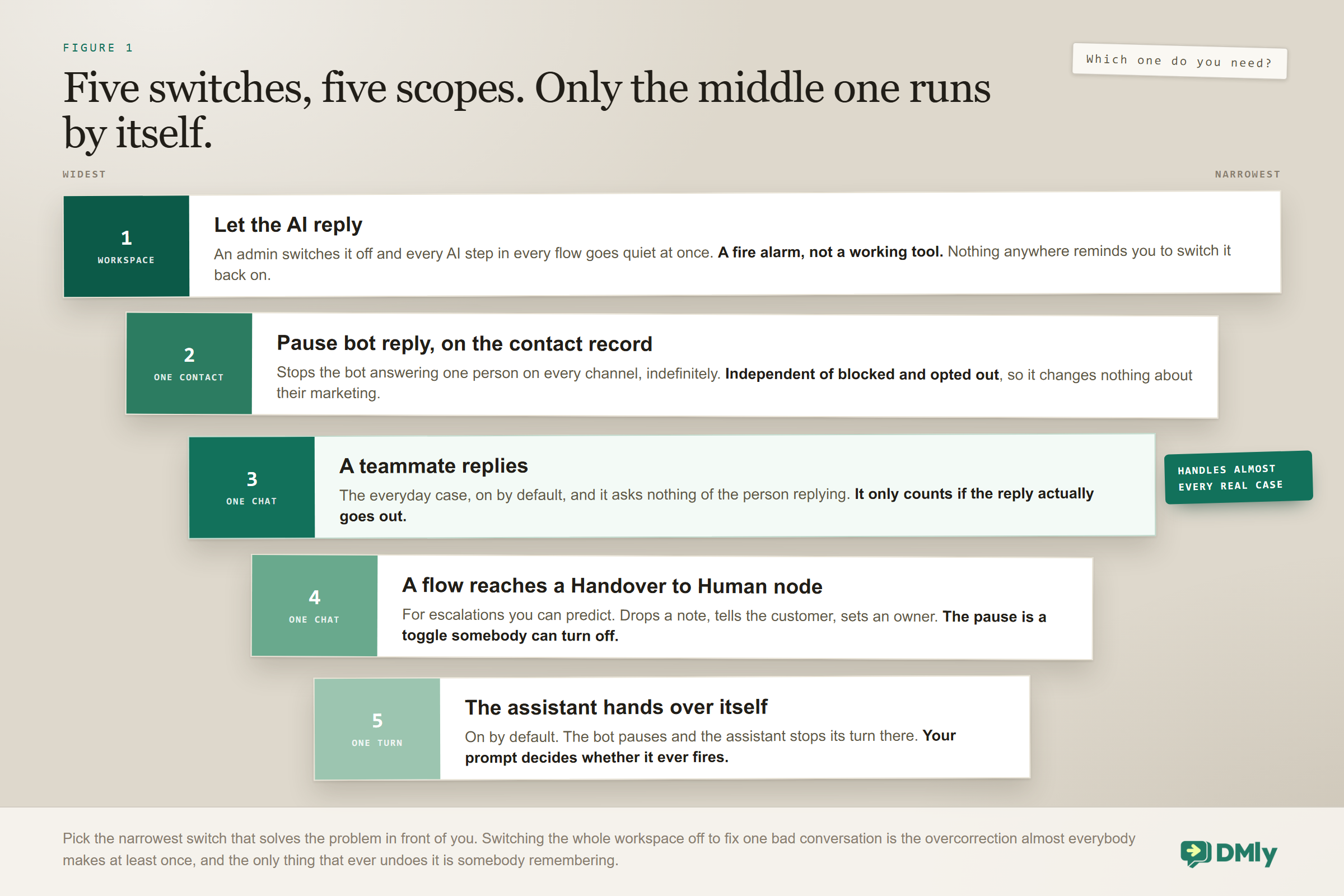
The instinct is to go looking for a single off switch. There is not one, and that is a good thing once you see why. The five switches solve genuinely different problems: one stops the assistant across your whole business, one stops it on the conversation in front of you, one stops it for a particular customer forever, and two are decisions a flow or the assistant itself can make in the middle of a chat. Reach for the wrong one and you either fix nothing or switch off something you are paying for.
This guide covers which of the five you actually want, what the defaults already do for you without any setup, what genuinely hands the bot back afterwards, the two-second timing race behind most double replies, and how to work out what went wrong when one happens anyway.
The Default Already Pauses AI When a Human Agent Takes Over
If you have changed nothing, replying already stops the bot, and it stays stopped until somebody turns it back on. You are most of the way there before you touch a setting, which is worth knowing before you go hunting for the feature.
The setting behind that is called When a teammate replies, and it lives in your workspace conversation settings. It ships set to Pause the bot and the running flow. Notice that it pauses both things. Your assistant stops answering, and any automation that customer was part of the way through stops where it stands.
The only alternative is Change nothing, keep the bot running. That exists for the narrow case where the bot has one small job that a human reply should not interrupt, such as looking up an order number while your colleague talks about something else. For almost everyone it is the wrong choice, and it is the first thing to check when a bot is talking over your team.
There is one precise condition attached, and it explains a small number of very confusing cases. The takeover only happens if your reply actually goes out. A reply DMly refuses to send, because the WhatsApp 24-hour window has closed, or the message body is empty, or a template has a value left blank, leaves the bot running and parks nothing. Your colleague believes they took the conversation over. As far as the system is concerned, they never spoke.
What parked actually means: A paused automation is frozen, not cancelled. It keeps its current step, the answers the customer already gave, and whatever was left on a wait timer. It shows in the conversation details as a banner naming the flow, with three buttons: Resume carries on from the same step with the remaining wait intact, Skip this step moves past the question you have just answered yourself so the customer is not asked twice, and End automation finishes the run for good. Only the first two hand the bot back. Ending the automation leaves the customer bot-paused with nothing on screen still pointing at it.
So if you are seeing double replies, the first place to look is not your prompt. It is whether somebody changed that setting, usually months ago, for a reason nobody now remembers.
Five Ways to Pause AI When a Human Agent Takes Over
Each of the five stops the bot for a different amount of the business, and matching the switch to the size of the problem is the whole skill. Use a wide one on a narrow problem and you turn off a feature you are paying for; use a narrow one on a wide problem and you fix a single conversation while the rest keep going wrong.
| Mechanism | Scope | Triggered by | Use it when |
| Let the AI reply | Whole workspace | An admin, in settings | Something is badly wrong and you need the assistant quiet now |
| When a teammate replies | One conversation | Any teammate, by replying | The everyday case. This is the one that matters most |
| Pause bot reply | One contact, indefinitely | Anyone, on the contact record | A customer who should only ever hear from a person |
| Handover to Human node | One conversation | A flow, by design | You already know this branch needs a person |
| Hand over to a human tool | One conversation | The assistant, by judgement | The assistant recognises it is out of its depth |
1. Let the AI reply
This is the master switch for your whole workspace, and it is on when you start. Turn it off and every AI step in every flow goes quiet at once. Nothing breaks: each flow keeps running and simply skips the AI step, and a line appears in the conversation saying the step was skipped because AI replies are off for the workspace, so whoever opens the thread can see why the bot went silent instead of assuming it is broken.
Treat this as a fire alarm rather than a working tool. It is the right thing to pull when the assistant is saying something it should not and you need an hour to fix the prompt. Remember to switch it back on, because nothing will remind you, and a flow whose only reply is an AI step will keep starting and finishing while the customer hears absolutely nothing.
It does not touch Suggest a reply with AI in the reply box. That is a tool for your team rather than a message to the customer, and it keeps working while the switch is off.
2. When a teammate replies
The workhorse, and the one that will handle almost all of your real cases. A person types into the thread, and the bot and the running flow both stop. It asks nothing of the person replying, which is exactly why it works. Any process that depends on an agent remembering to press a button will fail on the day it matters, usually the day somebody new is covering.
Replying also claims the conversation by default, so ownership moves to whoever answered last. That claim is silent: no notification for the new owner, none for the person it was taken from. It is worth knowing about because it is the reason a conversation quietly changes hands in a busy inbox, and it is a separate setting from the pause.
3. Pause bot reply, on the contact
A switch on one person’s contact record that stops the bot answering them anywhere, on any channel, until you switch it back. Their profile shows the state plainly as bot paused or bot active.
Use it for the customer who has asked to deal with a person, the complaint that is heading somewhere formal, or the client whose account is complicated enough that an automated answer will always be slightly wrong. A lettings agency running a deposit dispute is the clearest example: nothing automated should touch that thread again until it is settled.
The part people get wrong is independence. A contact carries five separate switches, and none of them feed each other: lifecycle stage, pipeline stage, blocked, opted out, and pause bot reply. Somebody can be blocked and not opted out. Somebody can have the bot paused and still be sitting in tomorrow’s broadcast. Our WhatsApp CRM guide covers what the other four actually govern.
4. The Handover to Human node
A node you drop into a flow at the point you already know a person is needed. It does three things when it fires: it writes a note into the thread so whoever picks the conversation up knows why it landed with them, it pauses bot replies, and it tells the customer that someone will be with them shortly. It can set the owner at the same time. The pause and the customer message are both toggles on the node, so a handover that does not pause the bot is possible and is usually a mistake.
This is the right tool for escalations you can predict: a refund request, a complaint keyword, a booking for the one service you only take by phone. Build it as an explicit branch in the flow builder rather than hoping the assistant works it out on the day.
5. The hand over to a human tool
This is the assistant deciding for itself, mid-conversation, that it should stop. It is one of five tools a new AI reply node arrives with already switched on, alongside get contact info, add a note, add tags and move to unassigned queue.
When it fires, the bot pauses and the assistant stops its turn there rather than waiting for the next message, so it cannot keep talking over the colleague who has just taken the chat. Whether it fires at the right moment is almost entirely down to your prompt, which is the subject of a later section.
What Counts as a Human Reply?
A message a person typed in the inbox or the mobile app counts. A message sent by an automation, a notification, a broadcast or your API does not. That line matters because teams routinely blame the pause for failing when the thing they think replied was never a person.
You can see the same distinction drawn elsewhere in the product, which is a useful way to understand where the boundary sits. The outgoing-message triggers, available on WhatsApp, Messenger, Instagram and TikTok, carry a Sent by setting with three choices:
| Sent by | Fires on |
| Anyone (agent or bot) | Any human reply and any API send. This is the default |
| A human agent | Only a reply a person typed in the inbox or the app |
| The bot / API | Only a message sent through the DMly API |
If you are building a flow that should fire when a person steps in, set it to A human agent. Leave it on the default and an integration sending on your behalf will set it off too. Note that “bot / API” here means the API specifically, not your own automations, which never reach this trigger whichever option you pick.
One related rule closes off a whole family of infinite loops: a flow’s own sends never fire the outgoing-message trigger, so a flow can never start itself again off the message it just sent.
When Should Automation Resume After a Human Reply?
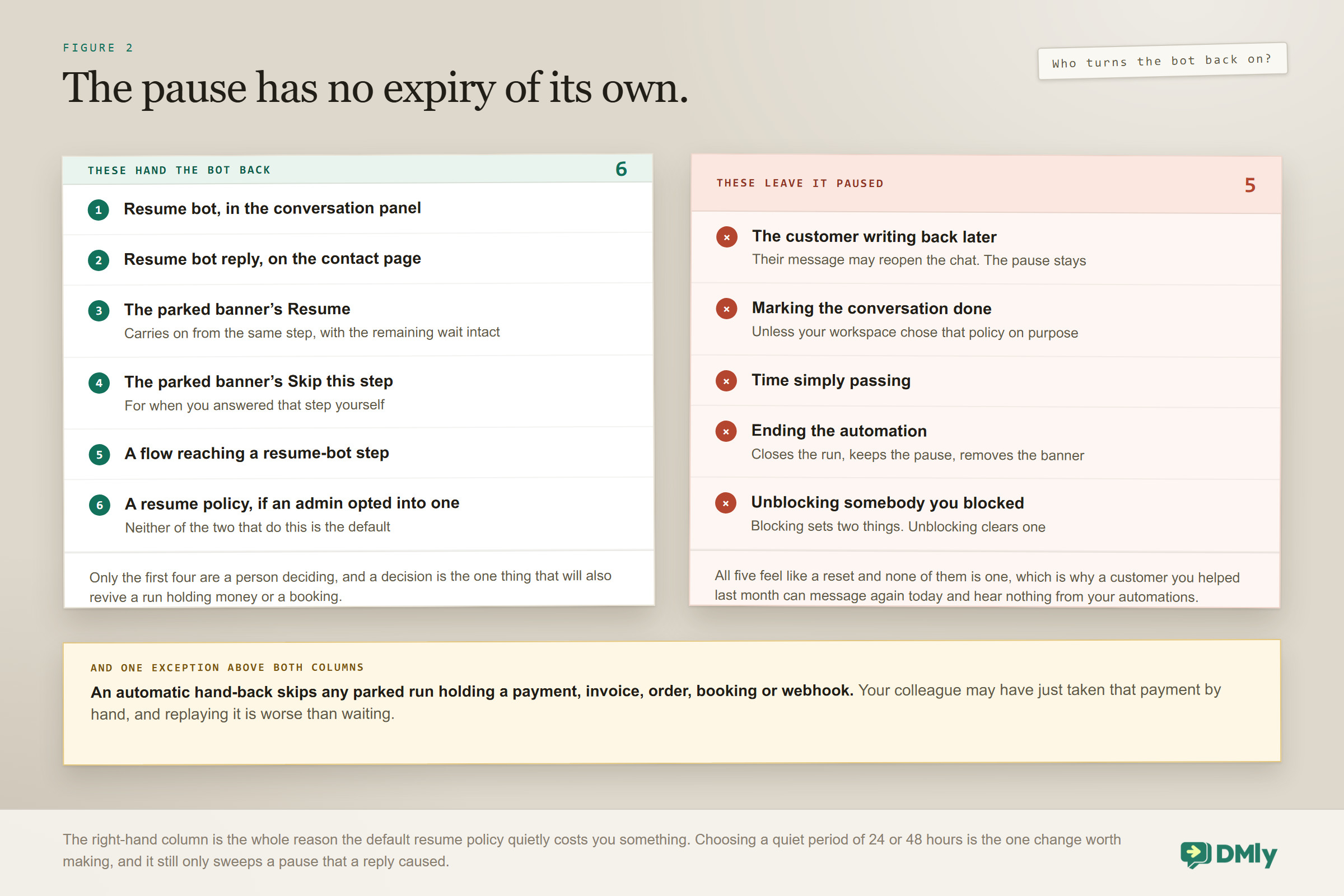
By default it never resumes on its own; a person has to hand it back. That is the safe choice and it is right for most businesses, but it has a quiet cost that catches everybody eventually, so it is worth knowing what the alternatives do before you decide to leave it alone.
| Option | What happens | Suits |
| Only when someone resumes it (default) | The bot stays off on that conversation until a person turns it back on | Most businesses, especially where the bot handles sales |
| When the conversation is closed | Closing the conversation hands the bot back | Teams with a genuine mark-as-done habit |
| After a quiet period | The bot comes back once your set number of hours has passed since the takeover | Busy inboxes where nobody will remember to resume |
| Never, end it by hand | Automation on that conversation is finished until a person moves it | Support-heavy teams where a human owns the thread once involved |
The hours box on the quiet period accepts anything from 1 to 720 hours, which is thirty days, and it sits at 24 if you leave it alone.
The detail the name hides: A quiet period is not measured from the last message. The clock runs from the moment of the takeover, so a conversation that keeps going does not keep pushing the hand-back further away. It also only ever lifts a pause that came from a takeover, meaning a reply or a manual pause. A pause set by a flow’s Handover to Human node, or by blocking someone, is never swept up by it. If you set a 24-hour quiet period and expect it to rescue your handover branches, it will not.
The cost of leaving the default alone is quiet and worth naming out loud: a conversation where a person replied once, three weeks ago, still has its bot paused today. When that customer comes back at eleven at night with a question your assistant could answer in a second, nothing answers them. A dental practice that automates its out-of-hours cover usually discovers this about a month in, and the fix is a quiet period of 24 or 48 hours rather than abandoning the default everywhere.
The choice also interacts with how your team really works. When the conversation is closed is elegant if people genuinely mark things done, and useless if they do not. Look at how many conversations are sitting open right now before you pick it.
Money and slots are never handed back automatically: Where a resume policy or a close would hand back a parked run that contains a payment, invoice, order, subscription, coupon, credit, booking, confirmation, cancellation, reschedule, class enrolment, discount, a sent product, service or plan, or a webhook step, DMly leaves that run parked and the bot paused instead. The reasoning is sound: your colleague may have just taken that payment or made that booking by hand, and replaying it at the customer is worse than waiting. Choosing Resume yourself does resume it, because that is a decision rather than a sweep.
Two Pauses Nobody Chose
Not every pause is somebody’s decision, and the two that are not are the ones that produce a bot which has apparently stopped working for no reason. Both are sensible behaviours. Neither is obvious from the inbox.
Blocking a contact pauses the bot as well as blocking them. The panel says so at the time. The trap is on the way back out: unblocking clears the block and leaves the pause exactly where it was, with nothing in the interface pointing at it. If you block somebody in a bad moment and unblock them a week later, you also have to select Resume bot, or your automations will stay silent on that person permanently.
A WhatsApp cart order that cannot be processed automatically pauses the bot too. That happens when the cart is empty, has no currency or a zero total, uses a currency you do not sell in, contains something out of stock or a product DMly does not recognise, or when you have no cart automation set up at all. It writes its own line into the thread naming the reason and saying the bot is paused, which is the one place you can see it. A bike shop that sells through a WhatsApp catalogue will meet this the first time somebody adds a discontinued frame to a cart.
Worth adding to the same mental list: Mark as done does not pause the bot. Closing a conversation is not a takeover, and people quite often believe it is.
The Race Condition Behind Most Double Replies
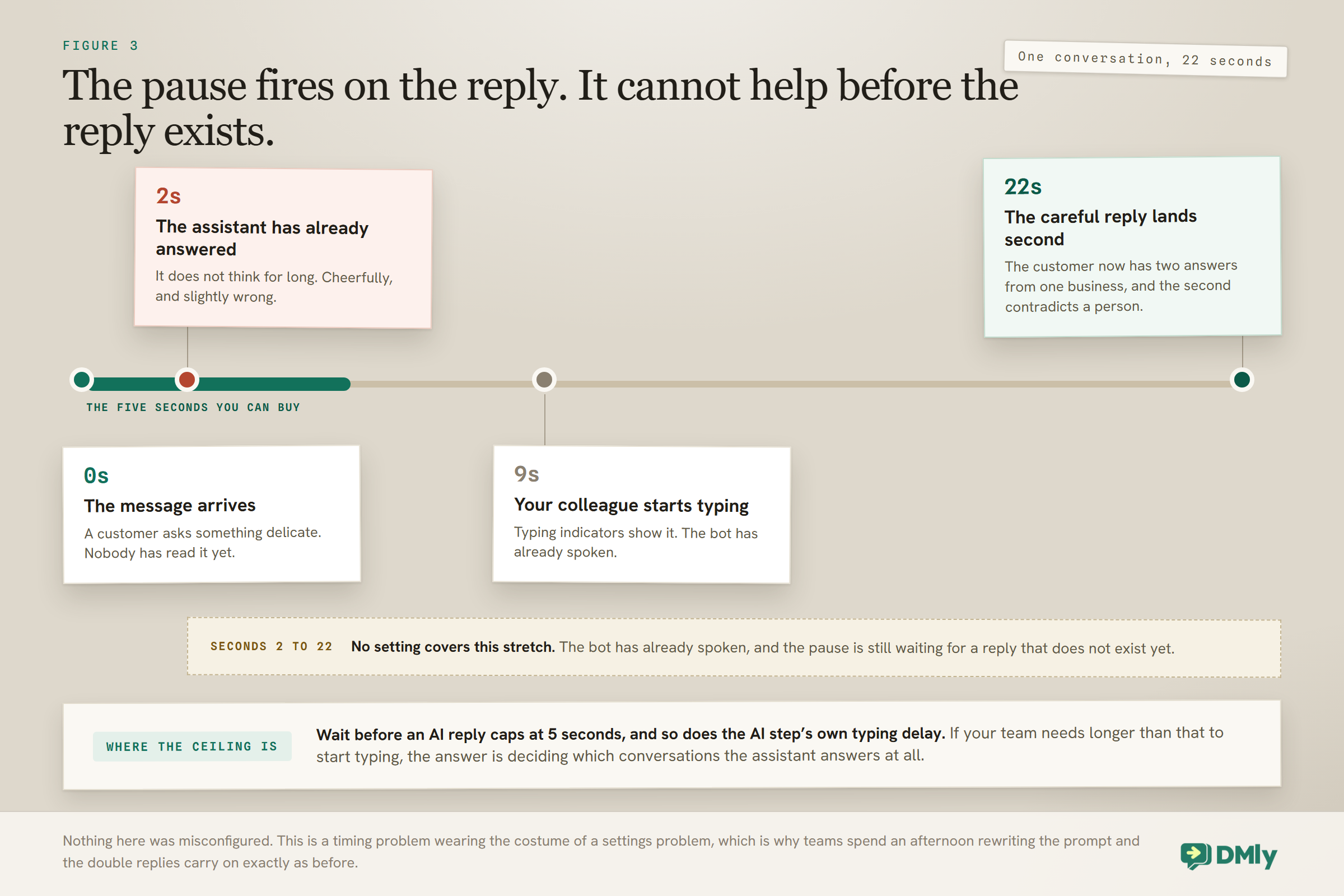
A pause that fires on a human reply cannot help you when the human has not replied yet. This is the real cause of most double replies, and no amount of changing settings will fix it, because nothing was misconfigured.
The sequence is completely ordinary. A message arrives. Your colleague opens it and starts thinking about what to say. The assistant, which does not think for long, answers inside a second or two. Your colleague sends their careful reply a moment later. The bot simply got there first.
The setting for this is Wait before an AI reply. It sits at 0 seconds and accepts a maximum of 5. Five seconds is not much, and it is enough for the common case: somebody already looking at the inbox who starts typing straight away. Combined with typing indicators, which show you a colleague composing on the same thread, it closes most of the gap.
It does not close all of it, and it is better to say so than to pretend. If your team routinely takes twenty seconds to start typing, the assistant will beat them every time and a bigger number is not available. The genuine answer then is not a longer delay. It is deciding which conversations the assistant should be answering at all, and routing the rest to a person from the first message with a handover node.
How the two delays interact: The AI reply step has its own Typing delay before reply, which exists to stop a reply arriving so fast it reads as machine-made. The workspace setting is a floor under it rather than a separate thing: whichever number is larger wins, and five seconds is the ceiling either way, because this is a real wait held open while the reply is prepared. If you want a genuinely long pause before the assistant speaks, that needs a Smart Delay step before the AI step, not a bigger number in either box.
Telling the Assistant When to Stop
Switching the handover tool on gets you nothing on its own; the prompt is what decides whether the assistant ever reaches for it. Ticking a box makes a tool available. An assistant given nothing but encouragement to be helpful will go on being helpful long past the point where it should have stopped, because nothing in its instructions describes the edge.
So write the edge down. Four kinds of trigger are worth naming explicitly in every prompt, whatever your business:
- Anything it does not know. The single most valuable line in a support prompt is the one telling the assistant to say it will check and hand over, rather than produce a plausible answer. Confident invention is the characteristic failure of these systems, and this is the sentence that bounds it.
- Anything with money attached that is not a listed price. Discounts, refunds, disputes, goodwill gestures. Customers ask, assistants are inclined to agree, and an agreement made by a bot is still an agreement in the customer’s mind.
- Anything clinical, legal or financial about somebody’s own circumstances. Not the general question about what a treatment involves, which your assistant should answer, but the specific one about whether this person should have it.
- Anyone who asks for a person. Once, plainly, with no round of trying to help first. An assistant that deflects a request for a human is the most reliable way to turn a mild irritation into a complaint.
A useful test of any prompt is to read it through and ask what it tells the assistant to do when it is uncertain. If the answer is nothing, it will guess. The same discipline applies on every channel, and the guide to WhatsApp AI chatbots goes further into how the prompt and the tool list work together.
Checking what it actually did: The playground shows a tool calls trace for each reply, which is how you confirm the assistant reached for handover rather than pressing on. Two limits sit underneath it: a single reply makes at most eight tool-calling rounds, after which the model is asked once more with tools switched off so it always produces something, and knowledge search never appears in the trace at all because it runs inside the provider.
What the Customer Sees During a Handover
A handover the customer cannot see is a handover that produces a complaint. They have no idea your assistant just decided it was out of its depth. All they know is that a conversation which was answering instantly has gone quiet.
Your team is looked after automatically. A flow writes a line into the thread saying the conversation was handed over to a human, naming the assignee when the node sets one and noting when the bot was paused. An AI agent writes a similar line giving its reason instead of a name. Resuming writes its own line too, and only when the bot was genuinely paused. Whoever picks the conversation up can see what happened without reading four screens of history.
The customer’s side needs your attention, because the node’s default message promises that someone will be with them shortly, and shortly is doing a lot of work in that sentence. Three things are worth being deliberate about:
- Say when, not soon. A message naming your actual hours beats a promise of speed you cannot keep at ten on a Saturday night. People are remarkably tolerant of a wait they were told about and remarkably intolerant of one they were not.
- Make sure the handover lands on a person, not a queue nobody watches. Handing to unassigned is fine if somebody clears unassigned. If nobody does, your handover is a slower way of ignoring the customer.
- Keep the note that explains why. It costs nothing, it is written for you, and it is the difference between a colleague arriving informed and a colleague arriving confused.
There is one number worth watching, because it tells you whether handover is working as a system rather than existing as a feature: the time between a handover firing and the first human reply. A healthy-looking handover rate sitting next to a two-hour time to first human reply is not a working system, it is a queue with good manners. Our guide to the metrics worth tracking covers where that sits alongside everything else.
Testing That It Actually Works
Handover is the feature teams most often assume is working, because the failure is invisible until a customer experiences it. Half an hour with a second phone is the cheapest insurance available.
- Start a real conversation from a second device and let the assistant answer once, so you know the bot is genuinely live on that thread.
- Reply as a teammate, then send another customer message. Nothing from the bot should arrive.
- Check the parked banner appeared if the customer was part way through a flow, and read what it says about which step it is holding.
- Wait past your quiet period, if you set one, and send another message. Confirm the bot comes back exactly when you expected, and remember the clock started at the takeover.
- Ask the assistant for a person. Confirm the tool fires, the line appears in the thread, the customer is told, and the conversation is assigned to somebody real.
- Run a flow into a Handover to Human node and confirm the same three things happen, including the pause, which is a toggle somebody may have turned off.
- Set Pause bot reply on a test contact and confirm the bot ignores them entirely, including on a brand new conversation.
- Type a reply slowly while the assistant is armed. This is the race condition, and it is the only way to find out whether five seconds is enough for your team.
Debugging a Double Reply
When one happens anyway, work down this list in order rather than starting with the prompt. It is arranged from most common to least, and the first three account for the overwhelming majority.
- Check When a teammate replies. If it says keep the bot running, that is your answer and everything below is noise.
- Check the timing. If the two messages are seconds apart, this is the race, not the pause. Set the wait to five seconds.
- Check the reply actually sent. A reply DMly refused to send never counted as a takeover, so the bot was never paused. Look for a failed send rather than a delivered one.
- Check what sent the second message. A broadcast, a sequence or an appointment confirmation is not the assistant, and no amount of pausing the bot will stop those. The conversation view shows what was sent and by what.
- Check whether the reply came through the API. An integration sending on your behalf is not a human agent, so it does not trip the takeover rule at all.
- Check whether somebody resumed the conversation and then a different colleague replied later. Every reply is its own takeover, but a resume in between resets the state.
- Check for two flows answering. Only one automation answers an inbound message, but event-triggered flows have no such arbitration and every match runs. A flow triggered by a tag or a stage change will happily send alongside your reply automation.
That last one accounts for more confusing cases than anybody expects. If the second message did not sound like your assistant, it probably was not your assistant. Our automation guide covers how the different trigger types coexist.
What Pausing the Bot Does Not Do
Pausing stops your bot answering. It does not make the business go quiet, and assuming otherwise leads to a genuinely awkward message at a genuinely bad moment. Three things are worth being clear about.
Broadcasts and most transactional notices still go out. A paused contact still receives broadcasts, appointment confirmations, reschedule and cancellation notices and review requests. Appointment reminders are the documented exception: those do check the pause before sending. So a customer in the middle of a complaint can still get tomorrow’s marketing message unless you also handle their marketing status, which is the separate opted-out switch.
Pausing is not opting somebody out. Opted out is one of the five independent contact switches and it is the one that governs marketing. Someone with a paused bot can sit happily inside a broadcast segment, which is exactly the case above.
The platform’s own limits keep applying either way. A conversational AI step stops answering after 40 turns in a run and leaves a note saying a teammate should take it from there. A mid-flow AI step is skipped after three uses in the same run, which is a guard against a loop quietly running up your provider bill. Those are usually a good thing, because they are the reason an unattended assistant cannot talk to a confused customer forever.
The one that catches every team once: Internal notes are never shown to the AI. Only real messages count towards the conversation history it reads. Writing an explanation into the notes panel informs your colleagues and nothing else, so if you want the assistant to behave differently for one person, that has to live in the prompt, the knowledge base, a contact field or one of the switches. Related, and worse: typing an @mention into the reply box rather than the notes panel does not hide it. The customer receives the literal text.
A Setup That Will Pause AI When a Human Agent Takes Over
If you would rather have a starting point than a set of options, this is the configuration we would suggest for a business running one assistant alongside two or three people. It takes about ten minutes and you can change any of it later.
- When a teammate replies: pause the bot and the running flow. That is the default. Leave it alone.
- When automation should resume: after a quiet period of 24 hours. This is not the default and it is the one change worth making, because it stops conversations becoming silently bot-free forever.
- Wait before an AI reply: 5 seconds. It costs you nothing and it closes the common race.
- Hand over to a human tool: on, with a prompt that names what the assistant must never attempt.
- Handover to Human nodes on the two or three flow branches you already know need a person, with the pause toggle left on.
- Pause bot reply kept for individual customers, applied deliberately, and reviewed every so often so nobody stays bot-free by accident.
Pair that with clear ownership in a shared inbox and the collision problem largely disappears. What remains is the interesting question, which is not how to stop the assistant but which conversations it should be answering at all.
Mistakes Worth Avoiding
- Switching off Let the AI reply to fix one bad conversation. Wrong scope, and nothing reminds you to switch it back on.
- Leaving the resume policy on the default forever. Conversations touched once by a person stay bot-free indefinitely, including at eleven at night when the assistant would have been useful.
- Assuming a paused bot means a silent business. Broadcasts and most transactional notices still go out. Only appointment reminders check the pause.
- Expecting a quiet period to rescue a handover branch. It only sweeps takeover pauses, never a pause set by a handover node or a block.
- Blaming the prompt for a timing problem. If the two messages are seconds apart, it is the race, not the model.
- Unblocking somebody and assuming that is that. The block clears, the pause does not, and nothing on screen mentions it.
- Never testing handover. It is the most assumed-working feature in any AI inbox, and the failure only ever shows up in front of a customer.
Frequently Asked Questions
Does DMly pause AI when a human agent takes over by default?
Yes. The workspace setting When a teammate replies ships set to pause the bot and the running flow, and automation stays paused until somebody resumes it. If you are seeing double replies, check first whether that setting was changed to keep the bot running.
How long does the pause last?
By default, until a person hands it back. You can instead choose to resume when the conversation is closed, after a quiet period of between 1 and 720 hours, or never. If you pick a quiet period and leave the number alone it sits at 24 hours, and the clock runs from the takeover rather than from the last message.
Why did the bot reply seconds after my colleague did?
Because the pause fires on a human reply, and the assistant answered before that reply existed. Set Wait before an AI reply to five seconds, which is the maximum, and use typing indicators to catch the rest. If your team routinely takes longer than that to start typing, route those conversations to a person from the first message instead.
How do I stop the bot for one customer permanently?
Use the Pause bot reply switch on their contact record. It is independent of blocked and opted out, so it stops automated replies without changing their marketing status or their stage. Their profile will read bot paused until somebody lifts it.
Can the assistant hand over on its own?
Yes. Hand over to a human is one of five tools a new AI reply node arrives with already switched on. When it fires the bot pauses and the assistant stops its turn there rather than waiting for the next message. How reliably it fires depends on your prompt telling it explicitly what it must not attempt.
Does pausing the bot stop broadcasts and appointment reminders?
Not broadcasts. A paused contact still receives broadcasts, appointment confirmations, reschedule and cancellation notices and review requests. Appointment reminders are the exception and do check the pause before sending. If you need somebody out of marketing altogether, that is the opted-out switch rather than the pause.
Will the AI read the note I left on the conversation?
No. Internal notes are never shown to the AI, and only real messages count towards the conversation history it reads. Notes are for your colleagues, so anything the assistant needs has to live in the prompt, the knowledge base or a contact field.
I unblocked a contact and the bot still will not answer them. Why?
Because blocking sets two things and unblocking clears one. Blocking blocks the contact and pauses the bot; Unblock contact only lifts the block. The pause stays, with nothing in the interface pointing at it, so select Resume bot as well.
Choose the Narrowest Switch
Almost every failure to pause AI when a human agent takes over comes down to one of two things: a setting somebody changed a long time ago, or a two-second race between a fast assistant and a person who is still thinking. Neither needs a rebuild, and neither is a prompt problem.
Check the takeover setting. Set the wait to five seconds. Pick a resume rule that matches how your team really closes conversations rather than how you wish they did. Test the handover properly, once, with a second phone. That combination handles the overwhelming majority of cases, and it leaves the workspace master switch where it belongs, which is untouched.
Writing about WhatsApp automation, bookings and growth for local business.
Turn WhatsApp into your busiest channel.
Start free and run message, bookings, payments and reviews in one place.
