
WhatsApp Business Automation: Triggers, Flows, and Templates (2026)
Almost every message a small business gets on WhatsApp is one of three kinds: someone asking what you charge, someone asking when you are free, and someone telling you they are running late. Not one of them needs you specifically. All of them need answering now.
That is the whole problem, and it turns up in the middle of the work. Your hands are in foils, the phone is face down on the trolley, and it keeps buzzing. “Do you have a 3pm slot today?” “How much is a full head of highlights?” “Running ten minutes late, sorry!” By the time you look, the 3pm enquiry has booked somewhere else. WhatsApp business automation exists for exactly that hour of your day.
A dental clinic has the same problem in a different outfit. Reception is on the phone confirming Monday’s appointments while three WhatsApp messages about those same appointments sit unread. A tutor loses an evening a week to “what time is the class again?”. A small skincare brand answers “where is my order?” forty times a day, one thumb at a time.
WhatsApp business automation is how small teams stop losing that time and those bookings. It doesn’t mean handing your customers to a robot. It means the predictable parts of a conversation run themselves, and a person steps in the moment a conversation stops being predictable.
Here’s what you’ll get out of this guide: what you can and can’t automate on the two kinds of WhatsApp account, the events an automation can notice on your behalf, the eight automations we’d build before anything else, what’s actually inside a flow, the four rules Meta sets, when to use AI instead of rules, and how to build and measure your first flows with DMly.
WhatsApp Business Automation Is a Ladder, Not a Switch
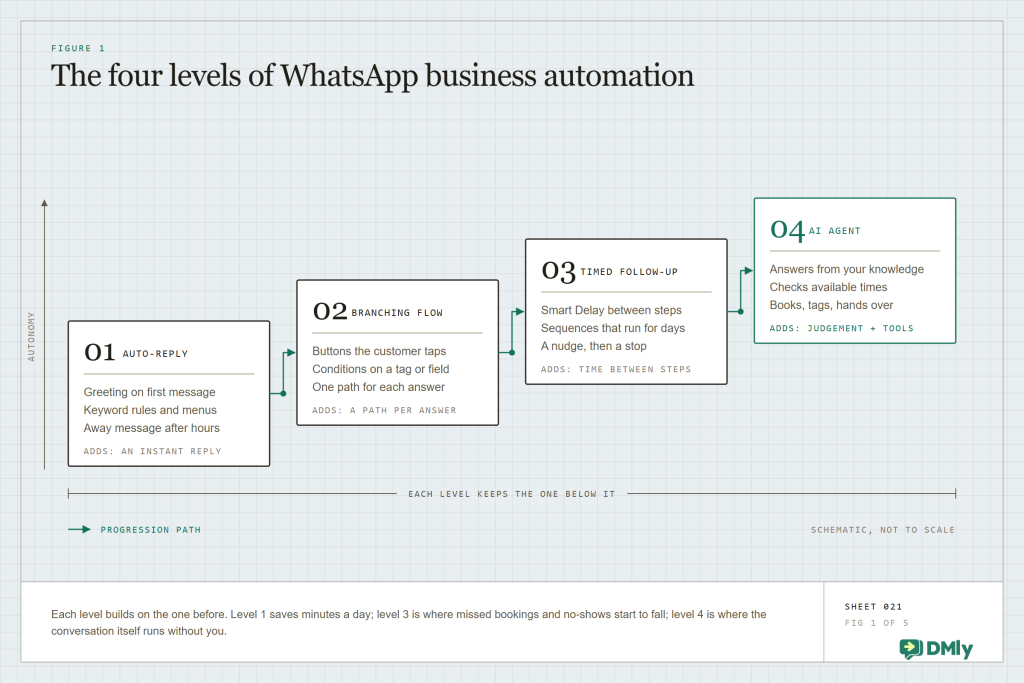
You don’t turn automation on, you climb it one rung at a time, and the first rung takes an afternoon. Every automation, however clever it looks in a demo, has the same three parts. A trigger: the thing that starts it off, such as “a customer messages us and the message contains the word price”, “an appointment was booked”, or “a checkout was abandoned”. Optional conditions: checks that decide what happens next, such as “does this contact have the VIP tag?”, “did they answer yes?”, or “is it inside opening hours?”. And actions: reply, ask a question, book a slot, add a tag, wait a day, send an approved template, hand the chat to a person.
What it isn’t matters just as much, because two of these will cost you your number. It isn’t bulk-blasting a list from a phone through an unofficial tool, which is the fastest way to lose that number (the official route is in our guide to sending bulk messages on WhatsApp). It isn’t only the greeting and away messages in the free app, although those are a perfectly good start. And it isn’t a replacement for your team; the best automations exist to get a person into the right conversation faster.
Which brings us to your ceiling. There are two ways to run WhatsApp for a business, and how far up the ladder you can climb depends on which one your number is on. The free WhatsApp Business app on your phone gives you one greeting message, one away message and quick replies you type yourself. The WhatsApp Business Platform (the official API, used through a tool like DMly) gives software full access to the conversation. Our post on the three types of WhatsApp accounts goes deeper. Here’s the short version.
| What you want to automate | WhatsApp Business app | WhatsApp Business Platform, through DMly |
| Greeting and away messages | One of each | Any number, routed by keyword, tag or what the customer answers |
| Keyword replies (“price”, “hours”, “menu”) | Not really; quick replies are typed by you | Yes, with contains, exact and starts-with matching |
| Buttons, lists and branching conversations | No | Yes, on a visual flow builder |
| Follow-ups a day or a week later | Manual | Yes, timed, using approved templates outside the 24-hour window |
| Bookings, deposits, invoices and review requests inside the chat | No | Yes, as steps in the flow |
| Reacting to events (booking made, invoice overdue, cart abandoned) | No | Yes, that’s the whole point |
| AI that answers and books | No | Yes, with tools and a knowledge base |
Most businesses climb the same ladder: auto-replies first, then flows with buttons and branches, then follow-ups on a clock, then an AI agent that can hold the conversation and book. You don’t have to do it all at once, and you shouldn’t.
You can map a conversation like this on paper, or use the free WhatsApp flow builder to lay out each step and branch before you automate it.
If the app is all you have today, you’re on the first rung. Everything above it needs the official platform, though moving up doesn’t always mean giving up the app: where Meta’s coexistence mode is available, one number can run in both at once, which we cover separately in WhatsApp coexistence explained.
The Moments Your Business Already Creates
The question worth asking about any automation tool isn’t “can it send messages?” but “what can it notice?”, because an automation is only ever as helpful as the moments it can react to. Your business creates far more of those than you probably realise: a message, yes, but also a booking, a no-show, a paid invoice, an abandoned checkout, a birthday, a class seat opening up.
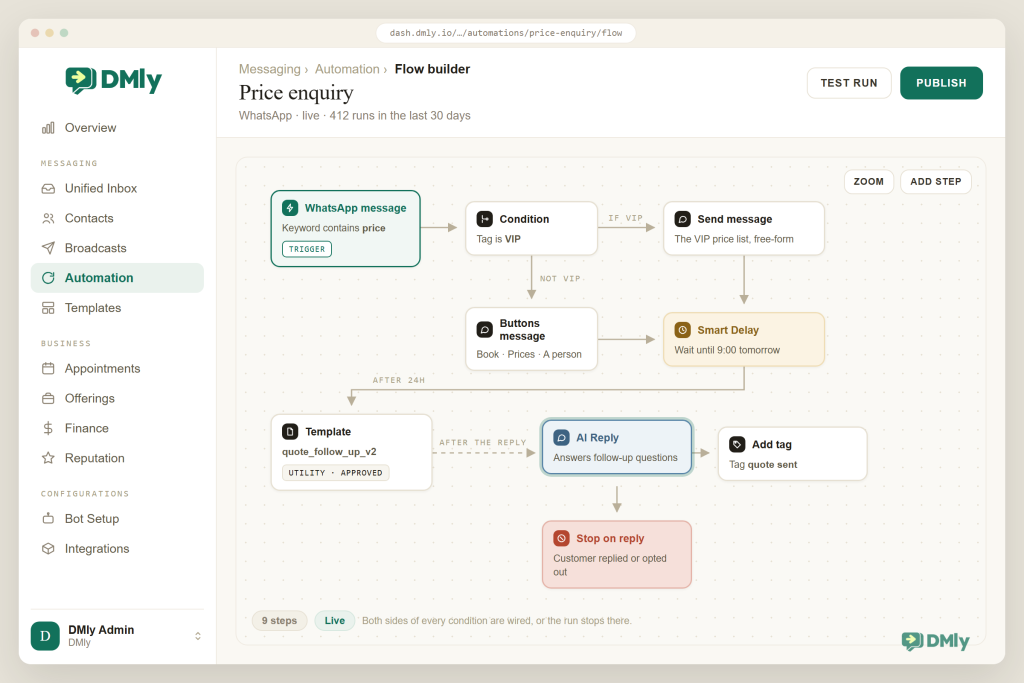
Every WhatsApp business automation starts with one of these, and on DMly those starting points, called triggers, come in families. Channel events (a WhatsApp message, a keyword, a missed call, a message that arrived from a particular WhatsApp link or QR code, a customer who didn’t reply). Contact events (new contact, tag applied or removed, field changed, converted to client, lifecycle stage changed). Appointment and class events (booked, confirmed, rescheduled, cancelled, completed, no-show, reminder due, starts soon, seat opened). Store events from Shopify or WooCommerce (order placed, paid, shipped, checkout abandoned, back in stock). Finance events (invoice sent, paid or overdue, payment succeeded or failed, subscription renewed, paused or cancelled, credits low). Plus dates (birthday, a scheduled date) and “conversation closed”. The full index is on DMly’s triggers page.
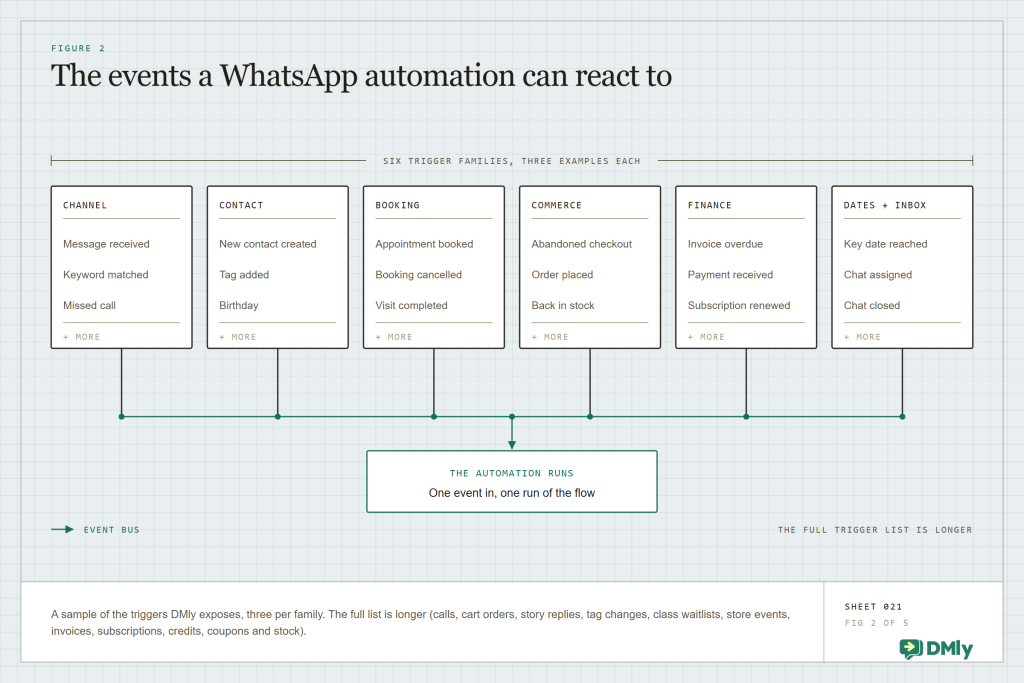
Two rules about triggers will save you a lot of head-scratching later. First, when a message arrives, only one automation gets to answer it, and the one with the most specific keyword match wins: an exact match beats “starts with”, which beats “contains”, and any keyword rule beats a catch-all with no keyword at all. Second, when an event happens (a booking, a payment, a tag change), every active automation that matches runs. That’s why a “booking confirmed” flow, a “tell the stylist” flow and an “add the New Client tag” flow can all fire off one appointment without fighting each other.
Eight Automations to Build Before Anything Else
Pick the automations that map to a problem you actually had this week, not the ones that sound most impressive. Owners usually arrive with a list of twenty ideas, and our answer is always the same. For most local businesses the WhatsApp business automation shortlist is these eight, in roughly this order. Each one is a real trigger-and-action pair, and the arrow lines show the shape.
- Instant answers to the questions you get every day. Message contains “price” or “hours” → the answer, with buttons for the next step. A salon replies with the price list and a Book now button; a restaurant sends the menu and opening times. If you already run a manual FAQ, our older post on setting up an FAQ and auto-response system shows the thinking; this is the automated version.
- An after-hours reply that doesn’t wake anyone. Message outside opening hours → “Thanks, we’re back at 9am” with a booking link → held reply lands at 9am. Nobody feels ignored, and nobody on your team answers WhatsApp at 11pm.
- Booking confirmation and reminders. Appointment booked → confirmation with service, staff, date and time → reminder due the day before → utility template → an hour before → second reminder. This one pays for the whole project in salons, clinics and studios: it’s the single biggest lever you have on no-shows.
- A nudge for the person who went quiet. Customer didn’t reply after your quote → wait two days → one gentle template: “Still want that Saturday slot?”. Quiet isn’t no. It’s usually busy.
- A review request while the visit is fresh. Appointment completed → wait two hours → Request Google review on WhatsApp. Two hours is long enough for them to be home, short enough to remember how good it felt. The wider playbook is in our Google Business Profile automation guide.
- Invoice reminders that fire once, politely. Invoice sent → the payment link; invoice overdue → one reminder template, once per invoice. Chasing money is the job everyone hates and everyone forgets.
- A “we miss you” message at eight weeks. Scheduled date, recurring, for a segment of clients with no visit in 60 days → one marketing template with a reason to come back. Small, specific, opt-in only.
- Missed-call text back. Missed call → “Sorry we missed you, how can we help?” with buttons. The person who called wanted a human, and the message keeps them warm until one of yours is free.
Notice what isn’t on that list: anything sent to people who never asked to hear from you. If you want a longer idea list, our companion post 20 WhatsApp Automation Ideas for Small Businesses has two lines on each, and these WhatsApp drip campaign examples cover the multi-day sequences specifically. If you run an online store, your equivalent first eight start with abandoned-cart follow-ups and order updates.
Inside a Flow: Branches, Waits and Handovers
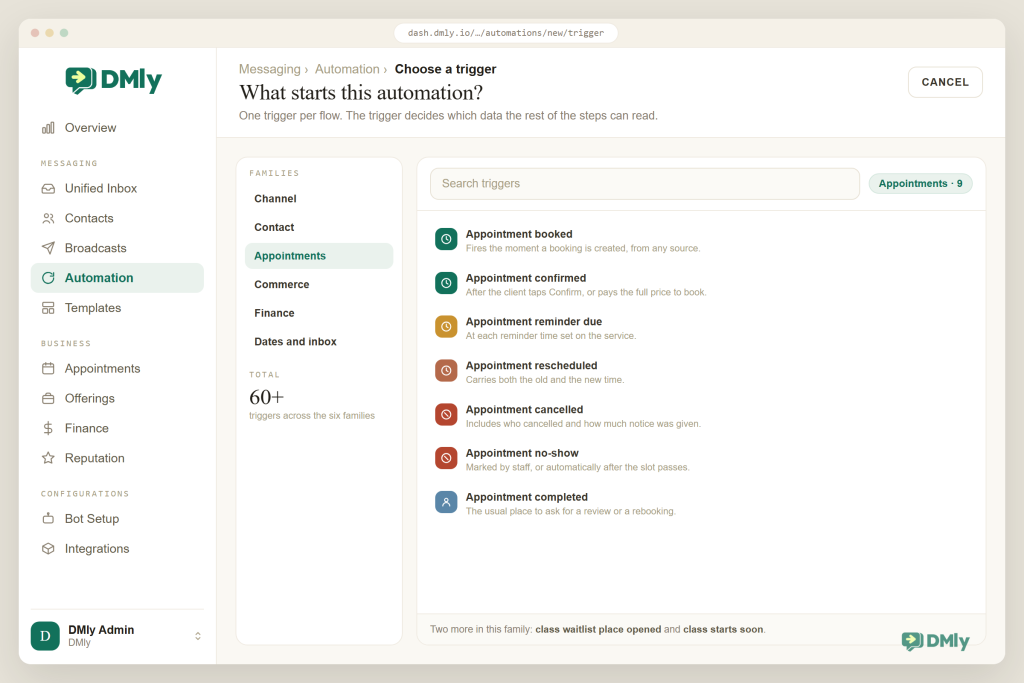
Underneath, every WhatsApp business automation is just a small diagram: a trigger, then steps joined by lines, and you build it by dragging rather than typing. In DMly you do that in one of two places. A Quick automation is one trigger and a straight line of actions, set up in a form and switched on and off from a list. It’s the right shape for one-step rules like “message contains hours, send our opening times”. The Flow builder is a visual canvas with branching, waits and multiple paths. You save a draft, publish it, and the published version is what your customers get while you carry on editing. A quick automation can be converted into a flow later, but not back.
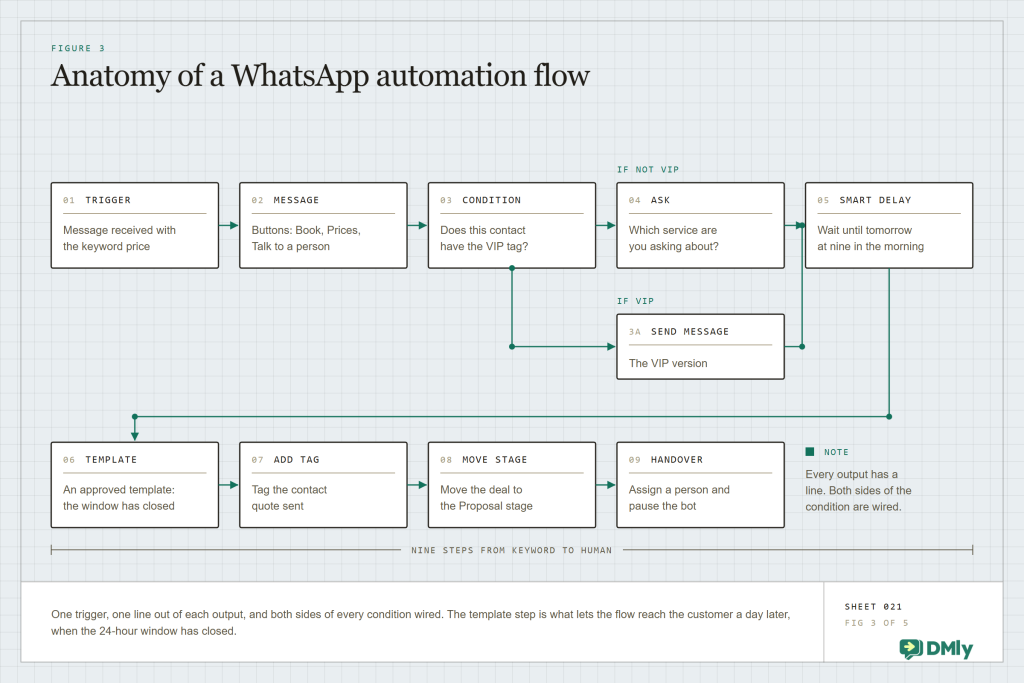
Here’s the shape of a typical flow, written the way you’d describe it to a colleague:
WhatsApp message contains “price” → buttons: Cut · Colour · Nails → customer taps Colour → “Colour is from $80. Want to book?” → Yes → live slots offered → appointment created → confirmation sent → 1 hour before: reminder template → 2 hours after: review request
Branches
Branches are how one flow serves a regular and a stranger differently. A Condition step splits the path based on something the platform already knows: a tag on the contact, an answer they just gave, a field on their record, or what they did earlier. “Has the VIP tag?” sends your regulars a different price list. “Answered yes to a deposit?” books the slot, and anything else routes to a person. Every condition has a TRUE and a FALSE output, and both have to lead somewhere before you can publish. The FALSE branch is the one everybody forgets. A Randomizer step does the same job by chance instead of by rule, which is how you test two versions of an opening message against each other.
Waits
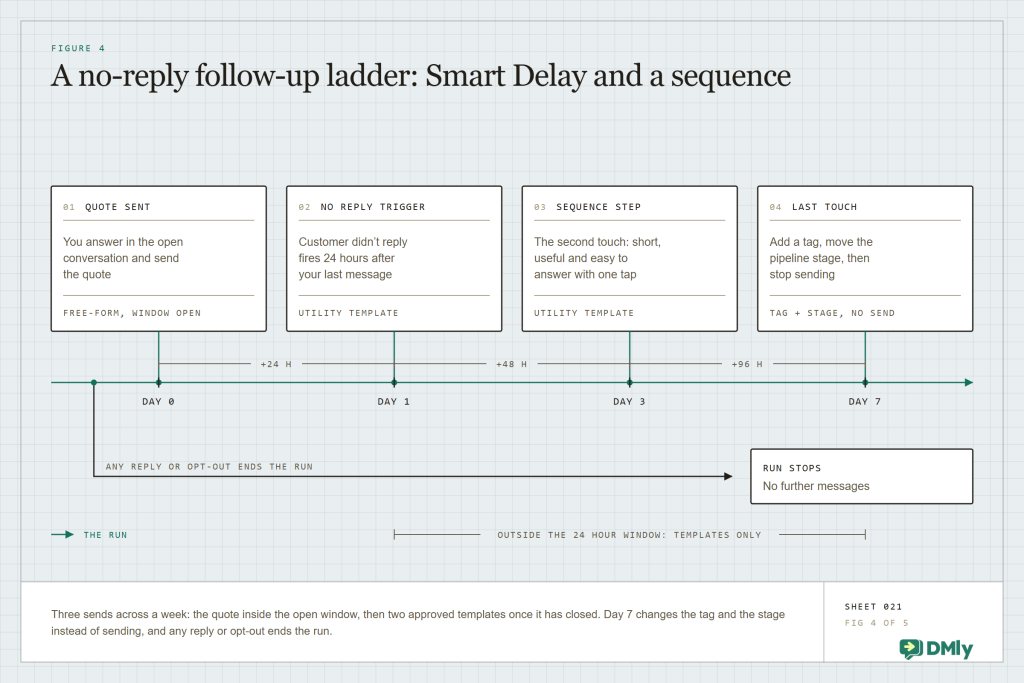
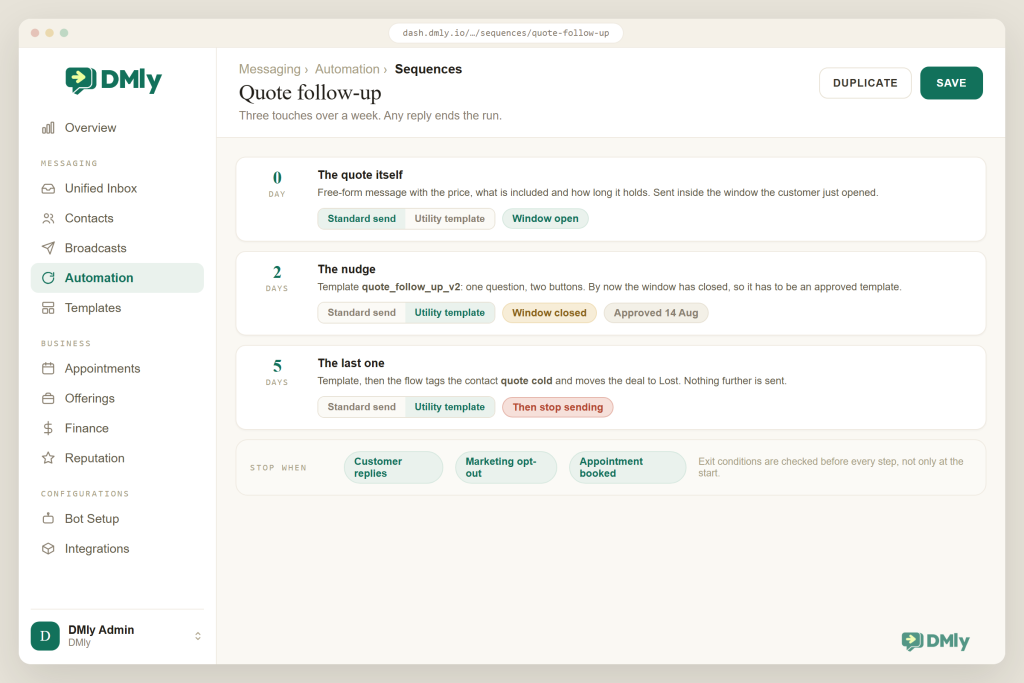
Waits are what turn a reply bot into a follow-up system, and they are the difference between answering people and actually winning the work back. DMly’s Smart Delay step waits in three ways: a fixed duration (minutes, hours or days), until a time window (hold the overnight reply until 9am), or until an event date (an hour before the appointment, on the invoice due date, before a subscription renews). For longer runs there are Sequences: steps on Day 0, Day 2, Day 5 and so on, with each contact on their own clock from the moment a flow subscribes them, and a “Stop when the contact replies” switch so the sequence ends the second they answer, which is exactly when your team should be taking over.
Handovers
Handovers are the escape hatch, and every flow you build should have one. A Handover to Human step pauses the bot and puts the conversation in front of a teammate. Bigger journeys are just flows that hand off to each other: a lead-capture flow tags the contact and starts a nurturing sequence, a booking flow ends by starting a post-visit flow, and a Start another flow step lets you keep each piece small and reusable. Two limits keep it all sane: a flow waiting on a reply gives up after 24 hours, and a contact can only be in one activation of the same automation at a time, so nobody gets your welcome message twice.
The Four Rules That Shape Every WhatsApp Business Automation
WhatsApp is not email, and four of Meta’s rules will shape every automation you build, so it’s worth ten minutes now rather than a suspended number later. A good platform builds these in so you can’t break them by accident, but you should still know what they are.
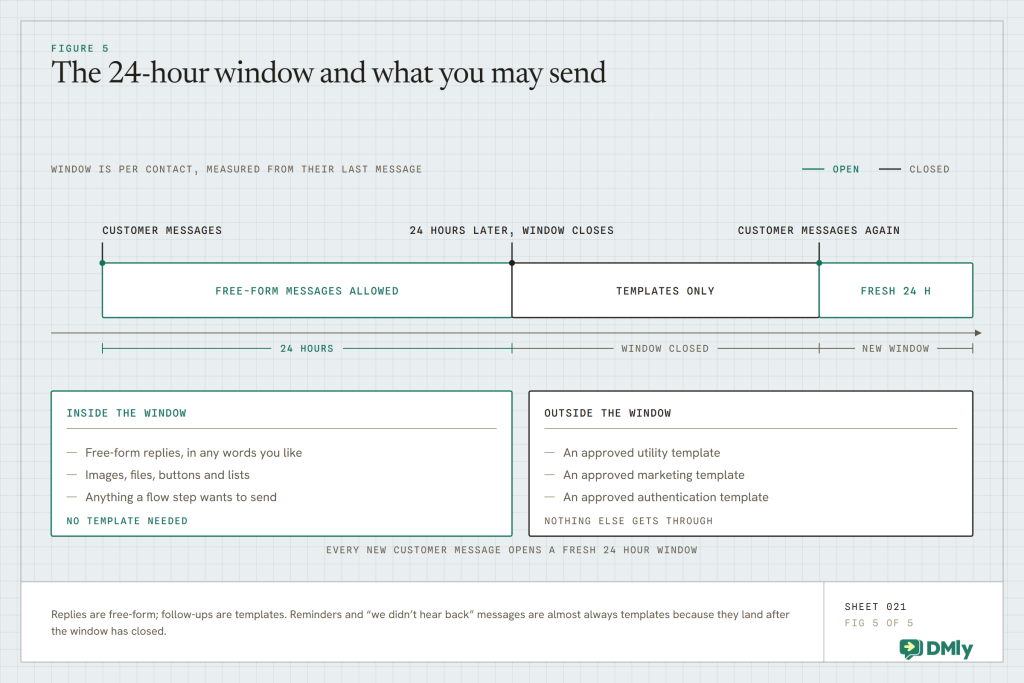
The 24-hour window. When a customer messages you, a 24-hour window opens (Meta calls it the customer service window) in which you can send anything: free text, buttons, lists, images, AI replies. Once it closes, your automation can only reach that person with a message template Meta has approved in advance. Any new message from the customer opens a fresh window. One dated change to put in your calendar: those in-window replies (Meta calls them service messages) are free until 1 October 2026, and from that date each business number gets 1,000 free service messages a month, with anything above that charged at your market’s utility rate. A typical local business never gets near 1,000, so for most owners this part of the change costs nothing. Our guide to the October WhatsApp pricing change has the numbers.
Templates and their categories. Templates are pre-written messages you submit for approval in three categories: utility (confirmations, reminders, receipts), marketing (offers, win-backs, newsletters) and authentication (one-time codes). Meta reviews them and keeps scoring them on how your customers react. In DMly you create and submit them at Messaging → Templates, and only Approved templates appear in the pickers, so a flow can never try to send one that isn’t allowed. Since 1 July 2025 Meta charges per delivered template message, so every template step outside a window has a small, predictable cost. Utility templates delivered inside an open window were free from that date, and that exemption ends on 1 October 2026 alongside the service-message change. Utility templates get no monthly free allowance the way service messages do, so check the current rates for your country before you budget.
Opt-in and opt-out. The WhatsApp Business Messaging Policy says people have to agree to hear from you before you start a conversation with a template, and that you honour their request to stop. In practice: capture consent when they book, buy or scan your QR code, keep the source and date on the contact record, and let the platform handle the “stop”. DMly recognises the standard opt-out words (stop, stop all, unsubscribe, cancel, quit, end, opt out), adds an Unsubscribe tag, cancels every running flow for that contact and suppresses all automated messages to them from then on. Your team can still reply by hand if that person writes in again.
Quality and messaging limits. Meta rates each number on blocks and reports over the last seven days, and caps how many new people you can start conversations with per rolling 24 hours: 250 for a new business, 2,000 after verification, then upwards automatically. Automations that send wanted, expected messages keep the rating green; automations that surprise people don’t. DMly shows your quality badge and messaging tier under Bot Setup → WhatsApp → Configuration with a shortcut to Meta’s business verification, and it enforces the 24-hour window across Inbox, Automations, Broadcasts and Sequences. The details are on DMly’s WhatsApp limits and quality rating page.
The practical version: design every follow-up as a template, capture consent at the moment of booking or purchase, and let the platform enforce the rest.
Rules or AI: Picking the Right Tool for Each Job
Rules are brilliant at predictable conversations and hopeless at unpredictable ones, and knowing which is which saves you building the wrong thing. “Press 1 for prices” works right up until someone writes “hey do u do balayage on curly hair and roughly how long would it take on a saturday”. That is where an AI step earns its place.
| Question | Rule-based flow | AI agent step |
| Best at | Predictable paths: menus, confirmations, reminders, tagging, sequences | Open questions, mixed requests, anything phrased in the customer’s own words |
| Where the answers come from | Text you wrote into each step | Your knowledge sources (PDFs, web pages, FAQs, pasted text) plus instructions you give it |
| Can it do things? | Yes, through the steps you placed | Yes, through tools: check available times, book, reschedule, cancel, add tags, move stage, add a note, hand over |
| Risk | Dead ends when the customer goes off-script | Answering outside its knowledge; needs boundaries and a handover rule |
| Cost | Template messages only | Template messages plus AI replies (a plan allowance, or your own model key) |
In DMly the AI Reply step sits in the flow like any other step. It answers from the knowledge you gave it, it can use tools (list your services and staff, check real open slots, book, reschedule or cancel an appointment, book a class, read and update the contact, add tags, move the CRM stage, and hand over to a human), and it can run on OpenAI, Claude, Gemini or DeepSeek. Sensible limits are built in: a conversational AI step stops after 40 turns and leaves a note for your team, and when it decides a human is needed it stops talking rather than talking over you.
The right pattern for most local businesses is a hybrid: rules for the spine of the conversation (booking confirmed, reminder, review request), AI for the open questions in between, and a human on call for anything the AI flags. If you build a plain FAQ bot first, upgrading its “I don’t know that one” branch to an AI step later is a ten-minute change, so nothing you build now is wasted. Our AI agents page shows what that looks like in practice.
Keeping It Human
Your customers don’t mind automation; they mind bad automation. The wall of text, the menu with nine options, the third follow-up in a day, the bot that won’t let them reach a person. A few habits keep your WhatsApp business automation feeling like your front desk, only faster.
- Automate the expected, not the surprising. Confirmations, reminders, answers to questions people just asked, follow-ups to conversations they started. Those keep your quality rating green. Unexpected marketing to people who never opted in does the opposite.
- Write short, in your own voice, with buttons. Use the customer’s first name, keep each message to two or three lines, and offer buttons instead of “reply 1, 2 or 3”. WhatsApp allows up to three buttons of 20 characters or a list of up to ten rows; that’s a feature, not a limitation.
- Respect the clock. Hold non-urgent replies until office hours with Smart Delay’s wait-until mode. One nudge, then one more a few days later, then stop.
- Always leave a door open. Every flow needs a branch that hands over, every AI step needs an instruction for when to, and the customer should be told it happened (“Passing you to Ama, she’ll reply within the hour”).
- Read every message on your own phone before publishing. What looks tidy on a canvas can feel like a wall of text in a chat bubble.
Why DMly Is the Right Place to Build Your WhatsApp Business Automation
Plenty of tools automate replies, but very few can also book the slot, take the deposit, send the reminder and ask for the review. DMly is built for the whole day of a local business, which is why the same builder that answers “how much?” carries the customer all the way through. Here’s what that means in practice, straight from the product and its documentation.
Two builders, and templates so you don’t start from a blank canvas
You choose how much complexity you want. Simple rules go in a Quick automation. Anything with branches goes on the Flow builder canvas, where the palette is grouped into Messaging, AI, Logic, Actions, Appointments, Offerings, Finance and Other. When you create a new automation you can start from a ready-made template and change the wording, tags and branches before you publish, or start from scratch if you’d rather.
Triggers for the whole business, not just the inbox
This is the part most WhatsApp tools can’t match, and it’s the reason a DMly automation can react to things that never arrive as a message. Beyond messages, keywords and calls, your flows can start from contact events, appointment and class events, store events from Shopify or WooCommerce, finance events across invoices, payments, subscriptions and credits, scheduled dates and closed conversations. You end up automating the moments that matter rather than only the messages that arrive.
Follow-ups that keep working after the window closes
The money is usually in the follow-up, and this is the machinery for it. Smart Delay waits for a duration, for office hours or for an event date; the WhatsApp trigger Customer didn’t reply catches the people who go quiet on you; and Sequences send Day 0, Day 2 and Day 5 messages with each step marked as a standard send, a utility template or a marketing template. That last choice matters more than it looks: a free-form Day 5 message only reaches people still inside a window, while a template step reaches everyone. Switch on Stop when the contact replies and the sequence ends the moment they answer.
Bookings, payments and reviews as steps, not links to other apps
Your customer never has to leave the chat, and you never have to leave the canvas. Because appointments, classes, invoices, payment links, subscriptions and coupons all live in DMly, they’re steps on that canvas: Book Meeting, Send Template, Request Google review, and the Finance and Offerings steps alongside them. Reminders and confirmations go out on the client’s own channel, on an approved template whenever the WhatsApp window is closed. See appointments and reputation for the pieces those steps rely on.
AI that answers and acts, with a human always one step away
Nobody gets trapped talking to a bot. The AI Reply step reads your knowledge sources, uses the booking and CRM tools above, and hands over to a human when it should. Handover is a first-class idea across the whole platform: a Handover to Human step pauses the bot, a teammate replying pauses it by default, and the flow is parked rather than lost, so your team can resume it, skip a step or end it from the inbox.
Guardrails you don’t have to think about
You should not have to memorise Meta’s rulebook to send a reminder. The same flow builder runs on Instagram, Messenger, TikTok, Telegram, SMS and website live chat, so what you learn on WhatsApp carries over, and everything lands in one team inbox. The 24-hour window is enforced everywhere, only Approved templates appear in the pickers, opt-outs are honoured on every send, and Publish runs four checks before a flow goes live: plan compatibility, structure (every branch wired, exactly one trigger), keyword conflicts with your other active automations, and your plan’s active-automation limit. Before any customer sees it, Preview → Try this bot gives you a real conversation link and QR code so you can walk the published flow from your own phone. Afterwards, per-step run badges and the automation’s Stats page show runs, completions and failures.
On price (as of August 2026): plans start at $29 a month billed yearly, with Growth at $65 and Premium at $149, there’s no markup on WhatsApp messages so you pay Meta’s standard rates, and the 7-day trial doesn’t ask for a card. More than 12,000 local businesses run on it. Details are on the pricing page.
| What you need | Typical WhatsApp automation tool | DMly |
| Builders | Keyword rules, sometimes a canvas | Quick automation for one-step rules, Flow builder for branching, templates to start from |
| Triggers | Inbound message, maybe a webhook | Channel, contact, appointment, class, store, payment, invoice, subscription, credit and coupon events, plus dates and conversation closed |
| Delays | Fixed waits | Smart Delay: duration, wait until office hours, or until an appointment, invoice or renewal date |
| Follow-ups | Separate drip tool | Sequences with day numbers, template steps and stop-on-reply |
| Bookings and payments | Link out to another app | Book, deposit, invoice, payment link and subscription steps in the flow |
| AI | Drafts replies | Answers from your knowledge, checks slots, books, tags and hands over |
| Channels | WhatsApp only | WhatsApp, Instagram, Messenger, TikTok, Telegram, SMS, live chat and Google reviews in one inbox |
| Guardrails | Up to you | 24-hour window enforced, approved templates only, opt-out honoured, four publish checks, Try this bot preview |
| WhatsApp costs | Often marked up | No markup; Meta’s standard per-message rates |
Start with a template, not a blank canvas
Install a booking, FAQ or follow-up flow, change the wording, publish. 7-day free trial, no credit card, no markup on WhatsApp messages.
Your First Afternoon: From Number to Live Flow
Here’s the order we’d build your first WhatsApp business automation in, and none of it needs a developer. The first three steps are one-off groundwork. The rest is the automation itself, and you’ll repeat those for every flow you add after this one.
- Connect your number through the official platform. Follow the WhatsApp channel setup in DMly. You keep the number and the account. Start Meta’s business verification the same day, because it lifts your messaging limit from 250 to 2,000 new people per day.
- Get contacts, tags and consent in order. Import your list by CSV, create the handful of tags you’ll branch on (New, Client, VIP, Colour, Cold), add a custom field for where and when each person opted in, and save a segment or two. Your automations are only ever as good as the contact record they read from.
- Submit the templates your follow-ups need. At Messaging → Templates, create a booking confirmation, a reminder, a “we didn’t hear back” nudge and one marketing template, with sample values for every variable. Approval takes time, so do this early; only Approved templates appear in your flows.
- Create the automation. Go to Automations → New automation. Start from a template if one is close to what you want, or from scratch, and choose Quick automation for a one-step reply or Flow builder for anything with branches. It arrives as a Draft, so nothing is live yet.
- Set the trigger and its keywords. Click the trigger node, choose WhatsApp message, and pick the match mode: any message, message contains a keyword, exact match, or starts with. Remember that only one automation answers a message, and the most specific keyword wins.
- Build the branches. Add a Buttons message (up to three buttons of 20 characters) or a List (up to ten rows), an Ask Question step that saves the answer to a field, a Condition on the tag or answer, then Add tags, Update Contact Stage and, on the branch that needs a person, Handover to Human. Wire both TRUE and FALSE outputs, because Publish will refuse an unwired branch.
- Add the follow-up. Drop in a Smart Delay (a duration, wait until office hours, or until an hour before the appointment) followed by a Send Template step, or add a Sequence step and build Day 0, Day 2 and Day 5 with template sends and Stop when the contact replies switched on.
- Publish, test, watch. Hit Publish and let the four checks run, then open Preview → Try this bot and walk the whole conversation from your own phone. After a week, read the per-step run counts and the Stats page and tune the wording. Then add the next flow.
What to Read After Week One, and What to Add Next
Three good flows, watched and tuned for a month, beat fifteen you never look at again. The temptation is to build all fifteen in the first weekend, so resist it. After the first week, look at four numbers.
- Runs, completions and failures per flow. A flow with many runs and few completions has a dead end in it; find the step where people stop.
- Replies to nudges. If the “we didn’t hear back” template gets replies, keep it. If it gets opt-outs, soften it or wait longer.
- No-shows before and after reminders. The number that justifies the whole project. Most businesses see it move within the first fortnight.
- Your quality badge. Green means the messages are wanted. Yellow means look at what you sent this week, not next month.
Then add in this order. Week two: the follow-ups (quiet-lead nudge, review request, invoice reminder). Week three: an AI step on the “I don’t know that one” branch of your FAQ flow. Week four: your second channel, usually Instagram, using the same builder. Our post on the metrics to track after implementing messaging automation goes deeper on what to measure.
WhatsApp business automation is less about bots and more about timing. The price answered at 9:40pm, the booking confirmed while your hands are busy, the reminder that fills a slot, the follow-up to the person who went quiet, the review request while the visit is still fresh: none of that needs you personally, and all of it used to fall through the cracks. Start with the official platform, three automations that map to problems you had this week, templates for anything that lands after 24 hours, and a clear handover to your team. Then let the platform enforce Meta’s rules so you don’t have to hold them in your head.
Five Quick Answers Before You Build
Can I automate WhatsApp with the free WhatsApp Business app?
Only a little on its own. The app gives you a greeting message, an away message and quick replies. Keyword replies, branching flows, follow-ups after 24 hours, bookings, payments, event triggers and AI all need the WhatsApp Business Platform (the official API) through a tool like DMly. Where Meta’s coexistence mode is available you may not have to give the app up at all, since one number can run in both at once.
Is WhatsApp business automation allowed by Meta?
Yes, on the official platform and within the rules: reply freely inside the 24-hour customer service window, use approved templates outside it, get opt-in before you start conversations, and honour opt-outs. Unofficial tools that drive a phone or WhatsApp Web break Meta’s terms and put your number at risk.
Do I need to code?
No. DMly’s quick automations are a form and the flow builder is drag-and-drop, with templates to start from. Webhooks and an API are there for developers who want them, but a salon owner can build a booking flow without touching either.
How much does WhatsApp business automation cost?
Two parts: the platform, and Meta’s per-message charges. As of August 2026, DMly plans start at $29 a month billed yearly with a 7-day free trial and no markup on WhatsApp messages. Meta charges per delivered template message. Replies inside the 24-hour window are free-form and don’t use a template, and they carry no Meta charge until 1 October 2026. From that date each business number gets 1,000 free service messages a month before Meta charges for them, and in-window utility templates become billable with no free allowance at all. Our guide to the October WhatsApp pricing change covers what that does to a typical month.
How long does it take to set up?
Connecting the number and submitting templates takes a day or two, mostly waiting on Meta. The first flow, installed from a template and reworded, takes an afternoon. A booking flow with reminders and a review request is a good first week, and an AI step for open questions is a good first month.
Writing about WhatsApp automation, bookings and growth for local business.
Turn WhatsApp into your busiest channel.
Start free and run message, bookings, payments and reviews in one place.
