
The message is not a question at all. It is a screenshot of one of your Instagram posts, a linen shirt, with one word underneath: “blue?”. Behind it are three real questions: do you make it in blue, do you have my size, and how do I buy it. A person in a shop would answer all three in ten seconds. A brand’s inbox often answers none of them until the next morning, by which time the shopper has scrolled on.
An AI shopping assistant on WhatsApp is built for that gap. It can answer from your own product details, help the shopper choose a size and colour, build the order right there in the chat or send the link to the exact product, and hand the chat to a person when the question is about an order gone wrong. What it cannot do on its own is just as important to know before you build it, because the fastest way to lose a sale is an assistant that confidently says “yes, in stock” when it has no idea.
This guide builds one in DMly: what the assistant should handle, the first decision (whether the sale happens in the chat or on your store), taking orders in the chat, answering from your store’s pages and carrying the buy link, live stock and prices, order tracking, the instructions, handovers, the store automations that work alongside it, testing and costs. For the wider picture, see our guide to WhatsApp AI chatbots for small businesses.
What an AI Shopping Assistant Should, and Should Not, Do
It sells by answering well and building the order. It does not guess, promise or invent a price.
| The assistant handles | A flow or a person handles |
| “Does this come in blue?” and other product questions | “Where is my order?” for a store order (a store flow) |
| Sizing, materials, care, what is in the box | Returns, refunds and damaged items (a person) |
| Recommendations: “something like this for a gift” | Payment problems and chargebacks (a person) |
| Building the order: product, size, colour, quantity, pickup or delivery | Discounts and coupons (your team; the AI can’t give them) |
| Shipping times and costs, from your policy or delivery zones | Changes to a confirmed order, cancellations (your team) |
| Links to the right product page | Complaints, and anyone upset (a person) |
Keep it about your shop. Meta’s terms for the WhatsApp Business Platform prohibit companies whose main product is a general-purpose AI assistant from offering it on the platform; a brand answering questions about its own products is a different thing, but an assistant that happily writes essays for shoppers is not what you are building. Tell it to decline anything unrelated to your store.
First, Decide Where the Sale Happens
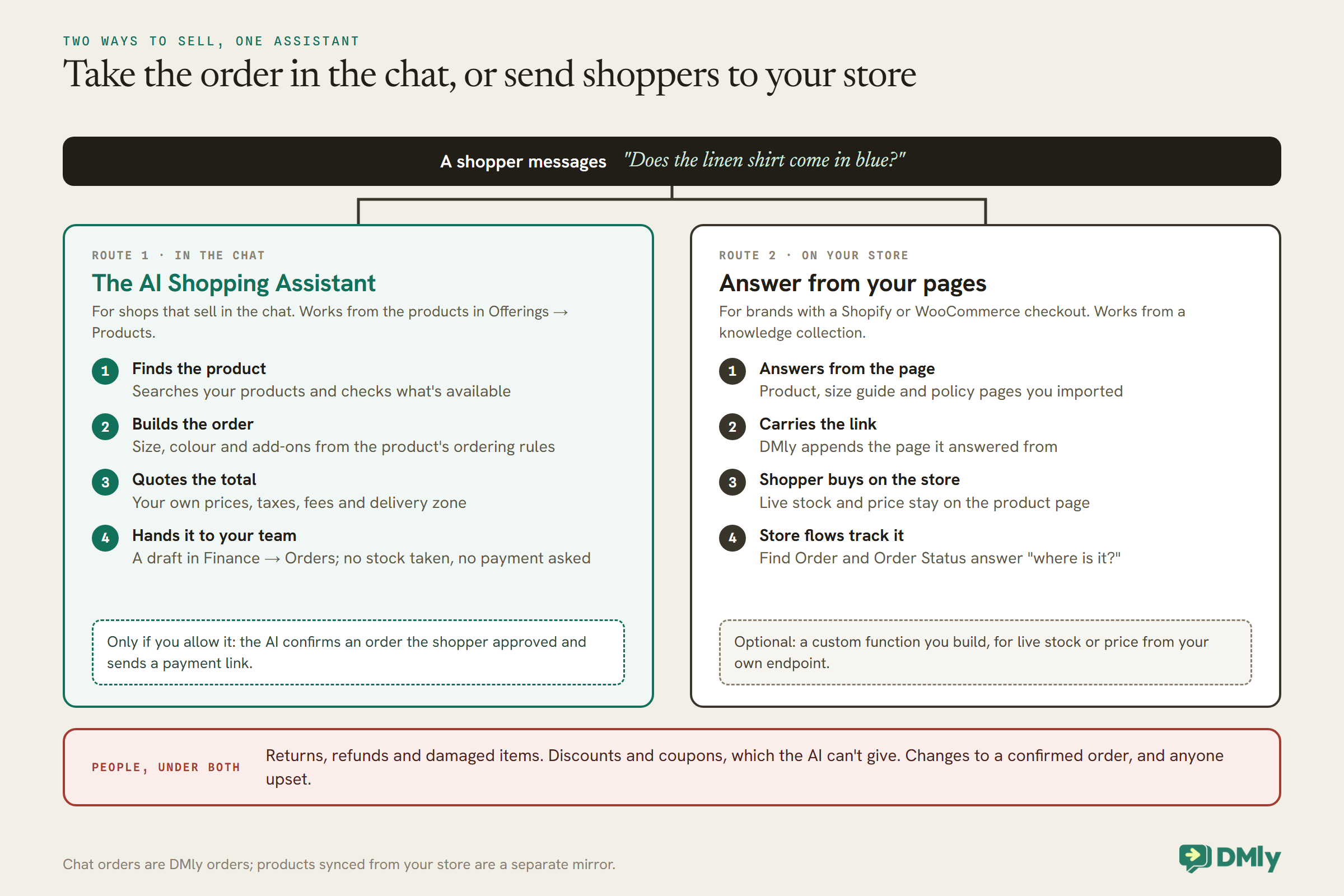
DMly’s assistant can sell in two ways. Pick one, or use both.
An AI step in DMly can now take orders. Its commerce tools search your products, check what’s available, add items with the size, colour and add-ons the shopper picks, work out the total from your own prices, taxes and fees, and hand the finished order to your team. So the design question is no longer “what can the AI do?” but “where should the shopper buy?”:
- In the chat. The AI Shopping Assistant template builds a real order from your DMly products while the shopper talks. This suits shops that sell in the chat: Instagram and WhatsApp sellers, shops without a website, and any business that confirms orders by hand.
- On your store. The assistant answers from your store’s own pages and DMly appends the product link, so the shopper buys at your Shopify or WooCommerce checkout, and store flows answer “where is my order?”. This suits brands whose checkout, stock and fulfilment already live on the store.
The reason it’s a choice: AI ordering works from the products in DMly’s Offerings → Products, and the order it builds is a DMly order under Finance → Orders. Products synced from a Shopify or WooCommerce store are a separate mirror that powers the store flows, and DMly’s docs say nothing on the Products tab touches them. Nothing in the docs sends a chat order to your Shopify or WooCommerce admin either. So a brand that sells through Shopify usually wants route 2, and a shop that sells in the chat wants route 1. You can bridge them: a DMly product’s ordering rules take an optional Product page URL, which adds a View product button when the assistant shows that product.
Route 1: Take the Order in the Chat
The AI Shopping Assistant builds a real order from your own products, then hands it to your team.
Add your products
Add products in Offerings → Products with a price, currency and tax. For a long list, the AI Catalogue Builder on the same tab takes a CSV or a pasted product list, up to 30 products and 40 KB per batch, and can ask an AI provider you’ve connected to suggest names, descriptions and categories. It never fills in a price, tax or stock from pasted text: you enter those yourself, tick each row as checked against your source, and only approved rows are imported.
Give each product its ordering rules
In Finance, open AI Ordering Settings and scroll to Product ordering rules. This is where a shop’s real choices go: Variants for sizes or colours, each with its own price; Options and modifiers for extras such as gift wrapping, with an added price charged once per line or per item; the quantities a shopper may order; and optional Product tags and Related products, which the assistant uses to suggest one extra item at a time, stopping once the shopper says no. None of it changes the catalogue price.
Blank is not zero: A missing price, tax or add-on price leaves the quote incomplete, so the order goes to your team instead of out at a wrong total. Enter 0 only when something really is free.
Switch on AI ordering
In the same AI Ordering Settings, turn on Enable AI ordering and set your currency and time zone, any service fee and delivery fee, which of pickup and delivery you offer, and what the assistant must collect for each, such as a delivery address and a landmark. Delivery zones let you charge a different fee by area, with an optional minimum order and a free-delivery threshold. DMly matches zones by name and doesn’t measure distance, so if a shopper’s area matches no zone, or more than one, the assistant asks them to clarify. Add Handoff tags so orders waiting for your team are easy to find.
Install the AI Shopping Assistant
From Start from a template, install the AI Shopping Assistant. It answers every message and arrives with a detailed prompt and the ordering tools switched on. Before you publish, read the prompt and adjust it for your shop, pick the AI provider and model if your plan lets you choose one, and check the Commerce tools on the Built-in Tools tab. Keep Hand over to a human ticked: the tool that passes the order to your team refuses to run without it.
What happens to the order
When the shopper adds the first item, a draft order appears in Finance → Orders, and every change the assistant makes updates that same order. By default it then submits the draft to your team: the bot pauses, your handoff tags are added, and a note on the conversation links to the order. Nothing else happens until someone acts. No stock is taken, no invoice is raised and no payment is requested. While a quote is missing something, the Orders list shows Incomplete quote instead of a total.
Once you trust it, you can let the assistant go further. Choose Allow order confirmation in the settings and tick Confirm customer-approved order on the AI step, and it can confirm an order itself, but only after showing the shopper the full quote and getting a clear yes. Turn on Allow payment links for confirmed orders with a connected payment provider and tick Create order payment link, and DMly raises an invoice for the order and sends a link from your provider. An order only counts as paid when the payment is recorded in Finance; a screenshot of a transfer doesn’t count. The template leaves both off on purpose, so every order starts with a person.
Showing products in the chat
With Allow cards and carousels on, the assistant can show products as cards, and what the shopper sees depends on the channel. On Instagram, Facebook and live chat they get cards and carousels. On WhatsApp, one product with a photo arrives as an image with a caption, and several arrive as a numbered list. Telegram and SMS get a numbered list. A card only shows a product; it doesn’t add anything to the order.
Route 2: Answer From Your Store and Send Shoppers to Buy
If your checkout lives on Shopify or WooCommerce, the assistant’s job is to answer well and carry the link.
Connect your store
DMly connects to Shopify with a custom app token from your own Shopify admin. The setup guide in the Shopify tile walks through creating the app, granting it Admin API scopes to read and write orders, customers, products and price rules and to read checkouts, and turning on Protected customer data access, without which Shopify hides customer names, emails and phone numbers and DMly cannot match orders to contacts. On connect, DMly syncs your products, customers and recent orders and registers the store’s webhooks automatically. WooCommerce connects the same way from its own tile.
Once connected, the automation builder gains a Store events tab of triggers and the Store (Shopify / WooCommerce) group of steps. Those are what the order-tracking and checkout parts of this route use.
Turn your store into knowledge
Build a collection at Settings → AI Knowledge and use Import pages. Its Source can be your store’s sitemap or a pasted list of page addresses. A sitemap is read up to its first 2,000 addresses, sitemap-index files are followed one level, and each import takes up to 100 pages; run it again with the same address and it continues from where it stopped, skipping pages already in the collection. Most stores publish a sitemap at /sitemap.xml.
Import three kinds of page:
- Product pages: names, variants, materials, dimensions, care, what is in the box.
- Guides: size guides, fit notes, comparison pages, gift guides.
- Policies: shipping times and costs by region, returns, exchanges, warranty.
Two limits to plan around. Because an import skips pages already in the collection, re-running it does not refresh a page whose content changed; DMly’s docs describe skipping, not refreshing. When a product’s details change, remove that page’s source and add it again, or rebuild the collection. And pages are fetched from the public web only, so anything behind a login stays invisible.
If you connect your own AI provider, use OpenAI or Google Gemini for this route: DMly’s docs say Claude and DeepSeek cannot search documents, so an assistant on either would answer from its instructions alone. DMly’s shared AI searches collections normally. A new AI step starts with AI Knowledge set to No knowledge, so select your collection on the Built-in Tools tab.
Let your AI shopping assistant on WhatsApp carry the buy link
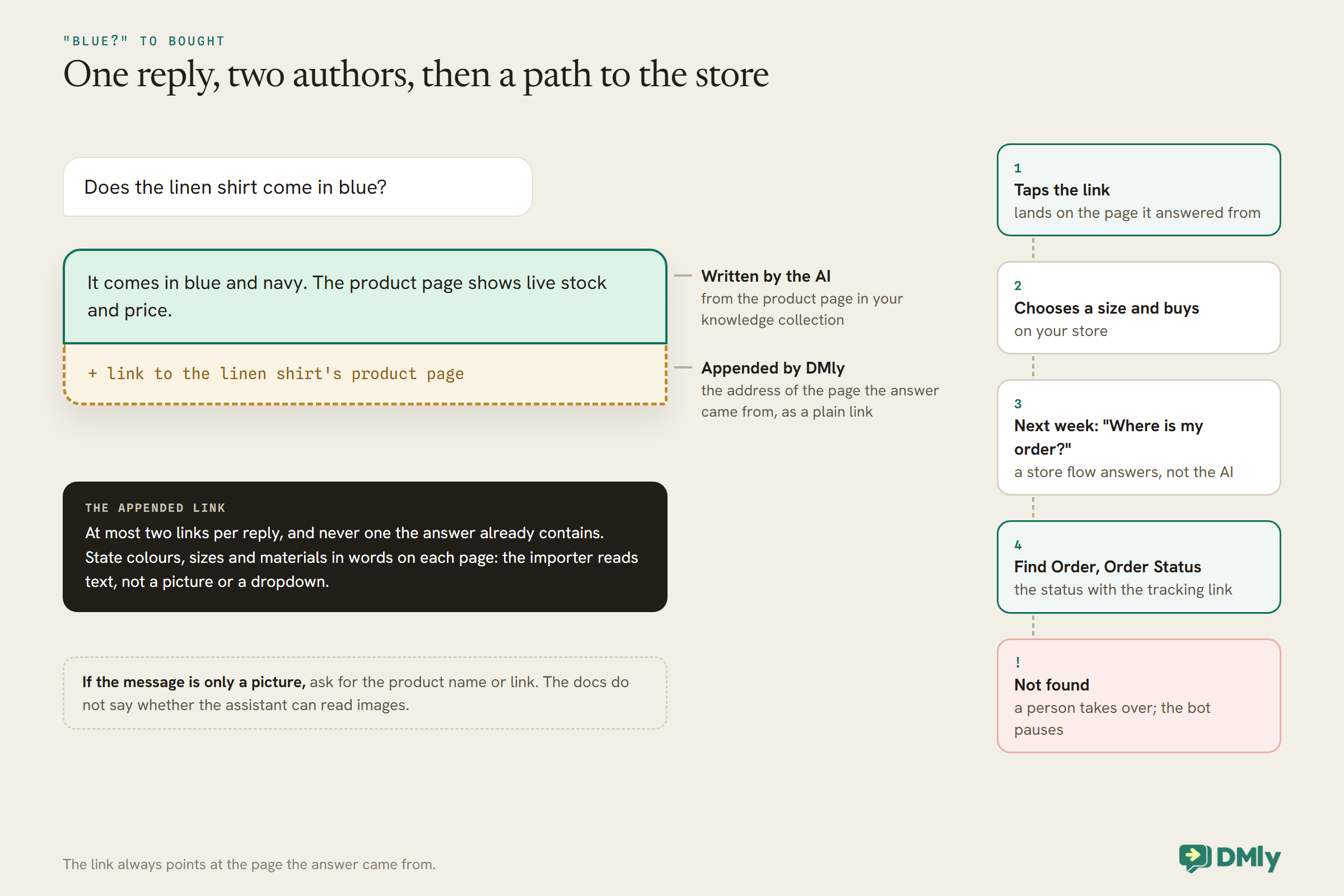
When the assistant answers from a source that was imported from a web address, DMly appends that address to the end of its reply as a plain link, at most two links per reply and never one the answer already contains. For a shopping assistant, that is the path to purchase: a shopper asks whether the linen shirt comes in blue, the assistant answers from the product page, and the reply ends with the link to that page, where they choose a size and buy.
That also means your product pages do the selling. Make sure each one states its colours, sizes and materials in words, not only in a picture or a dropdown the importer cannot read, because the assistant can only answer from text it can find.
Live stock and prices, honestly
A page imported last month cannot tell a shopper what is in stock today, and prices change faster than any imported page. There are two honest options:
- Say where to check. Instruct the assistant never to claim something is in stock or at a particular price, and to send the product link, where the store shows live stock and price. For most small brands, this is the right choice.
- Build a custom function. An AI step’s Functions tab lets you define an HTTP call the AI can make: a name, a description that tells the AI when to use it, a method, a URL, headers and a Parameters (JSON Schema) body. The AI sends JSON arguments to your URL and uses the response in its reply. DMly’s own worked example is a
check_stockendpoint, so the agent can tell a contact whether an item is in. Building the endpoint is a developer’s job.
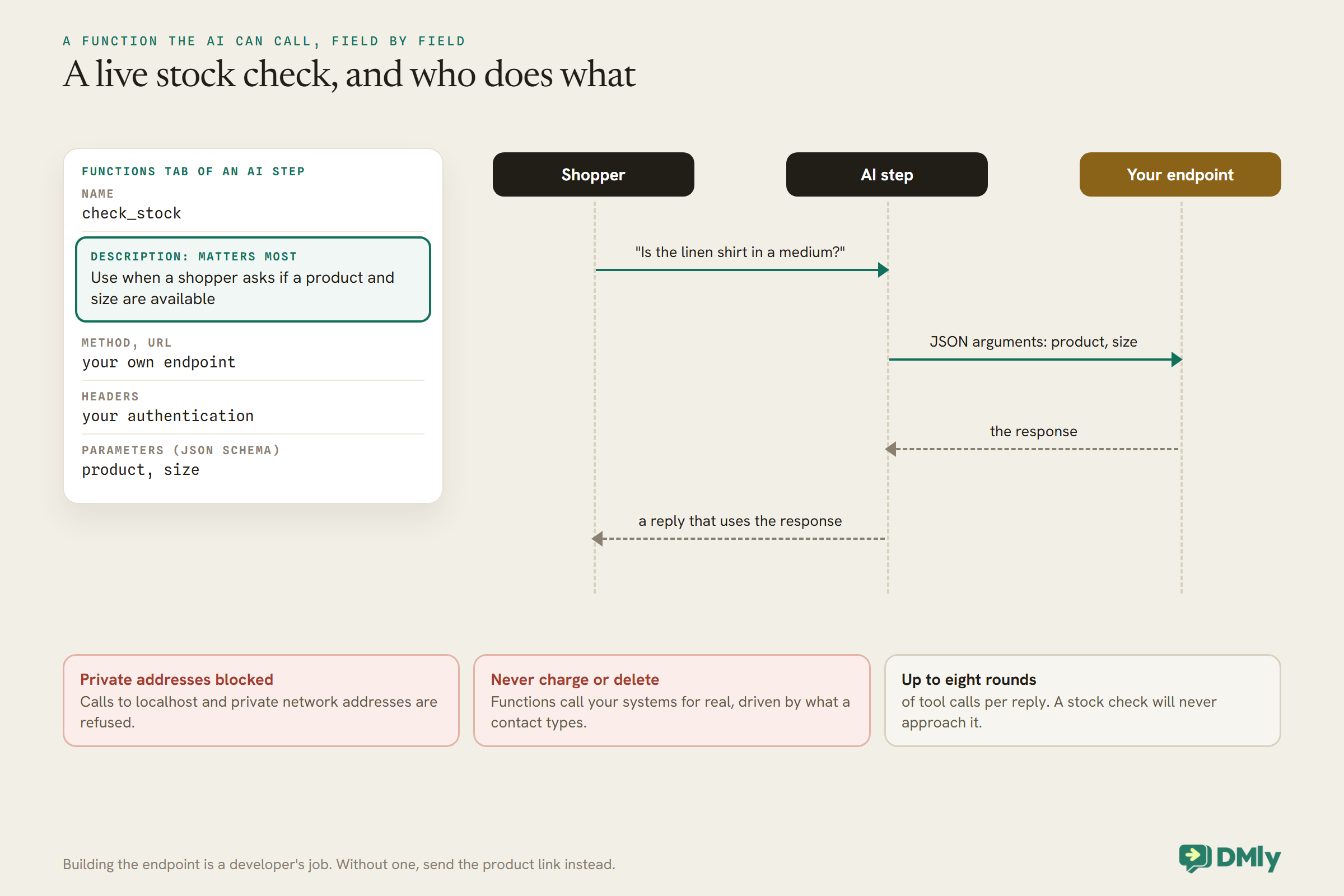
If you build a function, follow DMly’s own warning: functions call your systems for real, driven by what a contact types, so point one only at an endpoint you are happy for an AI to call, and never at one that charges money or deletes data. Calls to localhost and private network addresses are blocked. Each reply can make up to eight rounds of tool calls, which a stock check will never approach.
When a Shopper Sends a Picture
Shoppers often send a screenshot instead of a product name, like the “blue?” at the top of this article. DMly’s docs do not say whether the assistant can read images, so do not rely on it on either route. Tell it, in its instructions, to ask for the product name or the link when a message is only a picture: “Lovely choice! Which product is it? The name or a link helps me check.” It takes one extra message and avoids a confident answer about the wrong shirt.
“Where Is My Order?” Belongs to a Flow or a Person
Tracking a store order needs the store’s order data. A store flow has it; the AI step doesn’t.
DMly’s template library ships Order Status Self-Service for WhatsApp: a contact whose message contains words such as “order”, “tracking” or “where is my order” is asked for their order number, the Find Order step looks it up, and the found branch sends the status with the tracking link using the Order Status step. The not-found branch does not guess: it hands the conversation to a person and pauses the bot, so a mistyped number ends with a human, not a loop.
For an order the assistant built in the chat, your team sees it in Finance → Orders, and staff who can view Finance also see it from the Inbox and the contact’s profile. Changes to a confirmed order, cancellations and refunds go to your team, and once a teammate takes over the conversation, the assistant stops changing the order.
Only one automation answers a given message, and DMly blocks publishing a second automation that also replies to every message on the same channel. The AI Shopping Assistant answers every message, so it can’t sit beside another answer-everything automation, but a keyword flow like Order Status Self-Service can live alongside it. Tell the assistant, in its instructions, to reply “send the word ORDER and I’ll look it up” when someone asks about a store order, and test with real phrasing that order messages reach the flow, not the assistant.
Step 6: Write the Instructions
Brief the assistant like your best shop-floor person: helpful, honest, never pushy.
On route 1, the AI Shopping Assistant arrives with a detailed prompt already written for ordering. Read it, then adjust the tone, your shop’s name for things and what it should hand over, rather than starting again. On route 2, start from an AI template such as the AI Customer Service bot, whose AI step arrives with Get contact info, Add a note, Add tags, Hand over to a human and Move to unassigned queue ticked. Then adapt the prompt on the Prompt tab; {{business_name}} becomes your workspace name and {{first_name}} the shopper’s first name. A starting point for route 2:
You are the WhatsApp shopping assistant for {{business_name}}.
Be friendly, brief and honest. Say you are an automated
assistant and that a person is one message away.

You can:
- Answer questions about products, sizes, materials, care,
  shipping and returns, using the knowledge only.
- Recommend products that match what the shopper asks for,
  from the knowledge only.
- If a message is only a picture, ask for the product name
  or link.

Never:
- Say an item is in stock, or quote a price as current.
  Say the product page shows live stock and price.
- Invent products, colours, sizes, delivery dates or codes.
- Handle orders: for order questions reply "Send ORDER and
  I'll look it up."
- Handle returns, refunds, damaged items or complaints:
  apologise, add a note, and hand over.
- Ask for card numbers.
- Answer anything not about our shop.

Add a tag for the product type a shopper is interested in,
e.g. interested-linen.
If the assistant ignores a tool you ticked, the fix is almost always in the instructions: say in words when to use it. Keep the Fallback message set, so a shopper whose message hits an AI error still hears that a person will follow up.
Step 7: Handovers for Everything That Went Wrong
A shopping assistant sells. Returns, refunds and complaints need a person who can fix them.
When the assistant hands over, the bot pauses for that shopper and the AI stops its turn, so it cannot talk over your team. Decide who picks up: Auto-assign to an agent for several people sharing the inbox, Move to unassigned queue for a small team. Ask the assistant for a one-line note in a fixed shape, such as “Return request: linen shirt, wrong size, order number given”, so your team starts with the facts.
WhatsApp’s Business Messaging Policy expects automated chats to offer a prompt, clear route to a person. For a brand, the moments that matter most are the unhappy ones: a damaged parcel answered by a person in minutes is a very different story from one answered by a machine that keeps recommending linen shirts.
Remember Returning Shoppers
A good shop assistant remembers your size. So can this one, if you let it write things down.
An AI step can read and write the shopper’s record, if you tick the tools. Get contact info reads the contact’s name, stage, tags and custom fields, so a returning shopper is greeted as one. Set custom fields writes to your custom fields, so when a shopper says “I’m usually a medium in your shirts”, the assistant can save size_tops: M and use it next time: “Last time you mentioned a medium in our shirts; the linen one runs the same.” Define the fields in your workspace settings first, so the assistant has somewhere to put the answer and your segments can use it.
Keep it to shopping facts a shopper would expect you to remember: sizes, colours they like, what they bought it for. Nothing about their body beyond a size, and nothing they did not tell you themselves.
Interest Tags, and Using Them With Permission
Every question is a signal. Tag it, and you know who to tell when something they wanted arrives.
With Add tags ticked, the assistant can tag the product type a shopper asked about, such as interested-linen or waitlist-linen-blue for a sold-out colour. Those tags feed two useful things. A Product back in stock store trigger can notify every contact holding a tag like waitlist-linen-blue when the item returns, capped at 500 contacts per event. And a segment on an interest tag is a ready list for a new collection launch.
Both are messages you start, usually outside the 24-hour window, on templates. A back-in-stock alert for an item the shopper asked to be told about sits close to what they requested, but a launch announcement is marketing under Meta’s template guidelines. Ask before you tag someone for launches (“want me to tell you when new linen arrives?”), and only send marketing to shoppers who said yes. Anyone who replies STOP is added to your suppression list and skipped from then on.
The Store Automations That Work Alongside It
The assistant answers people who message you. Store automations message people when something happens in the store.
- Order confirmations on the Order placed or Order paid triggers.
- Abandoned checkouts: Checkout abandoned fires when a started checkout goes quiet for about an hour, once per checkout, and skips customers who then completed a purchase. On WooCommerce, an unpaid pending order counts as the abandoned checkout.
- Back in stock: Product back in stock can notify every contact holding a tag such as
waitlist-linen, capped at 500 contacts per event. Your assistant’s interest tags can feed it. - Cash on delivery: the COD Confirmation template asks COD customers to confirm before you ship, using a WhatsApp Flow form.
- Customer milestones: Customer milestone fires once per customer per automation when total spend or order count reaches your threshold.
A store event says nothing about when the customer last messaged you, so these flows usually start outside the 24-hour window and must begin with an approved WhatsApp template. On WhatsApp, a store customer with no matching contact gets one created from the order’s phone number; on Messenger and Instagram, no contact is ever created and those store events are skipped.
Other Channels
The assistant can answer on Instagram and Messenger too, with different rules.
An AI Reply step works on every channel your automations run on, so the same assistant can answer Instagram DMs. Two differences matter for a shop. On Instagram, automated messages can only be sent within 24 hours of the shopper’s last message and there are no templates, so a conversation that goes quiet cannot be picked up by automation the next week. And store events never create contacts on Messenger or Instagram, so order confirmations and abandoned-checkout nudges stay on WhatsApp. On route 1, Instagram is also where products look best: the assistant can show them as cards and carousels there, where WhatsApp shows a photo with a caption or a numbered list. Many brands use Instagram for discovery and invite shoppers to WhatsApp for the rest.
Test It Like a Shopper
If your plan lets you connect your own AI provider, the AI step’s Playground tab runs your setup against a test message and shows which tools it used, on demo data. On plans that use DMly’s shared AI only, that tab is hidden, so test from a staff phone. Send the messages your shoppers send:
- “Does the linen shirt come in blue?” (an answer from the page, and the page link appended?)
- “I’m 5’10 and usually a medium, which size?” (from your size guide, not a guess?)
- A screenshot with “this?” (does it ask which product?)
- “Two of the linen shirt in blue, medium, delivered please.” (route 1: a draft order in Finance → Orders with the right variant, the delivery details asked for, and a fee from your zone?)
- “Is it in stock?” (route 2: does it send the link rather than claim stock?)
- “Where is my order #1042?” (does the order flow answer, not the assistant?)
- “My parcel arrived damaged.” (an apology, a note and a handover)
- “Can I get 10% off?” (no invented code or discount; on route 1 it goes to your team)
What It Costs
Two running costs: AI replies and WhatsApp messages.
DMly’s AI agent is on every plan. Replies on DMly’s shared AI count against your plan’s monthly AI Replies allowance; on plans that allow it, your own AI provider key makes replies unmetered on your own account. The assistant’s replies are free-form messages inside the 24-hour window the shopper opened; from 1 October 2026, Meta charges for those beyond the first 1,000 per business phone number each month. For brands that advertise, there is good news: when a shopper arrives from a Click-to-WhatsApp ad or a Page button and you reply within 24 hours, Meta opens a 72-hour free entry point window in which your messages are free. Store automations that start outside the window, such as abandoned-checkout nudges, run on templates billed by Meta by category. Our explainer on the October 2026 pricing change has the detail.
Mistakes to Avoid
- Expecting the AI to track a store order. It builds new orders from your DMly products; tracking a Shopify or WooCommerce order is still Order Status Self-Service.
- Leaving a price, tax or fee blank. Blank means unknown, not zero: the quote stays incomplete and the order goes to your team.
- Switching on confirmation and payment links on day one. Start with every order going to a person, then widen it.
- Letting it claim stock or prices from a page. On route 2, send the product link instead, or build a function.
- Knowledge left on “No knowledge”. It answers from its instructions alone.
- Product details only in images. The importer reads text.
- Stale pages after a product change. Re-importing skips existing pages; remove and re-add.
- A function pointed at anything that charges or deletes. Never.
- Two automations answering everything. Only one replies; give order tracking its keyword.
Frequently Asked Questions
Can an AI shopping assistant on WhatsApp answer product questions?
Yes. Taking orders in the chat, it answers from your DMly products and their ordering rules. Sending shoppers to your store, it answers from a knowledge collection built from your product, guide and policy pages, and DMly appends the page’s link so the shopper can buy.
Can it take an order in the chat?
Yes. The AI Shopping Assistant template builds a draft order from your DMly products, with sizes, colours and add-ons, works out the total from your own prices, taxes and fees, and hands it to your team to confirm. Once you trust it, you can let it confirm orders the shopper has approved and send a payment link.
Can it check stock or prices?
When it takes orders in the chat, it quotes from your own product prices and checks availability against your DMly products. When it sends shoppers to your store, it should send the product link, where the store shows live stock and price, or call a custom function you build.
Can it tell customers where their order is?
For a Shopify or WooCommerce order, tracking runs as a store flow, not in the AI: the Order Status Self-Service template asks for the order number, looks it up with Find Order and sends the status and tracking link. An order the assistant built in the chat is in Finance → Orders for your team.
Does it work with Shopify and WooCommerce?
Yes, with one split to know. Connect the store and the store flows get its products, customers and orders, while the assistant answers from your store’s public pages and links to them. Taking orders in the chat works from DMly’s own Products, not the synced store products, so a Shopify brand usually sends shoppers to its own checkout.
Can it give discount codes?
No. The AI can’t give discounts, and any discount or coupon request goes to your team. A store flow can send a code, for example in an abandoned-checkout nudge.
What does it cost to run?
AI replies count against your DMly plan’s monthly allowance unless you use your own key. From 1 October 2026 Meta charges for service messages beyond 1,000 free per number each month, except inside the 72-hour window after an ad.
“Blue?”, Answered
Go back to the screenshot with one word under it. With the build above, the assistant asks which product it is and answers that the linen shirt comes in blue and navy. In a shop that sells in the chat, it asks for the size, adds the shirt to a draft order, quotes the total with delivery and passes it to your team to confirm. In a shop with its own checkout, it suggests a size from your size guide and DMly adds the link to the page; the shopper taps, chooses a size and buys. If they message next week to ask where it is, a store flow or your team answers, and if it arrives damaged, a person is one message away.
That is what an AI shopping assistant on WhatsApp is for: the shop-floor conversation, available whenever the shopper is, honest about what it knows, with the flows and your team doing the parts it cannot.
Writing about WhatsApp automation, bookings and growth for local business.
Turn WhatsApp into your busiest channel.
Start free and run message, bookings, payments and reviews in one place.
