
How to Set Up Click-to-WhatsApp Ads on Facebook and Instagram (Step by Step)
“Messaging conversations started: 84.” That is the number Ads Manager gives you at the end of the week, and it is a good number. Then try to finish the sentence. Eighty-four conversations started, and how many were answered within the hour? How many booked? How many were people who were already customers? Which of the three ads brought the ones who paid? For most small businesses running WhatsApp ads, the number stops there, and the money spent on the other side of it is a guess.
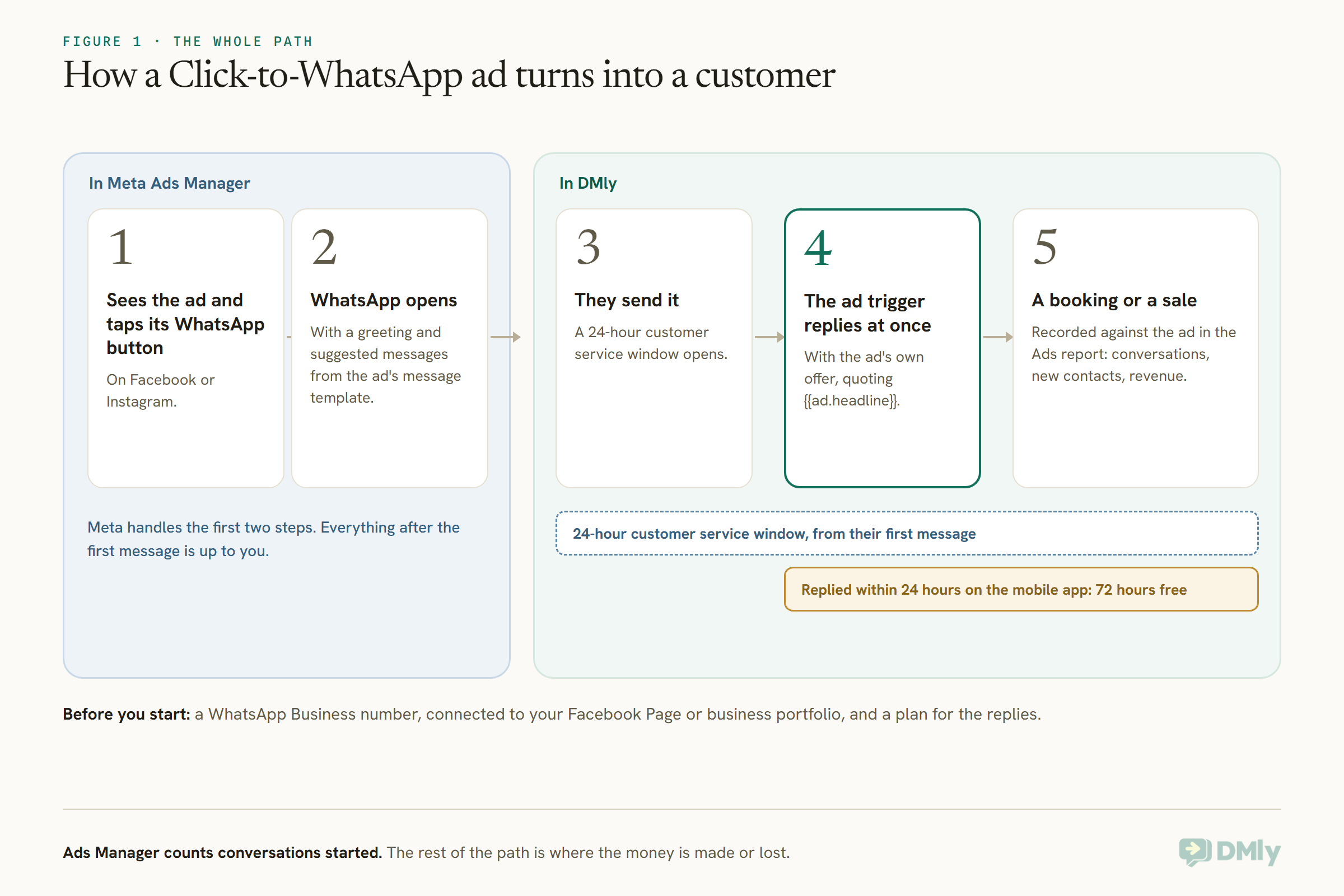
Click-to-WhatsApp ads are Facebook and Instagram ads whose button opens a WhatsApp chat with your business. They work well for businesses that sell through conversation, because the person arrives already talking to you. This guide shows how to set one up in Meta Ads Manager step by step, then how to handle the other side in DMly: answering every reply instantly with the ad’s own offer, using the free messaging window Meta gives ad conversations, and connecting each ad to the conversations, new customers and revenue it produced.
For the wider picture of WhatsApp links, QR codes and ads together, see our complete guide to click-to-WhatsApp marketing.
Before You Start
Three things need to be in place before Ads Manager will let you send people to WhatsApp.
1. A WhatsApp Business number. Meta’s help centre says you need a business account, either the WhatsApp Business app or a number on the WhatsApp Business Platform. If you use DMly, your number is on the platform already, and ad conversations arrive in DMly’s inbox.
2. The number connected to your Facebook Page or business portfolio. Meta asks you to connect your WhatsApp account to your business’s Facebook Page, with yourself as a Page admin, or to connect the number to your business portfolio. The number connected to the Page you choose is the one the ad will use.
3. A plan for the replies. Decide before the ad goes live what each person will receive when they message, who will pick up the conversation, and what counts as success. The setup in Ads Manager takes half an hour; the replies are where the money is made or lost.
One regional note from Meta’s help centre: certain messaging-related metrics, ad campaigns and organic messaging features for ads delivered to and from Europe, Japan and South Korea are unavailable. If you advertise in those regions, check what is available to you in Ads Manager before planning around it.
Step 1: Choose the Campaign Objective
The objective tells Meta what to optimise your click-to-WhatsApp ads for. For most small businesses starting out, Engagement or Traffic is the simplest route to WhatsApp.
In Meta Ads Manager, select + Create and choose an objective. Meta’s help centre says click-to-WhatsApp campaigns can be built with the awareness, traffic, engagement, leads or sales objectives, and that the steps vary by objective. Engagement and Traffic follow the same path described below. The leads objective can collect details inside WhatsApp with a form, and the sales objective suits businesses that track purchases; both have their own instructions in Meta’s help centre. After you choose, Ads Manager may show a campaign score with recommendations; review it, name the campaign, and select Next.
Step 2: Set WhatsApp as the Message Destination
This is the step that makes it a WhatsApp ad rather than an ordinary one.
At the ad set level, in the Conversion section, choose Message destinations as the conversion location. Under Facebook Page, choose your business Page; Meta says the WhatsApp number connected to that Page is the one the campaign will use. Under Message destinations, tick WhatsApp. If the WhatsApp option is greyed out, select Connect account, choose your country code, enter your business number and continue through the prompts. Then check the Performance goal; depending on the objective, Meta sets one by default and you may not be able to change it.
Step 3: Budget, Schedule and Audience
Set these to match the conversations your team can actually handle.
Review the budget, schedule and audience in the ad set. For a local business, start with a location radius around the area you actually serve. Two practical points specific to WhatsApp ads: run the ad when someone can answer, or make sure an automation answers at any hour, because a conversation started at night and answered the next afternoon may have gone cold, and misses the free window described below. And start with a budget small enough that a surge of conversations will not outrun your team; you can raise it once you know how many conversations a day you can answer well.
Step 4: Write the Ad and Its Message Template
The ad creative earns the tap. The message template decides what the person sends you first.
Write the ad as you would any other: an image or video, a headline and the main text, with one clear offer. Then, in the Message template section, choose Create new or Use existing. Meta’s help centre describes two options depending on your objective: Start conversation, which lets you set a greeting and suggest questions or messages people can tap to send, and Collect info with a form in WhatsApp, which uses WhatsApp Flows to collect details, book appointments or sign people up inside the chat, though Meta notes this may not be available to everyone yet. Select Edit, fill in the details, Save, complete the rest of the ad and select Publish.
Make the suggested messages match what you want to handle: “What’s the price?”, “Can I book this week?”, “Tell me more about the offer”. Each suggestion is a question your automation should be ready to answer.
The Quicker Route: Boost a Post From Your Page
If you do not want to open Ads Manager, you can turn an existing Facebook post into a Click-to-WhatsApp ad from your Page.
Meta’s help centre describes a shorter path for boosting a post you have already published. Go to your Page and select Advertise, then Add to your advertising plan or Create new ad. Under Goal, choose Get more messages; under Apps, choose WhatsApp and your WhatsApp number. Set up the welcome message, choose or create an audience by traits such as age, location and interests, set the duration and budget, and select Publish. Meta notes this option is only available for posts with external links, videos or single photos, and the WhatsApp Business account must be connected to the Page first.
The boost route is quicker; Ads Manager gives you more control over objectives, placements and message templates. Either way, the conversations arrive at the same number; check in DMly’s Ads report after the first replies how the boosted post is labelled there.
Step 5: Answer Every Reply Straight Away, With the Ad’s Own Offer
A person who tapped your ad is waiting for a reply right now. An instant, relevant answer is the single most important part of the setup.
In DMly, create a flow on the Click-to-WhatsApp ad trigger. It starts when someone messages you from an ad, and the ad’s own details come with them, so the first reply can quote the offer they tapped instead of a generic hello. The token {{ad.headline}} is the headline they tapped; other tokens carry the ad’s body text and ID. A salon running a two-for-one might open with:
Hi {{first_name}}, thanks for tapping “{{ad.headline}}”. The offer runs until Sunday. Would you like to book? Reply BOOK and I’ll find you a slot.
The trigger has one setting, Which ad starts this?: Any ad, which answers every ad and every post that sends people to your number, or A specific ad, which answers only the ad whose ID you type. The ID is the ad’s own, a long number you can copy from Ads Manager or from DMly’s Ads report; a campaign or ad set ID never matches. DMly’s docs warn about two behaviours that look like faults. A specific-ad flow with the ID box left empty answers nothing at all. And the trigger never fires for someone who reached you another way, such as a number typed off a poster or a QR code; use the WhatsApp message or WhatsApp URL triggers for those.
After the greeting, let the flow do something useful: offer booking times, answer the price question, or hand to an AI agent that knows your services, with a handover to a person for anything else.
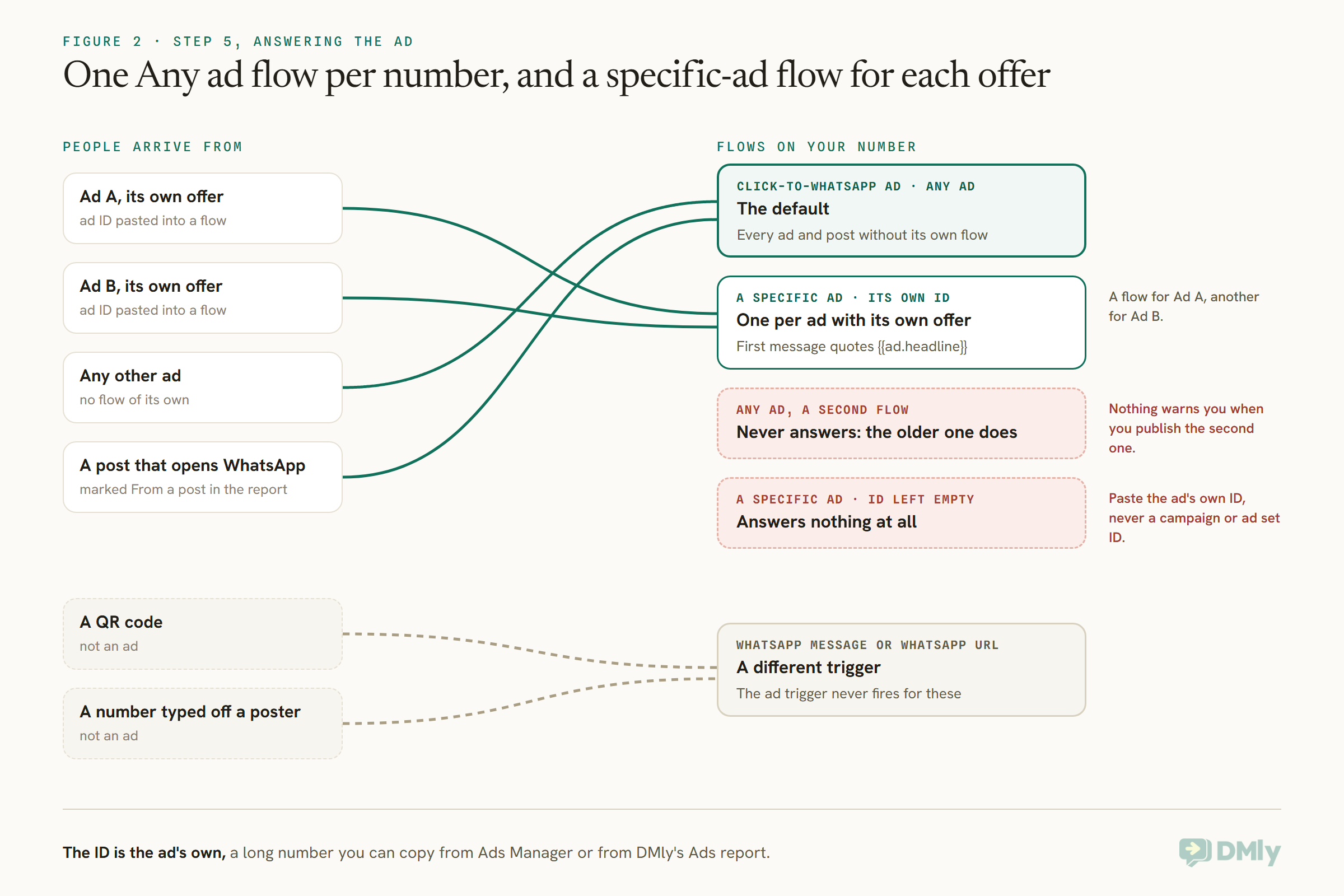
One structural rule matters if you run several ads. Keep one Any ad flow per WhatsApp number, as the default, and pin every other ad flow to a specific ad ID. If two live flows on the same number are both set to Any ad, both match, and only the older one ever answers; nothing warns you when you publish the second.
Writing an Ad That Starts the Right Conversation
A Click-to-WhatsApp ad is not trying to win a click. It is trying to start a conversation you want to have.
That changes how you write it. Lead with one specific offer rather than a list, because the person will ask about whatever caught their eye, and your first reply needs to answer exactly that. Say plainly that the button opens WhatsApp, so nobody is surprised. Set expectations for the reply: if an assistant answers instantly and a person follows up during opening hours, say “we reply right away”. And choose suggested messages in the template that lead where you want the conversation to go, such as “Book this offer” or “What times are free?”, rather than open-ended ones that invite a long exchange.
Match the ad to what your team can deliver. An ad for a service with limited slots should say so, or the conversations will fill faster than the diary. An ad for a price-sensitive offer should include the price, so the conversations you get are from people who can afford it. The best Click-to-WhatsApp ads filter as much as they attract.
Collecting Details With a Form in WhatsApp
Some businesses want structured details before a conversation, such as a budget, a date or a service. Meta offers a form inside WhatsApp for that.
Meta’s help centre describes WhatsApp Flows on Click-to-WhatsApp ads: when someone taps the ad, WhatsApp opens and they can either fill in your form through guided questions or start a conversation instead. You set it up as a normal Click-to-WhatsApp ad, then at the Message template step choose Collect info with a form in WhatsApp and edit the welcome message and questions. Meta lists several conditions: the WhatsApp Business account must be connected to your Facebook Page; the campaign must use a supported objective, such as awareness, traffic, engagement, leads or sales; WhatsApp must be the only messaging destination on the ad; and the feature may not be available to all advertisers yet, and is not available to advertisers using message templates from partner apps.
If you try it, send yourself through the form before the ad goes live and check exactly how the answers reach your inbox and contact records, because that depends on how your number is connected. For most small businesses, a short conversation started by the ad and continued by an automation that asks the same questions does the same job and keeps everything in one thread.
From Conversation to Booking
For a service business, the conversation an ad starts should end in a booking, ideally inside the same chat.
In DMly, the flow that answers the ad can go straight on to offer booking times: a Book Meeting step shows tappable times in the WhatsApp chat, drawn from your staff’s real availability, and a paid service sends the person to a secure page to pay a deposit or the full price. If you replied within 24 hours and the customer wrote from the WhatsApp mobile app, the free entry point window is open, so the confirmation and any reminder in the next three days cost nothing on Meta’s side. The booking is then attached to the same contact whose source names the ad, which is how the Ads report can show revenue per ad. Our WhatsApp appointment booking guide covers the booking setup.
Step 6: Use the Free 72-Hour Window
Meta makes ad conversations cheaper to continue, as long as you reply in time.
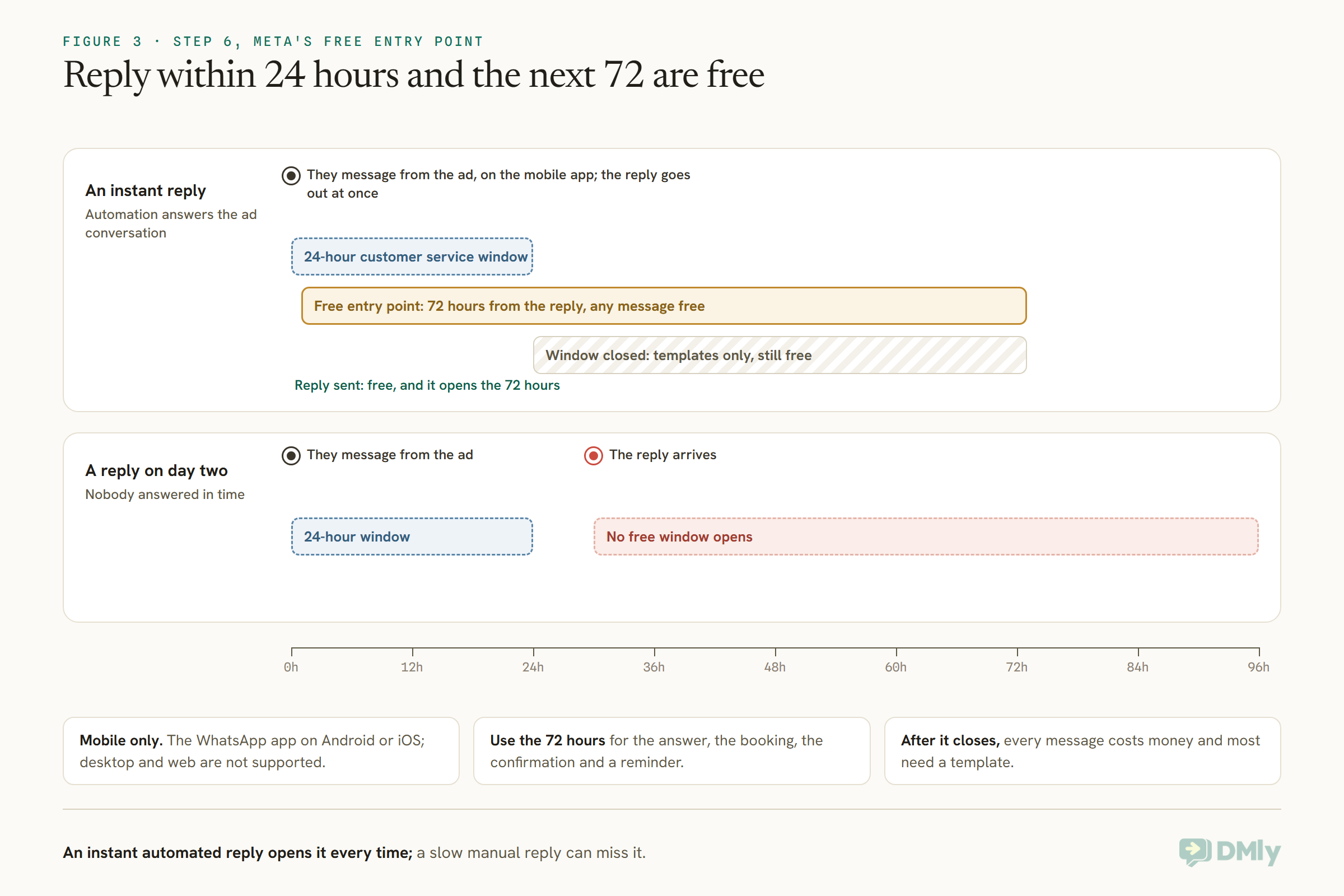
Meta’s WhatsApp pricing page describes a free entry point window. When someone messages you through a Click-to-WhatsApp ad, or a Facebook Page call-to-action button, using the WhatsApp app on Android or iOS, a normal 24-hour customer service window opens. If you reply within those 24 hours, with any type of message, that reply is free and a free entry point window opens from the moment you replied, lasting 72 hours. While it is open, you can send any type of message to that person at no charge, including templates. Meta notes that desktop and web apps are not supported for this, and that the customer service window runs separately: if the 24-hour window closes, you can still only send templates, but they are free while the 72-hour window lasts.
In practice: an automation that replies instantly to every ad conversation opens the free window every time, and a follow-up over the next three days, such as a reminder about the offer or a booking confirmation, costs nothing on Meta’s side. A reply that arrives on day two misses it. See our article on WhatsApp’s pricing from October 2026 for the charges that apply outside these windows.
Step 7: See Which Ad Paid Off
This is the part Ads Manager cannot tell you: what happened after the conversation started.
In DMly, every contact who arrives from an ad has a Source that reads the ad’s headline, such as WhatsApp ad: Summer Sale, and each message carries the ad it came from. The first ad that brought someone in keeps the credit, so if they tap a second ad a month later, the original ad still gets the customer. A source you set by hand is never overwritten.
The Ads tab under Configurations, Reports gives one row per ad: how many people it started conversations with, how many were new to you, and how much those people have since paid you. Conversations count people, not messages, so someone who sends four messages from one ad is one conversation. These responses are available on every workspace. If you also connect your Meta ad account, which depends on your plan, the report adds each ad’s spend and cost per conversation, synced every hour; Meta can restate figures for up to 28 days, so recent weeks can still move a little.
DMly puts revenue and spend side by side but never divides one by the other, partly because they can be in different currencies. To see whether an ad paid for itself, set its revenue against its spend yourself. And read the list carefully: without a connected ad account, an ad appears only once someone has messaged you from it, so an ad that got no replies is missing rather than shown as zero.
Test Two or Three Ads, Then Back the Winner
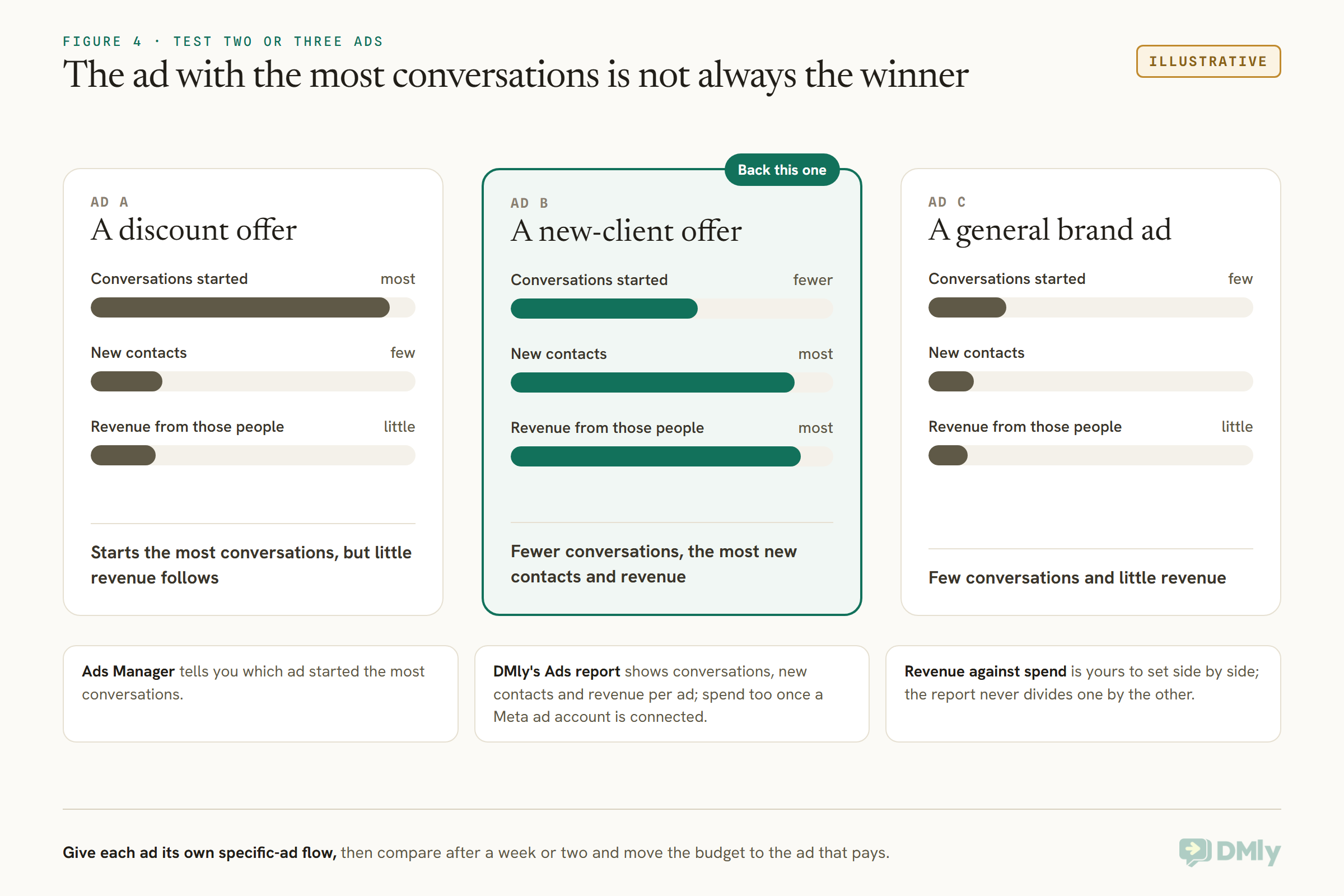
Ads Manager tells you which ad started the most conversations. DMly tells you which one produced customers. You need both to choose.
Run two or three versions of the ad at once with different offers or images, each with its own specific-ad flow in DMly so the first reply matches the offer. After a week or two, open the Ads report and compare each ad on three numbers: conversations, new contacts, and revenue from those people. The ad with the most conversations is not always the one with the most customers. Then, if your Meta ad account is connected, compare cost per conversation, or set each ad’s revenue against its spend from Ads Manager yourself, and move the budget to the ad that pays.
After the Free Window: Follow-Ups and Permission
Once the 72 hours are over, every message costs money and most need a template. Plan the follow-up before the window closes.
Use the free window for what matters most: answering the question, booking the appointment, sending the confirmation, and a reminder if the booking falls within three days. After that, a message to someone who has not written to you in 24 hours needs an approved template, and Meta charges for it by category and country. A booking reminder is the kind of message Meta treats as utility. A further offer, or an invitation to come back, is marketing, and Meta’s rules for marketing messages require the person’s permission.
So ask while the conversation is open. A simple question near the end, such as “Would you like us to send you our offers on WhatsApp now and then?”, with the answer recorded as a tag on the contact, gives you a clean list of people who agreed. Everyone else still gets their booking messages; they just do not get promotions.
Troubleshooting
Most setup problems fall into a handful of patterns.
- The WhatsApp option is greyed out in Ads Manager. Select Connect account and connect your business number, or check that the number is connected to the Page you chose.
- Messages go to the wrong number. The ad uses the number connected to the Facebook Page selected in the ad set. Check that the Page and the number match the one connected to DMly.
- The ad flow never fires. Check it is published, set to Any ad or to the correct ad ID (not a campaign or ad set ID), and that there is not an older Any ad flow on the same number answering first.
- An ad is missing from DMly’s Ads report. Without a connected ad account, an ad appears only after someone has messaged you from it within the dates you chose.
- Features or metrics are missing. Meta says some messaging metrics and features are unavailable for ads delivered to and from Europe, Japan and South Korea.
Posts That Open WhatsApp Count Too
You do not have to pay for every WhatsApp conversation that starts on Facebook or Instagram.
DMly’s trigger and reporting treat an organic post whose button opens a WhatsApp chat the same way as an ad: the person arrives with the post’s details, a flow on the Click-to-WhatsApp ad trigger answers them, and the Ads report marks the row From a post rather than From an ad. That makes it easy to test an offer as a post first and only put budget behind the version that starts conversations.
Mistakes to Avoid
- No instant reply. You lose the moment, and the free window, if nobody answers within 24 hours.
- A generic greeting. Quote the offer they tapped with
{{ad.headline}}. - Two Any ad flows on one number. Only the older one answers.
- A specific-ad flow with no ID. It answers nobody.
- Pasting a campaign or ad set ID. Only the ad’s own ID matches.
- A budget bigger than your team. More conversations than you can answer well is money wasted.
- Judging by conversations alone. Look at new contacts and revenue per ad in the Ads report.
- Reading a missing ad as a zero. Without a connected ad account, ads with no replies simply do not appear.
Frequently Asked Questions
What are Click-to-WhatsApp ads?
Facebook and Instagram ads whose button opens a WhatsApp chat with your business, so the person starts a conversation instead of visiting a website.
What do I need to run them?
A WhatsApp Business number, on the app or the Business Platform, connected to your Facebook Page or business portfolio, and a Meta ad account. To answer and attribute replies automatically, a platform such as DMly.
Which objective should I choose?
Engagement or Traffic is the simplest start. Leads suits collecting details in WhatsApp with a form, and Sales suits tracking purchases. Meta’s help centre has steps for each.
Are messages from Click-to-WhatsApp ads free?
If the person messages from the ad on the WhatsApp mobile app and you reply within 24 hours, Meta says your reply is free and a 72-hour window opens in which all messages are free.
How do I know which ad brought a customer?
In DMly, the contact’s source names the ad, and the Ads report shows conversations, new contacts and revenue per ad, plus spend once your Meta ad account is connected.
Can I reply with the ad’s own offer?
Yes. A flow on the Click-to-WhatsApp ad trigger can use {{ad.headline}} and other ad tokens in its first message.
Finish the Sentence
“Messaging conversations started: 84” is only the first half of the story. With an instant reply that quotes the ad, a free 72-hour window used well, and every conversation credited to the ad that started it, you can finish the sentence: how many were new, how many booked, and which ad paid for itself. That is what makes click-to-WhatsApp ads worth scaling. If you are not on DMly yet, see the plans.
Writing about WhatsApp automation, bookings and growth for local business.
Turn WhatsApp into your busiest channel.
Start free and run message, bookings, payments and reviews in one place.
