
WhatsApp Broadcast List Limit Explained: How to Message More Than 256 Contacts
The WhatsApp broadcast list limit is 256 contacts. Every guide on the internet says so, and so have we. So before writing this one, we did something most of those guides skip: we went to WhatsApp’s own Help Center on 13 October 2026 and looked for the number.
It’s there, but not where you’d expect. WhatsApp’s help page for the Business app, the app most small businesses actually use, doesn’t print 256 at all. The figure sits on the general broadcast list page, one line in a short list of requirements. And right next to it are two rules that matter far more to a business than the size of a list: only people who saved your number receive your message, and in some countries there’s now a cap on how many broadcasts you can send a month.
That’s the real shape of the limit, and it’s why “just make more lists” only gets you part of the way. In this guide, we’ll look at exactly what WhatsApp says today, why your broadcast probably reaches fewer people than the number on the list, the honest ways to message more than 256 contacts, what changes when you move to the official API, and how to pick the right route for a business your size.
What Is the WhatsApp Broadcast List Limit?
The WhatsApp broadcast list limit is 256 contacts per list. You can create as many lists as you like, but only contacts who have saved your number in their phone’s address book will receive the message, and some countries now have a monthly cap on broadcasts. That’s the whole rule in two sentences, taken from WhatsApp’s own pages.
Here’s what each part means for a business, with WhatsApp’s wording where it matters.
| The rule | What WhatsApp says | What it means for you |
| Size of a list | “You can include up to 256 contacts in each broadcast list.” | One list holds 256 people. Not 257. |
| Number of lists | “You can create as many broadcast lists as you like.” | The 256 is per list, not per business. Five lists cover 1,280 people. |
| Who receives it | “Only contacts who’ve added your number to their phone’s address book will receive your broadcast message.” | Anyone who hasn’t saved you gets nothing, and you aren’t told. |
| Monthly cap | “You can send up to 35 free broadcast messages per month.” (rolling out, some countries only) | Check Settings, then Broadcasts, to see whether it applies to you. |
| Devices | “Broadcast lists aren’t supported on Windows, Mac, or Web.” | You build and send lists on the phone, by hand. |
| Replies | Replies arrive “as an individual message” and aren’t sent to anyone else on the list. | It’s private, not a group. Every answer lands in your normal chats. |
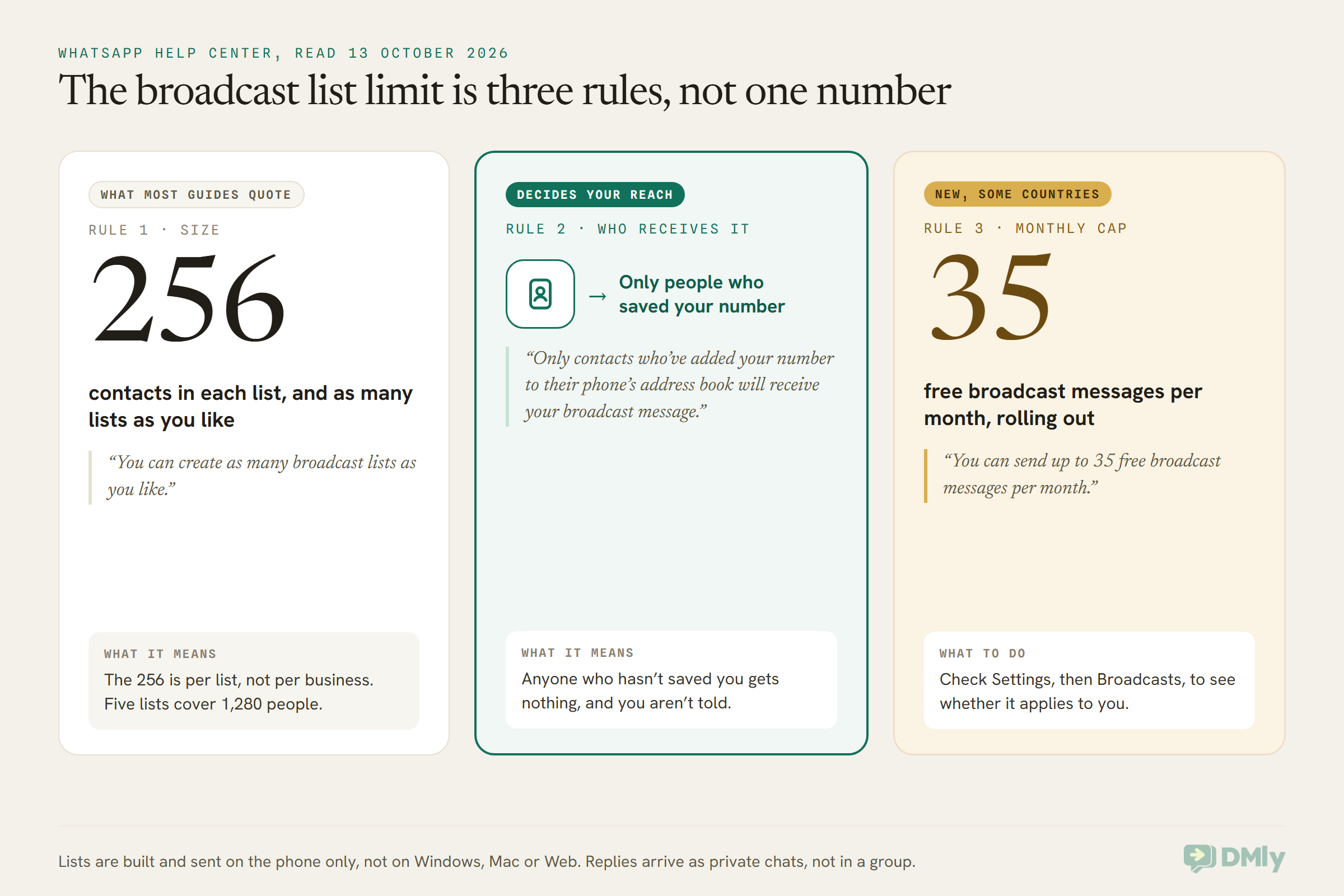
So when someone asks about the WhatsApp broadcast list limit, the useful answer isn’t “256”. It’s “256 per list, as many lists as you like, but only for people who saved you, and maybe only so many times a month”. The rest of this guide is about the second and third parts, because those are the ones that cost you customers.
Why Your Broadcast Reaches Fewer People Than the List Shows
A broadcast list only delivers to contacts who have saved your business number in their own phone. Everyone else on the list silently receives nothing. WhatsApp’s Business app help page states this twice, and its advice for anyone who isn’t receiving your broadcasts is simply to “check to make sure they’ve added you to their address book”.
Notice the direction. It isn’t about whether you saved them. You can only add people to a list from your own contacts anyway, so you’ve always saved them. It’s whether they saved you back.
Think about how your contacts got into your phone. A customer called to book once. Someone messaged about a price and you saved them as “Blue dress enquiry”. A parent sent a photo of a form. Plenty of those people never added your number to their phone; they just replied to a chat that was already open. On a broadcast list, they all look identical. In delivery, they aren’t.
Here’s a worked example, with made-up numbers so you can see the shape. A barbershop in Atlanta has 600 customers saved on the business phone. It builds three lists: 256, 256 and 88. Every list shows a full count. But if only half of those customers ever saved the shop’s number, the “600-person” promotion reached around 300 people, and the owner has no way of knowing which 300.
That’s the part that hurts. WhatsApp doesn’t send you a failure report for the people who haven’t saved you, and its help pages don’t describe any way to check who has. From your side, the broadcast looks like it went to everyone.
How to tell it’s happening to you
You can’t measure it directly, but you can spot the signs:
- Regulars say “I never got that” about an offer you know you sent.
- Replies to a broadcast mostly come from the same small group of people every time.
- New customers from the last few months almost never respond, while long-standing ones do.
If that sounds familiar, the fix isn’t a bigger list. It’s either getting people to save your number, or switching to a way of sending that doesn’t depend on it. We’ll cover both.
The New Monthly Cap on WhatsApp Broadcasts
In some countries, WhatsApp now limits how many broadcasts you can send each month. Its help page says you can send “up to 35 free broadcast messages per month”, and you check yours under Settings, then Broadcasts. The feature is rolling out gradually, so many people won’t see it yet.
WhatsApp explains the reason plainly: broadcasts can carry useful messages like holiday notes and event invites, “but they can also be a source of overload”. It says it will notify you as you get close to the limit.
Three things the page doesn’t tell you, so we won’t guess them either:
- What counts as one. The page says “35 free broadcast messages”. It doesn’t say whether that’s 35 sends to a list, or 35 delivered messages across all your lists. Those are very different budgets for a business with five lists.
- Whether it applies to the Business app. The limit appears on WhatsApp’s general broadcast list page, and the limits page ends by pointing businesses to “more advanced messaging tools on the WhatsApp Business app”. The Business app’s own broadcast page doesn’t mention a monthly cap at all.
- Which countries. WhatsApp says only “people in some countries”.
The practical advice is short. Open Settings, tap Broadcasts, and see whether a limit shows on your phone this week, before you plan a month of promotions around free lists. If you rely on broadcasts for your business, that one check matters more than anything else in this section.
How to Message More Than 256 Contacts on WhatsApp
There are four legitimate ways to message more than 256 contacts on WhatsApp: split them across several broadcast lists, send a paid business broadcast from the Business app, post to a Channel or Status, or move your sending to the official WhatsApp Business API. Each one solves a different part of the limit, and only two of them get past the saved-number rule.
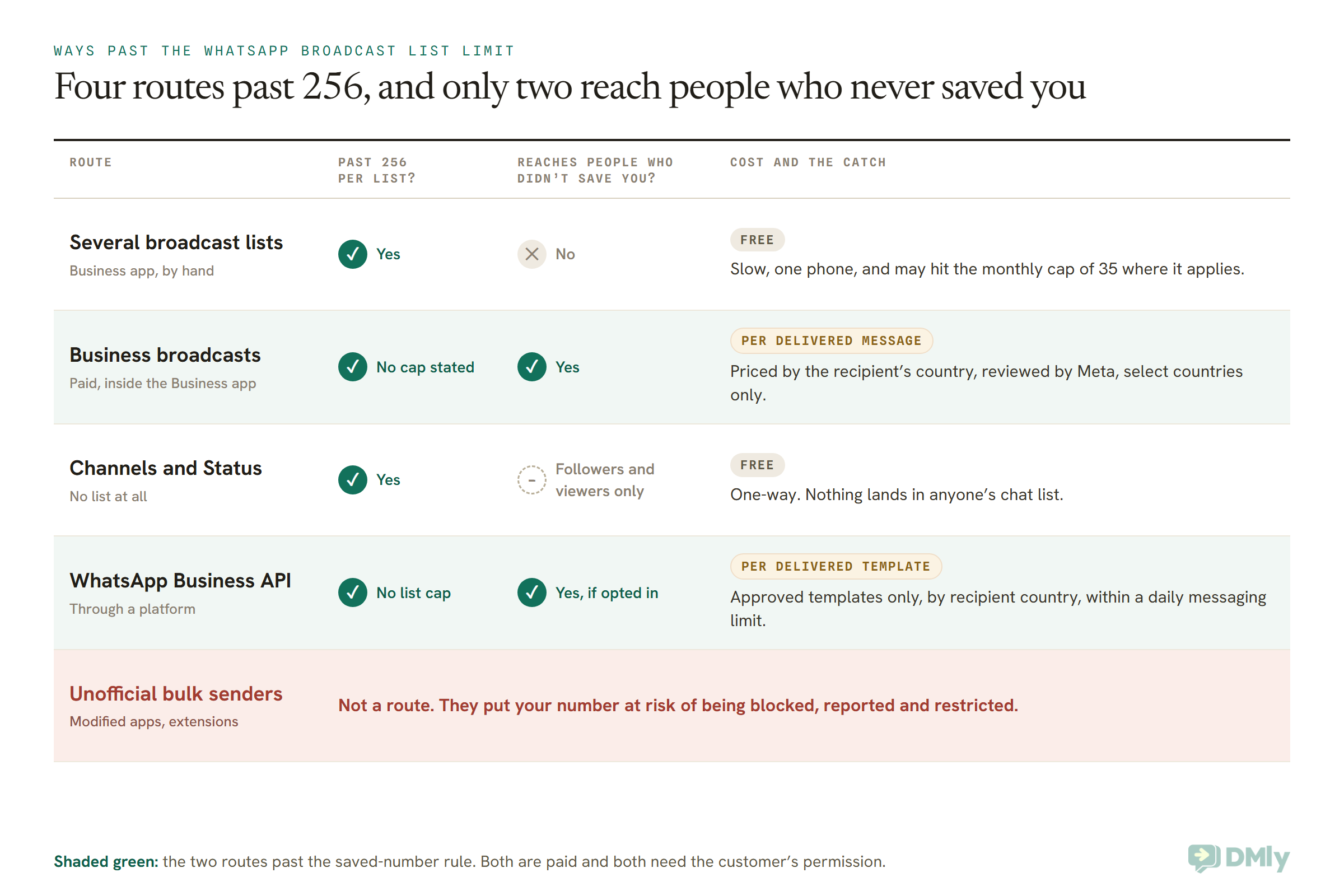
And one route that isn’t on the safe list: unofficial bulk senders. These are modified WhatsApp apps, browser extensions and desktop tools that drive WhatsApp Web from your number to fire messages at a spreadsheet. They promise to get around every rule above. What they actually do is put your number at risk, because a burst of messages to people who never asked for them is exactly what gets a number blocked, reported and restricted. Our guide to WhatsApp quality rating, messaging limits and bans explains how that judgement is made. A banned number takes your chat history and your customers’ trust with it, which is a high price for a shortcut.
Groups aren’t a workaround either. A group puts every customer in one room, where they can see each other’s numbers and reply to each other. That’s a community, not a promotion, and most customers didn’t agree to meet your other customers.
The sections below take the four legitimate routes in order, from free to paid.
Route 1: Split Your Contacts Across Several Broadcast Lists
Because the WhatsApp broadcast list limit applies per list, the free way to reach more than 256 people is to create several lists and send the same message to each. WhatsApp says you can create as many as you like, so 1,000 customers fits in four lists.
It works, and it costs nothing. It’s also slow, it’s done by hand on one phone, and it still only reaches people who saved your number. If those trade-offs are fine for you, here’s how to do it without making a mess.
How to create a broadcast list
WhatsApp’s menu labels differ by phone and app version, so look for these rather than exact words:
- iPhone, WhatsApp Business app: tap Settings (or your profile picture), then Broadcast Lists, then New List. Pick your contacts and tap Create.
- Android, WhatsApp Business app: on the Chats tab, open the three-dot menu and choose the broadcast option (WhatsApp’s Business app help page calls it Business Broadcast). Tap the add button, pick contacts, and tap the tick.
- From a label: WhatsApp is renaming labels to lists. In the Business app on Android, tap Chats, open the menu and tap Lists, choose a label such as “Paid” or “New customer”, then use the menu again and tap Send business broadcast (WhatsApp’s help page wording, read 27 October 2026; older app versions still say Labels and Message customers). That turns a label straight into a broadcast list.
To change a list later, open it, go to Broadcast list info, and use Edit recipients.
How to split a big contact list sensibly
The lazy way is “List 1”, “List 2”, “List 3”, filled alphabetically. The better way is to split by something that changes what you’d say:
- By what they bought. A boutique might keep “Bridal”, “Everyday” and “Wholesale” lists, so a wholesale price never lands with a retail customer.
- By how recent they are. “Visited this year” and “Not seen in a year” deserve different messages, and the second group usually needs a gentler one.
- By label. If you already use labels (now being renamed lists) in the Business app, a label is a ready-made list, and the label route above saves you picking contacts one by one.
When one segment grows past 256, add “A” and “B” lists for it rather than mixing groups to fill space.
What it really costs you
It’s free in money and expensive in time. Every list is a separate send from your phone, every reply comes back as its own chat, and if the monthly cap reaches your country, each send may count against it. For a business with a few hundred loyal customers who all saved the number years ago, that’s a perfectly good system. For a business with thousands of contacts, many of them new, it starts to break.
How to Get Customers to Save Your Number
The cheapest way to make free broadcast lists work is to get more customers to save your business number, because only they receive your broadcasts. Nothing in WhatsApp does this for you, so it has to become part of how you talk to customers.
A few habits that work for most local businesses:
- Ask at the moment of trust. When someone books, pays or collects an order, say it out loud: “Save this number as Bright Smile Dental and you’ll get our reminders and offers.” People save numbers when there’s a reason.
- Give them a name to save. A business saved as “Unknown” or by a staff member’s first name is easy to lose. Tell them exactly what to save you as.
- Share your contact card. Sending your business contact in the chat makes saving a single tap instead of a typing job.
- Put the number where people already are. A QR code at the till or on the menu, and a click-to-chat link in your Instagram bio, start a chat on the customer’s side. Our guide to creating a WhatsApp QR code for your business walks through setting one up.
- Say why it’s worth it. “We send one message a month with new stock, and early booking before half-term” gives someone a reason to save you. “Save our number!” doesn’t.
Asking someone to save your number is also, in plain terms, asking permission to message them. That habit pays off twice: it fixes your broadcast reach today, and it’s the same consent you’ll need if you ever move to the API. Our guide on collecting WhatsApp opt-in, and proving it covers how to record that properly.
Route 2: Business Broadcasts, the Paid Option Inside the App
Business broadcasts are a paid feature of the WhatsApp Business app that sends to the customers you pick, including people who haven’t saved your number. You pay for each message delivered. WhatsApp positions them as exactly the answer to the saved-number rule: if you’re “trying to reach customers who haven’t added you to their contacts”, it suggests converting your broadcast list into one.
In some countries this feature is still called marketing messages. WhatsApp says the name is changing to business broadcasts in some countries, and that the feature is “currently available in select countries”. It doesn’t publish the list, so the honest way to find out is to look in your app.
Our guide to sending bulk messages on WhatsApp officially introduces business broadcasts alongside the other routes. Here are the details that matter when you’re specifically trying to get past 256 and past the saved-number rule.
How a business broadcast reaches more people
- You choose the audience from your contacts. WhatsApp shows pre-populated lists from your phone’s address book, and you can also use contacts you imported through the WhatsApp Business app on the web.
- Converting a list fills the gap automatically. When you turn a broadcast list message into a marketing message, WhatsApp sets the audience to “the customers who haven’t received a broadcast message”. That’s the non-savers, reached without you having to work out who they are.
- No size cap is stated. WhatsApp’s help pages for business broadcasts don’t mention a 256 limit or any other maximum audience size. That doesn’t prove there isn’t one; it means the pages don’t state one.
What it costs and how billing works
- You pay per delivered message. In WhatsApp’s words, you pay “for each message that is delivered to a recipient you chose within five days of being sent”.
- Money is reserved up front. When you send, WhatsApp reserves funds for every contact you selected, then credits back anything that couldn’t be delivered.
- The price depends on where the customer is. Pricing is “based on the country code of each message recipient”. WhatsApp publishes rate cards in 16 currencies, including USD, GBP, EUR, INR, AED, SAR, IDR and MYR, and converts from USD for everywhere else. Customers in three countries means three prices in one send.
- Some messages come free with a subscription. WhatsApp says subscribing to Meta Verified (and, on one of its pages, Meta One) gets you free messages and other benefits.
- The free trial is over. If you never sent a business broadcast, WhatsApp says “your trial ended on April 30, 2026” and unused credits have expired.
- Message packs are arriving. WhatsApp is rolling out prepaid packs: one credit per recipient who receives the message, credits that don’t expire, iPhone only for now, and not refundable.
What else is different from a free list
- Meta reviews your message before it goes out. WhatsApp says business broadcasts “are subject to review by Meta” first.
- You can add a button. Options are a catalog item, a custom quick reply, a phone call, or a website link.
- You can schedule it. Your phone must be online at the scheduled time; if it isn’t, the app retries after one minute and then every 10 minutes, up to 10 times.
- It isn’t always instant. WhatsApp says processing is usually seconds but “could be as long as 3 hours”.
- You get basic results. You can see how many people read and replied, though that won’t count anyone who turned off read receipts.
- You need permission. WhatsApp requires the opt-ins and notices set out in its business terms, monitors spam reports, and can suspend your access to the feature if you break the rules.
Business broadcasts are the shortest path from “my list only reaches half my customers” to “my message arrives”. Where they stop is the same place the app always stops: one phone, one person sending, no shared inbox, and no automatic follow-up when 80 people reply at once.
Route 3: Channels and Status, When You Don’t Need a List at All
If your message is an announcement rather than a conversation, a WhatsApp Channel or a Status update reaches people without any list, and without the 256 cap. WhatsApp’s own broadcast limits page suggests exactly this: “you can use status updates and channels to message many people at once.”
The catch is in the word “reaches”. A Channel only reaches people who chose to follow it, and it’s one-way: followers can’t reply to you like a chat, and you can’t see or message them individually. Status is seen by people who open it. Neither sends anything to anyone’s chat list.
That makes them good for “we’re closed on Monday for the holiday” and “new menu is up”, and poor for “your appointment is tomorrow” or “reply YES to reserve one”. Our guide to WhatsApp newsletters, and choosing between a Channel and a broadcast list weighs that choice properly.
Route 4: The WhatsApp Business API, Where the Broadcast List Limit Doesn’t Apply
On the official WhatsApp Business API there is no 256-per-list cap and no saved-number rule. Your message reaches any customer who opted in, as long as you send an approved template and stay within Meta’s daily messaging limit. This is the route for businesses that have outgrown the phone.
The API isn’t an app you download. You use it through a platform, and it changes three things about how sending works. Our comparison of the WhatsApp Business app vs the API covers the wider decision; here’s what replaces the WhatsApp broadcast list limit specifically.
1. Opt-in replaces “saved your number”
Meta requires businesses to get opt-in before messaging people. The permission can be general rather than WhatsApp-specific, as long as you comply with local law, but it must clearly say the person is opting in to messages, and from which business. Meta lists SMS, a website form, a phone menu, and signing in person or on paper as acceptable ways to collect it.
That’s a better rule than the saved-number one, because you control it. You can ask for it at checkout, at booking, on your website, or at the till, and you can record that you got it.
2. Approved templates replace typed messages
Outside the 24 hours after a customer last messaged you, the API only delivers templates: messages you wrote in advance and Meta approved. A promotion is a Marketing template, a reminder or order update is usually Utility. Since most people on a big send haven’t messaged you today, almost every bulk send is a template send. Our guide to WhatsApp broadcasts for businesses covers templates and timing in full.
3. A daily messaging limit replaces 256 per list
Meta caps how many different customers you can message outside the 24-hour window in a moving 24-hour period. Meta calls this your messaging limit, and as of 13 October 2026 its documentation sets it like this:
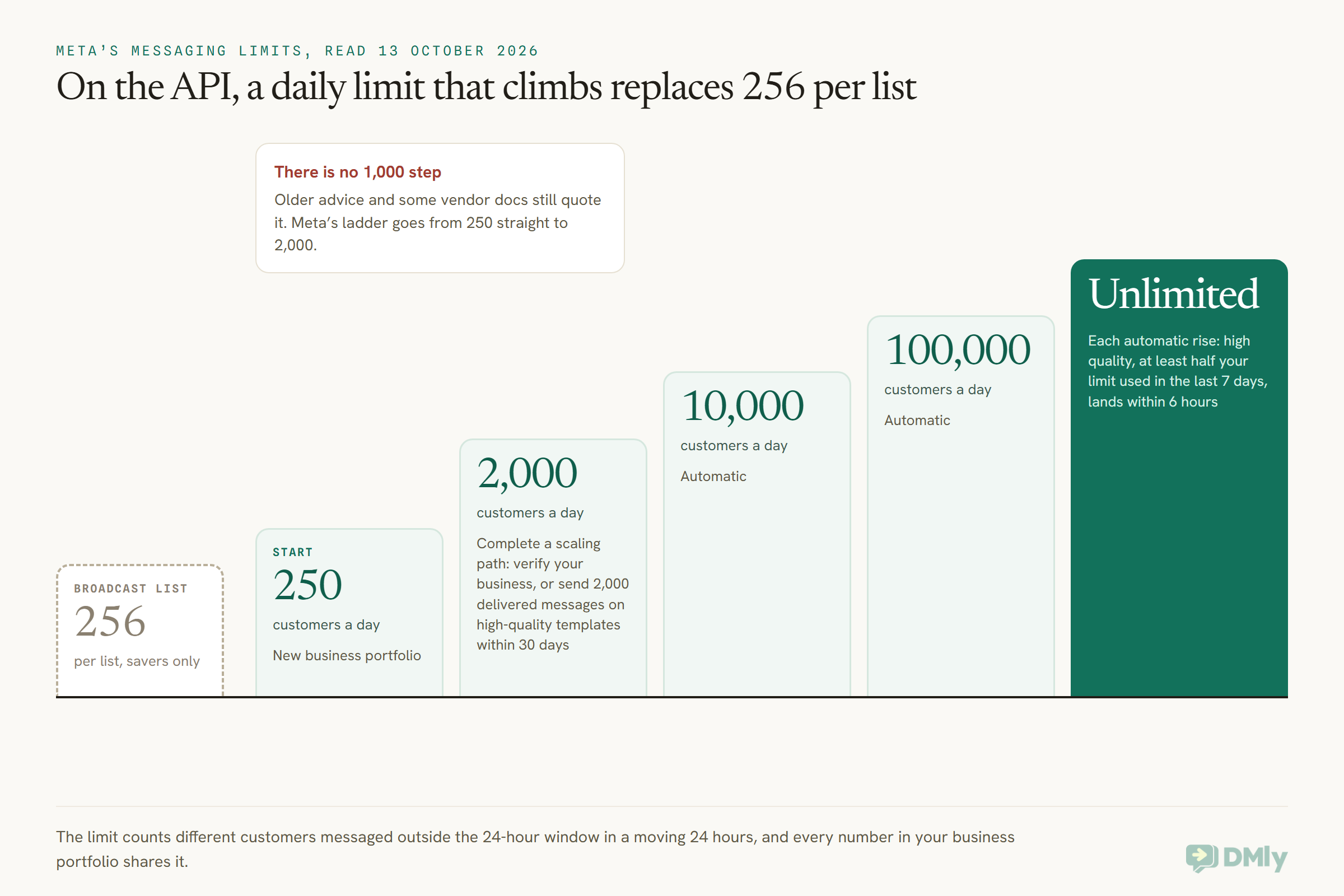
- 250 a day for a newly created business portfolio.
- 2,000 a day once you complete a scaling path: verify your business, have your partner verify it, or send 2,000 delivered messages outside the window to different customers within 30 days on templates with a high quality rating.
- 10,000, 100,000, then Unlimited, raised automatically one step at a time when you’re sending high-quality messages and have used at least half your current limit in the last 7 days. Meta says each increase lands within 6 hours.
Two details catch people out. First, the limit belongs to your whole business portfolio, so every number you own shares it. Second, a lot of older advice, and some vendor documentation, still quotes 1,000 as the second step. Meta’s current ladder goes from 250 straight to 2,000. If you want to see what your own limit means for a campaign, our guide to quality rating and messaging limits goes deeper.
The per-customer limit, and the US exception
There’s one more limit on the API, and it applies to the customer rather than to you. Meta may hold back marketing templates to a person who’s getting a lot of them and not reading them. Those messages fail with error 131049, and Meta says to wait at least 24 hours before trying again. Marketing templates sent while a customer’s 24-hour window is open don’t count. Meta says this limit isn’t active for messages sent from or to the EEA, the UK, Japan or South Korea.
And if your customers are in the United States, read this twice: Meta’s documentation says WhatsApp “does not currently deliver marketing template messages” to US phone numbers. So for a US business, the API is not a way to send promotions to more than 256 people. It’s still very useful for order updates, reminders and replying to customers who message you first, but a US promotion has to go through a broadcast list, a business broadcast where offered, or another channel like email or SMS. Our Black Friday WhatsApp marketing guide shows what that looks like for a real campaign.
What the API costs
Meta charges per delivered template, at a rate set by the customer’s country and the template’s category. Marketing usually costs more than Utility. The platform you use charges its own subscription on top. That’s the trade: the app’s broadcast lists are free and limited, the API is paid and scales.
Keep Your Phone App and Add the API: What Happens to Your Broadcast Lists
If you connect your existing Business app number to the API in coexistence mode, WhatsApp disables broadcast lists on that number. You can’t create new ones, and existing lists become read-only. That’s straight from Meta’s coexistence documentation, and it surprises people who assumed they’d keep both.
Coexistence lets you keep answering customers from the phone app while a platform runs the API on the same number. Messages you send from the app stay free; messages sent through the API are charged at API rates. It’s often the right move. Just know that the thing you were using broadcast lists for moves to API broadcasts on approved templates, sent to opted-in contacts, from the day you switch. Our WhatsApp coexistence guide lists everything else that turns off.
The good news: when you connect in coexistence mode, the contacts and chat history from your phone app can come across with you, so the customers on your old lists aren’t lost. You’ll still need their opt-in before you send them marketing templates.
How to Send to More Than 256 Contacts With DMly
With a platform like DMly, your WhatsApp broadcasts run on the official API, so there’s no list of 256 to fill and no saved-number rule. Here’s the path from a phone full of contacts to a campaign that reaches all of them, using only what’s in DMly’s documentation.
- Connect your number. If your team still answers from the WhatsApp Business app, choose Connect in co-existence mode under Already using the WhatsApp Business app? on the connect screen. DMly then asks WhatsApp for the phone app’s contacts and chat history, which WhatsApp allows once, in the 24 hours after you connect.
- Bring in the rest of your list. Go to Contacts, select Import, and upload a CSV. Every row needs a name and a phone number. The importer matches people you already have by phone or email, so running it twice doesn’t create duplicates. Only import people who agreed to hear from you.
- Build a segment instead of a list. Under Contacts → Segments, save a filter such as “tagged VIP” or “no visit in 90 days”. A segment re-checks itself every time you send, so it’s always current, and it has no 256 cap.
- Pick an approved template. WhatsApp broadcasts in DMly always send an approved template; there’s no free-text box on WhatsApp, because most of a broadcast audience is outside the 24-hour window.
- Create the broadcast. Go to Messaging → Broadcasts → New broadcast. Choose your segment on the Audience step, tick Reachable contacts only so opted-out contacts don’t inflate your numbers, then set the template, the schedule, and review.
- Pace a big send on a low limit. DMly doesn’t count your sends against Meta’s messaging limit. If you send more than your limit allows, Meta rejects the overflow, and the broadcast partly fails. On a 250 or 2,000 limit, split a large campaign across days.
- Follow up with the people who didn’t reply. Create a new broadcast with Type set to Retarget, pick the earlier campaign, and choose All Sent But Not Replied. Or choose All Failed to resend to the people it couldn’t reach, once you’ve fixed the cause.
Every reply lands in one shared inbox, so if 200 people answer a Friday promotion, your team can split them instead of one person thumbing through 200 chats on a phone. DMly plans start at $29 a month billed yearly, with 3,000 active contacts and 10,000 broadcast and template messages on Starter, 10,000 contacts and 50,000 messages on Growth, and unlimited contacts and 300,000 messages on Premium. You pay Meta’s per-message rates directly, with no markup added.
Which Way Past the WhatsApp Broadcast List Limit Fits Your Business?
The right way past the WhatsApp broadcast list limit depends on how many customers you have, whether they saved your number, where they live, and whether more than one person handles the replies. Six businesses, six answers.
A nail salon in Texas with 180 regulars
Stay on the app. One list of 180 fits under 256, regulars have almost all saved the salon’s number, and one person answers. Spend the effort on getting newer clients to save the number at checkout. Remember that API marketing templates aren’t delivered to US numbers, so the API wouldn’t send this salon’s promotions anyway.
A coaching institute in Pune with 1,400 students and parents
Move to the API. Five lists sent by hand, every week, to parents, many of whom never saved the number, is a job nobody does well. Collect opt-in on the admission form, import the list, and send class updates as Utility templates and course offers as Marketing templates, with the per-customer marketing limit in mind.
A fashion seller in Lagos with 3,000 Instagram buyers
Most of these buyers messaged once from an Instagram link and never saved the number, which is the worst case for a broadcast list. Business broadcasts can reach them if the feature is in your app; the API reaches them if they opted in. With replies arriving from hundreds of buyers asking about sizes, the API and a shared inbox usually win.
A café in Manchester with 400 loyalty members
Two lists would do, if members saved the number. A monthly “what’s new” also suits a WhatsApp Channel, which has no list at all. If the café later wants birthday offers to go out on their own, that’s an API job.
A property agent in Dubai with 900 enquiries
Enquiries from portals rarely save an agent’s number, and a broadcast list would miss most of them. Each new listing is a good fit for a template to an opted-in segment such as “two-bedroom, Marina, budget set”, which a broadcast list simply can’t filter.
A home bakery in Kuala Lumpur with 250 customers
One list, just under the cap. Before adding a second, check whether a monthly broadcast limit has appeared under Settings, then Broadcasts. If it has, a pre-order post on Status or a Channel can carry the announcement, and the list can be saved for the people who order every week.
Frequently Asked Questions
What is the WhatsApp broadcast list limit?
Each broadcast list can hold up to 256 contacts, and you can create as many lists as you like. Only contacts who have saved your number in their phone’s address book receive the message. In some countries WhatsApp is also rolling out a monthly cap, which its help page describes as up to 35 free broadcast messages a month.
Can I send a WhatsApp broadcast to more than 256 contacts?
Not in one broadcast list. You can split contacts across several lists for free, send a paid business broadcast from the Business app where it’s available, or use the official WhatsApp Business API, where there’s no list cap and your limit is a daily number of customers set by Meta.
Why didn’t some contacts receive my WhatsApp broadcast?
Most often because they haven’t saved your number. WhatsApp only delivers broadcast list messages to people who added you to their address book, and it doesn’t tell you who didn’t get it. WhatsApp’s advice is to ask them to add you. Business broadcasts and the API don’t have this rule.
Is there a monthly limit on WhatsApp broadcasts?
In some countries, yes. WhatsApp’s help page says you can send “up to 35 free broadcast messages per month” where the limit applies, and that it’s rolling out gradually. Check under Settings, then Broadcasts. The page doesn’t say whether the 35 counts sends or recipients.
Do business broadcasts have a 256 limit?
WhatsApp’s help pages for business broadcasts don’t mention 256 or any other maximum audience. You pay for each message delivered within five days, priced by the recipient’s country, and Meta reviews each broadcast before it’s sent.
Can I keep my broadcast lists if I connect my number to the API?
Not on the same number. In coexistence mode, Meta disables broadcast lists: you can’t create new ones and existing lists become read-only. Sending to many people moves to API broadcasts with approved templates.
Can I send WhatsApp promotions to US customers through the API?
Not at the moment. Meta’s documentation says WhatsApp doesn’t currently deliver marketing templates to US phone numbers. Utility messages, such as reminders and order updates, and replies to customers who message you first still work.
The WhatsApp Broadcast List Limit, Rechecked
We started by going to look for 256 on WhatsApp’s own pages. Here’s what the check found. The WhatsApp broadcast list limit is real, it’s per list, and you can have as many lists as you like. But the number that decides your reach is the share of customers who saved your number, and the number that may soon decide your schedule is a monthly cap.
- Under 256 loyal customers who saved your number: stay on free lists, and check Settings, then Broadcasts, for a cap.
- More than 256, mostly savers: split into lists by what you’d say to each group.
- Lots of customers who never saved you: business broadcasts if your app has them, or the API with opt-in.
- More than one person handling replies, or messages that should send themselves: the API.
- US customers and promotions: not the API, for now.
If you’ve reached the point where lists of 256 are costing you more time than they save, you can start a free DMly trial, import your contacts and send your first template broadcast to everyone who opted in, without counting to 256 once.
Writing about WhatsApp automation, bookings and growth for local business.
Turn WhatsApp into your busiest channel.
Start free and run message, bookings, payments and reviews in one place.
