
Click-to-WhatsApp Marketing: Ads, Links and QR Codes, and Attribution (2026)
Glow Nails has its WhatsApp number in six places. It’s on the window sticker, on the flyer that goes into every bag, in the Instagram bio, in the website footer, on a boosted post that runs at weekends, and at the bottom of the receipt. Every one of those brings in messages, and every message starts the same way: “Hi.”
The owner answers all of them between clients. She has no idea whether the boosted post is worth the money, whether anyone ever scans the window, or which flyer went out with the offer people keep asking about. Every “Hi” gets the same typed reply, and by the time she gets to her phone, three of them have gone quiet.
That gap is what click-to-WhatsApp marketing is about. Not more places to put your number, but entry points that tell you where each customer came from and start the right conversation the moment they arrive.
In this guide, we’ll look at what click-to-WhatsApp marketing is, the entry points you can use (links, QR codes, click-to-WhatsApp ads, website widgets and offline placements), how a tap turns into a contact, how to track which entry point produced each lead, how to start a different automation per entry point, what it looks like in six local industries, and how to set it all up with DMly’s growth tools. Where we already have a deep dive on one entry point, we’ll point you to it rather than repeat it.
What Is Click-to-WhatsApp Marketing?
Click-to-WhatsApp marketing is any placement, online or offline, that opens a WhatsApp chat with you in a single tap or scan, instead of asking your customer to save your number, fill in a form or make a call. They start the conversation, and that matters for two reasons. They have chosen a channel they already use every day, and under WhatsApp’s rules their message opens a 24-hour window (Meta calls it the customer service window) in which you can reply in your own words, with no pre-approved template needed. Those replies were also free of charge until 1 October 2026; from that date Meta charges for service replies inside the window, at the same rate as that market’s utility messages, and for utility templates sent inside it too.
In practice it’s a family of entry points that all end in the same place:
- Click-to-chat links (the familiar wa.me links) in your Instagram bio, on your website, in your email signature, on your Google Business Profile, in an SMS, anywhere a link can live.
- QR codes on the window, the counter, the table, the flyer, the packaging, the van and the receipt. A WhatsApp QR code is the same link, drawn as squares.
- Click-to-WhatsApp ads on Facebook and Instagram, plus the “Send WhatsApp message” call-to-action button on a Facebook Page, which open a chat with your number straight from the ad.
- Website widgets and buttons: a floating WhatsApp button, or a live chat widget that collects a phone number so the conversation can carry on in WhatsApp.
- Offline moments: a receptionist showing a QR code at the desk, a card in a delivery bag, a banner at a market stall.
What it isn’t: it isn’t broadcasting. Broadcasts are business-initiated messages sent with approved templates to people who opted in; click-to-WhatsApp is customer-initiated. It also isn’t the same thing as “WhatsApp Ads” in Meta’s sense, which are ads shown inside WhatsApp itself (in Status and in Channels). Our WhatsApp Ads guide covers those. This guide is about the placements and ads that bring people into WhatsApp.
The rule that decides everything: Nothing exists until the customer presses send. A tap that opens WhatsApp and closes it again isn’t a lead, isn’t a contact and can’t be tracked as one. Every good entry point makes that first send effortless: a pre-filled message, a clear reason to write, and an instant reply when they do.
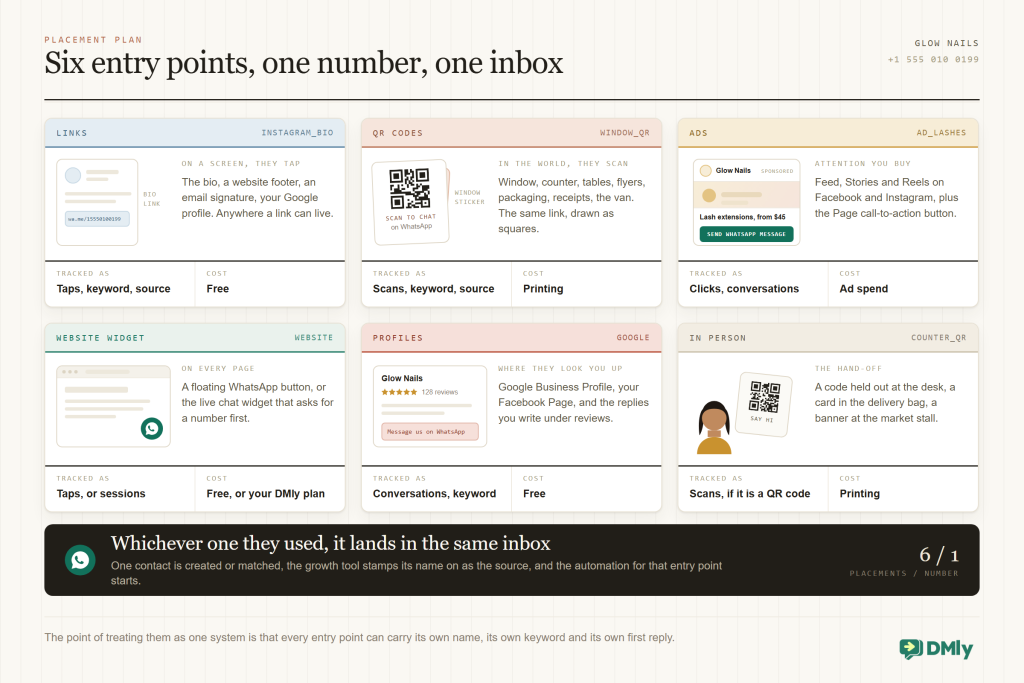
The Entry Points Compared
Every entry point does the same job, and each one is better at a different part of it. Here is how they line up for a local business like yours.
| Entry point | Where it lives | What you can track | What it costs | Best for |
| Click-to-chat link | Bio, website, email signature, SMS, Google Business Profile | Taps (with a tracked link), the keyword sent, the source on the contact | Free | Anywhere a customer is already reading on a screen |
| QR code | Window, counter, tables, flyers, packaging, receipts, vehicles | Scans per code, the keyword, the source on the contact | Printing | Physical spaces and print |
| Click-to-WhatsApp ad | Facebook and Instagram feeds, Stories, Reels | Clicks and conversations started in Ads Manager; the ad referral on the first message; a greeting keyword you choose | Ad spend | Reaching people who don’t know you yet |
| Facebook Page button | Your Facebook Page | Conversations in Meta; a keyword if you pre-fill one | Free | Businesses with an active Page |
| Website chat widget | Every page of your site | Visitor sessions, pre-chat details, phone number if you ask for it | Included in DMly plans | Visitors who want to ask before they commit |
| Offline hand-off | Front desk, deliveries, events | Scans, if it’s a QR code | Printing | Turning walk-ins into contacts you can message again |
The link-versus-QR distinction is mostly about where the customer’s thumb is: on a screen they tap, in the world they scan. The link-versus-ad distinction is about who’s paying: links and QR codes turn attention you already have into conversations, ads buy new attention. Most local businesses need both, and they need them wired to the same number.
For the details of link syntax, shortening and placement, our post on WhatsApp click-to-chat links goes deeper than we will here, and we have step-by-step guides on how to create a WhatsApp link and how to create a WhatsApp QR code for your business. For ads, start with how to run click-to-message ad campaigns. This guide is the map that shows how they all fit together.
How a Tap Becomes a Conversation
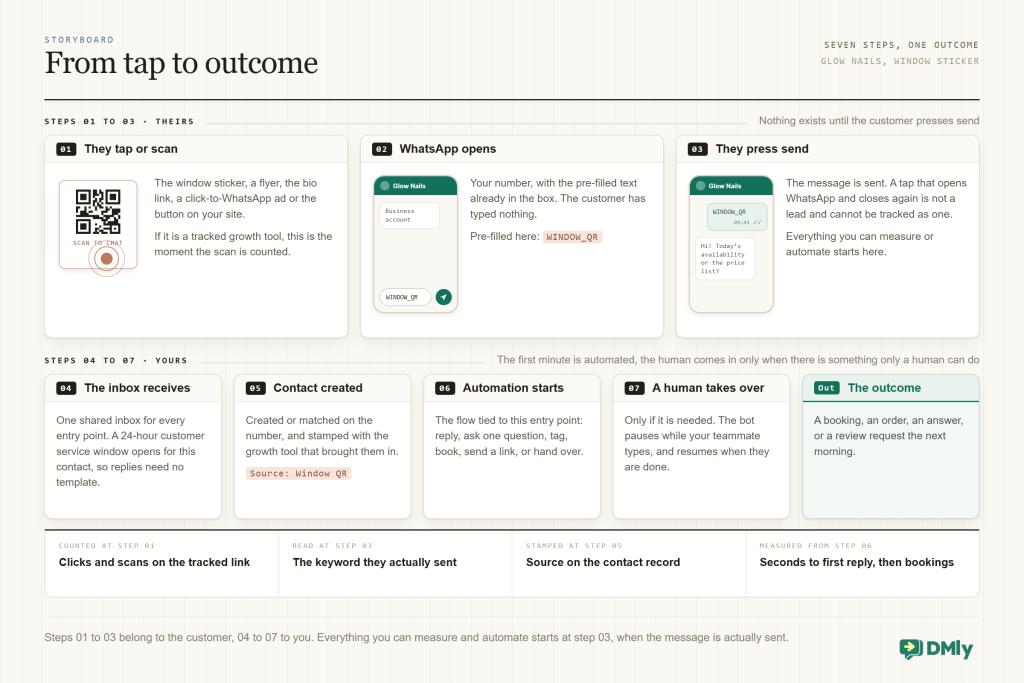
Whatever the entry point, the sequence underneath it is identical, and the two places you lose leads are only visible once you have seen the whole chain. Those two places are the send and the first reply, so it is worth walking through once.
The link itself
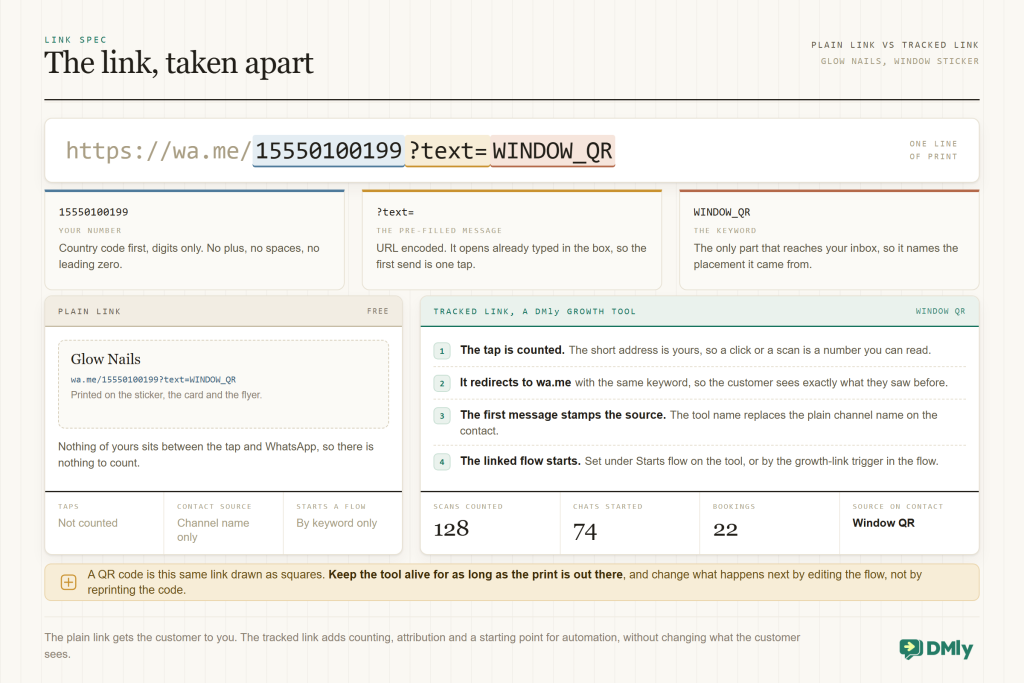
A click-to-chat link is a URL in the form https://wa.me/<number>, where the number is your full WhatsApp number in international format with no plus sign, spaces, brackets or leading zeros. Add ?text= and a URL-encoded message and WhatsApp opens with that message already typed in the box, ready to send. That pre-filled text is the most under-used part of the whole system: it’s what makes the first send a one-tap job, and it’s the only piece of the link that survives into your inbox, which is why it doubles as your tracking keyword (more on that below).
There are three kinds of QR code you’ll meet. The first is simply a wa.me link encoded as a QR image, which is what most generators (including DMly’s free QR code generator) produce. The second is WhatsApp’s own “QR codes and short links” for API numbers, which use the form wa.me/message/<code>, carry a pre-filled message of up to 140 characters that you can edit at any time, and are limited to 2,000 codes and short links per number, according to Meta’s documentation. The third is a tracked QR code from your messaging platform, where the code points at a short address that counts the scan and then redirects to WhatsApp; that’s what a DMly growth tool creates. The WhatsApp Business app can also generate a basic QR code for your number from its business tools.
The send, and the window
When your customer sends the message, three things happen at once. Their message arrives in your inbox. WhatsApp opens the 24-hour window for that contact, so you and your automations can reply in your own words rather than from an approved template. And, because they wrote to you, that reply doesn’t count against your messaging limit; under Meta’s rules the limit only applies to conversations your business starts. This is why click-to-WhatsApp marketing scales in a way broadcasts don’t: a new API number limited to 250 business-initiated conversations a day can still receive and answer thousands of inbound chats.
With a platform like DMly, the moment the message lands is also when the contact record is created or matched, the source is stamped on it (from the growth tool the person used), and the flow tied to that entry point starts. Here’s the whole thing for a salon’s window QR code:
Scan window QR → WhatsApp opens with “WINDOW_QR” pre-filled → customer sends → contact created, source “Window QR” → walk-in welcome flow: “Hi! Want today’s availability or our price list?” → booking link → confirmation on WhatsApp
Takeaway: design every entry point for the send, not the tap. Pre-fill the message, give a reason to write, and make sure something answers within seconds.
Why Click-to-WhatsApp Marketing Matters
Two things make click-to-WhatsApp marketing worth doing properly: where your customers already are, and how fast they now expect you to be.
- 2 billion+ people use WhatsApp every day. Meta, Q4 2025 earnings call
- 1 billion+ active conversation threads with businesses every day across WhatsApp, Messenger and Instagram. Meta, Q3 2025 earnings call
- 50%+ year-on-year growth in US click-to-message ads revenue in Q4 2025; WhatsApp paid messaging passed a $2 billion annual run rate in the same quarter. Meta, Q4 2025 earnings call
- 90% of customers rate an immediate response as important when they have a support question (82% for sales questions), and “immediate” means 10 minutes or less. HubSpot Research
Put those together and the case is simple. The customer is already in WhatsApp, so an entry point that opens it costs them nothing. Meta is pouring investment into the path from ad to conversation, which means the tooling keeps getting better and the competition for that path keeps rising. And speed decides who wins the lead: a QR code that leads to a chat nobody answers for two hours is worse than no QR code, because it teaches the customer that you’re slow.
There’s a quieter reason too. Every conversation that starts from a link or a QR code is a contact who chose to write to you, from a place you can name. Over a year, that becomes a customer list segmented by how people found you, which is the most useful list a local business can own. Building it doesn’t touch your WhatsApp messaging limits, and, handled correctly, it doesn’t risk your quality rating either.
How to Track Which Entry Point Produced a Lead
This is the question that separates having your WhatsApp number on things from actually doing click-to-WhatsApp marketing. On WhatsApp there is no cookie, no pixel and no landing page: once the chat opens, the web is out of the picture. So the tracking has to be built into the entry point itself, and there are three layers to it. You want all three.
Layer 1: count the tap or scan
A plain wa.me link can’t be counted, because nothing of yours is between the tap and WhatsApp. A tracked link puts a short redirect in between: the tap hits your address, gets counted, and is passed straight on to WhatsApp. DMly’s growth tools do exactly this; the shared address counts the click or scan and then redirects to wa.me with your keyword. Because a QR code is just a link drawn as squares, tracked QR codes work the same way, one count per scan.
Taps are the top of the funnel and nothing more. They tell you which placement is being seen and acted on (is the window sticker working, does anyone scan the receipt) but not who the person is, because a tap that never becomes a message never becomes a contact.
Layer 2: the keyword in the pre-filled message
The pre-filled text is the only part of the entry point the customer actually sends, so it’s the only signal guaranteed to reach your inbox. Give every placement its own keyword and the first message tells you where it came from: “WINDOW_QR”, “FLYER_AUG”, “BIO_LINK”. DMly generates the keyword automatically from the growth tool’s name (a tool named “Spring campaign link” gets “SPRING_CAMPAIGN_LINK”), shows it as the Prefilled message (keyword), and lets you edit it, as long as it stays unique within the channel. This is the layer that keeps working even when counting doesn’t: an ad, for example, doesn’t use your tracked link at all, but you can still set its greeting or pre-filled text so the first message carries a distinct keyword.
Two honest caveats. Some people delete the pre-filled text and type “Hi” instead. Their tap was still counted (layer 1) and your fallback welcome flow still answers them; you just lose the placement-level attribution for that one person. And a keyword only appears once, at the start, so it’s a note about how the relationship began, not a live tag that follows every message.
Layer 3: the source on the contact record
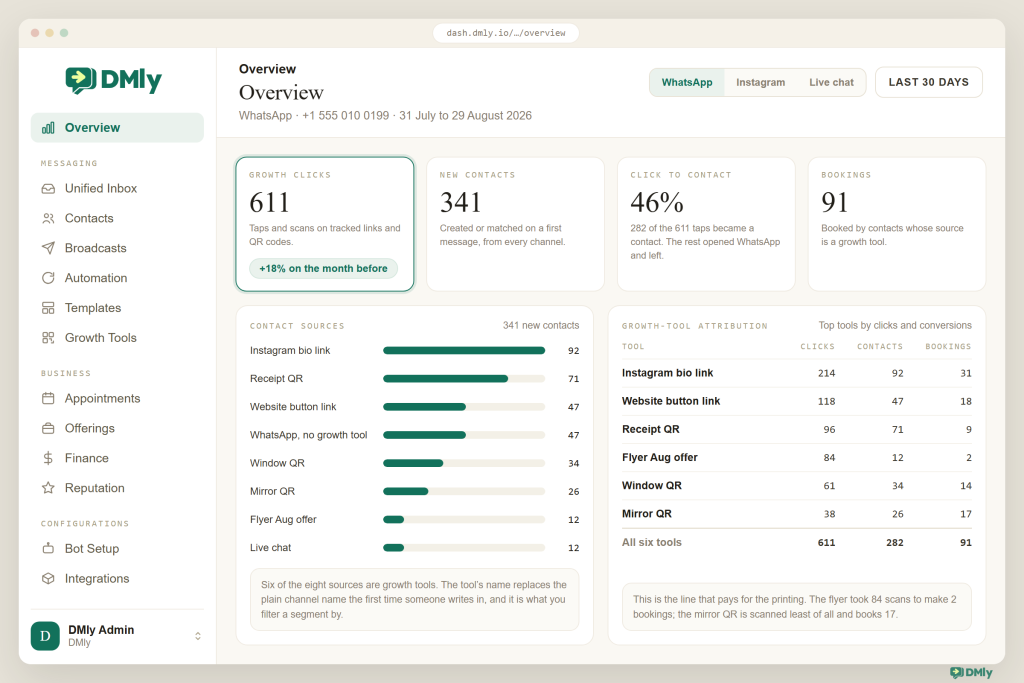
Counting and keywords are useful; a source field on the contact is what makes the data usable later. In DMly, when someone reaches you through a growth tool and sends that first message, the tool’s name is stamped onto the contact as their source, replacing the plain channel name. From then on you can filter contacts by Source in a segment (“everyone who came from the window QR”), see the top sources on the Overview dashboard, and compare tools by clicks and conversions in the Growth-tool attribution panel. That’s the difference between “we got 40 scans” and “the window brought 40 scans, 22 chats and 9 bookings, the flyer brought 300 scans and 4 bookings”.
One WhatsApp-specific rule to know: DMly attributes and triggers a growth tool only on a person’s first ever message to that number. An existing client who scans your new table QR opens the chat with the keyword, and you’ll see it in the conversation, but their source stays whatever it was and the link-specific flow doesn’t start for them. Keep a normal keyword flow for returning customers, and you lose nothing.
To estimate what a campaign returns from your own ad spend and conversion rates, use the free WhatsApp marketing ROI calculator.
Naming convention: Name each growth tool by place, campaign and month, and let the keyword follow: “Window QR” (WINDOW_QR), “Flyer Aug offer” (FLYER_AUG_OFFER), “Instagram bio link” (INSTAGRAM_BIO_LINK). One tool per placement. Two flyers with the same code tell you nothing about which flyer worked.
What about UTM parameters and web analytics? They stop at the redirect. Nothing of yours loads in a browser after the tap, so your web analytics never sees the conversation. Treat the tracked link’s counter as your click data and the contact source as your conversion data, and stop trying to make a web analytics tool report on WhatsApp. Our guide on how to track which WhatsApp link generated a lead goes into the reporting side in more detail.
Takeaway: count the tap, keyword the message, stamp the source. If you only do one, do the keyword; it’s free and it works on every entry point, ads included.
Starting a Different Automation From Each Entry Point
The entry point already told you what the person wants, and sending everyone the same greeting throws that away. The person scanning the table tent wants the menu. The person tapping the boosted post wants a price. The person scanning the receipt has just paid and might leave a review. All three send “Hi”, and if all three get “Thanks for contacting us, how can we help?”, you have wasted the only clue you were given.
The mechanism is the keyword. Because the entry point pre-fills a message, and the customer sends it, the first message contains a code your automation can match. In DMly you connect an entry point to a flow in one of two places: on the growth tool itself, under Starts flow (optional), or in the flow builder, by setting the WhatsApp trigger to User clicks a link (listed as WhatsApp URL on the triggers page) and choosing A specific link or Any of my links. When a growth tool starts a flow, that flow takes the conversation and your normal keyword and welcome triggers are skipped for that message, so the customer never gets two replies.
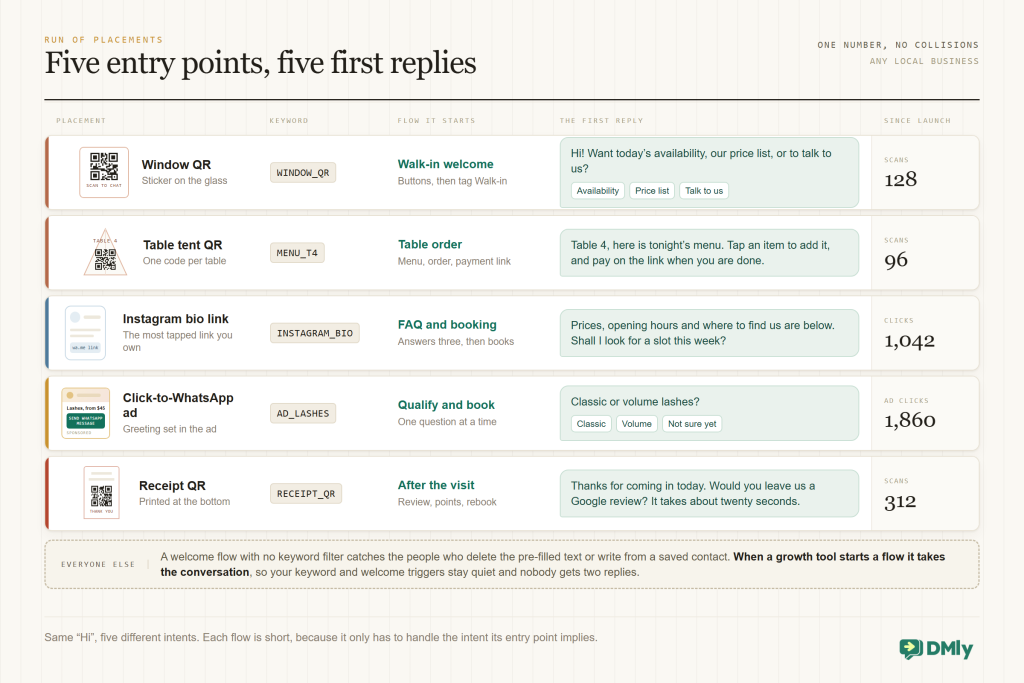
Here are five flows that cover most local businesses. Each one is a few steps in a flow builder, and each one exists because the entry point already told you what the person probably wants.
- Walk-in welcome (window or counter QR). “Hi, you’ve reached Glow Nails. Want today’s availability, our price list, or to talk to us?” Buttons for each. “Availability” hands to the AI agent to check open slots and book; “Price list” sends the list and asks whether to book; “Talk to us” assigns a person. Tag the contact Walk-in.
- Table order (a QR per table). The keyword carries the table number. The flow sends the menu as a list message, collects the order, sends a payment link, and drops a note into the conversation for the kitchen. The next day, a review request goes out.
- FAQ and booking (bio and website link). These visitors are researching. The flow answers the three questions everyone asks (prices, hours, location), then sends the booking link or lets the AI agent book directly. Anything unusual goes to a human.
- Qualify and book (ads). The person tapping an ad about lash extensions wants a price and a date. Ask one question at a time: “Classic or volume?” “Which day suits you?” Tag them by ad, mark them a hot lead when they answer both, and either book or hand over while they’re still looking at their phone.
- After the visit (receipt or invoice QR). They’ve just paid. Say thank you, ask for a Google review with a tracked review link, add loyalty points, and offer to pre-book their next visit. This is also where you ask, explicitly, whether they’d like offers by WhatsApp, and store the answer.
Table QR → “MENU_T4” → menu list → order placed → payment link → paid → note for kitchen → next day: “How was it? A Google review would mean a lot” → review link
Two habits make this reliable. Always keep a fallback: a welcome or default flow with no keyword filter, for the people who delete the pre-filled text or write from a saved contact. And keep each entry-point flow short. Its job is the first minute; once the intent is clear, hand off to your booking flow, your AI agent or a person. Our guide on how to start different automations from different WhatsApp links and QR codes walks through building each of these step by step, and covers the “QR codes that automate a whole customer journey” idea for businesses that want to chain them.
Takeaway: one entry point, one keyword, one short flow, plus a fallback for everyone else.
Where to Put Your Links and QR Codes
Placement is where click-to-WhatsApp marketing stops being a project and becomes a habit. The best ones sit exactly where your customer has a question or a decision to make. Here are fifteen that earn their place for most local businesses, with the keyword and the first reply that fit each one.
- Shop window For people walking past after hours. Keyword WINDOW_QR; reply with opening hours, the price list and a way to book. Print it large enough to scan from the pavement.
- Front counter or reception For people waiting. Keyword COUNTER_QR; reply with “Save our number, and here’s how to book next time”. Staff can point at it while they finish with the customer in front.
- Tables, changing rooms, mirrors and mats Wherever people sit still. Keyword per table or room; reply with the menu, the treatment list or the class timetable.
- Flyers and door drops Keyword per batch (FLYER_AUG_OFFER); reply with the offer and a booking button. Print a different code on each batch and you finally know which street worked.
- Business cards Keyword CARD; reply with your services and the booking link. Cards travel; the code keeps working after the phone number is forgotten.
- Receipts and invoices Keyword RECEIPT_QR; reply with thanks, a review request and loyalty points. DMly can also put a WhatsApp pay link and QR on an invoice, which is the same idea in reverse.
- Packaging and inserts For anything that goes home with the customer. Keyword PACKAGING; reply with care instructions, reorder buttons and “message us if anything’s wrong”.
- Instagram bio The single most-tapped link most local businesses have. Keyword INSTAGRAM_BIO; reply with the FAQ-and-booking flow.
- Facebook Page button and posts Set the Page’s call-to-action to WhatsApp and pre-fill the message; keep a link with keyword FACEBOOK in pinned posts.
- Website A floating WhatsApp button on every page, plus a link in the footer and on the contact page, keyword WEBSITE. Or the live chat widget, if you want visitors to be able to ask before they leave the site.
- Google Business Profile Where your profile lets you add a link (an appointment or booking link, for example), point it at your tracked WhatsApp link with keyword GOOGLE, and mention “message us on WhatsApp” in review replies and posts.
- Email signature and newsletters Keyword EMAIL; a quiet, permanent entry point for existing customers who prefer chatting to calling.
- Vehicles and shopfront signage Vans, A-boards, banners. Keyword VAN; reply with your service area and a quote request flow. Keep the code big and high-contrast.
- Events, markets and pop-ups A banner or a lanyard code, keyword EVENT_MAY; reply with the event offer and a way to stay in touch. This is how a weekend stall becomes a customer list.
- Staff hand-off Not a place but a script: “Scan this and say hi, and I’ll send you your appointment card.” The keyword is whichever code is nearest; the point is that the customer leaves with a conversation, not a leaflet.
Two production notes. Download tracked QR codes as SVG (DMly’s growth tools export SVG) so they stay crisp at any size, and test every printed code with two different phones before it goes to the printer. And when you retire a placement, don’t delete its growth tool: printed codes are still out there, and a deleted tool leaves scanners landing on a home page instead of your chat. Our post on 15 ways to use WhatsApp QR codes to get more customers goes further on ideas by business type; salons and clinics each have a dedicated guide on QR codes for bookings.
Click-to-WhatsApp Ads in Brief
Everything above turns attention you already have into conversations. Ads buy new attention and drop it into the same inbox. We keep this section to what you need to see the whole system; the setup, costs and lead-qualifying details each have their own guides.
What they are. Ads that click to WhatsApp are Facebook and Instagram ads whose button opens a WhatsApp conversation with your business instead of a website. You need a Facebook Page with your WhatsApp number linked to it and a Meta ad account; the objectives that support them are Engagement, Leads, Sales and Traffic. In the ad setup you can add a greeting, pre-filled text and tappable ice breakers, which is exactly where you plant the keyword that tells your automation this person came from an ad, and from which ad set.
What they cost, and the free window. Meta bills the WhatsApp Business Platform per delivered template message (the change from per-conversation to per-message pricing took effect on 1 July 2025). When someone messages you from a click-to-WhatsApp ad, Meta opens a free entry point window: if you respond within 24 hours, that response and any message you send while the window is open, templates included, is free. How long it stays open depends on which Meta page you read: its business pricing page says 72 hours and also counts Facebook Page call-to-action buttons, while its developer pricing page (updated 30 September 2026) says up to 7 days and names only click-to-WhatsApp ads. Plan on 72 hours from an ad until Meta lines the two up. That mattered less before 1 October 2026, when ordinary replies inside the 24-hour window were free anyway and the entry point window only added templates and a few extra days. From October, service replies inside the normal window are charged and so are utility templates sent inside it, which makes the free entry point window worth considerably more to you than it used to be. Miss the first 24 hours and you lose it, which is one more reason your first reply has to be automatic.
How you know which ad it was. Meta attaches a referral object to the first message a person sends from an ad, carrying the ad’s headline, body, ID, media and a click ID (ctwa_clid) that platforms can use with Meta’s Conversions API for messaging. Ads Manager, for its part, reports clicks and messaging conversations started. DMly’s documentation doesn’t describe surfacing that referral object in the inbox, so the practical approach is the one that works everywhere: give each ad set its own greeting keyword, tag the contact from the flow (“Ad: Lashes Aug”), and read results as bookings and payments per tag on the DMly side and cost per conversation on the Meta side.
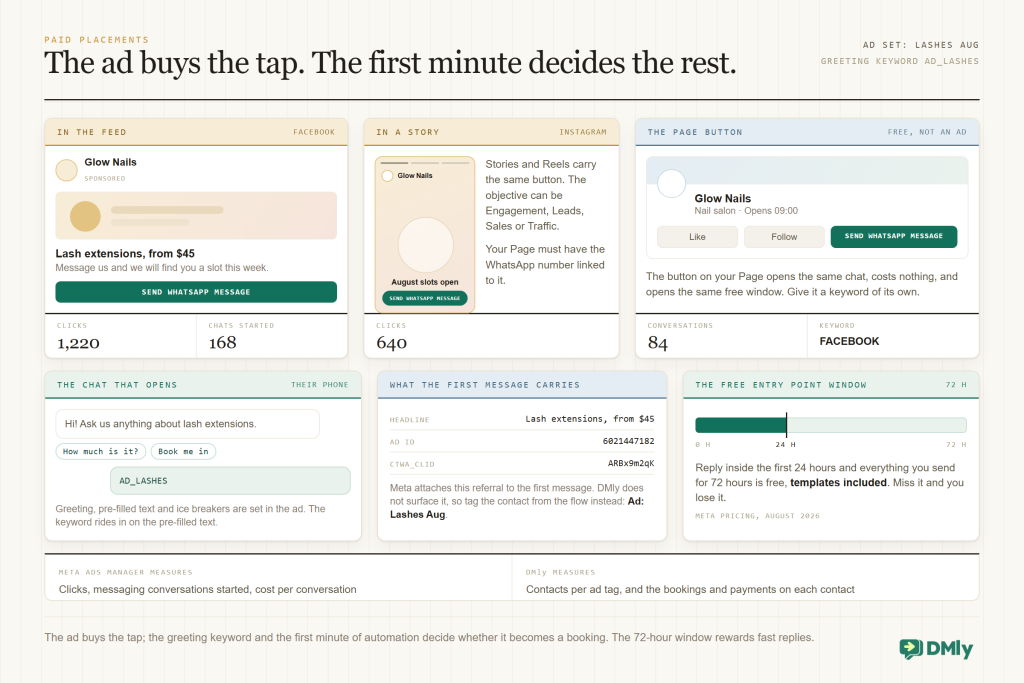
Three things to get right, whichever guide you follow. First, the first reply must arrive in seconds and ask one clear question, not present a menu of nine options. Second, use a WhatsApp number that’s already connected to your inbox and automations, not a personal phone that happens to be linked to the Page. Third, decide in advance what a qualified lead is (service plus a date, or a postcode plus a budget) and let the flow tag it, so “cost per qualified lead” is a number you can read rather than a feeling.
For the click-by-click setup in Ads Manager, read how to run click-to-message ad campaigns that convert. To use WhatsApp for retargeting people who clicked but didn’t buy, see how to boost retargeting ad conversions using WhatsApp. And we have separate guides on what click-to-WhatsApp ads cost and how to lower cost per conversation, how to automatically reply to and qualify leads from click-to-WhatsApp ads, how to send Facebook and Instagram lead ads to WhatsApp automatically, and how to get WhatsApp leads from Google Ads.
Takeaway: an ad is an entry point with a bill attached. Give it a keyword, an instant reply and a definition of “qualified”, and the free 72-hour window does the rest.
Website Widgets, Buttons and Offline Hand-Offs
Two of the entry points behave differently from a plain link, so they get their own notes here.
Website: button or widget?
A floating WhatsApp button is just a link, so everything above applies: make it a tracked link with keyword WEBSITE, and it counts taps and stamps the source. It’s the right choice when most of your visitors are on their phones and already use WhatsApp.
A live chat widget is different: it starts a conversation on your website, in its own channel, so visitors don’t have to leave the page. In DMly you create one under Bot setup → Set up Live Chat, choose a design, colours, greeting and dock position, and paste a single script tag before </body>. Chats land in the same inbox as WhatsApp. If you want the relationship to carry on in WhatsApp afterwards, switch on Require phone before chat in the pre-chat form; the number is saved to the contact, and (with their permission) you can continue on WhatsApp later. Two limits worth knowing: growth tools don’t apply to Live Chat, because it isn’t reached by a chat link, and a workspace can start conversations with up to 500 brand-new visitors a day. Our live chat page and the guide on adding a live chat widget to your website cover the choice in more depth.
Offline: the goal is a contact, not a chat
A QR code at the desk creates a conversation. What you actually want is a contact you’re allowed to message again, which needs three things the chat alone doesn’t give you: their name, their consent, and a note of where they came from. WhatsApp hands you the phone number automatically, and a growth tool stamps the source, so the flow only has to do two jobs: ask for the name (a question step, or the AI agent’s contact tools) and ask, in plain words, “Would you like appointment reminders and the occasional offer on WhatsApp? Reply YES or NO.” Store the answer in a custom field. DMly records when someone opts out but not how they opted in, so that field is your consent record.
Then equip the people. A receptionist who says “Scan this and say hi, and I’ll send your appointment card to WhatsApp” converts more walk-ins than any sticker, because there’s a reason to send right now. Delivery drivers, trainers and stylists can do the same with a card. Our guide on how to turn offline customers into WhatsApp contacts has scripts and flows for each role.
Takeaway: online, choose the button for speed and the widget for questions; offline, design for name, consent and source, and give staff one sentence to say.
What It Looks Like in Six Local Industries
The entry points are the same in every trade; the placements and the first replies are not. Here is how click-to-WhatsApp marketing tends to land in six of them.
Salons, spas and barbers
Window QR for walk-ins, mirror QR for rebooking before they leave, Instagram bio link for new clients, receipt QR for reviews. Flows: availability and booking, price list, “rebook in 6 weeks” with a reminder. The metric that moves: bookings per source, and no-shows, because deposits sit in the same flow.
Clinics and dental practices
Reception QR (“message us instead of waiting on hold”), appointment card QR, website button, a Google Business Profile link. Flows: book or reschedule, pre-visit instructions, recall reminders. Keep clinical questions with a human; the flow’s job is booking and logistics.
Gyms and studios
Front desk QR for trials, class timetable QR on the wall, Instagram bio link, ads for January and September. Flows: book a trial class, see this week’s timetable, freeze or renew a membership. Tag by campaign so you can see which offer filled the 6am class.
Restaurants and cafés
Table QRs with the table number in the keyword, window QR for reservations, packaging QR for reorders, receipt QR for reviews. Flows: menu and order, reservation with a deposit, “order again”, review request the next morning. Our restaurant guide covers the ordering flow in detail.
Tutors and small schools
Flyer QR at the school gate (one keyword per school), website link, Facebook Page button for parents. Flows: which subject and level, a trial lesson booking, term dates and fees. Parents ask the same eight questions; the FAQ flow answers seven and hands over the eighth.
D2C and small product brands
Packaging insert QR, order confirmation email link, Instagram bio link, click-to-WhatsApp ads for launches. Flows: care and setup instructions, reorder with a payment link, “where’s my order”, and a review or referral ask after delivery. Source per insert tells you which product line brings people back.
Notice how few of these first replies are “marketing”. Most are service: book, reorder, answer, remind. That’s why they get replies, and why the source data underneath them is trustworthy.
Why DMly Is the Best Platform for Click-to-WhatsApp Marketing
Most tools give you one piece of this: a link generator, or a QR generator, or an inbox. DMly is built so that the entry point, the tracking, the automation and everything that happens after the first reply all live in one place. Here is what that means in practice, straight from the product and its documentation.
Tracked links and QR codes are a built-in feature, not a plugin
Under Messaging → Growth Tools you create a WhatsApp link or a QR code for the profile you’re working on, give it a name of up to 80 characters, and DMly generates the keyword from that name and shows it as the Prefilled message (keyword). Optionally pick the flow it starts under Starts flow (optional). The shared address is a tracked link that counts the click or scan and then redirects to WhatsApp with the keyword; the QR code downloads as SVG, so it prints sharp at any size. There’s no limit on how many tools you create, and the same feature makes ref links for Facebook Messenger, Instagram and Telegram, so a business running WhatsApp and Instagram DMs can give each of them tracked entry points from the same screen.
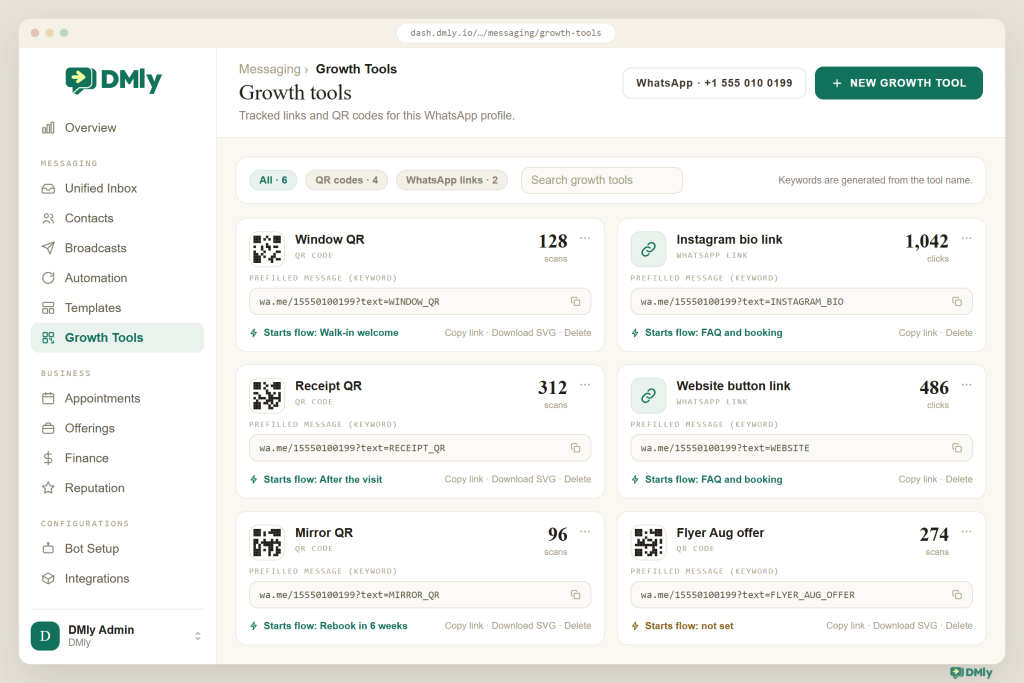
Every entry point can start its own flow
Set Starts flow (optional) on the tool, or open a flow and set its WhatsApp trigger to User clicks a link with A specific link (only that tool starts it) or Any of my links (every growth tool on the channel does). When a growth tool starts a flow it takes the conversation, so keyword and welcome triggers don’t fire a second reply. That’s the mechanism behind Figure 4: five entry points, five flows, one number, no collisions.
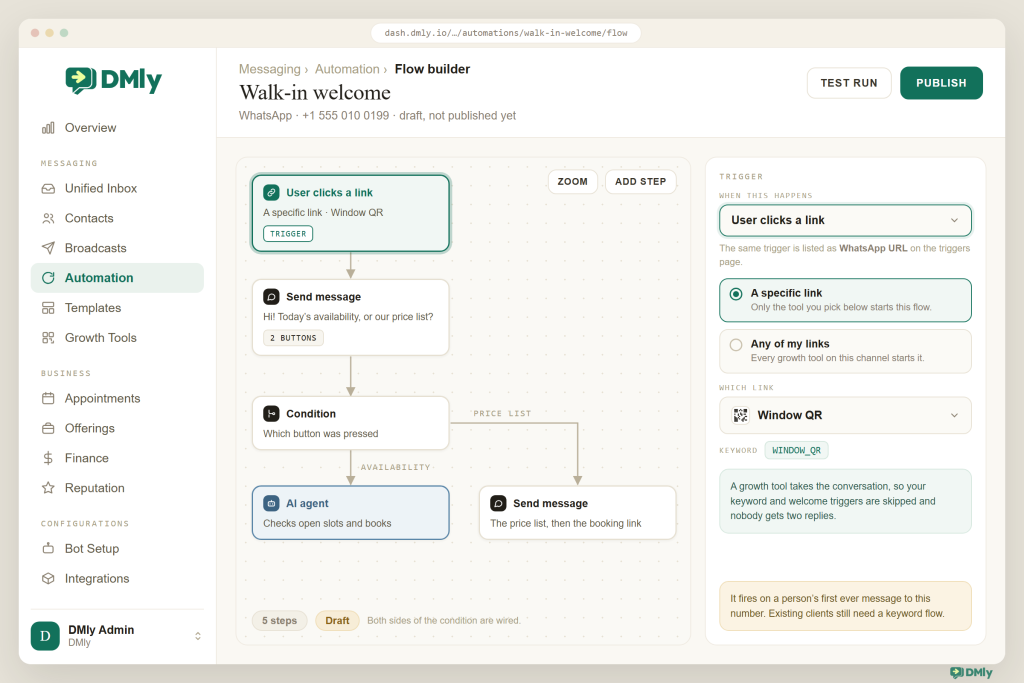
The source follows the contact, and shows up in reports
On the first message, DMly stamps the growth tool’s name onto the contact as its source. From there it’s ordinary CRM: filter by Source in a segment, build a broadcast audience from that segment (opted-in contacts only, with “Reachable contacts only” ticked), or use a “Field changed” or “Tag applied” trigger to run a follow-up. On the Overview dashboard, the Growth clicks card, the Contact sources panel and the Growth-tool attribution panel (top tools by clicks and conversions) give you the placement-level view without exporting anything.
Everything after the first reply is already there
This is the part a link generator can’t give you. Once the flow starts, DMly’s flow builder has the steps a first minute needs: buttons and list messages, ask-a-question steps, add or remove a tag, set a custom field, book a meeting or send the booking link, send a payment link or invoice, request a Google review, hand over to a teammate. The AI agent can check available times and book, reschedule or cancel appointments, look up your services and prices, tag the contact and hand over when it’s out of its depth. The shared inbox shows the conversation with its source, lets a person pause the bot and take over, and enforces the 24-hour window and opt-out keywords everywhere. Bookings, deposits, reminders, invoices, loyalty and review requests are the same product, not integrations.
Free tools before you sign up
If you just need a link or a QR code today, DMly’s free WhatsApp link generator and free WhatsApp QR code generator work without an account: number, pre-filled message, copy the link or download the code (PNG or JPEG, with your colours). They make plain, untracked links, which is fine for a bio or a business card. When you want counting, sources and a flow per entry point, that’s the growth tools inside the platform. Plans start at $29 a month billed yearly, every plan includes a 7-day free trial with no credit card, and there’s no markup on WhatsApp messages: you pay Meta’s rates directly.
| What you need | Typical link or QR generator | DMly |
| Create a link or QR code | Yes, usually free | Yes: free tools with no account, plus tracked growth tools inside the platform |
| Count taps and scans | Only with a separate shortener | Built in: every tracked link and QR code counts clicks or scans |
| Know which entry point a contact came from | No | Source stamped on the contact; segments by Source; Contact sources and Growth-tool attribution on the dashboard |
| Start a different automation per entry point | No | Starts flow on the tool, or the User clicks a link trigger with a specific link or any link |
| What happens after the first reply | Nothing; it’s just a chat | Flows, AI agent, bookings, payments, reminders, review requests, broadcasts to opted-in segments |
| Other channels | WhatsApp only | Ref links and QR codes for Messenger, Instagram and Telegram too; live chat widget for the website |
| Cost | Free, then a separate inbox tool | Free tools; plans from $29 a month; no markup on WhatsApp |
Create your WhatsApp link
Make a click-to-chat link or QR code in seconds with DMly’s free generators, no account needed. When you’re ready to count every scan, see where each contact came from and start a different flow per entry point, the growth tools are waiting inside your 7-day free trial.
How to Set Up Click-to-WhatsApp Marketing With DMly
Build it in this order: flows first, then tools, then print. The reason is simple enough: the code you send to the printer should already lead somewhere good.
- Connect your WhatsApp number. In DMly go to Integrations → Channels → Add account and choose WhatsApp: Connect a business number. The recommended route is Meta’s Embedded Signup, which takes about ten minutes; complete every step in one go and have your business documents ready in case Meta asks for verification.
- List your entry points and name them. Walk through your shop, your print and your online profiles and write down every place a customer could tap or scan. Give each one a name by place, campaign and month. Decide which of them get the same first reply and which need their own.
- Build the flows, plus a fallback. New automation → Flow builder. Build the short entry-point flows from earlier (walk-in welcome, FAQ and booking, table order, ad qualifier, after-visit), each ending in a booking, a payment link, a tag or a handover. Then build one welcome flow with no keyword filter for everyone who arrives without a keyword. Publish them.
- Create the growth tools. Messaging → Growth Tools → New growth tool. Name it, choose WhatsApp link or QR code, check the generated Prefilled message (keyword), and pick the flow under Starts flow (optional). Repeat for each entry point, one tool per placement.
- Test each one with your own phone before it goes anywhere. Scan or tap, send the pre-filled message, and check that the right flow answers, that the contact appears with the right source, and that the count went up by one. Then delete your test contact so it doesn’t skew the numbers.
- Place them. Download QR codes as SVG for print, copy the tracked links into your Instagram bio, website button, email signature and Google Business Profile, and set your Facebook Page button to WhatsApp. Add the live chat widget under Bot setup → Set up Live Chat if you want website visitors to ask before they commit.
- Wire up your ads. For each ad set, give the greeting or pre-filled text a distinct keyword and point the matching qualifier flow at it. Reply within seconds to keep the free entry point window, and tag the contact by ad so results are readable.
- Read the numbers weekly and prune. Open the Overview dashboard for growth clicks, contact sources and growth-tool attribution, and open segments by Source to compare bookings. Retire placements that never get scanned (keep the tool alive), double down on the ones that convert, and only broadcast to sources whose contacts said yes to hearing from you.
Best Practices
- Pre-fill something worth sending. “Hi, I’d like to book” converts better than a bare code word, and it still carries the keyword. DMly lets you edit the pre-filled message; keep the code in it and make the rest human.
- Answer in seconds, every time. The instant reply is the product. If a flow isn’t ready, at least run a welcome flow that acknowledges the message and sets an expectation.
- Ask one question at a time. A first message with nine buttons gets ignored. “Availability, price list, or talk to us?” gets tapped.
- Collect consent in the flow, in words. A scan is a conversation, not a marketing opt-in. Ask, record the answer in a custom field, and only broadcast to the yes segment. Meta’s Business Messaging Policy requires opt-in before business-initiated messages, and your quality rating depends on it.
- Print for the real world. SVG, generous size, high contrast, a short line of text underneath (“Scan to chat with us on WhatsApp”), and a test with two phones before the print run.
- Keep tools alive as long as the print is. Change what a code does by editing its flow, not by deleting the tool.
- Give staff a sentence. “Scan this and say hi, and I’ll send you…” turns a passive code into an active hand-off.
- Review sources monthly. Bookings per source is the number that tells you where to put the next flyer, and where not to.
Mistakes to Avoid
- One code everywhere. If the window, the flyer and the receipt all use the same link, you’ll never know which one worked. One tool per placement.
- Pointing entry points at a personal phone. The number on the QR must be the one connected to your inbox and flows, or nothing you built here happens.
- No fallback flow. People delete the pre-filled text. Without a catch-all welcome, they get silence.
- Treating a scan as opt-in. It isn’t. Broadcasting offers to everyone who ever scanned your window is how numbers get flagged.
- Deleting a tool that’s still printed somewhere. The code keeps getting scanned, and now it leads to a home page instead of your chat.
- Long menus and slow humans. The first minute should be automated and short; the human comes in when there’s something only a human can do.
- Expecting web analytics to see WhatsApp. Attribution lives in the tracked link, the keyword and the contact source. Build it there.
Final Thoughts
Click-to-WhatsApp marketing is what happens when you stop treating your WhatsApp number as a phone number and start treating every place it appears as an entry point. Links for screens, QR codes for the world, ads for people who don’t know you yet, a widget for the website, a script for the front desk. Each one pre-fills the first message, so the customer sends it; each one carries a keyword, so you know where they came from; each one starts the flow that fits, so the first reply is useful and immediate.
With a platform like DMly, all of that is one screen for the entry points, one flow builder for the first minute, one inbox for the conversation and one contact record that remembers the source. Start with the three placements you already have, the window, the bio and the receipt, give each one its own name and flow, and read the numbers in a month. You will know more about where your customers come from than you have learned in years of answering “Hi”.
Frequently Asked Questions
What is click-to-WhatsApp marketing?
It’s the use of links, QR codes, ads, buttons and widgets that open a WhatsApp chat with your business in one tap or scan, so the customer starts the conversation instead of filling in a form or calling. Done well, each entry point pre-fills the first message, tells you where the customer came from, and starts an automation suited to that entry point.
What’s the difference between a WhatsApp link, a QR code and a click-to-WhatsApp ad?
A link is a URL (wa.me plus your number and an optional pre-filled message) that people tap on a screen. A QR code is that same link encoded as an image, for print and physical spaces. A click-to-WhatsApp ad is a Facebook or Instagram ad whose button opens the chat directly; you pay for the tap, and Meta opens a free entry point window once you reply to the person’s first message (72 hours on Meta’s business pricing page, up to 7 days on its developer pricing page).
How do I know which link or QR code a lead came from?
Three layers: a tracked link that counts the tap, a unique keyword in the pre-filled message that the customer sends, and a source field on the contact. In DMly, growth tools do all three: the tracked address counts clicks or scans, the keyword is generated from the tool’s name, and the tool’s name is stamped on the contact as its source when they send their first message.
Can I start a different automation from each QR code or link?
Yes. In DMly, choose the flow under “Starts flow (optional)” on the growth tool, or set a flow’s WhatsApp trigger to the growth-link trigger (“User clicks a link”) with a specific link. Each entry point then gets its own first reply, and a fallback welcome flow catches anyone who arrives without a keyword.
Does a customer scanning my QR code count as opt-in for marketing messages?
No. Their message opens a 24-hour customer service window in which you can reply, but Meta’s policy requires opt-in before you send business-initiated messages such as offers. Ask for permission in the flow, store the answer in a custom field, and only broadcast to the contacts who said yes.
Do click-to-WhatsApp conversations count against my messaging limit?
No. Messaging limits apply to conversations your business starts outside the 24-hour window. Replies to customers who messaged you first don’t count, so an entry-point strategy scales even on a new number with a low tier.
Can I make a WhatsApp link or QR code for free?
Yes. DMly’s free WhatsApp link generator and QR code generator work without an account and produce a plain wa.me link with a pre-filled message, or a downloadable QR code. To count scans, see the source on each contact and start a flow per entry point, use the growth tools inside DMly, which come with the 7-day free trial.
Writing about WhatsApp automation, bookings and growth for local business.
Turn WhatsApp into your busiest channel.
Start free and run message, bookings, payments and reviews in one place.
