
How to Send WhatsApp Messages From an Excel or CSV List Using the Official API
Read the phone column of almost any customer spreadsheet one cell at a time. “08031234567.” “+44 7700 900000.” “7700900000.” “0044 (0)7700 900 001.” “Mum’s number, see notes.” “+234 803 123 4567 / 0812 345 6789.” Every one of those was typed by someone who knew exactly what they meant. To a messaging system, only one or two of them are phone numbers it can use as written, and the rest will either fail quietly or reach the wrong person.
This guide shows how to send WhatsApp messages from Excel or any CSV list the right way: through the official WhatsApp Business Platform, which DMly connects to, rather than tools that automate the ordinary WhatsApp app. It covers cleaning the list, importing it without damaging the contacts you already have, turning it into an audience, writing a template WhatsApp will approve, sending at a pace your number can handle, and the consent question that decides whether you should send at all.
For the wider picture of broadcasts, timing and templates, see our guide to WhatsApp broadcasts for businesses.
Why the Official Platform, and What It Needs
Sending to a list from the official platform is slower to set up than a bulk-sending app, and it is the version that keeps your number safe.
WhatsApp’s business messaging runs on the WhatsApp Business Platform, often called the WhatsApp API or Cloud API. DMly connects your business number to it, and your broadcasts go through Meta’s official route with your business name on them. That route has rules the free WhatsApp app does not: messages to people who have not messaged you recently must use an approved template, Meta limits how many new customers you can message a day, and Meta charges for template messages. Tools that promise to send bulk messages by driving an ordinary WhatsApp account work outside that route.
Before you start, you need four things: a WhatsApp Business number connected to DMly; your list in a spreadsheet; permission from the people on it to message them on WhatsApp; and a message worth sending, which you will turn into a template.
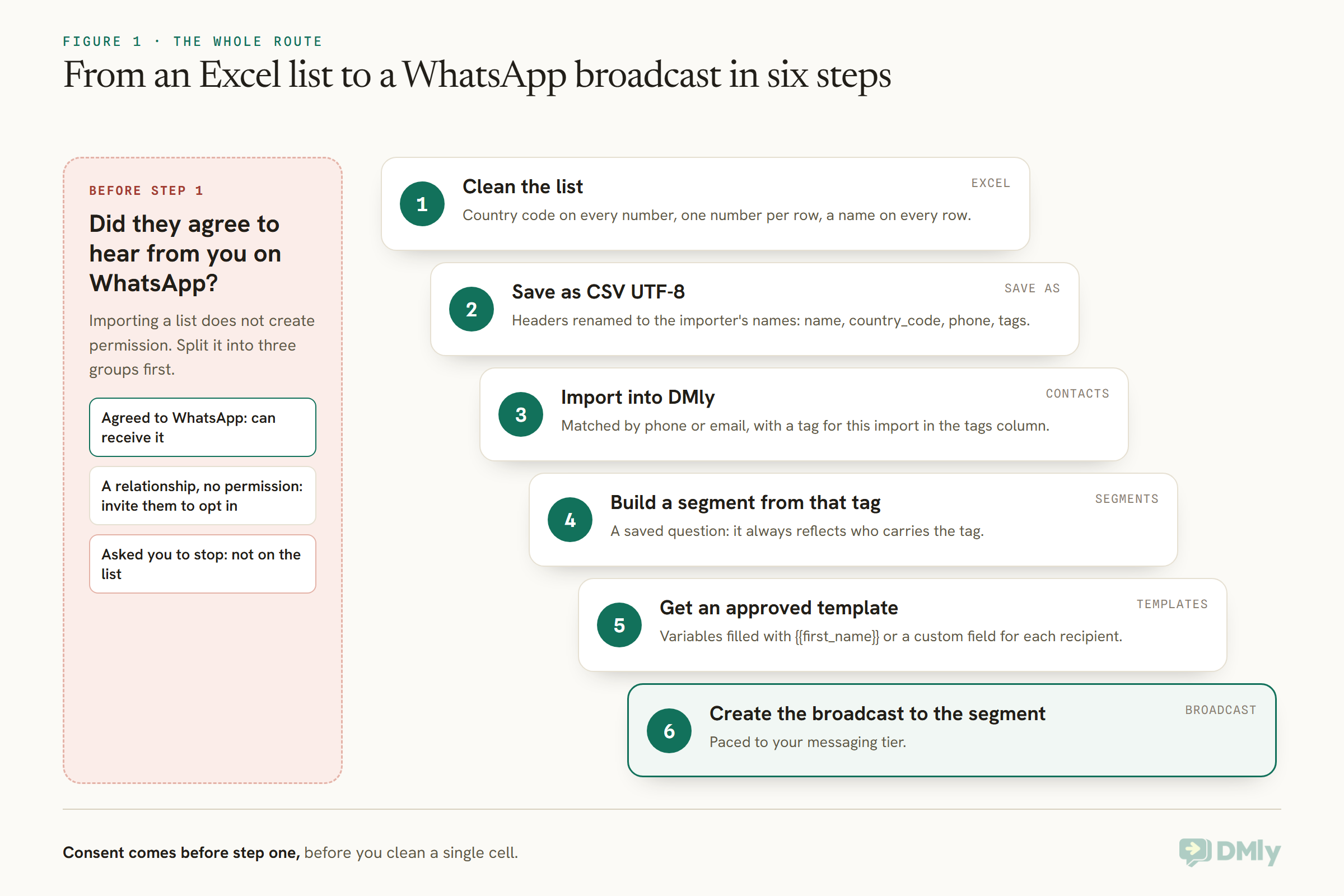
First: Did They Agree to Hear From You?
Importing a list into a messaging tool does not create permission. Check it before you clean a single cell.
WhatsApp’s Business Messaging Policy says businesses may contact people only if they have given their number and agreed to receive messages from the business on WhatsApp, and must respect requests to stop, whether made on WhatsApp or elsewhere. Your local privacy and marketing rules may add their own requirements. A list of customers who gave you their number for a booking or a delivery has not necessarily agreed to marketing on WhatsApp.
In practice, split your list into three groups. People who explicitly agreed to WhatsApp messages from you can receive your broadcast. People you have a relationship with but no WhatsApp permission for are better invited to opt in another way, such as a QR code at the counter or a message on a channel they did agree to. And anyone who has asked you to stop should not be on the list at all. Our guide to WhatsApp opt-in and consent covers how to collect permission properly.
This is not only about rules. Messages people did not expect get blocked and reported, and Meta uses that feedback in your number’s quality rating, which in turn affects how many people you can message. A smaller list of people who want to hear from you sends further than a large list of people who do not.
Step 1: Clean the Phone Numbers
To send WhatsApp messages from Excel reliably, every row needs one phone number in full international form. This is the step that decides how many messages arrive.
WhatsApp identifies people by their full phone number, including the country code. A number saved as “08031234567” is missing the country code and has a leading zero that belongs to domestic dialling only. DMly’s importer has two columns for this: country_code, which is joined onto the front of phone. So you can keep the country code in its own column, or put the full number in phone and leave country_code empty; either way, the result must be one complete number.
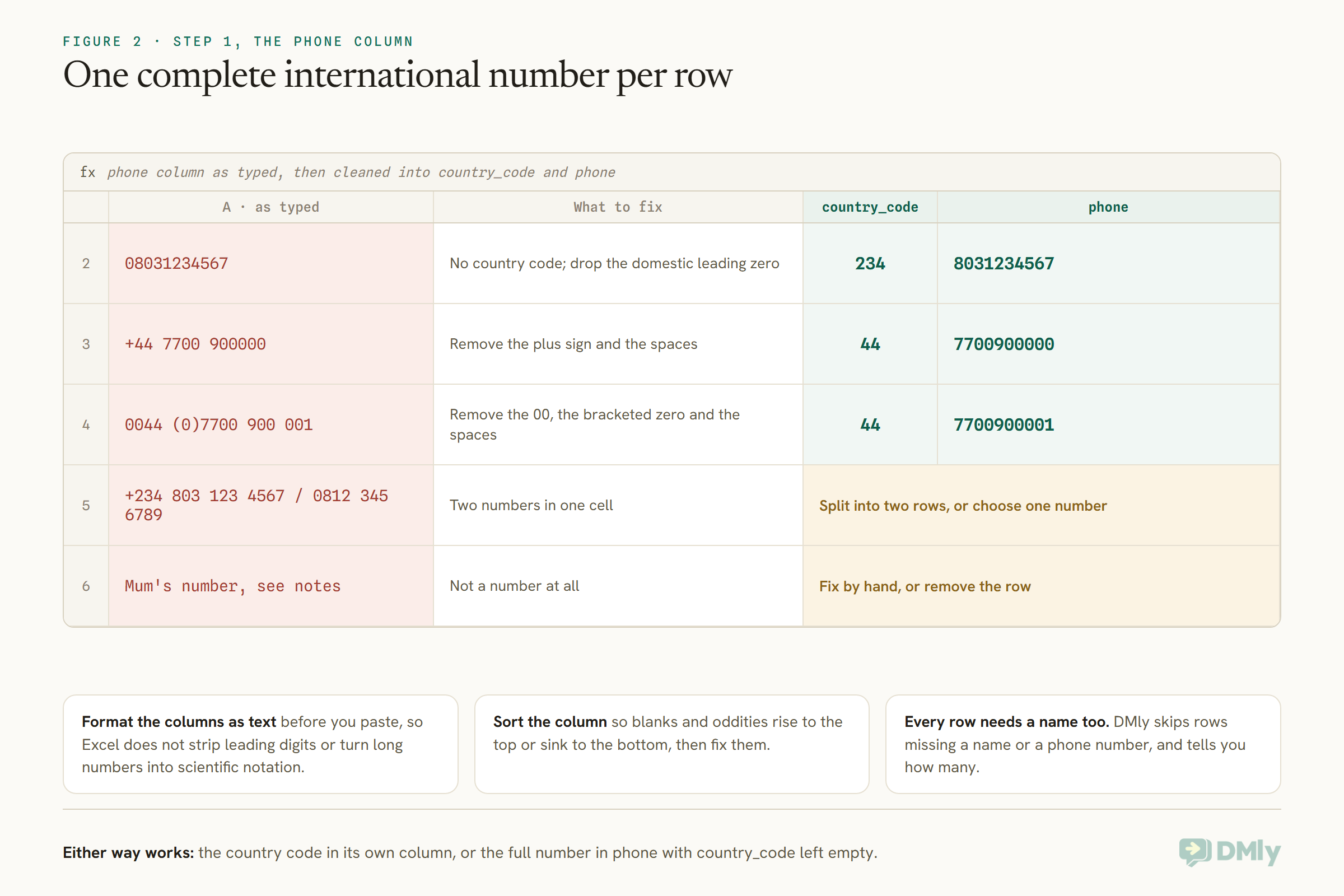
Work through the column in Excel: remove spaces, brackets, dashes and plus signs; remove a leading zero used only for domestic dialling; remove a leading “00” international prefix; and split any cell holding two numbers. Format the columns as text before you paste, so Excel does not strip leading digits or turn long numbers into scientific notation. Then sort the column: blank cells and oddities rise to the top or sink to the bottom, where they are easy to fix. Every row also needs a name; DMly skips rows missing either a name or a phone number, and tells you how many it skipped.
Excel formulas that do most of the cleaning
For a long list, a helper column does the work faster than editing cells by hand. Put the formula in a new column, fill it down, check a sample of results, then copy the column and paste it back as values.
- Remove spaces, brackets, dashes and plus signs:
=SUBSTITUTE(SUBSTITUTE(SUBSTITUTE(SUBSTITUTE(SUBSTITUTE(A2," ",""),"(",""),")",""),"-",""),"+","") - Drop a leading 00 international prefix:
=IF(LEFT(B2,2)="00",MID(B2,3,20),B2) - Drop a leading domestic zero:
=IF(LEFT(C2,1)="0",MID(C2,2,20),C2), used only for numbers where you are adding the country code separately. - Find numbers that still look wrong:
=LEN(D2), then sort by it; numbers much shorter or longer than the rest need a look.
If your list is in Google Sheets, the same formulas work; download it with File, Download, Comma-separated values when you are done. Numbers written with a trunk zero in brackets, such as “(0)”, need both the bracket and the zero removed, so check those rows by eye.
Step 2: Match the Importer’s Columns and Save as CSV
The header row is what DMly reads. Use its column names exactly and the rest takes care of itself.
In DMly, go to Contacts, select Import, then Download sample. The sample file has the header the importer expects: name, country_code, phone, tags, stage, notes and custom_fields, and it also reads email. Rename your spreadsheet’s columns to match; capitalisation and extra spaces do not matter, but “Mobile” instead of “phone” or “Full Name” instead of “name” means every row is skipped. Columns with other names are ignored.
- tags: one or more tag names separated by
|or a comma. Add a tag for this import, such asspring-offer-list, so you can find these contacts later. - stage: a pipeline stage, matched by its exact name. A name that does not match any stage is left blank.
- notes: saved as a note on the contact, on every import.
- custom_fields: a JSON object, such as
{"city":"Lagos"}, for anything you want to personalise with later.
Save the file with Save As, choosing CSV UTF-8, which keeps names with accents intact; DMly strips the invisible marker Excel adds to those files. If any value contains a comma, such as a note, it must be in quotes, or every column after it shifts one place to the right. Excel usually quotes these for you when it saves; check the Preview after uploading to be sure.
Step 3: Import Without Damaging What You Have
DMly matches rows to people you already have, which prevents duplicates and also changes some of their details. Know what changes before you press import.
Select the channel the contacts should belong to first; the importer attaches each contact to the active channel and stops if none is selected. Upload the file and check the Preview, which shows the first ten rows, for a name sitting in the phone column or any other shifted value. Then import. DMly reports how many contacts were imported and how many rows were skipped for a missing name or phone.
For each row, DMly looks for an existing contact with the same phone number or email. If it finds one, it does not create a duplicate. It fills in name, email, phone and stage only where they are empty, merges custom fields with the CSV’s values winning, and adds the note again. The one to watch is tags: on a matched contact, tags are replaced with the CSV’s tags, not added to. A blank or missing tags column removes every existing tag from every contact it matches. If you are importing a list that overlaps your existing customers, export your contacts first, bring their current tags into your file, and import that.
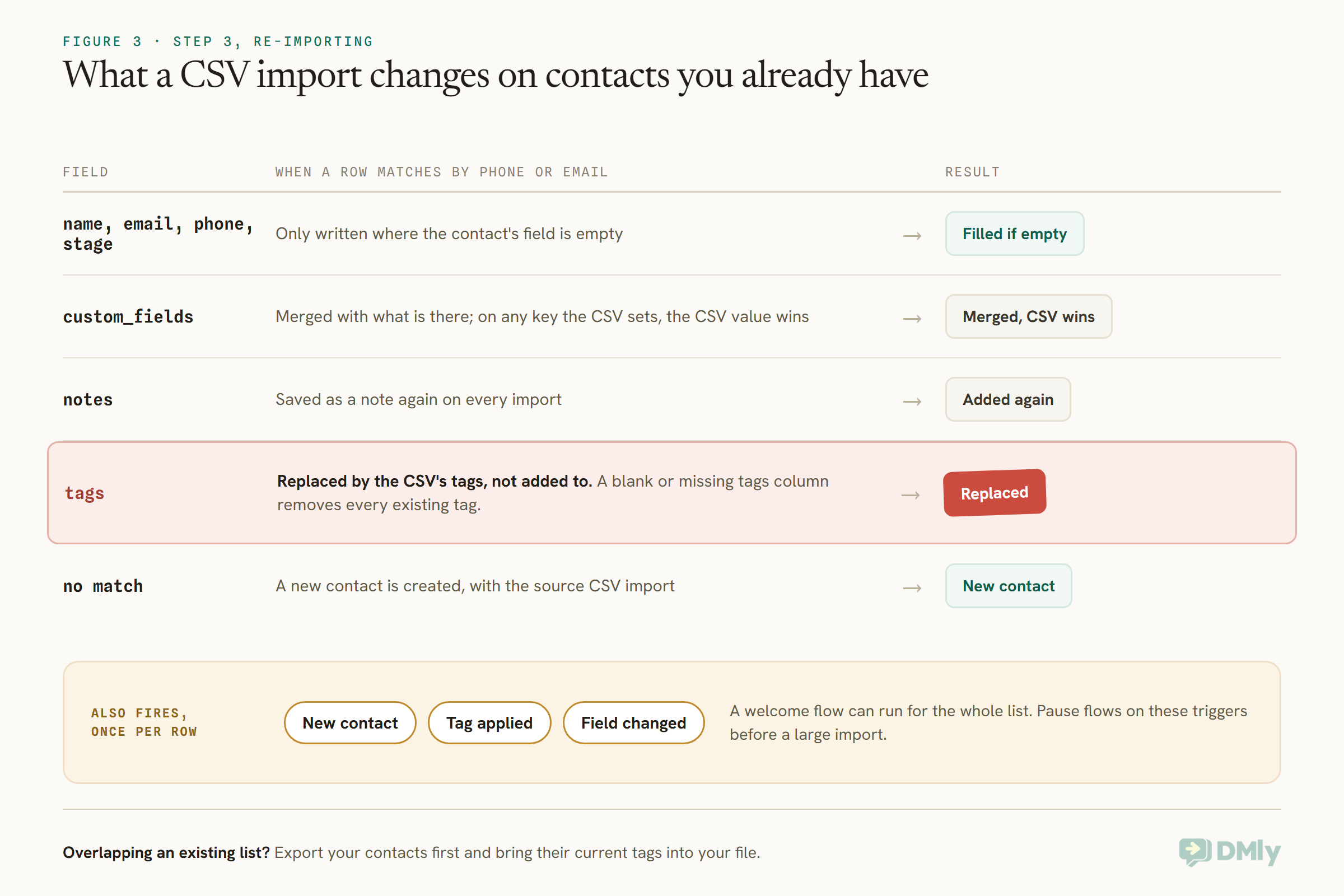
One more thing happens on import that catches people out: each imported row fires the New contact, Tag applied and Field changed automation triggers. If you have a welcome flow on New contact, it will run for every new row, and a flow on a tag will run for everyone the import tags. Before a large import, pause any automation built on those triggers that you do not want to fire, and turn it back on afterwards.
Step 4: Turn the Import Into an Audience
A WhatsApp broadcast in DMly goes to a segment. Build one from the tag you added in the file.
DMly’s broadcast wizard targets one segment; there are no tag filters on the broadcast itself. So go to Contacts, then Segments, and create a segment whose rule is the import tag, such as spring-offer-list. A segment is a saved question rather than a saved list, so it always reflects who currently carries the tag. If you want to narrow it, add conditions, such as leaving out contacts at a certain pipeline stage, before you broadcast.
Step 5: Write a Template WhatsApp Will Approve
A WhatsApp broadcast always sends an approved template. There is no box to type a message into.
DMly’s WhatsApp broadcast wizard shows a template picker and nothing else, because most of a broadcast audience is outside WhatsApp’s 24-hour window, where only templates are allowed. If the template you need does not exist, create it from the wizard or from Messaging, then Broadcasts, Manage templates, and submit it to Meta for approval. Only templates showing Approved appear in the picker, and only those belonging to the WhatsApp Business Account of the number you are sending from.
Templates can carry variables, numbered {{1}}, {{2}} and so on. In the broadcast, each variable gets a Body parameter, and a parameter can itself be personal: type {{first_name}} or a custom field such as {{custom.city}}, and DMly fills it in for each recipient. That is where the custom_fields column from your spreadsheet pays off. One quirk: Meta counts parameters by the highest number used, so a template using {{1}} and {{3}} asks for three.
Meta decides each template’s category. A promotional message, an offer or an invitation to come back is marketing, and marketing templates are charged at marketing rates and need the customer’s permission to receive marketing. Keep the message short, name your business, say why you are writing, and make it easy to reply or opt out.
Personalising safely from spreadsheet columns
Personal details make a broadcast feel less like a broadcast, but only if every recipient has them. If you use {{custom.city}} in a parameter and a third of your list has no city, those people receive a message with a gap in it, and DMly’s documentation does not describe a fallback value for an empty field. So either fill the column for everyone before you import, or build the segment only from contacts who have the field, and send a plainer version of the template to the rest. First names are the safest personalisation, because the importer requires a name on every row, but check the name column for entries such as “Mrs K” or “Kemi (Ada’s mum)” that read oddly in “Hi {{first_name}}”.
Step 6: Create and Schedule the Broadcast
Four steps: audience, message, schedule, review.
In the broadcast wizard, choose your segment as the audience and tick Reachable contacts only. Opted-out contacts never receive a broadcast either way, but without the tick they are counted as recipients and then as failures, which makes your results look worse than they are. Pick the template and fill in the parameters. Then choose when to send: now, or at a set time, either in your own timezone or at this time in each contact’s timezone, which staggers delivery so everyone receives it at the same local hour. If your team uses Require team approval before sending, the broadcast waits for a teammate’s sign-off before it goes, whatever time you scheduled.
Before a large send, send the same template to yourself and one colleague first. Check the name fills in, the links work and the message reads well on a phone.
Pace the Send to Your Messaging Tier
Meta limits how many different customers your number can start conversations with in 24 hours. DMly does not stop you exceeding it; Meta does.
Your messaging tier is shown in DMly, read from Meta. The tiers run from 250 customers in 24 hours, the starting tier for an unverified business, through 1,000, 10,000 and 100,000, to unlimited, and Meta raises it as you send consistently with good quality. DMly paces its sending so a campaign leaves steadily, but it does not count your sends against your tier, so a broadcast bigger than your tier partly fails: some recipients get it, the rest come back as failures, and the broadcast still reports as sent. If your list is larger than your tier, split it into batches across days, for example by adding a second tag to half the list and broadcasting to each half on a different day.
Quality matters as much as quantity. Meta rates your number from the way recipients respond, and a low rating can pause templates or lower your tier. Sending only to people who agreed, with messages they find useful, is what keeps it green.
Handling the Replies
A broadcast to a few hundred people produces conversations. Be ready to answer them.
Replies to a WhatsApp broadcast land in DMly’s shared inbox like any other message, and each reply opens a 24-hour window in which your team can answer freely, without a template. Decide before you send who will watch the inbox for the next few hours, and what the common replies will be: a question about the offer, a request to book, and “please stop”. An automation can take the first two, for example an AI agent that answers from your knowledge base or a flow that offers booking times, and hand anything else to a person.
Treat “stop” seriously. When a contact opts out, DMly marks them and no future broadcast reaches them on any channel. Remove anyone who asks to stop from the spreadsheet you keep outside DMly too, so they are not re-imported into a future list by mistake. That spreadsheet is now a copy; the contact records in DMly, with their opt-outs, tags and replies, are the version to trust.
A Worked Example: 600 Contacts on a New Number
Here is how the steps fit together for a salon with a list larger than its tier.
A salon has 600 past clients in a spreadsheet, all of whom ticked a box on the booking form agreeing to hear about offers on WhatsApp. Its number is new and on the starting tier of 250 new customers in 24 hours. It cleans the numbers, adds a tags column reading spring-offer for everyone and batch-1, batch-2 or batch-3 for each third, pauses its New contact welcome flow, and imports. It builds three segments, one per batch tag, gets its offer template approved, and sends one batch a day at 10am in each contact’s timezone, watching the inbox after each send.
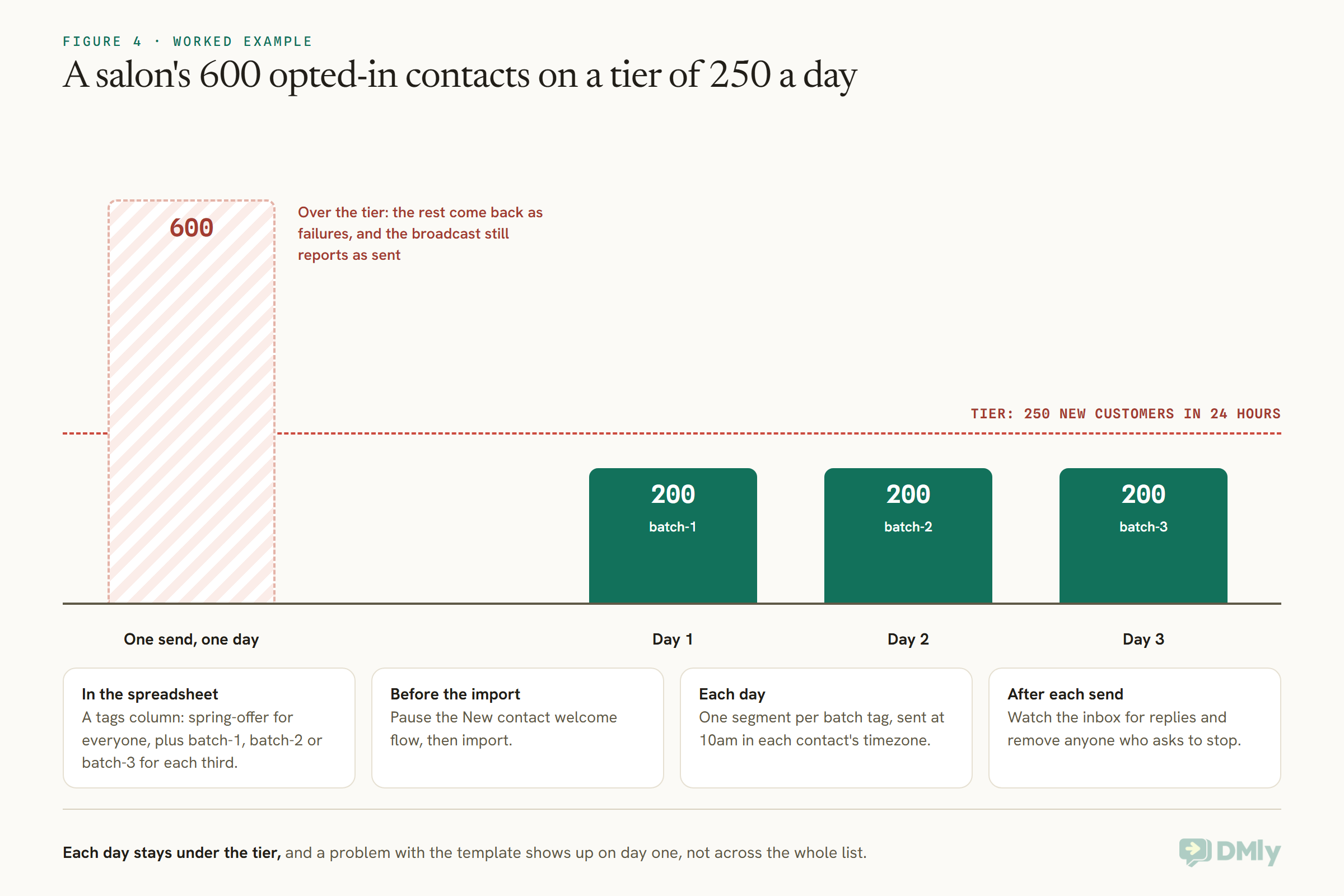
Each day’s send stays under the tier, the inbox never gets more replies than the team can answer, and a problem with the template shows up on day one rather than across the whole list. As the number sends consistently with good quality, Meta may raise its tier, and later campaigns can go out in fewer batches.
What It Costs
Two costs apply: Meta’s charge per template message, and your DMly plan’s broadcast allowance.
Meta charges for template messages by category and by the recipient’s country, and marketing is usually the most expensive category. Check Meta’s rate card for your customers’ countries before a big send, and see our article on WhatsApp’s pricing changes from October 2026. In DMly, your plan’s broadcast allowance counts every broadcast recipient and every template message sent from anywhere else in the app; a message that never left, because the contact had opted out, costs you nothing.
Reading the Results
Look beyond “sent”. Find out who failed and why.
The broadcast page shows counts, including Failed, without reasons. To see which contacts failed and what WhatsApp said, go to Messaging, then Templates, select View performance on the template, then the Failed tile; it lists up to the 100 most recent failed sends of that template with the contact and reason. Common reasons are a number that is not on WhatsApp, a number in the wrong format, and sends beyond your tier. Fix the numbers in your spreadsheet for next time, and remove the ones that are not on WhatsApp.
For Developers: Doing It Through the API
If your list lives in another system, you can skip the spreadsheet and use DMly’s REST API.
DMly’s REST API can create contacts, add tags and create broadcasts. Creating a contact with a channel attaches a channel identity and fires the contact-created webhook. Creating a broadcast on a channel makes a draft, or a scheduled broadcast if you ask it to schedule, with a choice between a fixed send time and each contact’s local time. The same rules apply as in the app: an approved template, a segment as the audience, and your messaging tier. The API reference in DMly’s documentation lists the endpoints and fields.
Mistakes to Avoid When You Send WhatsApp Messages From Excel
- Sending to people who never agreed. It is against WhatsApp’s policy and it damages your quality rating.
- Numbers without country codes. One complete international number per row.
- Renamed columns. “Mobile” instead of “phone” skips every row.
- A blank tags column on a re-import. It strips existing tags from every matched contact.
- Automations firing on import. Pause New contact and tag flows first.
- One giant send on a low tier. Split across days.
- Not testing the template on yourself. Check the personalisation and links first.
- Using unofficial bulk-sending tools. They work outside the official platform.
Frequently Asked Questions
Can I send WhatsApp messages from Excel directly?
Not directly. On the official platform you import the list into a WhatsApp Business Platform tool such as DMly, then send an approved template to it as a broadcast.
What format should the phone numbers be in?
One complete international number per row: the country code and the number, without spaces, brackets, a leading domestic zero or a 00 prefix. DMly’s importer can take the country code in its own column.
Do I need permission to message my customer list on WhatsApp?
WhatsApp’s policy says you may message only people who gave you their number and agreed to receive your messages on WhatsApp, and you must honour requests to stop. Check your local rules too.
How many people can I message at once?
As many as your messaging tier allows new conversations in 24 hours: from 250 for an unverified business up to unlimited. Larger lists should be split across days.
Why were some of my messages not delivered?
Usually a number that is not on WhatsApp, a wrongly formatted number, sends beyond your tier, or an opted-out contact. The template’s performance page lists recent failures with reasons.
Will importing the list send messages automatically?
Not a broadcast, but it can start automations: every imported row fires New contact, Tag applied and Field changed. Pause flows on those triggers first if you do not want them to run.
One Number Per Row, One Message People Want
The phone column at the top of this page is where most spreadsheet sends go wrong, and it is also the easiest part to fix. Clean the numbers, match the importer’s columns, protect your tags, pause the automations that would fire, build a segment, and send an approved template at a pace your number can handle, to people who asked to hear from you. Done that way, you can send WhatsApp messages from Excel as often as you have something worth saying. For more on timing and wording, see our WhatsApp broadcast best practices for local businesses.
Writing about WhatsApp automation, bookings and growth for local business.
Turn WhatsApp into your busiest channel.
Start free and run message, bookings, payments and reviews in one place.
