
How to Take Restaurant Table Reservations on WhatsApp Automatically
“Table for 4 Friday?” Five words, and hidden inside them are six questions. Which Friday? What time? Is four the real number, or will a fifth join? Is there a high chair needed, a birthday, a wheelchair, a preference for outside? Does anyone have an allergy the kitchen should know about? And can you actually seat four at that time, given the two large parties already booked? A host answering by hand works through those questions one message at a time, between seating guests and taking orders, and the guest who asked at the start of service gets a reply at the end of it.
This guide shows how to take restaurant reservations on WhatsApp automatically in DMly: modelling your tables so only genuinely free times are offered, letting guests pick a time in the chat, asking the extra questions once and in order, handling large groups and deposits, and sending confirmations and reminders so fewer tables sit empty. It builds on our guide to WhatsApp automation for restaurants, which covers ordering, questions and repeat visits.
Step 1: Decide How Your Tables Become Bookable
Restaurant reservations on WhatsApp run on DMly’s appointment system, so the first job is mapping your dining room onto it. There are two good ways, depending on how your restaurant seats people.
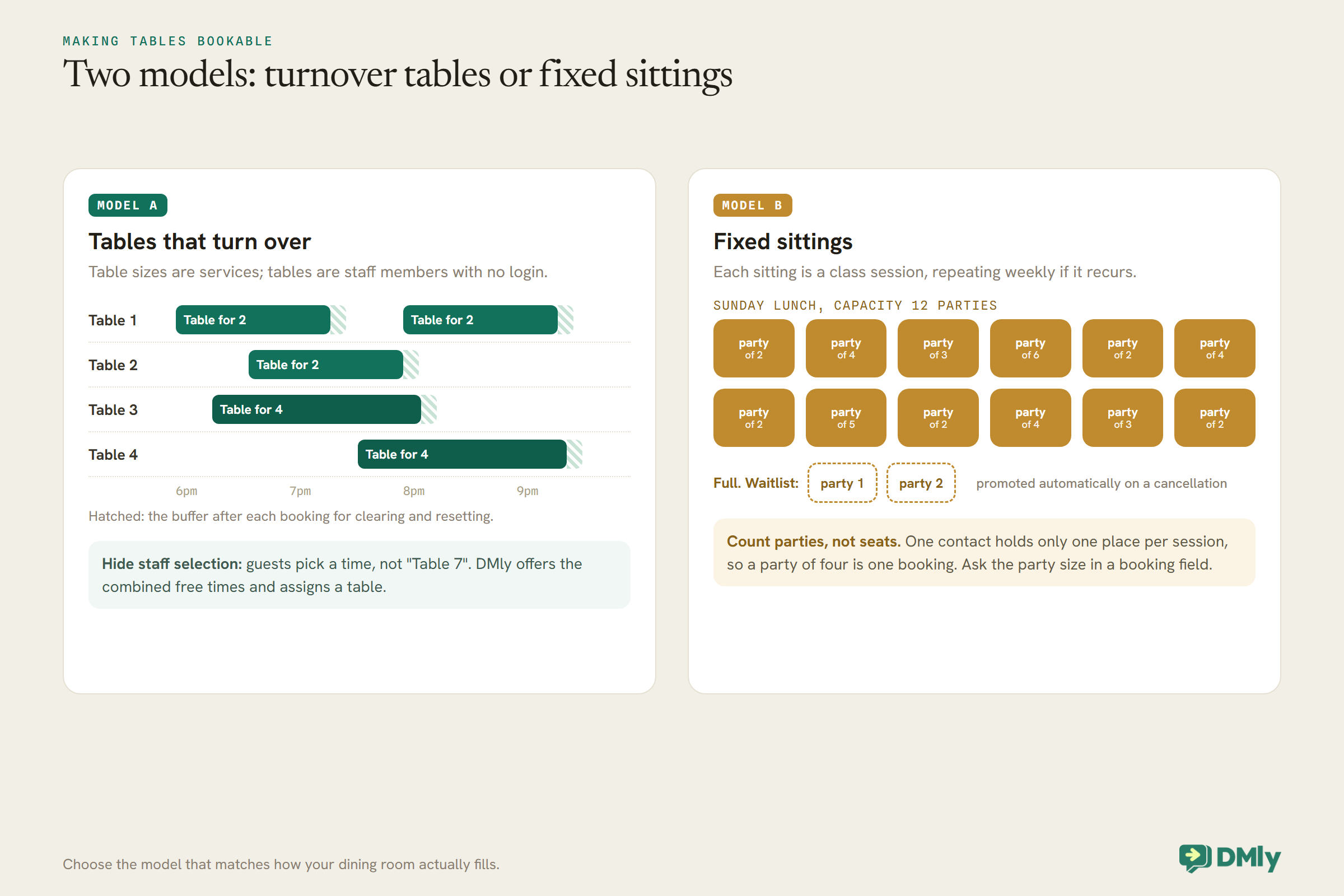
Model A: tables that turn over through the evening. Most restaurants seat tables at many different times. For them, make each table size a service, such as “Table for 2” and “Table for 4”, with a duration that matches how long a table is held, and make each table or section a bookable staff member. In DMly a staff member is a bookable resource and does not need a login; the docs describe a room-based resource as a normal use. Give each table the table-size services it can seat and working hours matching your service times.
Model B: fixed sittings. Some restaurants seat everyone at set times, such as a 6pm and an 8:30pm sitting, a Sunday lunch or a supper club. For them, a class fits better: each sitting is a session with a capacity, parties book a place, and when the sitting is full further parties can join a waitlist that promotes them automatically if someone cancels. Classes can repeat as a series, so a weekly Sunday lunch is set up once. One rule shapes how you count: DMly lets a contact hold only one place per session, so set the capacity in parties rather than seats, and ask for the party size separately.
Setting Up Model A in Detail
Get these details right and the times offered in the chat will match your floor plan.
Services. Under Offerings, then Services, create one service per table size you want guests to book online. Set the duration to how long you hold a table of that size, and a buffer after for clearing and resetting. The slot interval sets how far apart start times are offered; a 15- or 30-minute interval lets guests choose 7:00, 7:30 and so on. Set Min notice, which is in minutes, so nobody books a table for five minutes’ time, and make sure Days ahead is at least 1, because a value of 0 means no times at all.
Tables. Under Appointments, then Staff, add each table or section as a staff member. DMly requires an email, a phone and a timezone for each; use the restaurant’s own details, remembering that DMly messages the staff member on a booking when it comes in, which can be a useful alert to the host’s phone. Set working hours to your service times, assign the table sizes each can seat, and switch on both Accepts bookings and Active (available for booking), which are separate switches.
Hide the table numbers. Turn on Hide staff selection in the booking settings, so guests choose a time, not “Table 7”. When a table size is offered by several tables and the guest does not choose, DMly offers the combined free times and assigns an available table.
Keep some tables back. You do not have to put every table online. You may want to keep some for walk-ins or for regulars who phone; simply leave those tables out, or give them shorter online hours.
Setting Up Model B: Fixed Sittings
Sittings work well as classes, once you count in parties rather than chairs.
Create a service of type Class for the sitting, such as “Sunday lunch”, and schedule its sessions on the calendar, ticking Repeat for a weekly sitting so the dates are created in one go, up to 52. Set Capacity per session. Because DMly lets a contact hold only one place in a session, a party of four is one booking, so set capacity to the number of parties you can seat, for example 12 tables, and ask how many guests are coming in the chat before you send the booking link, saving the answer to a custom field. Booking form questions come from a fixed list you can switch on, off or relabel but not add to, and the one free-text question, Additional Notes, isn’t offered for classes. Turn on Enable waitlist if you want parties to queue for a full sitting; when a place is cancelled, the next party on the list is promoted automatically, and for a paid sitting the promoted party gets its own payment hold.
Classes have their own settings tab under Business, Appointments, Settings, Class. Display remaining slots shows how many places are left, which suits a supper club selling out, and a place in a class can be cancelled but not moved to another time, within its own cancellation deadline. For events with a fixed menu and price, a sitting can take payment before booking, in full or as a deposit, like any other paid service.
A Worked Example: A 36-Seat Bistro
Here is how the setup looks for a real-sized dining room, with the numbers chosen by the owner, not by the software.
A bistro has eight tables for two, four tables for four and one table for six, 36 seats in all, open for dinner from 6pm with last seating at 9pm. The owner decides to put six of the twos, three of the fours and the six online, keeping two twos and one four for walk-ins and regulars. In DMly that becomes three services, “Table for 2” held for 90 minutes, “Table for 4” held for two hours and “Table for 6” held for two and a half hours, each with a 15-minute buffer after for resetting and a 30-minute slot interval, and ten staff members, one per online table, each with working hours from 6pm to the latest start that still fits. Minimum notice is set to 60 minutes and the booking horizon to 30 days. Guests of five book the table for six; guests of seven or more are handed to the manager.
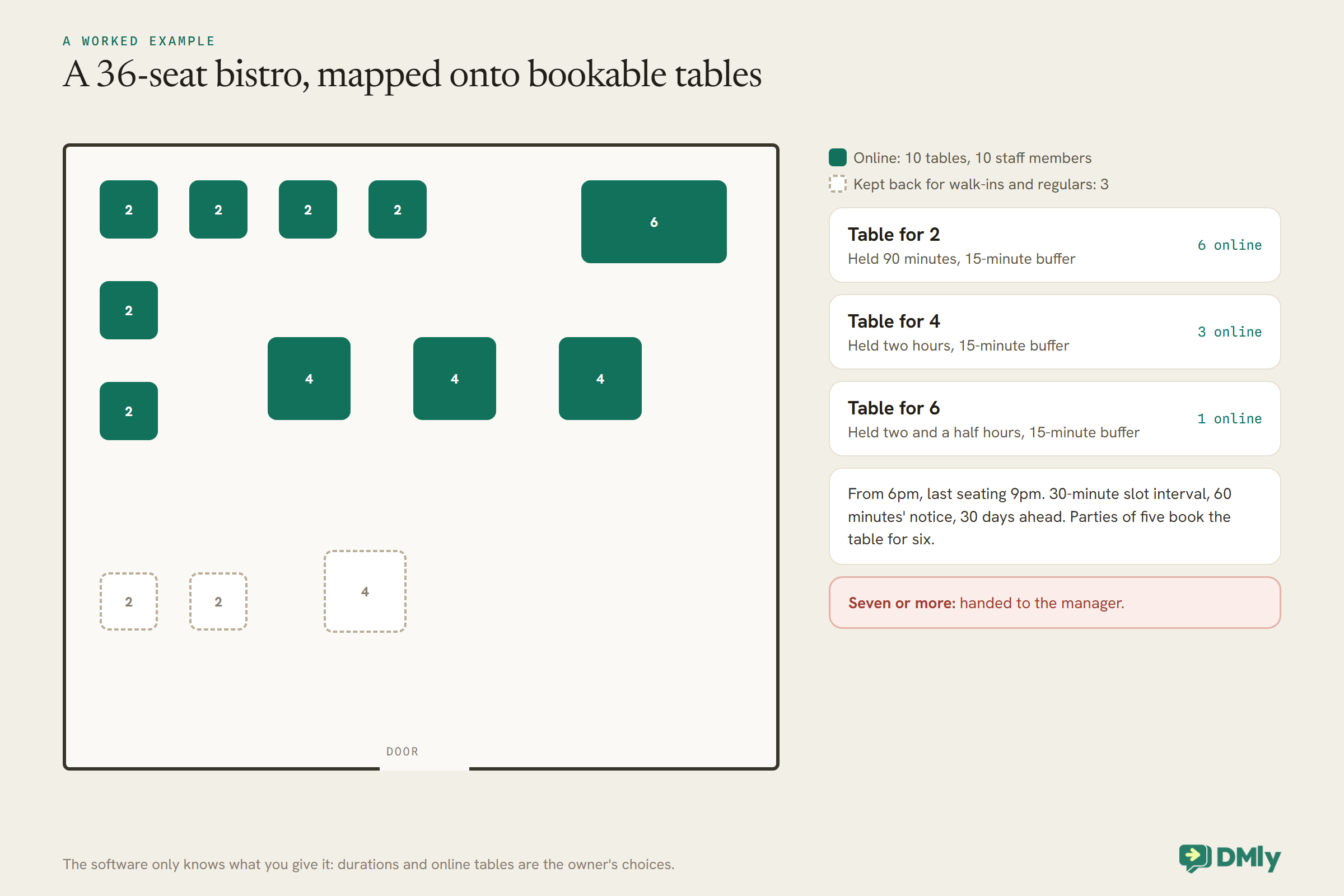
Two things are worth checking after a week. If tables for two are always gone online while fours sit empty, a four can also be offered for the two-person service, since a table can seat more than one size. And if the kitchen is overwhelmed at 7:30, reduce the number of tables whose online hours include that slot rather than turning bookings away in the chat.
Step 2: Let Guests Book in the Chat
A guest who asks on WhatsApp should be able to finish the booking on WhatsApp, in a few taps.
There are two ways to run the conversation. A flow with buttons asks how many guests and which day, then uses the Book Meeting step to show tappable free times for the matching table size inside the chat. If nothing is free, its NO SLOTS path can offer another day or a waitlist for a sitting. An AI agent suits guests who write in their own words, such as “table for 4 Friday around 8, is there anything outside?”. With DMly’s booking tools switched on, it lists the table sizes, checks genuinely free times, books, and can view, move or cancel the guest’s reservation later. Always switch on Check available times, or the agent may offer times you cannot honour, and Hand over to a human for anything unusual.
The same bookings can come from your website too. The DMly booking page, embedded on your site or linked from your Instagram bio and Google profile, offers the same times from the same tables, so a table booked online and a table booked in the chat can never overlap.
Where Reservation Requests Come From
Put the WhatsApp booking wherever guests decide where to eat.
Guests find restaurants on Google, Instagram, a friend’s recommendation and walking past the door, so make the WhatsApp booking reachable from each. A WhatsApp chat link or QR code from DMly’s growth tools can go on your Instagram bio, your Google Business Profile, your website, printed menus and the window, and each carries its own reference, so the first message is tagged with where the guest came from and your booking flow can greet them straight away. DMly can also add a WhatsApp button to your Google listing where Google offers it. If you run Click-to-WhatsApp ads, a flow on the ad trigger can open with the offer the guest tapped before showing times. However they arrive, they reach the same tables and the same diary.
Step 3: Ask the Extra Questions Once
The questions hidden in “table for 4 Friday” still need answers. Ask them once, in order, and store them with the booking.
DMly’s booking page uses booking fields you configure under Settings, then Booking Fields; the list is shared by appointments and classes, and Additional Notes is available for appointments only. The list is fixed: you can switch each question on or off and change its label, but you can’t add a question of your own. So for tables booked as appointments, relabel Additional Notes to ask for what changes how you prepare: the number of guests, the occasion, a high chair, accessibility needs, a seating preference. In a flow, ask the same questions with reply buttons and save the answers to the contact, for example as custom fields or tags; a flow that runs on Appointment booked can then use the Add Appointment Note step to add them as an internal note on the reservation, which the guest never sees.
Treat allergies differently. A note that says “one guest has a nut allergy” is useful to the kitchen, but questions about what is safe for someone to eat need a person who knows your kitchen, not an automated answer. Have the flow or agent hand those conversations to a member of staff.
Step 4: Confirmations and Reminders
Once the table is booked, the confirmation and reminders go out on their own. Word them for a restaurant, not a clinic.
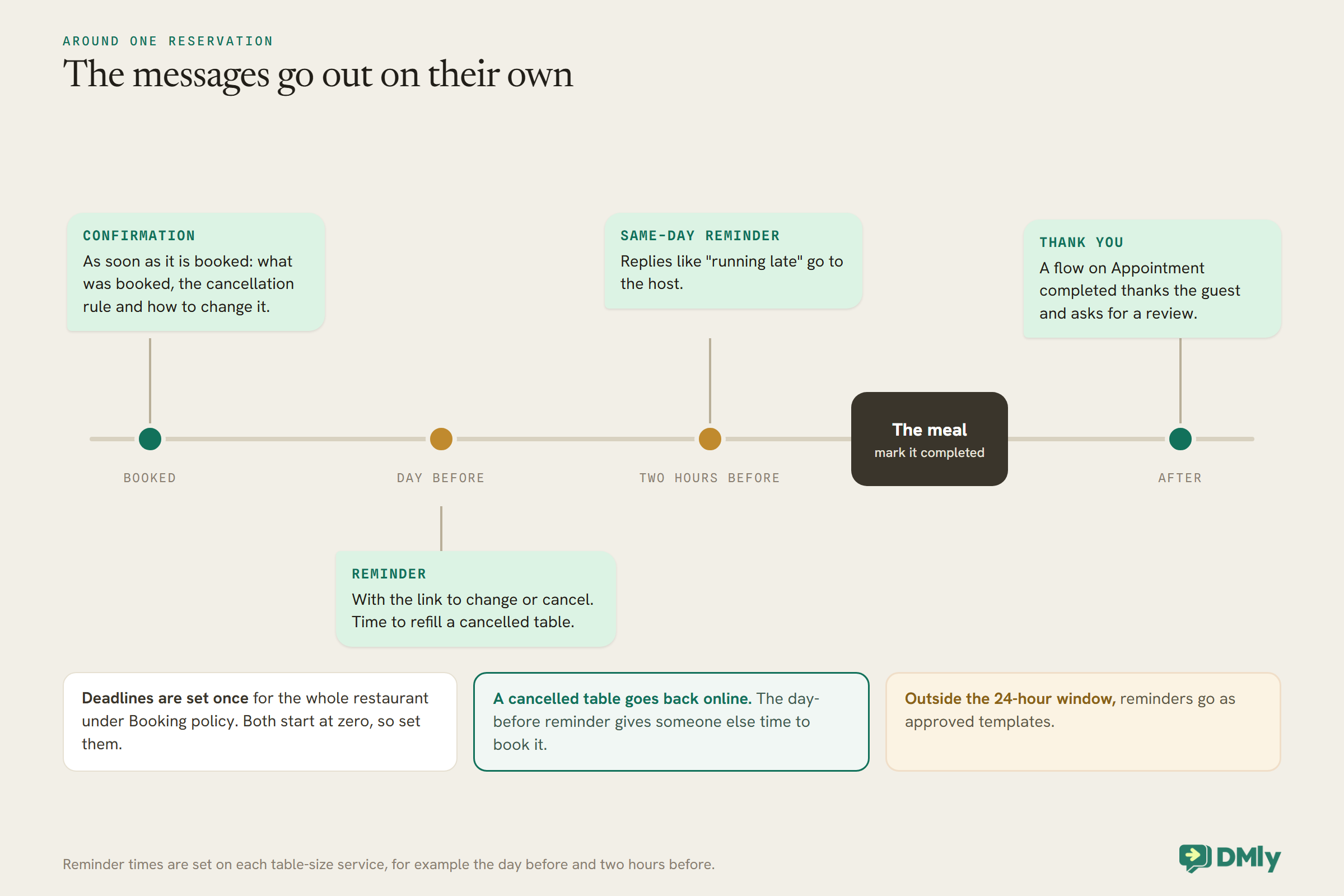
DMly sends a confirmation on WhatsApp as soon as a reservation is booked, and reminders at the times you set on each table-size service, for example the day before and two hours before. Outside WhatsApp’s 24-hour window reminders go as approved templates, so check the dmly_ appointment templates are approved before relying on them. Give guests an easy way to change plans: the booking link lets them cancel or move within the deadlines you set under Booking policy. Both deadlines start at zero, meaning guests can cancel right up to the booking time, so set them to suit your restaurant, for example no online cancellations within two hours, and say so in the confirmation.
What the Guest Sees
A reservation by chat should feel like messaging the host, just faster.
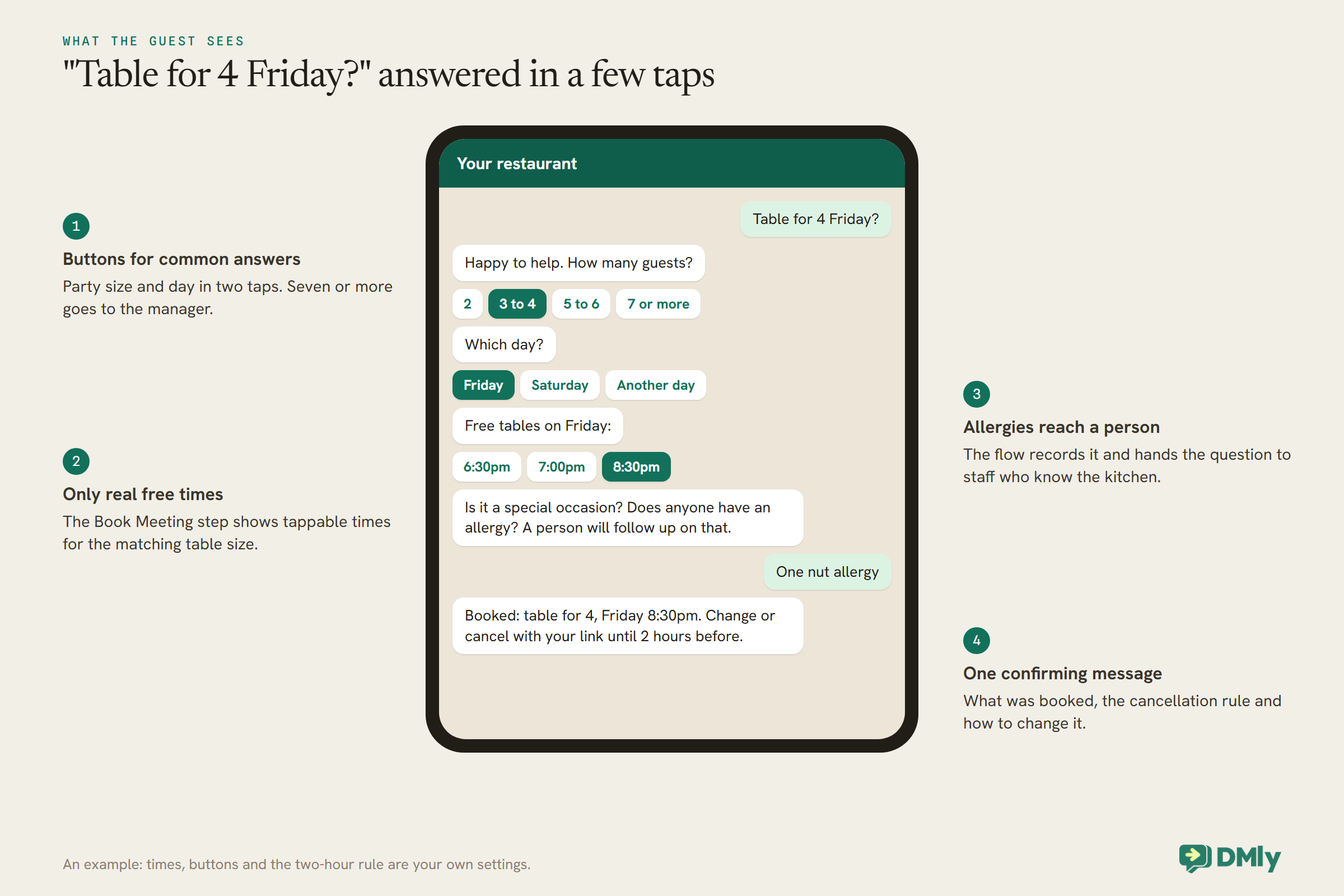
Keep each message short and give buttons for the common answers. Confirm in one message what was booked, the rule for cancelling, and how to change it. The tone should be the restaurant’s, warm and brief, not a form.
Running Late, Changing Numbers
The messages that arrive on the night are different from the ones that arrive days before. Plan for them.
A guest replying to the same-day reminder with “running 15 minutes late” or “we’re now 5” needs a quick, human answer, because it affects the table in the next hour. Route replies like these to the host: a reply to a reminder lands in the shared inbox as a new message, where a flow or an AI agent can hand it to a person straight away. Decide your holding policy, such as keeping a table for 15 minutes, and put it in the confirmation, so the answer to “we’re late” is already known. A change in numbers that needs a different table size is best handled by cancelling and rebooking the right size, which an AI agent with the reschedule and cancel tools can do in the chat, or the host can do from the calendar.
What the Messages Cost
Reservations by WhatsApp are not free to send, but they are cheap compared with an empty table.
Meta charges for WhatsApp template messages, such as reminders sent outside the 24-hour window, by category and country, and its pricing is changing from 1 October 2026; see our article on WhatsApp’s October 2026 pricing for what that means. In DMly, template messages sent from anywhere in the app, reminders included, count against your plan’s broadcast allowance. For a restaurant, the arithmetic is simple: the cost of a confirmation and two reminders is small next to one table for four that stays empty on a Friday.
Step 5: Large Groups, Deposits and No-Show Fees
A no-show for two is an empty table. A no-show for twelve is an empty evening. Treat large groups differently.
For parties above the size you are happy to book automatically, send the conversation to a person: the flow can offer times up to, say, six guests and hand anything larger to the manager, who can arrange the tables, a set menu or a private room. For groups you do take online, DMly can ask for money up front. Set the group table service to Pay before booking and give it a Deposit, a percentage of the price from 1 to 99; the guest pays that share to confirm the table and the rest on the night. The table is held for 15 minutes while they pay, and a payment gateway must be connected first. Because a table for dining usually has no fixed price, one practical approach is to price the group service at the deposit amount you want, set it to take the full price, and deduct it from the bill at the till yourself.
For tables where you would rather not ask for money up front, a No-show fee on the service is the lighter option. It is charged only when a reservation is marked as a no-show: by saved card if the guest pays you a subscription automatically, otherwise as a payment link on WhatsApp, which the guest may choose not to pay. Say either policy clearly in the confirmation. Our guide to taking deposits or full payment at booking covers the settings in detail.
Step 6: Mark Arrivals and No-Shows
A reservation system only knows who came if someone tells it. Make it part of the host’s routine.
At the end of service, mark each reservation completed or no-show. It takes a couple of minutes and it is what makes no-show fees, loyalty points and your figures work. By default DMly closes an unmarked reservation as completed about a day later, which thanks the guest for coming and awards any loyalty points even if they never turned up; set Appointments nobody marked, under Booking policy, to Wait for review, and unmarked reservations wait for the host instead, with a daily reminder. A flow on Appointment no-show can send one friendly message inviting the guest to rebook, and a tag on repeat no-shows lets you ask those guests for a deposit next time.
Walk-Ins, Phone Bookings and the Waitlist
Not every guest books on WhatsApp. Keep all of them in the same diary.
When someone phones or walks in, the host can add the reservation from the Calendar in DMly, which blocks that table for WhatsApp and online bookings too. If the table-size service takes a deposit, DMly holds the table for two hours and messages the guest a payment link; tick Payment taken in person if they pay at the door. For fixed sittings run as classes, a full sitting can take a waitlist, and when a guest cancels, the next person on the list is promoted automatically. For turnover tables, a cancellation simply puts the time back online, and the day-before reminder is what gives you time for someone else to book it.
Reading the Numbers
After a month, the reports show where tables go missing.
DMly’s appointment reports, under Configurations, Reports, Appointments, show total bookings, completed, no-show rate and paid revenue, broken down by service and by staff, which in this setup means by table size and by table. A table size with a high no-show rate is the one to put a deposit or no-show fee on; a table that is rarely booked online may be better kept for walk-ins. The Bookings list can also be filtered by source, so you can see how many reservations came through WhatsApp automation, the booking page or the host.
After the Meal
The reservation is the start of the relationship, not the end.
A flow on Appointment completed can thank the guest a few hours later and ask for a review, and a later message can invite them back for an occasion or a new menu, with their permission for marketing. Because each reservation sits on the guest’s contact record, you can see who visits often and treat regulars accordingly. Our pillar guide covers repeat visits and loyalty for restaurants in more depth.
Test Your Restaurant Reservations on WhatsApp Before Friday Night
- Message your restaurant’s WhatsApp as a guest and book a table for two; check the times match your floor.
- Book two tables for four at the same time and check the third attempt is refused when you have only two.
- Ask for a party larger than your online limit and check it reaches a person.
- Mention an allergy and check it is handed over, not answered.
- Check the confirmation and reminder arrive, with your cancellation rule.
- Book a group with a deposit and check the pay page and the hold.
- Mark one reservation as a no-show and check what the guest receives.
- If you run sittings, book the same sitting twice from one number and check you see the “already booked” message, so you know how parties will behave.
Mistakes to Avoid
- Every table online. Keep some for walk-ins and regulars.
- Durations that do not match reality. Too short and tables overlap; too long and you turn guests away.
- No buffer after. Tables need clearing and resetting.
- Answering allergy questions automatically. Hand them to a person who knows the kitchen.
- Cancellation deadlines left at zero. Guests can cancel up to the last minute.
- Not marking no-shows. Fees, loyalty and figures all depend on it.
- Large groups booked with no deposit or check. Send them to a person or ask for a deposit.
Frequently Asked Questions
Can restaurants take reservations on WhatsApp automatically?
Yes. In DMly, tables become bookable resources and guests pick a free time in the chat, through buttons or an AI agent, with confirmations and reminders sent automatically.
How do I stop double bookings?
Model each table as a bookable resource and let DMly assign it. It only offers times when a suitable table is free, whether the booking comes from WhatsApp, the website or the host.
Can I take a deposit for a table?
Yes, for services set to Pay before booking, with a Deposit percentage. Many restaurants use it for large groups and handle the balance at the till.
What about fixed sittings or events?
Set each sitting up as a class with a capacity counted in parties, because one guest holds one place per session, and an optional waitlist, repeating weekly if it recurs.
Can one guest book several places in a sitting for their party?
No. In a class, one contact holds one place per session, so treat each booking as one party and ask for the number of guests in the chat, or in a flow on the Class booked trigger. Booking form questions are a fixed list, and Additional Notes isn’t offered for classes.
Can guests cancel or change their reservation themselves?
Yes, from their booking link, within the cancellation and reschedule deadlines you set for the whole restaurant.
Should the bot answer allergy questions?
No. Have it record that there is an allergy if the guest mentions one, and hand the question to a member of staff who knows your dishes.
Six Questions, Answered Once
“Table for 4 Friday?” still hides six questions, but now the guest answers them in a few taps, sees only times you can really seat them, and gets a confirmation before they have put the phone down, while your host keeps looking after the guests in the room. That is what automated restaurant reservations on WhatsApp should feel like, for them and for you. If you are not on DMly yet, see the plans.
Writing about WhatsApp automation, bookings and growth for local business.
Turn WhatsApp into your busiest channel.
Start free and run message, bookings, payments and reviews in one place.
