
How to Turn a WhatsApp Enquiry Into a Paid Appointment Automatically
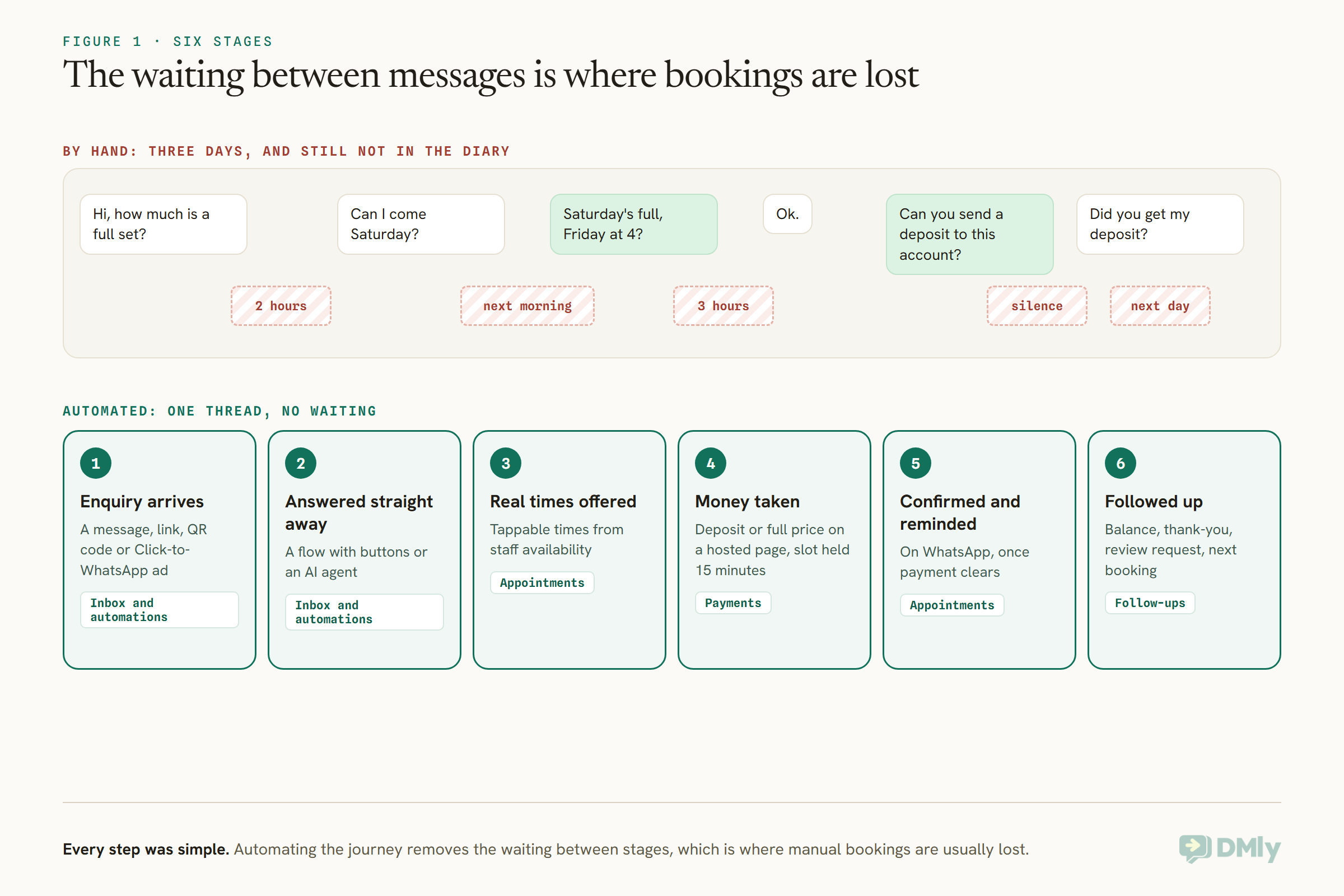
Read a typical booking conversation with the waiting left in. “Hi, how much is a full set?” (Reply two hours later.) “Can I come Saturday?” (Reply next morning.) “Saturday’s full, Friday at 4?” (Three hours.) “Ok.” “Great, can you send a £10 deposit to this account?” (Silence.) “Did you get my deposit?” (Next day.) Seven messages, three days, one deposit screenshot to check against a bank app, and the booking still is not in the diary. Every step was simple. The waiting between them is where bookings are lost.
This guide shows how to turn a WhatsApp enquiry into a paid appointment automatically: the customer asks, gets an answer straight away, picks from times that are genuinely free, pays a deposit or the full price by card, and receives a confirmation and a reminder, all in the same thread, without anyone on your team typing a word. It uses four parts of DMly working together: the inbox and automations, appointments, payments, and follow-ups.
If you are setting up bookings for the first time, our WhatsApp appointment booking guide covers services and staff in depth, and our guide to setting up WhatsApp payments covers connecting a payment provider. This page stitches them into one journey.
The Journey in Six Stages
Every WhatsApp enquiry into a paid appointment passes through the same six stages. Automating it means deciding what happens at each one.
- The enquiry arrives, from a message, a link, a QR code or an ad.
- It is answered, straight away, by a flow with buttons or an AI agent.
- Real times are offered, drawn from your staff’s actual availability.
- The money is taken, a deposit or the full price, before the slot is confirmed.
- The booking is confirmed and reminded, automatically, on WhatsApp.
- The appointment is followed up: the balance collected, a thank-you, a review request, the next booking.
Before You Start: Five Things to Set Up
The automation is only as good as the pieces underneath it. Set these up first, in this order.
1. Connect WhatsApp. The journey runs on your WhatsApp Business number connected to DMly. Confirmations and reminders outside the 24-hour window need approved templates, so connect early and check the dmly_ appointment templates show as Approved.
2. Create your services with prices. Under Offerings, then Services, give each bookable service a duration, a price above zero and reminder times. A service priced at zero cannot take payment however you set it.
3. Set the payment mode, and the deposit. For services where you want money before the booking is confirmed, choose Pay before booking. The Deposit field then appears: type a percentage from 1 to 99 to take part of the price, or leave it blank to take the full price.
4. Connect a payment gateway. Without one, a pay-before service cannot be booked at all; the booking page tells the customer online payment is not available. If you connect more than one gateway, name the one to use in Charge through under Finance, Settings, Gateways, because otherwise the first one you connected is used.
5. Add your staff and their hours. Each bookable person gets working hours in their own timezone and the services they offer. Times offered in the chat come from these hours, minus existing bookings, buffers and time off.
Step 1: Catch the Enquiry
Decide how enquiries arrive, because each entry point can start the journey differently.
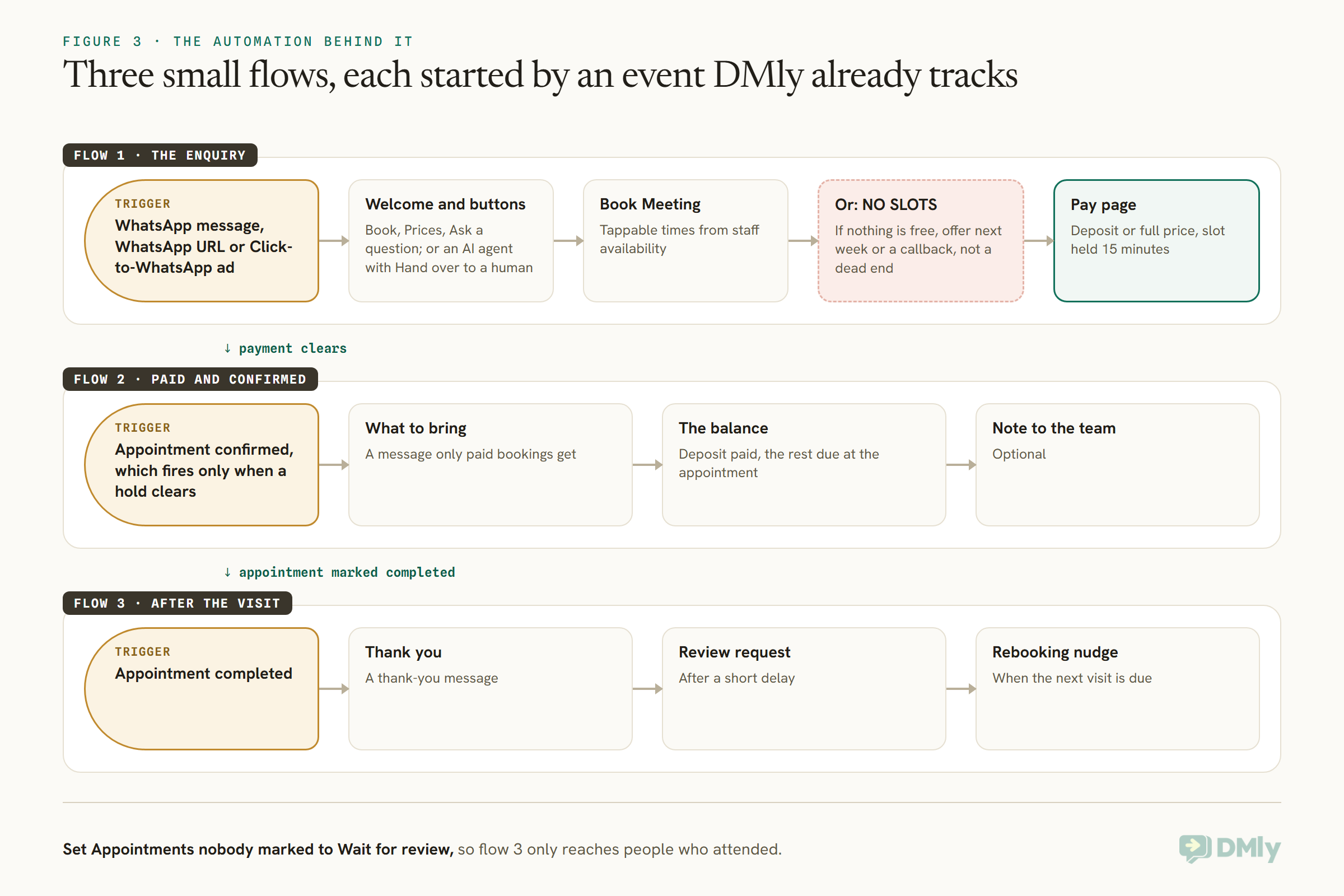
Most enquiries arrive as an ordinary WhatsApp message, and a flow can start on a keyword or on any message. Others arrive from a link or QR code you have shared, which the WhatsApp URL trigger can recognise, so someone who scanned the QR code on your shop window gets a different welcome from someone who tapped the link in your Instagram bio.
If you run Click-to-WhatsApp ads, the Click-to-WhatsApp ad trigger starts a flow when someone messages you from an ad, and the ad’s own words are available inside it. A salon running a two-for-one offer can open with that offer rather than a generic hello, for example: Hi {{first_name}}, thanks for tapping “{{ad.headline}}”. Reply BOOK and I’ll find you a slot. The contact’s source then records which ad brought them in.
Step 2: Answer Straight Away
The first reply decides whether the customer waits or books. Choose between a guided flow and an AI agent.
A flow with buttons is predictable: a short welcome, a few reply buttons such as “Book an appointment”, “Prices” and “Ask a question”, and a path for each. It suits businesses with a small, clear menu, and it never says anything you did not write.
An AI agent suits businesses whose customers ask in their own words: “how much is a full set and can I come Saturday?”. Give the agent your prices and policies through a knowledge base, and switch on the booking tools: List bookable services, Check available times and Book an appointment. Always switch on Hand over to a human too, so questions the agent should not answer go to a person and the bot pauses while they reply. DMly’s docs are blunt about Check available times: without it, an agent offers times you cannot honour.
Many businesses mix the two: buttons for the main choices, and the AI agent for anything typed freely. Either way, make the first reply arrive within seconds; that alone removes the longest wait in the manual version.
When a Service Needs Something First
Some services should not be booked straight away. Build the check into the conversation, before the times are offered.
A colour may need a patch test first, a treatment may need a consultation, and a class may be for members only. Put that question in the flow before the Book Meeting step: a reply button such as “I’ve had a patch test in the last six months” and “Not yet”, with the second path booking the patch test instead. For businesses where a new customer should see someone before paying for the full service, offer a free or low-priced consultation as its own service, with no payment or a small deposit, and keep the full service for returning customers. If the check depends on who the customer is, a tag or custom field on their contact record can steer the flow, so returning customers skip questions they have already answered.
Keep the checks short. Every extra question is another place for the customer to stop replying, so ask only what changes what you offer.
Step 3: Offer Times That Are Really Free
Offer a few real times in the chat. Never make the customer guess and wait to hear back.
In a flow, the Book Meeting step does this. Left on its default, it shows tappable times inside WhatsApp, Messenger and Instagram, and sends a booking link on SMS. The times come from your staff’s working hours after existing bookings, buffers, time off and busy time on a connected Google Calendar are taken away. If nothing is free, the step’s NO SLOTS output lets you send a helpful message, such as offering the next week or a callback, instead of a dead end.
One rule shapes the rest of the journey: a paid service always uses the hosted booking page, whatever mode the step is in. So for a pay-before service, the customer picks their time and pays on a secure page opened from the chat, then returns to the thread. The link DMly sends already knows who they are, so they skip the name and email form and the booking lands on their existing contact record.
With the AI agent, the same thing happens in conversation: it checks real availability, offers a couple of times, and books the one the customer picks.
Step 4: Take the Deposit or Full Payment
This is the stage that used to take days of screenshots and bank-app checks. Here it takes the customer about a minute.
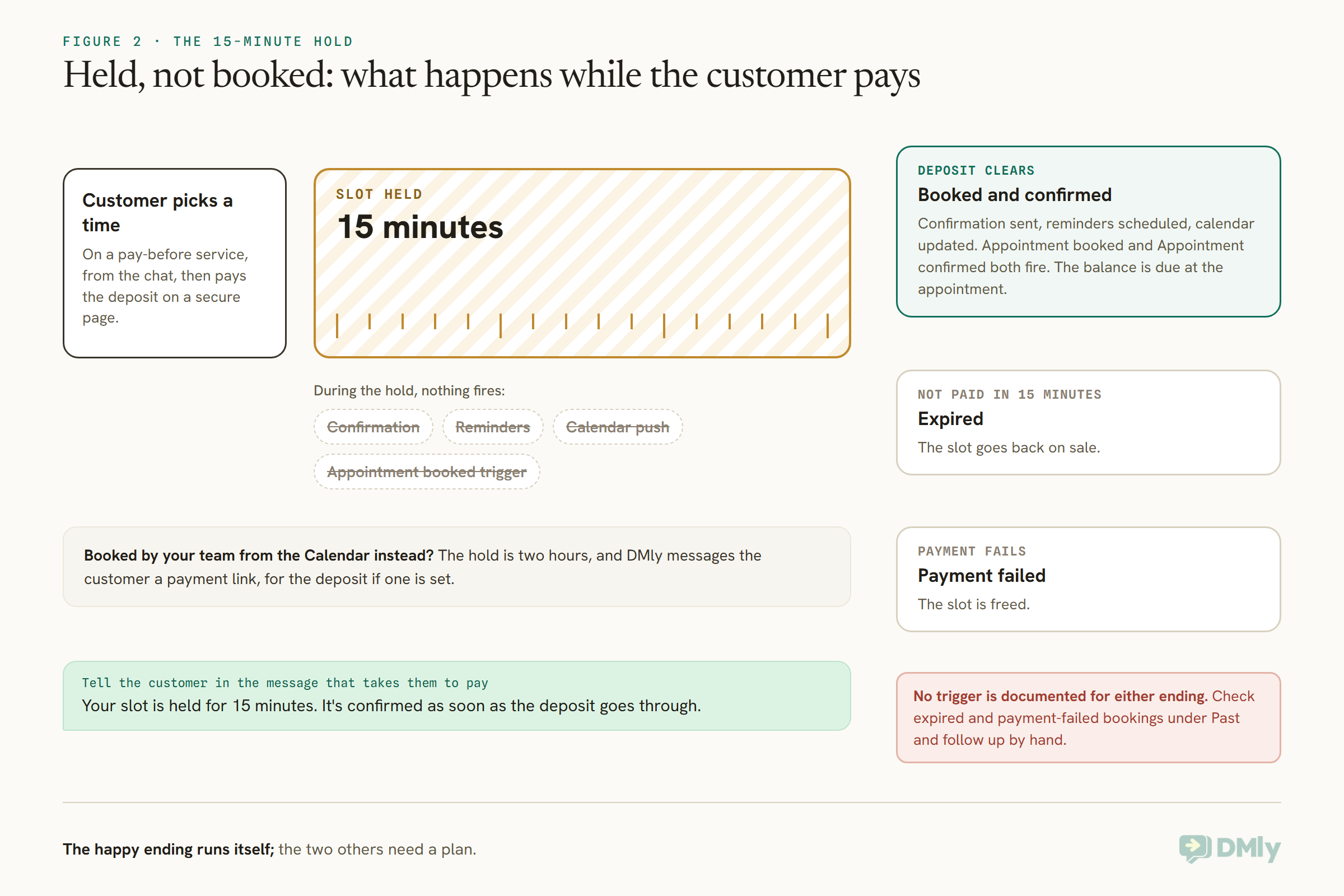
When the customer books a pay-before service, DMly holds the slot for 15 minutes while they pay. With a deposit set, the booking page tells them what they pay now to reserve the slot and what is due at the appointment, and the checkout charges exactly the deposit. A 25 per cent deposit on a $60 service is $15 to book and $45 on the day. When the AI agent takes the booking, DMly itself sends a Pay button showing the amount, and the agent tells the customer what will be left to pay at the appointment; the agent never writes the link or the figure itself.
During the hold, almost nothing happens: no confirmation, no reminders, no calendar push, and no Appointment booked trigger. All of it fires the moment the payment clears. That is deliberate, because someone who abandons checkout should not receive a confirmation for an appointment they do not have. Tell the customer this in the message that takes them to pay, for example: Your slot is held for 15 minutes. It’s confirmed as soon as the deposit goes through.
When the Customer Does Not Pay
Some customers wander off at the checkout. Decide in advance what happens next, because DMly will not chase them for you.
If the hold runs out, the booking becomes Expired and the slot goes back on sale; if the payment fails, it becomes Payment failed and the slot is freed. Both are final: DMly does not re-hold the slot or contact the customer, and its documentation does not list a trigger for either outcome. So the follow-up is a person’s job, or a check you build around it. The Bookings list can be filtered by status, and expired and payment-failed bookings appear under Past, so a daily glance at them shows who nearly booked. A short, friendly message usually recovers them: Looks like the payment didn’t go through, want me to hold Friday at 4 again?
One rarer case needs attention: if a payment arrives after the hold has already released the slot, DMly does not attach it to the booking, because someone else may have taken the time. It flags the booking for refund or review and writes a note on it, and nobody is messaged automatically. You have the customer’s money and they have no appointment, so refund or rebook them by hand promptly.
Whether the Book Meeting step’s booked path fires when the slot is held or only once payment clears is not spelled out in the docs, so if you put messages after it, book a paid service yourself and watch when they arrive before you rely on the timing.
Step 5: Confirm and Remind
Once the money clears, confirmation and reminders run on their own. Your job is to check they are worded well and actually arrive.
When the deposit or payment clears, DMly confirms the booking, sends the confirmation on WhatsApp, schedules the reminders from the service’s reminder times, and pushes the booking to a connected calendar. Two triggers fire: Appointment booked, and on top of it Appointment confirmed, which fires only when a pay-before hold clears. That makes Appointment confirmed the right place to hang anything that should only happen for paid bookings, such as a “what to bring” message or a note to the team.
Reminders outside the 24-hour window go out on approved templates; if a template is not yet approved, the reminder is dropped rather than sent, so check the dmly_appointment_reminder template before your first real booking. The standard confirmation is a managed template, so put the balance in a message from a flow on Appointment confirmed: Your deposit of 15 is paid; 45 is due at your appointment. Nobody likes a surprise at the till.
The Messages, Word for Word
Automation removes the waiting; good wording removes the confusion. Here is a starting script for each stage.
Keep each message short, say what happens next, and never leave the customer wondering whether they are booked. Adapt these to your own voice.
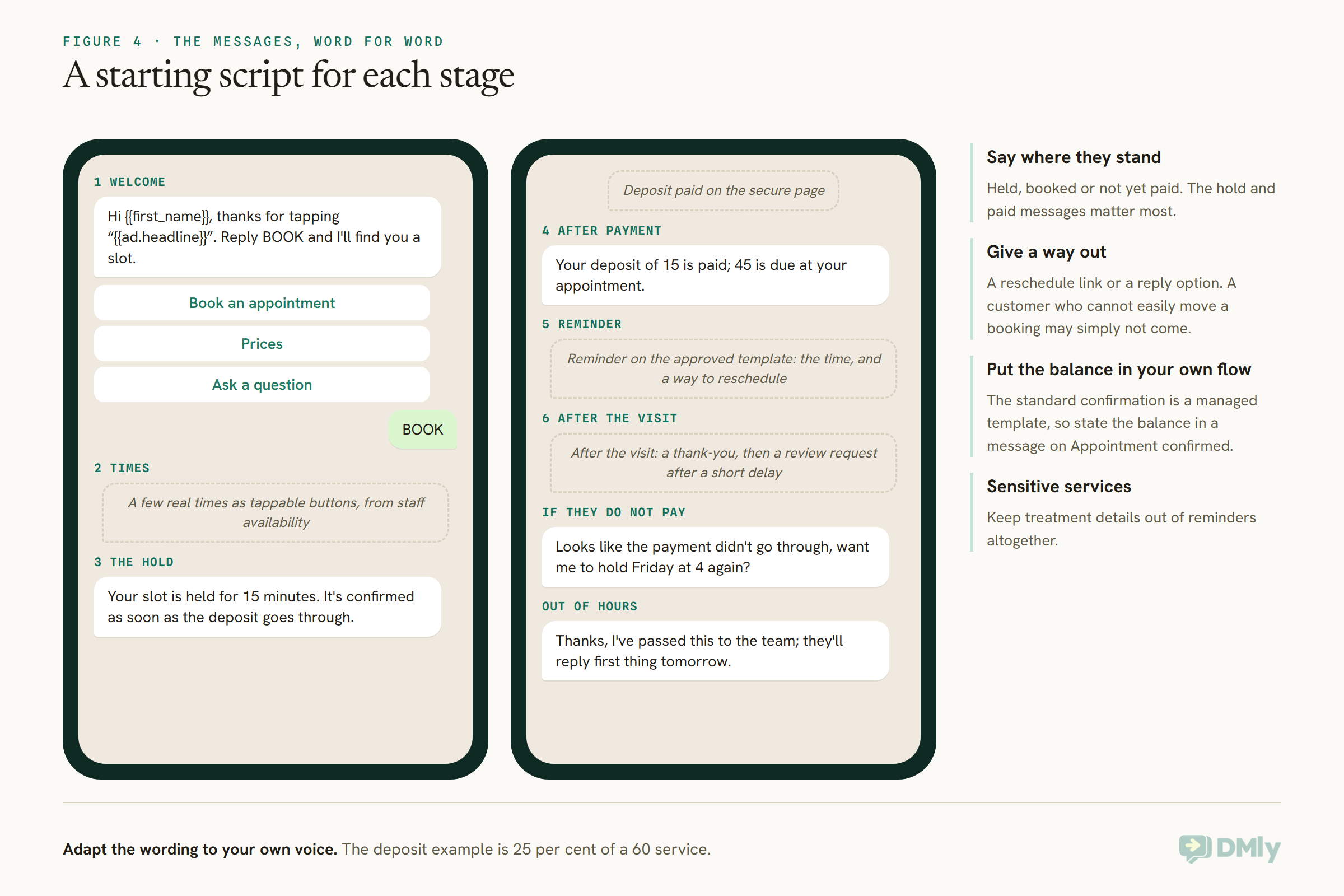
Two wording rules make the biggest difference. Always tell the customer where they stand: held, booked or not yet paid. And always give a way out, a reschedule link or a reply option, because a customer who cannot easily move a booking may simply not come. For clinics and other sensitive services, keep treatment details out of reminders altogether.
Step 6: After the Appointment
The journey does not end when the customer walks in. The balance, the review and the next booking all start here.
Collect the balance. DMly takes the deposit and sends nothing for the rest. Take the balance at the appointment, or send an invoice or payment link afterwards; our guide to sending invoices through WhatsApp covers that. A deposit-only booking shows as not paid until the full price is in, which is how you spot balances still owed.
Mark what happened. Mark each appointment completed or no-show. By default, DMly closes an unmarked appointment as completed about a day later, which fires the completed trigger and thanks a customer who may not have come. Set Appointments nobody marked, under Booking policy, to Wait for review so your follow-ups only reach people who attended.
Follow up. An automation on Appointment completed can say thank you, ask for a review after a short delay, and invite a rebooking when the next visit is due. An automation on Appointment no-show can send one friendly rebooking message, and if you have set a No-show fee on the service, DMly charges it when the no-show is marked, by saved card for customers paying a subscription automatically and otherwise by payment link.
Deposit or Full Payment?
Both gate the booking. They suit different services.
Full payment suits short, fixed-price services, classes and online sessions, where there is no balance to chase and the customer expects to pay up front. A deposit suits long or expensive appointments, where asking for the full price weeks early feels heavy but an empty slot is costly: a colour, a set of extensions, a first consultation. Set the percentage by how much an empty slot costs you and how much friction your customers will accept. For services where you would rather not ask for money up front at all, a no-show fee on its own is the lighter option. Our guide to taking appointment deposits or full payment goes through the choice in detail.
When Your Team Books Instead
Not every booking comes through the automation. Make sure the ones your team takes still ask for the deposit.
If someone on your team books a customer in from the Calendar on a pay-before service, DMly holds the slot for two hours rather than fifteen minutes and messages the customer a payment link, for the deposit if one is set; the booking confirms when they pay. Tick Payment taken in person only when the money really has been taken, at the desk or over a card machine, because it confirms the booking with no link. Booking several slots at once or a repeating series confirms without taking payment, so collect for courses separately.
Out of Hours
The automation works while you sleep. The handover to a person does not, so plan what customers get at night.
Most of this journey needs nobody: the answer, the times, the payment and the confirmation all run at any hour, which is exactly when many customers find time to book. The part that needs a person is the handover, when a customer asks something the flow or agent should not answer. Out of hours, make the handover message honest: Thanks, I’ve passed this to the team; they’ll reply first thing tomorrow. A flow can hold a message until your working hours with a Smart Delay set to wait until a time, so nothing important is sent at midnight. Then make the overnight queue the first job of the morning.
Test the Whole Journey Before You Go Live
Book yourself in, pay, and watch every message arrive. It takes half an hour and saves weeks of silent failures.
- Message your own number from a personal phone, the way a customer would, and check the first reply arrives within seconds.
- Ask a question in your own words and check the answer is right, or that it is handed to a person.
- Pick a time and pay a real deposit on a service priced low for the test. Check the pay page shows the split and charges only the deposit.
- Watch what arrives after payment: the confirmation, your Appointment confirmed message with the balance, and later the reminder.
- Start another booking and do not pay. Wait out the 15 minutes and check the slot comes back and that you can find the expired booking.
- Book a day with no free times and check the NO SLOTS path says something useful.
- Mark the test appointment completed and check the thank-you and review request arrive at the right delay.
- Refund the test deposit in your payment provider, then mark it in DMly, since refunding in DMly is bookkeeping only.
Measuring How Each WhatsApp Enquiry Into a Paid Appointment Goes
Check that the automation is doing the work, not just running.
The appointment reports, under Configurations, Reports, Appointments, show total bookings, completed, no-show rate and paid revenue, by service and by staff. The Bookings list can be filtered by source, Automation, Booking page or Staff, so you can see how many bookings the flow and the AI agent made on their own. Once a month, look at three things: bookings by source, the expired and payment-failed bookings under Past (checkout friction you can often fix with clearer wording), and deposit-only bookings still showing as not paid after the appointment (balances to collect).
Common Mistakes
- No gateway, or the wrong one. Without a gateway a pay-before service cannot be booked; with several, set Charge through.
- A price of zero. Every payment mode is ignored on a free service.
- Unapproved templates. Confirmations and reminders outside the window are dropped.
- No word about the hold. Tell customers the slot is held for 15 minutes until they pay.
- An AI agent without Check available times. It will offer times you cannot honour.
- Forgetting the balance. Say it in a message after confirmation and collect it on the day.
- Leaving no-shows unmarked. Use Wait for review, or follow-ups reach the wrong people.
- Ignoring expired holds. They are nearly-customers; a friendly message often recovers them.
Frequently Asked Questions
Can customers pay a deposit on WhatsApp?
They pay on a secure page opened from the WhatsApp chat, then return to the thread. Set the service to Pay before booking and give it a Deposit percentage, and the page shows what they pay now and what is due at the appointment.
Can an AI agent take a paid booking?
Yes. With the booking tools switched on, the agent checks real times and books; for a pay-before service DMly holds the slot and sends a Pay button with the amount, and the agent tells the customer any balance due at the appointment.
What happens if the customer does not pay in time?
After 15 minutes the booking expires and the slot goes back on sale. DMly does not chase them automatically, so check expired bookings and follow up with a friendly message.
Does the customer get a confirmation before paying?
No. During the hold there is no confirmation, reminder or calendar entry. Everything fires once the payment clears, so say in your message that the slot is held until then.
How do I collect the balance?
At the appointment, or by invoice or payment link afterwards. DMly does not send a link for the balance on its own, and the booking shows as not paid until the full price is in.
Which payment providers work?
DMly connects to Stripe, PayPal, Paystack, Flutterwave, Monnify, Razorpay, MyFatoorah and Mercado Pago. Our payments setup guide covers connecting one.
No More Waiting Between Messages
The seven-message, three-day conversation at the top of this page was never hard. It was slow, and every gap was a chance for the customer to book somewhere else. Automated, the same journey is an instant answer, a few real times, a minute on a secure page and a confirmation with the balance on it, while you are busy with the customer in front of you. Set up the pieces underneath, build three small flows, test a paid booking yourself, and then watch the bookings that arrive while nobody is looking at the phone. If you are not yet on DMly, see the plans.
Writing about WhatsApp automation, bookings and growth for local business.
Turn WhatsApp into your busiest channel.
Start free and run message, bookings, payments and reviews in one place.
