
Google Review Request Templates: 20 Message Examples for WhatsApp, SMS and Email
First draft: “Loved your visit? Leave us 5 stars on Google and get 10% off next time!” Second draft, after reading Google’s rules: “Loved your visit? Leave us a review on Google!” Third draft, after noticing that the second one quietly asks only the people who loved it: “Thanks for coming in today, [Name]. If you have a minute, we’d really value a Google review: [link].” The third is shorter, fairer, allowed, and it reads like a person wrote it. Most review requests go wrong in the first two drafts, in one of those two ways.
This page gives you twenty Google review request templates that start from the third draft: for WhatsApp, text and email, for different businesses, and for different moments, from straight after a visit to a gentle follow-up. Every one asks every customer, offers nothing in return, and puts the link where one tap opens the review form. Copy them, change the brackets, and keep the rules.
If you want these sent automatically after each visit or order, our complete guide to Google review automation shows how; for more message templates of every kind, see our library of WhatsApp Business message templates.
The Rules Every Template Here Follows
Google’s policy decides what a review request may say. Break it and the reviews you gain can be removed.
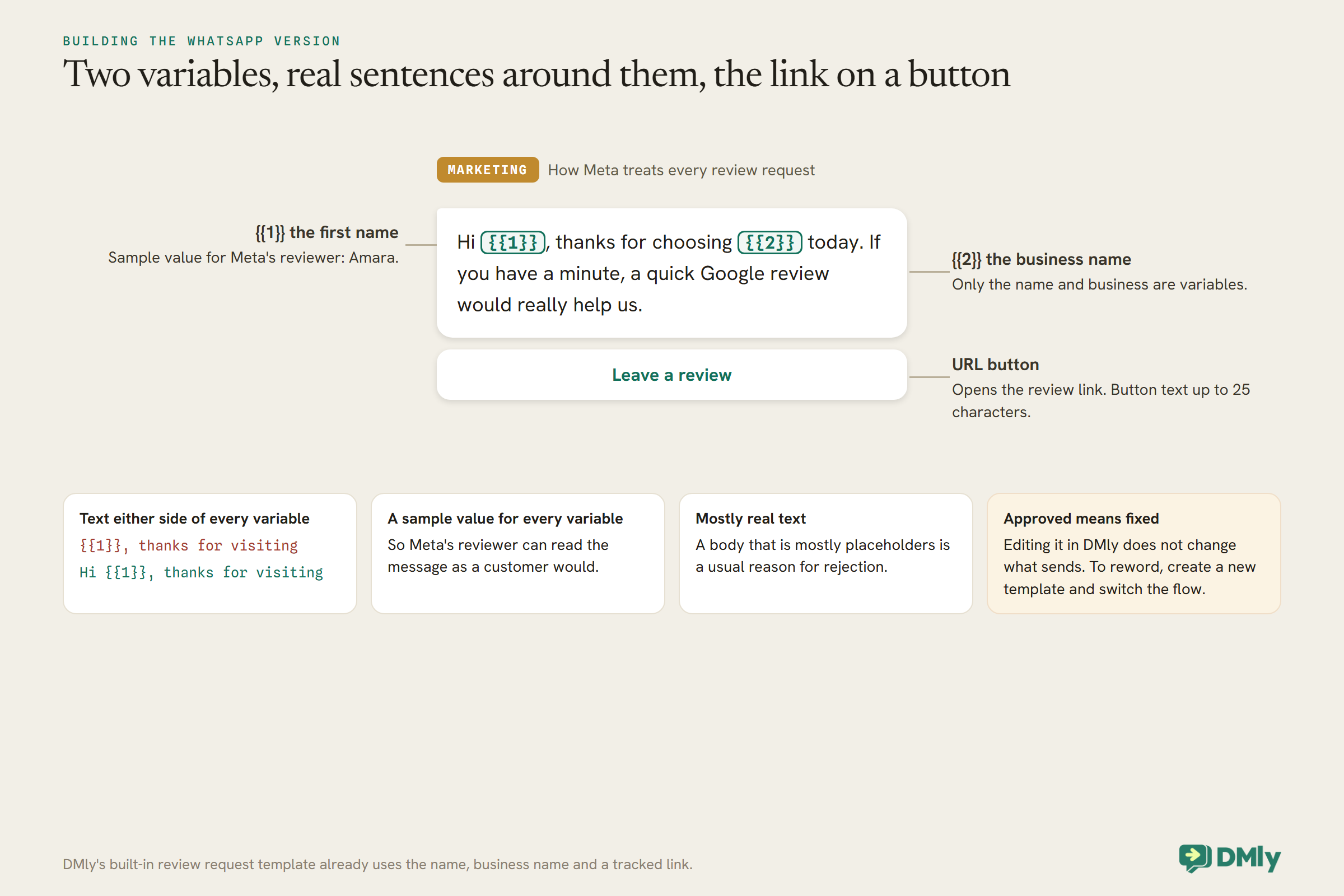
Google’s policy on user-generated content in Maps says businesses must not offer incentives for reviews, such as discounts, free items or payments; must not selectively ask for positive reviews, for example by sending the link only to customers who said they were happy; and should not require or pressure people to leave reviews. So none of the templates below mention a reward, ask for a particular star rating, or depend on the customer having said something positive first. They ask everyone, politely, once, with an easy way to say no by simply not replying.
WhatsApp adds its own rule. A review request is a marketing message in Meta’s eyes, so on WhatsApp it needs the customer’s permission to receive marketing, and outside the 24-hour window it must be sent as an approved template. DMly’s own review request template is held by Meta as marketing whatever it is declared as. On SMS and email, your local marketing rules apply.
WhatsApp, Text or Email: What Changes
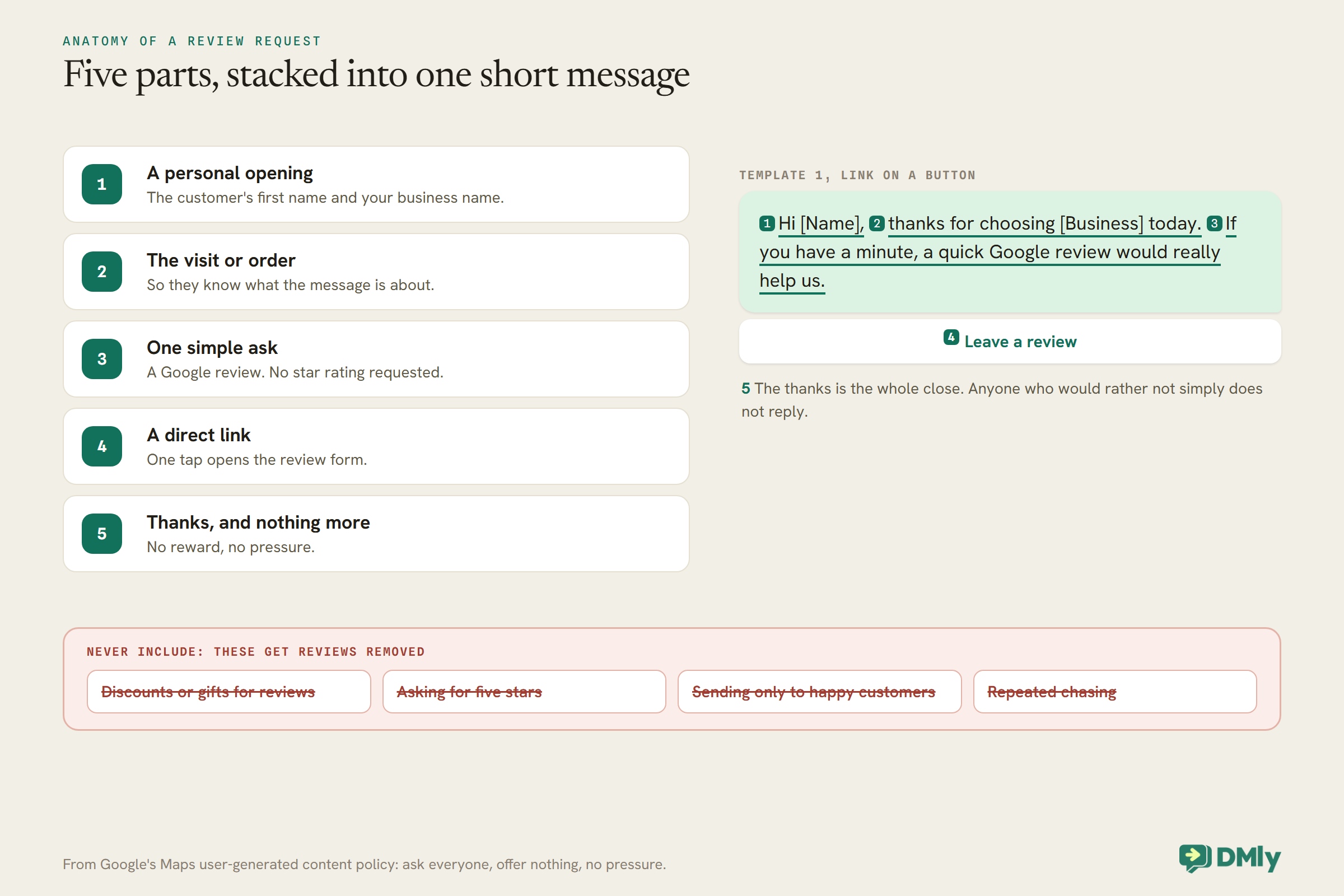
The same request reads differently on each channel. Adjust length and tone to fit.
WhatsApp suits a warm, short message with the link as a button. As a template, the body can run to 1,024 characters and a URL button’s text to 25, but the best review requests use a fraction of that. Variables are numbered, such as {{1}} for the customer’s name. Text messages should be shortest of all: one short sentence and the link, because long texts split into several parts and the link can end up in the last one. Email allows a little more context and a clear button, and suits customers who booked or bought by email, or where you do not have WhatsApp permission.
First, Get the Right Review Link
Every template on this page depends on one thing: a link that opens your Google review form, not your website or your Maps listing.
Google’s own help for Business Profiles suggests asking customers to follow a Google link or scan a QR code, and you can create both from your Business Profile. Use that link rather than a search for your business name: one tap should open the box where the customer writes the review. Test it on a phone that is not signed in to your business account, because that is how your customers will see it. Customers need to be signed in to a Google Account to leave a review, and Google notes they can create one with an email address that is not Gmail.
If you send from DMly, you do not paste the link into each message yourself. The Request reviews page shows your raw review link for receipts, bios and posters, and every request DMly sends swaps in a tracked link that redirects to your review page and records the first open. The raw link is not tracked; the tracked one is how you know a request was opened.
WhatsApp Google Review Request Templates (1 to 8)
Short, warm and personal. In a WhatsApp template, the name and link become variables and the link can sit on a button.
1. The all-purpose request
Hi [Name], thanks for choosing [Business] today. If you have a minute, a quick Google review would really help us: [Review link]
Use it when you want one request for every kind of visit. Change “today” to “yesterday” if you send the next morning, and use the customer’s first name only, never a full name copied from a booking form in capitals.
2. Salon or barber, after an appointment
Hi [Name], thanks for coming in to see [Stylist] today. We’d love to hear how it went; a Google review takes about a minute: [Review link]. See you next time!
Use it when the customer saw one named person. Naming the stylist or barber makes the message feel personal, and reviews that mention a person by name tell future customers who to book. Change “see you next time” to your own sign-off, or drop it for first-timers.
3. Clinic, discreet
Hello [Name], thank you for visiting [Clinic] today. If you would like to share your experience of our service, you can leave a Google review here: [Review link]
For clinics, say nothing about the treatment or reason for the visit, since messages can be read on a lock screen, and never reply publicly in a way that confirms someone was a patient.
4. Restaurant or café, later the same day
Hi [Name], thanks for eating with us at [Restaurant] tonight. If you have a moment, we’d really appreciate a Google review: [Review link]
Use it when you have the diner’s number from a reservation. Change “tonight” to “yesterday” if you send the next morning, which suits late sittings better than a message at midnight.
5. Gym or studio, after the first month
Hi [Name], you’ve been with us at [Gym] for a month now, thank you! If you’d like to tell others what it’s like, a Google review would mean a lot: [Review link]
Use it when a member has settled in. A first-week request asks before they know you; a month in, they have something to say. Change “a month” to match your own trial or induction period.
6. Online shop, after delivery
Hi [Name], your order from [Shop] should have arrived. We hope it’s just right. If you have a minute, we’d love a Google review of your experience: [Review link]
Use it when your courier’s delivery confirmation has come through. Change “should have arrived” to “arrived today” if you know it has; the softer wording is there for when you are sending on an estimated date.
7. Trades and home services, after the job
Hi [Name], thanks for having us on the [job, for example “kitchen fit”]. If you’re happy to, a Google review helps other people in [Area] find us: [Review link]
Use it when the job is signed off and paid. Naming the area matters for trades, because local customers search by place. Change the job description to the customer’s own words for it if you have them.
8. One gentle follow-up
Hi [Name], just a quick one: if you haven’t had a chance yet, we’d still love a Google review of your visit to [Business]: [Review link]. No worries if not!
Send a follow-up once, a few days after the first request, only to people who have not opened it, and then stop.
Turning a WhatsApp request into an approved template
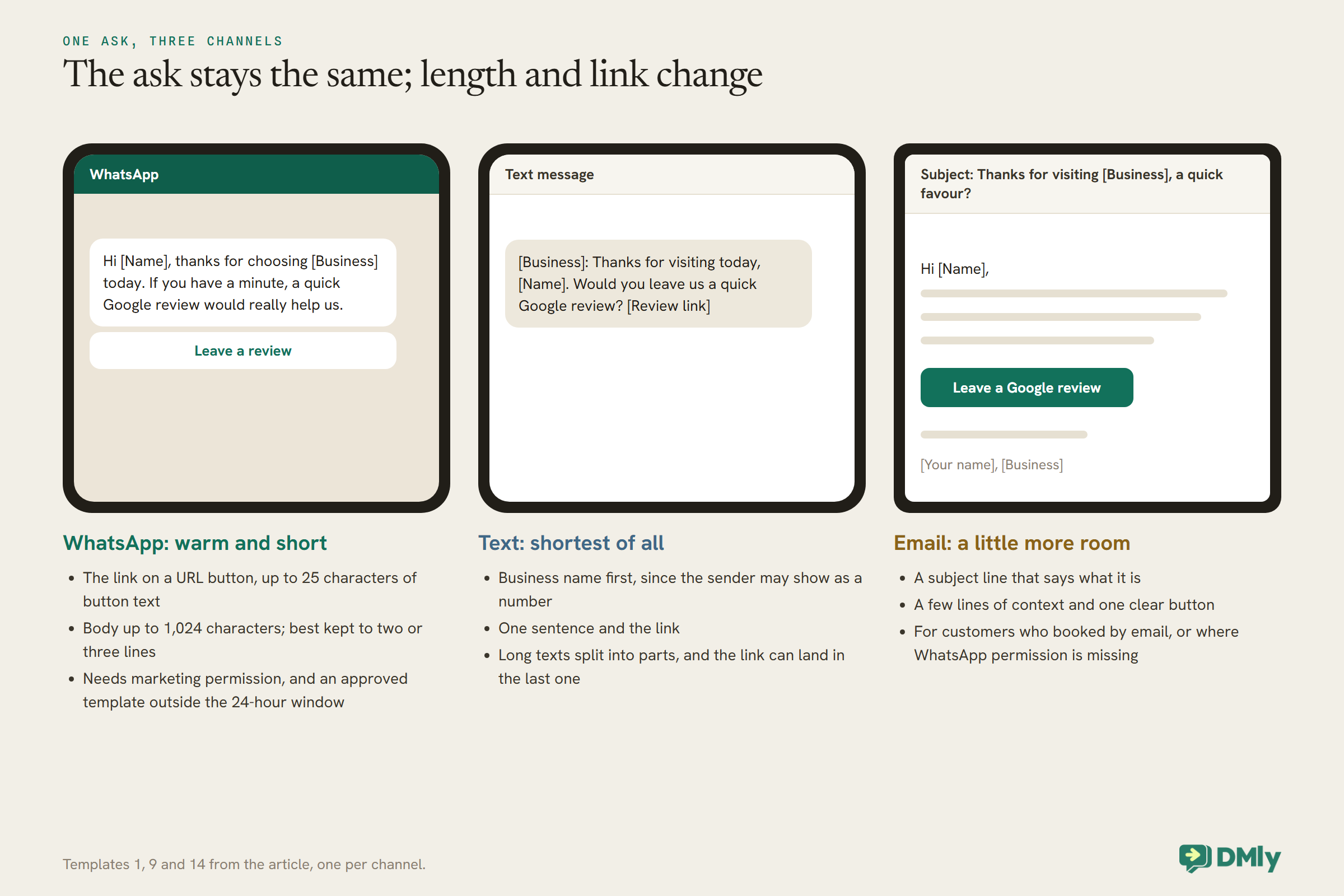
To send outside WhatsApp’s 24-hour window, the request has to be an approved template. Write the body with numbered variables, for example Hi {{1}}, thanks for choosing {{2}} today. If you have a minute, a quick Google review would really help us., and add the review link as a URL button with short text such as “Leave a review”. Choose the Marketing category, because that is how Meta treats review requests, and submit it for approval. DMly’s built-in review request template already uses the customer’s name, your business name and a tracked review link, so most businesses can start from it rather than writing their own.
Three builder rules catch people out. A template cannot start or end with a variable, so “{{1}}, thanks for visiting” is blocked and “Hi {{1}}, thanks for visiting” is fine. Every variable needs a sample value for Meta’s reviewer, such as “Amara” for the name. And a body that is mostly placeholders with little real text is one of the usual reasons for rejection, so write the message as real sentences with only the name and business as variables. One more: once Meta has approved a template, editing it in DMly does not change what sends. To reword a live request, create a new template and switch your flow to it.
SMS Google Review Request Templates (9 to 13)
Shorter still. Put your business name first so the customer knows who is texting.
9. The all-purpose text
[Business]: Thanks for visiting today, [Name]. Would you leave us a quick Google review? [Review link]
Use it when you have no WhatsApp permission, or the customer only ever texts. Starting with the business name matters more on text than anywhere else, because the sender may show only as a number.
10. Appointment businesses
[Business]: Thanks for your appointment today, [Name]. A Google review would really help us: [Review link]
Use it when the text goes out a few hours after a salon, clinic or treatment appointment. For clinics, keep “appointment” rather than naming the treatment.
11. After a delivery or collection
[Shop]: Hope your order arrived safely, [Name]. We’d love a Google review: [Review link]
Use it when the order is confirmed as delivered or collected. Change “arrived safely” to “collection went smoothly” for click and collect.
12. After a job at home
[Business]: Thanks for choosing us for your [job], [Name]. Mind leaving a Google review? [Review link]
Use it when you invoiced by text or email and the customer is already expecting to hear from you. “Mind leaving” is informal; swap it for “Would you leave” if your brand is more formal.
13. Follow-up text
[Business]: A reminder, if you have a minute, we’d still value a Google review: [Review link]. Thanks, [Name]!
Use it when the first text was not opened after a few days. Send it once and stop there.
Email Google Review Request Templates (14 to 17)
A subject line that says what it is, a few lines of context, and one clear button.
14. The all-purpose email
Subject: Thanks for visiting [Business], a quick favour?
Hi [Name],
Thank you for choosing [Business] on [date]. Reviews help other people decide whether we’re right for them, and yours would mean a lot to our small team.
[Button: Leave a Google review]
It takes about a minute. Thank you,
[Your name], [Business]
Use it when the customer booked or bought by email. Signing it from a real person, not “The Team”, tends to read as a genuine ask. The button should link straight to your review form.
15. After a first visit
Subject: How was your first visit, [Name]?
Hi [Name],
Thanks for trying [Business] for the first time. We’d love to know how it went, and if you’re willing, a Google review helps others find us.
[Button: Share your experience on Google]
Warm regards,
[Your name]
Use it when a new customer’s first visit has just ended. It asks how it went and invites a review in the same breath, without making the review depend on the answer.
16. After a project or longer service
Subject: Your [project] with [Business]
Hi [Name],
Now that your [project] is finished, thank you for trusting us with it. If you’d be happy to describe your experience in a Google review, it would help other people in [Area] choosing someone for similar work.
[Button: Leave a review]
With thanks,
[Your name]
Use it when the work ran over days or weeks: a renovation, a course of lessons, a wedding booking. There is more to say, so an email’s extra room earns its place.
17. Email follow-up
Subject: Still happy to hear from you
Hi [Name], a short note in case our last email got buried: if you have a minute, we’d still value a Google review of your time with [Business].
[Button: Leave a review]
Thank you, and no need to reply.
Use it when the first email was not opened. “No need to reply” takes the pressure off, which is what Google’s policy asks for anyway.
Templates for Special Situations (18 to 20)
Three situations where the wording matters more than usual.
18. After a problem you have resolved
Hi [Name], thanks again for your patience while we sorted out [issue]. We’re sorry it happened. If you’d like to share your experience on Google, whatever it was, here’s the link: [Review link]
This is still a request to everyone who had a problem, not a way of choosing who reviews, and it makes clear any honest review is welcome. Send it only after the issue is genuinely resolved, and never make a resolution conditional on a review.
19. For the counter, table or receipt (QR code)
Enjoyed your visit? We’d love a Google review. Scan here: [QR code]
A printed request reaches walk-in customers you have no contact details for. Keep it to one line and the code. “Enjoyed your visit?” is a question, not a filter, because everyone who sees the card can scan it.
20. For regulars you see often
Hi [Name], you’ve been coming to [Business] for a while now, and we’ve never asked: would you be willing to leave us a Google review? Here’s the link: [Review link]
Ask regulars once, not after every visit; a request on every visit wears thin quickly.
Asking in Person, With the Same Rules
A spoken ask at the counter works well alongside a message, as long as staff ask everyone the same way.
Give your team one line and ask them to use it with every customer at the end of a visit, not only the ones who seemed delighted: “If you’ve got a minute later, we’d really appreciate a Google review; the link’s on the card by the till.” Pointing to the QR card, rather than asking the customer to search for you, gets them to the right form. Avoid anything that sounds like a condition or a trade, such as “leave us a review and we’ll sort your discount”, and avoid standing over someone while they write it.
Spoken asks and messages work together: the customer hears the ask in the room, and the WhatsApp or text later that day hands them the link when they have time.
Writing in Your Customers’ Language
A request in the language your customer speaks to you in reads as a request from you; a stiff translation reads as a system.
If your customers message you in more than one language, keep a version of your request in each. On WhatsApp, each template is submitted with a language, so you create one template per language and pick the right one for each group of customers. Translate the meaning rather than the words: “we’d really value a review” has a natural way of saying it in every language, and a word-for-word version often sounds stiff. Keep the same rules in every version: no incentive, no star rating, one link.
When to Send
The best moment is soon after the customer has experienced what they paid for, while it is fresh.
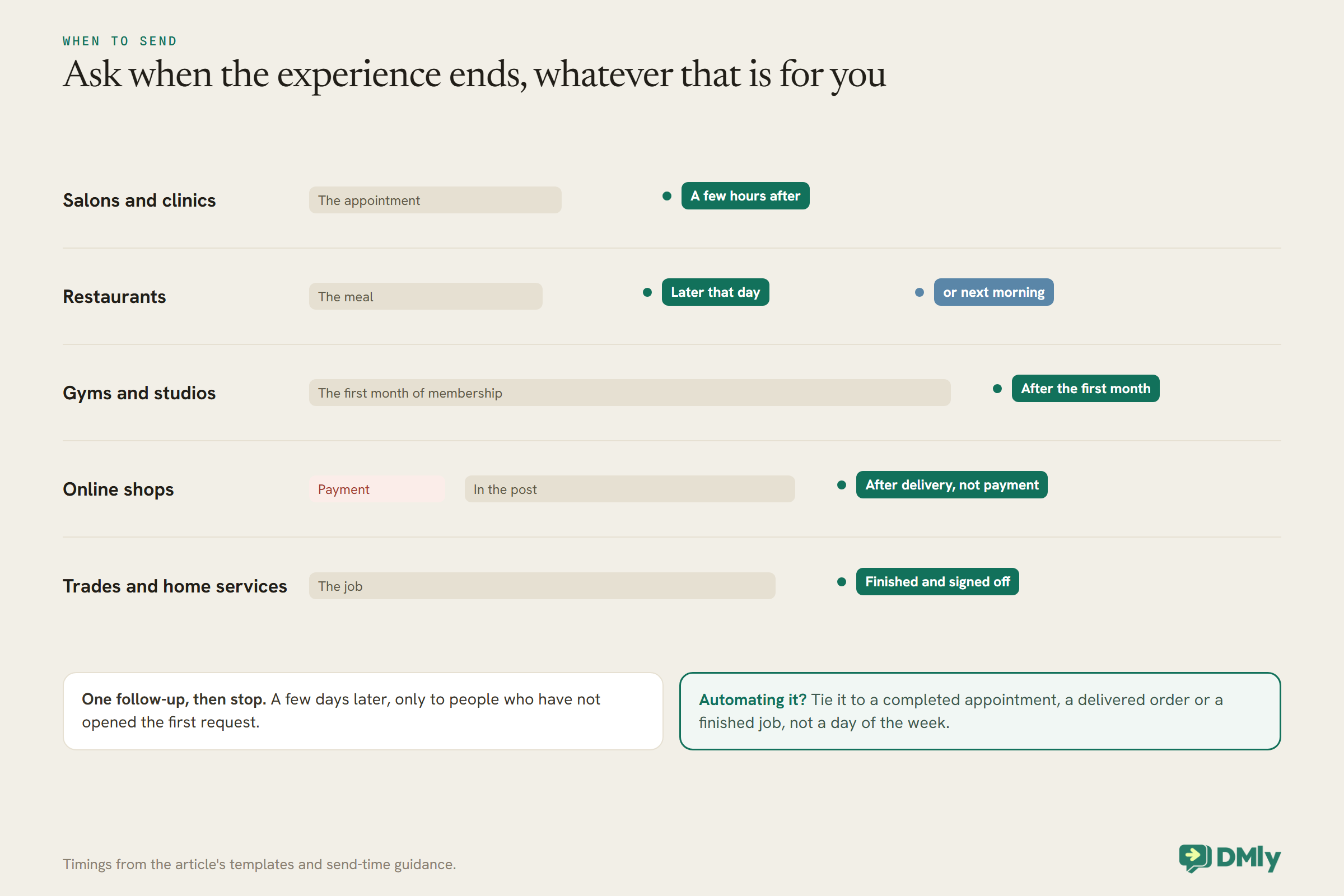
If you automate the request, tie it to that moment rather than a fixed day of the week: a completed appointment, a delivered order or a finished job. Our guide to asking for reviews after an appointment covers the timing in more depth.
Sending Them From DMly
You can send these by hand to a list, or let an automation send them after every visit.
In DMly, Reputation, then Request reviews, sends a tracked link to your Google review page to up to 200 contacts at a time, on WhatsApp, SMS or email. For automatic requests, add a Request Google review step to a flow, for example one that runs a few hours after an appointment is completed; it sends on WhatsApp or SMS, and on WhatsApp it uses an approved template, so the request arrives even days after the customer last messaged you. For walk-in trade, DMly generates a tracked review QR code with print-ready designs for the counter, door or table. On the requests page, the number to watch is Opened, counted by the tracked link; the Responses card is an estimate, linking a review to a request when the reviewer’s name matches the contact’s.
One caution if you use automation: make sure the requests go to everyone who attended, not only to customers who gave a good rating first. DMly ships a template that asks a satisfaction question and sends the review link only to four- and five-star answers; change that branch so everyone is offered the link. And mark appointments as attended or no-show, because by default an appointment nobody marked is closed as completed about a day later, which would send a review request to someone who never came. If you ask for reviews on completion, DMly’s own docs suggest switching Appointments nobody marked to Wait for review, so nothing is sent until someone on your team confirms the visit.
For the single follow-up, each successful request fires DMly’s Review request sent trigger, which can start a second flow that waits a few days and sends one polite nudge. Keep it to one, and word it like template 8 or 13 above.
Measuring Which Template Works
Change one thing at a time and watch two numbers: how many requests are opened, and how many reviews arrive.
The open count tells you whether the message itself works: whether the wording, timing and channel get people to tap. The reviews that appear on your Google profile tell you whether opens turn into reviews. Neither is perfect. In DMly, Opened is the number to trust on the requests page; the Sent and Delivered figures count requests created rather than messages that reached a phone, and the link between a review and the request that prompted it is only an estimate based on the reviewer’s name, so compare the trend in reviews over a month against what you changed. Run one template for a few weeks, then change a single thing, such as the send time or the opening line, and compare.
What to Do When Reviews Arrive
Asking is half the job. Replying is the half other customers read.
Reply briefly and personally, rather than pasting the same thank-you under every review; Google’s own advice is to make replies count, sharing a useful detail or answering a question. Address the reviewer by name, keep it conversational rather than promotional, and for a negative review, apologise where it is right to, explain what you can and cannot do, and offer to talk privately, without arguing or sharing private details in public. Our guide to handling negative Google reviews has wording for the hard ones.
Mistakes to Avoid
- Offering anything for a review. Discounts, free items or prize draws break Google’s policy.
- Asking for five stars. Ask for a review, not a rating.
- Asking only happy customers. Send to everyone after the experience.
- Chasing repeatedly. One follow-up at most.
- A link to your homepage. Link straight to the Google review form.
- Sending on WhatsApp without permission. Review requests are marketing messages.
- Long messages. Two or three lines on WhatsApp, one on text.
Frequently Asked Questions
What should a Google review request say?
Thank the customer by name for the visit or order, ask for a Google review in one sentence, include a direct link, and stop. Do not offer anything in return or ask for a star rating.
Can I offer a discount for a Google review?
No. Google’s policy prohibits incentives for reviews, including discounts and free items.
Can I send review requests on WhatsApp?
Yes, to customers who have agreed to receive marketing from you on WhatsApp. Outside the 24-hour window, the request must be an approved template, and Meta treats review requests as marketing.
How soon after a visit should I ask?
Soon after the experience: a few hours after an appointment, later the same day for a restaurant, after delivery for an online order.
How many times should I ask?
Once, with at most one gentle follow-up a few days later to people who have not opened the first request.
Is it allowed to ask a customer to update a negative review?
You can resolve their problem and let them decide for themselves; do not make any resolution conditional on changing a review, and do not pressure them.
Do customers need a Google account to leave a review?
Yes. Google says customers must be signed in to a Google Account, which they can create with an email address that is not Gmail. It is worth a short line in an email request for customers who may not have one.
Where do I find my Google review link?
In your Google Business Profile, which can create a link or a QR code for asking for reviews. Test it on a phone that is not signed in as your business.
The Third Draft, Twenty Times Over
Every template on this page is the third draft from the top: short, personal, allowed, and asked of everyone. Pick the ones that fit your business and channels, put your own words in the brackets, send them at the moment the experience ends, and reply to what comes back. If you want the asking done for you after every visit, DMly’s reputation tools send these requests automatically.
Writing about WhatsApp automation, bookings and growth for local business.
Turn WhatsApp into your busiest channel.
Start free and run message, bookings, payments and reviews in one place.
