
Mark this reminder the way you would mark a piece of homework: “Reminder: lesson tomorrow.” Correct, as far as it goes. But which lesson, and when? With whom? In person or online, and if online, where is the link? What should the student bring? And if tomorrow does not work, what should the parent do? Margin notes all the way down. It would earn a polite “see me”.
Good automatic class reminders answer every one of those questions without anyone typing them, for every lesson, every week. They go to the person who actually organises the lesson, arrive at a sensible time, and carry the join link for online lessons and the way to reschedule. Once they are set up, they are one of the quietest and most useful things a tutor or training centre can automate.
This guide sets them up in DMly: who should receive them, the reminder times, writing the message, what actually arrives inside and outside WhatsApp’s 24-hour window, weekly lessons, group classes, online lessons, extra reminders from flows, exam dates, replies, testing and costs. It builds on our guides to WhatsApp automation for tutors and WhatsApp appointment reminders.
Step 1: Decide Who Gets the Reminder
A reminder goes to the contact the booking is on. Choose that contact deliberately.
DMly sends a booking’s confirmation and reminders to the contact the booking belongs to, on that contact’s channel. There is no setting to copy a second person, so the question “student or parent?” is really “whose contact is the booking on?”.
- Young children: book on the parent’s contact. The parent’s WhatsApp receives every reminder, and they are the one who gets the child there. Record the child’s name in a custom field such as
student_nameso your team knows who the lesson is for. - Older students who organise themselves: book on the student’s own contact, with their own number, if the family is happy with that.
- Adult learners at a training centre: always their own contact.
Decide per family and keep it consistent. A series booked on a teenager’s contact will not remind the parent, and a series booked on a parent’s contact will not remind the teenager. If both need to know, the simplest arrangement is often the parent’s contact plus a quick forward.
Step 2: Set the Reminder Times on Each Lesson Type
Reminder times belong to the service, so each kind of lesson can have its own.
In DMly, reminder times are part of each service in Offerings → Services, alongside its duration, price and location, for example a day before and an hour before. Every booking of that service follows them. That lets you match the reminder to the lesson:
| Lesson type | Sensible reminders | Why |
| Weekly in-person lesson | A day before | Time to find the books and arrange a lift |
| Online lesson | A day before and shortly before the start | The second one carries the join link at the moment it is needed |
| Saturday group class | Two days before | Gives families time to plan the weekend |
| Evening course session for adults | The morning of the session | Adults plan the day, not the week |
These are starting points, not rules. Two reminders is plenty for most lessons; more than that starts to feel like nagging, and every template outside the window has a cost.
Reminder times are fixed to the booking’s time. If a reminder’s moment passes while it cannot be sent, it is not caught up later.
Step 3: Write a Reminder Worth Reading
Each service has its own Reminder message. Write it once, for every lesson of that type.
A service carries three messages you can edit: Confirmation message, Reminder message and Cancellation message. They accept tokens that DMly fills in per booking. The useful ones for tutors:
{{appointment.date}}and{{appointment.time}}: the lesson’s date and time, shown in the contact’s own timezone, which matters for online students abroad.{{appointment.staff}}: the tutor’s name, useful at a centre with several tutors.{{appointment.service}}: the lesson type.{{meeting.link}}: the join link for an online lesson.{{appointment.reschedule_url}}and{{appointment.cancel_url}}: the family’s own booking page, opened on rescheduling or cancelling.
Here is the homework from the top of this article, rewritten to earn full marks:
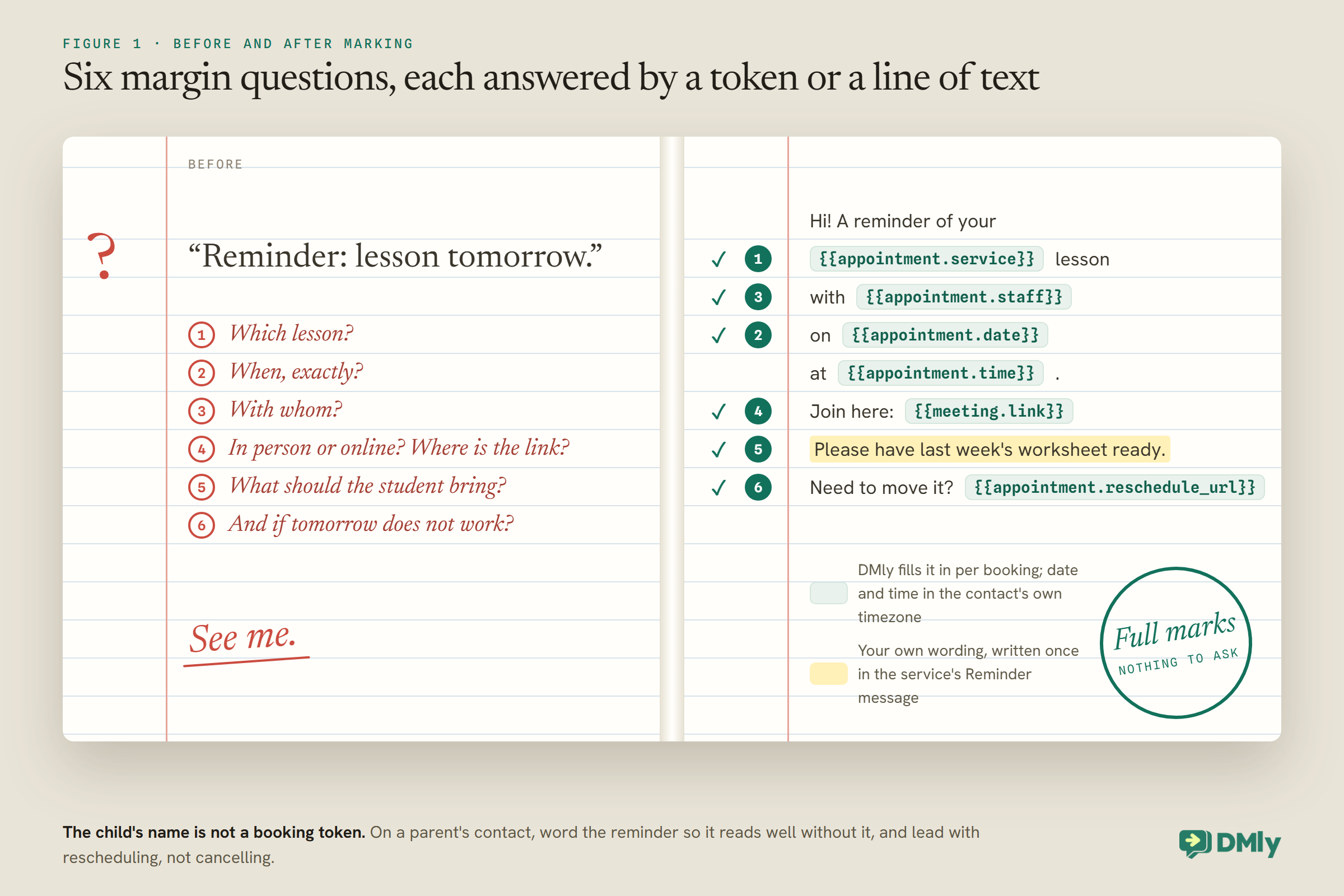
Two notes on the example. The child’s name is not a booking token, so if lessons are booked on the parent’s contact, write the reminder so it reads well without it: “a reminder of your Maths lesson”. And lead with rescheduling, not cancelling: a moved lesson keeps the student; a cancelled one may not come back.
What Actually Arrives: Inside and Outside the Window
The reminder you wrote is not always the reminder the family reads. Know when each one goes.
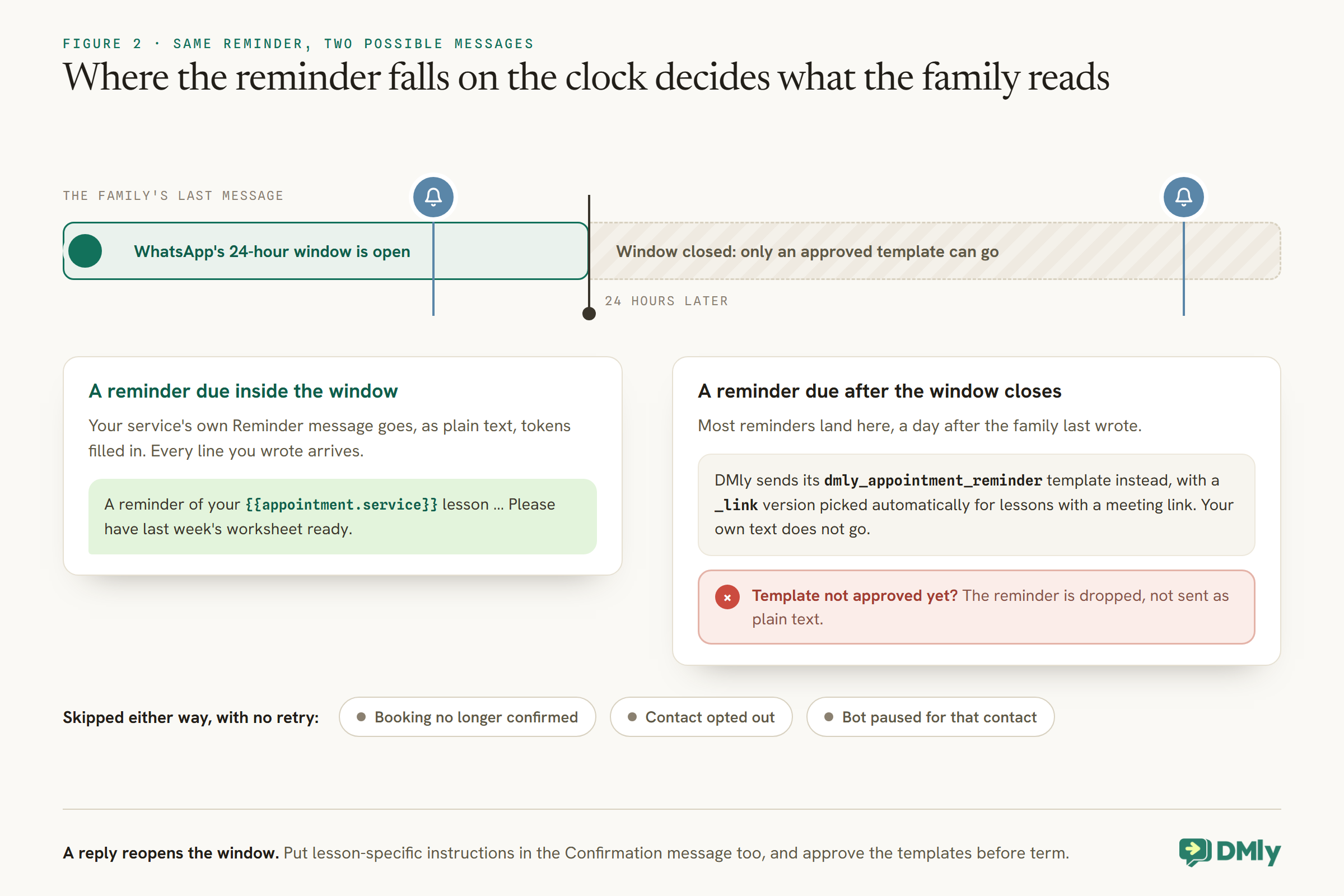
WhatsApp lets a business send free-form messages only within 24 hours of the person’s last message. Most reminders land outside that window, a day after the family last wrote, and there DMly can only send an approved WhatsApp template:
- Inside the window, the family receives your service’s own Reminder message as plain text, tokens filled in.
- Outside the window, DMly sends its
dmly_appointment_remindertemplate instead, with a_linkversion picked automatically when the booking has a meeting link. If the template is not approved yet, the reminder is dropped rather than sent as plain text.
That has a practical consequence: anything lesson-specific that you need the family to read every time, such as “bring the worksheet”, is only guaranteed in your own text when the window is open. Put the important instructions in the Confirmation message as well, which usually arrives straight after booking, often inside the window, and check your system templates are approved before term starts.
The Two Messages Either Side of the Reminder
The confirmation and the cancellation message matter as much as the reminder. Write all three together.
The confirmation: the reminder before the reminders
The confirmation goes the moment a lesson is booked, and when a family books from a link you sent in the chat, it often lands while their 24-hour window is still open, so your own text arrives in full. That makes it the best place for everything a family needs once: the address and where to park, which door to use, what the first lesson covers, what to bring every week, and the join link for online lessons. For a series, the confirmation also lists the dates, which gives the family a written record of the term. Outside the window, DMly sends its dmly_appointment_confirmation template instead, with a link version for meetings, so keep the essentials short enough to repeat in person too.
The cancellation message: an open door
When a lesson is cancelled, by you or by the family, the service’s Cancellation message goes out, or the dmly_appointment_cancelled template outside the window. Write it as an invitation, not a receipt: “Sorry we’ll miss you this week. If you’d like a make-up lesson, reply here or pick a time on our booking page.” A cancellation that ends with a way back is a lesson that may still happen.
Half-Term, Holidays and Days You Cannot Teach
Cancelling a date stops its reminders, and sends a cancellation message. Warn families first.
A weekly series runs straight through half-term unless you book around it. If you cancel the holiday dates afterwards, each cancelled booking stops its reminders, which is what you want, but each also sends the family a cancellation message, which can alarm a parent who did not know the break was coming. Send one friendly note about the break first, then cancel the dates, so the cancellation messages arrive as confirmation of something the family already expects.
The same applies when a tutor is ill. Cancel the lesson so nobody travels for nothing, and make the cancellation message offer a make-up. At a centre, another tutor may be able to cover the slot instead; check with the family before changing who teaches.
Students in Other Timezones
For online lessons across borders, the time in the reminder has to be the student’s time.
Booking message tokens show dates and times in the contact’s own timezone, so a family in Dubai booked for your 4pm London lesson sees their local time in the reminder. That depends on DMly knowing the contact’s timezone. Under Settings → Appointment, Timezone mode is either Detect automatically, which uses the contact’s stored timezone when DMly has one and otherwise falls back to the service’s timezone, or Fixed timezone, which always shows your clock. The public booking page does not detect a visitor’s browser timezone. If you teach students abroad, check each one’s contact shows the right timezone before their first lesson, and say which timezone the lesson time is in when you first agree it.
Families With More Than One Child
Two children booked on one parent’s contact means two sets of reminders in one chat.
Each lesson is its own booking, so a parent with two children in lessons receives a reminder for each. That is fine as long as each message makes clear which lesson it is. Use a separate service per subject or level where it helps (“Year 6 Maths”, “GCSE Chemistry”), so {{appointment.service}} tells the lessons apart, and use {{appointment.staff}} at a centre where the children see different tutors. A parent should never have to guess which child a reminder is about.
Asking Families to Confirm by Reply
“Reply YES to confirm” only works if someone reads the replies.
A reminder can ask the family to reply to confirm, and a reply has a useful side effect: it opens the 24-hour window, so anything you send next goes as your own text. But DMly does not mark a booking confirmed because someone replied “yes”, and a reply of “no” does not cancel it. If you ask for confirmations, someone has to read them the same day and act on the no’s, or a flow has to route them to a person. If nobody will, leave the question out and rely on the reschedule link instead: it lets families act without anyone reading anything.
Weekly Lessons Booked as a Series
Every lesson in a series gets its own reminders. Flows on the series do not.
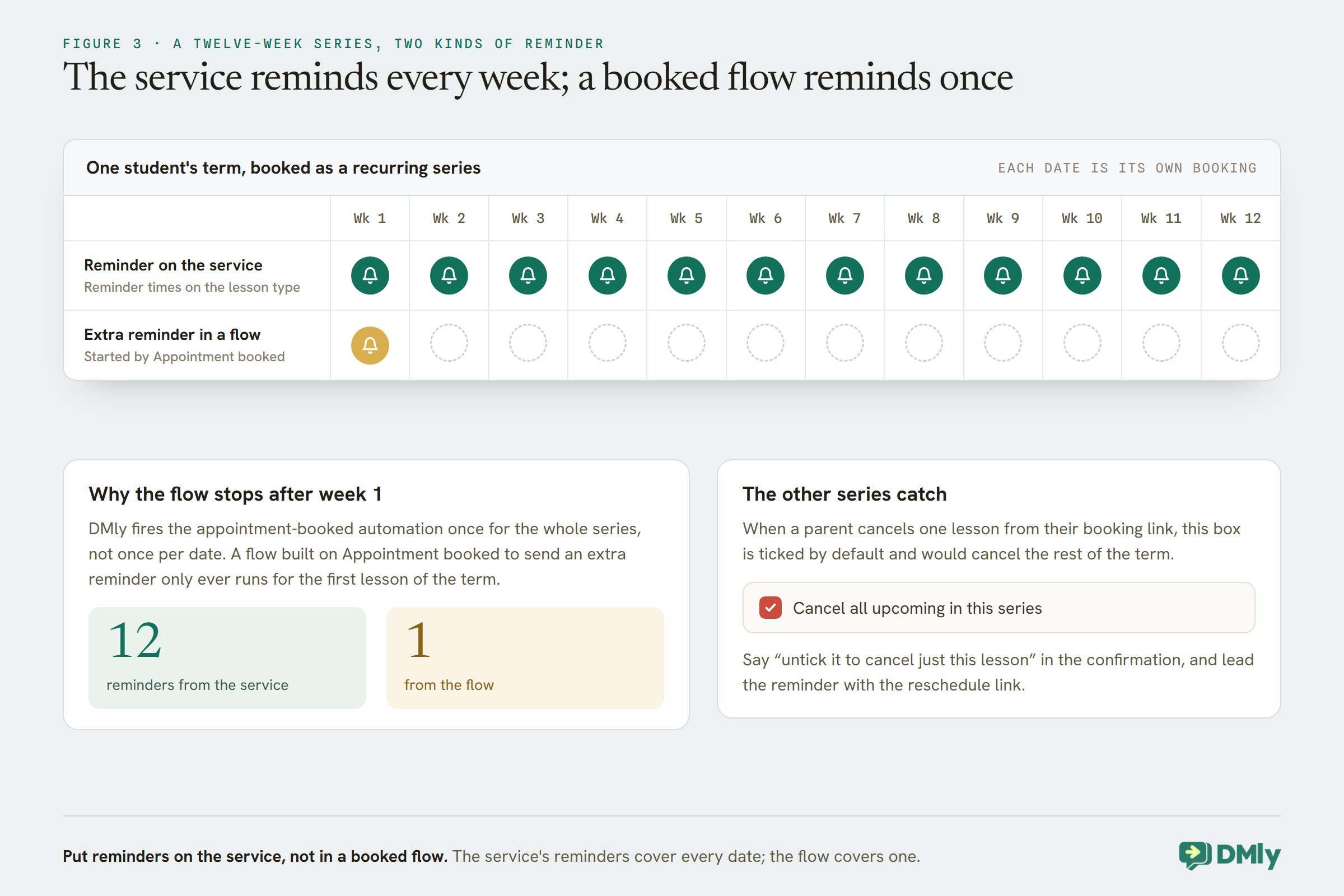
When a student’s term is booked as a recurring series, every date is its own booking, and each follows the service’s reminder times. Nothing more is needed for the reminders themselves.
The catch is with flows. DMly fires the appointment-booked automation once for the whole series, not once per date. A flow you built on Appointment booked to send an extra reminder before each lesson will only ever run for the first lesson of the term. That is one more reason to put reminders on the service rather than in a flow: the service’s reminders cover every date; the flow covers one.
The same applies to the note families need most with a series. When a parent cancels one lesson from their booking link, the Cancel all upcoming in this series box is ticked by default and would cancel the rest of the term. Put “untick ‘Cancel all upcoming’ to cancel just this lesson” in the confirmation, and lead the reminder with the reschedule link instead.
Group Classes and Courses
A class place is a booking too, so it gets reminders the same way, with a couple of differences.
A booked place in a group class has a normal booking behind it, so reminders follow the class service’s reminder times exactly as they do for one-to-one lessons. Three differences to know:
- Waitlisted students get no reminders. A place on the waitlist is a position in a queue, not a booking. If a place opens and they are promoted, they get the class confirmation, and reminders from then on.
- Class events have their own tokens. In a flow started by a class event, such as Class booked, you can use
{{class.name}},{{class.date}},{{class.time}},{{class.seats_left}},{{class.staff}},{{class.location}}and{{class.join_url}}. - Class starts soon is a trigger that fires when a class is about to start. DMly’s docs do not state its lead time, so test it on a session you create a little ahead before using it, and do not let it duplicate the service’s own reminder.
DMly’s Smart Delay step can wait until a set time before an appointment, but its docs tie those appointment anchors to flows started by an appointment event. If you want a flow-timed reminder for a class, test whether it waits in a flow started by Class booked; if the anchor cannot be read, the step does not wait at all and the message goes straight away.
For courses enrolled as a batch, Notify client on the enrolment decides whether the class confirmation goes out. Reminders still follow each session’s service.
Online Lessons: The Link, Every Time
For online lessons, the reminder’s real job is the join link.
Connect Zoom and set the lesson’s location to Zoom (auto link), and every booking gets its own meeting. Write {{meeting.link}} into the service’s Confirmation and Reminder messages; the default confirmation already includes it. Outside the window, DMly picks the reminder template made for meeting links automatically.
If a meeting could not be created, for example because Zoom was disconnected, the booking still stands and {{meeting.link}} falls back to the location text, just “Zoom”, instead of a broken link. The message still reads sensibly, but the student has no way in. Check the Zoom connection at the start of each term, and look at one upcoming online booking to confirm it has a link.
For group classes online, the class’s location decides whether every student shares one meeting link or, with the paid Zoom Webinars add-on, each gets a personal one.
Adult Learners and Company-Booked Training
At a training centre, the person who books is not always the person who attends.
When an employer books places on a course for several members of staff, it is tempting to put every place on the contact of the person who organised it. Then every reminder, every join link and every cancellation message goes to that one person, and the learners themselves hear nothing. Book each delegate on their own contact instead, with their own phone number, so each receives their own reminders and, for online courses, their own link. For a group enrolled together, a batch does this in one action, as long as each delegate is a contact first. Keep the organiser informed separately, for example with the confirmation of the booking you send them directly.
When a Reminder Does Not Go
Reminders fail quietly. These are the documented reasons.
- The booking is no longer confirmed. Cancelled lessons are not reminded, which is correct.
- The contact opted out, for example by replying STOP.
- The bot is paused for that contact, because someone took over the conversation. Resume the bot when you are done, or that family’s reminders stop too.
- The template is not approved and the window is closed.
- The lesson is waiting for payment. With pay before booking, nothing is sent while the slot is held for payment (15 minutes when the family books online, two hours when you book from the calendar), and nothing at all if the family never pays.
- The contact has no WhatsApp identity, for example a parent who booked on the web with only an email address. Their messages go to whatever channel their contact has.
A skipped reminder is not retried. And reminders never notify your team; they go to the family only. If you want tutors to see their day, use the calendar or the booking alerts they get when lessons are booked.
Exam Dates and Course Deadlines
Not every date worth reminding is a lesson. Exams and deadlines can have reminders too.
An exam date is not a booking in DMly, so it has no reminder times. Store it in a custom field such as exam_date on the contact, and build a flow on the Birthday / key date trigger, which fires on a date field or a set number of days before it. A reminder three weeks before an exam can offer extra sessions; one the week before can wish the student luck.
Two cautions. A date in a format DMly cannot read is skipped silently, so agree one format and stick to it. And DMly’s docs do not say whether the trigger matches the year: if it repeats yearly like a birthday, a date more than a year away could fire early. Test it with a contact whose date is 13 months ahead, and clear the field once the exam has passed.
Keep these messages factual. A note about the student’s own exam date, with nothing to sell, is the kind of account-specific message Meta’s template guidelines treat as utility; an offer of paid revision sessions in the same message makes it marketing, which needs the family’s permission for marketing messages.
When Families Reply to a Reminder
A reply to a reminder opens the window. Answer it like a person.
The most common replies are “can we move it?”, “running late” and “we’re ill this week”. Each opens WhatsApp’s 24-hour window, so your team can reply with a normal message. Point a “can we move it” to the reschedule link, which works within your reschedule deadline, or move the lesson from the calendar yourself. For a group class, remember a place can be cancelled but not moved; offer the next session instead.
If you use an AI assistant or a flow to answer messages, make sure it hands anything about a child’s wellbeing or a complaint to a person.
Test Your Automatic Class Reminders Before Term Starts
- Book a test lesson on a staff phone for each lesson type, with reminders set a few minutes ahead.
- Test both sides of the window: once after messaging the business from the test phone (you should get your own text), and once after staying silent for a day (you should get the template).
- Check an online booking has a real join link in both messages.
- Book a short series and cancel one date from the family’s link, to see the “Cancel all upcoming” box for yourself.
- Check your system templates are approved.
What Reminders Cost
Reminders are utility templates, and from 1 October 2026 more of them are billed.
A reminder sent outside the window on an approved template is a utility message, which Meta charges for on the WhatsApp Business Platform. From 1 October 2026, Meta also charges for utility templates sent in response inside an open window, and for free-form service replies beyond the first 1,000 per business phone number each month. For a tutor with a weekly student and two reminders per lesson, that is two billable messages a week per student; one well-timed reminder often does the job of two. Our explainer on the October 2026 pricing change has the detail.
Mistakes to Avoid
- Booking a child’s lessons on a contact nobody reads. Reminders go to the booking’s contact.
- Instructions only in the reminder. Outside the window, the template replaces your text.
- Unapproved templates at the start of term. Reminders outside the window are dropped.
- Extra reminders in a booked flow for a series. The flow runs once for the whole series.
- Leaving the bot paused after a conversation. Reminders stop for that family.
- No reschedule link. A family who cannot move a lesson cancels it.
- Three reminders per lesson. Two at most; each outside the window is billed.
Frequently Asked Questions
Do automatic class reminders go to the student or the parent?
To the contact the booking is on. For young children, book on the parent’s contact so the parent receives them; for older students and adults, their own contact.
How do I set when reminders are sent?
Reminder times are set on each service in Offerings, Services, for example a day before and an hour before. Every booking of that service follows them.
Why did my reminder not include my own wording?
Outside WhatsApp’s 24-hour window, DMly sends its approved reminder template instead of your service’s text. Put essential instructions in the confirmation message too.
Do weekly lessons booked as a series all get reminders?
Yes, each lesson follows the service’s reminder times. But a flow on Appointment booked runs only once for the whole series, so do not rely on a flow for per-lesson reminders.
Can reminders include the Zoom link?
Yes. Use the meeting link token in the service’s reminder and confirmation messages, with the service’s location set to Zoom (auto link) and Zoom connected.
Do students on a waitlist get reminders?
No. They have no booking until they are promoted into a place, and reminders start from then.
Full Marks, Every Week
Go back to “Reminder: lesson tomorrow.” With the setup above, it becomes a message to the right person, a day ahead, naming the lesson, the tutor, the time in their own timezone, the join link and the worksheet, with a way to move it rather than miss it. It goes before every lesson in the series, without anyone typing it.
That is what good automatic class reminders do for tutors and training centres: they turn “did you remember?” into “see you at four”, week after week, and leave the teaching to you.
Writing about WhatsApp automation, bookings and growth for local business.
Turn WhatsApp into your busiest channel.
Start free and run message, bookings, payments and reviews in one place.
