
Here is a sum worth doing before term starts. Twelve students, each with one lesson a week, across a twelve-week term: that is 144 lessons. If each one is booked by hand, confirmed by a message and reminded by another, that is 144 calendar entries and a few hundred messages, most of them typed by the person who is also supposed to be teaching. Now do the same sum with each student’s term booked as one series: twelve bookings, twelve confirmations, and the reminders sent by the system.
To automate class booking for tutors and training centres is mostly to choose the right booking type for each thing you teach, and then let families do the rest from their phones. A weekly one-to-one lesson, a Saturday group class and a ten-week course each fit a different part of DMly, and using the right one is what turns 144 jobs into twelve.
This guide sets that up: which booking type fits which kind of teaching, weekly lessons as a series, courses with cohorts, letting families book on WhatsApp, whose record a child’s booking belongs on, online lessons, payment, cancellations and make-up lessons, and running a centre with several tutors. It sits under our pillar on WhatsApp automation for tutors.
Lessons, Classes and Courses: Which Booking Type Is Which
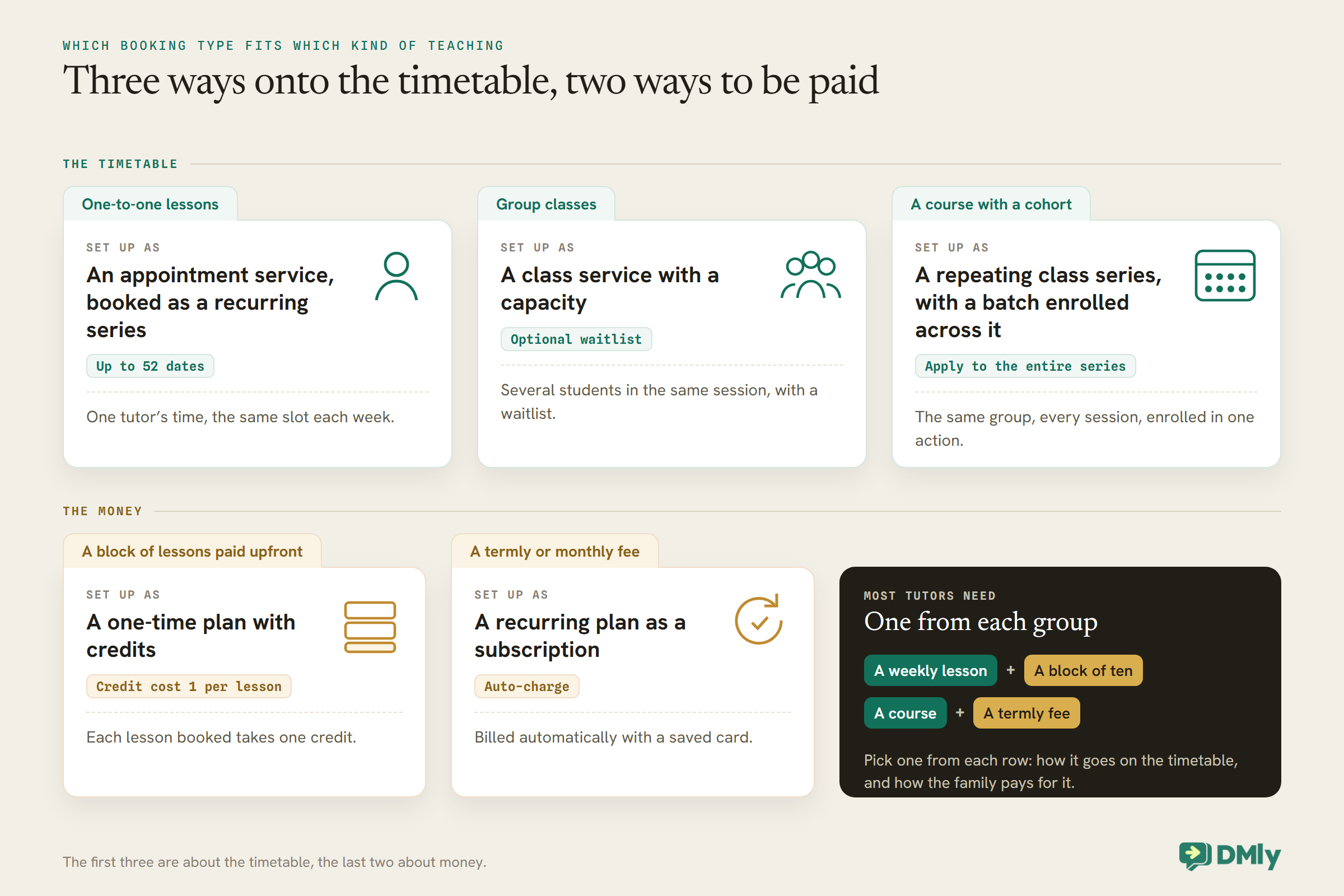
DMly has two kinds of bookable service and three ways to sell teaching. Match each to what you actually run.
| What you teach | In DMly | Why |
| One-to-one lessons | An appointment service, booked as a recurring series | One tutor’s time, the same slot each week |
| Group classes | A class service with a capacity | Several students in the same session, with a waitlist |
| A course with a cohort | A repeating class series, with a batch enrolled across it | The same group, every session, enrolled in one action |
| A block of lessons paid upfront | A one-time plan with credits | Each lesson booked takes one credit |
| A termly or monthly fee | A recurring plan as a subscription | Billed automatically with a saved card |
The first three are about the timetable, the last two about money. Most tutors need one from each group: a weekly lesson and a block of ten, or a course and a termly fee.
Step 1: Set Up Your Services and Tutors
Every booking reads from your services and your tutors’ hours, so set those up first.
Services live in Offerings → Services. Create one for each thing families book: “Maths lesson (60 min)”, “GCSE English group”, “Coding course”. Set the type to Class for anything taught to a group and leave it as an appointment for one-to-one teaching. On each, set the duration, price, payment mode, reminder times and location, which can be an address or Zoom (auto link) for online lessons.
Each tutor is a staff member with their own working hours, set in the tutor’s own timezone, which matters for centres with tutors teaching online from elsewhere. If a service is offered by several tutors and the family does not choose one, DMly offers the combined free times of everyone who teaches it and assigns an available tutor. Turn on Hide staff selection if families should never pick; it applies to every one-to-one service.
Two booking-policy settings are easy to get wrong. Minimum notice is in minutes, so a day’s notice is 1440. And the booking horizon, how many days ahead families can book, should never be left at 0. Check both before sharing your booking page.
Step 2: Weekly Lessons as One Recurring Series
Book a student’s whole term in one go, and send one confirmation instead of twelve.
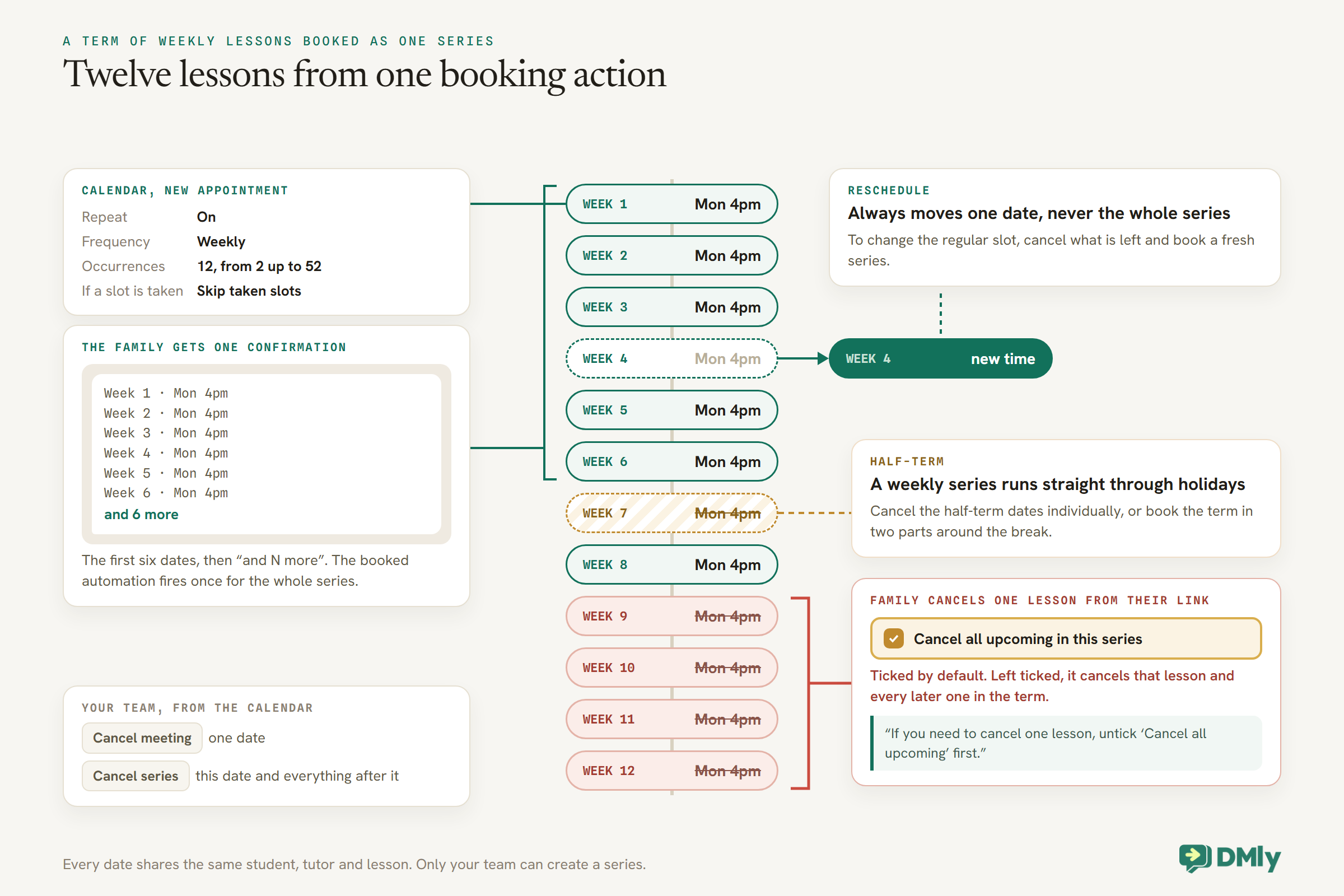
For a student who comes every week, open Appointments → Calendar, select New appointment, choose the student, tutor and lesson, and turn on Repeat. Three fields appear:
- Frequency: daily, weekly, every two weeks or monthly.
- Occurrences: from 2 up to 52. A twelve-week term is 12.
- If a slot is taken: Skip taken slots, the default, books every free date and quietly skips the rest; Require all slots free books nothing at all if any date is taken.
Every date shares the same student, tutor and lesson, and “every Monday at 4pm” stays at 4pm across a daylight-saving change. A series is deliberately quiet: the family gets one consolidated confirmation listing the dates (the first six, then “and N more”), and the appointment-booked automation fires once for the whole series rather than once per lesson. Credits and loyalty still apply to each lesson individually.
Three things to know before you rely on it:
- Only your team can create a series. A family cannot start one from the booking page; they can only book single lessons there.
- A series never takes payment, whatever the service’s payment mode, even though a single calendar booking on a pay-before service does. Bill the term separately (Step 5).
- Half-term needs a decision. A weekly series runs straight through holidays. Either book the term in two parts around the break, or cancel the half-term dates individually from the calendar afterwards.
Moving and cancelling single lessons
Rescheduling always moves one date, for you and for the family, within your reschedule deadline. There is no way to shift every remaining lesson at once; to change the regular slot, cancel what is left and book a fresh series.
The detail to warn every family about: when a parent cancels a lesson from their own booking link, DMly shows a checkbox, Cancel all upcoming in this series, and it is ticked by default. Left ticked, it cancels that lesson and every later one in the term. Put one line in your confirmation or welcome message: “If you need to cancel one lesson, untick ‘Cancel all upcoming’ first.” From the calendar, your team sees two separate buttons, Cancel meeting for one date and Cancel series for this date and everything after it.
Irregular dates in one go
For lessons that do not follow a pattern, such as a run of exam-preparation sessions, use + Add another time on a new appointment instead of Repeat. It adds up to 20 dates for the same student, tutor and lesson, and the family gets one confirmation for the set. Each slot is checked individually, so one that is taken is skipped and the confirmation only lists what was booked.
Step 3: Group Classes and Courses With Cohorts
A course is a repeating class with the same group in every session. Build it once, enrol the group once.
Create the course as a Class service, then schedule it from Appointments → Calendar with New class, tick Repeat, and choose the frequency and number of sessions, up to 52 in one series. Set Capacity for each session and decide whether to turn on the waitlist. Both are pre-filled from the class service, so check them before saving.
To enrol a cohort, use a batch: a named, reusable group of students. In Appointments → Batches, create the batch, add the students, then select Enrol, pick the first session and choose Apply to the entire series to seat the group in every later session. Notify client decides whether the usual class confirmation goes out. You see how many were booked, waitlisted, skipped because they were already enrolled, or could not be booked.
Three limits worth knowing. A class set to pay before booking cannot be batch-enrolled at all, so collect course fees another way (Step 5). Editing a whole series after it exists, such as changing capacity or the room for every session, is only available through DMly’s API, not the calendar. And the Batches tab only appears for someone with the Manage class batches permission, granted through a custom role.
Waiting lists for a full course
Waitlists in DMly belong to a single session, not to a whole series, because capacity is set per session. That works well for drop-in group classes, but not for a course: a student promoted into week three’s session from its waitlist is not automatically in weeks four to ten. For a course that fills, keep the waiting list yourself instead. Tag interested families with something like waitlist-coding-course, and when a place opens, add the student to the course batch and enrol them into the remaining sessions with Apply to the entire series from the next session on. A segment on that tag also gives you a ready list to message first when you schedule the next run of the course.
For open group classes that students join week by week, skip the batch and let families book individual sessions on your booking page, where each session shows the places left. A full session with the waitlist on queues students first in, first promoted, and DMly messages the next student automatically when a place opens.
Step 4: Let Families Book on WhatsApp
Most booking questions arrive as messages. Give each one a route that ends in a booking.
- The booking page link. Every workspace has a public booking page, and each service has its own address. Send the link for the lesson or class a family asked about, so they land straight on its times.
- An identified link from a flow. When a flow sends the link, the page already knows who the family is, skips the name and email fields and attaches the booking to their existing contact. The Book Meeting step in hosted-link mode sends it and waits for the booking; Send Booking Link sends it without waiting.
- Times in the chat for a free trial lesson. Left on its default, Book Meeting shows tappable times right in the WhatsApp conversation for a free appointment type. A
TRIALkeyword that offers three times for a free taster lesson is one of the most useful flows a tutor can build. A paid service always uses the hosted page instead. - Joining the next group session. A flow’s Add to Class step books the contact into the next upcoming session of a class, with a separate output for when they land on the waitlist.
Why send links from WhatsApp rather than posting them anywhere? When a stranger books through a link DMly did not send them, DMly creates a contact from the name and email they typed, with no WhatsApp identity, so their confirmation and reminders go to whatever channel that contact has. A link sent in the chat avoids that. For more on the class side, see our guide to an online class booking system.
Parents, Students and Whose Booking It Is
A booking belongs to one contact, and that contact is who receives every message about it.
This is the question tutors ask most, and the answer shapes everything. The confirmation, reminders and any payment link for a booking go to the contact the booking is on. For a young child, that should be the parent: book lessons on the parent’s contact, so the parent’s WhatsApp receives everything, and record the child’s name where your team can see it, for example in a custom field such as student_name. A parent with two children can then see both sets of lessons arrive in one chat.
For older students who manage their own lessons, you might book on the student’s own contact instead. Decide per family, write it down, and be consistent: a series booked on the student’s contact will not remind the parent.
If you want separate records for a parent and child, link them rather than merging: DMly’s Linked tab records relationships such as parent and child while keeping each person’s conversations, tags, invoices and bookings separate. Whatever you choose, make sure messages about a child go to the parent, and that anything you send is something the family agreed to receive.
Online Lessons
Set the lesson’s location to Zoom, and every booking gets its own meeting.
Connect your Zoom account under Integrations, then set a service’s location to Zoom (auto link). Every booking on that service gets a real Zoom meeting and join link, created when the booking is made, moved when it is rescheduled and deleted when it is cancelled. You never open Zoom to set one up. When a reminder carries the link outside the 24-hour window, DMly picks the reminder template made for meeting links automatically.
For group classes there are two options. Zoom (auto link) creates one meeting for the session and every student gets the same shared link. Zoom Webinar (per-attendee) registers each student individually and gives each their own join link, which lets you tell attendees apart; it needs the paid Zoom Webinars add-on on your Zoom account, and a student without an email address on their contact falls back to the shared link.
Step 5: Getting Paid for Lessons and Courses
Choose how families pay before term starts, because some booking routes never take payment.
A family booking a single paid lesson on your booking page can pay as they book. With Pay before booking, the slot is held for 15 minutes while they pay and only becomes a booking once the payment clears; a connected payment gateway is required. A single lesson you book in yourself from the calendar on a Pay before booking service works much the same: DMly holds the slot for two hours and messages the family a payment link, or you tick Payment taken in person if they have already paid. But a series or a multi-date booking never takes payment, whatever the service’s payment mode. For those, use one of three approaches:
- An invoice for the term. Raise one invoice for the lessons you booked and send it on WhatsApp with its pay link.
- A block of lessons. A one-time plan with credits, say ten lessons, with a Credit cost of 1 on the lesson service. Each lesson booked takes a credit. Remember that a cancelled lesson does not return its credit unless your team re-issues it, and that credits are one pool across every service that costs credits.
- A termly or monthly fee. A recurring plan started as a subscription, with the family saving a card once through the auto-charge setup link. Without auto-charge, a subscription never charges anyone.
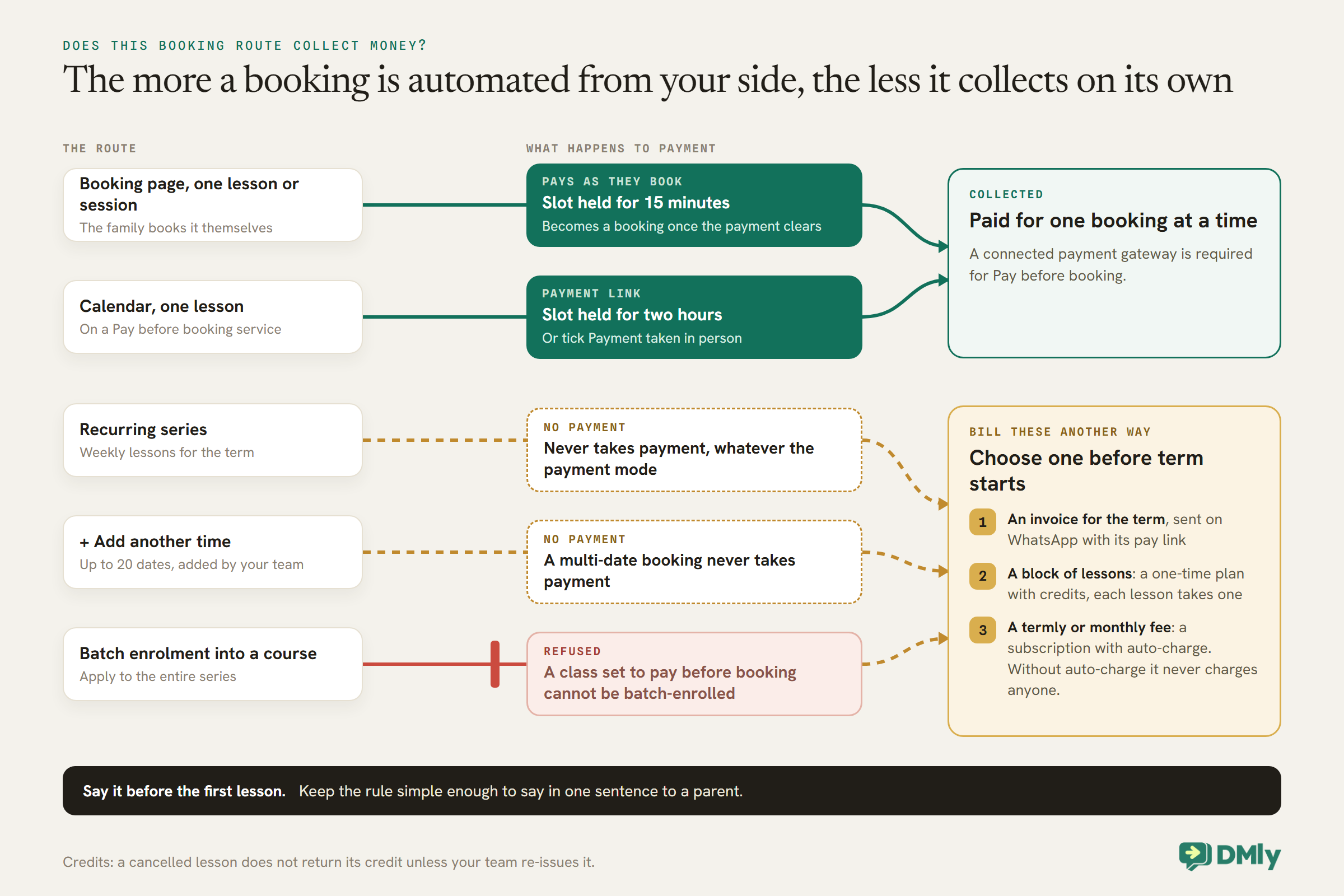
Whichever you choose, keep the rule simple enough to say in one sentence to a parent, and say it before the first lesson.
Rolling Students Over to Next Term
A series ends when the term does. Book next term before families start looking elsewhere.
Because a recurring series has a fixed number of lessons, every student’s bookings stop at the end of term. Build a short routine a few weeks before that happens:
- Ask first. Message each family to confirm the same day and time for next term, or to pick a new slot. A reply inside the 24-hour window can be answered with a normal message.
- Book the new series for everyone who confirmed, from the calendar, with Repeat set to the length of next term. Each family gets one confirmation listing the new dates, which doubles as their written record of the term.
- Release the slots of families who are not continuing, so new students can book them from your booking page.
- Bill the term the way you chose in Step 5: an invoice, a new block of credits, or the subscription carrying on.
For courses, schedule the next run as a new class series and enrol the next cohort’s batch across it. Re-enrolment messaging, and how to win back families who drift over the summer, are covered in our tutors pillar.
Cancellations, Missed Lessons and Make-Ups
Write your policy into DMly’s settings so the system enforces it, not you.
One-to-one lessons use the workspace Cancellation deadline (hours) and Reschedule deadline (hours) under the booking policy, and both start at 0, which allows changes right up to the start time. Group classes have their own cancellation deadline on the Class settings tab, and a class place can be cancelled but never rescheduled.
A make-up lesson is simply a new single booking. Offer it with the booking link for the lesson, or add it from the calendar. If you run lesson blocks on credits, decide whether a cancelled lesson inside your deadline gets its credit back, and have your team re-issue it on the student’s profile when it does, because DMly never returns a credit on its own.
Mark lessons completed or no-show on the calendar when they happen. About a day after a lesson, DMly closes off any booking nobody marked, and under the default setting that counts as completed: the completed trigger fires and any loyalty points are awarded, even for a student who did not turn up, and the no-show button disappears once it has. If a thank-you or review request runs on completion, set Appointments nobody marked (Appointments, Settings, Booking policy) to Wait for review: unmarked lessons then wait at Needs review, send nothing, and your team gets a daily reminder in the app to settle them.
Running a Centre With Several Tutors
More tutors means more calendars. Keep them in one place with clear permissions.
- Each tutor’s own hours, in their own timezone, so availability is always real.
- Combined availability when a family does not mind who teaches, or Hide staff selection when you assign tutors yourself.
- Permissions by role: tutors can check in their own sessions; batches need the Manage class batches permission; phone numbers can be masked for tutors who do not need them.
- Reports by tutor: Configurations → Reports → Appointments breaks bookings, completions and no-shows down by service and by staff, with an Avg class fill card for group classes.
The Messages Around Each Booking
Confirmations and reminders go out on their own. Know which ones you pay for.
Each booking sends a confirmation, and reminders go at the times set on the service. Most reminders land outside WhatsApp’s 24-hour window, where they need approved templates; DMly’s booking templates are filed as utility, which suits them, because Meta’s template categorisation guidelines treat messages about a service the family booked as utility as long as they contain nothing promotional. Add an offer to a reminder and it becomes marketing. Reminders are skipped if the booking is no longer confirmed, the contact opted out, or the bot is paused for them.
From 1 October 2026, Meta charges for utility templates, including those sent in response inside an open window, and for free-form service replies beyond the first 1,000 per business phone number each month. A series that sends one consolidated confirmation instead of twelve saves on that bill as well as on noise.
Mistakes to Avoid
- Booking weekly students one lesson at a time. Use a series.
- Not warning families about “Cancel all upcoming”. It is ticked by default.
- Expecting a series to collect payment. It never does; invoice or use a plan.
- Forgetting half-term. A weekly series runs straight through it.
- Relying on session waitlists for a course. A promoted student only gets that one session.
- Booking a child’s lessons on a contact the parent does not read. Messages go to the booking’s contact.
- Pay-before courses with batches. Batches refuse pay-before classes.
- Days ahead left at 0, or minimum notice typed in hours. Notice is in minutes.
Frequently Asked Questions
How do I book a student’s weekly lessons for a whole term?
From the calendar, create a new appointment, turn on Repeat, choose Weekly and the number of lessons, up to 52. The family gets one confirmation listing the dates.
Can parents book lessons themselves on WhatsApp?
Yes, single lessons and class sessions, through your booking page link or a flow that sends an identified link or shows times in the chat for free lessons. Only your team can create a recurring series.
How do I run a course with the same group each week?
Create a class series with Repeat, put the students in a batch, and enrol the batch with Apply to the entire series. Batches cannot enrol classes set to pay before booking.
Should lessons be booked on the parent’s or the student’s contact?
On whoever should receive the messages. For young children that is the parent; record the child’s name in a custom field so your team can see who the lesson is for.
Do online lessons get a Zoom link automatically?
Yes, if the service’s location is Zoom (auto link) and your Zoom account is connected. Each booking gets its own meeting, kept in step when lessons move or are cancelled.
How do families pay for a term of lessons?
A series never takes payment, so send an invoice for the term, sell a block of lessons as a plan with credits, or run a termly fee as a subscription with auto-charge.
The Sum, Done Again
Go back to the twelve students and their 144 lessons. With each term booked as a series, that is twelve booking actions and twelve confirmations. Families book trial lessons and group sessions themselves from a link in the chat, Zoom links appear on their own, and reminders go out without anyone typing them. What is left for you is the part no system can do: the teaching.
To automate class booking for tutors and training centres, match each kind of teaching to the right booking type, book terms as series, enrol cohorts as batches, decide whose record each child’s lessons sit on, and sort out payment before the first lesson rather than after the last.
Writing about WhatsApp automation, bookings and growth for local business.
Turn WhatsApp into your busiest channel.
Start free and run message, bookings, payments and reviews in one place.
