
WooCommerce WhatsApp Automation: Store Sync, Abandoned Carts, and Order Updates
WooCommerce does not announce things. There is no moment at which your store declares that a cart was abandoned or a payment failed. What exists is an order, a status on it, and a series of transitions between statuses that everything else has to be inferred from. All WooCommerce WhatsApp automation is built on top of that inference.
That single architectural fact explains almost everything worth knowing here: why the abandoned cart mechanism works the way it does, why a plugin that touches order statuses can produce messages you never wrote, and why the whole integration can stop working without anything appearing to break.
This guide covers what connecting actually gives you, the status mapping every automation rests on, the order updates worth sending, cash on delivery, where carts fit, and the specific fragility of having your webhooks live inside your own WordPress admin.
Connecting WooCommerce to WhatsApp
WooCommerce WhatsApp automation starts with a REST API key from your own WordPress admin, and two details of it decide whether half the product works. Generate the key under WooCommerce, then Settings, then Advanced, then REST API, and copy the two values it gives you: a consumer key beginning ck_ and a consumer secret beginning cs_. DMly calls your store’s API to prove them, so a wrong key fails there rather than quietly a fortnight later.
Read is not enough, and the failure is partial: Give the key Read/Write permissions. DMly writes to your store as well as reading from it: order notes and discount codes both go back the other way. A cautious administrator who grants read-only will get a connection that appears to work, syncs happily and then fails at exactly the steps that write, which are the ones in your cash-on-delivery confirmation and your recovery discount. Nothing about the connection will tell you.
A hard requirement, and occasionally the whole project: Your store has to be served over HTTPS. A plain-HTTP store cannot be connected at all, because the credentials would travel unprotected and event deliveries could not be trusted. This is not a warning you can dismiss. On an older self-hosted store it is sometimes the first week of work rather than the first five minutes: sort the certificate, then come back.
Once you are connected, webhooks are registered automatically and there is nothing to paste back into WooCommerce. Two controls on the tile are worth knowing before you need them: Test connection re-runs the credential check at any time, and Save and reconnect is how you change credentials later. Every delivery from your store is signature-checked before DMly acts on it, so a forged request cannot start your automations, which matters more on a self-hosted store than a hosted one because the endpoint sits on infrastructure you control and may share.
What Syncs, and Where It Does Not Appear
The first sync brings in all products, all customers and orders from the last 90 days, and then webhooks keep everything current. Anything older stays in WooCommerce, which is almost always fine for messaging and occasionally a surprise when somebody asks about a purchase from last year.
- The initial sync never fires automations. Backfilled orders trigger nothing, so connecting a busy store does not send ninety days of messages to everyone who has ever bought from you. It is also why nothing appears to happen when you first connect.
- Synced data does not appear under Finance and Orders. That screen is for orders you create in DMly. There is no store-order browser at all. The synced data exists to power triggers, product pickers and in-chat order lookups, and your accounting stays in WooCommerce where it belongs.
What you can actually use in a message is a practical set: order numbers, totals, statuses and tracking; customer names, emails, phones and spend; product titles, prices and stock. That is enough for every order update worth sending and enough for an in-chat lookup when somebody asks where their parcel is.
The two screens that tell you whether it is alive: The tile’s Synced data panel shows the Products, Customers and Orders counts, the time of the last sync and a Sync now button. Recent activity on the same page lists store events as they arrive. Get in the habit of glancing at Recent activity, because on this platform it is the difference between noticing a silent failure in a day and noticing it in a month.
The Status Mapping WooCommerce WhatsApp Automation Is Built On
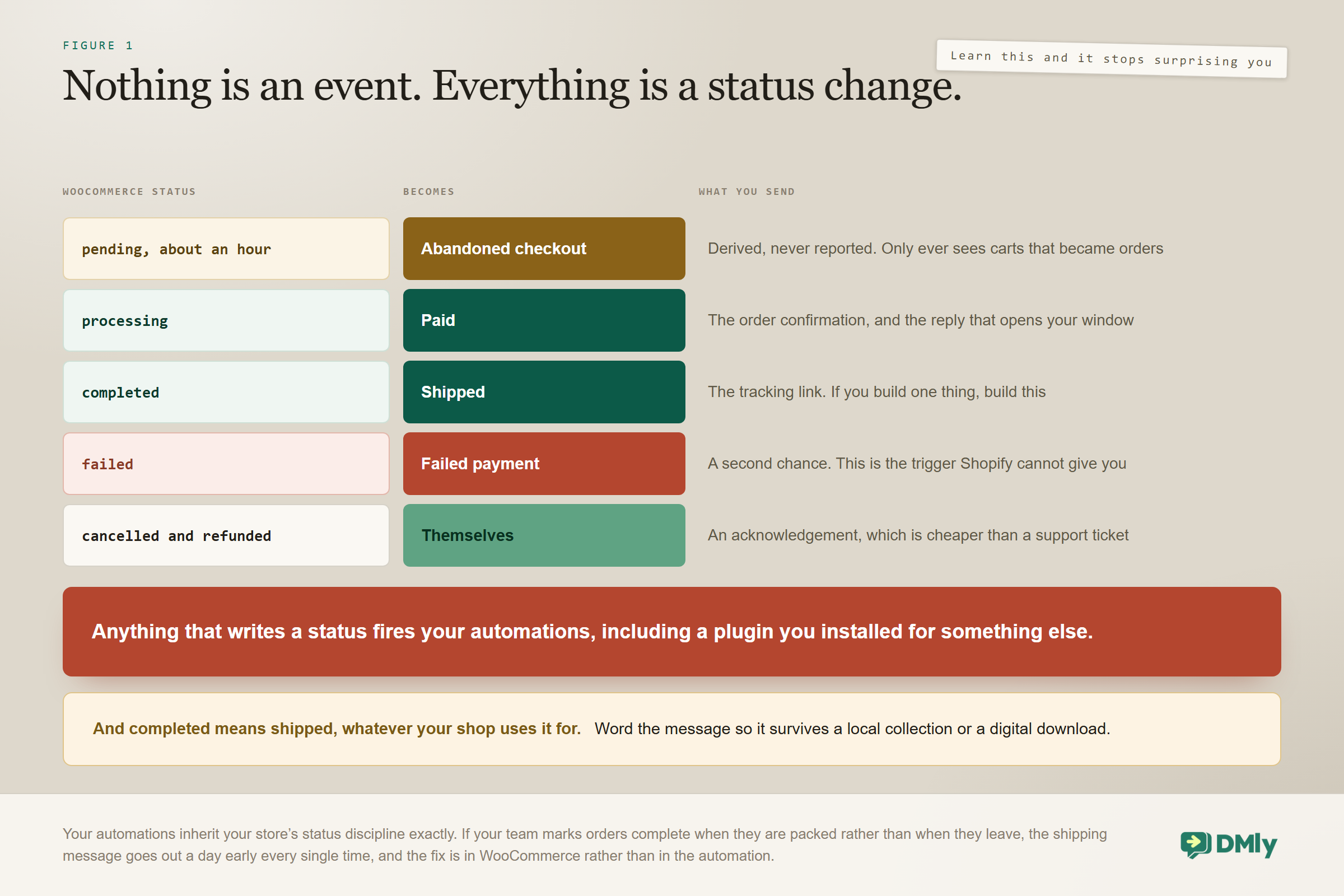
WooCommerce order statuses are translated into the events your automations listen for, and the translation is fixed. Learn this table and the rest of the integration stops surprising you.
| WooCommerce status | Becomes | What that means for you |
| pending, held about an hour | Abandoned checkout | Derived, not reported. An order created and never paid |
| processing | Paid | The money arrived. This is your order-confirmed moment |
| completed | Shipped | The tracking message, and the highest-opened thing you will send |
| failed | Failed payment | Unlike Shopify, this one genuinely fires |
| cancelled | Cancelled | Acknowledge it, which prevents a support ticket |
| refunded | Refunded | The same, and it is the one people most expect to hear about |
Three consequences follow from this being a mapping rather than an event stream, and they are the difference between an integration you trust and one you argue with.
- Your automations inherit your store’s status discipline. If your team marks orders complete when they are packed rather than when they leave, your shipping message goes out a day early, every single time. The fix is in WooCommerce, not in DMly.
- Anything that writes a status will fire your automations. A subscription plugin, an inventory tool or somebody doing a bulk status update can move an order from pending to processing and produce a payment confirmation for money that never moved. Before you install a plugin that writes order statuses, work out what it is going to say to your customers.
- Completed means shipped, whatever you use it for. Plenty of stores use completed to mean finished with, including for local collection and digital goods. If that is you, the shipping message needs wording that survives never involving a courier.
The Order Updates Worth Sending
Order updates are the reason to build WooCommerce WhatsApp automation at all, and they are both easier and safer than cart recovery because the customer is expecting them. Build them in this order and stop when the returns flatten.
- Shipped, with the tracking link. The single most-opened message any store sends. If you build one thing, build this one.
- Paid, as an order confirmation. Transactional, expected, and it does something valuable beyond reassurance: if the customer replies, your 24-hour window opens and everything for the next day is free-form and template-free.
- Failed payment. A gentle second chance with a payment link, on the one trigger WooCommerce has and Shopify does not.
- Cancelled and refunded. Short acknowledgements that stop a customer wondering and opening a ticket about it.
All of these are transactional, which decides the template category. An order update is a Utility message rather than Marketing, and filing it correctly is both cheaper and far less likely to be rejected. Our guide to message templates has wording you can adapt by use case.
Whether you need a template at all depends on timing. A confirmation sent seconds after checkout may land inside an open window if the customer has messaged you before; a shipping notice two days later almost certainly will not. Assume you need the template.
Narrowing a Trigger So It Only Fires When It Should
Every store trigger takes filters, and in WooCommerce WhatsApp automation they are how you stop a small order costing you a paid message and how you separate cash on delivery from everything else. They sit in the trigger’s own settings and take a few seconds each.
Every store trigger starts with Store, either any connected store or one specific store if you run several. Order and checkout events then take a minimum and maximum order total and a currency. And on Order placed there is one more, which is the useful one here: Payment method contains, matched against the order’s payment method and ignoring case. The field’s own hint tells you what it is for: use cod to target cash-on-delivery orders only.
Two other filters are worth knowing because they behave differently from the order ones. Customer milestone takes a total-spent or order-count threshold and fires once per customer per automation, so somebody who crosses your spend threshold gets the reward message once rather than on every order afterwards. And the product events, back in stock and inventory low, have no single recipient at all, so they take a Notify contacts tagged tag and run for every contact holding it, capped at 500 contacts per event.
Confirming Cash-on-Delivery Orders Before You Ship
If a meaningful share of your orders are cash on delivery, this is the automation that pays for the whole integration. The problem it solves is not communication, it is dispatching goods to people who never intended to pay for them.
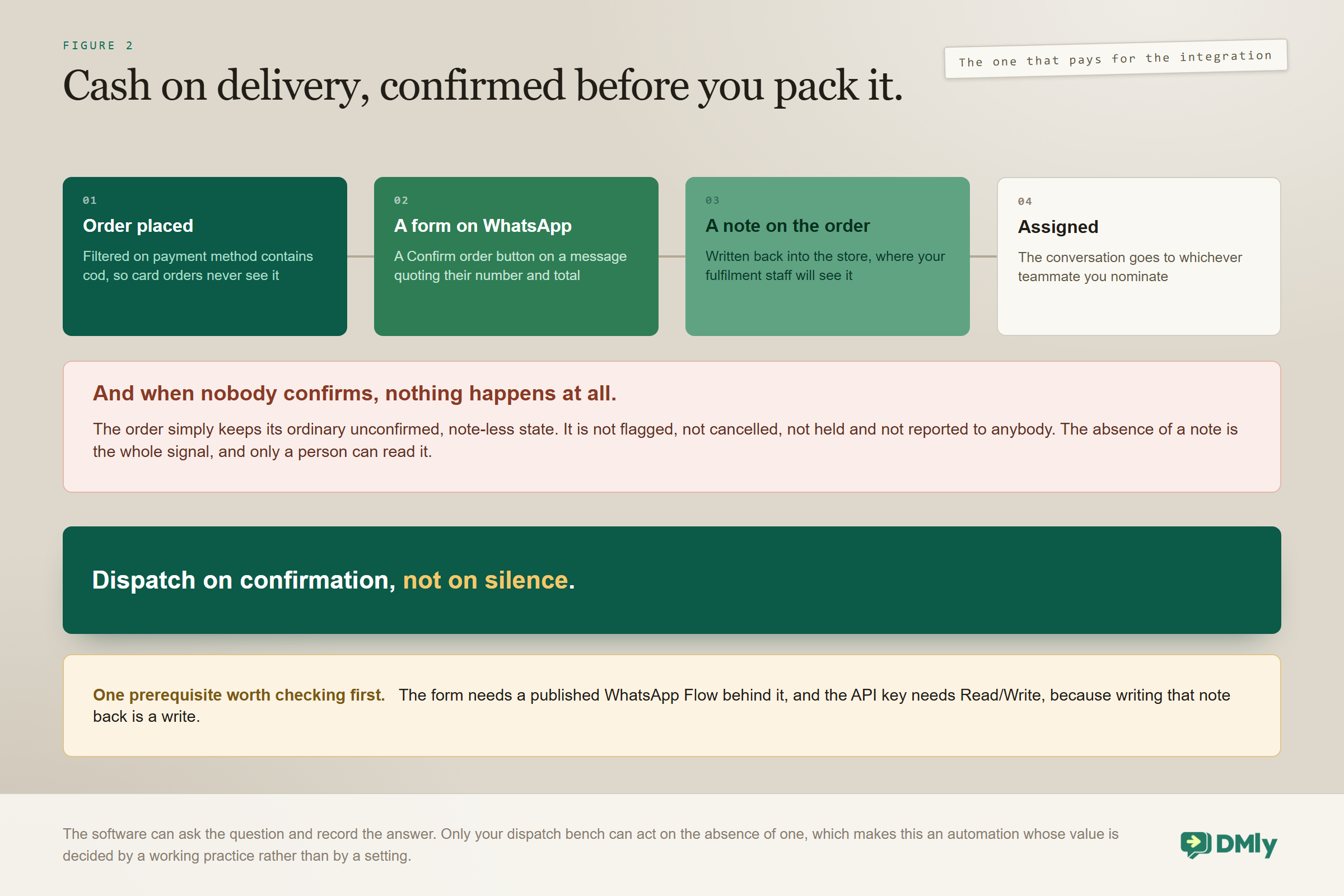
The build is a template you install rather than assemble. It triggers on Order placed filtered with Payment method contains cod, so card orders never see it. The customer receives a WhatsApp Flow form with a Confirm order button on a message quoting their order number and total. When they complete it, the flow writes a note back onto the store order saying the COD order was confirmed on WhatsApp by that customer, where your fulfilment staff will see it, and assigns the conversation to whichever teammate you pick.
The rule that makes it worth anything: An order nobody confirms simply keeps its unconfirmed, note-less state. Nothing marks it as bad and nothing cancels it. Dispatch on confirmation, not on silence. The value of the automation is entirely in your fulfilment team treating the absence of a note as a reason to wait, which is a working practice rather than a setting. Note also that the form needs a published WhatsApp Flow behind it, which the template card tells you.
Where Abandoned Carts Fit
An order that sits in pending for about an hour is treated as an abandoned checkout, and that derivation has one useful property built in. A customer who bought after abandoning is skipped, so somebody who completed their order after a delay is never chased for it.
It also means the mechanism only ever sees carts that became orders. A shopper who filled a basket and never reached the checkout leaves no pending order at all and is invisible to it. That is a real difference from Shopify, where a genuine checkout event fires earlier in the funnel and catches people this never will.
Cart recovery has enough moving parts of its own to deserve separate treatment, including the consent question that decides whether you may send anything at all. Our post on follow-ups that convert abandoned carts covers the copy, and the Shopify guide covers the equivalent build on the other platform. For the wider picture, our guide to WhatsApp marketing for ecommerce and D2C brands sets out where messaging fits alongside everything else a store does.
How a Store Customer Turns Into Somebody You Can Message
Store customers are matched to contacts by phone number first, then email, at the moment an automation fires. Not at sync time, which is better than it sounds: a contact record that appears later can still be matched by a later event.
The practical implication is the same one every channel has. Collect a phone number at checkout if you possibly can, because it is the primary match key and on WhatsApp it is the only thing that makes the message possible at all.
And expect duplicates. A customer who has also messaged you on WhatsApp exists as a separate record from the store contact until somebody joins them, because contacts are created per channel and are not linked automatically. Our CRM guide covers the merge, including the fact that the duplicate finder only scans your 200 most recently active contacts and that a merge keeps the more restrictive opt-out of the two.
Answering “Where Is My Order?” Without a Human
This is the highest-volume support question any store receives and the easiest one to remove from your inbox, and the synced data is what makes it possible. Order numbers, totals, statuses and tracking are all held against the contact, so an assistant can answer directly instead of handing it to a person.
Two steps do the work. Find Order looks an order up and splits the flow on the result, defaulting to the latest order matching the person you are already talking to, or by order number, email or phone. Its tip is the right recipe: collect the order number with a question step first, then reference that variable. A leading # is fine, because it is stripped before matching. On the FOUND branch the order’s details become flow variables you can use in any later step. Order Status then sends one message built from them, with an Append tracking link when available toggle that adds a track-your-package line when there is a tracking URL and quietly leaves it off when there is not.
The product will not let you skip the unhappy path: Find Order refuses to publish unless both its FOUND and NOT FOUND outputs are connected. That is a good constraint, because the NOT FOUND branch is the one that decides whether a mistyped order number ends with a person or in a loop. The template library ships this as Order Status Self-Service: a contact whose message contains order, tracking or where is my order is asked for their number, the lookup runs, and the NOT FOUND branch hands the conversation to a human and pauses the bot rather than guessing.
Three things separate this working from this being embarrassing. The contact has to be matched, because an order placed with an email you do not hold against the WhatsApp contact will not be found and the assistant will say it cannot see any orders, which reads as incompetence rather than as a matching problem. The status wording has to be yours, because completed means shipped in the mapping, and if your store uses it for collection orders the assistant will cheerfully tell somebody their in-store pickup is on its way. And it has to hand over when it does not know: a split shipment, a missing tracking number, or an order older than the 90-day sync window. Word that fallback so it offers to check rather than denying the order exists.
Selling From the Conversation
Product titles, prices and stock sync too, which puts your catalogue inside the chat rather than only on the website. A customer asking whether you have something can be answered from the same data the store runs on.
Two automations use this well and neither of them is cart recovery.
- Product back in stock. Somebody already told you what they wanted by asking for it. Telling them it has arrived is the least intrusive sales message there is, and it converts unusually well because it answers a question they asked you. It runs for every contact holding the tag you nominate, up to 500 per event, so a waitlist tag is the thing to build first.
- Inventory low. Internal rather than customer-facing. A message to you when stock crosses a threshold, so the reorder happens before the sale is lost.
Stock figures are only as current as your last webhook delivery, which is another reason the next section matters. A store whose webhooks were deleted will happily tell customers something is in stock for as long as nobody notices.
The Webhooks Live in Your Admin, and That Is the Risk
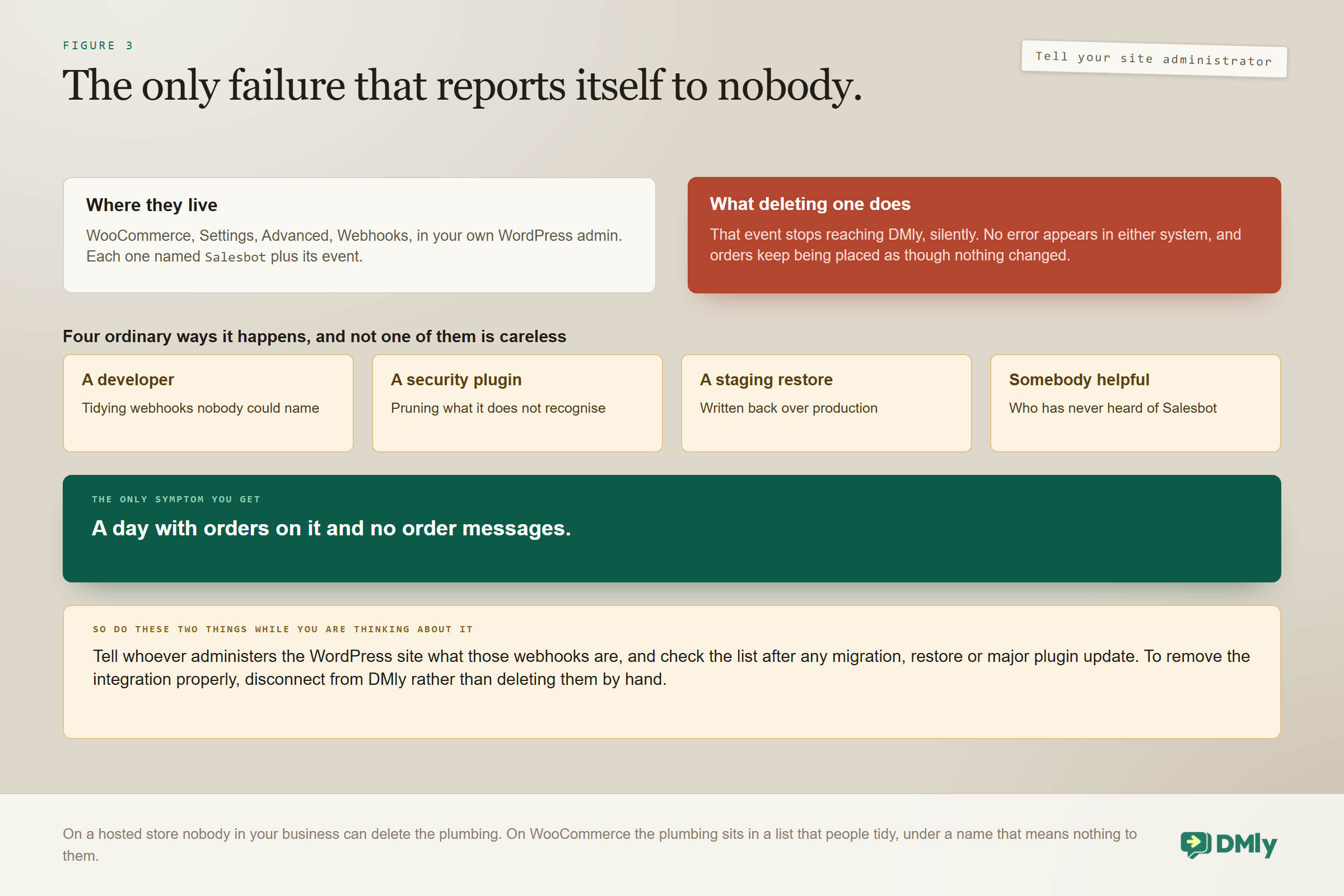
Deleting the Salesbot webhooks in WordPress silently stops event delivery, and no error appears anywhere in DMly. Orders keep being placed, statuses keep changing, and nothing happens. This is the single most likely way WooCommerce WhatsApp automation stops working, and it rarely looks like what it is.
You will find them in your own WordPress admin under WooCommerce, then Settings, then Advanced, then Webhooks, each named Salesbot followed by the event it delivers. That name is the problem: it is a name nobody recognises, sitting in a list people tidy.
Three habits that prevent it: Tell whoever administers the WordPress site what those webhooks are. A name they do not recognise is a name they will eventually delete, and a developer cleaning up, a security plugin pruning what it does not know, or a staging site restored over production will all do it without malice. Check the webhook list after any major site work, meaning plugin updates, migrations and restores from backup. And watch for silence: a day with orders and no order messages is the only symptom you get, which is why the Recent activity feed is worth a glance.
To remove the integration properly, disconnect from DMly rather than deleting webhooks by hand. Disconnecting removes them cleanly, whereas deleting them leaves DMly believing it is still connected to a store that has stopped talking to it.
Taking the Integration Off, and Putting It Back
Disconnecting removes DMly’s webhooks from your store and wipes the stored credentials, and the already-synced products, customers and orders stay put. Reconnecting later does not start from zero.
Nothing updates while you are disconnected, so a gap in your data corresponds exactly to the gap in the connection. That is sensible behaviour and it means a temporary disconnection during site maintenance is not destructive. It also means the orders placed during that window will never reach your automations afterwards, because the initial sync does not fire them either. If you are planning a migration, that gap is the thing to plan around.
WooCommerce Against Shopify
If you run both, or are choosing between them, six differences actually matter and neither platform wins. The messaging is the same on either one; what changes is where the integration can break, and what it can reach that the hosted alternative cannot.
| WooCommerce | Shopify | |
| Connection | REST API key, Read/Write, HTTPS required | Custom app token |
| Abandoned cart | Derived from an order sitting pending about an hour | A real Checkout abandoned event, earlier in the funnel |
| Failed payment | Fires when an order moves to failed | Never fires at all |
| Webhooks | In your WordPress admin, and deletable | Managed by Shopify, invisible to you |
| Extra permission | None beyond Read/Write | Protected customer data access, or no phone numbers reach you |
| Order sync | Last 90 days | Last 90 days |
The trade is easy to state. WooCommerce gives you failed-payment recovery that Shopify cannot, and gives you a store you control, including the webhooks you can accidentally break. Shopify gives you an earlier and more accurate cart signal, and a set of webhooks nobody in your business can delete. The flows themselves are identical once the store is connected: the same store events, the same store steps, the same variables.
Testing WooCommerce WhatsApp Automation
Test by moving a real order through the statuses by hand, because the statuses are the whole system. The list takes under an hour and every item on it has caught somebody out.
- Place a real test order on your own store with a contact you control.
- Move it through the statuses by hand, pending to processing to completed, and confirm each message fires once and only once.
- Open the webhook list in WordPress and confirm the Salesbot entries are all present, then take a screenshot of it for whoever administers the site.
- Leave an order in pending for an hour and confirm the abandoned checkout treatment applies.
- Then complete that order and confirm the recovery sequence stops.
- Fail a payment and confirm the failed-payment message arrives, since this is the trigger Shopify cannot give you and the one most worth having.
- If you take cash on delivery, place a COD order and confirm the note lands on the store order after the customer confirms.
- Check contact matching on an order placed with an email you hold and a phone number you do not, and see which record it lands on.
The Numbers Worth Watching
Five numbers tell you whether your WooCommerce WhatsApp automation is healthy, and two of them are early warnings rather than results. Our note on the metrics worth tracking after you automate covers how to instrument them.
- Messages sent per order. A number that should be stable. A jump usually means a plugin started writing statuses.
- Orders with no matched contact. Your identity gap, and the ceiling on everything else you build.
- Replies to shipping messages. Free window time you can use, and the cheapest way to open a conversation you did not have to pay for.
- Failed payments recovered. The WooCommerce-only win, and the one to quote when somebody asks what the integration is worth.
- Days with orders but no messages. Your webhook canary, and the only symptom a deleted webhook produces.
Mistakes Worth Avoiding
Most of these are invisible from inside DMly, which is what makes them worth listing. In WooCommerce WhatsApp automation the store is software you host yourself, and it does not report to anybody.
- Trying to connect a plain-HTTP store. It cannot connect. Fix the certificate first, and budget more than an afternoon for it.
- Granting the API key read-only. It syncs, it looks fine, and the steps that write order notes and discount codes fail.
- Deleting the Salesbot webhooks. Event delivery stops with no error anywhere in either system.
- Assuming completed means shipped for your business. Word the message so it survives a local collection or a digital download.
- Installing a plugin that writes order statuses without thinking. It will message your customers, in your voice, about things that did not happen.
- Dispatching a cash-on-delivery order that nobody confirmed. Silence is not a confirmation, and nothing in the system will mark the order as unconfirmed.
- Filing order updates as Marketing templates. They are Utility, and the category decides both cost and approval.
- Expecting store orders under Finance and Orders. Synced data powers automations and lookups only.
Frequently Asked Questions
What does WooCommerce WhatsApp automation actually need on the store side?
A REST API key with Read/Write permissions, generated under WooCommerce, Settings, Advanced, REST API, and a store served over HTTPS. That is all. There is no plugin to install in WordPress and nothing to paste back after connecting, because the webhooks register themselves.
Why did my order messages just stop?
Almost always because the Salesbot webhooks were deleted from WooCommerce, Settings, Advanced, Webhooks. Deleting one silently stops that event reaching DMly, and no error appears in either system. Check that list after any plugin update, migration or restore from backup.
How does WooCommerce decide a cart was abandoned?
It does not. DMly derives it: an order that sits in pending, created and never paid, for about an hour counts as an abandoned checkout. That means somebody who never reached the checkout at all is invisible to it, and it also means a customer who paid after a delay is skipped rather than chased.
Does the failed payment trigger really work here?
Yes, and it is the clearest advantage WooCommerce has. An order moving to failed fires it. The same trigger never fires on Shopify, because Shopify does not report a failed checkout payment as an event.
Can I confirm cash-on-delivery orders before dispatch?
Yes, with the COD Confirmation template. It triggers on Order placed filtered to payment methods containing cod, sends a WhatsApp Flow form quoting the order number and total, and on confirmation writes a note back onto the store order and assigns the conversation. An order nobody confirms keeps its ordinary state, so the discipline has to be yours: dispatch on confirmation, not on silence.
Why is my shipping message going out too early?
Because completed maps to shipped, and your team is probably marking orders complete when they are packed rather than when they leave. The fix is in your WooCommerce workflow rather than in the automation, or in wording the message so it is true either way.
Will connecting my store message all my old customers?
No. The initial sync never fires automations, so backfilled orders trigger nothing. Only events that happen after you connect do anything, which is also why the store looks eerily quiet for the first hour.
What happens to my data if I disconnect?
The already-synced products, customers and orders stay in DMly, and reconnecting later does not start from zero. What you lose is the period in between: nothing updates while disconnected, and those orders are never backfilled into your automations afterwards.
Get the Statuses Right First
If you take one thing from this, take the order of operations. Before you write a single message, look at what your team actually does with WooCommerce statuses, and at which plugins write to them. Every automation you build is downstream of that, and no amount of good wording survives a store where completed means five different things.
Then build the shipping notification, tell your WordPress administrator what Salesbot is, and add the rest one automation at a time. Done in that order, WooCommerce WhatsApp automation is one of the most reliable things a store can run, precisely because it is derived from something your business was already doing carefully.
Writing about WhatsApp automation, bookings and growth for local business.
Turn WhatsApp into your busiest channel.
Start free and run message, bookings, payments and reviews in one place.
