
How to Create and Send Professional Invoices From Chat
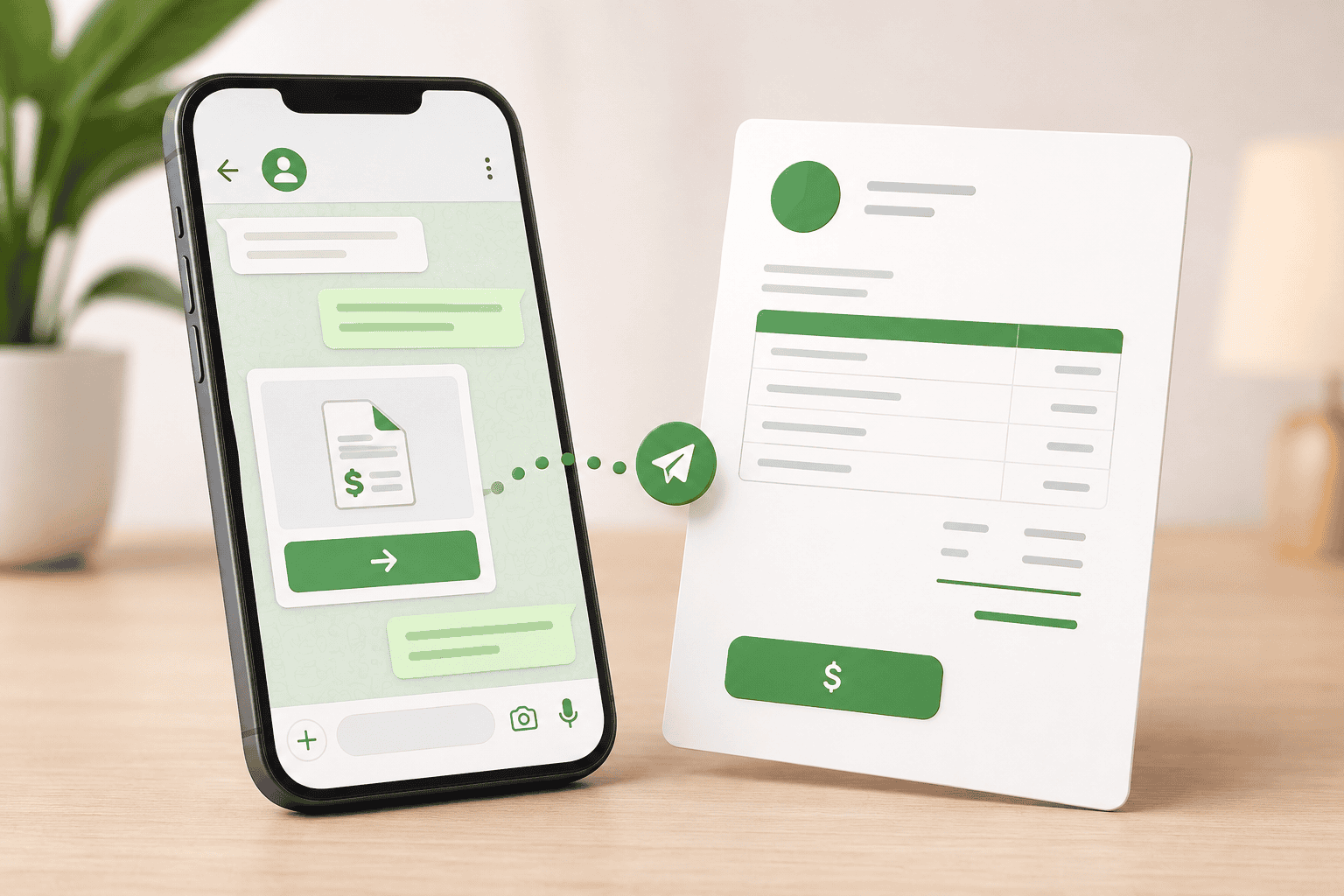
The job is booked, the customer is ready to pay, and you’re already chatting on WhatsApp. Then comes the awkward bit: leaving the conversation to create an invoice somewhere else, downloading it, sending it back to the customer, and keeping track of the payment separately.
There is a simpler way to handle it.
With chat invoicing, you can create a professional invoice while dealing with the customer, send it directly through the conversation, and give them a straightforward way to pay.
With DMly, you can also take deposits, track outstanding balances, and automate reminders when an invoice becomes overdue.
In this guide, we’ll show you how to create and send professional invoices from chat, what to include, and how to make the whole journey from conversation to payment easier to manage.
What Does It Mean to Invoice From Chat?
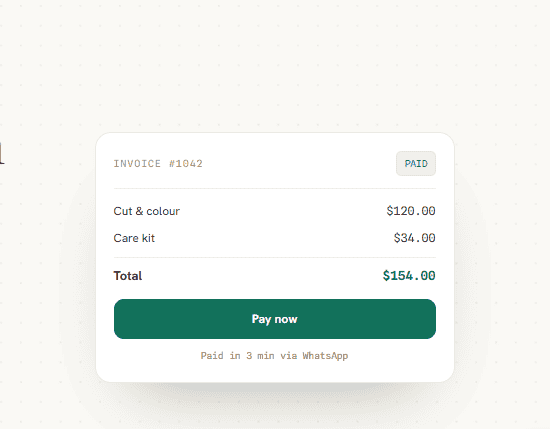
Invoicing from chat means creating, sending and managing a customer’s invoice without taking the billing process away from the conversation you’re already having with them.
Say a customer messages your salon on WhatsApp and books a treatment. Instead of switching to separate invoicing software, creating a PDF, and returning to WhatsApp to send it, you can handle the invoice as part of the same customer journey.
The process can look as simple as:
Customer conversation → Invoice created → Invoice sent in chat → Customer pays → Payment tracked
This goes beyond attaching an invoice PDF to a message. With a platform such as DMly, the invoice stays connected to the customer, their conversation, and payment history. If they have a question about the amount or still have a balance to pay, your team has the context right there.
Why Local Businesses Are Moving Invoicing Into the Conversation
For many local businesses, the sale already happens through chat. Customers ask about prices, choose a service, confirm an appointment, and discuss the details through WhatsApp or another messaging channel. Moving the invoice there keeps that journey connected.
1. Fewer Steps Before Payment
Every extra step gives a customer another thing to do. Sending them to search their email for an invoice or find separate payment instructions adds friction.
When the invoice arrives in the conversation they’re already using, they can review it and move towards payment without hunting around.
2. Less Admin for Small Teams
A salon owner or home-service professional shouldn’t have to spend the evening matching WhatsApp conversations with invoices created somewhere else.
Keeping invoicing connected to customer records makes it easier to see who was billed, who paid, and who still owes a balance.
3. Billing Questions Have Context
Customers sometimes have questions before paying:
“Can I pay a deposit now?”
“What is this extra charge for?”
“Can you resend the invoice?”
When invoices and conversations are connected, your team can see what the customer is referring to and respond without searching through another system.
4. It Fits How Local Businesses Already Work
A customer may discover your business on social media, message you, book an appointment, and pay without ever sending an email.
Chat invoicing simply brings the payment stage into that same journey. For businesses already handling most customer interactions through messaging, that can mean fewer disconnected tools and a much cleaner path from enquiry to payment.
What Should a Professional Invoice Include?
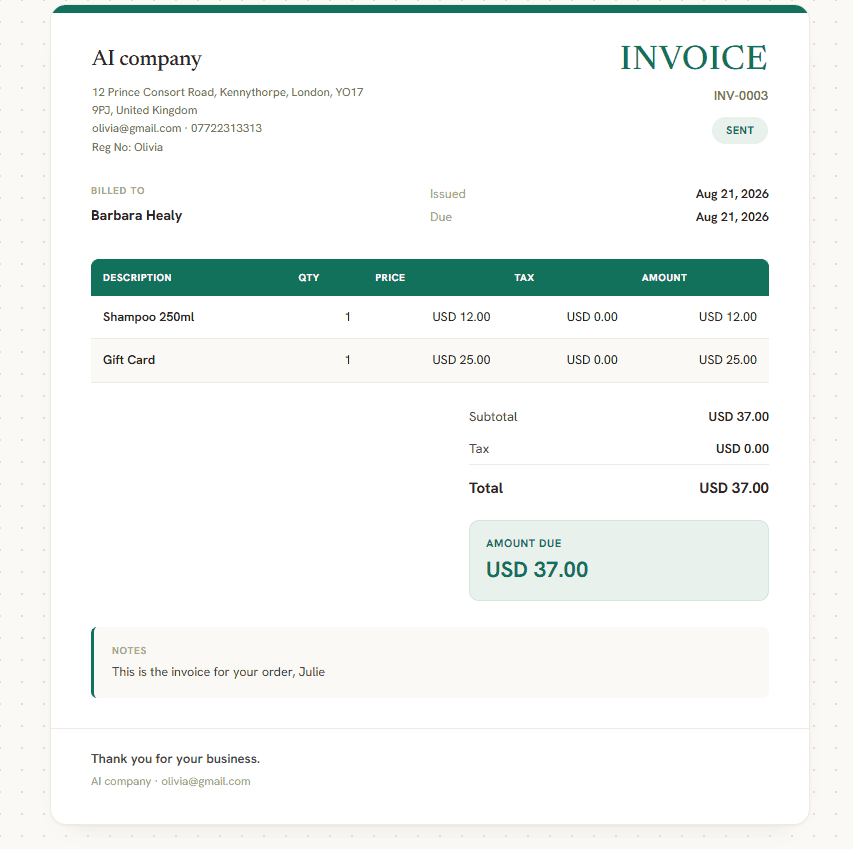
A professional invoice should make it immediately clear who is charging, what the customer is paying for, how much they owe, and when payment is due. There’s no benefit in making it more complicated than that.
Include the following:
- Your business details: Business name, contact information and logo or branding.
- Customer details: The name of the person or business you’re invoicing.
- Invoice number: Give every invoice a unique reference so it’s easier to track later.
- Invoice and due dates: Show when the invoice was issued and when payment is expected.
- Clear line items: List each product or service separately with an understandable description.
- Quantity and price: Show how the final amount was calculated rather than presenting one unexplained total.
- Tax: Include any applicable tax and make the amount clear.
- Total amount due: Make this prominent so there’s no confusion about what the customer needs to pay.
- Payment details: Tell the customer how they can complete the payment.
- Terms or notes: Add any useful information about deposits, remaining balances or other agreed payment terms.
How to Create and Send an Invoice From Chat With DMly
Once you have agreed on the service and price with a customer, you can handle the invoice without breaking away from the conversation. Here’s how the process works with DMly.
Step 1: Open the Customer Conversation
Start from the customer’s conversation in your DMly inbox. Because the invoice is connected to the customer record, your team can keep the billing activity alongside the conversation that led to it.
Step 2: Create the Invoice
Create a new invoice and add the products or services you’re charging for.
Enter the relevant line items, quantities, prices, and tax, then add your business branding. If you’ve already created products or services in DMly, you can use those when building the invoice instead of entering everything again.
Step 3: Check the Invoice
Before sending anything, give the invoice a quick review.
Check the customer’s details, individual charges, tax, and final amount. Clear descriptions such as “60-minute sports massage” are much more useful than something vague like “Service 1.”
Step 4: Send It Through Chat
Once everything looks right, send the invoice to the customer through the conversation.
For example, if you’ve been speaking through WhatsApp, the invoice can be sent there with an option for the customer to pay. There’s no need to download a PDF, open WhatsApp separately and find the conversation again.
Step 5: Collect the Payment
The customer can open the invoice and follow the payment option provided.
DMly supports connected payment providers, so the payment goes through the business’s own payment-provider account rather than DMly holding the money.
If you don’t need the full amount immediately, you can also use invoices as part of a deposit or partial-payment arrangement.
Step 6: Track What Happens Next
Sending the invoice isn’t the end of the process. DMly lets you keep track of paid, pending, and overdue invoices, so you can quickly see which customers have settled their bills and which balances are still outstanding.
If a payment becomes overdue, you can also automate the follow-up rather than remembering to chase every invoice manually.
Taking Deposits and Partial Payments
Not every job needs to be paid in full upfront. For appointments, larger projects and higher-value services, taking a deposit or partial payment can make more sense for both the business and the customer.
DMly lets you accept part-payments against an invoice while keeping track of the remaining balance. So, instead of creating separate invoices or manually calculating what the customer still owes, the original invoice shows what’s been paid and what’s left.
This also makes the payment conversation clearer. The customer knows the full cost, what they’ve already paid and what remains outstanding, while your team can track the balance from the same invoice.
Stop Chasing Unpaid Invoices Manually
Sending the invoice is often the easy part. Following up when payment doesn’t arrive is where things get tedious.
Without automation, someone has to remember which invoices are overdue, check each customer and send another message. For a busy salon, clinic or home-service business, that can quickly become another admin job nobody wants.
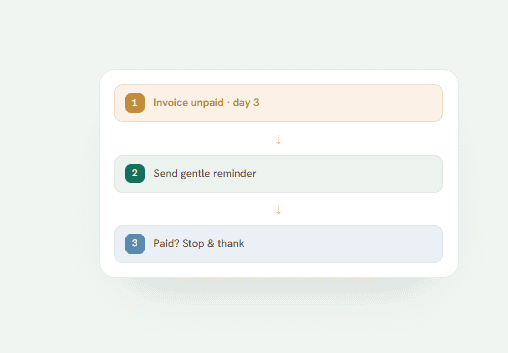
DMly lets you automate overdue invoice reminders based on a schedule you set. A simple sequence could look like:
Invoice becomes overdue → Wait 3 days → Send friendly reminder → Customer pays → Reminders stop
You can also decide how follow-ups progress if the balance remains unpaid. This means customers get a timely nudge without your team manually checking outstanding invoices every morning.
Once the customer pays, DMly updates the payment status and stops the reminder sequence. Your team can spend less time chasing payments and more time dealing with the customers who genuinely need their attention.
What Happens When a Customer Has a Billing Question?
Sending an invoice doesn’t always mean the conversation is finished. A customer might want to know why the total changed, ask to pay in two parts, or simply need the invoice sent again.
With DMly, those questions can stay in the same conversation as the rest of the customer journey. Your team can see the relevant billing context instead of searching through separate invoicing software to work out what the customer is talking about.
So when someone asks:
“Can I pay half today and the rest next week?”
or:
“Could you resend my invoice?”
your team can deal with it directly from the unified inbox. They can check the invoice, see what’s already been paid and take the appropriate action.
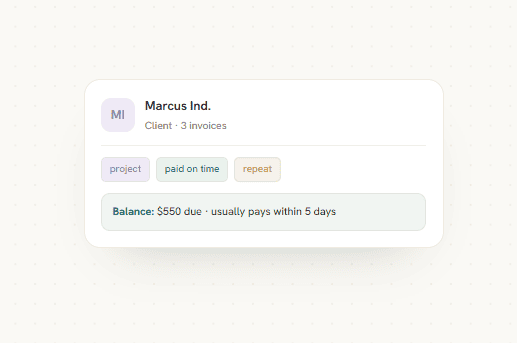
Chat Invoicing vs Traditional Email Invoicing
Email invoicing still works, but it can feel disconnected when the entire customer relationship is already happening through WhatsApp or another messaging channel.
Chat invoicing keeps payment closer to the conversation that created the sale.
| Chat Invoicing | Traditional Email Invoicing | |
| Where customers receive it | In the conversation they’re already using | In their email inbox |
| Customer context | Invoice stays connected to the conversation | Conversation and invoice may be in separate places |
| Payment questions | Customer can ask in the same chat | Often creates a separate email thread |
| Deposits and balances | Can be managed alongside the customer journey | Depends on the invoicing software |
| Payment reminders | Can be automated in DMly | Depends on the email/invoicing platform |
| Team visibility | Conversation and billing context can sit together | Staff may need to check multiple systems |
Email still makes sense for businesses whose customers expect invoices there, particularly in more traditional B2B relationships.
But if a customer found you on social media, asked for a price on WhatsApp and booked through chat, suddenly telling them to “check your email for the invoice” adds another step.
For local businesses already using messaging throughout the customer journey, keeping the invoice in chat can make the transition from conversation to payment feel much more natural.
Best Practices for Sending Professional Invoices Through Chat
Chat makes invoicing convenient, but the invoice still needs to look professional and leave no room for confusion.
- Agree on the price first. Confirm the service, total cost and any deposit before sending the invoice.
- Use clear line items. Write “Deep tissue massage, 60 minutes” instead of something vague like “Service.”
- Check customer details. Make sure the invoice is going to the right person and contains the correct billing information.
- Make payment terms obvious. Clearly state the due date, deposit amount or remaining balance so the customer knows what’s expected.
- Keep your branding consistent. Add your business name and logo so customers can immediately recognize who sent the invoice.
- Send invoices promptly. Once a job, booking or price has been agreed, there’s little reason to leave the invoice sitting in drafts.
- Keep reminders polite. Start with a friendly nudge. More direct follow-ups can come later if an invoice remains unpaid.
- Don’t chase customers who have already paid. Use payment tracking so reminder automations stop as soon as the balance is settled.
- Keep proper accounting records. Chat may be where you send and discuss invoices, but your invoice and payment records still need to be organized for bookkeeping and tax purposes.
Final Thoughts
Getting paid shouldn’t require a completely separate workflow from the conversation that created the sale.
If a customer has already discussed the service, agreed on the price, and booked through chat, sending the invoice there is a natural next step. DMly keeps that process connected, so you can create the invoice, collect deposits or full payments, track outstanding balances and follow up on overdue invoices without piecing together several tools.
For local businesses handling dozens of customer conversations each week, that means less payment admin and a clearer journey from chat to invoice to payment.
Frequently Asked Questions
Can I Create and Send an Invoice Through WhatsApp?
Yes. With a platform such as DMly, you can create a professional invoice and send it to the customer through WhatsApp. This is useful when the enquiry, quote, or booking has already happened there because the customer doesn’t have to move to another channel just to receive their bill.
How Do I Make a Professional Invoice for a Customer?
Include your business and customer details, a unique invoice number, invoice and due dates, clear descriptions of the products or services, prices, applicable taxes and the total amount due.
DMly lets you add your business branding, line items and tax information when creating invoices.
Can Customers Pay an Invoice Directly From WhatsApp?
DMly lets businesses send invoices through WhatsApp with an option for customers to pay. Payments can be processed through a connected payment provider, so the money settles into the business’s own provider account.
Can I Take a Deposit Through an Invoice?
Yes. You can take deposits and partial payments, making it useful for businesses that don’t collect the entire amount upfront.
Can I Send Automatic Reminders for Unpaid Invoices?
Yes. DMly lets you create automated reminders for overdue invoices. You can set the timing of your follow-ups and stop chasing each customer manually. Once the customer pays, the reminder sequence can stop automatically.
Can I Create an Invoice From a Customer Booking?
Yes. DMly can connect invoicing with your booking process, allowing you to move a customer from an appointment or job towards payment without rebuilding the entire transaction somewhere else.
Writing about WhatsApp automation, bookings and growth for local business.
Turn WhatsApp into your busiest channel.
Start free and run message, bookings, payments and reviews in one place.
