
A local business can serve 100 happy customers and still end the month with only 5 new Google reviews, simply because nobody remembered to ask the other 95.
The issue often isn’t customer satisfaction. It’s timing and follow-up.
Staff get busy, customers leave, and by the time someone thinks about sending a review link, the moment has passed.
Google review automation solves that part of the process. You can automatically send customers a review request at the right point in their journey, give them a direct link to your Google Business Profile, and follow up without someone on your team keeping track of every request.
This guide explains how to get more Google reviews automatically, how to set up the process with DMly, and how to do it without annoying customers or breaking Google’s rules.
What Is Automation?
Google review automation is the process of automatically asking customers to leave a Google review after a genuine interaction with your business.
Instead of your team remembering to message every customer manually, you set a trigger for the request. For example, a salon could send one after an appointment is completed, while a home service business could send it after finishing a job.
A typical flow looks like this:
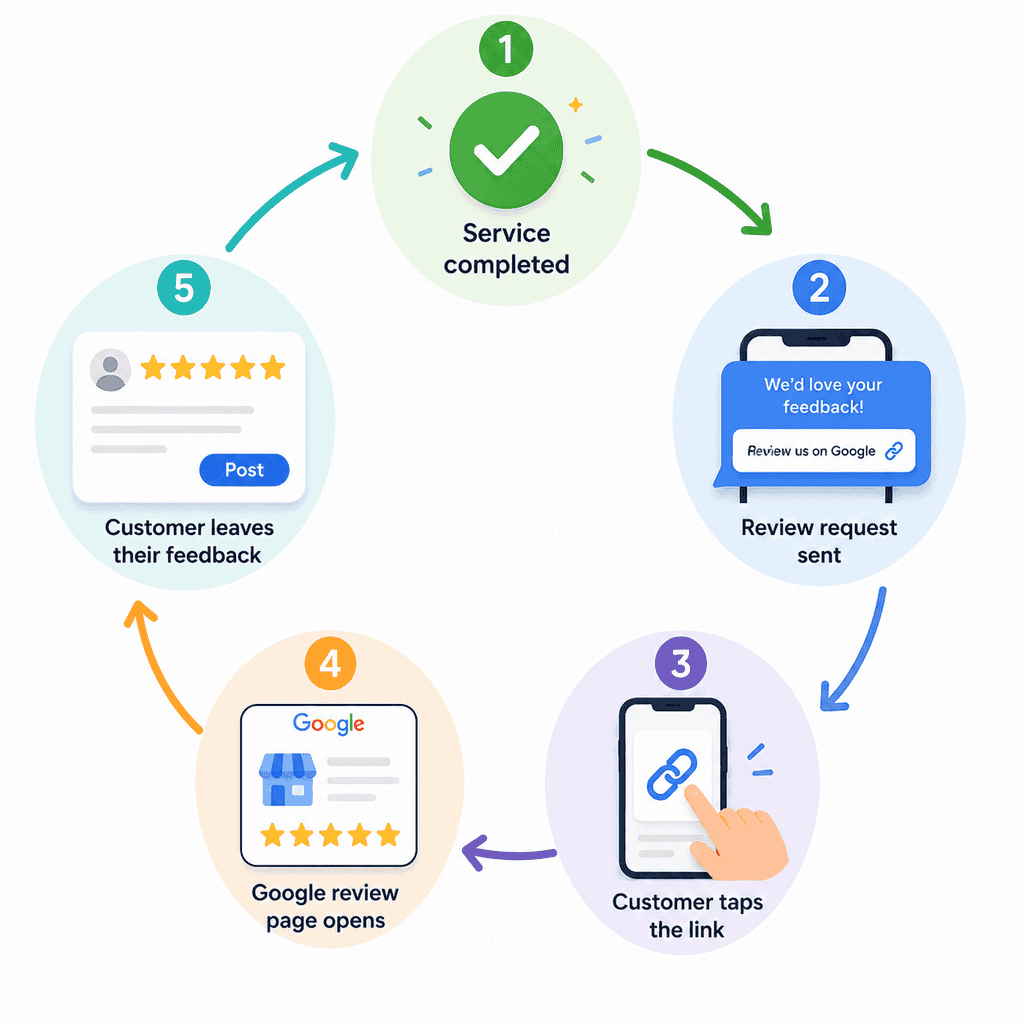
The important distinction is that you’re automating the request, not the review. The customer still decides if they want to leave feedback, what they say, and what rating they give.
Why Getting More Google Reviews Starts With Asking
Plenty of satisfied customers leave without writing a review. They may have loved the haircut, meal, or service, but leaving feedback isn’t necessarily something they’ll think about once they get on with their day.
A simple request can change that. The challenge for local businesses is making sure the request actually happens.
Staff might forget during a busy shift. The customer may be asked several days later, when the experience isn’t as fresh. Or they’re told to “find us on Google”, which adds unnecessary work when you could send them directly to the review page.
Automation removes those gaps. Instead of relying on someone to remember, you can make the request a standard part of the customer journey:
Appointment completed → Customer receives request → Taps review link → Leaves feedback
It also creates consistency. Rather than asking for reviews only when somebody on the team remembers, every eligible customer can receive the same opportunity to share their experience.

When Is the Best Time to Ask for a Google Review?
The best time to ask is usually soon after a positive customer experience, while the service and your business are still fresh in the customer’s mind.
That moment won’t be the same for every local business:
| Business | Good Time to Send the Review Request |
| Salon or spa | Shortly after the appointment is completed |
| Restaurant | After the customer’s visit or order |
| Dentist or clinic | After the appointment or an appropriate post-treatment follow-up |
| Home service business | Once the job has been completed and the customer has seen the result |
| Gym or fitness studio | After a class, session, or positive customer milestone |
| Tutor or coach | After a completed session or when the customer has experienced clear value |
| Consultant | After completing the agreed work or reaching an important project milestone |
Avoid asking too early. Sending a review request before the customer has had enough time to experience what they paid for can feel premature.
Waiting too long isn’t ideal either. If a plumber completed the repair two weeks ago, the customer may barely remember the details they would have happily written about that evening.
How to Get More Google Reviews Automatically With DMly
DMly lets you make review requests part of the customer journey instead of relying on staff to remember who needs to be asked. Once the workflow is set up, the right customers can receive a direct route to your Google review page at the right time.
Step 1: Connect Your Google Business Profile
Start by connecting your Google Business Profile to DMly. This brings your business reviews into the platform and gives you one place to manage the reputation side of your customer relationships.
If you manage several locations, connect the appropriate profiles so customers can be directed to the business location they actually visited.
Step 2: Decide What Triggers the Request
Choose a meaningful point in the customer journey for your review request.
For a salon, that could be after an appointment is completed. A home-service company might trigger it once a job is finished. The important thing is to ask after the customer has had a genuine experience with your business.
Step 3: Create Your Review Request
Keep the message short and natural. For example:
“Thanks for visiting us today, Sarah. We’d love to hear how your appointment went. You can leave us a Google review here: https://maps.app.goo.gl/…”
Avoid telling customers what rating to give or what to write. You’re asking for their feedback, not scripting it.
Step 4: Send Customers Straight to Google
Include your direct Google review link in the message.
This removes one of the biggest bits of friction. Instead of asking someone to search for your business, find the correct profile, and then locate the review option, one tap takes them where they need to go.
Step 5: Set the Timing
Choose when DMly should send the request after the trigger.
You might send it shortly after an appointment or wait until later that day. Match the timing to the type of service and give customers enough time to experience what they’ve paid for.
Step 6: Add a Sensible Follow-Up
Not everyone will leave a review after the first message. They may see it while they’re busy and forget about it five minutes later.
A polite follow-up can give them another opportunity without your staff manually checking who has responded. Keep reminders limited, though. Repeatedly chasing someone for a Google review can quickly become irritating.
Step 7: Manage the Reviews That Come In
Getting the review isn’t the end of the job. DMly brings Google review management into the same platform, so you can keep an eye on new feedback and respond without treating reputation management as a completely separate task.
Once that system is running, asking for reviews becomes a consistent part of doing business rather than something your team remembers only on quiet days.
What Should an Automated Google Review Request Say?

A good review request should sound like something your business would genuinely send to a customer. Keep it short, friendly and clear about what you’re asking for.
There’s no need for a long explanation. Give the customer a direct Google review link so they can act immediately.
Here are a few examples:
Salon or spa
“Thanks for visiting us today, Sarah. We’d love to hear how your appointment went. You can leave us a Google review here: [link]”
Home service business
“Thanks for choosing us for your repair today. We’d appreciate your feedback on the service: [Google review link]”
Restaurant
“Thanks for dining with us tonight. Got a minute to tell us how your visit went? Leave us a Google review here: [link]”
Personalization helps too. Using the customer’s name, referencing their visit and sending the message from a business they recognize makes an automated request feel less like a generic blast.
Most importantly, ask for honest feedback, not a five-star review. The customer’s rating and comments should always be their own.
How Often Should You Send Review Reminders?

One review request followed by one polite reminder is usually plenty. Customers may intend to leave feedback but get distracted after opening the first message.
Give them some space before following up. Avoid sending repeated reminders every day, as that can quickly turn a positive customer experience into an annoying one.
With DMly, you can automate the follow-up so your team doesn’t have to remember it manually. Keep the rule simple: ask once, remind sensibly, then leave the decision with the customer.
Google Review Automation Rules You Need to Know
Automating the request for a Google review is fine. The problems start when automation is used to influence who reviews your business, what they say, or what rating they leave. Google explicitly allows businesses to encourage customers to review genuine experiences, including by sharing a review link or QR code. (Google Help)
A few rules matter when setting up your workflow:
- Don’t buy or manufacture reviews. Reviews should come from people who genuinely experienced your business. Fake reviews and coordinated attempts to inflate ratings violate Google’s policies.
- Don’t offer rewards for reviews. Discounts, free products, services or payments in exchange for a review are prohibited.
- Don’t ask specifically for five stars. Ask customers to share their experience rather than telling them what rating or wording to use. Google prohibits pressuring customers for particular ratings or review content.
- Avoid review gating. Don’t use a workflow that identifies satisfied customers and sends only those people to Google while steering unhappy customers away. Google specifically prohibits selectively soliciting positive reviews or discouraging negative ones.
- Don’t have employees or connected parties boost your rating. Google treats reviews affected by professional or personal conflicts of interest as biased.
- Let customers write their own reviews. Your automation can provide the link and make the process easy, but the feedback itself should come from the customer.
Breaking these rules can have consequences beyond losing individual reviews. Google says businesses found violating its fake-engagement policy can temporarily lose the ability to receive new reviews, have existing reviews unpublished, or receive a public warning that fake reviews were removed.
Should You Ask Every Customer for a Google Review?
In most cases, a consistent approach is the safest one. Ask customers who have genuinely used your business for honest feedback rather than trying to predict who will give you five stars.
Be particularly careful with review gating. For example, you shouldn’t create a workflow that first asks: “Were you happy with your experience?”
Then send happy customers to Google while directing unhappy customers to a private feedback form. Google’s policy prohibits selectively soliciting positive reviews or discouraging negative ones.
That doesn’t mean every person who ever contacts your business needs a review request. Someone who cancelled before their appointment or never received the service isn’t the same as a completed customer.
What to Do When a Customer Leaves a Review
Getting the review is only half the job. Once customers take the time to leave feedback, responding shows that someone at the business is paying attention.
How you respond depends on what they said:
- Positive review: Thank the customer and make the reply specific where possible. A short response that mentions their visit or service feels more genuine than pasting the same “Thanks for your feedback!” under every review.
- Negative review: Stay calm and acknowledge the customer’s concern. Avoid arguing or discussing sensitive customer details publicly. Where appropriate, invite them to continue the conversation privately so your team can investigate.
- Mixed review: Pay attention to both sides. If someone loved the service but complained about a long wait, don’t respond only to the compliment. Acknowledge the issue they raised too.
DMly can help here as well. Its reputation management tools bring Google reviews into the platform, making it easier to monitor feedback, respond to reviews, and keep reputation management alongside your other customer conversations.
And don’t automate every response into the same generic sentence. Automation can help you spot and manage new reviews, but customers should still feel like a real business read what they wrote.
Why Your Automated Review Requests Aren’t Working
You’ve automated your requests, customers are receiving them, but the reviews still aren’t coming in. The automation itself may not be the problem. Small details around timing, wording, and convenience can make a big difference.
Here are some common reasons:
- You’re asking too late. A review request sent two weeks after an appointment is easier to ignore than one sent while the experience is still fresh.
- The message feels like spam. Make it clear which business is contacting them and, where possible, reference their recent visit or service.
- Your request is too long. Customers shouldn’t have to read three paragraphs before discovering that you’re asking for feedback. Get to the point.
- You’re making them search for you. Include a direct Google review link rather than telling customers to “find us on Google.”
- You’re asking too often. Multiple reminders can become irritating. One request and a sensible follow-up will often be enough.
- You’re asking at the wrong stage. Don’t request a review while the job is unfinished or before the customer has had a chance to experience the service.
- Your automation isn’t triggering consistently. If the workflow depends on staff marking an appointment or job as completed, check that they’re actually doing it.
- You’re focused only on volume. Track how many requests are sent and how many result in reviews. If 500 requests produce very little feedback, test the message, timing and customer journey rather than simply sending more.
How to Measure Your Review Automation
Don’t judge your Google review automation by how many requests you send. The useful question is how many of those requests turn into genuine customer reviews.
A simple funnel is enough:
Requests sent → Review link clicks → New Google reviews
From there, keep an eye on a few useful numbers:
- Requests sent: How many eligible customers received your review message?
- Link clicks: Are customers interested enough to open your Google review page?
- New reviews: How many reviews are you gaining after requests go out?
- Conversion rate: What percentage of requests result in a new review?
- Average rating: How is your overall customer feedback changing over time?
- Review volume: Compare the number of new reviews before and after introducing automation.
Final Thoughts
Getting more Google reviews doesn’t require asking customers more aggressively. It requires making the request consistent, timely and easy to act on.
That’s where automation earns its place. With DMly, a completed customer interaction can trigger a review request automatically, send the customer directly to Google and remove another manual task from your team’s day. You can then monitor and respond to the reviews that come in from the same platform.
The customer still decides what to write and how to rate the experience. You’re simply making sure happy, unhappy and somewhere-in-between customers all get a convenient opportunity to share it.
Frequently Asked Questions
Can You Automate Google Review Requests?
Yes. You can create a workflow that automatically sends customers a Google review request after a relevant interaction, such as a completed appointment or finished job.
The customer follows the link and writes the review themselves. The automation handles the request, not the review.
How Can I Get More Google Reviews Automatically?
Set up an automated workflow that sends genuine customers a direct Google review link at an appropriate point after their experience. DMly can automate this process so your team doesn’t have to remember to ask each customer manually.
Does Google Allow Automated Review Requests?
Yes. Google allows businesses to encourage customers to leave reviews and provides review links and QR codes specifically for this purpose.
Your automation still needs to follow Google’s policies. Don’t offer incentives, ask specifically for positive reviews or selectively request reviews only from customers you expect to give high ratings.
When Should I Ask a Customer for a Google Review?
Ask after the customer has had enough time to experience your product or service, but while the interaction is still fresh. For a salon, that could be shortly after an appointment.
Can I Send Customers a Direct Link to Leave a Google Review?
Yes. Google Business Profile provides businesses with a review link that can take customers directly to the review process. Including this link in your automated request removes the need for customers to search for your business and find the review option themselves.
Can I Offer Customers a Discount for Leaving a Google Review?
No. Google’s policies prohibit businesses from offering incentives such as discounts, free products or services in exchange for reviews. Ask for honest feedback without attaching a reward to the review.
What Is Google Review Gating?
Review gating is selectively directing customers towards or away from leaving a public review based on their expected feedback.
For example, a business might ask customers if they had a good experience, send satisfied customers to Google and direct dissatisfied customers to a private form instead. Google prohibits selectively soliciting positive reviews or discouraging negative ones.
Writing about WhatsApp automation, bookings and growth for local business.
Turn WhatsApp into your busiest channel.
Start free and run message, bookings, payments and reviews in one place.
