
How to Fix WhatsApp Cloud API Billing Errors and 131042
Somewhere in Meta’s error reference is a list that would save a lot of people a lot of evenings. It gives the eight things that produce error 131042, the one that stops messages with a note about your payment method.
Two of the eight are timezone not set and currency not set.
Neither has anything to do with a card, which is why a business hitting this error spends three hours re-entering card details, calling their bank and adding a second card, when the fix was two dropdowns on a settings page they never had a reason to open.
That is the shape of most WhatsApp Cloud API billing errors. The message names the payment method, the cause is usually somewhere else, and almost every guide on the subject invents its own list of causes instead of using the published one. This page uses the published one.
What Error 131042 Actually Means
Meta’s own description is one sentence long, and the useful part is the eight causes underneath it.
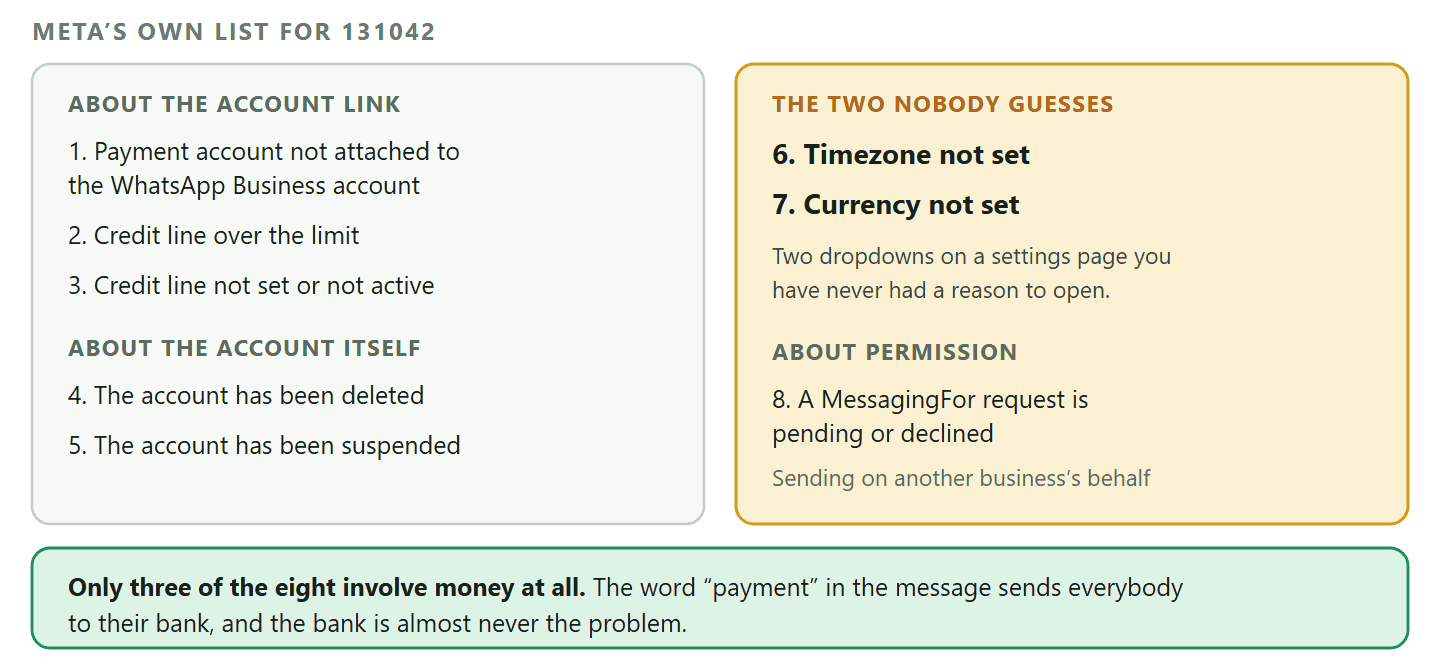
Meta’s error codes reference gives 131042 as: “There was an error related to your payment method.” The recommended action is to check that billing is set up correctly for your WhatsApp Business account. Then it lists the common problems, and this is the list to work through.
- Payment account is not attached to a WhatsApp Business account. A payment method existing somewhere in your Meta business is not the same as it being attached to the account the number belongs to. This is the most common version of the error.
- Credit line is over the limit. The spend cap has been reached rather than the card failing.
- Credit line, meaning the payment account, is not set or not active. Different from the first: something exists but is not live.
- The WhatsApp Business account is deleted. Worth checking rather than assuming, especially where several people have had access.
- The WhatsApp Business account is suspended. A policy matter rather than a money one, and it presents as a payment error.
- Timezone not set. Genuinely. A blank timezone on the account produces a payment error.
- Currency not set. The same again. Billing cannot resolve without one.
- A MessagingFor request, also called On Behalf Of, is pending or declined. This is the arrangement where one business sends on another’s behalf. If that permission has not been granted, sending fails here.
Why the message is misleading rather than wrong: Five of those eight are not about a card at all. Meta groups them under a payment error because they all stop the same thing happening: the platform cannot work out who to bill, in what currency, against which account. The word “payment” sends everyone to their bank, and the bank is almost never involved.
How a Cloud API Bill Is Actually Formed
Understanding this takes four minutes and makes every one of the WhatsApp Cloud API billing errors above legible, because each is a different part of the same chain breaking.
Since 1 July 2025 Meta bills per message rather than per conversation, and only when a message is actually delivered. A message that fails costs nothing, which is why a broken setup can be expensive in lost sales and cost nothing at all on the invoice.
What each delivered message costs depends on two things: which of four categories it falls into, and which country the recipient is in. The four categories are marketing, utility, authentication and service, and the category is not a billing setting you choose. Meta decides it from the template, which is why a promotional sentence inside an otherwise ordinary template matters: it can move the whole template into marketing and price it accordingly.
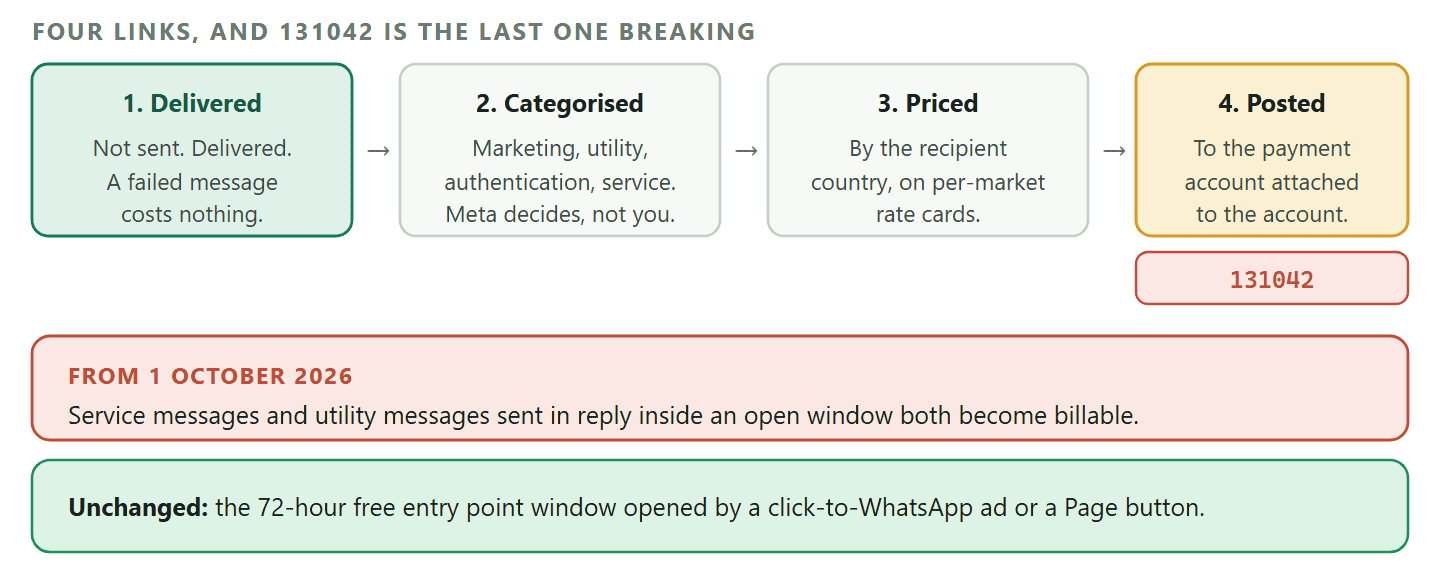
The chain, in order, is this. A message is delivered. Meta categorises it and prices it against the recipient country. The charge is posted against the payment account attached to the WhatsApp Business account that owns the sending number. Any link in that chain can be missing, and the eight causes of 131042 are a list of the ways the last one goes wrong.
A date that changes the arithmetic: 1 October 2026: From 1 October 2026 Meta begins charging for two things that are free today: service messages, meaning the ordinary replies you type inside an open 24-hour window, and utility messages sent in reply to a customer inside that same window. Service messages get no volume discounts while utility and authentication keep theirs. If you are budgeting from last month’s bill, budget again. We worked it through in our guide to the October pricing change.
One more thing worth knowing before you look at a surprising bill. A free entry point conversation, started when somebody taps a click-to-WhatsApp ad or a Facebook Page call-to-action button, opens a 72-hour window in which messages are not charged for delivery. That window is unchanged by the October update, and it is the one genuinely cheap way to open conversations at scale.
Working the Eight, in Order
Twenty minutes, in this sequence, resolves the overwhelming majority of these. Do not start with the card.
- Check the account is alive. Deleted or suspended accounts produce this error, and both are worth ruling out in the first minute because everything below is wasted if either is true. A suspension is a policy matter and has its own route, covered further down.
- Set the timezone and the currency. Then set them again if they look set. Both live in the business settings rather than anywhere labelled billing, and both are commonly blank on an account created quickly by somebody who is no longer at the company.
- Check the payment method is attached to the right account. Not that a card exists in your Meta business, which it almost certainly does, but that a payment method is attached to the WhatsApp Business account holding this number. Businesses with more than one portfolio hit this constantly.
- Check the spend limit. A credit line over its limit fails exactly like a declined card and is fixed in a completely different place.
- Check the permission if somebody sends for you. If your messages go out through another business, the On Behalf Of request has to be granted rather than pending.
- Only now, look at the card itself. Expired, declined, or a card the issuer will not authorise for a foreign recurring charge, which is a real and common problem in several markets.
- Wait, then test with one message. Billing changes are not always instant and a single test message tells you more than staring at a settings page.
A note on how you find out at all: This error arrives as a failed message rather than as an email, so the first sign is usually a customer not getting something. Whatever platform you use, know where its failure log is before you need it, and check it after any change to billing or templates rather than waiting for a complaint.
“Missing Valid Payment Method” Is a Different Problem
It looks like the same thing and it is not: this one blocks you before you send, and it usually resolves at the business rather than the account level.
The message people meet as “missing valid payment method” is a setup gate rather than a send failure. It appears when the business has not completed the payment setup the platform requires before it will accept messages for billing at all.
Three things are worth checking, in order.
- Is a payment method saved on the business, and is it attached to the right account? The same distinction as above, and the same trap for anyone with several portfolios.
- Are the tax and business details complete? Some markets require tax information before a payment method can be used, and an incomplete form leaves the method saved but unusable.
- Did you reload the page that showed the error? Genuinely worth its place: these settings pages cache aggressively, and a fixed problem often keeps displaying until you go back and reload the original screen.
What we will not do here is tell you how long Meta takes to verify a payment method. That figure gets quoted everywhere and Meta does not publish it, so treat any specific number you read, including in the previous version of this article, as somebody’s anecdote.
The Errors People Mistake for WhatsApp Cloud API Billing Errors
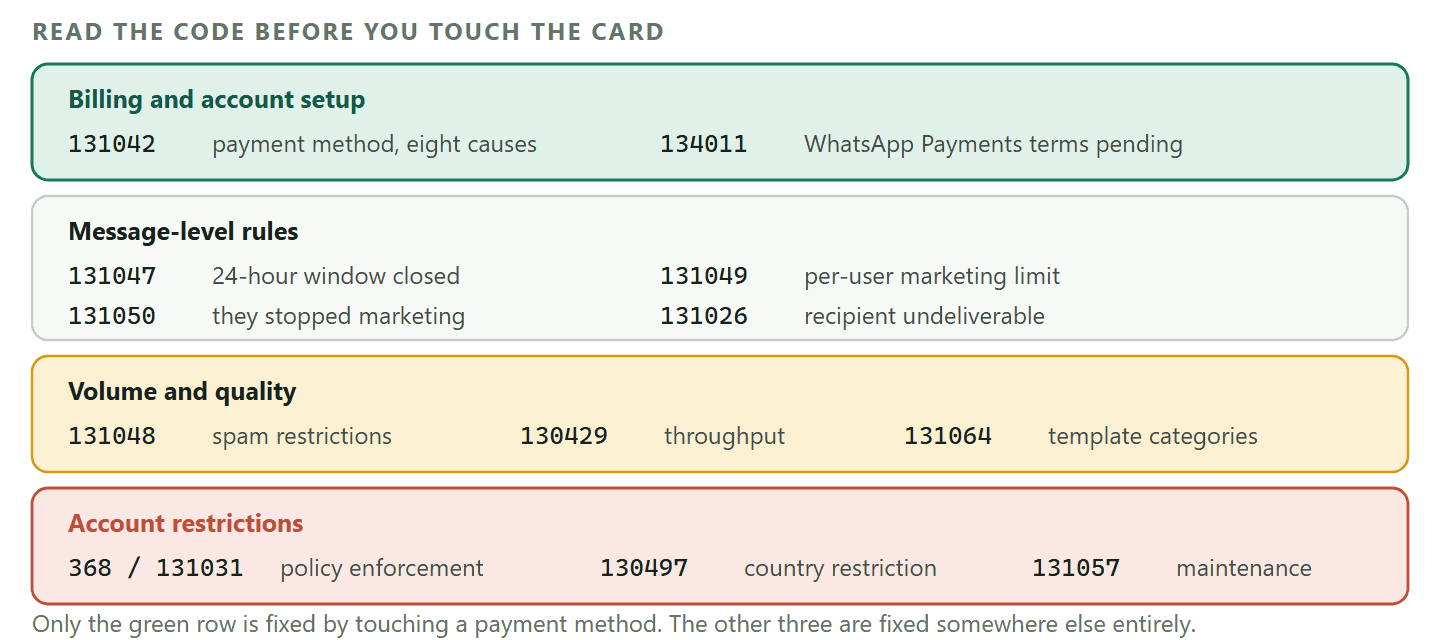
Most “my messages stopped sending” problems are not billing problems, and each of these has a completely different fix. Read the code before you touch the card.
Every one below is Meta’s own description of the code.
- 131047. More than 24 hours have passed since the recipient last replied. Send an approved template instead. This is the single most common failure on the platform and it has nothing to do with money.
- 131049. The message was not delivered to maintain healthy ecosystem engagement, which is the per-user marketing limit. Meta’s advice is to wait at least 24 hours before resending, because retrying sooner only produces the error again.
- 131050. The recipient has chosen to stop receiving marketing messages from your business. Do not retry, because it will not be received.
- 131048. Restrictions on how many messages can be sent from this number, possibly because previous messages were blocked or flagged as spam. Check your quality status in WhatsApp Manager.
- 130429. Cloud API message throughput has been reached. Send more slowly.
- 131064. The account has reached a messaging limit due to template classification violations, and the restriction lifts automatically after the enforcement period. In plain terms: templates were categorised wrongly and the platform has taken the volume away for a while.
- 131026. Undeliverable, for one of three reasons Meta names: the number is not a WhatsApp number, the recipient has not accepted the current Terms of Service, or their WhatsApp is too old. All three have to be sorted out with the customer through some other channel, because you cannot message them to explain.
- 134011. WhatsApp Payments terms of service acceptance is still pending for the account, which is a genuinely payments-related code and not the same as 131042.
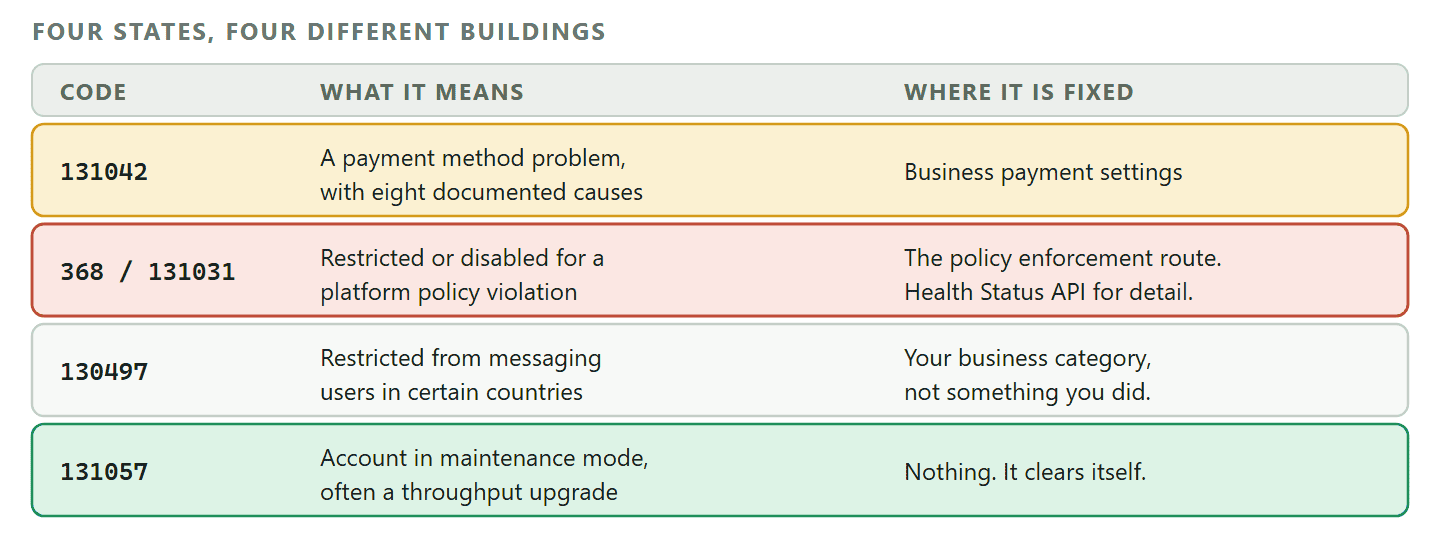
The four that mean the account itself is in trouble: 368 and 131031 both mean the WhatsApp Business account has been restricted or disabled for violating a platform policy, and 131031 can also mean a two-step verification PIN mismatch. 130497 means the account is restricted from messaging users in certain countries for your business category. 131057 means the account is in maintenance mode, which can be as harmless as a throughput upgrade. None of these is fixed by adding a card, and the first two need the policy route rather than the billing one.
When It Is Not Billing At All: the Policy Route
An account restricted for policy looks like a billing failure from the inside, and nothing on the billing page will move it.
Two codes tell you that you are in a different building. 368 means the WhatsApp Business account associated with the app has been restricted or disabled for violating a platform policy. 131031 means the same thing, and can additionally mean that data in the request could not be verified against the account, for example an incorrect two-step verification PIN.
That second possibility is worth ruling out first, because it is trivially fixable and it is not a policy problem at all. If the PIN is right and the code persists, you are in enforcement.
Meta points at two things here. Its policy enforcement documentation covers what the violations are and how they get resolved, and the Health Status API can give additional insight into the reason for an account lock, which is often more specific than anything the interface tells you.
What not to do while restricted: Do not create a second business portfolio and start again on a new number. It multiplies the administration permanently, it is the direct cause of the attached-to-the-wrong-account version of 131042, and enforcement does not attach to the number in the way people assume. Work the appeal instead.
There is a third code in this family that is not enforcement and reads exactly like it. 130497 means the account is restricted from messaging users in certain countries, which depends on your business category rather than on anything you did wrong. And 131057 means the account is in maintenance mode, which can be as ordinary as a throughput upgrade in progress: nothing to fix, and it clears itself.
What a Provider Takes Off Your Plate, and What It Does Not
Worth being straight about this, because our own documentation contradicts the usual pitch.
The standard argument is that going through a provider makes billing problems somebody else’s. For DMly that is only half true, and the half that is not true is the important one.
DMly’s documentation says plainly that WhatsApp conversations are billed by Meta, not by DMly. Your subscription pays for the software. Meta charges its own rate on top and that bill comes from Meta, with DMly adding no markup, so you pay Meta’s standard rates directly. That is good for your costs and it means the Meta payment relationship, and therefore every error on this page, stays yours.
What a provider genuinely removes is the rest of it: the registration, the templates, the inbox, the automation, the failure logs in one place, and somebody to ask when a code makes no sense. That is a real reduction in work. It is just not a reduction in billing.
The question to ask any provider: “Does Meta bill me, or do you?” Some providers resell messaging and add their own margin, which does move the billing relationship but also moves the price. Ours does not, and both models are defensible. What is not defensible is a provider that will not answer the question plainly, because you will find out at the worst possible moment.
If you have not chosen a route yet, our comparison of the three types of WhatsApp account covers what changes when you move onto the platform in the first place.
A Worked Example: the Friday Afternoon Outage
What twenty minutes of the right order actually looks like, using the shape these outages usually take.
A dental practice sends appointment reminders the afternoon before. On Friday at two o’clock the reminders for Saturday morning stop going out. Nobody notices until four, when a patient rings to ask whether their appointment is still on, because they did not get the usual message.
The failed sends carry error 131042 and the practice manager does what anybody would do. She opens the billing page, sees a card ending in the right four digits, decides the card must have been declined, calls the bank, and is told there is nothing wrong with the card. That is forty minutes gone and the Saturday list is still unreminded.
The right order takes a fraction of that.
- Is the account alive? Not deleted, not suspended. Thirty seconds, and if it is suspended everything below is irrelevant because this is a policy problem wearing a billing problem’s clothes.
- Are the timezone and currency set? On an account somebody’s nephew created in an afternoon two years ago, quite often not. This is where this particular outage ends about a third of the time.
- Is the payment method attached to this account? The practice has two business portfolios because a marketing agency created one for their ads. The card is on the wrong one. That is the second most likely answer and the one people never look for, because a card is visibly present somewhere.
- Is the spend cap reached? A busy month of reminders can do it, and the failure looks nothing like a limit.
- Now, and only now, the card. Expiry, decline, or an issuer refusing a recurring international charge.
The point of the order is not cleverness. It is that steps one to four cost about five minutes in total and are far more likely than step five, while step five is the one the error message points at and can eat an afternoon on the phone.
The thing worth changing afterwards: The real failure in that story is not the setting. It is that a Saturday list went out unreminded for two hours before anybody knew. Whatever platform you use, find its failure log and look at it after any change to billing, templates or numbers. Most WhatsApp Cloud API billing problems are cheap to fix and expensive to discover late.
Preventing WhatsApp Cloud API Billing Errors
Six habits, and the first one closes the door on the two causes nobody guesses.
- Fill in the boring fields on day one. Timezone, currency, business details, tax information where your market requires it. Ten minutes at setup against an outage three months later, discovered by a customer.
- Keep one business portfolio. Extra portfolios are the root of the attached-to-the-wrong-account version of this error, and they multiply every other administrative job you have.
- Use a card that will survive. A company card that does not expire in the next few months, that the issuer will authorise for recurring international charges, and that is not somebody’s personal card who might leave.
- Watch the spend cap, not just the balance. Over-the-limit is one of the eight causes, and it will not look like a limit problem when it arrives.
- Read notification emails from Meta. Payment and policy notices go out before the messages stop, and they get filtered into a mailbox nobody reads.
- Check the failure log after any change. Templates, billing, a new number: look at the log rather than waiting for a complaint. Our guide to what happens on a large send covers reading failures at scale.
DMly puts every failed message in one log with the reason attached, so a billing error is something you find in the morning rather than something a customer tells you about on Friday. See the plans, including the 7-day free trial.
Frequently Asked Questions
What is WhatsApp error 131042?
Meta describes it as an error related to your payment method, and publishes eight causes: the payment account not being attached to the WhatsApp Business account, a credit line over its limit, a credit line that is not set or active, the account being deleted, the account being suspended, the timezone not being set, the currency not being set, and an On Behalf Of request that is pending or declined. Work down that list rather than starting with your bank.
Why do WhatsApp Cloud API billing errors mention my card when the card is fine?
Because Meta groups several unrelated setup failures under one payment error. Five of the eight documented causes have nothing to do with a card: two are missing settings, two are account states, and one is a permission. The word “payment” in the message is the least useful part of it.
Does the WhatsApp Cloud API require a payment method even to test?
Billing has to be set up correctly for the account before messages can be billed, which in practice means having it in place before you rely on the number for anything real. The messages themselves are charged per message on delivery, so what you pay depends on what you actually send.
My messages are failing. Is it always billing?
Almost never. The most common failure on the platform is 131047, which means more than 24 hours have passed since the recipient last replied and you need an approved template instead. Others cover per-user marketing limits, recipients who have opted out of marketing, throughput, spam restrictions and account-level policy enforcement. Read the code first.
How long does Meta take to verify a payment method?
Meta does not publish a figure, so any specific number is somebody’s experience rather than a commitment. What you can do is make a change, wait a few minutes, and test with a single message rather than a campaign.
Can a debit card be used for WhatsApp Cloud API billing?
The practical constraint is not debit against credit, it is whether the issuer will authorise a recurring international charge from Meta. That is a conversation with your bank, and it is the one genuine card-related cause on the list.
Will using a provider stop these errors?
It depends entirely on who bills you. With DMly, Meta bills you directly and DMly adds no markup, so the setup and the errors in this article remain yours while the technical work does not. Some providers resell messaging and take the billing relationship on themselves. Ask before you sign, rather than after your first 131042.
Check the Boring Fields First
The instinct when a message fails with a payment error is to look at money. Meta’s own list says money is only three of the eight causes of the commonest of all WhatsApp Cloud API billing errors, and the two most-missed are a blank timezone and a blank currency.
So the order is: is the account alive, are the settings filled in, is the payment method attached to the right account, and only then, is there something wrong with the card. That order will save you the evening the old order costs.
Writing about WhatsApp automation, bookings and growth for local business.
Turn WhatsApp into your busiest channel.
Start free and run message, bookings, payments and reviews in one place.
