
The pass is full. Tickets hang along the rail, plates are going out two at a time, and somebody’s phone on the shelf by the door keeps lighting up. “Are you open Sunday?” “Do you do vegan?” “Table for six on Saturday, possible?” “Is the lamb nut-free? My son has an allergy.” Nobody can answer any of it until service is over, by which time the person asking about Saturday has booked somewhere else, and the parent asking about nuts deserved a careful answer, not a rushed one.
A WhatsApp AI chatbot for a restaurant takes the first three off the shelf entirely. It can answer opening hours and dietary options from your own menu, and book the table for six in the chat. The fourth question is different: it is about someone’s safety, and the right job for the bot is to get it to a person who knows the kitchen, quickly, without guessing.
This guide builds one in DMly: what the chatbot should and should not handle, giving it your menu, allergens, taking reservations with the booking tools, taking orders with AI or your WhatsApp catalogue, the instructions, handovers, testing and costs. It sits under our guide to WhatsApp automation for restaurants.
What a Restaurant Chatbot Should, and Should Not, Do
The chatbot handles questions and bookings. Safety, complaints and the unusual stay with people.
| The chatbot handles | A person handles, every time |
| Opening hours, location, parking, delivery areas | Allergies and “is this safe for me?” |
| What is on the menu, prices, vegetarian and vegan options | Complaints about a meal or a delivery |
| Booking, moving and cancelling a table | Large groups, private hire and events |
| “What time is my booking?” | Refunds and payment problems |
| Taking food orders, or pointing customers to the menu to order | Anything the chatbot is not sure about |
WhatsApp’s Business Messaging Policy expects automated chats to offer a prompt, clear route to a person. For a restaurant, that route matters most on the two rows at the top right: an allergy question and a complaint are both better answered by a human in two minutes than by a machine in two seconds.
Before You Start: Menu, Catalogue and Tables
The chatbot works from three things you set up first.
- Your menu as a document the AI can read: the current menu with prices and dietary labels, plus the practical details customers ask about.
- Your dishes or your WhatsApp catalogue, if you take orders in the chat: dishes in DMly’s Products if the chatbot takes the order itself, or a catalogue built in Meta’s Commerce Manager, connected to your WhatsApp Business Account and switched on in DMly if customers order from a cart.
- Your tables as bookable services, if you take reservations, so the booking tools have something real to book.
You do not need all three on day one. A chatbot that answers questions from your menu and hands the rest over is already useful; reservations and ordering can follow.
Step 1: Start Your WhatsApp AI Chatbot for a Restaurant From a Template
DMly ships ready-made AI bots. For a restaurant that takes bookings, start from the booking one.
DMly’s template library has six AI templates, each with an AI Reply step whose prompt and tools are filled in. Three suit a restaurant:
- The AI Customer Service bot arrives with Get contact info, Add a note, Add tags, Hand over to a human and Move to unassigned queue. A good start if you only want questions answered.
- The AI Appointment Booking bot adds the full appointment set: list services, list staff, check available times, book, view, reschedule and cancel. The right start if you take table reservations.
- The AI Food Ordering Assistant arrives with the ordering tools, ready to take food orders in the chat once AI ordering is set up (Step 5).
In the customer service and booking bots, the AI step leads to the end, so it stays in the conversation and answers the next message too, up to 40 turns in one run. Set its trigger to WhatsApp message.
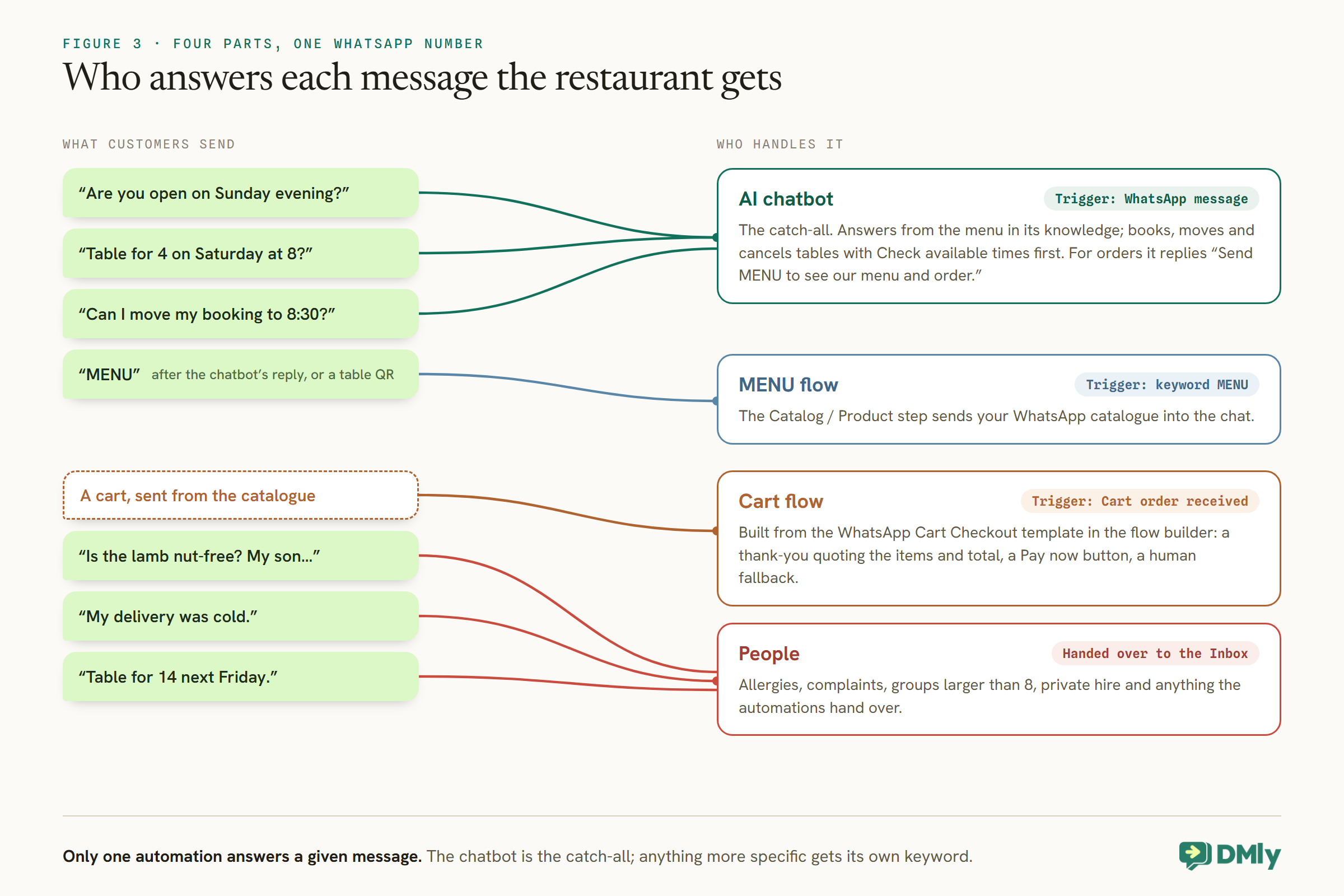
One rule shapes the whole build: only one automation ever answers a given message. DMly blocks publishing a second automation that also replies to everything on the same channel. So the chatbot is your catch-all, and anything more specific, such as a MENU keyword that sends your catalogue, is its own small flow with its own keyword. If you want one chatbot to book tables and take orders, that means one assistant with both sets of tools, as Step 5 explains.
Step 2: Give It Your Menu
The chatbot can only answer from what it can read. Make your menu readable, and keep it current.
Build a collection at Settings → AI Knowledge. You can add files (PDF, TXT and MD, up to 20 MB), web pages, FAQs or pasted text, and a source is searchable once its status reads ready. For a restaurant, include:
- The menu, with prices and clear dietary labels (vegetarian, vegan).
- Opening hours, including holidays and kitchen closing times, which customers often confuse with closing time.
- Practical details: address, parking, accessibility, highchairs, dogs, delivery areas and minimum order.
- Booking policies: how long a table is held, large-group rules, cancellations.
- What the chatbot must not answer, written plainly: allergy safety, complaints, private hire.
Three practical notes. If your menu lives on your website, add the page as a source: when the chatbot answers from a web page, it appends that page’s link to its reply, at most two links per reply, so customers get the answer and the full menu. When the menu changes, remove the old source and add the new one: adding a new file does not replace the old, so both versions stay searchable and the chatbot may quote last season’s prices with complete confidence. There is no in-place editing of a source either. For daily specials, keep a short pasted-text source titled “Today’s specials” (up to 20,000 characters), and each morning remove it and add the new one; it takes a minute and means “what’s the special?” gets today’s answer. And a new AI step, and each AI template, starts with AI Knowledge set to No knowledge, so select your collection on the Built-in Tools tab. If you connect your own AI provider, use OpenAI or Google Gemini for this step: DMly’s docs say Claude and DeepSeek cannot search documents.
Step 3: Allergens Go to People
An allergy question is a safety question. The chatbot’s job is to get it to someone who knows the kitchen.
Restaurants in many countries have legal duties around allergen information. In England, Northern Ireland and Wales, for example, the Food Standards Agency’s guidance says that when food is sold “online or by phone through distance selling”, allergen information “must be provided at two stages”: before the purchase is completed, and when the food is delivered. A WhatsApp order is exactly that kind of sale. Check the rules where you trade; the point here is how the chatbot behaves.
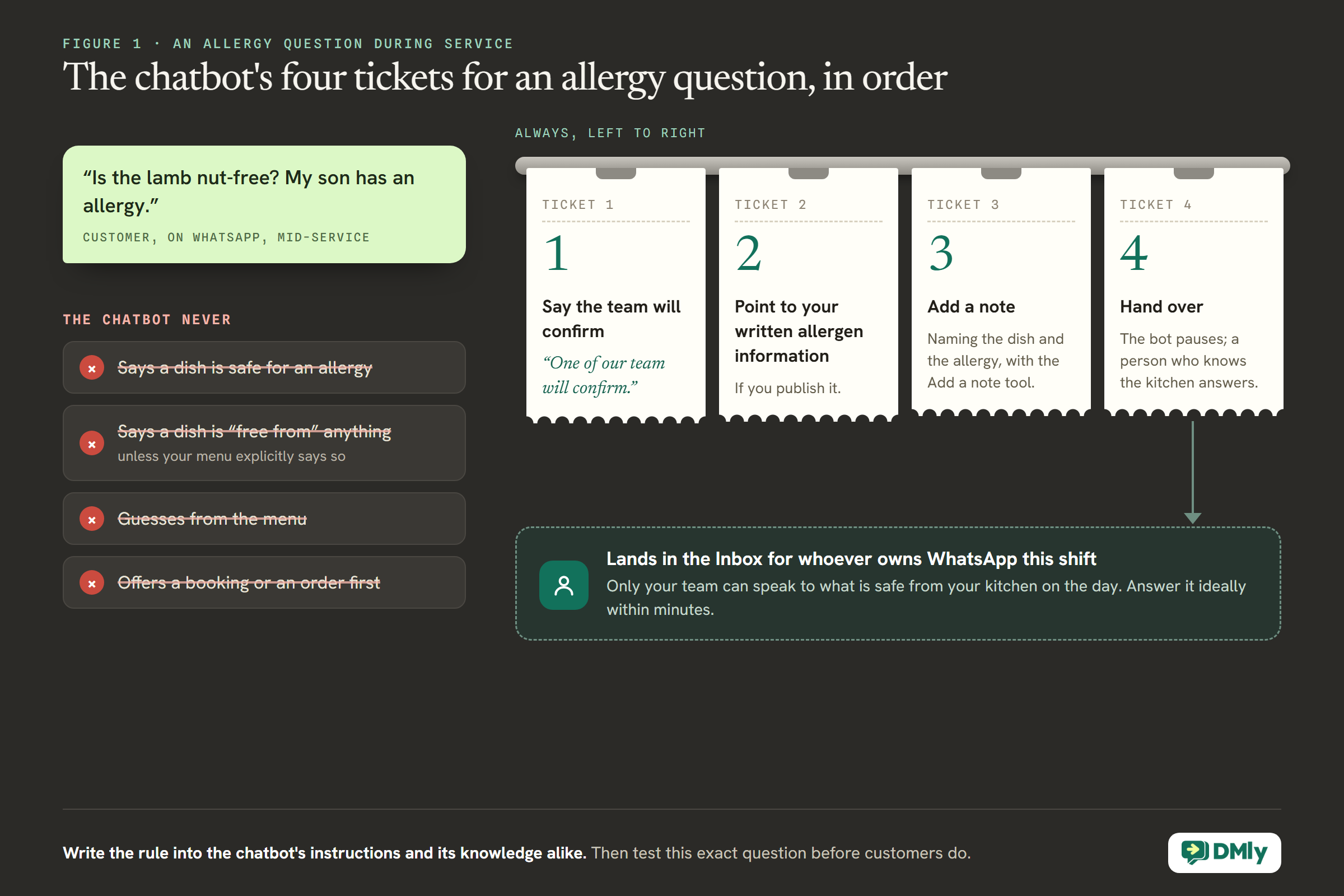
Even with a perfect allergen chart in its knowledge collection, a chatbot cannot answer the question a customer with an allergy is really asking: “is this safe for me, today, from your kitchen?”. That depends on recipes that change, substitutions and cross-contact on the day, which only your team can speak to. So the rule is simple:
- Never confirm that a dish is safe for an allergy or intolerance, and never say a dish is “free from” anything unless your menu explicitly says so.
- Point to your written allergen information, if you publish it, and say a member of the team will confirm.
- Add a note and hand over, so a person who knows the kitchen answers, ideally within minutes.
Step 4: Take Reservations With the Booking Tools
DMly’s booking tools book appointments, so set your tables up as something they can book.
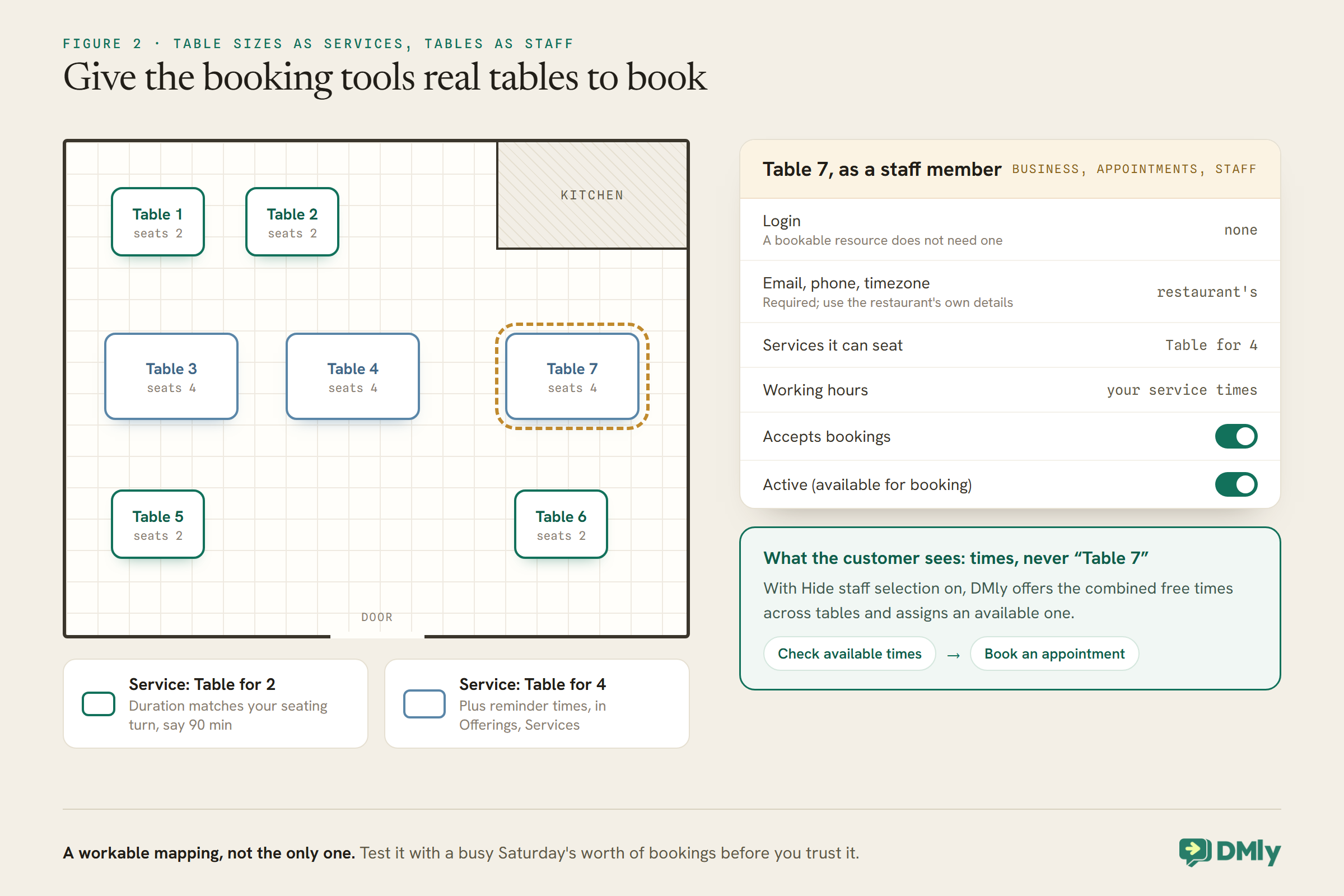
DMly’s reservations run on its appointment machinery: services with a duration, booked against the time of a bookable staff member. For a restaurant, the practical mapping is:
- Services for each kind of table, such as “Table for 2” and “Table for 4”, created in Offerings → Services, with a duration that matches your seating turn, say 90 minutes, and reminder times.
- Tables as staff members. A staff member in DMly is a bookable resource, and does not need a login; DMly’s docs mention room-based resources as a normal use. Create one per table or section in Business → Appointments → Staff, give each the services it can seat and working hours matching your service times, and switch on both Accepts bookings and Active (available for booking). Each needs an email, a phone and a timezone; use your restaurant’s details, remembering that DMly messages a booking’s assigned staff member when a booking comes in.
- Let DMly choose the table. When a service is offered by several staff members and the customer does not choose, DMly offers the combined free times and assigns an available one. Turn on Hide staff selection so customers never see “Table 7”.
With tables in place, tick the booking tools on the AI step: List bookable services, Check available times, Book an appointment, View upcoming appointments, Reschedule an appointment and Cancel an appointment. Always include Check available times, or the chatbot can offer times you cannot honour.
Set the booking policy deliberately. Minimum notice is in minutes, so a two-hour cut-off is 120. The cancellation and reschedule deadlines start at 0, which allows changes right up to the booking time. Every confirmed booking gets a confirmation and reminders at the times set on the service, and each reminder should carry the way to cancel: a table cancelled in the afternoon can be resold, a no-show cannot.
If you take prepaid bookings for special nights, a service set to pay before booking is held for 15 minutes while the customer pays, and DMly, not the chatbot, sends the Pay button with the amount. It charges the service’s full price by default, or a deposit of 1 to 99 percent of it if you set one on the service, and any service can also carry a no-show fee.
Step 5: Take Orders, With AI or With Your Catalogue
DMly gives you two ways to take a food order in the chat. Pick the one that fits your kitchen.
The chatbot can take the order itself, through DMly’s AI ordering, or customers can build it themselves in WhatsApp’s own catalogue and cart. Both end with your team in control; the difference is who builds the order.
Option A: let the chatbot take the order
The AI Food Ordering Assistant template helps customers choose dishes and add-ons, builds the order, and collects pickup, delivery or dine-in details. It works from dishes you add in Offerings → Products, each with ordering rules for portions, sizes and add-ons such as “Extra cheese” or “Choice of protein”, and a preparation time if you know it. The AI Catalogue Builder can turn a pasted menu into a batch of products to review, though you enter each price and tax yourself. Under Finance → AI Ordering Settings you set your fees, which of pickup, delivery and dine-in you offer, what the chatbot must collect for each (an address and landmark, a table number, a requested time) and your delivery zones.
As the customer orders, a draft appears in Finance → Orders. By default the chatbot then hands it to your team: the bot pauses, a note links to the order, and nothing is charged or taken from stock until someone confirms it. You can later let it confirm an order the customer has approved and send a payment link, but the template leaves that off on purpose. It never invents a price, a fee or a delivery area: anything missing leaves the quote incomplete, and the order goes to your team. And the food template never promises that a dish is allergen-free; allergy and dietary questions your product details don’t answer are handed over, exactly as Step 3 asks.
Because only one automation answers everything, run one assistant, not two. If you also take reservations, tick the booking tools on the ordering assistant’s AI step, or tick the Commerce tools on your booking bot once AI ordering is switched on.
Option B: the WhatsApp catalogue and cart
If you’d rather customers build the order themselves, WhatsApp has a native shop front built for it:
- Switch commerce on. In Bot Setup on your WhatsApp channel, the Commerce tab has Show catalog and Enable cart. Enabling the cart is also what makes the Cart order received trigger available.
- Build a MENU keyword flow with the Catalog / Product step, which sends your full catalogue, a single dish or a titled list into the chat. On this route, tell the chatbot, in its instructions, to reply “send MENU to see the menu and order” when someone wants to order.
- Catch the cart with a flow on Cart order received. The quickest route is the WhatsApp Cart Checkout template: a thank-you quoting
{{cart.items_summary}}and the total, a Request Payment step that sends a Pay now button, and a human fallback if anything fails. Build it in the flow builder, not as a quick automation, where the cart tokens do not resolve. - For delivery, a Request Location step asks for a pin with one tap, and Send Location drops your pin for collection orders.
Three things to know. A cart DMly cannot process, such as an empty one, a currency your gateway does not take or an unrecognised product, pauses the bot and flags the chat for a person, so nothing is lost. A WhatsApp cart does not create an order in DMly’s Finance; the money side is the payment. And if the allergen rules above apply to you, the catalogue is part of “before the purchase is completed”: put allergen information in dish descriptions or link to it, and include it with the delivery too.
Where Customers Find the Chatbot
The chatbot answers whoever writes. Put the way to write where your customers already are.
- A QR code on the table, the door or the takeaway bag. A DMly growth tool turns a QR code into a WhatsApp chat with a prefilled message. On WhatsApp, that message is also a keyword, so a table code that prefills
MENUbrings up the catalogue with one scan and one tap on send, and a door code can start a booking conversation. Each code counts its scans and stamps its name on every contact it brings in, so you can see which one works. - A Click-to-WhatsApp ad or post. The Click-to-WhatsApp ad trigger can answer people who arrive from an ad with the offer they tapped, quoting its headline with
{{ad.headline}}. Pin ad-specific flows to a specific ad ID, because two flows on Any ad on one number means only the older one ever answers. When a customer arrives from an ad or a Page button and you reply within 24 hours, Meta opens a 72-hour window in which your messages are free. Our Click-to-WhatsApp marketing guide covers ads, links and QR codes in depth. - Your Instagram bio, Google Business Profile and website, with your WhatsApp link, so the question about Sunday opening lands with the chatbot rather than on a missed call.
Growing a Specials List From Chats
Every customer who writes to ask about the menu is someone who might want tomorrow’s special. Ask them, and record the answer.
A restaurant has something most businesses do not: news people are happy to receive. The chatbot can end a helpful answer with one question, “Would you like our weekly specials on WhatsApp?”, and, with the Add tags tool, tag a yes as specials-opt-in. That tag becomes the segment you send specials to. Messages like that are marketing under Meta’s template guidelines, so only send them to customers who said yes, and make it easy to stop: a reply of STOP opts a customer out, and DMly’s broadcasts skip opted-out contacts automatically. Tell the chatbot never to add the tag unless the customer clearly agreed.
After the Visit
A booking the chatbot made ends with a meal. What happens next depends on one tap by your host.
About a day after a booking’s time, DMly closes off any booking nobody marked, and under the default setting, Count as completed, that fires the Appointment completed trigger, even if the table never showed. So a thank-you or review request on that trigger would reach no-shows too. Set Appointments nobody marked (Appointments, Settings, Booking policy) to Wait for review, and have your host mark each table’s booking completed or no-show at the end of the night; an unmarked booking then waits at Needs review and sends nothing until someone settles it. The Request Google review step uses Reputation & Reviews, which is included on every DMly plan, and sends a tracked review link. Keep either message to one per visit, and never send a review request after a complaint the team is still handling.
Step 6: Write the Instructions
Brief the chatbot the way you would brief a new host on their first Friday.
On the AI step’s Prompt tab, adapt the built-in prompt. {{business_name}} becomes your workspace name and {{first_name}} the customer’s first name. A starting point:
You are the WhatsApp host for {{business_name}}, a restaurant.
Be warm, quick and brief. Say you are an automated assistant
and that a person is one message away.

You can:
- Answer questions about the menu, prices, opening hours,
  location, parking and delivery, from the knowledge only.
  Never invent a dish, a price or an opening time.
- Book, move and cancel tables. Always use Check available
  times first. Only say a table is booked when Book an
  appointment confirms it.
- For orders (catalogue route), reply: "Send MENU to see
  our menu and order right here in the chat."

You must never:
- Say a dish is safe for any allergy or intolerance, or
  "free from" anything. Say a member of the team will
  confirm, point to our allergen information, add a note
  with the dish and the allergy, and hand over.
- Handle complaints: apologise, add a note, hand over.
- Book groups larger than 8, private hire or events:
  hand over.
- Ask for card numbers.
- Answer anything not about the restaurant.
If the chatbot takes orders with AI ordering, start from the AI Food Ordering Assistant’s own prompt for the ordering part, and add the allergy, complaint and group rules above. If the chatbot ignores a tool you ticked, the fix is almost always in the instructions: tell it, in words, when to use it. Our guide to an AI customer service chatbot for WhatsApp goes deeper on prompts. Keep a Fallback message set on the same tab for the rare time the AI provider errors, or the customer gets nothing at all.
Handovers That Happen in Minutes
A handover during service needs someone who will actually see it.
When the chatbot hands over, the bot pauses for that customer and waits for your team in the Inbox. During service, the risk is that everyone assumes someone else is watching. Decide who owns WhatsApp on each shift, and use Auto-assign to an agent if several people share it. Allergy questions and complaints are the two to answer fastest: a complaint answered quickly in private is a very different conversation from one left until the next morning.
Remember to resume the bot once a handed-over conversation is done, so the customer’s next “what time do you close?” is answered again.
Test It on a Quiet Afternoon
If your plan lets you connect your own AI provider, the step’s Playground tab runs your setup against a test message and shows which tools it used, on demo data. On plans that use DMly’s shared AI only, that tab is hidden, so test from a staff phone. Send the messages your restaurant actually gets:
- “Are you open on Sunday evening?” (the right hours, including the kitchen?)
- “Table for 4 on Saturday at 8?” (does it check times before confirming?)
- “Can I move my booking to 8:30?” and “Cancel my booking please.”
- “Is the lamb nut-free? My son has an allergy.” (no answer about safety, a note and a handover)
- “My delivery was cold.” (an apology and a handover)
- “I want to order.” (does it start the order, or send customers to MENU, depending on your route?)
- “Table for 14 next Friday.” (a handover)
What It Costs
Two running costs: AI replies and WhatsApp messages.
DMly’s AI agent is on every plan. Replies on DMly’s shared AI count against your plan’s monthly AI Replies allowance; on plans that allow it, your own AI provider key makes replies unmetered on your account. The chatbot’s replies go inside the 24-hour window the customer opened. From 1 October 2026, Meta charges for those free-form service messages beyond the first 1,000 per business phone number each month, except inside the 72-hour free entry point window that opens when a customer arrives from a Click-to-WhatsApp ad or a Page button and you reply within 24 hours. Booking confirmations and reminders outside the window are utility templates, which Meta charges for, including, from the same date, utility templates sent in response inside an open window. Your payment gateway charges its own fees on each order.
Mistakes to Avoid
- Letting the chatbot answer allergy safety. Hand it over, every time.
- An out-of-date menu in the knowledge collection. Replace the source when the menu changes.
- Knowledge left on “No knowledge”. The chatbot guesses.
- No Check available times. It offers tables you do not have.
- Blank prices or fees with AI ordering. Blank means unknown, not zero: the quote stays incomplete and the order goes to your team.
- A cart flow built as a quick automation. The cart tokens come out blank.
- Two automations answering everything. Only one replies; give the others keywords.
- Nobody watching handovers during service. Name an owner per shift.
Frequently Asked Questions
Can a WhatsApp AI chatbot book restaurant tables?
Yes. With DMly’s booking tools switched on and your tables set up as bookable resources, it can check real availability, book, move and cancel tables in the chat.
Can the chatbot take food orders?
Yes, with DMly’s AI ordering. The AI Food Ordering Assistant builds the order from your dishes, collects pickup, delivery or dine-in details and hands it to your team to confirm. Or customers can order from your WhatsApp catalogue and cart, and a flow on Cart order received confirms the order and sends a Pay now button.
Should the chatbot answer allergy questions?
No. It should say a member of the team will confirm, point to your written allergen information, note the question and hand over. Only your team can speak to what is safe from your kitchen on the day.
How does the chatbot know our menu?
From a knowledge collection you build under Settings, AI Knowledge: a menu file, your menu web page or pasted text. Replace the source whenever the menu changes.
What happens with a complaint?
The chatbot apologises, adds a note and hands over, which pauses the bot so a person can reply without it talking over them.
Does it cost extra to run?
AI replies on DMly’s shared AI count against your plan’s monthly allowance. From 1 October 2026, Meta charges for service messages beyond 1,000 free per number each month, except in the 72-hour window after an ad.
Back to the Pass
Go back to the phone on the shelf. With the build above, “are you open Sunday?” and “do you do vegan?” are answered from your own menu before the next plate goes out, and the table for six is booked in the chat with a reminder already scheduled. The parent asking about the lamb gets a kind reply, a note lands in the Inbox, and someone who knows the kitchen answers properly the moment they can.
That is what a WhatsApp AI chatbot for a restaurant is for: the questions and the bookings, handled while you cook, and the questions that matter most put straight into human hands.
Writing about WhatsApp automation, bookings and growth for local business.
Turn WhatsApp into your busiest channel.
Start free and run message, bookings, payments and reviews in one place.
