
WhatsApp Quality Rating, Messaging Limits and Bans: How WhatsApp Business Account Health Works
You send a promotion to your customer list on Friday. On Monday you open WhatsApp Manager and there’s a yellow badge next to your number, one of your templates says “Paused”, and a broadcast that used to reach everyone now stops after a few hundred people.
Nothing about that is random. WhatsApp scores every business number on how customers react to it, gives every business a ceiling on how many people it can message, and steps in when it sees spam or policy problems. Most of the businesses that get into trouble never learned how those three systems work until one of them bit.
This guide walks through WhatsApp account health from the ground up: what the WhatsApp quality rating measures, why the old “Flagged” and “Restricted” statuses no longer apply, how messaging limits grow, why templates get paused, what leads to a ban, and how to appeal one. Then we’ll get practical, with a plan to keep your number healthy and a look at how DMly handles the parts that most often go wrong: opt-in, opt-out, segments and templates.
What “Account Health” Means on WhatsApp
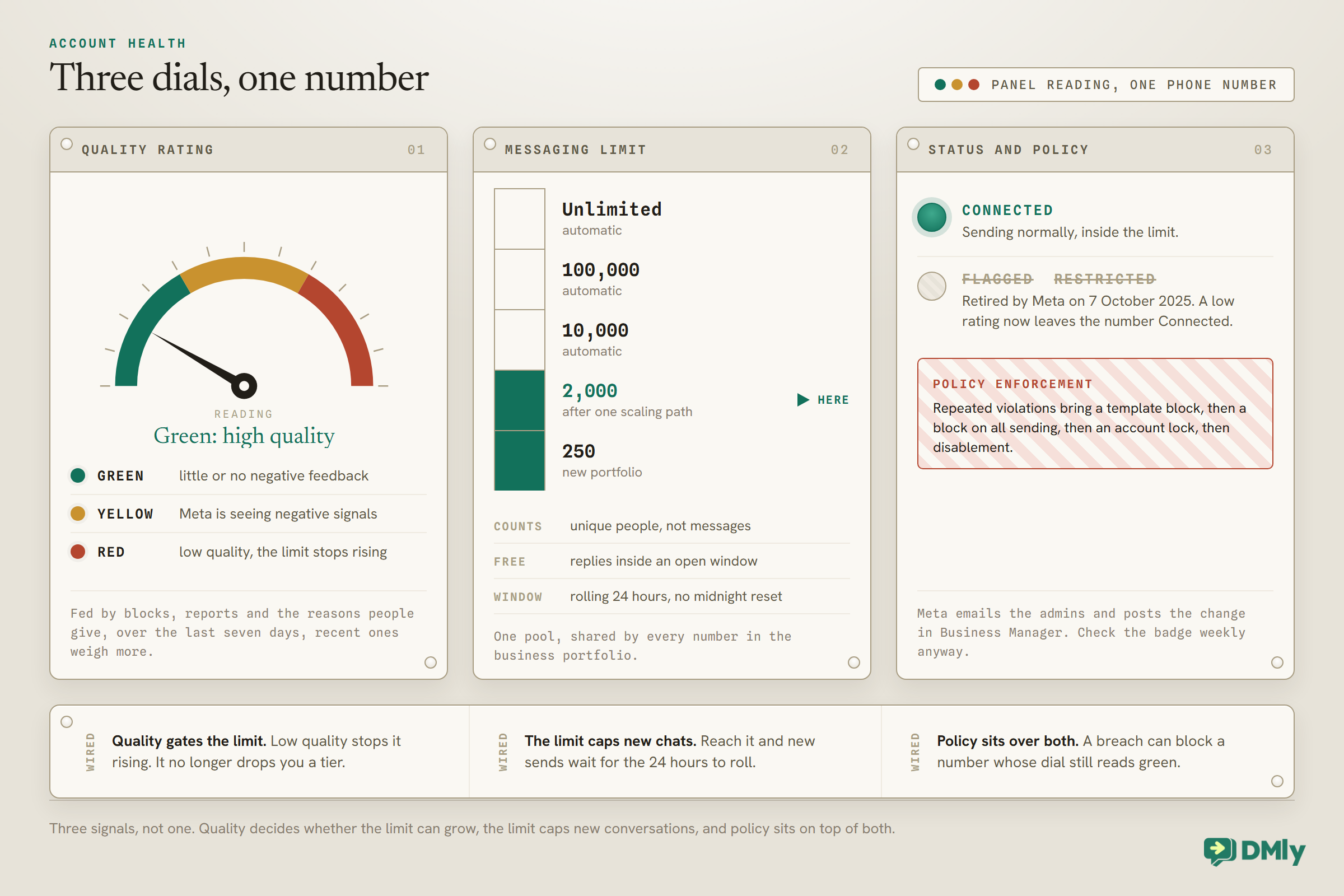
Three separate signals decide whether your number is healthy, and it is worth being able to name all three. Meta tracks them for every business phone number on the WhatsApp Business Platform, which is the official API that platforms like DMly connect you to.
- WhatsApp quality rating. A green, yellow or red badge that reflects how your customers have reacted to your messages over the last seven days.
- Messaging limit. The number of different people you can start conversations with in a rolling 24-hour period. It starts at 250 and can grow to unlimited.
- Account and policy standing. Whether your number is Connected (Meta retired the old Flagged and Restricted statuses on 7 October 2025), and whether Meta has recorded any policy violations against your business.
The three are linked. Low quality no longer lowers your messaging limit, but it does stop it from growing. Hitting your limit stops new business-initiated conversations until the moving 24-hour period frees up room. Repeated policy violations lead to messaging blocks and, eventually, a ban. Keep the first one green and the other two mostly take care of themselves.
Where do you see them? Meta shows all three in WhatsApp Manager under your phone number. In DMly, the quality badge and your current messaging tier are on the Configuration tab under Bot Setup → WhatsApp, with quick links to Meta Billing, Business verification and WhatsApp Manager so you don’t have to hunt for them.
The WhatsApp Quality Rating Explained
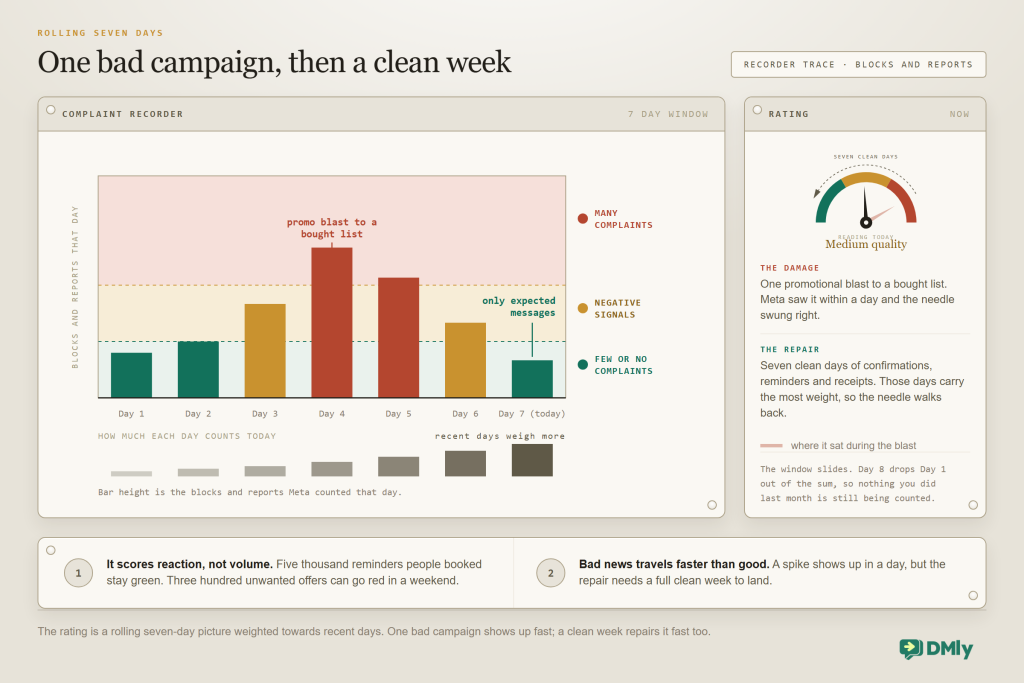
Your WhatsApp quality rating is Meta’s summary of how your customers have received your messages over the past seven days. It is calculated from a mix of signals, but the ones that matter most are simple: people blocking your number, people reporting your messages, and the reasons they give when they do. Recent feedback counts for more than older feedback, so a bad week shows up quickly, and a good week can repair it just as fast.
There are three ratings:
| Rating | What it means | What to do |
| Green | High quality. Little or no negative feedback in the last seven days. | Nothing. Keep doing what you’re doing and keep watching. |
| Yellow | Medium quality. Meta is seeing negative signals: blocks, reports or both. | Find the message or campaign that caused it, pause it, and tighten your audience. |
| Red | Low quality. Enough negative feedback that Meta may pause the templates people are blocking or reporting, and your messaging limit won’t rise. | Stop marketing broadcasts, send only expected messages, and fix the root cause before more templates get paused. |
Two things people often get wrong here.
It’s about how people react, not how much you send. A number that sends 5,000 appointment reminders a day to people who booked those appointments will usually stay green. A number that sends 300 “special offer” messages to people who never asked can go red in a weekend. Volume only becomes a problem when the messages aren’t wanted.
Phone number quality and template quality are different scores. Your number has a rating. Each approved template also has its own quality status based on how people react to that specific message. A single bad template can get paused on its own (we’ll come to that) while your number stays green. Both feed into whether Meta lets your messaging limit grow.
To see what your current tier allows per day and how long it takes to reach the next one, use the free WhatsApp messaging limit calculator.
Connected, Flagged and Restricted: What Changed in October 2025
Alongside the rating, your number carries a status, and the one you want to see is Connected. Older guides still describe two more, Flagged and Restricted. Meta discontinued both on 7 October 2025, and a drop in quality no longer costs you a tier, so if an article or an old screenshot sends you looking for them, here is what they were and what replaced them.
| Status | Why it happens | What you can do while it lasts | How it clears |
| Connected | Normal operation. | Send within your messaging limit. | Not applicable. |
| Flagged (retired 7 October 2025) | Used to appear when your quality rating dropped to low. | No longer shown. A low rating now leaves your number Connected. | Not applicable. Your messaging limit is no longer lowered for quality, but it won’t rise while quality is low. |
| Restricted (retired 7 October 2025) | Used to appear when you reached your messaging limit for the current 24-hour period. | No longer shown. If you reach your limit, you can still reply to anyone inside an open 24-hour window, but messages that would start a conversation with someone new won’t be delivered. | Room frees up as earlier sends drop out of the moving 24-hour period. |
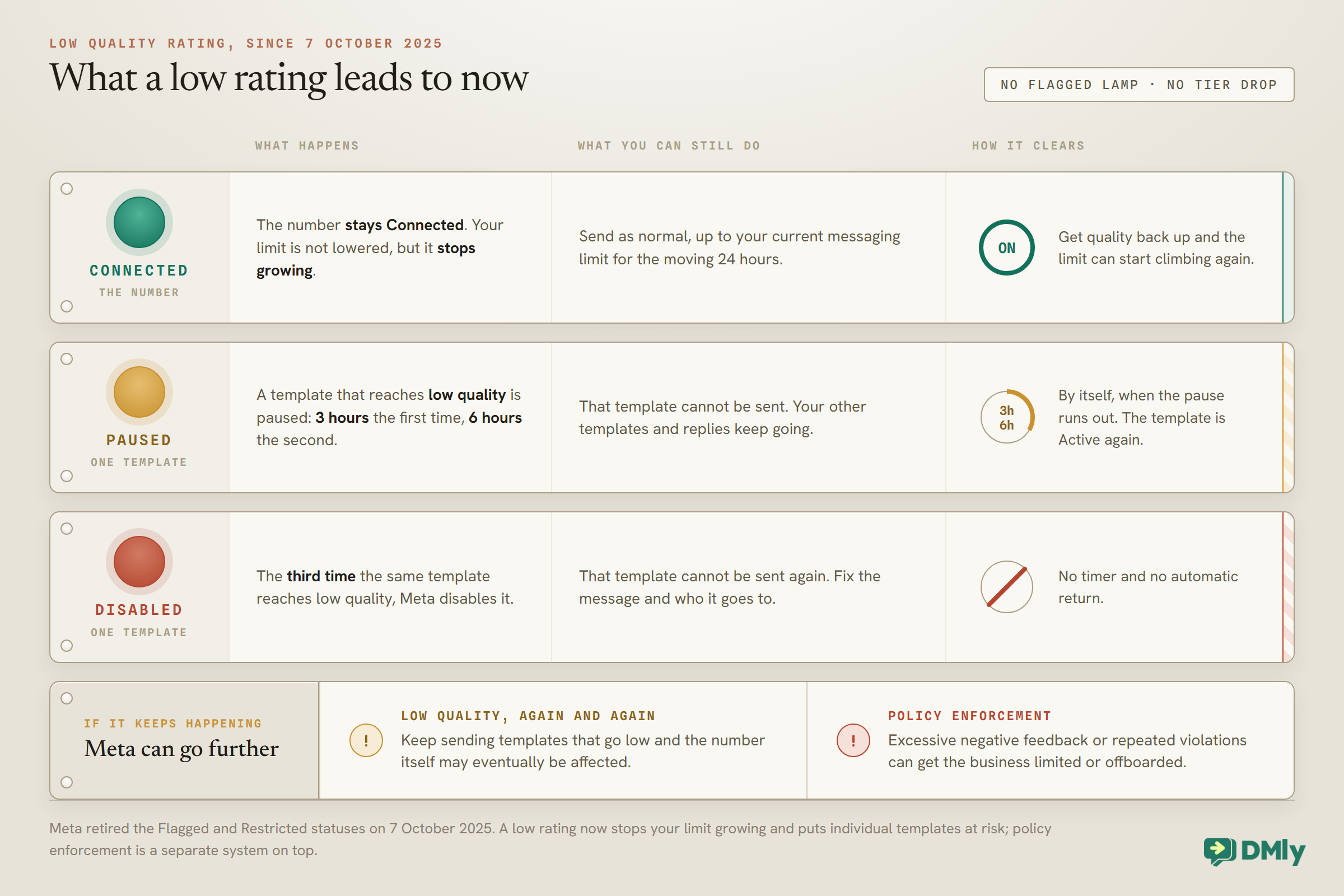
Meta emails the account admins and posts a notification in Business Manager when your rating drops to low or your status changes. Don’t rely on noticing the badge. Make sure the right person receives those emails, and check the badge in DMly or WhatsApp Manager once a week regardless.
Messaging Limits and Tiers: How Many People You Can Reach
This is the rule that catches out almost every new API user. You connect your number, build a nice broadcast, and only the first 250 people get it.
Here’s the precise definition, because the details matter. Your messaging limit is the maximum number of unique WhatsApp users your business can deliver messages to, outside of a customer service window, within a moving 24-hour period. Three things follow from that:
- Replies don’t count. When a customer messages you, a 24-hour customer service window opens and you can reply freely. Those messages never touch the limit. Only business-initiated messages sent outside a window (in other words, templates) do.
- It counts people, not messages. Sending three templates to the same person in a day uses one slot, not three.
- The 24 hours roll. It isn’t a calendar day that resets at midnight. It’s a sliding window.
One more detail that catches multi-number businesses out: messaging limits are set at the business portfolio level and shared by every phone number in the portfolio. If you run two numbers under one Meta business (a support line and a marketing line, say), they draw from the same pool, and one number can use up the whole allowance for both.
The tiers, and how you climb them
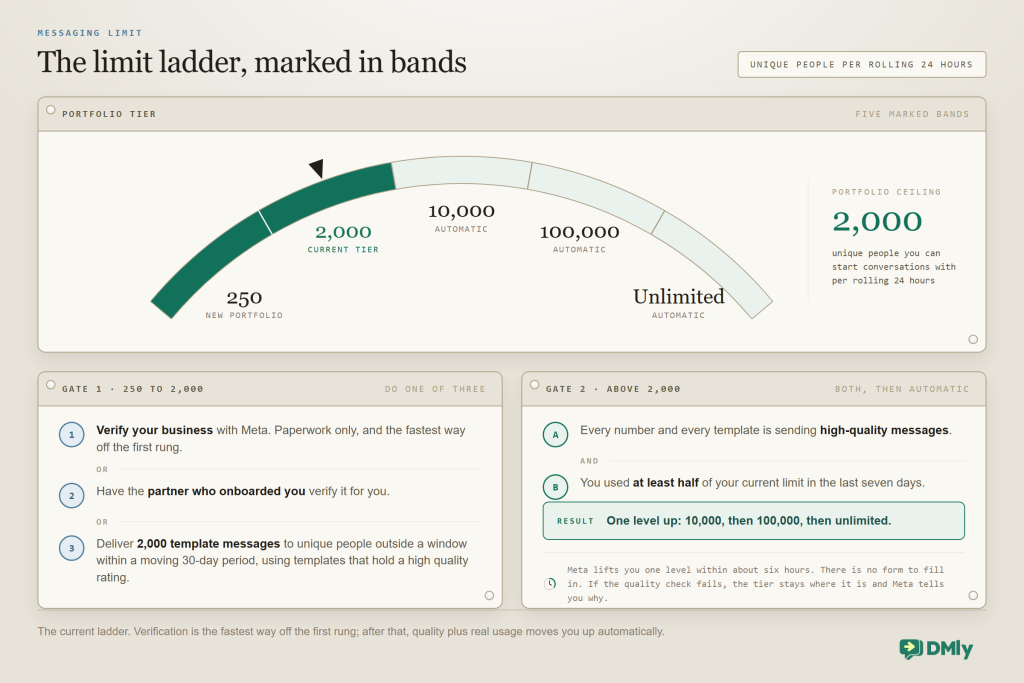
A new business portfolio starts at 250. To reach 2,000, you need to complete one of three scaling paths: verify your business with Meta, have the partner who onboarded you verify it, or send 2,000 delivered template messages to unique people outside customer service windows within a moving 30-day period, using templates that hold a high quality rating.
Above 2,000, the ladder is automatic. When your numbers and templates are all sending high-quality messages and you’ve used at least half of your current limit in the last seven days, Meta raises your portfolio to the next level (10,000, then 100,000, then unlimited) within about six hours. If the quality check fails, your limit stays where it is and Meta tells you why.
That’s why the two most common “why am I stuck?” answers are boring ones: you haven’t verified the business, or you aren’t actually using half of what you already have. There’s no form to request a bigger limit. You earn it by sending wanted messages to enough people, consistently.
Practical tip: Business verification is the single biggest lever for a new number. It costs nothing but paperwork, and it lifts you from 250 to 2,000 without waiting to prove yourself message by message. DMly links you straight to Meta’s verification page from the WhatsApp Configuration tab.
Template Quality, Pausing and Pacing
Getting a template approved is the beginning of its life, not the end. Every message you send outside the 24-hour window is a template Meta has approved in advance, and approval is not the end of the story. Once a template is live, Meta keeps scoring it on the same kind of feedback it uses for your number: blocks, reports and, for templates, low read rates.
An approved template moves through these statuses:
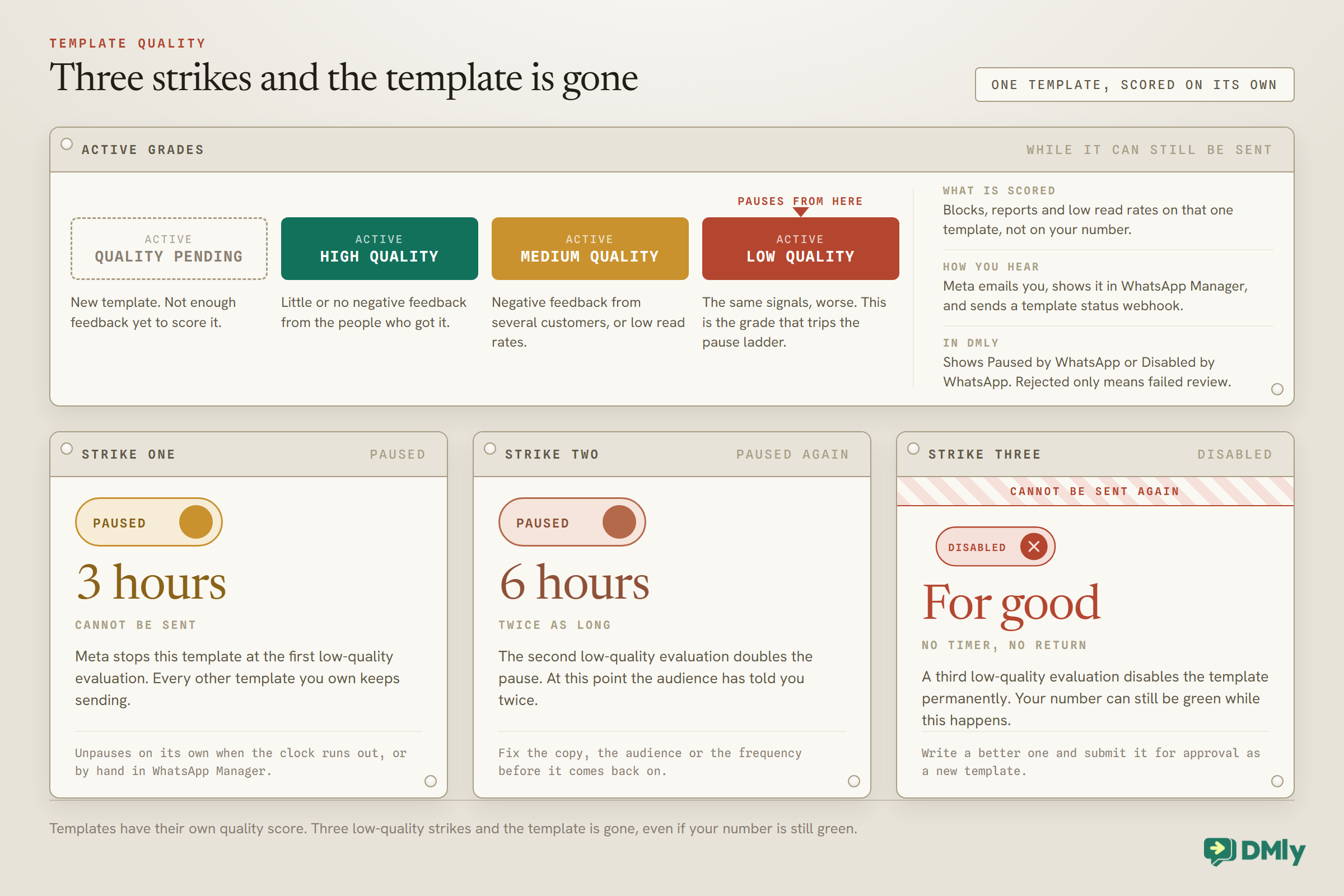
- Active, quality pending. New template, not enough feedback yet.
- Active, high quality. Little or no negative feedback.
- Active, medium quality. Negative feedback from several customers, or low read rates.
- Active, low quality. The same signals, worse. This is the trigger for pausing.
- Paused. The template can’t be sent. First pause: 3 hours. Second: 6 hours.
- Disabled. A third low-quality evaluation disables the template for good.
Two related mechanisms are worth knowing about:
Template pacing. For some templates, Meta deliberately delivers to a small slice of your audience first and waits for feedback before releasing the rest. If early recipients block or report, the rest are held back. Meta’s documentation describes pacing as a process that gives users time to give feedback on a template, and utility templates can be paced for up to seven days after one of them has been paused. In practice: if a broadcast seems to “trickle out”, pacing may be why.
Per-user marketing limits. Meta also caps how many marketing templates any one WhatsApp user can receive from all businesses combined in a period. If a customer has already had their fill of promotions from other brands that week, yours may not be delivered at all. You’ll see it as an undelivered marketing message, and there’s nothing you can do about it except be the message people actually want.
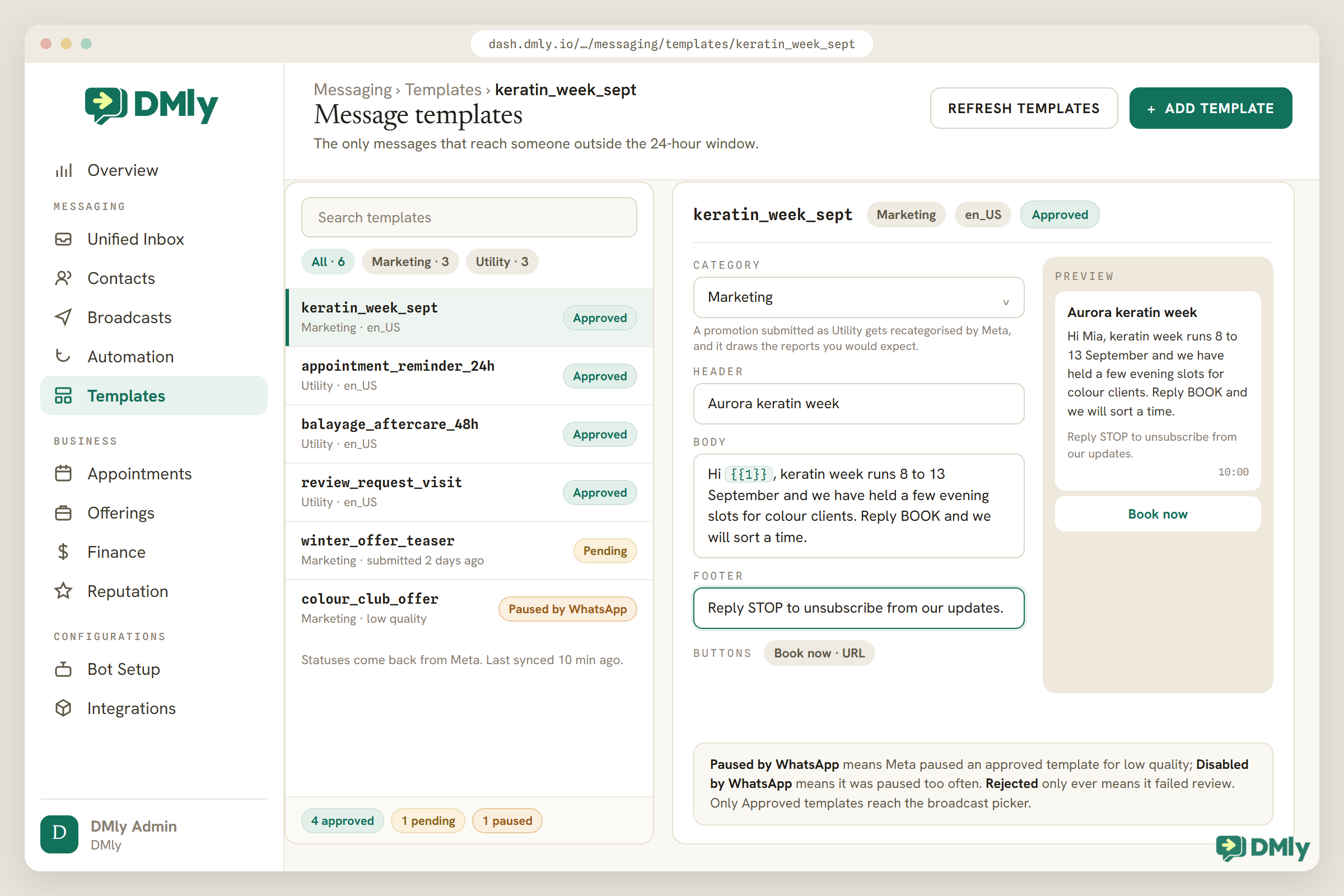
And one operational note for DMly users: when Meta pauses a template, it shows as Paused by WhatsApp on your Templates tab, one Meta disables after repeated pauses shows as Disabled by WhatsApp, and Rejected only ever means a template failed review. Only Approved templates appear in the broadcast picker. If a scheduled broadcast fails outright, the template’s status is the first place to look.
Restrictions and Bans: How Policy Enforcement Escalates
The WhatsApp quality rating is about how your customers feel; policy enforcement is about the rules. The two are separate systems and it helps to keep them separate in your head. Meta may restrict a WhatsApp Business account that repeatedly violates the WhatsApp Business Messaging Policy, the Commerce Policy or the Business Terms of Service. The examples Meta itself gives are sending spam, misclassifying templates (marking a promotion as “utility” to pay less), and messaging in high-risk categories such as adult content, alcohol and tobacco, drugs, gambling and unsafe supplements.
Enforcement is graduated. Meta’s documentation lists these steps:
- A 1- or 3-day block on sending marketing, utility and authentication template messages.
- A 5-, 7- or 30-day block on sending any messages at all.
- An account lock: an indefinite block on sending anything, which can only be removed by a successful appeal.
- Permanent disablement from the WhatsApp Business Platform.
You’ll be told when it happens: Business Manager shows the violation, admins get an email, and if your platform subscribes to the account_update webhook, it hears about it too.
How to appeal a restriction
If you believe the restriction is wrong, you can request a review. From Business Support Home in Meta Business Suite (the Account Quality area), select the account and the violation, click Request Review, add your supporting details, and submit. Decisions typically arrive within 24 to 48 hours, and the violation is marked either Reversed or Unchanged. When it’s reversed, the account goes back to its previous status.
Two pieces of advice. First, write the appeal like you’re talking to a person who has to make a decision quickly: what you sent, who it went to, how they opted in, and what you’ve changed. Second, submit it once and submit it well. Vague or repeated appeals don’t help.
Not the same thing: Bans on the free WhatsApp Business app (the phone app) are a different system with different rules, and they mostly happen to businesses using unofficial bulk-sending tools or sending to numbers that never contacted them. If your business depends on WhatsApp, the official API through a provider like DMly is safer precisely because the rules are written down and the signals are visible.
If you suspect your sending habits put the number at risk, the free WhatsApp ban checker pinpoints the likely trigger in a couple of minutes. If a number has already been banned, the WhatsApp ban appeal generator helps you write an appeal that names the cause and the fix.
What Actually Causes a Low WhatsApp Quality Rating
Almost every red badge we have seen traces back to one of these eight, and not one of them is exotic.
- Messaging people who never opted in. Bought lists, scraped numbers, contacts imported from an old system with no consent record. This is the number one cause, and it’s also a policy violation.
- No easy way out. If the only way to stop your messages is to block you, people will block you. Every marketing message needs a clear opt-out.
- Frequency. A weekly offer is a service. A daily one is spam, no matter how good it is.
- Irrelevance. Sending a men’s grooming promotion to your entire list, half of whom came in for children’s haircuts. Segmentation isn’t a nice-to-have.
- Bad timing. Promotions at 6am, or in the middle of the night for customers in another time zone.
- Misclassified templates. A “utility” template that is really a promotion gets recategorised by Meta, and it draws exactly the reactions you’d expect.
- Sudden volume from a brand-new number. Going from zero to thousands of templates in a day, before anyone has replied to you, looks like spam because it usually is.
- Ignoring the reply window. Sending a template to someone who is already talking to you, instead of just answering. Templates outside a window carry more risk than replies inside one.
How to Keep Your Number Green: The Playbook
Everything below is boring on purpose, because account health is mostly a set of habits rather than a set of settings.
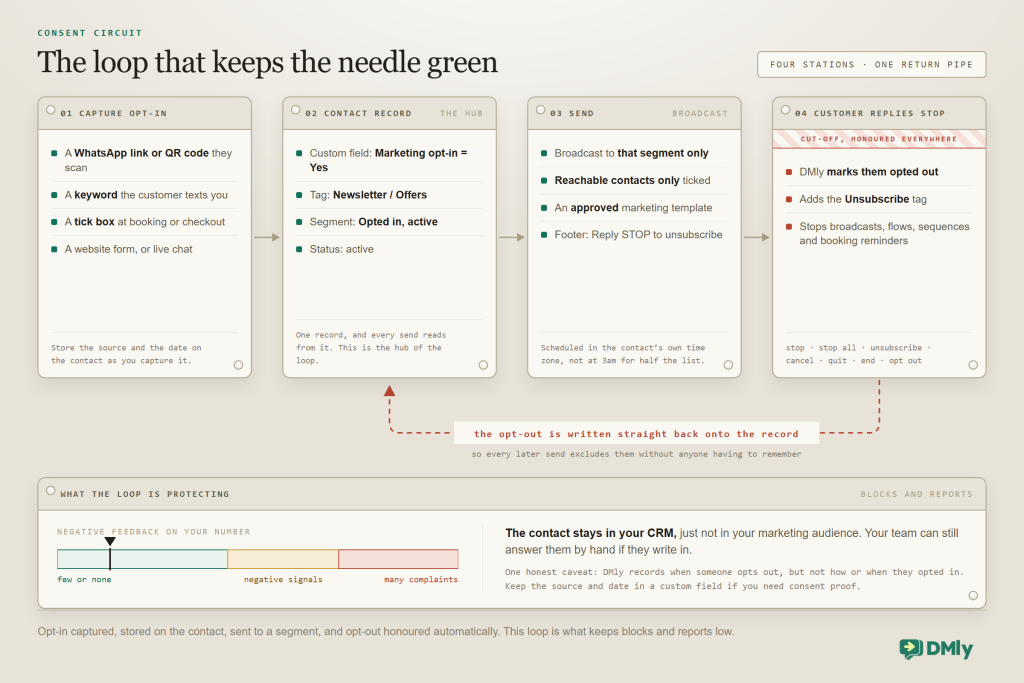
- Get real opt-in, and keep proof of it. WhatsApp’s policy is explicit: you may only message people who gave you their number and opted in to receive messages from you on WhatsApp. Collect it where the customer already is: a keyword they text you, a WhatsApp link or QR code they scan, a tick box at booking or checkout, a form on your website. Store the source and date on the contact.
- Make opting out effortless. Put “Reply STOP to unsubscribe” in your marketing templates and honour it instantly, everywhere. Someone who can leave politely won’t report you.
- Send to segments, not to “All contacts”. People who bought a service, people who booked in the last 90 days, people who asked about a specific offer. Small, relevant audiences protect the rating that lets you reach the big audience later.
- Lead with useful messages. Confirmations, reminders, order updates, receipts, review requests after a visit. They’re expected, they get read, and they build the history of good feedback that lets marketing messages land.
- Keep utility templates honest. If a message is a promotion, submit it as marketing. The recategorisation and the reports that follow cost far more than the price difference.
- Warm up a new number. Start with people who have already messaged you, grow the audience over weeks, and let the tier climb naturally. Verify the business early so you aren’t stuck at 250.
- Reply inside the window when you can. A quick human or AI reply within 24 hours is free-form, doesn’t need a template and doesn’t touch your limit. Templates should be for reaching out, not for answering.
- Watch the signals weekly. Quality badge, tier, template statuses, undelivered counts on the last broadcast. Five minutes on a Monday beats a week of red.
- Clean the list. Contacts who never reply, numbers that always fail, people who asked to stop. Remove or suppress them before they remove you.
- Time it like a person would. Send during business hours in the customer’s time zone, and never more than the customer would expect from a business they like.
How DMly Helps You Protect Your WhatsApp Number
Habits only survive a busy month if your tools make them the default. Here is how DMly’s WhatsApp channel, contacts and broadcast tools line up with the ten above, based on what the product actually does today.
See your health signals without leaving the dashboard
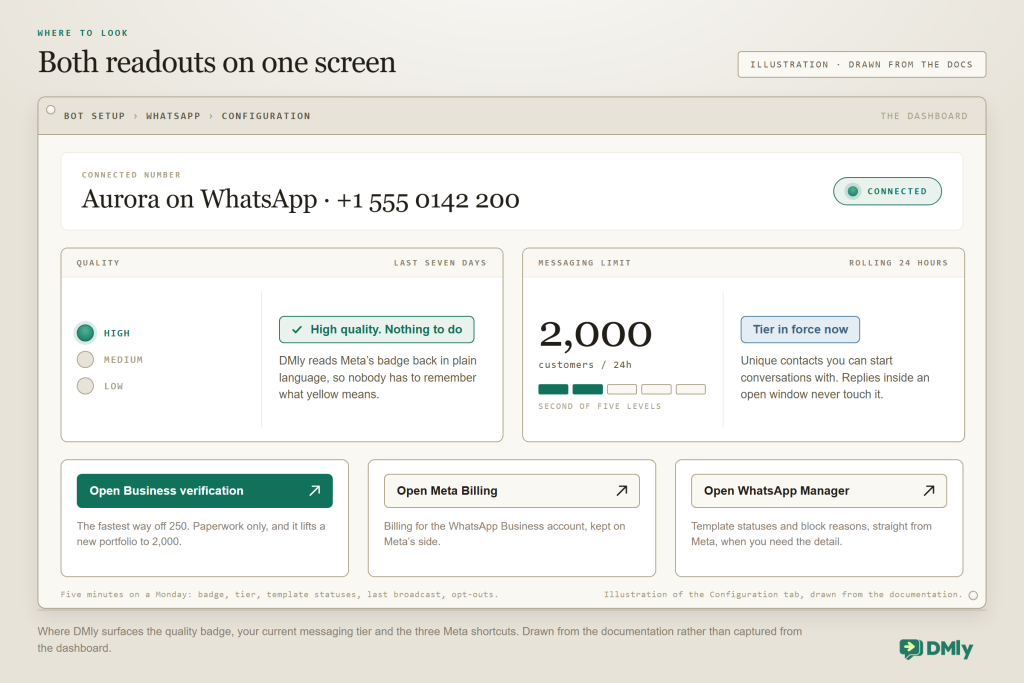
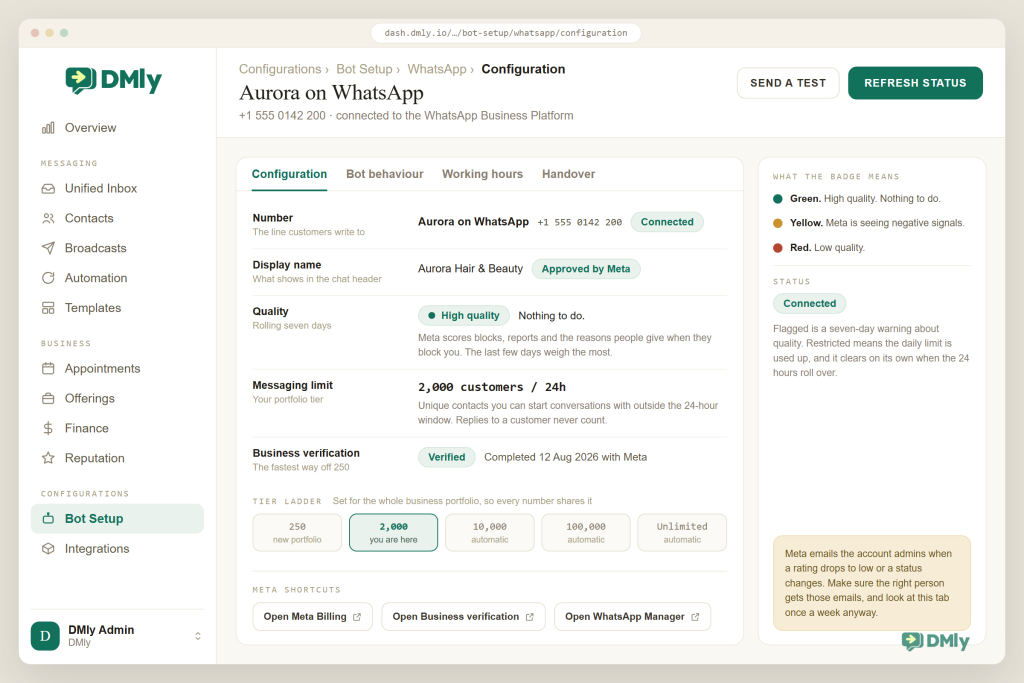
Under Bot Setup → WhatsApp → Configuration, DMly shows the quality badge for your number in plain language (Green: “High quality. Nothing to do.” Yellow: “Meta is seeing negative signals.” Red: “Low quality.”) and, on the Messaging limit row, the tier you’re currently on. Next to them are three shortcuts: Open Meta Billing, Open Business verification and Open WhatsApp Manager. Verification is where most new numbers should start, and it’s one click away.
Opt-out that just works, everywhere
When a contact texts one of the standard opt-out words as their whole message (stop, stop all, unsubscribe, cancel, quit, end, opt out), DMly marks them as opted out, adds an Unsubscribe tag to the contact, and stops every automated message to them: broadcasts, flows, sequences and booking reminders. Manual replies are refused too, even if they write in again: your team can’t answer until they send start or someone resubscribes them on Contacts → Suppressions, which should only happen when they’ve asked. Opt-outs are honoured on every send automatically, so nobody has to remember to remove someone from a list.
DMly’s own templates model the habit: the marketing and follow-up templates the team sends carry a footer such as “Reply ‘STOP’ to unsubscribe from our updates.” Add the same line to yours.
One honest caveat: DMly records when someone opts out, but it doesn’t currently record how or when they opted in. If you need consent proof (and under GDPR or similar laws you often do), store the opt-in source and date in a custom field or a note on the contact when you capture it, and use a segment built on that field for marketing sends.
Broadcasts that respect the audience
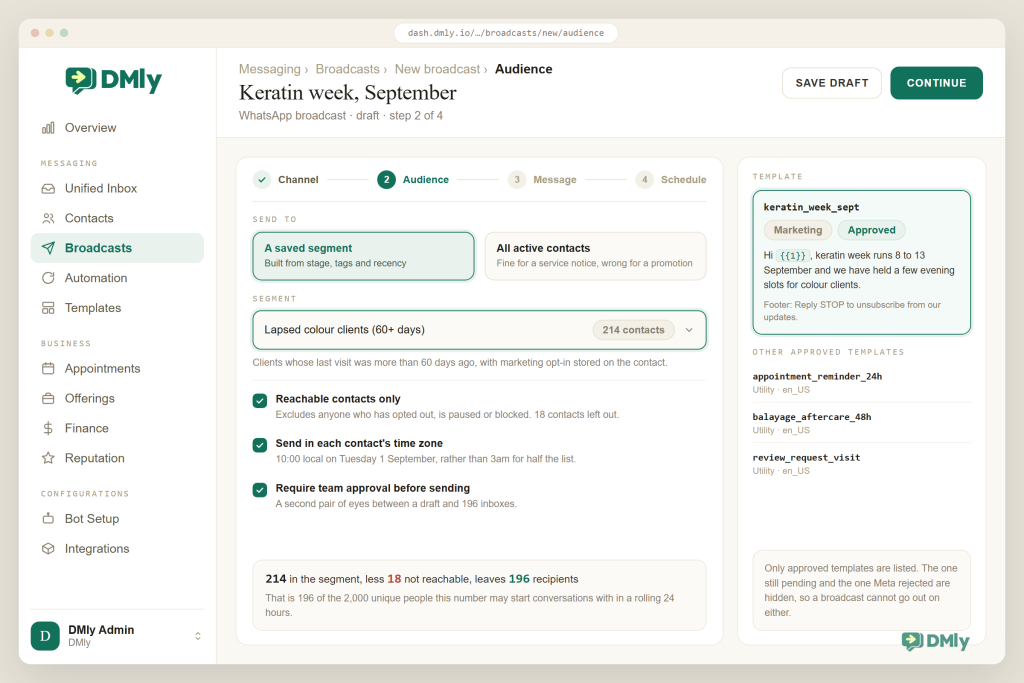
DMly broadcasts target one saved segment (or all active contacts), so the way you build segments is the way you protect your rating. Tick Reachable contacts only and anyone who has opted out is excluded before the send rather than showing up as a failure afterwards. Only approved templates appear in the picker, each variable takes a personalisation token, and you can schedule a campaign to go out at a chosen time in each contact’s time zone rather than at 3am for half your list. If your team is bigger than one person, Require team approval before sending puts a second pair of eyes between a draft and 2,000 inboxes.
Templates done properly
You create and submit templates from Messaging → Templates in DMly, choosing Marketing, Utility or Authentication, adding a header, footer and buttons if you want them, and giving every variable a sample value so Meta’s review has context. Statuses come back as Pending, Approved or Rejected with the reason and an Edit to fix button. Because the picker only lists approved templates and DMly enforces the 24-hour window everywhere (Inbox, Automations, Broadcasts and Sequences), the two classic mistakes, sending an unapproved template and sending free text outside the window, simply can’t happen from the dashboard.
Reply fast, so people don’t report
Blocks and reports mostly come from marketing. Fast, helpful replies mostly come from a good inbox. DMly’s shared inbox and AI agent mean a customer who replies to your broadcast gets an answer within the 24-hour window, from a person or from AI trained on your business, and that answer doesn’t use a template or your messaging limit at all. Contacts can also be set to paused (automations hold off) or blocked (never messaged), which is a useful middle ground for someone who complained but didn’t formally opt out.
Run WhatsApp on the official API, with the guardrails built in
Connect your number, get verified from the dashboard, send to segments with opt-out handled automatically, and see your quality badge and tier without opening WhatsApp Manager. Free 7-day trial, no credit card.
What to Do If Your WhatsApp Quality Rating Drops
It happens to careful businesses too, so this is the order to work through it in.
- Stop the bleeding today. Pause every marketing broadcast and any flow that sends promotional templates. Leave utility messages (confirmations, reminders, receipts) running; they’re usually the messages people want.
- Find the cause. Look at what went out in the last seven days. Which template? Which segment? Which time? Check the template statuses in WhatsApp Manager for anything at medium or low quality, and look at block reasons if Meta shows them.
- Fix the audience before you fix the message. Nine times out of ten the problem is who received it, not what it said. Rebuild the segment around genuine opt-in and recent activity, and remove anyone who has failed, opted out or never replied.
- Send only expected messages for a week. Recent days weigh more in the rating, so seven days of clean, useful messages usually brings a yellow number back to green and lets your tier start climbing again.
- If you hit your messaging limit, wait. The limit counts a moving 24-hour period, so room frees up on its own as earlier sends drop out of it. Use the time to check whether you’ve verified the business and whether you’re close to the next tier.
- If it’s a policy restriction, appeal once and appeal well. Request Review from Business Support Home, explain how people opted in and what you’ve changed, and attach evidence. Expect an answer within a day or two.
- Write down what changed. New segment rules, a template you retired, a frequency cap. Health problems repeat when the fix lives in one person’s memory.
A Weekly Account Health Checklist
| Check | Where | Healthy looks like |
| Quality badge | DMly: Bot Setup → WhatsApp → Configuration, or WhatsApp Manager | Green. Yellow means investigate this week, not next month. |
| Messaging tier | Same screen, Messaging limit row | Enough headroom for your next campaign; verified if you’re still on 250. |
| Template statuses | DMly Templates tab and WhatsApp Manager | Everything Approved and high quality; nothing paused or medium. |
| Last broadcast results | DMly broadcast report | Low failed count; failures explained (opted out, closed window, template). |
| Opt-outs | Contacts with the Unsubscribe tag | A steady trickle, not a spike after one campaign. |
| Reply speed | Inbox | Customers who reply to broadcasts get answered within the window. |
| Segments | Contacts → segments | Marketing audiences built on opt-in and recent activity, not “All contacts”. |
Final Thoughts
WhatsApp account health is not a mystery and it is not luck. The WhatsApp quality rating scores how people react to you over the last seven days, your messaging limit gives you a ceiling that grows with proof of good behaviour, and Meta steps in with escalating restrictions when the rules get broken. Every one of those systems rewards the same thing: sending messages people asked for, at a sensible pace, with an easy way to say stop.
Build the habits into your setup rather than into your memory. Capture opt-in where customers already are, send to segments, keep templates honest, reply inside the window, and look at the badge once a week. With DMly, most of that is the default: opt-outs are honoured automatically, broadcasts go to segments with the opted-out excluded, only approved templates can be sent, and your quality badge and tier sit on the same screen as the button that gets your business verified.
Frequently Asked Questions
How often is the WhatsApp quality rating updated?
Continuously, on a rolling seven-day window, with recent feedback weighted more heavily. That’s why a single bad campaign can turn a badge yellow within a day or two, and why a week of clean sending usually brings it back.
Does a low WhatsApp quality rating reduce my messaging limit?
Not any more. Since 7 October 2025 Meta no longer lowers your messaging limit when your quality rating drops, and the old Flagged status is gone. Low quality still costs you, though: it stops Meta from raising your limit automatically, and the templates people block or report can be paused.
What is the difference between Flagged and Restricted?
Neither exists any more: Meta discontinued both phone number statuses on 7 October 2025. Flagged used to be a seven-day quality warning that could cost you a tier, and Restricted used to show when you had reached your messaging limit for the day. Today your number shows Connected, your quality rating sits beside it, and if you reach your messaging limit you can still reply to customers inside an open 24-hour window.
Why can I only message 250 people a day?
250 unique users per rolling 24 hours is the starting limit for a new business portfolio. Verify your business with Meta (or have your onboarding partner verify it), or deliver 2,000 high-quality template messages to unique people within 30 days, and the limit rises to 2,000. From there it climbs automatically as long as quality stays high and you use at least half of your limit each week.
Do replies inside the 24-hour window count towards my limit?
No. The limit only counts business-initiated messages sent outside a customer service window, in other words templates. Replies inside the window are free-form and unlimited, which is a good reason to answer quickly.
My template says Paused. What now?
Meta paused it because of recurring negative feedback or low read rates. The first pause lasts 3 hours, the second 6 hours, and a third low-quality evaluation disables the template permanently. It unpauses automatically, or you can unpause it manually in WhatsApp Manager, but the smarter move is to rewrite the message and tighten the audience before you send it again.
My WhatsApp Business account has been restricted. Can I appeal?
Yes. In Meta Business Suite, open Business Support Home (Account Quality), select the account and the violation, click Request Review, add your details and submit. Decisions typically take 24 to 48 hours and are marked Reversed or Unchanged.
Does DMly warn me before Meta restricts my number?
DMly shows your quality badge and messaging tier on the WhatsApp Configuration tab and suppresses opted-out contacts automatically, but the enforcement itself (tier changes, pauses, restrictions) is Meta’s and arrives through Meta’s notifications. Make sure the admins on your Meta business receive those emails, and check the badge weekly.
Writing about WhatsApp automation, bookings and growth for local business.
Turn WhatsApp into your busiest channel.
Start free and run message, bookings, payments and reviews in one place.
