
Google Business Profile Automation: The Complete Guide for Local Businesses
Your Google Business Profile may be one of the first things people see when they search for your business. But keeping it active means checking reviews, replying to customers, updating information, and remembering to ask happy customers for feedback.
For a busy local business, those little tasks pile up fast.
But with Google Business Profile automation, you can take much of that repetitive work off your plate. You can automatically request reviews after customer visits, keep track of new feedback, manage your profile, and use AI to help with responses.
In this guide, we’ll look at what you can automate, what you should still handle personally, and how to build a system that keeps your Google presence working even when you’re busy elsewhere.
What Is Google Business Profile Automation?
Google Business Profile automation, also known as GBP automation, is the use of software and automated workflows to handle repetitive tasks involved in managing your business presence on Google.
Instead of remembering to check your profile and perform every action manually, you can set up certain tasks to happen automatically when something triggers them.
Take reviews as an example. Normally, your receptionist might finish an appointment, remember to message the customer later, find your Google review link, and send it manually. With automation, completing the appointment can trigger the review request for you.
The same idea can apply to other parts of profile and reputation management. Depending on the software you use, you can:
- Send automated Google review requests after customer visits
- Monitor new reviews without constantly checking Google
- Get notified when customers leave feedback
- Draft review responses with AI
- Manage business information and opening hours
- Publish and manage Google Business Profile posts
- Manage several business locations from one place
The important word here is automation. You’re deciding beforehand what should happen when a particular event occurs.
For example:
Appointment completed → wait 2 hours → send customer a WhatsApp review request → customer opens your Google review link → new review appears → team is notified → AI helps draft the response
What Parts of a Google Business Profile Can You Automate?
Start with the shape of it, because the boundary is sharper than most articles on this subject admit. A connected Google Business Profile gives you five tabs and no more: Performance, Reviews, Request reviews, Posts and Business info. If a job is not one of those five, it is still a job you do on Google.
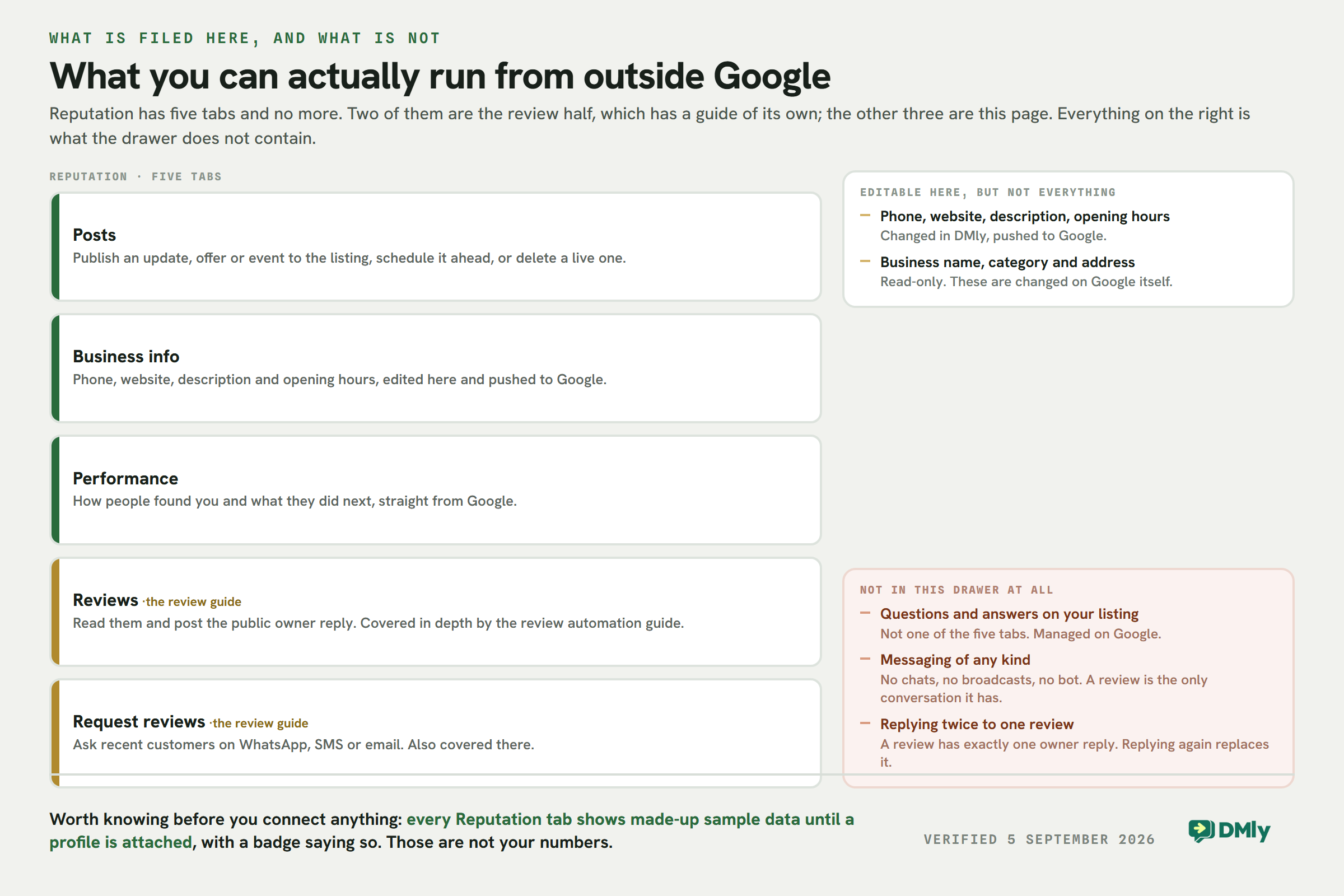
Three absences are worth stating plainly, because assuming any of them costs you a morning.
Questions and answers on your listing are not managed here. The Q&A section that appears under a Google listing is not one of the five tabs, so answering a question a customer has posted is something you do on Google. It is worth doing: a good Q&A section answers the queries that would otherwise become phone calls. It is just not a thing you can automate from outside.
It is not a messaging channel. No chats, no broadcasts, no bot. A review is the only conversation Google gives you here, and the customer cannot reply to your reply. If you want to actually talk to the people leaving reviews, that happens on a channel that carries messages.
Photos reach your listing through a post, not through a photo manager. You can attach one to an update, an offer or an event. There is no gallery to curate from here, so the photos on your listing stay Google’s business.
The numbers you see before you connect are not yours
Worth knowing on day one. Every Reputation tab works before a profile is attached, and what it shows is sample data: made-up reviews, made-up names, made-up numbers, with a badge and a prompt saying so. It is there to show you the shape of the thing. It is not hard to mistake for your own listing on a Monday morning, and people do.
Quite a bit of the day-to-day work around your Google Business Profile can be automated or managed through one central system. The trick is knowing which tasks are repetitive enough to hand over and which ones still deserve your attention.
Here are some of the most useful areas to consider.
Review Requests
This is probably the biggest opportunity for local businesses.
Instead of relying on staff to remember to ask every happy customer for a review, you can make the request part of your normal customer journey. For example, DMly can trigger a review request after an appointment and send it through WhatsApp or SMS, with a direct link to your Google review page.
A spa could automatically contact a customer a few hours after their treatment. A dentist could send the request following a completed appointment. The customer gets an easy way to leave feedback while the experience is still fresh.
Review Monitoring and Responses
You shouldn’t have to open your Google Business Profile every morning just to see if somebody left a review overnight.
Review management software can bring new reviews into a central dashboard and alert your team when something needs attention. Google also provides API functionality that allows approved applications to retrieve reviews and publish replies.
AI can help with the writing too. Instead of starting every response from scratch, it can prepare a reply based on the review and your business tone.
Business Information
Customers rely on Google for basics such as your address, phone number, website and opening hours.
Some Google Business Profile management platforms let you manage this information centrally rather than jumping between listings. This becomes especially useful when you have several locations.
If your restaurant group has five branches, for example, your team can manage location information through a central system instead of treating every profile as a completely separate job.
Opening and Special Hours
Few things annoy customers faster than driving somewhere Google says is open, only to find the doors locked.
Regular opening hours can be managed centrally, while special hours can be prepared for holidays, temporary closures, and other changes. This is one area where automation and scheduling can reduce last-minute scrambling, although unusual changes are worth checking manually before they go live.
Google Posts
Google Business Profile posts give you another place to share updates, offers, events, and news with people who find your business through Google.
Rather than remembering to create and publish each update manually, supported management tools can make planning and publishing profile content easier. This is particularly useful for businesses that already schedule content elsewhere and want Google to be part of the routine.
The Review Half, and Where It Is Written Up
Two of Reputation’s five tabs are about reviews: reading them and replying, and asking for them. They are the half most people arrive looking for, and they have enough in them to fill a guide of their own, which is where they live rather than here.
The short version, so you know what you are choosing between. Reviews sync in from Google and land in your inbox as their own conversations, and you post the public owner reply from there. Review requests go out as a tracked link on WhatsApp, SMS or email, by hand from the Request reviews tab or automatically from a flow after an appointment or a payment. Two details catch people out: a review has exactly one owner reply, so replying again replaces what you posted rather than adding to it, and you cannot message a reviewer. The review is the only conversation Google gives you.
Everything past that point, the timing of the ask, which customers to ask, what a good reply contains, how to handle a bad review and what Google actually permits, is in our complete guide to Google review automation: requests, replies and reporting. The rest of this page is the other three tabs, which are the ones nobody writes about and the ones that quietly do more for a local listing.
What You Shouldn’t Automate Blindly
Automation is great at handling predictable tasks. It becomes less useful when a situation needs judgement, context, or a careful human response.
So, while you can automate plenty of your Google Business Profile management, there are a few areas where keeping a person involved makes sense.
1. Sensitive or Serious Negative Reviews
A one-star review saying “service was slow” is different from a detailed complaint involving an employee, payment dispute, or serious customer experience issue.
AI can help summarize the complaint or prepare a first draft, but publishing that response automatically can backfire. The AI doesn’t know everything that happened offline, and an inaccurate reply can make an already unhappy customer even more frustrated.
Route sensitive reviews to a manager or team member for approval before responding.
2. Major Changes to Your Business Information
You don’t want an incorrect automation changing your phone number, address, or regular opening hours.
These details directly affect people trying to visit or contact you. Major profile changes should usually be checked by someone who knows the information is correct before they’re published.
Automation can still make the management process easier. It just shouldn’t have unchecked control over important business details.
3. Unusual Customer Questions
Some customer questions have simple answers. Others don’t.
If someone asks about parking, wheelchair access, or a particular service, an AI system may be able to answer if you’ve provided the correct information.
But unusual questions with missing context are better sent to your team than answered with a confident guess. Build a handover into your automation for situations it can’t reliably handle.
4. Every Review Response
It’s tempting to switch on AI replies and leave them running. The result can quickly become a profile filled with repetitive, generic responses.
“Thank you for your feedback. We appreciate your support.”
“Thank you for your feedback. We appreciate your support.”
Customers notice.
Use AI to speed up the writing, but give it enough context to produce responses that relate to what the reviewer actually said. For sensitive feedback, keep human approval in the process.
5. Deciding Who Gets Asked for a Review
This one matters.
Don’t create a system that asks customers privately if they’re happy and sends only the happy ones to Google. This practice is commonly called review gating, and it goes against Google’s policies.
You also shouldn’t offer money, discounts, free services, or other incentives in return for a Google review.
Your automation should give genuine customers a fair opportunity to leave honest feedback, regardless of whether you expect that feedback to be positive or negative.
How Google Business Profile Automation Works with DMly
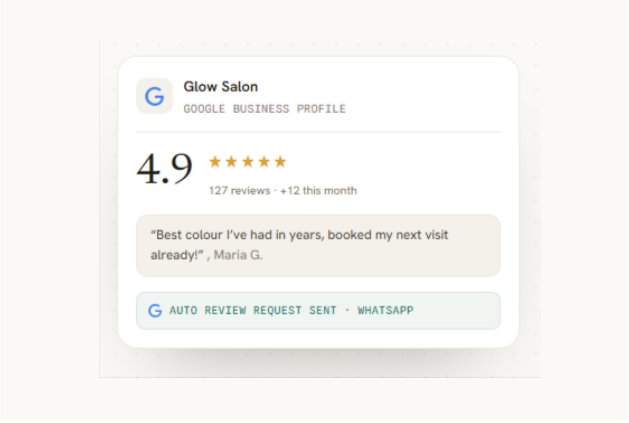
DMly brings Google Business Profile management into the same platform you already use for customer conversations, bookings, and automations. That connection matters because a review usually starts with something that happened before the customer ever opened Google.
Here’s how you can put it to work.
Step 1: Connect Your Google Business Profile
Start by connecting your Google Business Profile to DMly. Once connected, you can manage your profile and reputation activity without constantly moving between DMly and Google.
If you operate more than one location, you can also bring those profiles into the same setup and keep track of each branch more easily.
Step 2: Manage Your Profile from DMly
From your DMly dashboard, you can manage important parts of your Google presence, including business information, opening hours, photos, and posts.
This gives your team a central place to keep an eye on the profile alongside the customer conversations they’re already handling.
Step 3: Build Your Review Request Automation
Now decide when customers should receive a review request.
This is where DMly’s wider automation system comes into play. Instead of creating a standalone review campaign and remembering to add customers to it, you can connect the request to something that has already happened.
For example:
Appointment completed → wait 2 hours → send review request
Or:
Service completed → wait until the following morning → send review request
You control the trigger, timing and other conditions around the workflow.
Step 4: Send the Request Through WhatsApp, SMS or Email
DMly can automatically send your review request through WhatsApp or SMS, along with a direct link to your Google review page.
Keep the message short and natural. The customer already knows your business, so there’s no need for a long pitch. A quick thank-you and an easy way to share their experience is usually enough.
This also means review requests can become part of the same communication flow as appointment confirmations and reminders rather than another disconnected process.
Step 5: Keep Track of New Reviews
Once customers start leaving reviews, DMly gives your team a place to manage them.
You can see new feedback and respond without repeatedly checking individual Google profiles. For businesses with several locations, this makes it easier to keep an eye on what customers are saying across the company.
Step 6: Let AI Help with the Reply
When a review arrives, DMly’s AI can help prepare a response based on what the customer wrote.
That can save a surprising amount of time when you’re replying to similar positive reviews every week. You can still review and adjust the response before publishing, particularly when the feedback involves a complaint or something that needs context.
Step 7: Connect Reputation to the Rest of the Customer Journey
A profile that sits on its own is a profile nobody looks at. The point of connecting it is that the same contact record carries the appointment, the payment and the review request, so the ask lands after the thing it is asking about. Booking and reminders is usually where that chain starts for a local business.
This is where DMly’s approach to Google Business Profile automation becomes particularly useful.
Your review system doesn’t have to operate on its own. It can work alongside your CRM, appointment management, AI agents, and conversations across WhatsApp, Instagram, Messenger, TikTok, Telegram, SMS, and Live Chat.
A salon customer journey, for example, could look like this:
Instagram enquiry → AI answers questions → appointment booked → reminder sent → appointment completed → WhatsApp review request → Google review → response
The customer experiences one connected journey. Your team isn’t manually carrying information between a messaging app, booking calendar, review tool and CRM in the background.
And that’s the bigger idea behind using DMly for reputation management. You’re not simply automating the moment you ask for a Google review. You’re connecting that request to the customer experience that earned the review in the first place.
Keeping Your Business Information Right
This is the least glamorous thing on the page and the one that costs the most when it is wrong. A customer who drives to a closed shop because your bank holiday hours were never updated does not leave a one-star review; they just never come back, and you never find out.
Four fields can be edited outside Google and pushed to your listing: phone, website, description and opening hours. Change them once and they go to Google.
Three cannot: your business name, your category and your address are read-only. Those are changed on Google itself, and there is a good reason for it. They are the fields Google verifies and the ones that decide which searches you show up in at all, so they sit behind Google’s own checks rather than behind an API. If you have moved premises or changed what the business is called, that is a job on Google, not a job here.
Special hours are the ones worth a diary reminder
Ordinary opening hours change once a year if that. Special hours change eight or ten times, around bank holidays, a staff wedding, stocktaking, the week you close between Christmas and New Year. Every one of those is a day when your listing is confidently telling people you are open. Put the whole year in at once if you can, because the version of you that remembers in December is not the version that will be standing in the shop.
If you have more than one location
Each location connects as its own profile, and once more than one is connected a Switch location control appears. Everything below it follows the location you pick: reviews, requests, posts, business info, performance.
One detail worth knowing before you brief a team on it. That choice is yours alone and it lasts for your session. It does not change what your colleagues see, and signing out resets it. So “I fixed the hours” is not a complete sentence in a multi-location business; the useful version names the branch.
Posts: The Part Google Will Not Let You Schedule
A post on your listing is an update, an offer or an event, and it shows to people who find you on Google or Maps. It is the one part of a profile that rewards regular attention, and it is also the part with the most ways to trip.
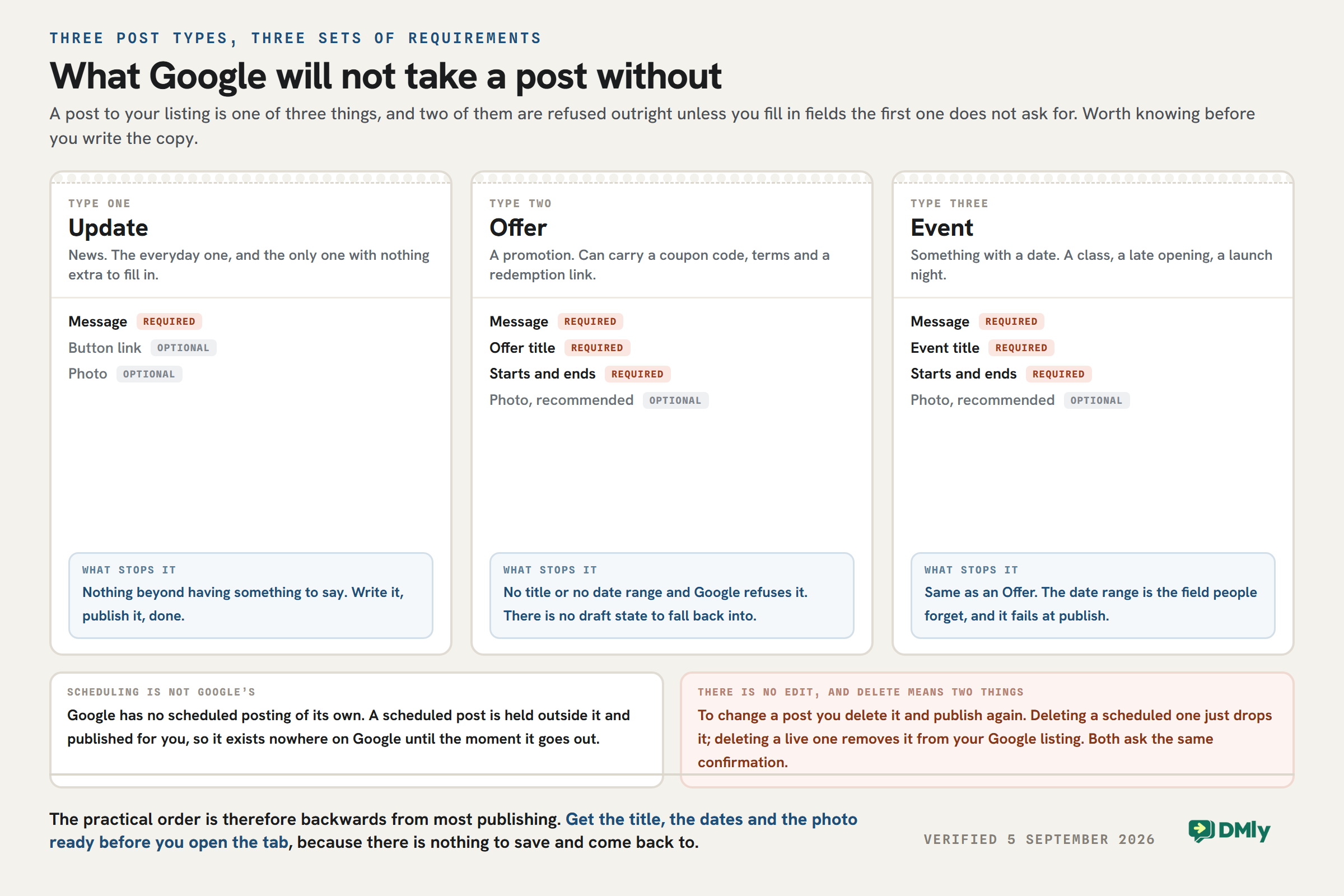
Start with the one that changes how you work: Google has no scheduled posting of its own. Scheduling a post means holding it outside Google and publishing it at the right moment on your behalf, which is genuinely useful for a business that writes its week on a Sunday evening. It also means a scheduled post exists nowhere on Google until it goes out, so nobody can see it, check it or approve it on the listing in the meantime.
There is no edit. A post is published or it is not. To change a comma you delete it and publish again, which is worth knowing before you write a long one.
And deleting means two different things behind the same confirmation. Deleting a scheduled post simply drops it, and since it never reached Google there is nothing on your listing to remove. Deleting a live post takes it off your listing for good. The confirmation reads the same either way, so read the row you are deleting rather than the dialog.
One last thing that saves a wasted evening: an Offer and an Event both need a title and a start and end date, and Google will not take them without. A photo is recommended for both. Get those ready before you open the tab, because there is no draft state to save into and come back to.
Google Business Profile Automation vs Manual Management
You can manage a Google Business Profile manually. For a small business with one location and a handful of reviews each month, that may work perfectly well.
The challenge comes when customer numbers grow. Review requests need sending, new feedback needs checking, opening hours change, and another location gets added. Tasks that once took a few minutes start competing with the rest of your day.
Here’s how the two approaches compare:
| Task | Manual Management | With Automation |
| Review requests | Staff remember to contact customers individually | Requests can be triggered after appointments or visits |
| Timing | Messages go out when someone has time | Requests can be sent after a chosen delay |
| Review monitoring | Someone regularly checks Google for new reviews | New reviews can be brought into a central dashboard |
| Review responses | Every response is written from scratch | AI can help prepare personalized responses |
| Opening hours | Changes are made directly on individual profiles | Hours can be managed from a central system |
| Multiple locations | Staff switch between separate profiles | Locations can be managed together |
| Customer follow-up | Separate tools or manual messages may be needed | Follow-ups can form part of an automated workflow |
| Consistency | Depends on employees remembering each task | The same process can run after each qualifying customer interaction |
Manual management gives you direct control, but it also makes the process dependent on someone remembering what needs doing. That’s fine until Friday gets busy and nobody sends the review requests, or a negative review sits unnoticed over the weekend.
Automation makes the predictable work happen more consistently. Your team can then spend its time on the parts that benefit from human attention, such as responding to a detailed complaint or deciding how to handle an unusual profile update.
The two approaches don’t have to be opposites, either. For most local businesses, the better setup is a mix of both: automate repetitive actions and keep people involved where judgement matters.
With DMly, for example, you might automate the review request and notification, use AI to prepare the response, and still have an employee check a sensitive reply before it goes public. You save time without handing complete control of your reputation to software.
Best Practices for Google Business Profile Automation
Two of these are about reviews and are covered properly in the review automation guide; the rest are the profile itself.
A good automation should make your profile easier to manage without making customer interactions feel robotic. A few habits help:
- Start with repetitive tasks. Automate review requests, notifications and routine follow-ups first. Leave unusual situations for your team.
- Ask for reviews at a sensible time. Base the timing on your customer experience. A restaurant, dentist and home service business won’t necessarily need the same delay.
- Send customers directly to Google. Use the correct review link so they can leave feedback without hunting for your profile.
- Keep requests short. A quick thank-you and clear review link are usually enough.
- Avoid review gating. Give genuine customers the same opportunity to leave honest feedback rather than directing only happy customers to Google.
- Never reward positive reviews. Discounts, freebies and other incentives for reviews can breach Google’s policies.
- Put limits on repeat requests. Don’t send the same regular customer a review message after every single visit.
- Keep a human check for sensitive replies. Complaints, disputes and serious negative reviews deserve someone who understands what happened.
- Give AI enough context. Train it on your business and tone so review responses don’t sound generic or disconnected from what the customer wrote.
- Keep each location accurate. For multi-location businesses, check that hours, contact details, review links and workflows point customers to the correct branch.
- Review your automations occasionally. Your opening hours, services and customer journey will change. Update the workflows when the business changes.
- Track what happens after requests go out. Look at review volume, response activity and recurring feedback. The point isn’t simply to automate more tasks. It’s to make reputation management easier and more consistent.
Where to Start
Your Google Business Profile can influence what happens between someone finding your business and deciding to contact or visit you. But keeping your information current, asking for reviews, and responding to feedback can easily become another list of jobs nobody quite has time for.
Google Business Profile automation takes much of that repetitive work out of the process. With DMly, you can connect reputation management with the customer journey already happening across your bookings, CRM, WhatsApp, SMS and other channels.
A completed appointment can lead naturally to a review request, and a new review can quickly reach the team member who needs to see it.
Automate the predictable parts. Keep people involved when context and judgement matter. That’s usually the best balance.
Frequently Asked Questions
What Is Google Business Profile Automation?
Google Business Profile automation uses software and workflows to handle repetitive parts of managing your profile. This can include sending review requests, monitoring reviews, helping with responses, managing profile information, and handling multiple locations.
Can You Automate a Google Business Profile?
Yes. Google provides official APIs that approved platforms can use to manage supported Business Profile functions.
The level of automation depends on the software you choose. Some tools focus mainly on reviews, while platforms such as DMly connect profile and reputation management with customer messaging, bookings, CRM, and wider automations.
Can Google review requests be automated?
Yes. A review request can be automatically triggered by an event in the customer journey. DMly can send a customer a Google review request through WhatsApp or SMS after their appointment. You can also add a delay so the message arrives at a more appropriate time.
Does Google Allow Businesses to Ask Customers for Reviews?
Yes. Google allows businesses to ask customers for genuine reviews and provides a direct review link that you can share with them. However, businesses shouldn’t offer discounts, free products, or other incentives in exchange for reviews.
Can AI Reply to Google Reviews?
AI can help draft responses to Google reviews, allowing your team to reply faster without writing every response from scratch. Human oversight still makes sense, particularly for complaints and sensitive feedback.
Can I Automate Google Review Requests Through WhatsApp?
Yes, with a platform that connects your review workflow with WhatsApp. DMly, for example, can automatically send a Google review request through WhatsApp after a qualifying customer interaction, such as a completed appointment. The message can include a direct link to the appropriate Google review page.
Can I manage multiple Google Business Profiles in one place?
Yes. Google supports the management of multiple business locations, and third-party management platforms can provide a central place to oversee them. This is particularly useful for restaurant groups, salon chains, dental groups, gyms, franchises and other businesses with several locations.
Is Google Business Profile Automation Safe?
Yes, when you use Google’s supported functionality and reputable software that connects through official APIs. Avoid tools that promise questionable shortcuts, fake reviews or ways to manipulate ratings. Automation should make legitimate profile management easier, not try to game Google’s systems.
What Is the Best Google Business Profile Automation Tool for Local Businesses?
The best tool depends on what you want to automate. Look for review requests, review monitoring, AI-assisted responses, multi-location support, and the ability to manage important profile information.
Writing about WhatsApp automation, bookings and growth for local business.
Turn WhatsApp into your busiest channel.
Start free and run message, bookings, payments and reviews in one place.
