
Google Review Automation: Requests, Replies, and Reporting (2026)
“I’ll definitely leave you a review.”
Every business has heard it, and every business knows roughly what it’s worth. A hair salon puts twenty-two clients through the chairs on a good Saturday, most of them delighted, and at least three say it on the way out. By Monday, one has. The dental clinic down the road has the same story with patients, and the restaurant next door has it with tables. Everyone means to, almost nobody does, and the businesses that look best on Google are rarely the ones doing the best work. They’re the ones that ask, every time, at the right moment.
That is the problem Google review automation solves for you. Instead of a stylist remembering to mention it at the till, or your receptionist keeping a list of people to text on Friday, the request goes out by itself when something real happens: the appointment is marked complete, the invoice is paid, the order is delivered. It arrives on WhatsApp or SMS with a one-tap link to your Google review form, and the reviews that come back land in the same inbox as your other messages, ready for a reply.
In this guide, we’ll look at what Google review automation is (and what it isn’t), what Google’s own rules allow, when to ask, whether to ask on WhatsApp, SMS or email, how to build a review funnel that stays inside the rules, how to handle negative reviews, how AI can help you reply without sounding like a machine, and how to set the whole thing up with DMly’s Reputation & Reviews.
What Is Google Review Automation?
Google review automation means the asking happens without you, and only the asking. Software sends the review request when a customer event happens, tracks whether it was opened, pulls new Google reviews into a place your team already looks, helps you reply and shows you the numbers. Your customer still writes the review in their own words. The software removes the remembering, which is the part people are bad at.
It helps to be clear about what it is not.
- It’s not buying reviews. Nothing here involves paying for, trading for or manufacturing reviews. Google’s policies forbid all of that.
- It’s not a widget that hides bad feedback. A tool that only lets happy customers reach Google is what Google calls selective solicitation, and it’s against the rules. More on that below.
- It’s not the same as Google Business Profile automation. Profile automation keeps your listing current: hours, holiday hours, posts, photos, business description. Review automation is about the ask, the reply and the reputation loop. They share one connection and often one tool, but they’re different jobs. If it’s the listing you want to automate, start with our Google Business Profile automation guide.
| Approach | What it covers | Who does the work | What usually happens |
| Asking manually | Staff mention it at the till, or someone texts a list on Friday | Whoever remembers | A burst after each “review drive”, then silence |
| Google review automation | Requests triggered by real events, sent on WhatsApp or SMS with a tracked link; reviews in your inbox; replies, AI drafts, reporting | The platform, with a person approving replies | A steady flow of recent reviews, a rising reply rate, problems caught privately first |
| Google Business Profile automation | Hours, posts, photos, business info and performance stats, kept current from one place | The platform, on a schedule | A listing that stays accurate (see the GBP guide above) |
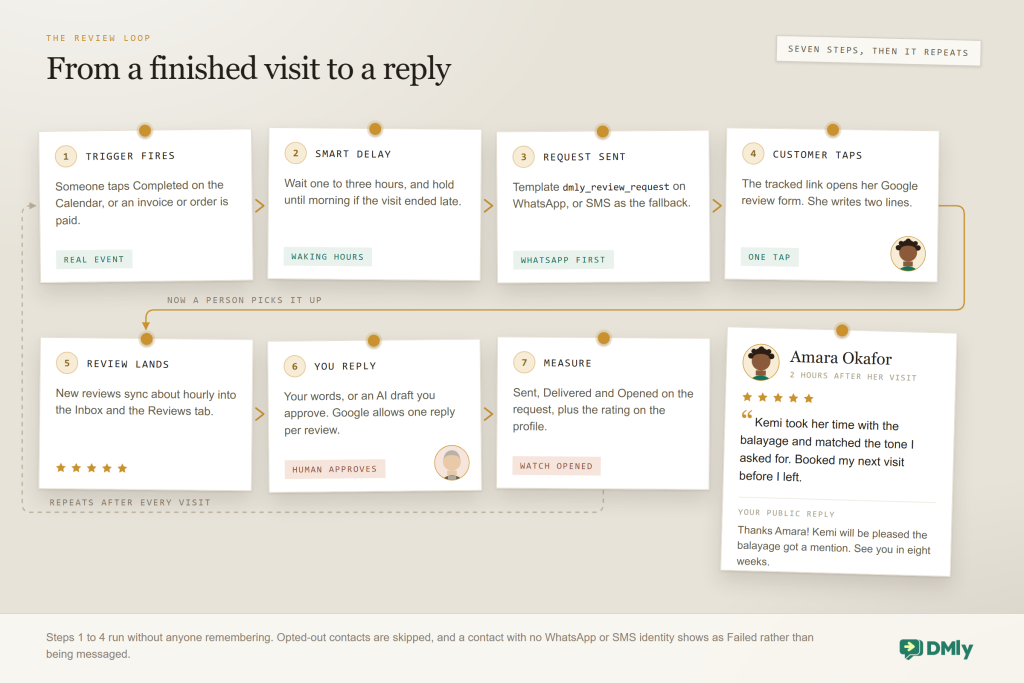
The rest of this guide is about the middle row. Here is the loop it creates.
What Google Allows, and What It Doesn’t
Read what Google actually says before you automate anything, because a lot of “review software” quietly breaks it and you are the one whose profile carries the risk. Two pages matter, and both are worth ten minutes of your time: Google’s Maps user-generated content policy, which sets the rules for reviews themselves, and the Business Profile Help page on getting more reviews.
The short version: Google is fine with you asking. Its own advice is to remind customers to leave reviews with a Google link or QR code, to reply to reviews, and to value all reviews, not just the five-star ones. Its policy says merchants may “solicit or encourage the posting of content that does represent a genuine experience, without offering incentives to do so or attempting to influence the rating or the contents of the review.”
What it prohibits is just as clear:
- Incentives. No payment, discounts, free goods or services in exchange for a review, a changed review or a removed one. Google calls this fake and misleading content and says it is strictly prohibited.
- Discouraging negative reviews or selectively soliciting positive ones. This is the rule “review gating” tools break: if you only send the link to people who rated you highly, you are selectively soliciting.
- Pressure on the premises. Merchants should not require or pressure people to leave ratings or reviews while they’re still in the shop, clinic or restaurant.
- Scripting the content. You can ask for an honest review. You can’t ask for five stars, specific wording or specific keywords.
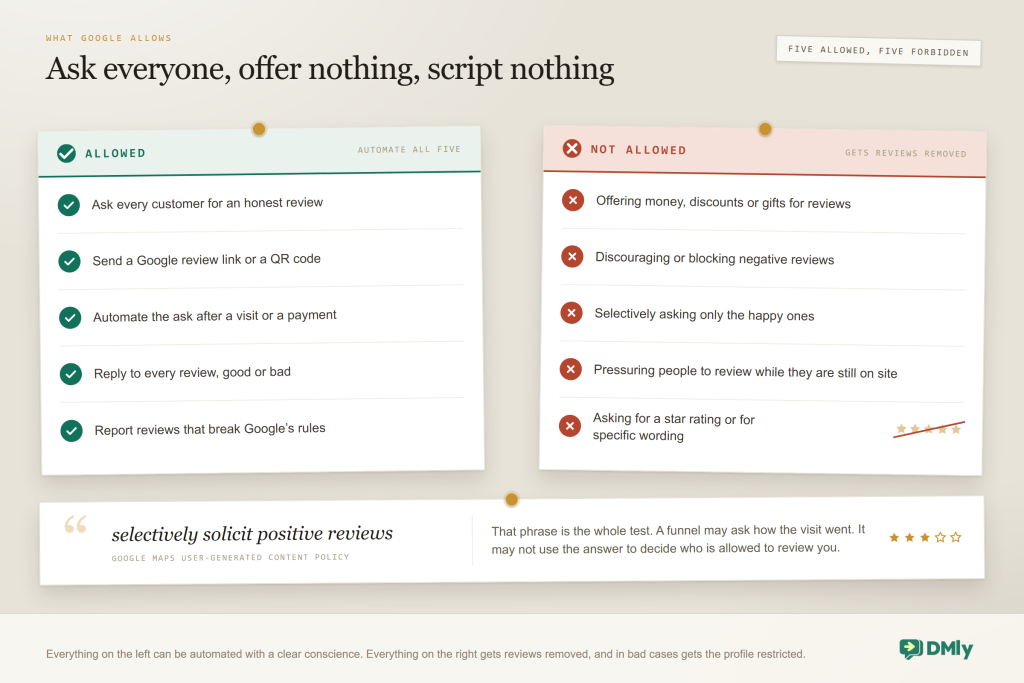
Where the line is: “Gating” means asking customers how they felt first and only sending the review link to the happy ones. It feels clever, and it’s exactly what Google’s “selectively solicit positive reviews” wording describes. You can still ask how the visit went, and you should, because it catches problems while they can be fixed. Just don’t use the answer to decide who gets the link.
Takeaway: ask everyone, offer nothing in return, don’t script the review, and don’t hover while they write it. Every flow in this guide is built on those four rules.
How Google Review Automation Works
Every Google review automation, in every tool, is the same five parts. Once you can see them, comparing tools and designing your own flow both get easy.
- A trigger. An event that means “this person just had an experience worth reviewing”. In DMly the natural ones are Appointment completed, Invoice paid, Payment succeeded, Order paid, Order shipped, Subscription renewed and Conversation closed, all on the triggers page.
- A delay. The gap between the event and the ask, plus a rule about when it’s polite to send. In DMly that’s the Smart Delay step: a duration in minutes, hours or days, or “wait until” the next moment inside a window you draw, so nothing goes out at 11pm.
- A message with a link. On WhatsApp, a Meta-approved template with the customer’s name, your business name and a tracked link to your Google review form. On SMS, a short text with the same link. Reviews can only be written by someone signed into a Google account, so the link matters more than the words: it has to land the customer straight on the form.
- The review coming back. A good tool checks Google in the background and pulls new reviews into your inbox as threads, so the person on the desk sees them without opening another dashboard.
- The reply and the numbers. Reply from where the review appears; see how many requests were sent, delivered and opened; watch your average rating and reply rate move.
For a salon, it looks like this:
2:45pm: stylist marks Amara’s appointment Completed on the DMly Calendar
→ Smart Delay waits 2 hours (and would hold until 9am if it were late)
→ 4:45pm: WhatsApp template goes out with her name, the salon’s name and the review link
→ Amara taps, lands on the Google review form, writes two lines
→ within the hour the review appears in the DMly Inbox and on the Reviews tab
→ the owner approves a short reply; the request shows as Opened in the stats
Two details decide whether the loop actually runs. First, the trigger has to fire. DMly quietly closes old bookings about a day after their time, but that silent tidy-up does not fire Appointment completed. Someone has to mark the booking Completed on the Calendar (or a flow or the API has to), which in practice means “tap Completed at checkout”. Second, the WhatsApp template has to be approved. Outside the 24-hour customer service window WhatsApp only allows approved templates. DMly ships a managed one called dmly_review_request; while it’s still Pending with Meta, a request to someone who hasn’t messaged you in the last 24 hours is dropped silently.
Takeaway: before you tune wording or timing, make sure the trigger fires and the template is Approved. Most “my review automation doesn’t work” tickets are one of those two.
Why It Matters: The Numbers
Reviews are the first thing most people see about a local business, usually before your website and often before your prices. A few figures worth knowing:
- 4% of consumers say they never read online reviews of businesses. Everyone else does, at least sometimes. BrightLocal, Local Consumer Review Survey 2025
- 4% said they hadn’t written a review in the last year and never would. Almost everyone else is at least open to it, which is why asking works. BrightLocal, Local Consumer Review Survey 2025
- 63% of consumers say they’d switch to a competitor after just one bad experience. Catching problems privately, and fixing them fast, is worth as much as the review itself. Zendesk CX Trends 2025
- 1 billion+ active conversation threads between people and businesses every day across WhatsApp, Messenger and Instagram. The ask belongs where the conversation already is. Meta, Q3 2025 earnings call
Google adds the practical point: it recommends replying to reviews to show customers their feedback matters, and says honest, balanced reviews help people decide. BrightLocal’s 2025 survey also found Google remained the most-used platform for reading local business reviews, which is why this guide is about Google first and other sites second (we compare Google and Facebook reviews in a separate piece).
Put those together and the case is simple. Almost everyone reads reviews, almost everyone is willing to write one if asked, and the asking is the part humans forget. A steady trickle every week also beats a heroic push every quarter, because recent reviews carry more weight with readers.
The Best Time to Ask for a Google Review
Timing is the setting people agonise over most, and the honest answer is short: ask when the experience is still fresh and the outcome is already known. For a haircut, that’s the same afternoon. For a filling, it’s once the numbness has worn off and the patient can say “that was fine”. For a mattress delivered on Tuesday, it’s the weekend after they’ve slept on it.
A few rules of thumb that hold up across the businesses we work with:
- Same day beats next week. The longer you wait, the more the visit blurs into everything else. Two hours after a great salon visit converts far better than a Friday round-up.
- But not while they’re still there. Google explicitly asks merchants not to pressure people on the premises. Let them leave, sit down and pick up their phone on their own terms.
- Respect waking hours. An appointment marked complete at 8:40pm plus a two-hour delay is a 10:40pm message. Use the Smart Delay’s “wait until” window so it holds until morning.
- Once per visit, and not every visit for regulars. Someone who comes in every three weeks doesn’t need three asks a quarter. Tag contacts when a request goes out (the Review request sent trigger is made for this) and add a Condition that skips anyone carrying the tag; clear it when you’re happy to ask again.
- Ask when you know it went well. A completed appointment or a paid invoice signals the customer got what they came for. A cancelled or no-show booking doesn’t, so those triggers should never send a review request.
One more timing question comes up constantly: “should I send a reminder if they don’t review?” One gentle follow-up at most, a few days later, and only if the first request wasn’t opened. Two unanswered asks is your answer. Chasing beyond that costs goodwill, and on WhatsApp it costs quality rating too, because blocks and reports are exactly what Meta’s scoring looks at.
Takeaway: fresh, finished, awake, once. If you remember nothing else about timing, remember those four words.
WhatsApp vs SMS vs Email for Review Requests
The channel you choose decides whether the request is seen at all, which matters more than any word in it. Here is how the three usual options compare for review requests specifically.
| Channel | Where it lands | Rules to respect | Best for | In DMly |
| The app your customers already message you on; the link is one tap away | Opt-in first; an approved template outside the 24-hour window; opt-outs honoured; quality rating watched | Salons, clinics, gyms, restaurants, tutors: anyone whose customers already chat with them there | Primary channel, using the managed dmly_review_request template; flows and manual sends | |
| SMS | The plain text inbox; any phone, no app needed | Local SMS rules; keep it short; honour STOP; a sender customers recognise | Contacts without WhatsApp; markets where SMS is the default | Fallback or chosen channel via Twilio, Plivo or an HTTP gateway; flows and manual sends |
| An inbox that fills up; easy to skim past | Spam and unsubscribe rules; deliverability | Occasional higher-value “thank you” emails; contacts with no phone number | Manual sends from Request reviews only; not in flow steps |
For most local businesses, WhatsApp wins, and not by a little. The customer booked on WhatsApp, got the reminder on WhatsApp and asked to move to 3pm on WhatsApp. A review request in the same thread is a natural continuation of a conversation, not a message from a stranger. Meta counts more than a billion daily conversation threads between people and businesses across WhatsApp, Messenger and Instagram, and a lot of them are exactly this kind of after-visit exchange.
Three WhatsApp rules to keep in front of you, since a review request is a business-initiated message like any other:
- Opt-in. Meta’s WhatsApp Business Messaging Policy requires customers to have opted in before you send business-initiated messages, and requires you to honour opt-outs. Booking through your WhatsApp line or paying an invoice sent on WhatsApp counts if you told them what to expect. Store the consent somewhere findable; DMly records opt-out dates but not how someone opted in, so use a custom field or note.
- Templates outside the 24-hour window. If the customer messaged you within the last 24 hours (they confirmed the appointment that morning, say), you’re inside the service window. Beyond it, only an approved template goes through, which is why the managed template exists.
- Quality and limits. Review requests count against your messaging limit like any other template message, and blocks or reports count against your quality rating. Ask once, ask politely, and read our guide to sending WhatsApp messages officially without getting banned if volumes are growing.
Whichever channel, keep the wording short and human. The DMly default review template already carries the customer’s name, your business name and the link. If you write your own SMS, something like this works:
Hi Amara, thanks for coming to Glow today. If you have a minute, would you leave us a quick Google review? It really helps a small salon: [review link]. Reply STOP to opt out.
Notice what it doesn’t do: it doesn’t ask for five stars, doesn’t offer anything, doesn’t tell her what to write.
Takeaway: WhatsApp by default, SMS for contacts without WhatsApp, email for the occasional manual send. The message needs a name, a thank-you and a link, and nothing else.
How to Build a Review Funnel That Stays Inside the Rules
A review funnel is just the run of steps between a happy customer and a published review you have replied to. The best ones have a private check-in built in, and that check-in is exactly where most Google review automation tools get the policy wrong. Here is the version we recommend.
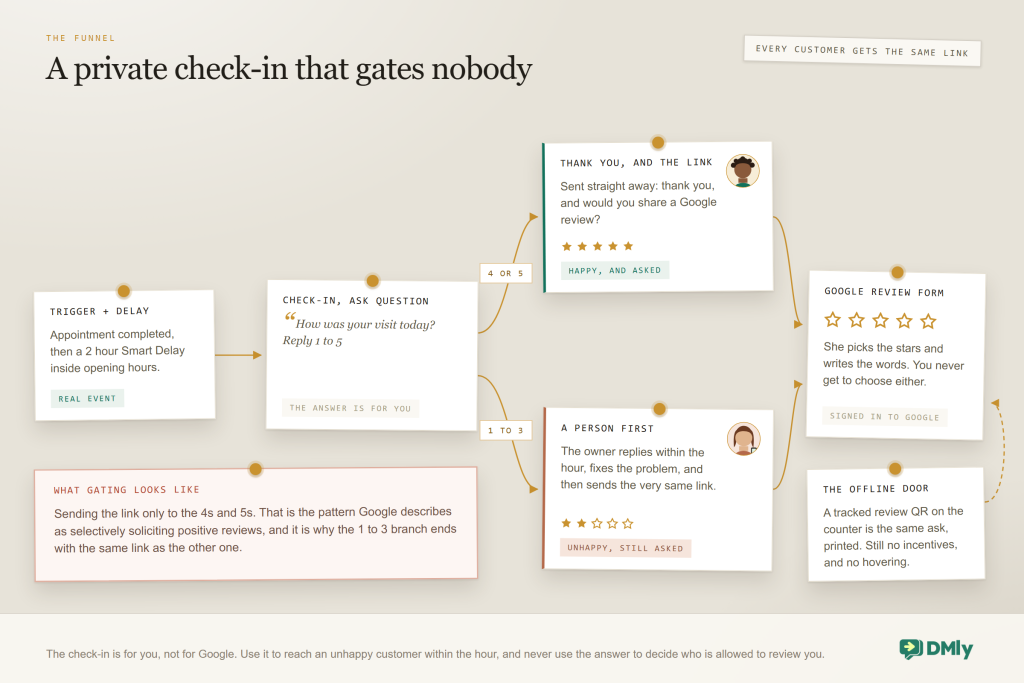
Step by step:
- Start on a real event. Appointment completed, invoice paid, order shipped, subscription renewed. Not “new contact”, not “message received”.
- Wait the right amount of time. Use the delays from the timing section, with a waking-hours window.
- Optionally, check in privately. An Ask Question step: “Quick one, how was your visit today? Reply 1 to 5.”
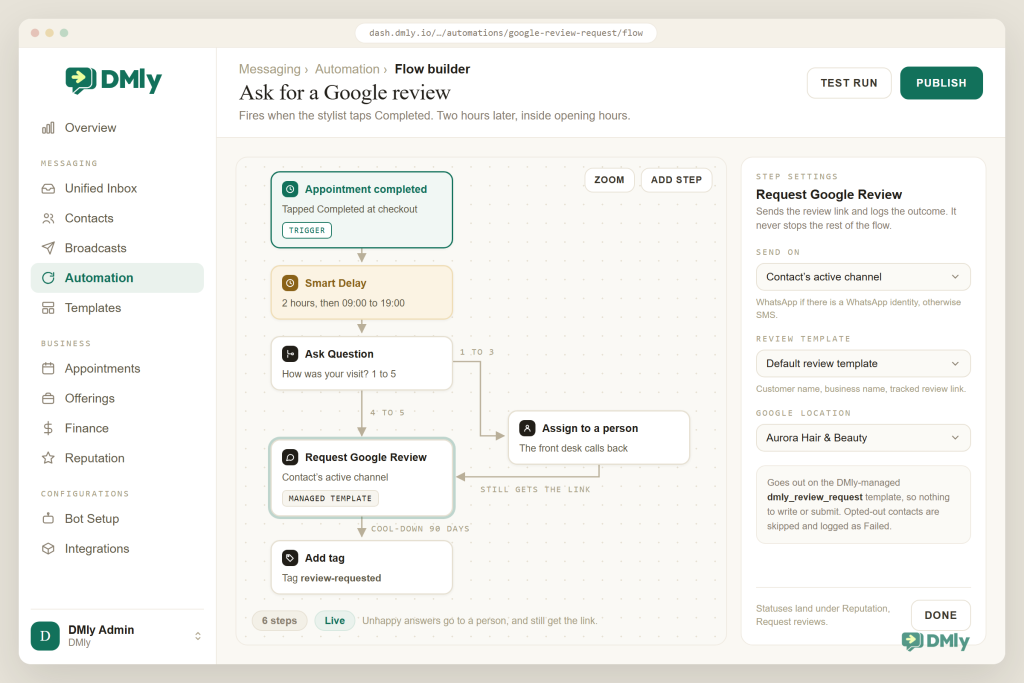
- Branch, but only for speed. A 4 or 5 gets a thank-you and the review link straight away. A 1 to 3 is handed to a person (assign the conversation, add a note), who replies within the hour, sorts the problem, and then sends the same link. Nobody is filtered out.
- Tag and cool down. Add a “review-requested” tag on the Review request sent trigger and have the request flow skip anyone who carries it, so regulars aren’t asked every visit.
- Reply to what comes back. Every review, within a day or two, in your own voice (AI drafts help; see below).
- Look at the numbers monthly. Sent, Delivered, Opened; average rating; reply rate; how many 1 to 3 check-ins turned into fixed problems.
A note on DMly’s built-in template: DMly ships a ready-made flow called “Post-chat CSAT → Google review”: an hour after an agent replies in the Inbox it asks for a 1 to 5 rating, assigns 1 to 3 star answers to a person, and thanks 4 to 5 star customers before requesting a Google review. It’s a good skeleton for the “happy WhatsApp customer to Google review” path. Our advice: once the human branch has done its job, add a Request Google Review step there too, so the flow stays clearly on the right side of Google’s selective-solicitation wording.
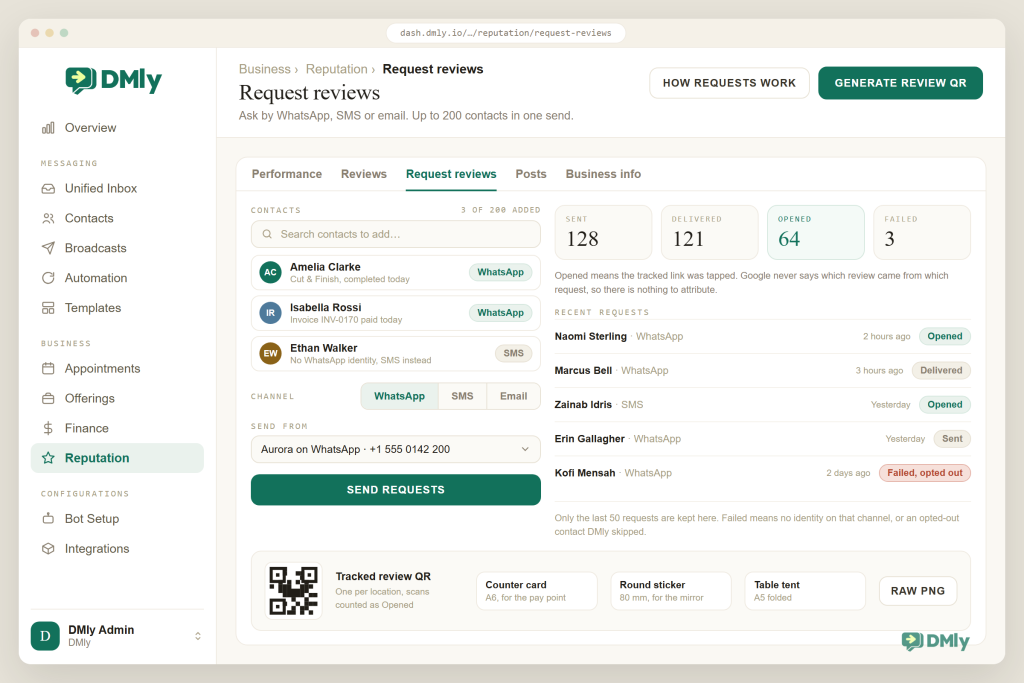
The funnel also has an offline entrance. Google is happy for you to remind customers with a QR code, and a counter card that says “Enjoyed your visit? Scan to leave us a Google review” is a legitimate, low-pressure ask. The rules still apply (no incentives, no hovering, no review kiosk), and the QR should be tracked so you know whether it earns its counter space. DMly’s Request reviews page generates a tracked review QR with three print layouts: a counter card, a round sticker and a folded table tent.
Two practical notes before you print anything. You get one tracked code per Google location, and generating it needs the Send review requests permission specifically rather than general access, which is the usual reason a manager finds the button missing. Scans are counted, with a running total shown as soon as the code is generated, so the counter card has to earn its space like anything else.
A code and an automation are not alternatives, and the strongest setup runs both. A QR cannot pick its moment: it sits there whether the customer is delighted or waiting for a refund. An automated request can wait for the appointment to be marked complete and go out the next morning. So use the code for the person who says something nice at the counter, and let the automation ask everyone else a day later.
Takeaway: a good funnel is a private check-in wrapped around a universal ask. It gives you an hour’s head start on every problem and asks every customer for their honest view.
How to Handle Negative Google Reviews
Automation makes the good moments effortless; the bad ones are still your job, and a process is what makes them stop being frightening. What the tools can do is shorten the gap between the review landing and you knowing about it.
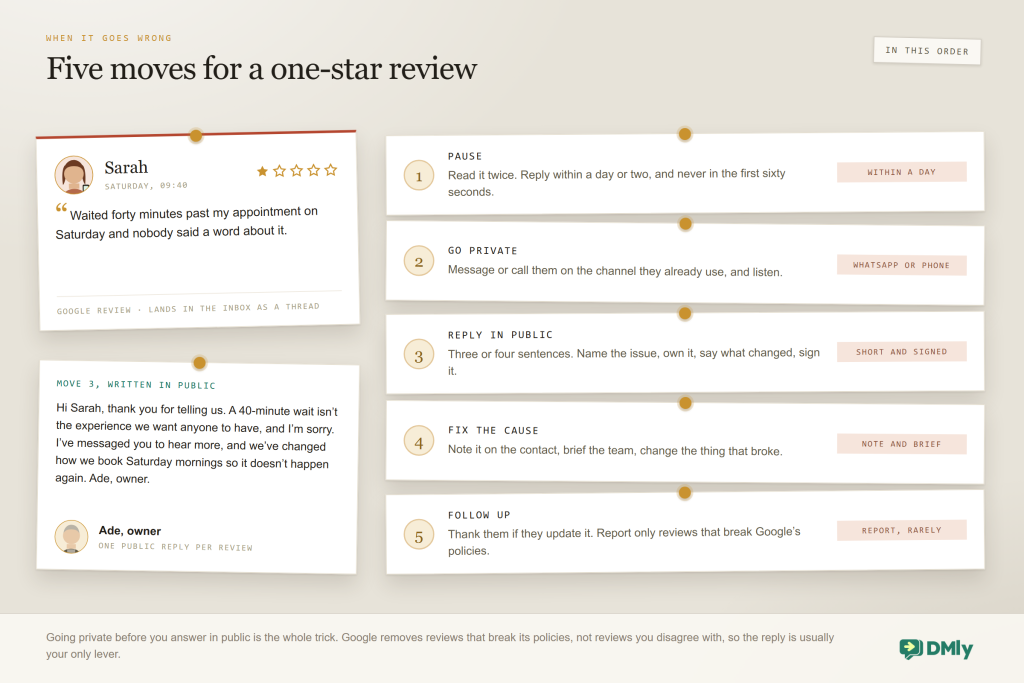
Some detail on each move.
Pause, but not for long. Reply within a day or two; Google’s guidance is to respond in a timely manner and acknowledge if any mistakes were made. What you shouldn’t do is reply in the first sixty seconds, while you’re still cross. Reviews arrive in the DMly Inbox as threads, so the person on the desk sees it, and a note or an assignment gets it to the owner without a screenshot on the staff group.
Go private on the channel they already use. If the reviewer is a known contact, message them on WhatsApp: “Hi Sarah, I’ve just read your review and I’m sorry about the wait on Saturday. Can I call you this afternoon to hear what happened?” Often the public review softens or gets updated after that call. Never offer anything for changing or removing it; that’s the incentive rule again.
Reply in public, briefly. Three or four sentences: thank them, name the specific issue, own it, say what changed, sign it. Google’s advice is professional, polite, short and personal. Don’t argue facts in public, don’t reveal private details (a clinic should never confirm someone is a patient, let alone what for), and don’t copy-paste the same apology under every review. The shape:
Hi Sarah, thank you for telling us. A 40-minute wait isn’t the experience we want anyone to have, and I’m sorry. I’ve messaged you to hear more, and we’ve changed how we book Saturday mornings so it doesn’t happen again. Ade, owner.
Fix the cause. Add a note to the contact in DMly, brief the team, change the thing that broke. A review that turns into a process fix has paid for itself.
Follow up, and report only what breaks the rules. If the customer updates their review, thank them. If a review is spam, fake, off-topic or from a competitor, report it from your Business Profile; Google says only reviews that violate its policies are eligible for removal, that evaluation usually takes several days, and that it won’t remove a review because a business disagrees with it. Everything else is answered, not appealed.
Takeaway: the private message before the public reply is the whole trick. Automation gives you the speed; the process gives you the calm. We go deeper, with more examples, in our guides on handling negative Google reviews and on Google review response templates.
Replying at Scale: AI Drafts With Human Approval
Once the asking runs itself, replying becomes the thing that eats your week. A salon that used to get four reviews a month and now gets forty needs a way to answer all of them without somebody spending an hour a day writing “Thanks so much!” in slightly different words. This is where AI earns its place, and where it needs a fence around it.
What AI does well: read the review, pick out the specifics (the stylist’s name, the dish, the “finally a dentist who explains things”), and draft a warm reply in your tone in seconds. It never forgets to reply, and it never sends a five-star customer a copy-pasted line. What it must not do on its own: reply to a one-star review, answer anything medical or legal, respond to an accusation, or promise something on your behalf.
So the working rule is: AI drafts, a person approves. Approve everything for the first month, edit the drafts that sound wrong, and only then decide whether four and five-star reviews can go out automatically. One to three-star reviews stay human, always. Remember too that Google allows one public owner reply per review, and posting again replaces the earlier reply rather than adding a second, so a rushed automatic reply can be edited but never quietly buried.
With a platform like DMly, this is how it fits together. Reviews sync into the Inbox as threads and onto the Reviews tab under Reputation, where you see the average rating, total reviews, reply rate and star breakdown, and open any review to write a public reply and post it straight to Google. DMly’s reputation page describes AI drafting warm, on-brand replies for you, either replying automatically or holding the draft for your one-tap approval, which is exactly the fence above. And the Google review trigger (“a new review lands on your profile”) can start a flow of its own: assign the review to the owner or add a tag so nothing sits unanswered for a week.
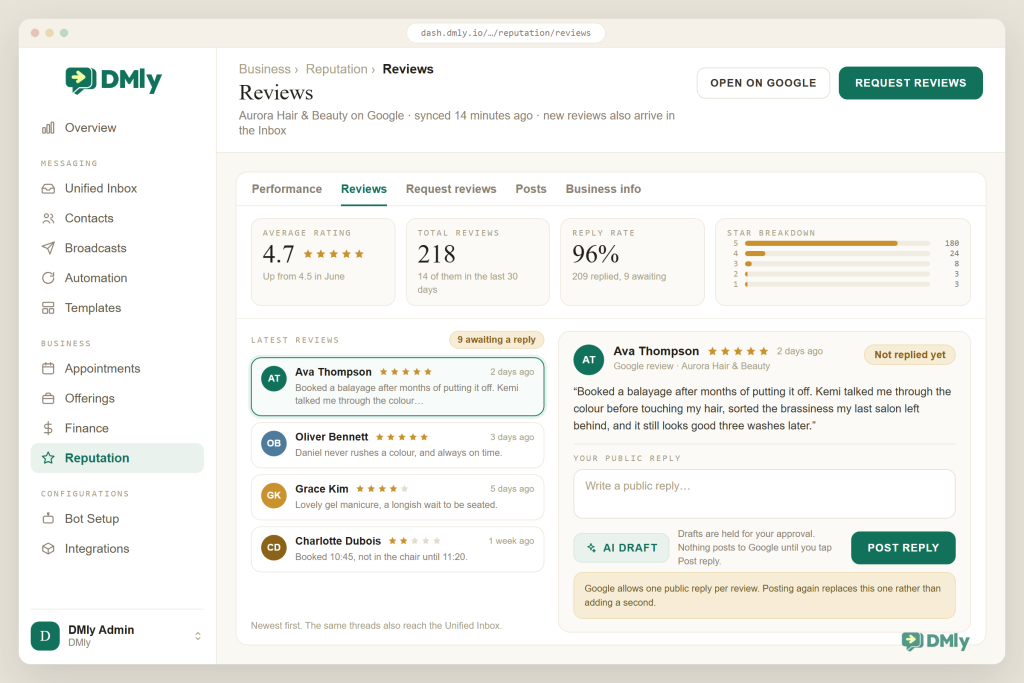
A word on tone. Two things make AI replies read as human: specifics from the review, and a real name at the end. “Thanks Priya! Kemi will be pleased the balayage got a mention. See you in eight weeks.” beats three paragraphs of gratitude. Give the AI a short style guide (first-name sign-off, no exclamation-mark pile-ups, never mention discounts) and it will hold the line better than a tired receptionist at 6pm.
Takeaway: reply to every review, let AI write the first draft, keep a human on the approve button, and keep anything below four stars entirely human. Our guide on automatically responding to Google reviews with AI goes deeper on prompts and edge cases.
What to Look For in a Google Review Automation Tool
If you are comparing tools, this is the list to walk through, and the rule is to make each vendor show you rather than tell you.
- Triggers from real events, in the same system Appointment completed, invoice paid, order shipped, subscription renewed. If the review tool doesn’t know when the appointment happened, you’ll be exporting CSVs forever.
- WhatsApp as a first-class channel An approved review-request template, opt-out handling, the 24-hour window respected, SMS as a fallback. Email-only tools miss most local customers.
- Timing controls Delays in hours or days, and a “not at night” window. Fixed “send immediately” is a red flag.
- A private check-in that doesn’t gate Ask “how was it?”, hand unhappy customers to a person, still send everyone the link.
- Reviews in your inbox, replies from the same place New reviews as threads where your team already works; one click to post to Google; AI drafts you can edit; a hold-for-approval setting.
- Honest measurement Sent, delivered and opened counts on requests; rating, review count and reply rate on the profile. Beware tools that claim to attribute each review to a specific request; Google doesn’t give anyone that data.
- Tracked QR codes and print assets For the counter, the table and the door, per location.
- Multi-location support Separate profiles, a location switcher, requests and replies scoped correctly.
- Policy discipline built in No incentives, no gating patterns, no “review station” features. If the demo shows a “filter out negative reviews” switch, walk away.
- Sensible pricing Reviews shouldn’t be a $99 add-on. Look for it included in the plan you already need for messaging and bookings.
What Google Review Automation Looks Like by Industry
Google review automation is the same loop in every business; what changes is the trigger and the tone. Here is how it plays out for the businesses we see most.
Salons, barbers and spas
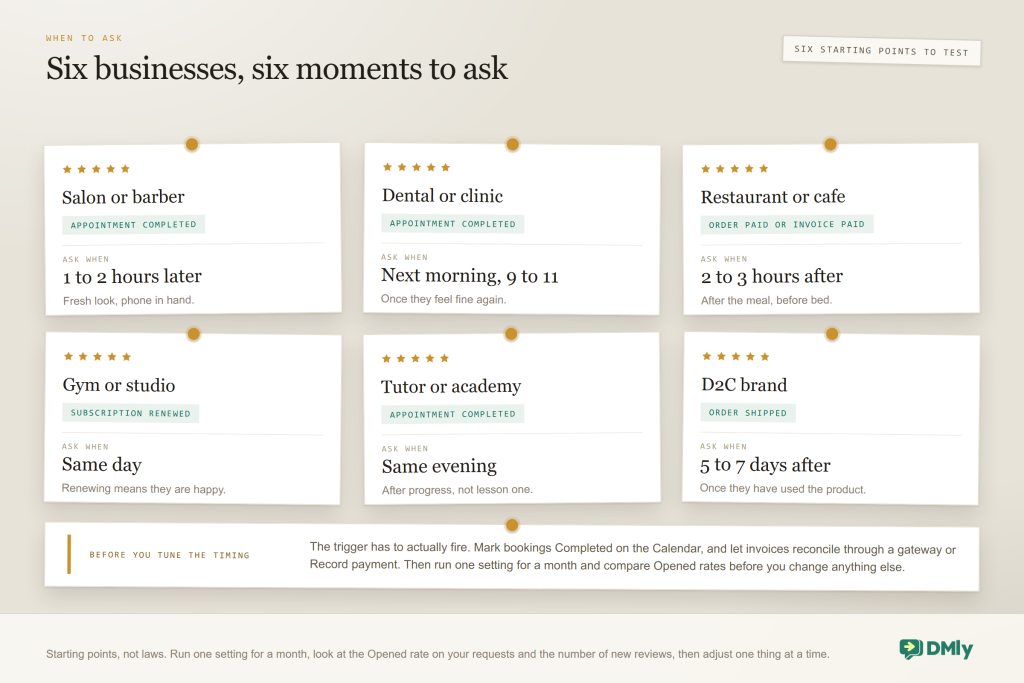
Trigger: Appointment completed, tapped at checkout. Delay: 1 to 2 hours. Message on WhatsApp in the same thread as the booking confirmation. Reply mentions the stylist by name. Regulars are asked at most every 90 days.
Dental and medical clinics
Trigger: Appointment completed. Delay: next morning between 9 and 11. A private check-in first (“How are you feeling today?”) that goes to the front desk if the answer is poor. Replies never confirm someone is a patient or discuss treatment.
Restaurants and cafés
Trigger: Order paid or Invoice paid (deposit or bill on WhatsApp). Delay: 2 to 3 hours, or next morning for late dinners. Table tents with a tracked review QR for walk-ins. Replies from the manager on duty, signed.
Gyms and studios
Trigger: Subscription renewed, or Appointment completed for PT sessions. Delay: same day. Members who renew are your happiest members; that’s the moment. Class regulars asked once, then a long cool-down.
Tutors and academies
Trigger: Appointment completed, but only after a “sessions attended” field passes three, so you ask once the student has felt progress. Parents get the WhatsApp request; replies avoid naming the child.
D2C brands
Trigger: Order shipped, with a 5 to 7 day delay so the product has been used, or Order paid for repeat customers. WhatsApp first, SMS fallback. Negative check-ins route to support with the order number attached.
If you run a franchise or a business with several branches, everything above still applies, with one extra rule: every request, QR code and reply must be scoped to the right location, which is why a location switcher matters (see the DMly section, and our guide to managing multiple Google Business Profile locations).
Why DMly Is the Best Choice for Google Review Automation
Plenty of tools will send a review request; very few of them already know that the appointment finished. That is the whole difference. DMly sits in the same place as the booking that just completed, the invoice that was just paid and the WhatsApp thread your customer is already in, which is why Google review automation here tends to run itself once it is switched on.
The ask runs off events that already happen in DMly
Because DMly runs your bookings, invoices, orders and subscriptions, the request can start from Appointment completed, Invoice paid, Payment succeeded, Order paid, Order shipped, Subscription renewed or Conversation closed, with no integration to build. Add a Smart Delay, an optional Ask Question check-in, and the Request Google Review step. The step sends on the contact’s active channel by default (or WhatsApp or SMS specifically), uses the default review template (customer name, business name, review link), never stops the rest of the flow, and logs every outcome.
WhatsApp first, with a managed template
Requests go out on WhatsApp using the DMly-managed dmly_review_request template, so you don’t write, submit or babysit a template yourself; contacts with no WhatsApp identity fall back to SMS. Opted-out contacts are skipped and shown as Failed rather than messaged. There’s no markup on WhatsApp: you pay Meta’s standard rates. See the WhatsApp channel and SMS channel pages for setup.
Manual sends and print assets when you need them
From Reputation → Request reviews you can add up to 200 contacts, choose WhatsApp, SMS or email, pick which number to send from, and send in one go; the last 50 requests appear under Recent requests with their status. The same page generates a tracked review QR with three print layouts (an A6 counter card, an 80mm round sticker and an A5 folded table tent) plus a raw PNG for your own designs.
Replies in the inbox you already use, numbers you can act on
New Google reviews appear in the DMly Inbox as threads alongside WhatsApp, Instagram and the rest, and on the Reviews tab with the rating summary; reply or edit a reply and it posts to Google. AI-drafted replies with approval are described on the reputation page, and the Google review trigger routes new reviews to a person automatically. Request statuses are honest: Sent, Delivered (handed to the channel), Opened (the tracked link was clicked) and Failed (no identity on that channel, or opted out). The Reviews tab shows average rating, total reviews, reply rate and star breakdown; the Performance tab shows profile views, searches and customer actions over the last eight weeks. Enough to see whether requests are landing and the profile is growing, without pretending to know things Google doesn’t share. Google reviews are one of the channels our omnichannel inbox guide covers if you want the wider picture.
Multi-location, and the rest of the profile
Each Google location connects as its own channel, a Switch location picker appears once you have two, and reviews, requests, QR codes and scheduled posts are scoped to the location you’ve selected. One thing to know: the docs note that automated review requests use the connected location whose name comes first alphabetically, so a multi-branch business should name locations deliberately and test its flows. Posts, offers, events, hours and business info live in the same section; that side is covered in the GBP automation guide and on the Google Business Profile page. You can even add a WhatsApp chat button to your Google listing from Business info, so people who find you through reviews land in the same inbox.
Included on every plan
Reputation & Reviews is included on all DMly plans, Starter included, alongside the inbox, flows, bookings, invoices and CRM you’d use to trigger it. Starter is $29 a month billed yearly as of August 2026 (see pricing), with a 7-day free trial and no credit card to start.
| What you need | Typical review tool | DMly |
| Trigger | CSV upload, a POS plug-in or a Zap | Native: Appointment completed, Invoice paid, Payment succeeded, Order paid or shipped, Subscription renewed, Conversation closed |
| Channel | Email and SMS | WhatsApp with a managed approved template, SMS fallback, email for manual sends |
| Timing | Fixed delay | Smart Delay: duration, wait until, or until an event, with day and time windows |
| Check-in | Gating widget | Ask Question step, branch to a human, everyone still gets the link |
| Replies | Separate dashboard | Threads in the Inbox plus the Reviews tab; post or edit replies to Google; AI drafts with approval (per dmly.io/reputation) |
| Measurement | Opens, sometimes “reviews attributed” | Sent, Delivered, Opened, Failed; rating, count, reply rate, star breakdown; profile performance |
| Generic QR | Tracked review QR: counter card, sticker, table tent, raw PNG | |
| Locations | Extra fee per location | Each location as a channel, Switch location picker |
| Price | Separate subscription | Included on every plan, Starter from $29/mo billed yearly; no markup on WhatsApp |
Automate your review requests
Connect your Google Business Profile, switch on the request flow after appointments and payments, and reply to every review from the inbox you already use. Reputation & Reviews is on every DMly plan.
How to Set Up Google Review Automation With DMly
Budget an hour, and expect most of it to be spent waiting for Meta to approve a template you did not have to write. Here is the sequence, in the order the docs describe it.
- Connect your Google Business Profile. Go to Reputation and choose Connect Google Business Profile (or Integrations → Channels → Add account and pick the Google Business Profile row). Sign in with the Google account that manages the listing, tick the locations you want on the Choose entity screen, and select Finish Connection. Until you connect, every tab shows sample data with a Preview badge.
- Check the review-request template. Under Messaging → Templates on your WhatsApp channel, find
dmly_review_request(marked Managed by DMly) and make sure it’s Approved. If it’s Pending, requests to anyone outside their 24-hour window are dropped silently, so don’t switch on the flow until it clears. - Make sure your triggers will fire. Brief the team: tap Completed on the Calendar at checkout, because the automatic tidy-up a day later doesn’t fire Appointment completed. If you bill through DMly, invoices become Paid when the gateway confirms or when you Record payment. The appointments and invoices docs have the detail.
- Build the request flow. In the flow builder: trigger Appointment completed → Smart Delay (Duration: 2 hours, then a Wait until window for your opening hours) → optional Ask Question check-in → Request Google Review (Send on: Contact’s active channel; Review template: Default review template) → Tag “review-requested”. Publish it.
- Add the payment path. Duplicate the flow with Invoice paid or Order paid as the trigger for customers who pay without an appointment (restaurants, retail, D2C). Use a longer delay for shipped goods.
- Add the cool-down. A Condition at the top of each request flow that skips anyone carrying the “review-requested” tag, and a habit (or a segment) for clearing the tag after 90 days. This is what stops regulars being asked monthly.
- Set up the reply routine. Decide who owns reviews (a role with Inbox access), turn on desktop notifications, and use the Google review trigger to assign new reviews to that person. Approve AI drafts for the first month before you let anything post itself, and keep 1 to 3 star replies human.
- Print the QR and test end to end. Generate the review QR for each location and put the counter card where people pay. Then mark a test booking Completed for your own number, wait out the delay, tap the link, and check the request shows as Opened under Recent requests.
Best Practices for Google Review Automation
- Ask everyone. Every completed appointment, every paid invoice. The moment you start choosing, you’re gating.
- Keep the message short and named. Their name, your business, a thank-you, the link. Ten seconds to read, one tap to act.
- Send in the customer’s daytime. A waking-hours window on every delay.
- Test the link every month. If the Google connection expires, requests can go out without a working review link; the fix is to reconnect under Integrations → Channels.
- Reply within a day or two, to everything. Positive reviews get a specific thank-you; negative ones follow the five moves above.
- Watch Opened, not Responses. Opened tells you whether the ask lands; Responses always reads zero because Google doesn’t connect reviews to requests. Track new reviews per week alongside it.
- Keep consent tidy. Note how each contact opted in, honour STOP instantly (DMly does this for you) and never re-add an opted-out contact to a request list.
- Read the check-ins. The 1 to 3 star answers are your cheapest operations audit. Review them monthly with the team.
- Measure the business effect. Our post on key metrics to track after implementing messaging automation is a good template for the monthly review; reviews earned belong on it.
Mistakes to Avoid
- Offering anything for a review. No discount codes, no “free coffee for a five-star”, no prize draws. It’s the fastest way to lose reviews, and possibly the profile.
- Gating. Sending the link only to people who rated you 4 or 5 in the check-in.
- Asking too soon or too late. At the till (Google’s on-premises rule) or a week later (nobody remembers).
- Forgetting the trigger. Nobody taps Completed, so nothing sends, and you conclude the tool doesn’t work.
- Switching on before the template is Approved. Requests are dropped silently and you only find out in the logs.
- Asking regulars every visit. Set the cool-down before you switch on, not after the first complaint.
- Letting AI reply to negative reviews unsupervised. A polite but generic apology under a serious complaint reads as if nobody is home.
- Copy-pasting replies. Reviewers notice, and so do the people reading twenty reviews in a row.
- Reporting reviews you simply disagree with. Google won’t remove them; the time is better spent on the reply.
- Sending from the wrong location. Multi-branch businesses: check which location the flow uses and generate a separate QR per branch.
Final Thoughts
Google review automation is not a trick for getting more stars. It is the discipline of asking every customer, at a sensible moment, on the channel they actually read, and then treating what comes back as a conversation rather than a scoreboard. The businesses that do it well don’t end up looking better than they are; they look as good as they are, consistently, week after week, and they hear about problems privately before anybody else does.
DMly makes that discipline automatic because the events that should trigger the ask already live in it: the appointment marked complete, the invoice paid, the order shipped. Add a delay, an optional check-in and the Request Google Review step, keep a person on the reply button, and the loop in Figure 1 runs every day without anyone remembering to run it. Ask everyone, offer nothing, reply to all of it. That’s the whole playbook.
Frequently Asked Questions
Is Google review automation against Google’s rules?
No. Google’s own advice is to remind customers to leave reviews by sharing a link or QR code, and its policy permits soliciting genuine reviews as long as you don’t offer incentives or try to influence the rating or content. Automating when the reminder goes out is fine. What breaks the rules is paying for reviews, discouraging negative ones, selectively asking only happy customers, pressuring people on the premises or dictating what they write.
Can I offer a small discount to customers who leave a review?
No. Google’s Business Profile Help says offering incentives such as free or discounted goods or services in exchange for posting, changing or removing a review is fake and misleading content and is strictly prohibited. That includes “review us for a chance to win”. Ask nicely, offer nothing.
WhatsApp or SMS: which is better for review requests?
WhatsApp, for most local businesses, because the customer already talks to you there and the link is one tap away. It requires opt-in and, outside the 24-hour service window, an approved template; DMly ships a managed one. Use SMS for contacts without WhatsApp. Email is best kept for occasional manual sends.
How soon after an appointment should the request go out?
Same day, once the customer has left, during waking hours. One to two hours after a salon visit; the next morning after a dental appointment; two to three hours after a meal; five to seven days after a product ships. Test one setting for a month, watch the Opened rate and the number of new reviews, then adjust.
What if a customer I asked leaves a bad review?
It happens, and it’s survivable. Message them privately first, then post a short public reply that owns the specific issue and says what changed. Don’t offer anything to remove it. Only report the review if it breaks Google’s policies (spam, fake, off-topic); Google won’t remove reviews a business simply disagrees with. A private check-in step in your flow will catch most of these before they become reviews at all.
Can AI reply to my Google reviews for me?
It can draft them, and that’s how we recommend using it: AI writes a specific, warm reply, a person approves it. DMly’s reputation page describes AI-drafted replies that either post automatically or hold for one-tap approval. Keep anything below four stars fully human, and remember Google allows one owner reply per review, so a rushed reply can be edited but not stacked.
Does DMly handle more than one Google location?
Yes. Each location connects as its own channel and a Switch location picker appears once you have two. Reviews, requests, QR codes and scheduled posts are filtered to the selected location. Check the docs note on which location automated requests use, generate a separate review QR per branch, and test each flow with your own number.
Writing about WhatsApp automation, bookings and growth for local business.
Turn WhatsApp into your busiest channel.
Start free and run message, bookings, payments and reviews in one place.
