
How to Automatically Create CRM Contacts From WhatsApp Messages
A dental practice takes its bookings online, and the booking form asks every patient how they heard about the practice. Eight months of answers. Then the owner decides to stop guessing where the marketing budget goes, opens the segment builder to pull everyone who came from the leaflet drop, and the field is not in the list. The answers are all there, one per patient, sitting on the records. Nothing in the app can find them.
That is the shape of this whole subject, and it is why the question people ask is not quite the right one. Getting CRM contacts from WhatsApp onto your list needs no setup at all. A contact is created the first time somebody messages a connected channel, whether you have configured anything or not, and it will keep happening while you sleep. The work, and the quiet failures, are all in the second half: what gets written onto that record, and whether anything can read it back afterwards.
This guide is about that second half, which is where the difference between a phone number and a useful record is actually made. What arrives for free and what never will. The gate that decides whether a captured answer is usable or merely stored. How to ask for the four or five things you actually need without turning a conversation into a form. Where each answer belongs once you have it. And how to stop the whole thing being undermined by the same customer existing twice.
If what you want is the wider picture, our guide to running a WhatsApp CRM covers what a customer record is for and how tags, segments and stages fit together. This page is the plumbing underneath it.
Where CRM Contacts From WhatsApp Actually Come From
A contact is created for you. A contact worth having is not. There are four ways somebody lands on your list, and only one of them asks anything of you at all.
- Automatically, when they message a connected channel. The default, and the one this guide is about.
- By hand, when you add somebody you met.
- From a CSV import, when you bring in the customers you had before the CRM existed.
- Through the API, from a website form, a booking system or another tool in your stack.
All four end in the same place, a contact record, but only the first one runs without anybody deciding anything. That is what people mean when they talk about creating CRM contacts from WhatsApp automatically, and it is already switched on.
Underneath all four sits one structural fact that explains most of the surprises later on: every channel recognises people its own way. WhatsApp and SMS know a person by their phone number. Facebook Messenger and Instagram use an identifier Meta issues, scoped to your page or your account. Telegram uses a numeric chat identifier. Live Chat uses the token your widget leaves in the visitor’s browser. TikTok uses two different keys depending on whether the person sent a direct message or left a comment.
Within one channel that identifier is reliable. The customer who messages your WhatsApp number today and again in six months is one contact, not two, and a person can only ever hold one identity per channel. Across channels, nothing is joined up. The same person who WhatsApps you on Monday and sends an Instagram message on Tuesday arrives as two separate records, and DMly will not guess that they are one.
Why it refuses to guess: An inbound message is matched against the identities on the channel it arrived on and nothing else. DMly does not go looking for a matching phone number or email elsewhere in your workspace, because shared numbers, recycled numbers and family handsets would quietly merge strangers into one record. A duplicate you can see and fix is the safer mistake. The cure is a merge, and it is deliberately a human decision.
One more boundary is worth knowing before you count anything. Somebody who has only ever left a public comment is not on your contacts list. If every message you hold for a person is a Facebook, Instagram or TikTok comment, or a Google review, they are left out of the list and out of its totals, because there is no channel you could message them on. Their comment thread is still in your inbox and a comment to direct message automation can still reach them. The moment one direct message passes in either direction, including one your own automation sends, they appear on the list like anybody else and stay there however much they comment afterwards.
What CRM Contacts From WhatsApp Arrive With, and What They Do Not
A contact created by an inbound message arrives with an identity, a timestamp and almost nothing else. Here is the honest split, and the right-hand column is the reason this guide exists.
| You get, with no setup | You do not get |
| A contact record that exists | A name you would use in a message |
| One channel identity | An email address, or any second way to reach them |
| The conversation itself | What they actually wanted |
| A lifecycle stage of Lead | A pipeline stage, so nothing tells you what happens next |
| A source naming the channel they arrived on | A source naming the advert or link they came from |
| Whatever the channel hands over | Any tag at all, so no segment will ever find them |
Read the right-hand column again and notice what every item on it has in common. Each one is something a customer will happily tell you during an ordinary conversation, if anything bothers to ask and to write the answer down. Nothing on that list needs a form, a login or an integration. It needs a question at the right moment and somewhere reliable to put the answer.
That is the whole opportunity, and it is also where the traps are, because DMly will let you store an answer that nothing can ever read back. Everything that separates useful CRM contacts from WhatsApp from a page of phone numbers happens in that right-hand column, and it happens one question at a time.
The Gate Nobody Mentions: a Value Only Counts if the Field Was Defined
Storing an answer and being able to use an answer are two different things, and only one of them is automatic. This is the single most expensive thing to learn late about CRM contacts from WhatsApp, so it goes before the how-to rather than after it.
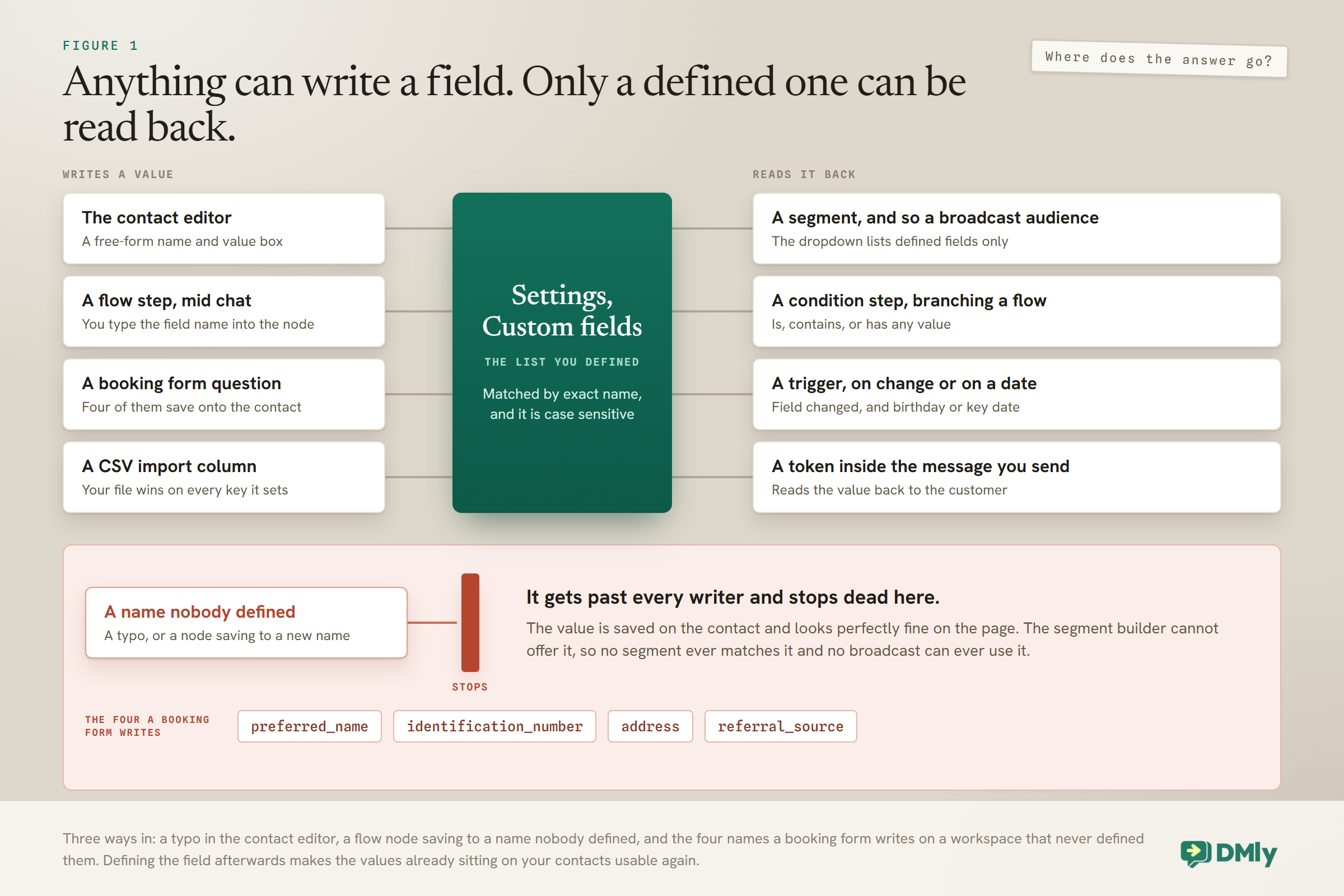
Start with what the contact page actually is. The custom fields editor on a contact is a free-form name and value box. It does not offer you a list of your defined fields to pick from. It does not check the name you type against that list. It does not check the value against the type you chose. Type allergy on one contact and Allergy on another and you have created two different fields, and nothing warns you.
The five field types make the same promise and do not keep it either. When you define a field under Settings you pick text, number, email, phone or date. Those are labels for your team’s benefit, not rules. A date field will hold the words “next tuesday” quite happily and a number field will hold “about six”. Choose the type to tell a colleague what belongs in the box, never to keep bad data out.
Now the gate itself. The segment builder’s field dropdown lists only the fields you defined under Settings, Custom fields. A value sitting on a contact under a name that is not on that list cannot be picked there, which means no segment will ever match it, which means it can never become the audience for a broadcast. It is stored. It is on the record. It is invisible to everything you would use it for.
There are exactly three ways to fall through that gate, and the dental practice at the top of this page fell through the third one.
- A typo in the contact editor. One misspelled field name creates a brand new field on that one contact, silently.
- A flow node saving to a name nobody defined. The step will accept any field name you type into it. It does not have to exist yet.
- The names a booking form writes. Four booking questions save their answers as custom fields called
preferred_name,identification_number,addressandreferral_source. If your workspace never defined those four, every online booking has been filling in fields that no segment can see.
The four names to define this week: If you take bookings online, open Settings, Custom fields and define preferred_name, identification_number, address and referral_source, spelled exactly like that. Defining a field does not disturb the values already sitting on your contacts; it makes them selectable. From that moment the answers you have been collecting all along become segmentable, and so does every answer that arrives afterwards.
There is one place a loose value bites rather than merely disappearing, and it is worth knowing because the symptom is silence. A date field read by the Birthday or key date trigger is parsed as a date at the moment the trigger runs. A value it cannot parse is skipped without comment. The automation simply never fires for that contact, and nothing anywhere tells you why. A renewal reminder built on a date field that somebody filled in as “end of March” will look, from the outside, exactly like an automation that is switched off.
One last thing about where answers go, because it explains a confusing screen. Every answer a contact gives inside a flow is also listed on their profile in a separate Flow answers section, with the question, the answer and the date, and only the last fifty are kept. That panel records the answer whether or not the step saved it anywhere, and it never tells you which field the answer went to. So a colleague can look at a profile, see the answer plainly written on it, and be looking at a contact whose custom field is empty.
Choose Five Answers Before You Build Anything
Write down the five things you would want to know about every enquiry, and build only for those. The failure mode here is never collecting too little. It is designing a fourteen-field schema that nobody fills in and that makes every conversation feel like an application form.
Our WhatsApp CRM guide sets out the five kinds of memory a record holds. This is the narrower question, and the one that decides how good your CRM contacts from WhatsApp end up being: of all the things you could ask a stranger, which five earn their place? For most local businesses the answer is close to this.
- A name. Everything else is more useful once you can address somebody properly, and it is the one answer nobody minds giving.
- What they want. The service, the problem, the product. This is the field that drives every segment you will ever build.
- When. This week, next month, just looking. Timing is what separates a lead from a pipeline.
- Where they came from. Which advert, link, code or post sent them. See the section below on why this one is different from all the others.
- One way to reach them that is not this channel. Usually an email, so a platform outage or a blocked number does not take your customer list with it.
If you run a trade where one more thing genuinely matters, add it. A bike shop that needs the frame size, a clinic that needs a date of birth, a lettings agency that needs a postcode: six is fine. Fourteen is a project that will not survive its first busy Saturday, and a half-filled field is worse than no field, because you will build a segment on it and get an answer that is quietly wrong.
Capturing the Details That Make CRM Contacts From WhatsApp Useful
Ask in the course of being useful, never in a block at the start. A conversation that opens with four questions loses people who were ready to buy. A conversation that answers something first and then asks one question keeps almost all of them. That ordering is the single biggest lever on how much of your schema ever gets filled in, and it costs nothing to get right.
There are three ways to do the capture itself, and most businesses building CRM contacts from WhatsApp end up using all three for different jobs.
A flow that asks the question
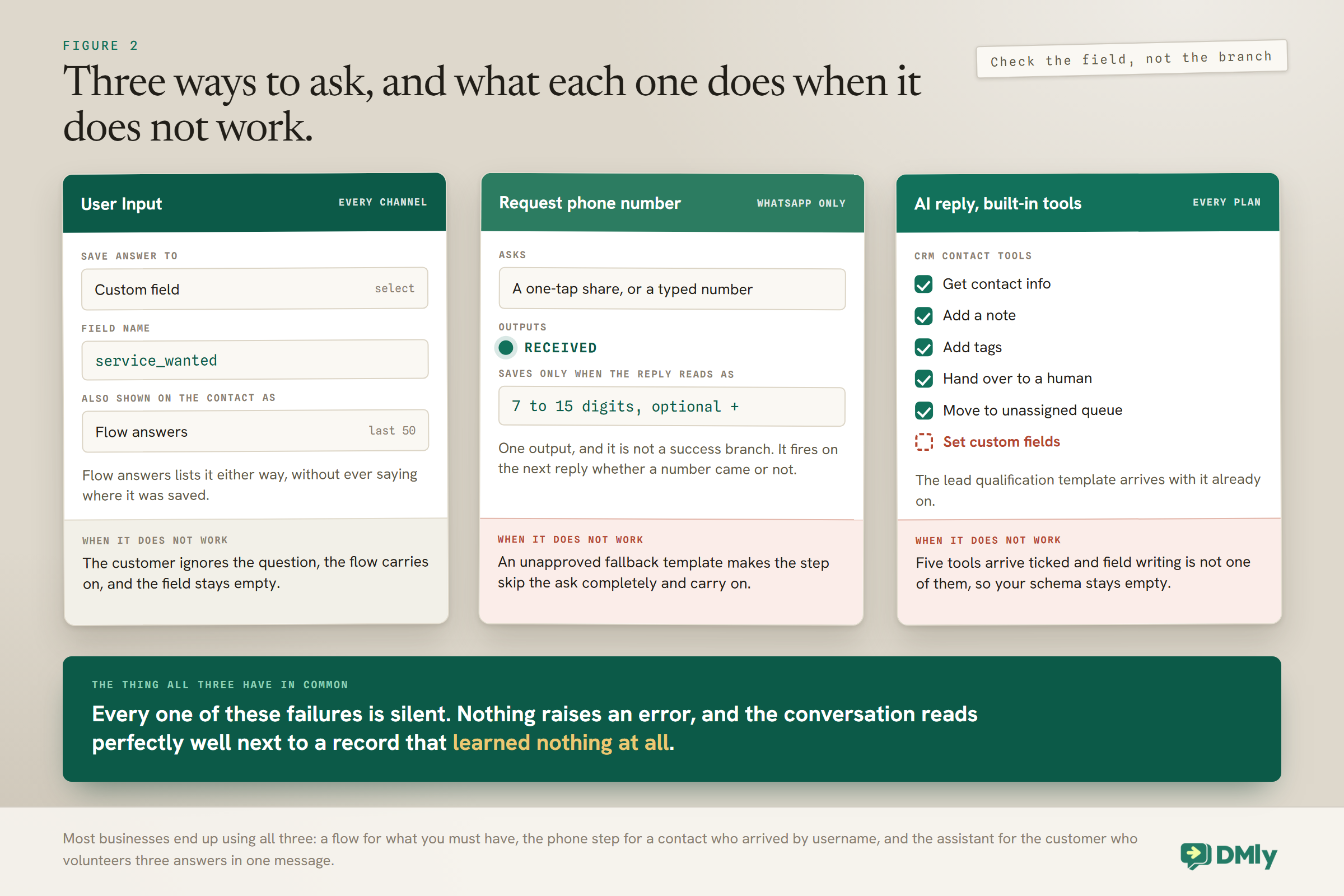
The User Input step asks a question and writes the answer wherever you tell it to. In the step there is a Save answer to dropdown with a Custom field option; pick it, then type the field name underneath. This is the deterministic route: predictable, cheap and exactly right for the two or three things you always need. Build it in the drag and drop flow builder and place it after you have delivered something the customer actually wanted.
Keep it to two questions in one run. If you need more than that, spread them across the conversation, or across visits. A returning customer will answer a question they refused a stranger.
The Request phone number step
WhatsApp lets people message a business by username, with no phone number attached, and this step is how you ask for one. When that happens the conversation lands in your inbox with nothing on the contact you could call, text or broadcast to. The step sits in the WhatsApp group of the flow builder palette and has no equivalent on Messenger, Instagram, Telegram, SMS or the website widget.
Inside the 24-hour window (the stretch after a customer’s last message during which WhatsApp lets you write freely) the contact gets a native prompt they can answer with a single tap. Outside it, DMly falls back to an approved template called dmly_request_phone. Either way the message doubles as an invitation to just type the number, so somebody who ignores the tap is still captured. The number is saved only when the reply reads as one: 7 to 15 digits, optionally starting with a plus. Anything else carries on without saving, so a stray reply can never overwrite a good number with rubbish.
Two behaviours surprise almost everybody, and both are worth designing around.
- The step has a single output called RECEIVED, and it fires on the contact’s next reply whether or not a number was given. It is not a success branch. If your flow treats reaching RECEIVED as proof that you now have a number, it will be wrong regularly. Follow it with a condition that checks the phone field.
- If the fallback template is not approved, the step does not stall. It continues straight out of RECEIVED without asking at all, and without a number. Silent, and easy to miss for weeks. Check the template’s status before you publish anything that depends on this.
Two pieces of the documentation’s own advice are worth taking. Put a condition in front of the step so it only fires when a number is genuinely missing, because asking somebody for something you already hold is a bad look; there is a ready-made Ask for phone number when missing template in the picker that does exactly this. And as of 2 September 2026 the documentation carries a plain warning that the one-tap share is built against WhatsApp behaviour that has not yet been confirmed against a live number, so test the step on a real conversation before you rely on it, and treat the typed reply as the path most likely to work today.
Letting the assistant do it
An AI reply step can write to the record while it talks, which is the only route that copes with a customer who volunteers three answers in one message. Its CRM tools cover reading the contact, saving a phone number, moving a pipeline stage, adding and removing tags, writing a note, setting custom fields, putting the chat in the unassigned queue, assigning it round robin and handing over to a person.
Here is the part that catches people. A new AI reply step arrives with five tools already ticked: get contact info, add a note, add tags, hand over to a human and move to the unassigned queue. That is a sensible support assistant. Setting custom fields is not among them. An assistant you assumed was filling in your schema has been having lovely conversations and writing nothing to your fields since the day you built it.
If field writing is the point, start from the ready-made AI Lead Qualification template instead of ticking boxes on a blank node. It arrives with setting custom fields, updating the phone number, removing tags and moving the pipeline stage already switched on. Our guide to WhatsApp AI chatbots covers what those assistants are good and bad at more broadly.
This is the most natural-feeling route and the least predictable one, so pair it with a flow for anything you genuinely must have. When you are testing, the tool-call trace shows you which CRM tools actually fired, which is the fastest way to find out that a tool you thought was on was not.
Source Is the One Answer You Cannot Reconstruct
A customer will tell you their name at any point in the relationship. Nobody remembers which advert they clicked three weeks ago. That asymmetry is why source is the one field worth writing before the conversation starts rather than asking for during it, and it is the field most CRM contacts from WhatsApp are missing.
One thing to be clear about first, because it wastes an afternoon otherwise: DMly does record a Source on every contact, but it fills it in with the channel or process that created them, so its values read WhatsApp, Telegram or Booking Portal. That is not your marketing source, and no segment built on it will tell you which flyer worked. The marketing source has to be something you write yourself. The clean route is a separate growth link or QR code for each place you appear. The flyer gets one link, the Instagram bio another, the Google listing a third, the sticker in the window a fourth. When somebody reaches you through one of them the WhatsApp URL trigger fires, and this is the useful part: that trigger can be narrowed to one specific link, rather than firing on any of them. So you can run one small flow per source, each writing its own tag or field, with no guessing and no keyword matching involved. Our guide to click to chat links and QR codes covers making them.
It earns the setup time because of what it unlocks afterwards, and it is the one enrichment that pays for itself before any of the others do. Once source is on the record you can compare more than how many enquiries each channel produced. You can compare what happened to them: which source books, which source buys twice, which source produces people who ask for a discount and vanish. Enquiry counts always flatter the cheapest channel. Outcomes tell you the truth, and only a source field lets you see them.
For the contacts who arrive without a link, there are two honest options and one dishonest one. Ask once in the conversation, which works better than people expect when it is phrased as helping you send them the right thing. Or leave the field empty. What you must not do is guess, because an inaccurate source is worse than a blank one: you will spend money on it. And remember the gate from earlier. If you are going to write to a field called source or referral_source, define it under Settings first, or you will be collecting answers that no segment can reach.
Field, Tag or Stage: Where Each Answer Belongs
Use a field for a value that varies, a tag for a decided fact, and a pipeline stage for where somebody is in your process. Getting this wrong is the most common structural mistake in a young CRM, and it only shows up months later, when your segments start behaving strangely and nobody can say why. Every answer your CRM contacts from WhatsApp give you belongs in exactly one of the three.
- Fields hold values. Preferred name, service requested, event date, budget, postcode. One value at a time, replaceable, per contact.
- Tags label people. VIP, allergy noted, prefers evenings, came from the September campaign. Any contact can hold any number of them, and typing a new name into the tag picker on a contact creates and attaches it in one move.
- A pipeline stage is a position, and crucially it is one position at a time. Every workspace starts with three, called Lead, Engaged and Customer, and every contact sits in No Stage until somebody places them.
The rule of thumb that settles most arguments: if a person could sensibly be two of them at once, it is a tag. If they can only be one, it is a stage. If it has a value rather than being simply true or false, it is a field. The deeper distinction between a tag and a segment, which is the other half of this question, is covered in the CRM guide, and the audiences those segments feed are covered in our guide to WhatsApp broadcasts.
One naming collision causes more confusion than anything else here, so it is worth stating flatly. A pipeline stage is not a lifecycle stage. Two of the three default pipeline columns happen to be called Lead and Customer, and they have nothing to do with the Leads and Clients split on your contacts list. Nothing syncs the two. Dragging somebody into the Customer column does not make them a client, and converting somebody to a client does not move their card.
The lifecycle side moves on its own, which is why it is reliable. A contact is promoted to Client the moment real commerce touches them: an invoice is created, an order is created, a payment is recorded, or a subscription starts. You never have to remember, and those automatic conversions never fail for a missing detail. The manual Convert to client button is the one that stops, and it needs a phone number or an email first, on the sensible grounds that a client you cannot reach or invoice is not a client. Going backwards is blocked once there is anything commercial on file, so a person with a confirmed booking or a paid order cannot be marked as a lead again.
Two CSV behaviours that ruin good records: An import matches on phone or email and updates the person you already have rather than duplicating them, which is helpful. Two of its rules are not what people assume. The tags column replaces a contact’s tags rather than adding to them, so re-running a file with a blank tags column strips every tag those contacts had. And a stage name that does not exactly match one of your stages is not created and is not reported; the contact simply imports with no stage at all. Name, email, phone and stage are only filled in where they are empty, so the existing values win. Custom fields are the exception and the one thing an import genuinely overwrites: for any key your file sets, your file wins.
The Flow That Runs When a Contact Is Created
One trigger does the work here, and it fires more often than most people expect. New contact fires the first time somebody reaches you on any channel, and also when a contact is added by hand, through the API or through a CSV import. That last one matters: an import of four hundred rows fires it four hundred times, one automation start per row, with nothing batched.
This is the trigger that turns raw CRM contacts from WhatsApp into records worth reading, so it is worth building carefully. A sensible enrichment flow hanging off it does four things, in this order, and the order is the whole design.
- Set a source, so you know where they came from before anything else happens. If they arrived through a growth link you already know it.
- Answer whatever they asked, or hand straight to the assistant to do it. Nothing else in the flow earns its place until this has happened.
- Ask for a name, once, conversationally, and write it to a field.
- Tag what they wanted, either from a keyword match or from the assistant’s reading of the conversation.
Now the part that catches almost every first build, and it is not in any of the obvious places. Contact events are not arbitrated. When a customer sends a message, DMly picks exactly one automation to be the reply, out of all the message-triggered automations on that channel whose keywords match, so nobody gets a double answer from two greeters. That contest only covers automations answering the message. Your New contact flow is not in it. So a brand new customer’s first message can start your greeter and your enrichment flow at the same time, and if both send something, the customer gets both.
Runs quietly, and the one direction it pushes: Every trigger’s settings carry a checkbox called Runs quietly (never counts as the reply), off by default. DMly works out on its own that a flow which only tags, syncs or calls a webhook is not competing for the reply. Tick the box when a flow that does send something should still not be the one answer, which is exactly the case for an enrichment flow that also drops a line of acknowledgement. The checkbox only pushes one way: ticking it forces the flow quiet, and clearing it does not force the flow loud. Every event trigger other than a message, including all of the contact, booking and money events, starts every active automation that matches it, so two flows on the same event both run and the contact hears from both.
Four related triggers are worth knowing, along with their current limits. Tag applied and Tag removed both fire, but neither can yet be narrowed to one specific tag, so a flow built on either has to check which tag it was as its first step. Field changed fires whenever a custom field’s value changes, once for each field that changed, and it cannot be narrowed to a particular field either. Lifecycle stage changed fires on the move between Lead and Client, and there is a separate Contact converted to client trigger covering the same ground from the other side; build on one of the two, not on both.
There is a loop guard built in, and it is more generous than you would guess. A flow’s own writes never fire Field changed: a User Input step, a Sync Contact step, the AI node’s field updates and a contact merge all save without firing it. An enrichment flow cannot restart itself by doing its job.
What Fires a Trigger, and What Only Looks as Though It Does
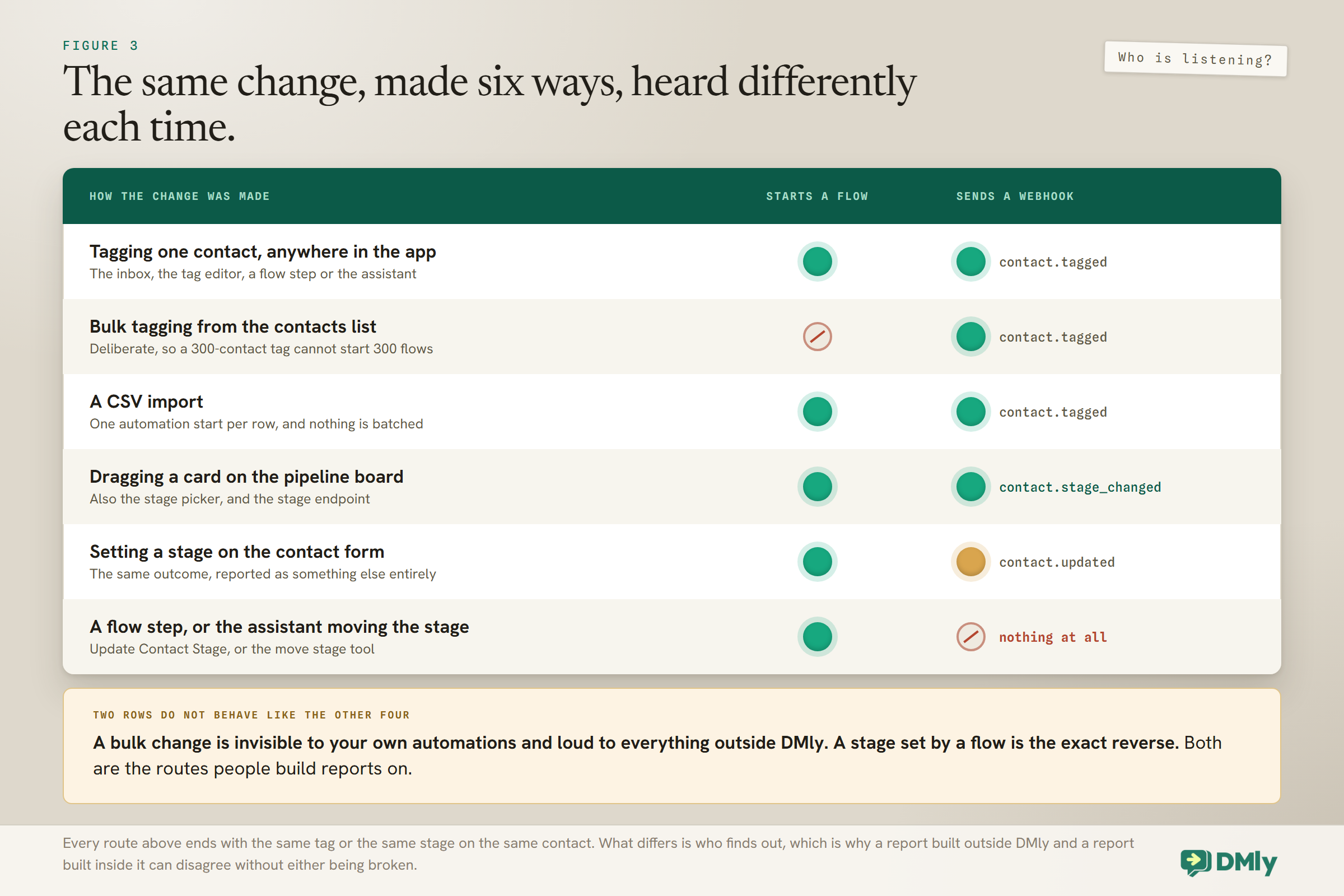
Bulk changes from the contacts list deliberately suppress automation triggers. A CSV import deliberately fires them. That asymmetry is intentional, it is documented, and it catches everybody exactly once.
The reasoning is sound when you see it. Bulk-tagging four hundred existing customers is housekeeping, and it should not send four hundred welcome messages or stampede your queue with four hundred flow runs. Importing four hundred new contacts is an acquisition event, and it probably should start something. But if you have ever selected a group, applied a tag, and watched an automation you were certain about do nothing at all, that is why. Tagging one contact at a time still fires the trigger normally, from the inbox, from the contact’s own tag editor, from a flow’s tag step or from the assistant.
Webhooks behave differently again, and this is the piece that matters if DMly is not the only system you run. The matching webhook fires every time, bulk or not. A bulk tag sends one contact.tagged per contact even though no automation ran, so an external tool listening on webhooks sees a change your own automations never noticed. Reconciling a report against that difference is a genuinely miserable afternoon.
The pipeline side has its own version of the same split, and it is worth writing on a sticky note if anything downstream depends on it. A stage change made by dragging a card, by the Pipeline stage picker on a contact, or through the stage API endpoint sends contact.stage_changed, carrying both the new stage and the old one. A stage set on the contact form, or by sending a stage field to the general contact update endpoint, sends contact.updated instead. And a stage set by a flow’s Update Contact Stage step or by the assistant’s move stage tool sends no webhook at all. Three routes to the same outcome, three different noises.
Duplicates, and the Merge Route Most People Never Find
Every enrichment flow you build makes a duplicate more expensive, because now you have two half-complete records instead of two empty ones. The most common source of them is not sloppiness. It is the same person using two channels, which as we saw at the start is a deliberate design decision rather than a bug, and it is why CRM contacts from WhatsApp and the same customer’s Instagram record never find each other on their own.
There are two ways to merge, and almost everybody finds only the first.
- DMly’s suggestion. When it spots a candidate, a three dot button appears in the profile header offering Possible duplicates. It matches on an exact email address or the last ten digits of a phone number, and it scans your 200 most recently active contacts. No button means DMly has not found a candidate, which is normal for a Facebook or Instagram contact that has no number on it at all.
- The bulk bar on the contacts list. Tick exactly two rows, both on the page in front of you, and Merge appears next to Delete. This route needs no suggestion whatsoever. It merges any two contacts you point it at, however old and however inactive.
That second route is worth knowing because of what it means for the first one’s limit. The 200-contact scan window caps the suggestion, not your ability to merge. A duplicate from last year does not become permanent; it simply stops being offered to you, and you tick the two rows yourself. If you want DMly to offer the pair next time, save the person’s phone number on the profile, because that is what gives it something to match on.
A merge is permanent, and both confirmations say so plainly, so read both profiles before you commit. What a merge protects, though, is thoughtfully chosen and worth knowing in detail, because it means merging can never quietly make somebody more contactable than they were.
- Opting out sticks, with the earlier of the two dates. A merge can never re-subscribe anybody.
- Blocking sticks. If either profile was blocked, the survivor is blocked, which means the survivor can come out blocked because of the profile you did not keep. Worth checking before you wonder why the messages stopped.
- WhatsApp calling consent folds to the most restrictive, per connected number. A decline is never turned back into an allow.
- Client status sticks, keeping the earlier conversion date, so the history stays honest.
One habit and one happy accident keep this under control. Run through the suggestions weekly rather than annually, because the scan window is about recent activity and yesterday’s duplicate is easier to judge than last year’s. And when you import a list, remember that a row whose phone or email exactly matches somebody you already have attaches the channel to that person instead of creating a second copy, which makes a clean import a surprisingly effective deduplication tool in its own right.
Measuring Whether the Records Are Any Good
Once you are creating CRM contacts from WhatsApp at any volume, the number of contacts becomes a vanity metric. Your list will happily show you a large one. What predicts whether next month’s campaign works is not how many records you hold, it is how complete they are.
Five numbers are worth watching, and all five can be counted from segments and the contacts list without any special reporting.
- The share with a real name. The single best proxy for the health of the whole thing, because a name is the easiest answer to get and the first one a bad capture design loses.
- The share with a second way to reach them. Your insurance against a channel going quiet, a number changing or an account being suspended.
- The share with a source. Without it you cannot tell which marketing works, only which marketing is loudest.
- The share with at least one tag. An untagged contact is unreachable by segment, which makes them unreachable by campaign, which makes them close to unreachable altogether.
- The duplicate rate. Rising means the weekly habit above has lapsed.
Set a target for the first one and look at it monthly, because the share of CRM contacts from WhatsApp carrying a real name is the number that moves first when anything upstream improves. If it is not improving, the problem is almost never the customers. It is that your capture is happening too early in the conversation, or asking for too much at once, or writing to a field nothing can read. Our guide to the metrics worth tracking after you automate covers how to hold numbers like these next to the ones about volume.
Worth saying plainly: none of this is a substitute for a proper look at where the enquiries come from in the first place, which is a different job covered in our WhatsApp lead generation guide. Record quality tells you what happens to the enquiries you already get.
Mistakes Worth Avoiding
- Writing to a field you never defined. The value is stored and no segment can ever see it. This is the expensive one, and it is invisible until the day you need the audience. It is also the mistake that wastes the most work, because the capture itself looks perfect right up until the moment you need it.
- Designing fourteen fields. Five get filled in. The rest become noise that makes the contact page unreadable and the data untrustworthy.
- Assuming a field type validates anything. They are labels. A date field will hold the word Tuesday, and the trigger that reads it will then skip that contact in silence.
- Inconsistent capitalisation in field names. Two fields, half the data in each, and a segment that finds nobody.
- Treating the Request phone step’s RECEIVED output as success. It fires on the next reply either way. Check the field, not the branch.
- Leaving the assistant’s field writing switched off while expecting it to populate your schema.
- Asking for details before answering the question. The fastest way to lose a lead you already had.
- Re-importing a file with a blank tags column. Tags are replaced, not added to, so you will strip every tag those contacts had.
- Letting two flows send on the same event. Contact events are not arbitrated, so the customer simply gets both messages.
Frequently Asked Questions
Do I have to set anything up to create CRM contacts from WhatsApp?
No. A contact is created automatically the first time somebody messages a connected channel, with no configuration at all. What needs setting up is everything after that: capturing a name, what they want, when and where they came from, and writing those to fields and tags that were defined first.
Why can I not find my custom field in the segment builder?
Because it was never defined under Settings, Custom fields. The segment builder’s dropdown lists only the fields on that list, so a value written under any other name is stored on the contact and invisible to every segment. Define the field with exactly the same spelling and the values already on your contacts become selectable.
Will DMly work out that my WhatsApp contact and my Instagram contact are the same person?
No. Contacts are created per channel and nothing links them automatically, because matching on a shared phone number would eventually merge two strangers. Merge them yourself: either from DMly’s Possible duplicates suggestion, or by ticking exactly two rows on the contacts list, which works on any two contacts and needs no suggestion.
Can the AI assistant fill in my custom fields?
Yes, but the set custom fields tool is off by default. A new AI reply step arrives with five tools ticked, which are get contact info, add a note, add tags, hand over to a human and move to the unassigned queue. Field writing has to be switched on deliberately, or you can start from the ready-made AI Lead Qualification template, which arrives with it already on.
Why did my automation not run when I bulk-tagged a group?
Because bulk tag and stage changes from the contacts list deliberately run with automation triggers switched off, so that a 300-contact tag cannot start 300 flows. Tagging one contact at a time fires the trigger normally, and a CSV import does the opposite again and fires one automation start per row. The matching webhook fires in every case.
Does the Request phone step guarantee I get a number?
No. Its single RECEIVED output fires on the contact’s next reply whether or not a number was given, and if the fallback template is not approved the step continues without asking at all. Follow it with a condition that checks the phone field, and put a condition in front of it so you never ask somebody whose number you already hold.
Does moving somebody into the Customer column make them a client?
No. The pipeline stage and the lifecycle stage are separate fields that never talk to each other, despite two of the default columns being called Lead and Customer. Lifecycle converts to Client on its own when an invoice, an order, a payment or a subscription appears, and the manual conversion button needs a phone number or an email first.
Build the Record, Not the Row
You never had to do anything to create CRM contacts from WhatsApp, and that was never the hard part. What separates a contacts list from a customer record is a handful of answers, captured at the right moment in an ordinary conversation, written to fields that were defined before anything wrote to them, and kept free of the same person appearing twice.
So the order to work in is short. Define the five fields first, including the four a booking form writes if you take bookings online. Put the asking after the answering. Switch on the tools that write, and check the trace to confirm they fired. Give each source its own link. Then run the duplicate check weekly and watch the share of records with a real name on them.
Everything downstream depends on that groundwork rather than on anything clever: the segments, the broadcasts, the pipeline, the assistant that greets a returning customer by name instead of asking who they are. Our guide to running one inbox across every channel is the other half of the same picture, because the record is only as useful as the conversation sitting next to it.
Writing about WhatsApp automation, bookings and growth for local business.
Turn WhatsApp into your busiest channel.
Start free and run message, bookings, payments and reviews in one place.
