
It has a header row somebody typed years ago. Column A holds order numbers, or client names, or class dates. Column B says where each one is up to. It has a tab nobody opens any more, a column coloured yellow for reasons nobody remembers, and it is open on somebody’s laptop most of the day, because every time a customer asks “any update?” on WhatsApp, a person switches windows, finds the row, reads it, switches back and types the answer. That round trip is exactly what goes away when you connect Google Sheets to WhatsApp.
That is your Google Sheet, and it is already doing half the work of an automation. The half it cannot do is the talking. Once the two are connected, the sheet keeps the information and the automation does the switching of windows: it looks the row up and answers, or it writes a new row the moment a customer gives you something worth keeping.
This guide shows how to do both in DMly, how to go the other way so a new row sends a WhatsApp message, how to move a whole list of contacts in or a report out, and how to lay out the sheet so an automation can actually read it.
What It Means to Connect Google Sheets to WhatsApp
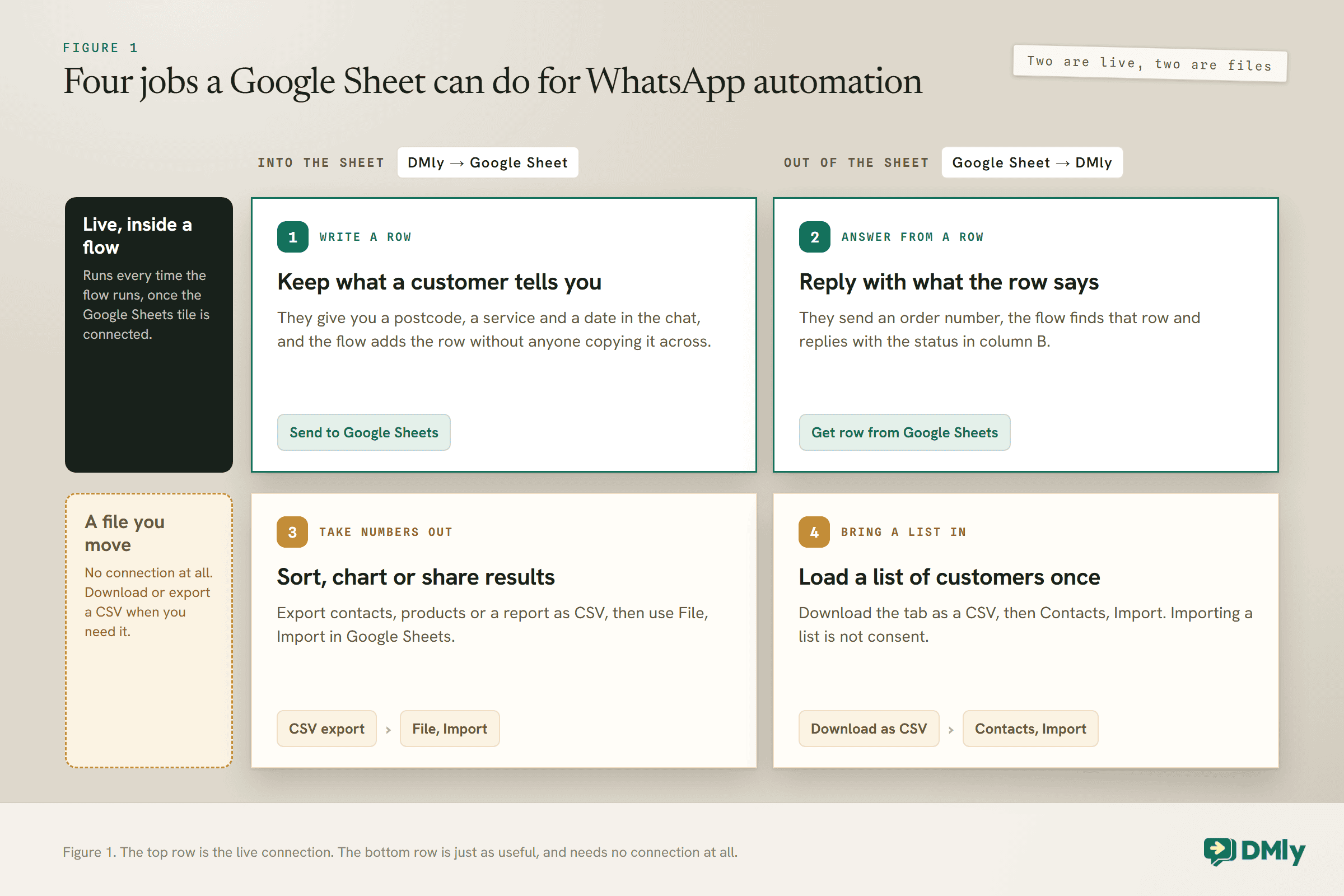
A spreadsheet can do four different jobs for your WhatsApp automation, and only two of them are a live connection.
People search for one phrase and mean four things by it. It helps to know which one you want, because each is built differently:
- Write a row from a conversation. A customer gives you their postcode, the service they want and a rough date, and a flow writes it into your sheet without anyone copying it across. This is a live connection.
- Answer from a row. A customer sends an order number, and a flow finds that row and replies with the status in column B. This is a live connection too.
- Bring a list of contacts in. You have a sheet of customers and want them in DMly. This is a file you move once, not a connection.
- Take the numbers out. You want this month’s payments or ad results in a sheet you can sort and chart. This is also a file, exported when you need it.
The rest of this guide takes them in that order, then covers the direction DMly’s own steps do not cover: a new row in the sheet sending a WhatsApp message.
Before You Connect Google Sheets to WhatsApp
Four things need to be true before the first flow will work. Checking them now saves an afternoon of wondering why nothing happens.
- Your WhatsApp number runs on the WhatsApp Business API through a platform. The free WhatsApp Business app has no integrations, so there is nothing on the app side for a spreadsheet to connect to. In DMly, the number is connected as a channel, and the flows run on it.
- The sheet has a proper header row. The read step finds its column by the header’s name, so row 1 needs a plain name in every column you will use. More on laying out the sheet further down.
- You know which flow the sheet belongs in. Both Google Sheets steps are steps inside a flow, so they run when that flow runs. If you have never built one, our beginner’s guide to no-code WhatsApp automation covers flows, triggers and templates from the start.
- For anything that messages a customer first, you have a template and permission. Outside the 24-hour messaging window, WhatsApp only allows an approved message template, and only to people who agreed to hear from you. A spreadsheet does not change either rule.
Step 1: Connect the Google Sheets Tile
Connect Google Sheets once, on the Integrations page, and every flow in the workspace can use it.
In DMly, go to Configurations, then Integrations. The page is a set of tiles, grouped by tabs. Google Sheets sits on the Productivity tab, alongside Google Calendar, Zoom and Slack, and it also appears on All.
- Select Connect on the Google Sheets tile. Each tool has its own panel, because each one needs different details, so follow what the Google Sheets panel asks for.
- Check the status. A saved connection flips the tile to Connected, and the button changes from Connect to Manage, which takes you back to the same panel to change or disconnect it.
- Build the flow. Connecting on its own does not make anything happen. DMly’s docs put it plainly: connecting a tool “makes a capability available”. The rows only start moving once a flow uses one of the Google Sheets steps.
One more status is worth knowing about before you rely on it. If a connected tool starts rejecting DMly’s credentials, because access was revoked or a token expired, the tile flips to Error and DMly emails your workspace admins once, with a subject that starts “Action needed” and a Reconnect integration button. It is one email per outage rather than one per failed step, so it is easy to miss if it lands in a shared inbox nobody reads. Reconnecting clears the status.
Step 2: Write a Row From a WhatsApp Conversation
The Send to Google Sheets step adds a row to your sheet from inside a flow, using whatever the flow knows at that moment.
In DMly’s flow builder, the step lives under Actions, among the connectors, alongside Slack, Mailchimp and HubSpot. Drop it into a flow at the point where the information you want has been collected, and fill the row with variables: tokens like {{name}} or {{phone}} that DMly replaces with the real value for that contact.
Which values to write is the decision that matters, and DMly’s docs make a good case for one habit in particular: write an id. Its variables reference lists ids as “what you write into a spreadsheet row” when the row has to be matched back to DMly afterwards. Three variables are worth putting in almost every row:
| Variable | What it holds | Why it belongs in a row |
{{contact_id}} | The contact’s id in DMly | The same id the API and webhooks use, so a row can be tied back to the person later |
{{flow_run_id}} | The id of this run of this flow | Tells two rows from the same person apart, and lets you find the run in DMly |
{{current_datetime}} | Now, in the contact’s timezone, or UTC if you have no timezone for them | A timestamp you did not have to type |
The reason the docs give for ids is a practical one: a name, phone number or username “can be missing today and different tomorrow, and an id can’t.” A customer who changes the name on their WhatsApp profile should not become a stranger in your sheet.
A worked example: a lead log for a cleaning company
Here is how that looks in practice. The business is an illustration, not a real customer.
A domestic cleaning company in Leeds gets most of its enquiries on WhatsApp, and the owner prices every job from a sheet with one row per enquiry. Before automation, whoever was on the phone copied each enquiry across by hand, and on busy days some never made it. The flow that replaces the copying is short:
- Trigger: a customer sends a WhatsApp message.
- Question: “What’s your postcode?” The flow waits for the answer.
- Buttons: “Regular clean”, “End of tenancy”, “Oven only”. WhatsApp allows up to three reply buttons, so three services fit exactly.
- Send to Google Sheets: one row with the date,
{{contact_id}},{{name}},{{phone}}, the postcode, the service and{{flow_run_id}}. - Message: “Thanks {{first_name}}, we’ll send a price today.”
The owner’s sheet now fills itself, in the same columns every time, and the {{contact_id}} column means that when she sends a price she can find the right conversation in DMly without searching by name.
A row does not have to come from a customer’s message, either. A flow can start on a business event, such as an appointment being booked or an invoice being paid, so the same step can keep a simple bookings log or a paid-invoices sheet for your bookkeeper. Before building one of those, check whether DMly already records it: appointments, invoices and payments all have their own screens and reports, and a copy in a sheet is only worth having if somebody actually works from it.
A debugging trick the docs recommend
A spreadsheet is also a handy window into a flow. DMly’s docs point out that a value saved by an HTTP Request step cannot be seen on the trigger’s fields, and suggest printing it somewhere a later step writes, such as a Send to Google Sheets row next to {{flow_run_id}}. If a flow is doing something odd, a temporary row of the variables it is using can show why faster than reading the flow does.
Step 3: Answer a Customer From a Row
Get row from Google Sheets looks a value up in your sheet and hands the matching row’s columns to the rest of the flow.
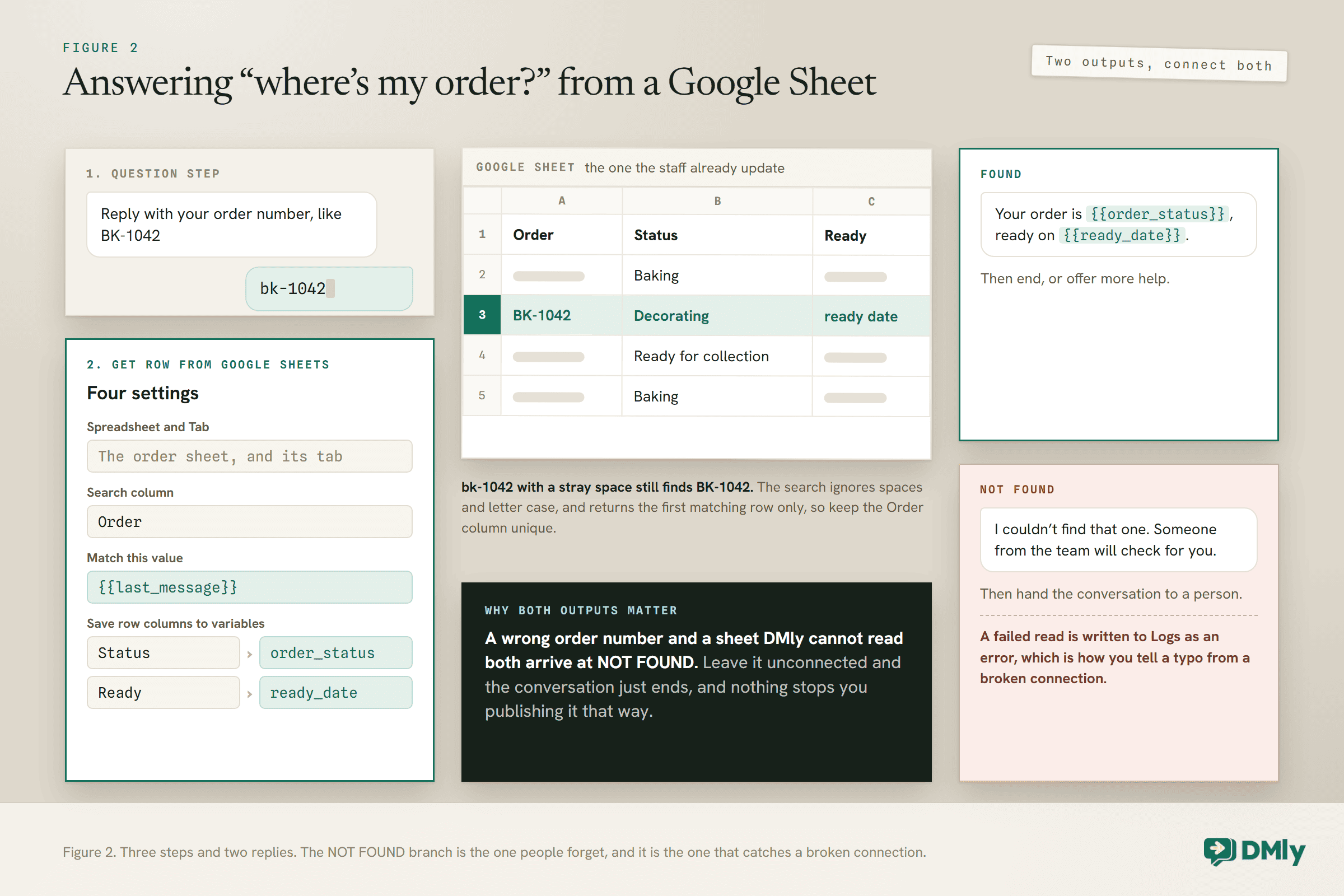
This is the step that replaces the window-switching in the opening paragraph, and DMly documents it in detail. You set four things:
- Spreadsheet and Tab: which sheet, and which tab inside it.
- Search column: the header of the column to search, such as
Order. - Match this value: what to look for. It takes variables, and it starts as
{{last_message}}, so by default the step searches for whatever the contact just sent. - Save row columns to variables: the columns you want back, and the variable name each should fill, such as
Statustoorder_status. Later steps can then use{{order_status}}like any other variable.
The step finds the first row whose search column matches, ignoring spaces and letter case, and it has two outputs: FOUND and NOT FOUND. Connect both. The docs are specific about why: a search that finds nothing and a spreadsheet DMly cannot read both take NOT FOUND, so if you leave that output unconnected, the conversation just ends without an answer. And, unlike the Find Order step, nothing stops you publishing the flow that way.
A worked example: a bakery’s order sheet
Again an illustration. A bakery taking celebration cake orders keeps a sheet with three columns: Order, Status and Ready. The staff update the status as each cake moves from “Baking” to “Decorating” to “Ready for collection”, because they were keeping that sheet anyway.
The flow asks the customer for their order number with a question step, then runs Get row from Google Sheets on the reply, searching the Order column and saving Status and Ready to two variables. A customer who types bk-1042 in lower case with a stray space still matches the row for BK-1042, because the search ignores spaces and letter case. On FOUND, the flow replies with the status and the ready date. On NOT FOUND, it apologises and hands the conversation to a person, who can check whether the customer mistyped or whether the sheet has gone wrong.
Nobody changed how the bakery works. The staff still update the same sheet in the same way. The only difference is that customers can read it now, one row at a time, through WhatsApp.
Name your variables carefully
One small trap. DMly has built-in variables such as {{name}}, {{phone}} and {{contact_id}}. If a Get row from Google Sheets step saves a column under one of those names, the docs say “your value wins and the system one is not used”. Save a sheet’s Name column as name, and a later “Hi {{name}}” in that run can greet the customer with whatever was in the sheet. Give saved columns names that cannot collide, such as sheet_name or order_status.
What a Sheet Is Good At, and Where It Stops
A sheet is a good home for information your team already keeps there. It is a poor substitute for the parts of DMly built for the job.
The lookup suits information that changes by hand and lives nowhere else: order statuses a small team updates as it goes, a price list, a list of which postcodes you cover, the dates of this term’s classes. The sheet stays the one place staff edit, and WhatsApp just reads it.
A few limits are worth knowing before you build on it:
- The lookup returns the first match only. If the search column has the same value twice, the second row is never read. Keep that column unique.
- It reads one row, not a list. The step finds a row and returns some of its columns, so “show me all my bookings this month” is not a job for it.
- Google caps the sheet’s size. Google’s Drive help page puts the limit at 20 million cells or 100MB for a spreadsheet created in or converted to Google Sheets. A lead log that gains a row per enquiry takes a long time to get there; a sheet that logs every inbound message gets there much faster.
- Anyone with edit access can change what customers are told. That is the point of it, and also the risk. A typo in the Status column goes straight to a customer.
And some jobs already have a better home in DMly. Store orders from Shopify or WooCommerce have their own Find Order step. Customer details, tags and notes belong on the contact, where every flow and every teammate can see them, and a sales pipeline tracks leads with stages that flows can react to, which a column of statuses cannot do. DMly’s Finance section records expenses so they sit next to payments instead of in a separate spreadsheet. Use a sheet for the information that genuinely lives in a sheet.
Going the Other Way: A New Row That Sends a WhatsApp Message
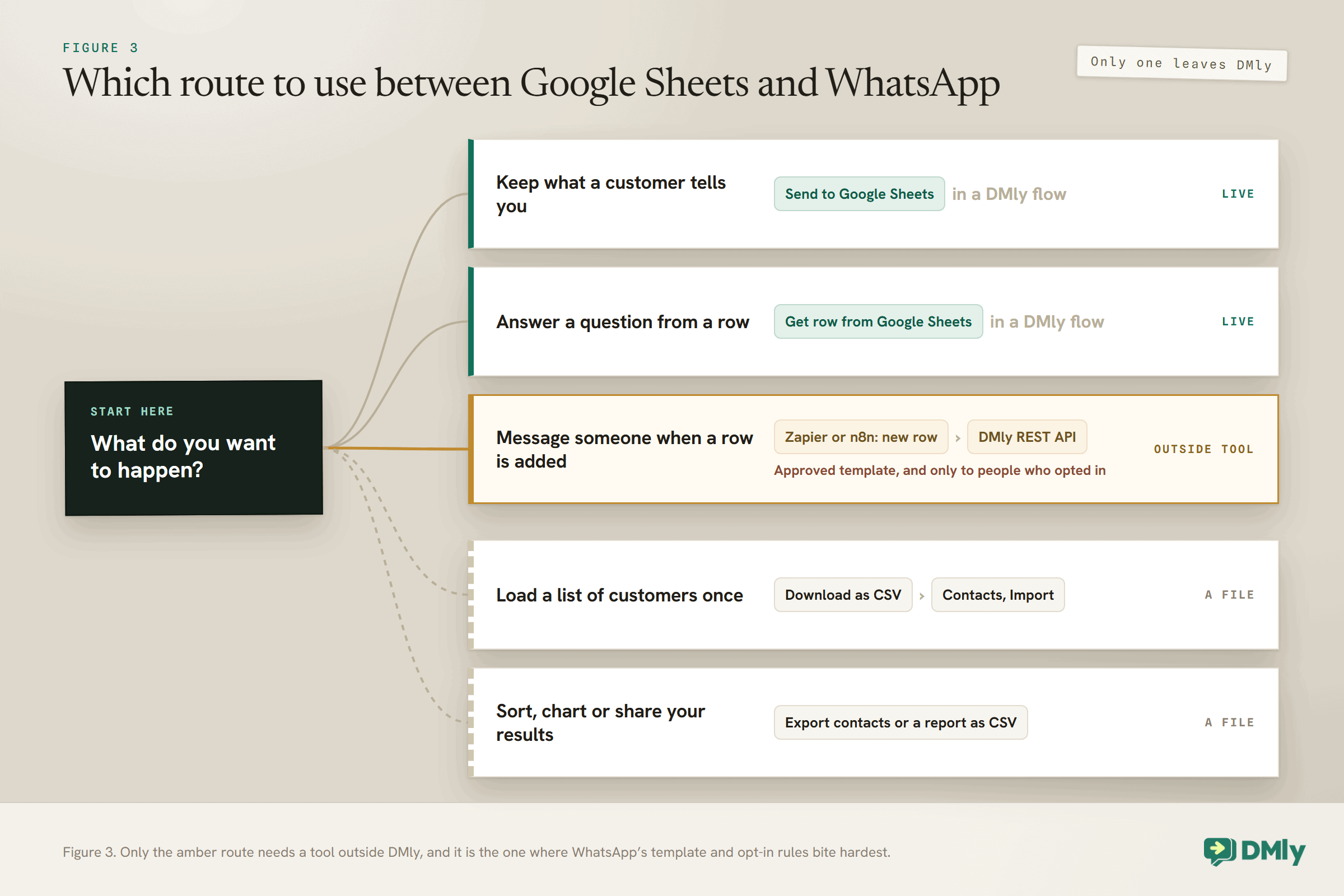
DMly’s Google Sheets steps run inside flows, and a row being added is not one of the events that starts a DMly flow. To make a new row send a message, you need a tool in the middle.
It is a natural thing to want: can I add a row to my sheet and have WhatsApp send something? A new booking typed in by the receptionist, a new student added by the office, a delivery date filled in by the warehouse. The answer is yes, but not with the Google Sheets tile. DMly’s flows start on events such as a message arriving, a tag being applied, an appointment being booked or an invoice being paid, and “a spreadsheet row was added” is not on that list.
The route that works uses Zapier, which has its own Google Sheets app:
- Trigger: Google Sheets, New Spreadsheet Row. Zapier’s own description is that it “triggers when a new row is added to the bottom of a spreadsheet”. There is also a New or Updated Spreadsheet Row trigger, if an edit should send a message too.
- Find the contact. Look the person up in DMly by phone number through the REST API, so you do not create a duplicate of someone you already have.
- Send the message. A Webhooks by Zapier step calls DMly’s REST API to send an approved template to that contact, with the row’s values as the template’s parameters.
Three things come with that route. Webhooks by Zapier is not on Zapier’s Free plan, according to Zapier’s help centre. The step needs a DMly REST API key, which grants full access to the workspace, so give this Zap its own key and keep it in the Zap only. And because the person on the new row has usually not messaged you in the last 24 hours, the message has to be an approved template sent to someone who agreed to receive it, which is where a clear opt-in earns its keep. A row in a spreadsheet is not consent.
The same route works in n8n, which also has a Google Sheets node and can call DMly’s REST API. Our guide to connecting WhatsApp to n8n covers the setup, and our explainer on what webhooks are is a gentle introduction if the words in this section are new.
Zapier also works in the direction this guide started with. Its Google Sheets app has a Create Spreadsheet Row action, so a Zap that receives an event from DMly’s Zapier tile can write a row. That is useful when you already run your other automations through Zapier. If you do not, the Send to Google Sheets step does the same job inside DMly with one less moving part.
Bringing a Spreadsheet of Contacts Into DMly
A list of customers in a sheet comes into DMly through the contacts CSV import, not through the Google Sheets tile.
In Google Sheets, download the tab as a CSV file (File, Download, Comma-separated values). In DMly, go to Contacts and select Import. The importer is strict about a few things, and each of them is worth checking before you upload:
- Start from the sample. Select Download sample and copy its header row into your sheet. The importer recognises
name,country_code,phone,email,tags,stage,notesandcustom_fields. Capital letters and stray spaces are fine; a renamed column such asMobileis not, and leaves every row without a phone. - Every row needs a name and a phone number. A blank in either skips the row, and DMly tells you how many were skipped.
- Select the channel first. The importer attaches each contact to the channel you have selected, and refuses to run without one. Connect your WhatsApp number before importing.
- Quote anything with a comma in it. An unquoted comma in a note shifts every later value one column to the right. Downloading from Google Sheets as CSV quotes those values for you, which is one reason to download the file rather than typing it out by hand.
- Re-importing replaces tags. DMly matches existing contacts by phone or email, so a second import does not create duplicates. But it replaces tags with whatever the
tagscolumn says, and a blank or missingtagscolumn removes every existing tag from every contact it matches. If you re-import to update something else, carry the tags in the file. - Stages must match exactly. A
stagevalue that does not match a pipeline stage’s name is ignored, and the contact arrives with no stage. - Your plan’s contact cap is checked first. If the import would take the workspace over its cap, nothing is imported at all.
Then the rule DMly’s own migration guide puts most bluntly: importing a list is not consent. A contact who has never messaged your business has no open window, so the only thing you can send them is an approved template, and only if they agreed to hear from you on WhatsApp. A spreadsheet of past customers is a list of people you know, not a list of people who have opted in.
Taking Contacts and Reports Out Into a Sheet
DMly exports CSV files that open in Google Sheets, which covers many “I want this in a spreadsheet” requests without building anything.
What you can export, according to DMly’s export docs: your contacts, your product catalogue, and the six reports (Team performance, Appointments, Finance, Ads, CSAT and Logs), each as CSV. Automation flows export as JSON. In Google Sheets, use File, Import to bring a CSV in as a new sheet or a new tab.
A few details make the files easier to work with:
- The contacts export is every contact in the workspace, not just those on the channel you are looking at, in the same seven columns the importer reads. That makes a round trip possible: export, add a column of tags in Google Sheets, and import it back to apply them.
- The
country_codecolumn in the contacts export is always blank. It is there so the file matches the importer’s layout; the country code is already part ofphone. Do not build a formula that reads it. - The Ads report leaves unmeasured figures empty rather than zero, so a spreadsheet total never counts a figure nobody measured. Keep it that way when you paste it into a sheet.
- There is no Excel export and no scheduled or emailed report. If you need a sheet that updates itself, that comes from the REST API, or from a Send to Google Sheets step that writes the rows as things happen.
Exports are not limited by plan, but they are limited by role: what you can export depends on your permissions in the workspace.
Laying Out a Sheet So an Automation Can Read It
A sheet that works for a person does not always work for a flow. A few habits make the difference.
- One header row, in row 1, with plain names. The read step names its search column by header, and the columns it saves by header too.
Orderis a good header.Order no. (see note)is asking for trouble. - Do not rename a header a flow depends on. The flow still looks for the old name. If you must rename a column, update the flow at the same time.
- One tab per job. A tab the flow reads from and a tab the flow writes to are easier to manage apart, and neither should be the tab where somebody keeps their own notes.
- A unique value in the search column. The step returns the first match, so a duplicated order number hides every later row with the same number.
- Values a customer can type. Order numbers like
BK-1042are easy to type on a phone. A 16-character code is not, however forgiving the match is about spaces and capitals. - Write what customers should read. Whatever is in a saved column can end up in a WhatsApp message word for word, so “Ready for collection” beats “RFC”, and an internal comment belongs in a column the flow does not save.
And think about who can open the sheet. A lead log holds names and phone numbers, which is personal data. Share it with the people who need it, not with anyone who has the link, and do not write more into it than the job needs. If a column is only there because it was easy to add, leave it out.
Testing and Troubleshooting
Test every Google Sheets flow on your own phone before a customer reaches it, and know where DMly records what happened.
Send the flow’s trigger from your own WhatsApp, watch the row appear, and try the lookup with a real value, a value that does not exist, and a real value typed in lower case with a space after it. That covers FOUND, NOT FOUND and the forgiving match in three messages.
When something does not work, DMly’s Logs page is the place to look. Filter by Integrations: the docs describe one entry per Google Sheets step run, with the provider’s own error if it failed. A failed read is written there as an error, which is how you tell “the order number was wrong” from “DMly could not read the sheet”, since the customer sees the same NOT FOUND reply either way.
| What you see | Likely cause | What to check |
| No row appears, and nothing in Logs | The flow never reached the step | Is the flow switched on and published? Did your test message match its trigger? |
| An error entry in Logs for the step | The connection or the sheet | The provider’s error in the entry, and whether the tile shows Error |
| Every lookup takes NOT FOUND | The search column name, or a failed read | The header still matches the Search column; Logs for an error |
| The wrong row comes back | A duplicated value in the search column | Sort the column and look for repeats |
| The reply greets the customer by the wrong name | A saved column named like a built-in variable | Rename saved variables so they cannot collide |
| The tile shows Error | Access revoked or a token expired | Reconnect the tile; look for the “Action needed” email |
Mistakes to Avoid
- Leaving NOT FOUND unconnected. The flow will publish, and customers with a mistyped order number, or a sheet DMly cannot read, get no answer at all.
- Writing names instead of ids. Add
{{contact_id}}to every row you might need to trace back. - Using a sheet where DMly has a proper home. Store orders, contacts, pipelines and payments all have one.
- Expecting the tile to react to new rows. A new row does not start a DMly flow. Use Zapier or n8n for that direction.
- Messaging everyone on an imported list. Importing is not consent, and a contact who never wrote to you can only be sent an approved template.
- Re-importing without a tags column. It strips the tags from every contact it matches.
- Letting anyone edit the sheet customers read from. Everything in a saved column can be sent word for word.
Frequently Asked Questions
Can WhatsApp read data from Google Sheets?
Not on its own. A platform on the WhatsApp Business API has to do the reading. In DMly, the Get row from Google Sheets step finds a row by the value in one column and passes the columns you choose to the rest of the flow, which can put them in a WhatsApp reply.
Can I save WhatsApp leads to Google Sheets automatically?
Yes. Connect the Google Sheets tile, then add a Send to Google Sheets step to the flow that collects the lead. Include {{contact_id}} in the row so you can find the conversation again later.
Can adding a row in Google Sheets send a WhatsApp message?
Yes, with a tool in the middle. A new row is not a DMly trigger, so use Zapier’s New Spreadsheet Row trigger, or n8n, to call DMly’s REST API and send an approved template to someone who agreed to receive it.
Can I connect Google Sheets to the WhatsApp Business app?
No. The free WhatsApp Business app has no integrations. You need the WhatsApp Business API through a platform such as DMly.
Does the lookup need an exact match?
Nearly. Get row from Google Sheets ignores spaces and letter case, so bk-1042 finds BK-1042. The docs only mention spaces and letter case, so treat any other difference, such as a missing hyphen, as a different value. It returns the first matching row.
How do I import contacts from Google Sheets into DMly?
Download the tab as a CSV, then use Import on the Contacts page. Copy the header row from DMly’s sample file, make sure every row has a name and a phone number, and select your WhatsApp channel before you start.
The Sheet Was Always the Easy Part
Go back to the spreadsheet in the first paragraph, the one open on somebody’s laptop all day. Nothing about it needs to change. The header row, the order numbers in column A, the statuses in column B: an automation can work with all of it, as long as the headers stay put and the values are ones a customer can type.
What changes is who does the switching of windows. When you connect Google Sheets to WhatsApp, the enquiries write themselves into the sheet, the “any update?” messages answer themselves from it, and the person who used to do both gets that time back. Start with one flow, the one your team repeats most, test it on your own phone, and connect the NOT FOUND branch before you switch it on.
Writing about WhatsApp automation, bookings and growth for local business.
Turn WhatsApp into your busiest channel.
Start free and run message, bookings, payments and reviews in one place.
