
How Clinics and Dental Practices Can Automate Google Review Requests
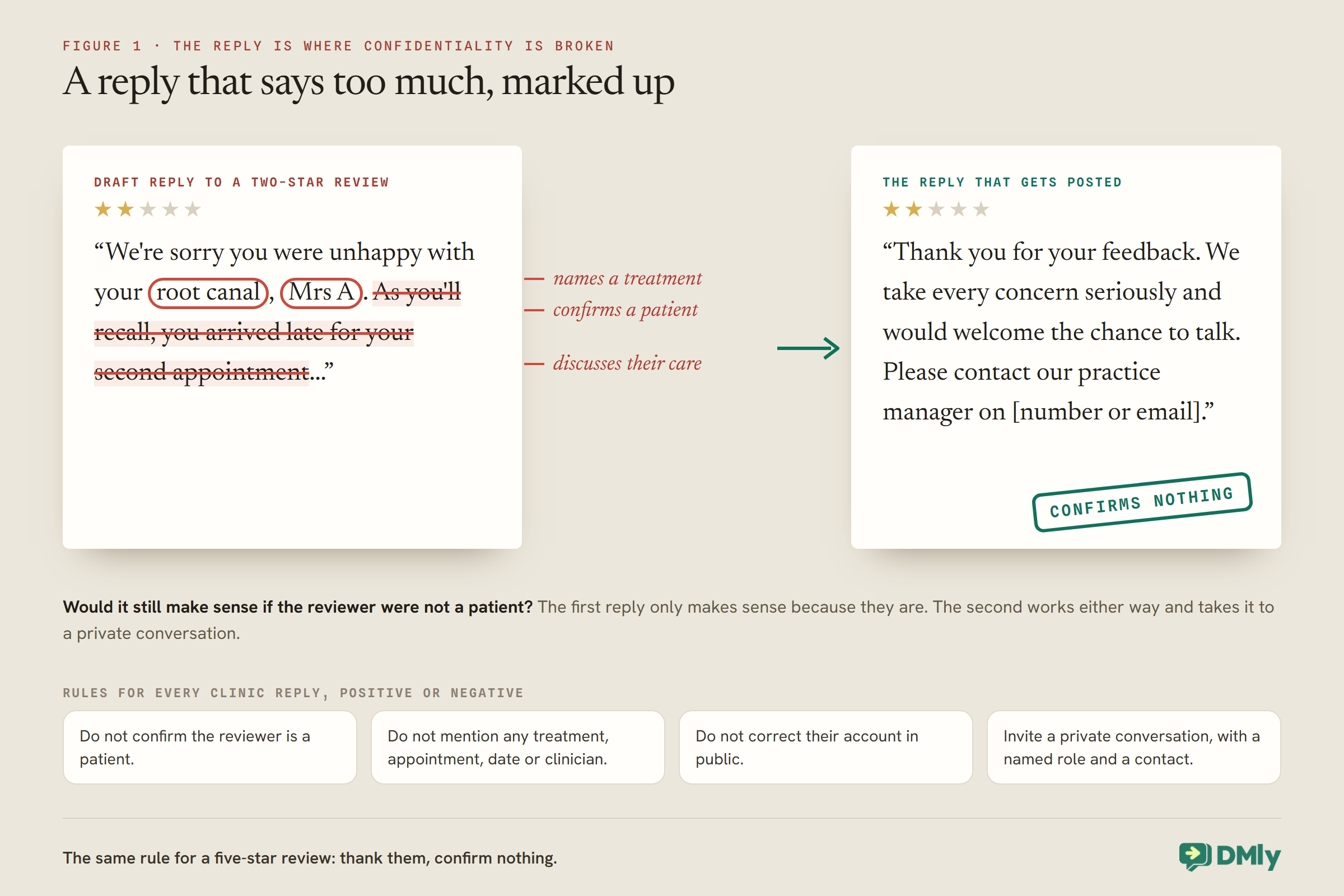
“We’re sorry you were unhappy with your root canal, Mrs Adeyemi. As you’ll recall, you arrived late for your second appointment…” A practice owner writes that reply late one evening, stung by a two-star review, meaning to set the record straight. In one sentence it has confirmed publicly that the reviewer is a patient, named their treatment and discussed their care. Nothing in the review said any of that. The reply did.
That is the part of Google review requests that is different in healthcare. The requests themselves automate much as they do for any business, and a steady flow of honest reviews helps new patients choose you. But a clinic has a duty of confidentiality that a café does not, and it applies to how you ask, what you say, and above all how you reply. In the United States, a dental practice agreed to pay $10,000 to settle potential violations of the HIPAA Privacy Rule over social media disclosures of patients’ protected health information, according to the US Department of Health and Human Services. Other countries have their own professional rules.
This guide builds review requests for a clinic or dental practice in DMly, with confidentiality designed in: which appointments should trigger a request, neutral wording, the flow, the rules from Google and WhatsApp, replying safely, and measuring honestly. It builds on our complete guide to Google review automation. Nothing here is legal advice; your regulator’s guidance decides what applies to you.
What Is Different for Clinics
Four things change when the business is healthcare.
- Confidentiality. Whether someone is your patient is itself confidential. A public reply that confirms it, or mentions their treatment, is a disclosure, even if the patient wrote about it first.
- Sensitive services. For some services, such as sexual health, mental health or addiction care, even a review request can reveal or embarrass. Those need a different approach, or none.
- Clinical wording. Requests, like reminders, appear on lock screens. They should never mention a treatment.
- Complaints. A negative review about care may be a complaint, and complaints belong in your complaints process, not in a public exchange.
None of these stop you asking for reviews. They change how you build and run the system.
The Rules You Are Working Within
Three sets of rules apply: Google’s, WhatsApp’s and your profession’s.
Google’s
Google’s policy for reviews on Maps lets businesses ask for honest reviews and prohibits offering incentives, such as payment, discounts, or free goods and services, in exchange for them. It also says businesses must not “selectively solicit positive reviews from customers”, and that merchants “should not require or pressure users” to leave reviews. For a clinic, the pressure rule matters: asking a patient to review you while they are still in the chair or at reception is exactly the pressure the policy describes.
WhatsApp’s
WhatsApp’s Business Messaging Policy says not to use WhatsApp “to send or request any health related information, if applicable regulations prohibit” it on systems that do not meet heightened requirements. A review request that mentions no treatment sits comfortably inside that; one that says “how was your implant consultation?” does not.
Your profession’s
Confidentiality rules come from your regulator and your country’s law, and they are the ones that bite in replies. The US case above involved the HIPAA Privacy Rule; dentists, doctors and other clinicians elsewhere have their own professional guidance on social media and online reviews. Read yours before you reply to your first review. If in doubt, the safest reply confirms nothing about the reviewer at all.
Before You Build
Three things must be in place, and one of them surprises clinics.
- Connect your Google Business Profile under Reputation in DMly. The review link comes from it.
- Reputation and Reviews is on. Review requests are part of the Reputation and Reviews feature, which is included on every DMly plan.
- Understand the message is marketing. On WhatsApp, DMly sends the request on its
dmly_review_requesttemplate, and DMly’s docs record that Meta holds this template as marketing, whatever it is declared as. So each request is billed at Meta’s marketing rate for the patient’s country, and should only go to patients who agreed to receive messages from you beyond their appointments. Ask at registration, and record the answer, because DMly records opt-outs but not how someone opted in. Our guide to WhatsApp opt-in covers how to ask, and the rate card by country shows the marketing rate.
Step 1: Decide Which Appointments Should Lead to a Request
This is a clinic’s most important decision, and DMly’s trigger will not make it for you.
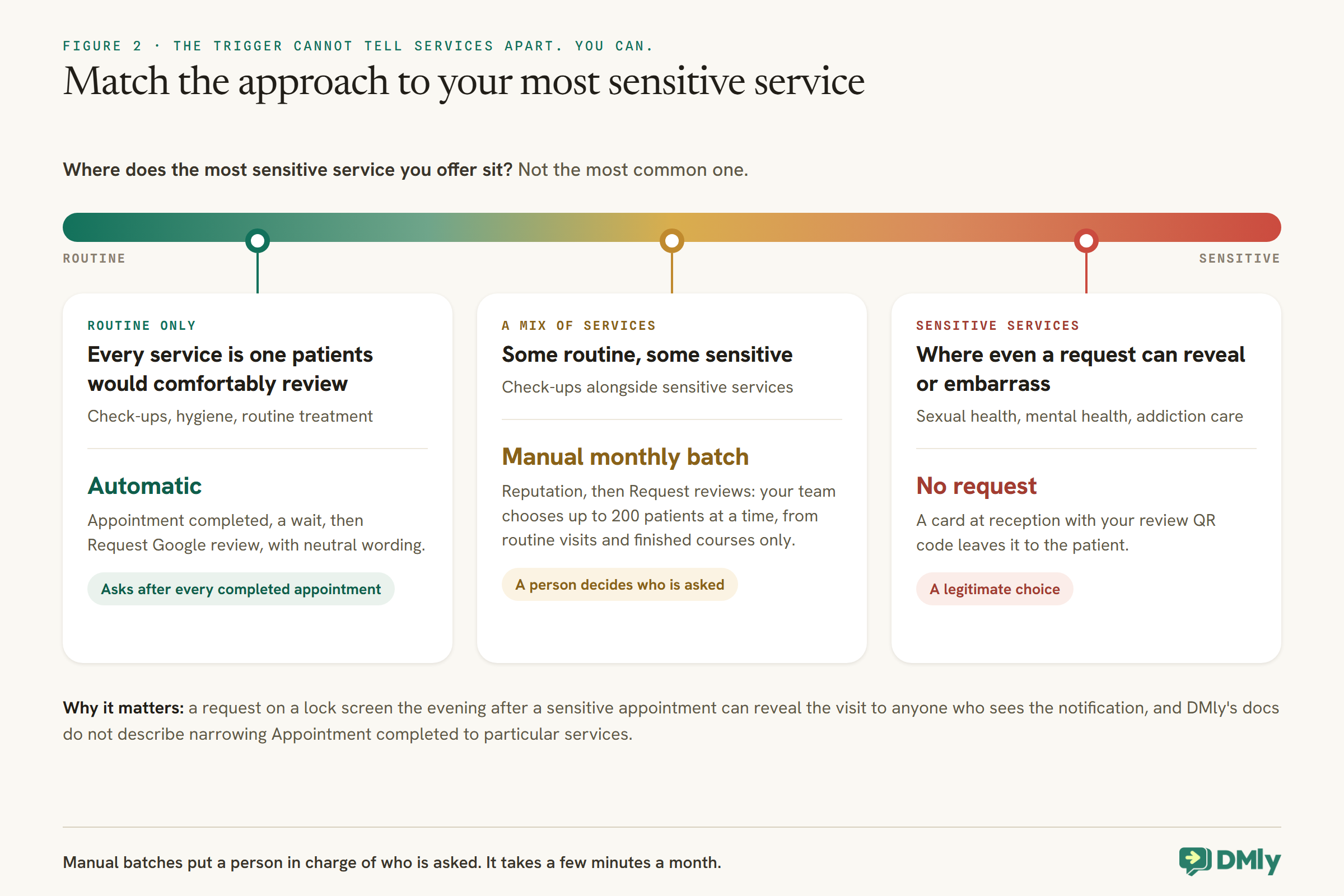
DMly’s automatic review request usually starts from the Appointment completed trigger, and the docs do not describe narrowing that trigger to particular services. A flow built on it asks after every completed appointment. For a general dental practice, that may be fine: check-ups, hygiene appointments and routine treatment are services patients are comfortable reviewing. For a clinic offering sensitive services, it is not. A review request arriving on a patient’s phone the evening after a sexual health or mental health appointment can reveal the visit to anyone who sees the notification, and it can feel intrusive even if nobody does.
Choose one of three approaches, based on what your clinic offers:
- Automatic, for general practices. If every service you offer is one patients would comfortably review, run the automatic flow with neutral wording.
- Manual batches, for mixed or sensitive clinics. DMly’s Reputation, then Request reviews tab lets your team choose up to 200 patients at a time and send them a request. Once a month, choose patients from routine appointments only, and never from sensitive services. It takes a few minutes and puts a person in charge of who is asked.
- No requests, for sensitive services. Some clinics decide not to request reviews for certain services at all. That is a legitimate choice; a card at reception with your review QR code lets patients who want to review you do so on their own.
Step 2: Automate Google Review Requests, If It Suits Your Clinic
Three steps: a completed appointment, a wait, and the request.
- Trigger: Appointment completed. It fires when an appointment is marked completed on the Calendar, by a flow or through the API, and, under the default setting, when DMly closes a past booking nobody marked, about a day later, even if the patient never came. Set Appointments nobody marked (Appointments, Settings, Booking policy) to Wait for review so unmarked bookings wait at Needs review and send nothing, then have your team mark each appointment completed or no-show. That way requests only go out for appointments your team marks, and a patient who missed their slot is never asked to review it.
- Wait. A delay, so the request arrives later that day or the next, not as the patient walks out.
- Request Google review. Leave Send on at Contact’s active channel, and choose the review template.
The step never stops a flow; whether the request sends, is skipped or fails, the outcome is written to your logs. Each successful send fires a Review request sent trigger, which can tag the patient so your team can see who has been asked.
Regular patients seen every few months will be asked after every completed appointment by an automatic flow. DMly’s docs do not describe a flow condition that checks for a tag, so a “only ask once” rule cannot be relied on inside the flow. If that matters to you, the monthly manual batch gives you full control over who is asked.
Courses of treatment: ask at the end, not after every visit
A patient having a course of treatment over several visits should not be asked for a review after each one. An automatic flow on Appointment completed cannot tell the third visit of five from the last, so for practices that do a lot of multi-visit treatment, this is another point in favour of the monthly manual batch: your team can choose patients whose course has finished, when they have the whole experience to review.
More than one location
A group with several practices has one Google listing per location. DMly connects several locations in one sign-in, and once a second is connected, a Switch location picker decides which location the Reputation tabs show and which location’s link manual requests use. Send a batch with the wrong location selected and patients are sent to another practice’s listing. Test the automatic flow for each location too, by marking a test appointment completed at each and checking which listing the request opens.
Choose the delay with your clinicians
How long to wait before asking is a small decision with a clinical edge. After a routine check-up, the same evening is fine. After treatment that leaves a patient sore or recovering, a request that same evening can feel tone-deaf, and a day or two later is kinder. Because the automatic flow cannot tell appointment types apart, pick one delay that suits your most demanding routine treatment, and agree it with your clinicians rather than choosing it on your own.
Children and family accounts
Review requests are marketing messages, and they should go to the adult who manages the family’s appointments, not to a child. If your practice keeps children’s records linked to a parent with DMly’s Linked contacts, check where their bookings sit: a request from an automatic flow goes to the contact the appointment is for. Where a child’s record has its own number, a manual batch is the simpler way to make sure requests reach parents only.
Step 3: Word the Request for a Lock Screen
Say nothing about the visit except that it happened.
The default review template uses the patient’s name, your business name and your review link, which is neutral. If you write your own, keep it that way:
Hi {{1}}, thank you for visiting {{2}}. If you have a moment, we’d welcome your honest feedback on Google: {{3}}. It helps other patients find us.
Never mention a treatment, a clinician’s specialty or a condition. Ask for honest feedback, not for five stars. And do not suggest what to write, including asking patients to mention a particular dentist or treatment, because Google’s policy covers attempts to influence the content as well as the rating.
For a clinic whose name itself reveals a sensitive service, the business name in the request is a disclosure on the lock screen. That is one more reason such clinics may choose not to send requests at all.
If You Use DMly’s CSAT Template, Change One Branch
The shipped template sends the review link only to happy patients. Google prohibits that.
DMly’s Post-chat CSAT to Google review template asks for a one-to-five rating an hour after an agent replies, sends low ratings to a person, and sends the review request only to four and five star answers. DMly’s docs describe it as making sure “only the happy responders are ever asked publicly”. That is the selective solicitation Google’s policy prohibits. Keep the private check-in, which helps you reach unhappy patients quickly, and change the low-rating branch so that, after a person has been in touch, those patients receive the same review request as everyone else.
For a clinic there is a second reason to be careful with this template: a rating question after a clinical conversation invites clinical replies. Make sure anything clinical that comes back goes to a clinician.
Step 4: Reply Without Revealing Anything
This is where clinics get into trouble. Write every reply as if you do not know who the reviewer is.
In DMly, reviews arrive under Reputation, then Reviews, synced from Google every hour, and you reply with Reply and Post reply. DMly’s docs are explicit that there is no draft or approval step: Post reply publishes immediately, under your practice’s name. Google keeps one owner reply per review, and editing replaces it. So for a clinic, draft replies outside DMly, have them checked if your policy requires it, and paste them in only when they are final.
Rules for every clinic reply, positive or negative:
- Do not confirm the reviewer is a patient. “Thank you for your feedback” works whether or not they are.
- Do not mention any treatment, appointment, date or clinician in connection with them, even if they did.
- Do not correct their account in public. Arguing the facts means discussing their care.
- Invite a private conversation, with a named role and a phone number or email, for anything negative.
- Keep a standard wording for positive and negative reviews, so every reply is safe by default and nobody improvises late at night.
Write a reply library before you need it
The safest replies are the ones written calmly, in advance, and checked once. Keep three standard replies, adapt only the first line, and never add details about the reviewer.
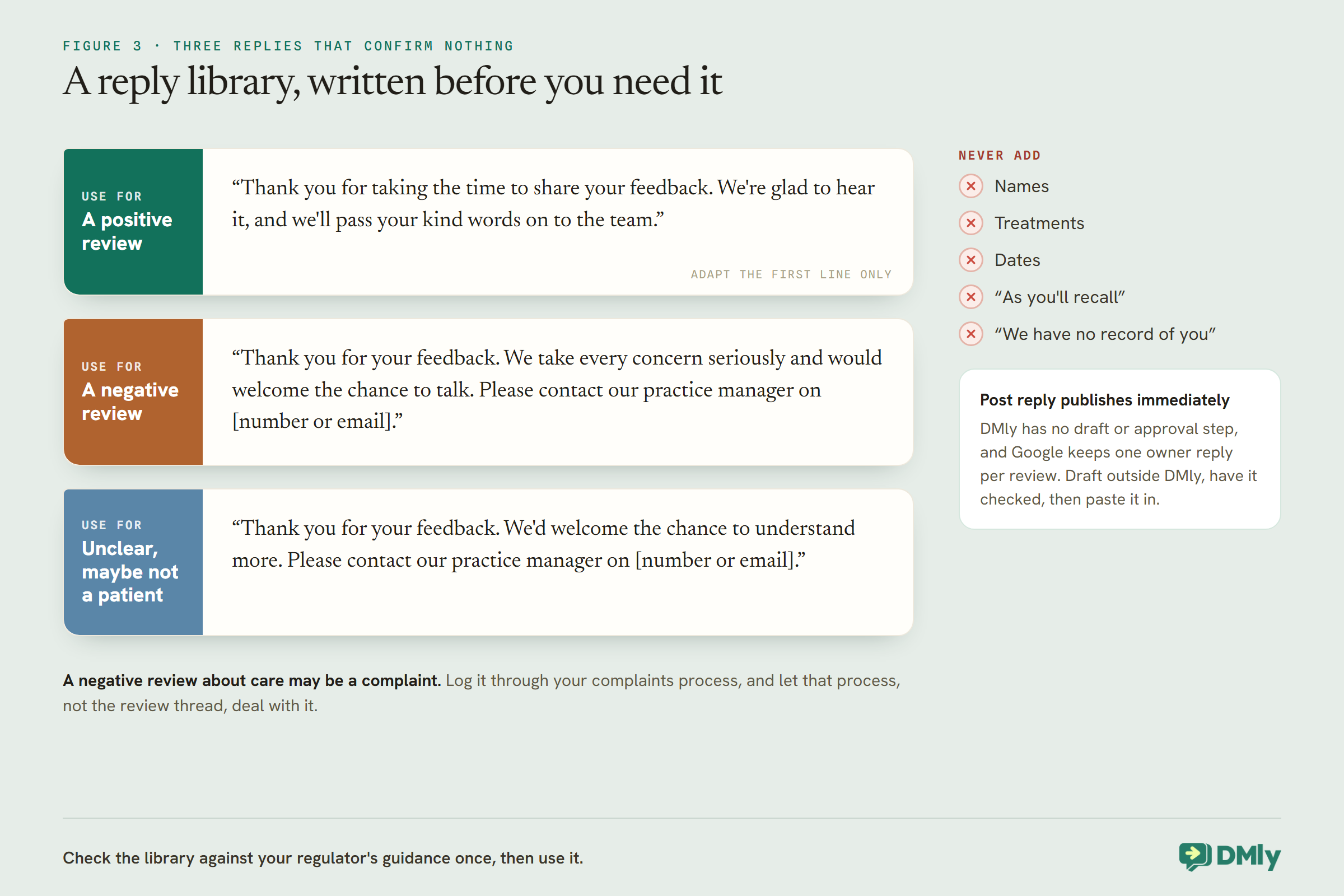
Notice the third reply. When a review seems not to come from a patient at all, perhaps a wrong business or a stranger, it is tempting to say “we have no record of you”. Do not. Saying who is not a patient is information about who is, and it invites an argument in public. If a review breaks Google’s rules, report it to Google instead; DMly cannot remove reviews, and neither can a reply.
A negative review about care may be a complaint. Treat it as one: log it through your complaints process, and let that process, not the review thread, deal with it. Our guide to handling negative Google reviews covers the wider approach; for a clinic, the confidentiality rules above come first.
When a review alleges harm
Occasionally a review goes beyond dissatisfaction and alleges that treatment caused harm. Do not reply quickly. Log it through your complaints process, speak to the clinician involved, and consider contacting your professional indemnity provider or defence organisation before posting anything, because a public reply is permanent and attributed to your practice. When you do reply, use the negative-review wording from your library and nothing more.
The same restraint applies to praise that names a clinician. “Dr Okafor was wonderful” invites a warm reply, but “we’ll pass your kind words on to the team” is safer than confirming who the reviewer saw.
Step 5: A QR Code at Reception, Without Pressure
A printed code lets patients who want to review you do it in their own time.
Under Reputation, then Request reviews, Print assets turns your review link into a tracked QR code with three ready-made designs as PDFs: an A6 counter card, an 80 mm round sticker and an A5 table tent. A card at reception is a quiet invitation. It becomes pressure only when someone points at it while the patient is still there; let it sit, and let patients choose.
Step 6: Measure What Is Real
Of the numbers DMly shows, trust Opened and your review count.
On the Request reviews tab, Opened is real: it counts patients who tapped the tracked link. Sent counts request rows, including failed ones; Delivered is stamped when DMly hands the message off, not when it arrives; and Responses is never filled in and stays at zero. There is no link between a request and the review that follows, because Google does not say who wrote what. Watch the rating and review count under Reputation, then Reviews, and check your logs if requests seem to vanish: an unapproved template, a patient who is not on WhatsApp, or a patient who has opted out are the usual reasons.
Step 7: Brief the Team
The safest system still depends on people who understand the rules.
Everyone who can reply to reviews, or who marks appointments completed, should know three things: which appointments lead to a request, that replies must never confirm someone is a patient, and that a negative review about care goes through the complaints process. Limit who can post replies to people who have been briefed. DMly’s team settings let you restrict what each person can access, so not everyone needs to reach Reputation at all.
Test It Before a Patient Sees It
Check the request, the lock screen and the reply process, not just that a message arrives.
- From Request reviews, send a request to your own number, and check it arrives, opens your listing, and says nothing about any treatment.
- Look at it on a locked phone. Would you mind a colleague reading it?
- If you use the automatic flow, mark a test appointment completed and check the request arrives after the delay you chose, and at the right location’s listing.
- Reply STOP from the test phone, then check a later request is not sent to it.
- Rehearse a reply: take a real-looking negative review, write a reply from your library, and have a colleague check it confirms nothing about the reviewer before anyone posts a real one.
The last check is the one that matters most. Requests are easy to fix; a published reply is not.
A Monthly Review Routine
Twenty minutes a month keeps the system honest and the replies safe.
- Read the month’s reviews under Reputation, Reviews, and check every one has a reply from your library.
- Log any negative review about care in your complaints process, if it is not already there.
- Send the month’s manual batch, if you use one, choosing patients from routine appointments and finished courses of treatment only.
- Check Opened and your logs, and fix anything that stopped requests arriving.
- Look at the trend: rating and review count over the last three months, rather than any single review.
Give the routine an owner. A practice manager who spends twenty minutes a month on it will catch the problems before a patient does. Our guide to WhatsApp automation for clinics shows how review requests fit alongside reminders and recalls.
Mistakes to Avoid
- A reply that confirms the reviewer is a patient. Thank them; confirm nothing.
- Discussing treatment in a public reply. Even if they did.
- Automatic requests after sensitive services. Use manual batches or no requests.
- Treatment names in the request. Lock screens are public.
- Sending the link only to happy patients. Google prohibits it.
- Asking at reception while the patient waits. That is pressure.
- Replying straight into DMly without a check. There is no draft or approval step.
- Forgetting the request is a marketing message. Permission first; marketing rates apply.
Frequently Asked Questions
Can a dental practice ask patients for Google reviews?
Yes. Google allows businesses to ask for honest reviews. It prohibits incentives, asking only happy patients, and pressuring people on the premises. A neutral request sent after the visit, to patients who agreed to hear from you, stays inside those rules.
How should a clinic reply to a Google review?
Without confirming the reviewer is a patient and without mentioning any treatment or appointment. Thank them, and for negative reviews invite them to contact the practice privately. Follow your regulator’s guidance on online reviews.
Should we request reviews after every appointment?
Only if every service you offer is one patients would comfortably review. DMly’s appointment trigger cannot be narrowed to particular services, so clinics with sensitive services should send requests in manual batches, or not at all for those services.
How soon after an appointment should we ask?
After routine visits, later the same day or the next day. After treatment that may leave a patient recovering, wait a day or two. Agree the delay with your clinicians, because the automatic flow uses one delay for every appointment.
Is a review request a marketing message?
DMly’s docs record that Meta holds its review request template as marketing. Send it only to patients who agreed to receive messages from you, and expect it to be billed at the marketing rate.
Can we offer a discount for leaving a review?
No. Google’s policy prohibits offering incentives, including discounts, in exchange for reviews.
What if a review is not from one of our patients?
Reply neutrally and invite them to contact the practice, without saying they are not a patient, because that is itself information about who your patients are. If the review breaks Google’s rules, report it to Google.
Can we delete a negative review?
Not from DMly. A business can report a review that breaks Google’s rules to Google. A negative review about care should also go through your complaints process.
Thank Them, Confirm Nothing
The late-night reply at the top of this guide was written to defend the practice. It ended up disclosing a patient’s treatment to anyone who read the listing. For a clinic, that is the lesson that matters most: automating Google review requests is straightforward, but every reply must be written as if you do not know who the reviewer is.
Decide which appointments should lead to a request, keep the wording neutral, send only to patients who agreed to hear from you, and write standard replies before you need them. Then the reviews that come in can help new patients choose you, without costing a single one of them their privacy.
Writing about WhatsApp automation, bookings and growth for local business.
Turn WhatsApp into your busiest channel.
Start free and run message, bookings, payments and reviews in one place.
