
How to Get Trustpilot Reviews (and Facebook, G2 and Capterra Reviews) From WhatsApp
If you want to get Trustpilot reviews, or Facebook, G2 or Capterra reviews, from the customers you already talk to on WhatsApp, the first thing to put away is the guest book habit. You have seen the counter: four guest books in a row, a pen on each, and a customer who signs none of them because they cannot tell which one you actually read.
The WhatsApp version is the message that says “Thanks! Review us on Google, Trustpilot, Facebook or G2”, with four links stacked underneath. It feels generous. It mostly gets a thumbs-up emoji and nothing else, and for some sites it quietly breaks their rules about how you invite.
The fix is one site per customer, chosen on purpose, asked once, in the same way for everybody. In this guide, we’ll look at which review site suits which kind of business, what each site’s own rules say about inviting customers, how to send that site’s review link from a DMly flow after a quick satisfaction survey, what you can and can’t measure, and how to run two or three sites side by side without spamming anyone.
Can You Get Trustpilot Reviews From WhatsApp?
Yes. You get Trustpilot reviews from WhatsApp by sending each customer your Trustpilot invitation link in a WhatsApp message after they have used your product or service, and the same works for Facebook, G2 and Capterra with each site’s own link. The customer taps, the site opens, and they write the review there.
Before you build anything, here is the honest part about DMly. DMly’s review features are built for Google. Reputation connects your Google Business Profile, shows your Google reviews, lets you reply to them, and has a Request Google review step that sends a tracked Google review link on WhatsApp. There is no native connection to Trustpilot, Facebook, G2 or Capterra. DMly can’t read those reviews, can’t reply to them and can’t tell you who left one.
What DMly can do is send the message. Every review site gives you a link of its own, and a DMly flow can put that link in front of the right customer at the right moment, as a tappable button, after asking how it went. That covers the part most businesses actually struggle with, which is asking at all.
- DMly does: pick the moment (a conversation closing, an appointment completed, an order delivered), ask a one-tap satisfaction question, send your review link as a button, alert a person when a score is low, and tag the contact so your team knows they were asked.
- DMly doesn’t: post to, read from or reply on Trustpilot, Facebook, G2 or Capterra, or count clicks on their links.
- You still do: get the review link from each site’s own business account, and reply to reviews on that site.
If Google is your main site, the Google side of this, from the tracked link to reading and replying, is covered in our complete guide to Google review automation. This page is about everywhere else.
Which Review Site Suits Your Business?
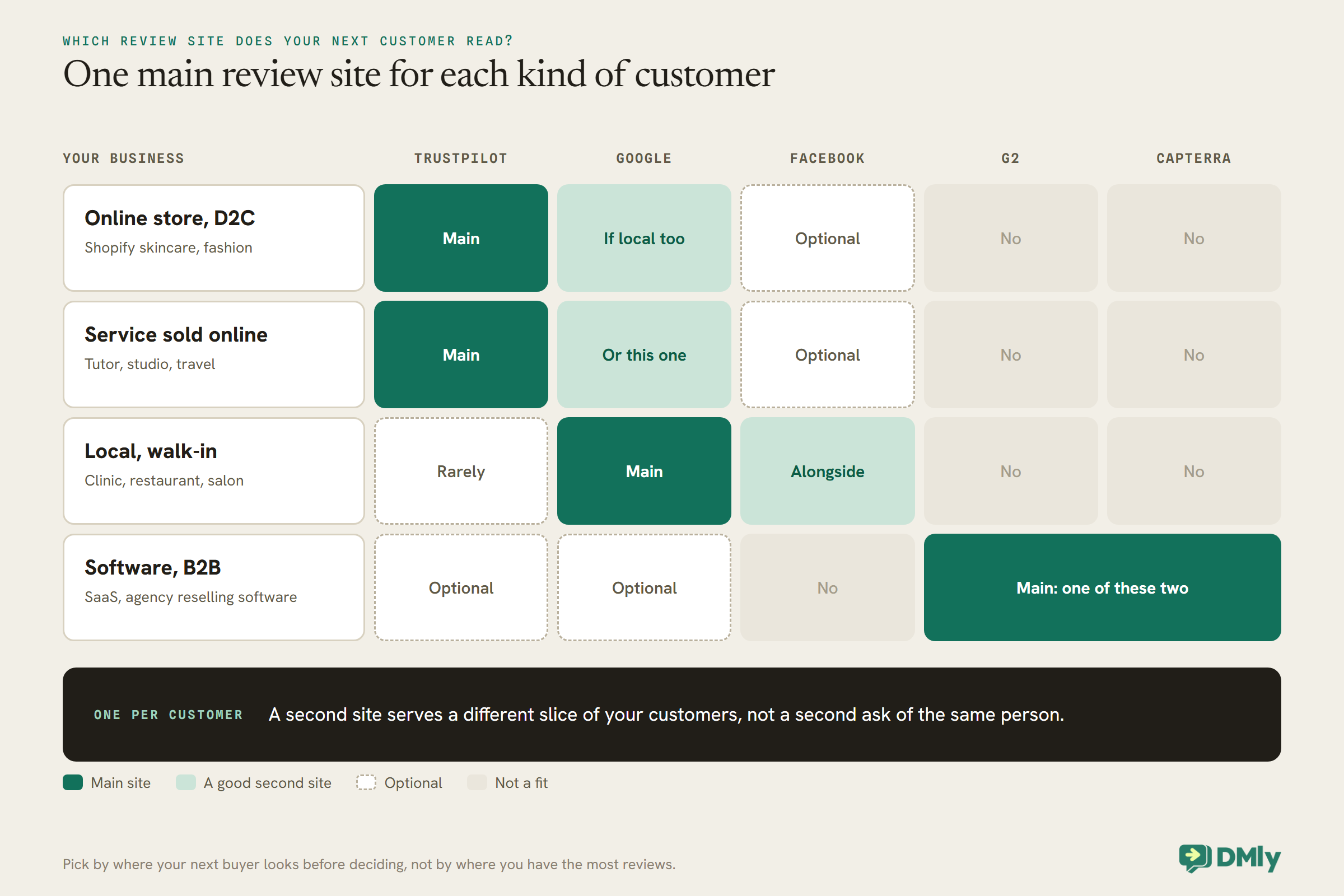
Choose the site your next customer reads before they buy from you: Trustpilot for online stores and services sold online, Facebook (next to Google) for local businesses, and G2 or Capterra for software sold to other businesses. Being everywhere is not the goal. Twenty honest reviews on the site your buyers check are worth more than five on each of four.
Here is how that usually plays out.
- Online stores and D2C brands: Trustpilot. Say you run a Shopify skincare brand shipping across the US, or a fashion label selling to customers in Mumbai and Bengaluru. Your buyer has never met you, so a third-party rating on a site they recognise does a lot of work. Trustpilot also suits services people buy online, such as courses, travel and subscriptions.
- Local businesses: Google first, Facebook alongside. A dental clinic in Lagos, a restaurant in Dubai or a salon in Manchester lives on Google Maps, and Google should come first. Facebook recommendations are a second shelf that matters most where your customers already find you through your Facebook Page.
- Software and B2B: G2 or Capterra. A SaaS company in Bengaluru selling to US mid-market teams, or an agency in London reselling a software product, is judged on G2 and Capterra, because that is where software buyers compare shortlists. Most software companies pick one as the main site and point the other at a different slice of customers.
- Service businesses sold online: a web design studio, an online tutor, a consultancy. Trustpilot or Google, depending on whether clients come from search near you or from across borders.
A quick test if you’re unsure: search your own business name and your main competitor’s name, the way a customer would. Whichever review site shows up on the first page for both of you is the one to grow first.
The Rule Every Review Site Shares: Ask Everyone, the Same Way
Every one of these sites, and Google too, forbids sending your review link only to customers you expect to be happy. The wording differs. The rule doesn’t. If your invite process filters people by how they feel before it asks them, you’re breaking it.
That matters for WhatsApp because the most common way to automate review requests is a satisfaction survey first, then the review link only for the happy scores. It’s called gating, and it’s exactly the pattern these rules describe. Google’s own policy for merchants says not to “selectively solicit positive reviews from customers.” The longer argument, and why gating also makes your ratings less believable, is in our guide to building an automated review funnel. The short version: the survey is allowed, the filter isn’t.
So the design for every site on this page is the same:
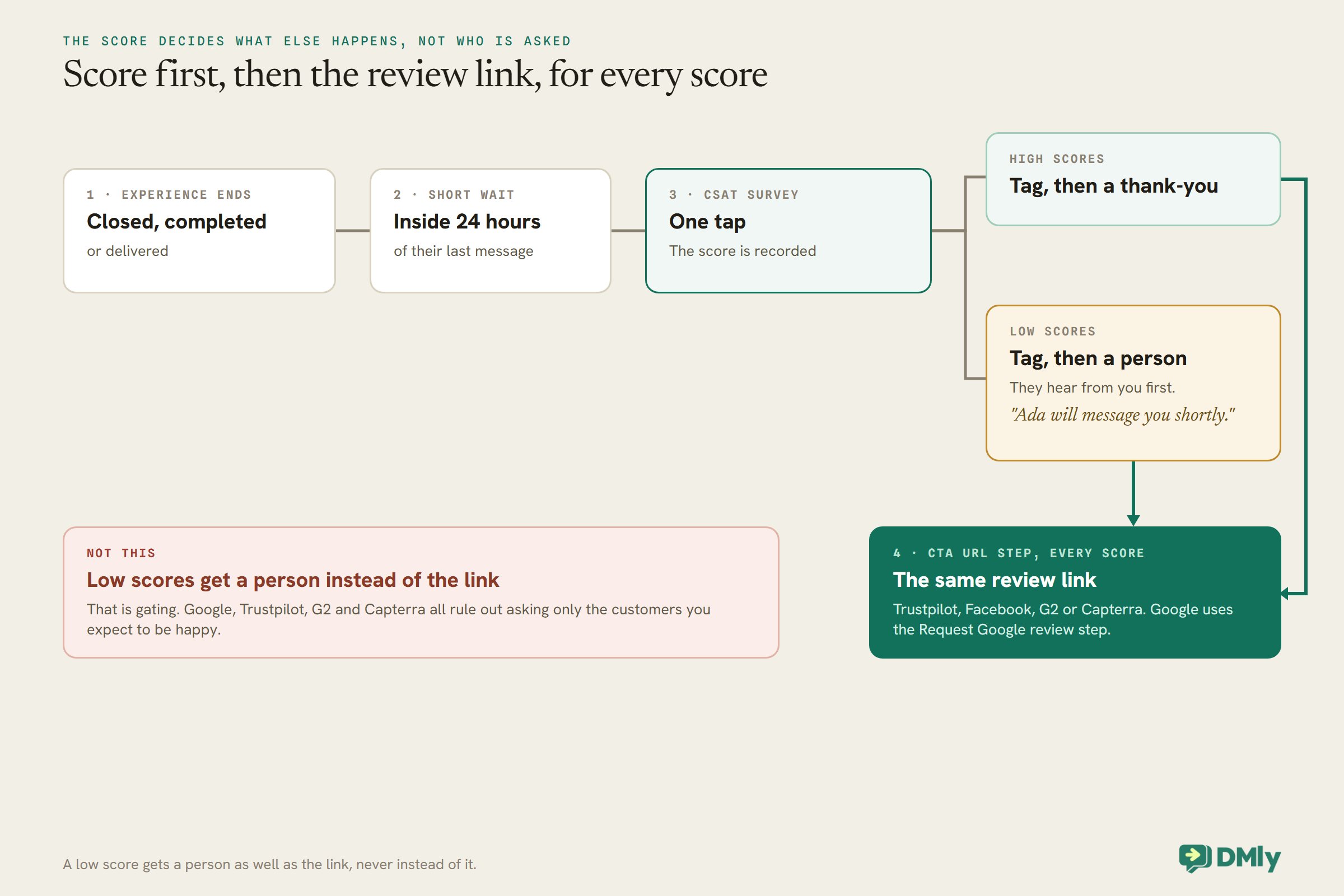
- Ask every customer, whatever score they gave. The score decides what else happens, not whether they’re asked.
- Low scores reach a person first. Someone from your team replies before the review link arrives, which is better service and keeps the request from feeling cold.
- One invite per experience. One order, one visit or one project gets one request on one site.
- No reward for a review, unless the site has a specific programme for it (only G2 and Capterra do, and both come with conditions).
| Site | Selective invites | Incentives | Timing |
| Trustpilot | Not allowed, including pre-screening by experience | Not allowed | After they’ve had time to experience it; one invite per experience |
| G2 | Not allowed; reviews can be removed | Allowed if disclosed, never tied to a positive rating, capped at US$100 | Not specified |
| Capterra | Not allowed; ask a broad cross-section | Nominal only, offered to everyone, through its own programme | Not specified |
| Meta’s help page sets rules for reviewers, not inviters | Not addressed on that page | Not addressed | |
| Not allowed | Not allowed | See the Google guide |
How to Get Trustpilot Reviews: Trustpilot’s Invite Rules
To get Trustpilot reviews within the rules, invite every customer in the same way, at the same point after their purchase, once per experience, with neutral wording and no reward. Trustpilot’s Guidelines for Businesses (version 7.3, September 2026) spell this out in more detail than any other site here.
What Trustpilot tells you to do:
- Invite people who have had a genuine experience, and “this should be one invite per experience”.
- Invite consistently and fairly, which it describes as “inviting everyone in the same way, and at the same point in the customer journey, regardless of whether they’ve had a positive or negative experience with your business”.
- “Give your customers time to experience the product or service before asking them to provide feedback”. For a parcel, that means after delivery, not after checkout.
- Use fair, neutral and unbiased language.
What Trustpilot tells you not to do, and this list reads almost like a description of a gated WhatsApp funnel:
- Don’t “Be selective with invitations, by picking and choosing which customers you invite.”
- Don’t set invitations to go out at a stage in the customer journey that only happy customers reach.
- Don’t do “Pre-screening people who leave a review by directing customers who have had a good experience to leave a review” while sending the unhappy ones to contact you instead.
- Don’t “Offer incentives in connection with writing or editing reviews.” Its plainer line: “We don’t allow incentivized reviews on Trustpilot.”
- Don’t suggest reviewers only leave positive reviews, and don’t pressure anyone to write, edit or delete one.
Trustpilot is relaxed about the method. Its guidelines say businesses “can invite customers using automated or non-automated invitations (like sharing links or QR codes)”. A WhatsApp message with a link is simply a link shared in a chat.
Where your Trustpilot link comes from
Get it from your Trustpilot Business account, not from a guess at the web address. Trustpilot’s help centre describes a few invitation methods, including what it calls Business Generated Links, which it presents as a privacy-first way to invite and which open a review form directly, and invitation links created through its APIs. Which method is available depends on your account, so check the help centre for yours. Copy the link Trustpilot gives you and that’s what goes in your WhatsApp button. That one link is all you need to get Trustpilot reviews from WhatsApp.
One shortcut to resist: don’t paste the link into your WhatsApp status or a broadcast to your whole list. That reaches people who never bought, and Trustpilot’s rules are about genuine experiences.
Facebook Reviews From Customers: How Recommendations Work
On a Facebook business Page, customers leave a recommendation: a Yes or a No on whether they recommend you, plus a few words about why. Meta’s help page says you “Click Yes to recommend the Page or No to not recommend it”, then write about your experience and, if you like, add tags.
Meta’s guidance for the person writing it is short. A recommendation:
- “Should focus on the product or service offered by the business”.
- Should be based on personal experience.
- Shouldn’t come from someone who manages that Page, so your staff and Page admins shouldn’t recommend you.
- Can be removed if it doesn’t follow Meta’s Community Standards.
Facebook doesn’t check that the person bought anything from you. That makes recommendations easy to leave, and also a little easier to doubt, which is one reason they work best as a second shelf next to Google for a local business rather than your main proof.
Here’s the part worth being clear about. Meta’s help page talks to the person writing the recommendation, not to the business inviting it. We couldn’t find Meta rules on how you may invite or whether you may reward, on the pages we read. So treat the shared rule above as good practice for Facebook rather than as Meta’s rule: ask everyone, the same way, once, and never offer anything for a Yes.
To get your link, open your business Page in a browser, go to its reviews or recommendations section, and copy the web address from the address bar. Test it on your phone, logged out of the Page’s admin account, before it goes into a flow. If you also answer Facebook Messenger in DMly, it’s worth seeing how to manage WhatsApp, Instagram and Facebook messages in one inbox, so the person who reads a Facebook complaint is the same person who reads the WhatsApp one.
How to Ask Customers for G2 Reviews
Ask customers for G2 reviews by sending your G2 review link to a broad range of real users, not only your happiest accounts, and never make any reward depend on a good rating. G2’s Community Guidelines list “Biased Review Collection” among the things it prohibits.
G2 defines that as “collecting reviews by any method that segments out potentially negative reviews or exclusively targets positive reviews; conditioning incentives on reviews being positive; independently incentivizing reviewers without disclosing those incentives to G2; discouraging negative reviews of your product or service.”
It’s also clear about the consequence: “If G2 finds evidence of a seller soliciting only positive reviews, we will remove the reviews.” G2 may also issue Buyer Alerts for things like soliciting only positive reviews or discouraging negative ones, which is not something you want on the page your prospects read.
Three more G2 points that change how you build the WhatsApp side:
- Incentives are allowed, with limits. “G2 limits the value of any incentive offered in exchange for a review to $100 USD”, across all incentive types, from gift cards to credits and swag. Any incentive has to be disclosed to G2 and never tied to a positive review.
- Keep landing pages private. G2 asks sellers to share review landing pages in closed places only their customers can reach, because pages shared publicly can be abused (for example, by people chasing gift cards). A direct WhatsApp message to an existing customer is about as closed as a channel gets, which suits this well. A public post or a broadcast to cold leads doesn’t.
- Don’t chase reviewers to change a review. G2 bars contacting reviewers to influence, coerce or pressure them. Reply to a critical review on G2 itself; don’t send a WhatsApp asking them to update it.
For a SaaS business, the natural moment is not the end of a sales call. It’s after the customer has used the product for real: a support conversation that closed well, the end of onboarding, a renewal. Your G2 review link comes from your G2 seller account.
Capterra Reviews: What the Vendor Rules Say
Capterra lets you invite users and even offer a small reward, but only fairly, only to everyone, and only through Capterra’s own tools. Its Community Guidelines (last updated 4 May 2026) say “Vendors must solicit reviews in a fair and unbiased manner. This includes requesting feedback from a broad cross-section of their user base and not selectively targeting users based on expected sentiment or prior feedback.”
That last phrase, “prior feedback”, is the one to notice. Choosing who gets a Capterra link based on a satisfaction score they just gave you is exactly what it rules out.
A few more Capterra rules that affect your message:
- The review is written on Capterra. “Reviews must be submitted directly by the actual user through the Site.” You can’t collect the text in WhatsApp and post it for them, and you mustn’t coach customers on what to write.
- Small rewards are allowed. “Reviewers may be offered nominal incentives to encourage reviews, in compliance with applicable laws.” In its Reviews Collection Program, the incentive must be offered equally to all eligible participants, whatever rating they give, must not exceed nominal value, and the vendor must use the incentive link provided in the Vendor Portal.
- Incentive messages carry required wording. Outreach that mentions an incentive has to include Capterra’s disclosures, among them “Incentives are not contingent on submitting a positive review; honest and unbiased feedback is required.”, plus a required footer.
- No pressure. Vendors mustn’t harass or pressure reviewers, and replies go through Capterra’s own tools.
The simplest WhatsApp version is no incentive at all: a plain ask with your Capterra link. If you do run an incentivised campaign, use the Vendor Portal link and put the required disclosures in the WhatsApp message itself, not on a page behind it.
One more thing for software companies choosing between the two: Capterra’s guidelines name G2.com, Inc., Capterra Inc., Software Advice Inc. and Nubera eBusiness S.L. together as “G2 Digital Markets”, and the same guidelines cover Capterra, Software Advice and GetApp. The sites are run closely together now, so asking the same customer on G2 and on Capterra about the same experience is the guest book problem again. Pick one per customer.
How to Send a Review Request on WhatsApp From a DMly Flow
A review request on WhatsApp from DMly is a short flow: a trigger when the experience ends, a short wait, a one-tap satisfaction survey, then a message with your review site’s link as a button for every score, with low scores also sent to a person. If you’ve never built a flow, our guide to no-code WhatsApp automation covers the basics in plain words.
Here’s the shape, step by step.
Step 1: choose the moment the experience ends
Start a new automation on your WhatsApp channel and pick the trigger that matches “they’ve now had the experience”. Common ones in DMly:
- Conversation closed, which fires when a conversation is marked done or resolved in the inbox. Good for support teams and software companies.
- Appointment completed, for clinics, salons, studios and anyone taking bookings in DMly.
- Order delivered or Order shipped, from a connected Shopify store, for online shops. These come with a catch about the 24-hour window, covered below.
Step 2: wait a little, then ask how it went
Add a delay, then a CSAT Survey step (CSAT means customer satisfaction). It’s only offered in WhatsApp automations. A 3-point survey arrives as tappable buttons; a 5-point survey arrives as a list. Each score gets its own output, so you decide what happens for a 1, a 3 and a 5. DMly’s builder suggests sending unhappy scores straight to a person, and that’s the right instinct.
Good news about the record: the score is saved on the CSAT report the moment the customer taps, whether or not that output is connected. The funnel guide goes deeper on the survey itself.
Step 3: send every score to the same review link
This is the step that keeps you inside Trustpilot’s, G2’s and Capterra’s rules. On every score’s path, add a short thank-you, then a CTA URL step. CTA URL is DMly’s WhatsApp step for a message with a call-to-action link button: the customer sees your text and a single tappable button that opens your Trustpilot, Facebook, G2 or Capterra link.
- Paste the link exactly as the review site gave it to you. Publishing is blocked if a CTA URL step has no link, and a button with no valid link fails at send time.
- Keep the button label short and plain (“Write a review” works). The builder holds you to WhatsApp’s own length limits as you type.
- Don’t use a Buttons Message for this. Those are reply buttons (one to three, titles of 20 characters or less) that answer back into the chat; they don’t open a website.
Step 4: send low scores to a person first
On the 1, 2 and 3 paths (or the lowest point of a 3-point scale), put an assign step or a Handover to Human step before the thank-you, plus a short message so the customer knows someone is coming: “Thanks for being honest. Ada from our team will message you shortly.” Then the same review button, with the same words everyone else gets. You’re not hiding the link from them. You’re making sure they hear from a person too.
If you’d rather the person who replies decides when the link goes, that’s fine, but keep it a rule (“always send it once the issue is resolved”), not a judgement about whether this customer might be kind.
Step 5: tag who was asked, and where
Add a Tag step on each path. DMly’s docs suggest score tags such as csat-1 to csat-5, and it’s worth adding one for the site too, for example review-asked-trustpilot. The CSAT report tells you how you’re doing overall; tags tell your team which contact was asked where, so nobody sends a second request by hand.
Step 6: if you started from DMly’s template, check it
DMly’s ready-made Post-chat CSAT to Google review template is a good starting point: it asks for a rating, sends unhappy scores to a person and leads to a Request Google review step. Before you publish it, check that every score, unhappy ones included, reaches that review step after the person. If you want a site other than Google, swap the Request Google review step for a CTA URL step with your other site’s link. Then test it on your own phone with every score before you switch it on.
The 24-hour catch, in two sentences
WhatsApp only lets you send a free-form message, like a CSAT survey or a CTA URL button, within 24 hours of the customer’s last message to you. Past that, a 3-point survey can’t send at all, and a 5-point survey falls back to DMly’s dmly_csat template, whose replies aren’t scored and don’t run any score branch, so the review link never follows.
The practical rule: fire this flow soon after a conversation or visit where the customer messaged you. The review funnel guide explains the window in full.
When the customer hasn’t messaged you recently
That’s the usual case for an online shop: someone orders on your Shopify store, the parcel arrives a week later, and they’ve never written to you on WhatsApp. DMly’s own docs warn that store-triggered contacts are usually outside the 24-hour window. A survey-then-link flow won’t work for them. Two honest options:
- Skip the survey and send one approved template with your review link as a URL button, the same message to every delivered order. That is about as fair as an invite gets. Plan for Meta to treat it as a marketing message (DMly’s own review request template is held as Marketing whatever it’s declared as), which means marketing opt-in and the marketing rate. Our guide to marketing, utility and authentication templates explains the difference.
- Leave those customers to the review site’s own invitations, such as Trustpilot’s own automated invitations, and keep WhatsApp for customers who are already chatting with you.
A note for US shops: Meta currently doesn’t deliver marketing templates to US phone numbers (checked 13 October 2026). For US buyers, the in-window route, after they’ve messaged you, is the one that works on WhatsApp. The Shopify WhatsApp automation guide covers store triggers and order messages in more detail.
On cost: a CTA URL message sent inside an open conversation is a service message. Since 1 October 2026 Meta charges for those, but each business number gets 1,000 free a month, which is more than most small businesses send. Here’s what service messages now cost after that.
Review Request Messages You Can Copy
Neutral wording is part of every site’s rules, so these say “tell us how it went”, not “leave us five stars”. Swap in your own names. Each one sits above a single CTA URL button.
1. Trustpilot, after a delivered order (online store)
Hi {{name}}, your order should be with you now. If you have a minute, we’d value an honest review on Trustpilot, good or bad. It helps other shoppers and it helps us fix what isn’t working.
Button: Review us on Trustpilot
Inside the 24-hour window this is a free-form CTA URL message, not a template. Sent later as a template, plan for Marketing.
2. Facebook, after a visit (local business)
Thanks for coming in today, {{name}}. Would you recommend us? You can say so, either way, on our Facebook Page. It takes about a minute.
Button: Open our Facebook Page
Free-form inside the window. Don’t add “and get 10% off”: no reward for a recommendation.
3. G2, after a resolved support conversation (software)
Thanks for working through that with us, {{name}}. If you’ve been using {{product}} for a while, an honest review on G2 helps other teams decide whether we’re right for them, including what we could do better.
Button: Write a G2 review
Free-form inside the window. If you run a G2 incentive, disclose it to G2, never tie it to a positive rating, and keep it within G2’s cap.
4. Low-score path (any site)
Thank you for telling us straight, {{name}}. {{agent}} from our team will message you shortly to sort it out. And if you’d like to share your experience publicly, here’s the link, same as everyone gets.
Button: Write a review
Same link, same button as message 1, 2 or 3. The extra line is the person, not a different ask.
Running Several Review Sites Without Spamming
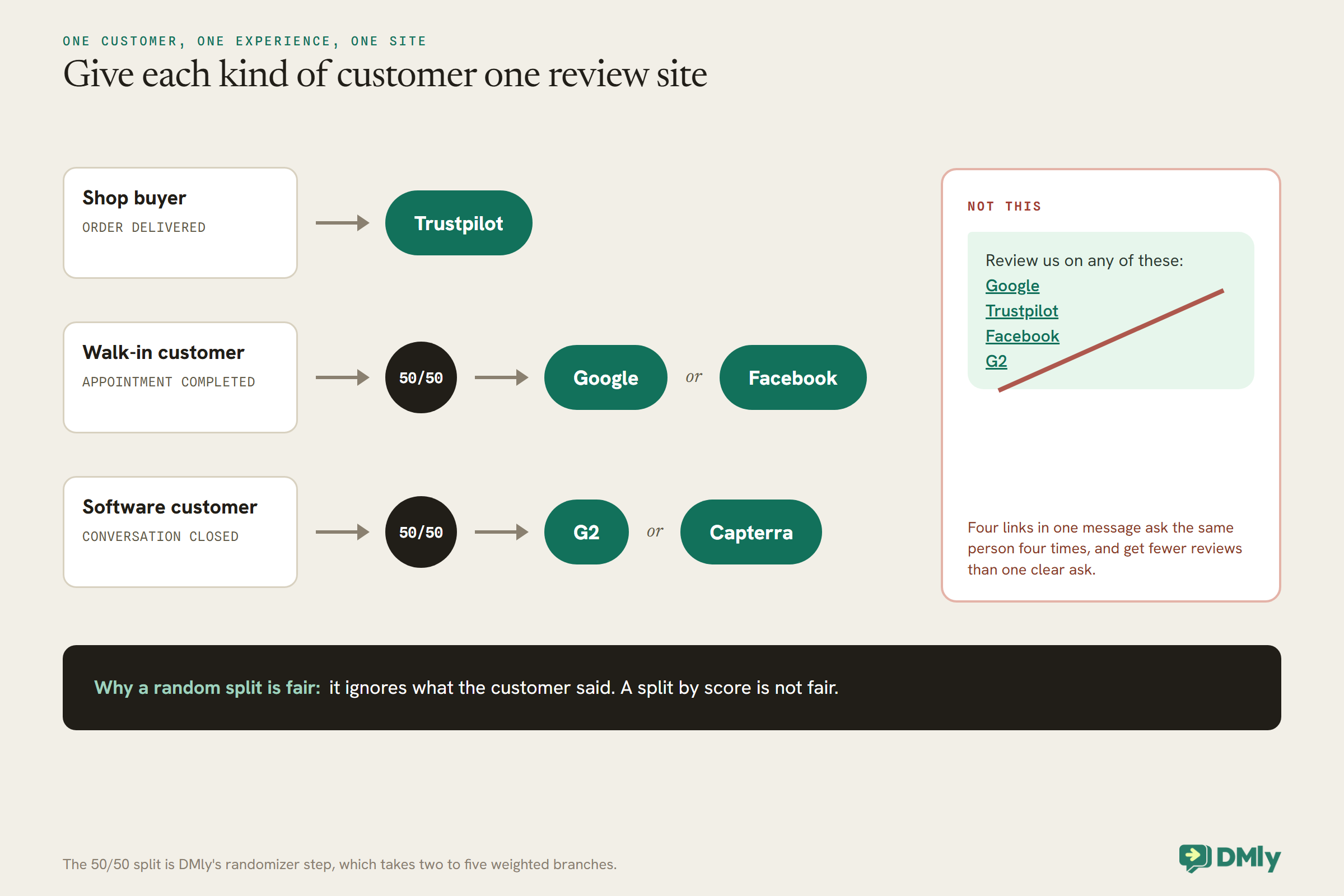
Run more than one review site by giving each kind of customer one site, sending one request per experience, and never putting two review links in the same message. That’s the guest book problem solved: each customer sees one book, the one that matters for their kind of purchase.
The cleanest way to split customers in DMly is by trigger, because different experiences already arrive through different doors.
- Shop buyers to Trustpilot: a flow on Order delivered, sending your Trustpilot link.
- Walk-in customers to Google or Facebook: a flow on Appointment completed, using the Request Google review step, or a CTA URL with your Facebook link.
- Software customers to G2 or Capterra: a flow on Conversation closed for your support inbox, sending your G2 or Capterra link.
If two sites suit the same kind of customer (say, a software company that wants both G2 and Capterra, or a local business building both Google and Facebook), use a randomizer step after the survey. It splits contacts across two to five branches by percentages you set, so half your customers get one site and half get the other. Because the split is random rather than based on what anyone said, it stays fair.
A few rules that keep this from turning into spam:
- One request per experience, across all sites. If a customer got a Trustpilot request for this order, they don’t also get a Google request for it. A repeat customer can be asked again after a genuinely new experience, which is what Trustpilot’s one invite per experience allows. Most businesses still space repeat asks out generously.
- Don’t follow up a request with a reminder asking whether they’ve reviewed yet. You can’t see whether they did, and chasing reads as pressure, which G2 and Capterra both prohibit in their own words.
- Keep the same link in every branch of one flow. Different sites for different scores would be gating by another name: happy customers to the public site, unhappy ones to somewhere quieter.
- Stop the flow for anyone who opts out. A request to stop messages beats any review target.
What You Can and Can’t Measure
For Trustpilot, Facebook, G2 and Capterra, DMly can show you how many people it asked and how they scored you, but not who clicked the link or who wrote a review. Plan your reporting around that rather than discovering it later. If you want to know whether your flow helps you get Trustpilot reviews, the answer lives on Trustpilot, not in DMly.
- You can see: the CSAT report (Configurations, Reports, CSAT) with response rate, average score, a score breakdown and every response; each automation’s own runs and messages sent; and the tags on each contact showing who was asked where.
- You can’t see: clicks on an outside link. DMly’s flow builder docs say plainly that delivery and clicks aren’t tracked per step. The “Opened” figure on the Request reviews tab counts only DMly’s tracked Google review links, not a Trustpilot or G2 link you pasted into a CTA URL step. DMly’s growth links and QR codes are links into WhatsApp, not wrappers for other websites, so they won’t count these clicks either.
- Check on the site itself: each review site’s business dashboard shows the reviews that arrive. Compare the weekly count there with the number of requests your flow sent that week. It’s a rough ratio, but it’s an honest one.
If you need per-link click counts, a link-tracking tool outside DMly can give you one, but check each review site’s rules first. Some invitation links are personal to the customer, and you shouldn’t wrap or alter them.
Three Businesses, Three Setups
Here’s how the same idea lands in three very different businesses. These are illustrations, not customers.
A Shopify skincare brand selling in the US and India
Main site: Trustpilot. Buyers who chat with the brand on WhatsApp about an order (where’s my parcel, which serum for oily skin) get a Conversation closed flow: a 3-point survey, then the Trustpilot link for every score, with a 1 assigned to the customer care lead first. Buyers who never message get Trustpilot’s own automated invitations instead, and in India, where marketing templates do reach customers, the brand can also send one opted-in template per delivered order. For the bigger picture on retention and carts, see WhatsApp marketing for ecommerce and D2C brands.
A dental clinic in Lagos, or a restaurant in Dubai
Main site: Google, with Facebook alongside. An Appointment completed flow (or a Conversation closed flow for reservations) asks a one-tap question, then a randomizer sends most patients or guests to the Request Google review step and a share to the Facebook Page link. Nobody gets both. A low score goes to the practice manager or the duty manager first, then gets the same link as everyone else.
A B2B SaaS company in the UK, or an agency reselling software in Singapore
Main site: G2 or Capterra, one per customer. A Conversation closed flow on the support inbox fires after a resolved ticket, with a 50/50 randomizer between G2 and Capterra, and a tag recording which one each account received. No incentives on the WhatsApp ask, which avoids the disclosure and footer rules entirely. An agency that runs this for several client brands from its own branded workspace can read about white-label WhatsApp software for agencies.
Frequently Asked Questions
How do I get Trustpilot reviews from WhatsApp customers?
Copy your invitation link from your Trustpilot Business account, then send it as a link button in a WhatsApp message after the customer has had time to use your product. In DMly, that’s a flow with a CSAT Survey step and a CTA URL step carrying your Trustpilot link on every score’s path. Ask everyone in the same way, once per experience, and offer nothing in return.
Does DMly connect to Trustpilot, G2, Capterra or Facebook reviews?
No. DMly’s Reputation features connect to Google Business Profile only. For other sites, DMly sends your review link in a WhatsApp flow, but it can’t read, reply to or count reviews on those sites, and it doesn’t track clicks on their links.
Can I send my review link only to customers who rated us highly?
No. Trustpilot, G2, Capterra and Google all prohibit inviting only the customers you expect to be positive, and Trustpilot names pre-screening by experience specifically. Send the link on every score’s path, and send low scores to a person as well.
Can I offer a discount or gift for a review?
Not on Trustpilot or Google, and don’t do it for Facebook recommendations either. G2 allows disclosed incentives up to US$100 that never depend on a positive review. Capterra allows nominal incentives offered to everyone through its own programme and Vendor Portal link, with required wording in the message. The simplest choice is no reward at all.
Should I ask for a Google review and a Trustpilot review at the same time?
No. One request per experience on one site gets more reviews than a message with several links, and it keeps you within Trustpilot’s one invite per experience. Pick the site by customer type, or split similar customers between two sites with a randomizer.
How do I ask customers for G2 reviews on WhatsApp?
Send your G2 review link in a direct WhatsApp message to existing users after a real experience, such as a resolved support conversation or the end of onboarding. Ask a broad range of customers, not only your happiest accounts, and keep any landing page link to closed channels like a one-to-one chat.
What if the customer hasn’t messaged me in the last 24 hours?
Then a free-form survey or link button can’t reach them. Send one approved WhatsApp template with your review link instead, which Meta will usually treat as marketing, or use the review site’s own invitation tools. Remember that Meta currently doesn’t deliver marketing templates to US numbers.
The Guest Books, Put Away
Back to the counter with four guest books. The fix was never a fifth book or a nicer pen. It was putting three of them away and handing each customer the one that matters for what they just bought.
To get Trustpilot reviews, Facebook recommendations, or G2 and Capterra reviews from WhatsApp, the work comes down to a few choices: one main site per kind of customer, a request at the moment the experience ends, the same link for every score, a person for the unhappy ones, and no reward that depends on a kind word. DMly sends the message and tells you how people scored you. The review sites keep the reviews.
Build one flow for your biggest group of customers first, test it with every score on your own phone, and let it run for a month before you add a second site.
Writing about WhatsApp automation, bookings and growth for local business.
Turn WhatsApp into your busiest channel.
Start free and run message, bookings, payments and reviews in one place.
