
Shopify WhatsApp Automation: Store Sync, Abandoned Carts, and Order Updates (2026)
For most small stores, the order confirmation email is the last thing the brand ever says to the customer. It lands in a promotions tab, goes unread, and the relationship quietly ends about ninety seconds after the money arrived.
Which is strange, because the customer still has plenty to ask. A small skincare brand on Shopify gets the questions all day, in between packing boxes: “Did my payment go through?”, “Where is my order?”, “Is the vitamin C serum back yet?” The founder answers them from her personal WhatsApp, usually late.
Meanwhile the store’s own numbers tell the quieter story. Roughly seven in ten checkouts never finish. Half the support messages ask something Shopify already knows. And the customers who would happily order again never hear from the brand once the parcel arrives. Shopify WhatsApp automation is how a small store closes all three of those gaps at once.
Shopify WhatsApp automation fixes most of that, provided your store and your WhatsApp number can actually talk to each other. In this guide, we’ll look at what Shopify WhatsApp automation is, how the connection works, the store events you can trigger messages from, the six automations worth building first, how AI changes store support, why DMly fits this job, and how to connect Shopify to DMly and go live without upsetting Meta.
What Is Shopify WhatsApp Automation?
Shopify WhatsApp automation means connecting your Shopify store to a WhatsApp Business account so that things happening in the store (a checkout left half-finished, an order placed, a parcel shipped, a product back in stock) can start WhatsApp messages, and things happening in WhatsApp (a question, a reply, an order number) can be answered with the store’s own data. Messages go out through the WhatsApp Business Platform, Meta’s official API: approved templates when the customer hasn’t written to you recently, ordinary replies when they have.
It helps to be clear about what it isn’t:
- It isn’t a click-to-chat button. A WhatsApp button on your product pages is useful, but it only opens a chat. Nothing on the other end knows about the cart or the order.
- It isn’t the WhatsApp Business app on someone’s phone. The app can’t receive a Shopify event, can’t send an approved template at 2am, and can’t be shared properly by a team.
- It isn’t Shopify Inbox, Shopify Email or an SMS app with a different logo. Those channels have their place. WhatsApp is where a large share of your customers already spend their day, and it is two-way by nature.
| Option | Knows about your orders? | Sends on its own? | Two-way? | Best for |
| Click-to-chat button on the store | No | No | Yes, by hand | Pre-sale questions from browsers |
| WhatsApp Business app | No | Only greetings and away messages | Yes, one phone at a time | A one-person shop with a handful of chats a day |
| Shopify Email / SMS apps | Yes | Yes | Rarely; mostly one-way | Newsletters and receipts |
| WhatsApp automation via the API (this guide) | Yes, through the store connection | Yes: triggers, flows, broadcasts | Yes, in one shared inbox | Confirmations, tracking, cart recovery, restock alerts, support |
The takeaway: the value isn’t “WhatsApp” on its own. It’s WhatsApp with your order data behind it.
How Shopify Connects to WhatsApp (and What Actually Syncs)
Shopify WhatsApp automation has three parties underneath it: your store, an automation platform that also runs your WhatsApp inbox, and Meta’s WhatsApp Cloud API. With a platform like DMly, the store connection is native: nothing is routed through a middleman.
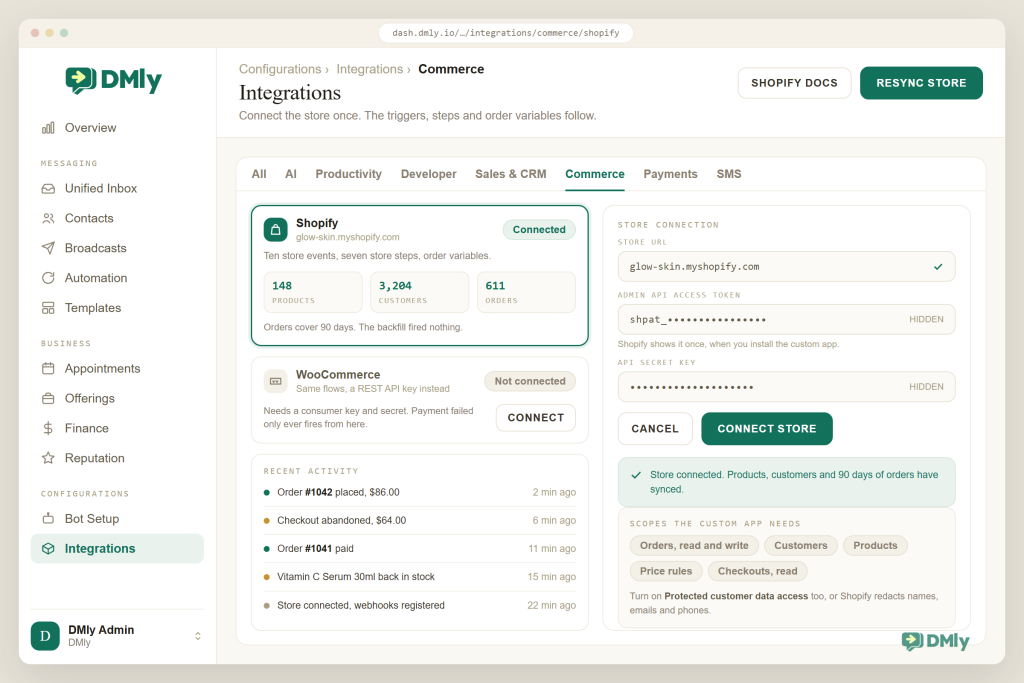
Here’s how DMly does it, per its Shopify docs. You create a custom app inside your own Shopify admin and give it a small set of Admin API permissions: read and write orders, customers, products and price rules, and read checkouts. You switch on Protected customer data access, because without it Shopify redacts names, emails and phone numbers and nothing can be matched to a contact. You install the app and copy its Admin API access token and its API secret key. Then, in DMly, you open Integrations, pick the Commerce tab, choose Shopify, paste your store URL (your-store.myshopify.com), the token and the secret into the Store connection form, and select Connect store. DMly validates the credentials straight away.
One practical note: Shopify moved custom-app creation into its Dev Dashboard in January 2026, so the exact clicks in your admin depend on the path Shopify shows you. The permissions and the two credentials are what matter, and the DMly docs walk through them field by field.
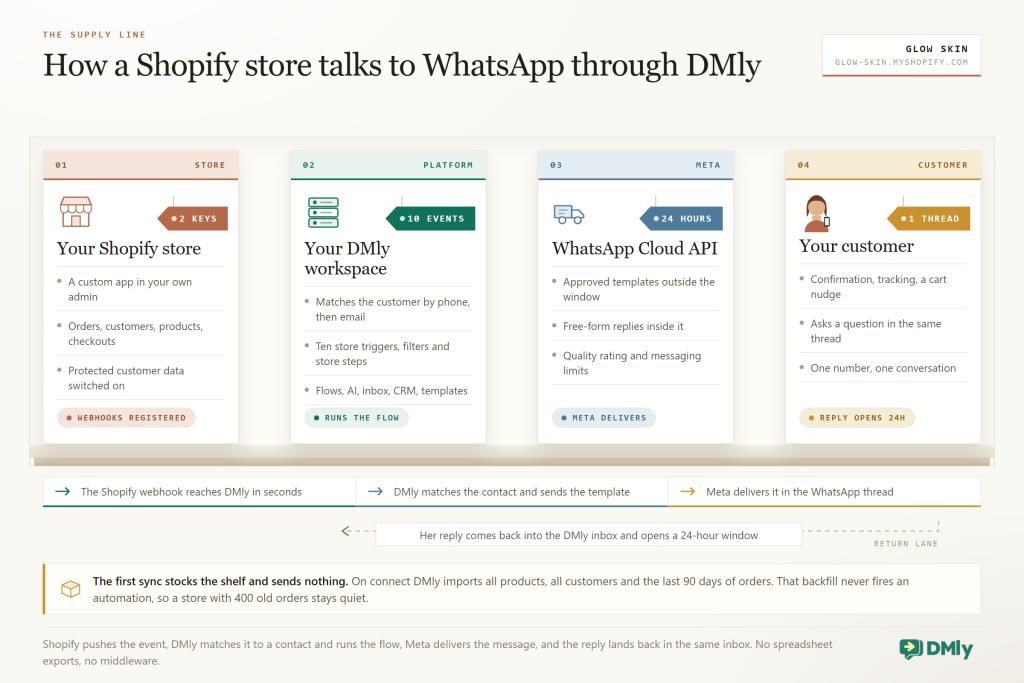
What syncs. The first sync imports all your products, all your customers and your orders from the last 90 days; after that, Shopify’s webhooks keep everything current. DMly keeps what it needs to message well: order numbers, totals, statuses and tracking links; customer names, emails, phones and spend; product titles, prices and stock. There’s no separate store-order browser (synced orders don’t appear in Finance → Orders, which is for orders created in DMly itself); the store data lives on the contact and inside your flows.
How customers become contacts. When a store event fires, DMly matches the Shopify customer to your contacts by phone number first, then by email. On WhatsApp, an unmatched customer becomes a new contact automatically. On Messenger and Instagram nothing is created, because Meta only lets you message people who have messaged you there first. That is why a phone number at checkout matters so much.
Checkout goes quiet for about an hour → Shopify webhook reaches DMly → contact matched by phone → approved template with the checkout link → customer replies “is the 30ml still in stock?” → 24-hour window opens → AI or a teammate answers in the inbox → order placed → confirmation template goes out
Worth knowing before you connect: The initial sync never fires automations. Backfilled orders don’t trigger “Order placed”, so connecting a store with 400 orders in the last 90 days won’t send 400 confirmations; only events after the connection start flows. Also, the Payment failed trigger fires from both stores: from Shopify when a sale, authorization or capture payment fails or errors, and from WooCommerce when an order moves to failed.
The takeaway: “connect Shopify” isn’t a checkbox on a chat app. It is a two-way link that turns your order data into triggers, filters and message variables, and turns WhatsApp replies into contacts and conversations. We go deeper on syncing Shopify orders and customers into your WhatsApp CRM in a separate guide.
Why WhatsApp for a Shopify Store?
Two forces make WhatsApp the obvious channel for your store messages: your customers are already there in enormous numbers, and they expect quick, personal answers.
- 70.22% average documented online shopping cart abandonment rate, across 50 studies. Baymard Institute, updated September 2025
- 1 billion+ active conversation threads between people and businesses every day across WhatsApp, Messenger and Instagram. Meta, Q3 2025 earnings call
- 90% of customers rate an immediate response as important or very important when they have a support question, and “immediate” means ten minutes or less. HubSpot Research
- 63% of consumers say they would switch to a competitor after just one bad experience. Zendesk CX Trends 2025
Put those together and the case writes itself. Seven in ten checkouts stall, and a well-timed, personal nudge on the channel people actually open is one of the few levers that reaches them. Support questions arrive at all hours and customers expect an answer in minutes; a store that answers “where is my order?” automatically at 11pm keeps customers that a store answering at 9am loses.
There is a cost dimension too. Since 1 July 2025 Meta charges for WhatsApp per message: marketing, utility and authentication templates are billed when delivered. Until 1 October 2026, ordinary replies inside the 24-hour customer service window carry no charge, and utility templates delivered inside an open window are free as well. From that date both become billable at your market’s utility rate, which our guide to the October WhatsApp pricing change works through. For a store sending confirmations and tracking all day, that second change is the one to budget for. Design your flows with the dates in mind and the channel stays cheap.
The takeaway: WhatsApp isn’t a “nice extra” for a store. It is where abandoned checkouts, support questions and repeat orders can all be handled, at a per-message cost you control.
The Rules That Shape Every Store Message
Before you build anything, three Meta rules decide what you can send and when. Store owners who skip this part are the ones who write to us about rejected templates and falling quality ratings.
The 24-hour window. When a customer messages you, a 24-hour customer service window opens and you can send anything: text, images, buttons, AI replies, a human reply. Outside that window (where most store events land, because someone who has just placed an order usually hasn’t written to you) you can only send approved message templates. DMly enforces this in the inbox, automations, broadcasts and sequences, and the flow builder warns you when a store trigger needs to start with a template.
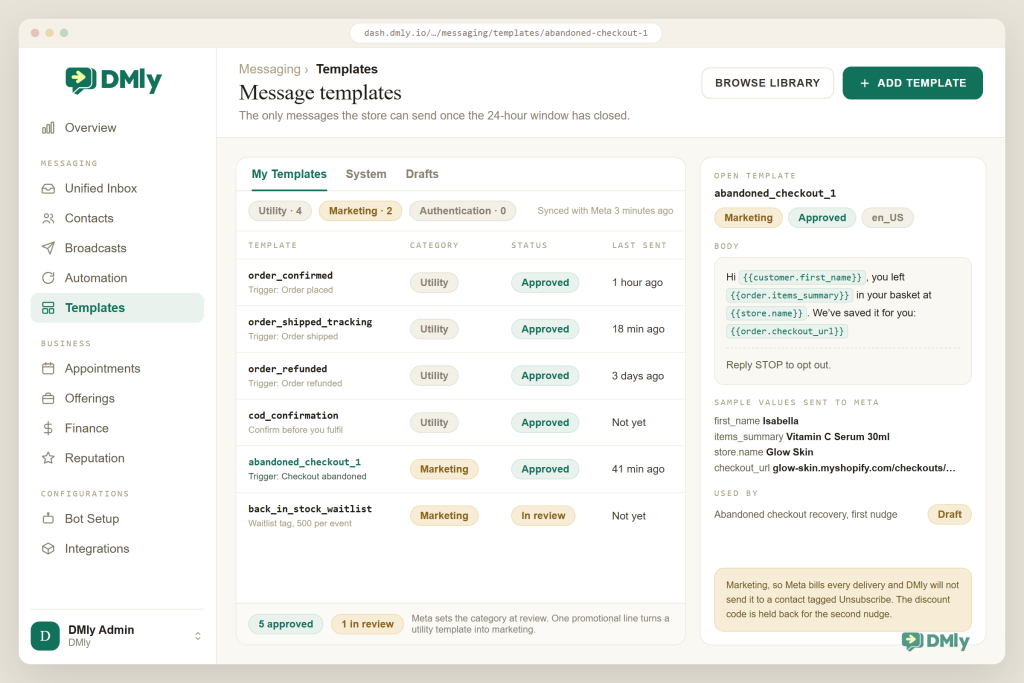
Template categories. Every template is submitted to Meta as Utility, Marketing or Authentication. Order confirmations, shipping notices with a tracking number, refund confirmations and cash-on-delivery confirmations are utility: non-promotional and specific to that customer’s transaction. Abandoned-cart reminders, back-in-stock announcements, milestone rewards and any offer are marketing. Meta assigns the category at review, and a promotional line inside a “utility” template gets it reclassified as marketing, so keep transactional messages strictly transactional.
Opt-in and opt-out. Meta’s Business Messaging Policy requires opt-in before business-initiated messages and requires you to honour opt-outs. For a store that means collecting WhatsApp consent at checkout or immediately after (with the phone number), storing it, and never chasing someone who said stop. DMly recognises the standard opt-out keywords (stop, unsubscribe, cancel, quit, end, opt out and a few more), adds an Unsubscribe tag and stops every message to that contact, manual replies from your team included, until the person sends start or a teammate resubscribes them. DMly records the opt-out date but not how or when a contact opted in, so keep the consent source in a custom field or note.
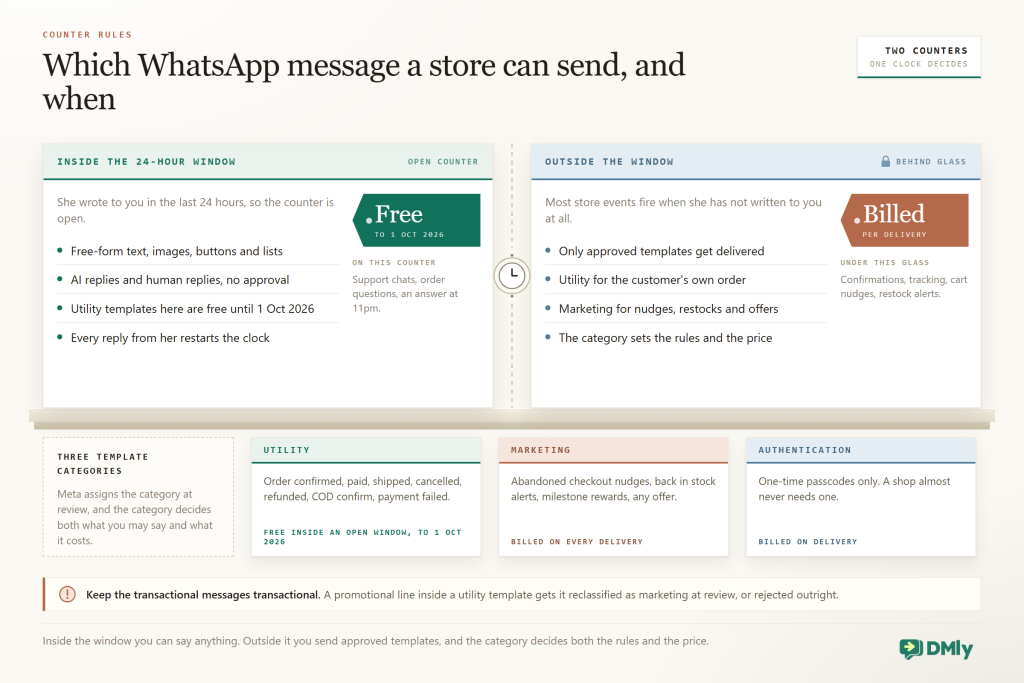
Read the pricing side of that diagram as the position up to 30 September 2026: its “Free” counter covers in-window replies and in-window utility templates, and both move to the charged side on 1 October 2026. The window and template rules it shows do not change.
The takeaway: build every store flow to start with the right template category, collect consent with the phone number, and let the platform enforce the window and the opt-outs for you.
The Store Events You Can Automate
Once your store is connected, the flow builder gains a Store events trigger group, and that is where the whole thing starts. DMly documents 18 of them. The ten below cover orders, checkouts, products and milestones; the other eight are New store customer, Marketing opt-in, Marketing opt-out and five delivery updates that come from Shopify’s fulfilment tracking (Shipment in transit, Out for delivery, Order delivered, Ready for pickup and Delivery failed). Each one can be filtered so the flow only runs when it should: order and checkout events by minimum or maximum order total, currency and (for Order placed) payment method; Customer milestone by a total-spent or order-count threshold; product events by which contacts to notify and which single product to watch.
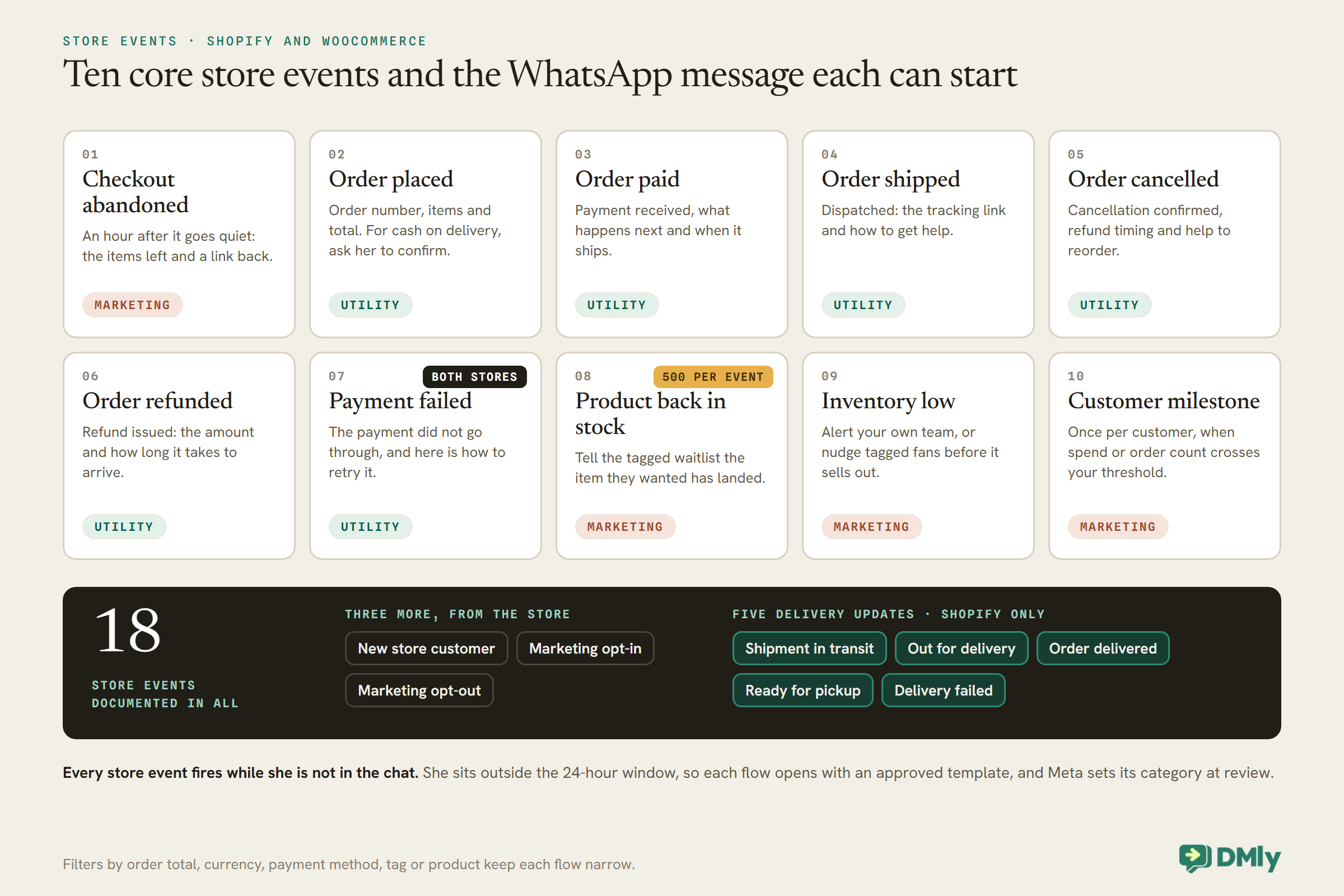
| Event | When it fires on Shopify | Useful filters | Variables you’ll use |
| Checkout abandoned | A started checkout goes quiet for about an hour; once per checkout; skipped if the person bought in the meantime | Min/max total, currency | {{order.items_summary}}, {{order.checkout_url}}, {{customer.first_name}} |
| Order placed / paid / shipped / cancelled / refunded | The matching order webhook arrives | Min/max total, currency, payment method (placed only) | {{order.number}}, {{order.total}}, {{order.status}}, {{order.tracking_url}} |
| Product back in stock / Inventory low | Stock on a watched product crosses the line | Which product; which tag to notify (max 500 contacts per event) | {{product.title}}, {{product.price}} |
| Customer milestone | Lifetime spend or order count crosses your threshold; once per customer per automation | Total-spent or order-count threshold | {{customer.total_spent}}, {{customer.orders_count}}, {{discount.code}} |
Alongside the triggers, the flow builder’s Store (Shopify / WooCommerce) palette group gives you steps that read and write the store: find an order, send its status (with a toggle to append the tracking link when it exists), send a checkout link, send a product, sync the contact, create a discount code and write a note back to the order. Those steps are what turn a keyword like “where is my order” into a real answer, and what let a recovery flow hand out a fresh code without anyone opening Shopify.
The takeaway: you’re not limited to “order confirmed”. Ten events, sensible filters and real order variables mean the message can be specific to that customer, that order and that moment.
The Six Automations Every Shopify Store Should Build First
You could automate a dozen things on day one, and you shouldn’t. These six cover the money, the support load and the repeat business, in that order, and each gets its own guide in our Shopify series.
1. Abandoned checkout recovery
This is the one store owners ask about first, and for good reason: with seven in ten checkouts stalling, even a modest recovery rate is real revenue. The flow starts on Checkout abandoned, about an hour after the checkout goes quiet, and DMly skips anyone who completed the purchase in the meantime.
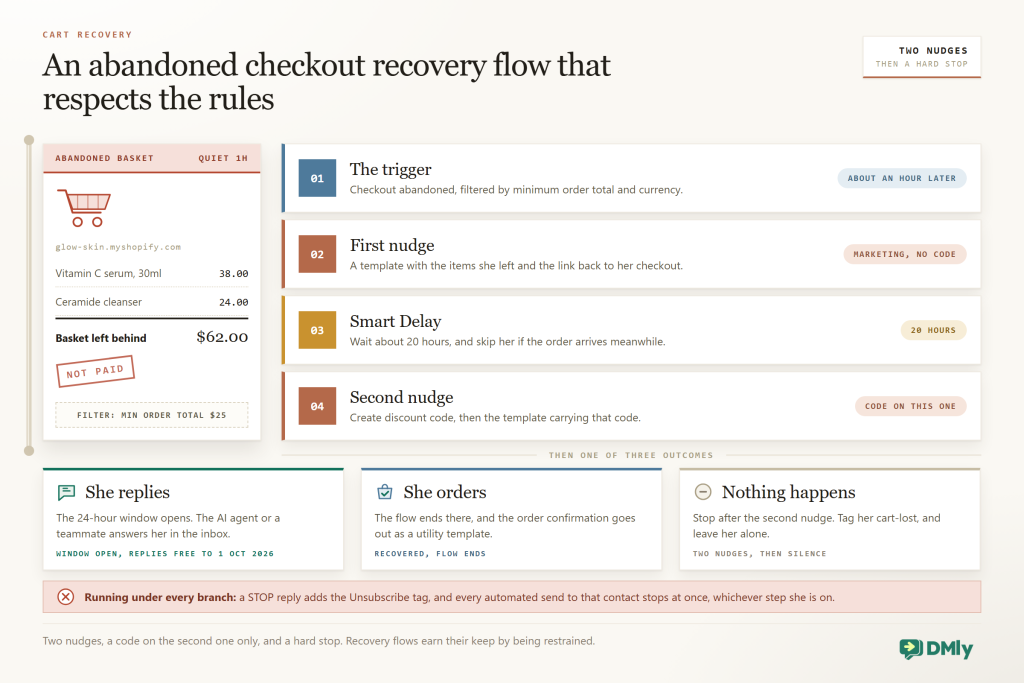
Two design choices matter. First, the opening message must be an approved marketing template (or DMly’s checkout-link step with a template fallback), because the customer almost certainly hasn’t messaged you in the last 24 hours. Something like: “Hi {{customer.first_name}}, you left {{order.items_summary}} in your basket at {{store.name}}. We’ve saved it for you: {{order.checkout_url}}. Reply STOP to opt out.” Second, hold the discount back for the second nudge. A code in the first message trains people to abandon carts on purpose; a code twenty hours later, generated by the Create discount step and dropped in as {{discount.code}}, recovers the hesitant without teaching everyone the tactic. Our post on practical follow-ups that convert abandoned carts covers copy and timing, and our guide to recovering abandoned Shopify carts with WhatsApp goes deeper on the build.
2. Order confirmation (and cash-on-delivery confirmation)
Trigger: Order placed. Send a utility template with the order number, the items, the total and a line about what happens next. It’s the message customers screenshot, and it answers “did my order go through?” before anyone has to ask. If you sell cash on delivery, DMly’s ready-made COD Confirmation template filters Order placed on “payment method contains cod” and asks the customer to confirm before you fulfil. If they messaged you in the last 24 hours they get a WhatsApp Flow form with a Confirm order button; most website buyers haven’t, so they get the approved dmly_cod_confirmation template asking them to reply CONFIRM or NO. Either answer is written as a note back onto the store order, and a NO never cancels the order in your store, so someone still has to act on it. In COD-heavy markets, fewer returned parcels is where this automation earns its keep.
3. Shipping updates and “where is my order?” self-service
Trigger: Order shipped. Send a utility template with {{order.tracking_url}} and the expected delivery window. Then build the reverse: a keyword flow for messages containing “order”, “tracking” or “where is my order” that asks for the order number, runs the Find Order step and sends the Order Status step (“Your order {{order.number}} is {{order.status}}”, with the tracking link appended when there is one), escalating to a human when nothing matches. DMly ships this as the Order Status Self-Service template, so it’s a ten-minute job. Our guide to sending Shopify order updates through WhatsApp covers the details.
4. Back-in-stock and low-stock alerts
Restock alerts are pure upside: the customer asked to be told, and the message is the answer. Capture the request first (a “tell me when it’s back” button in the product chat, or a keyword that adds a Waitlist tag), then build a flow on Product back in stock for that product, notifying contacts holding the tag; DMly caps this at 500 contacts per event, so split a very popular item’s audience into tags. Inventory low can go the other way: nudge the tagged fans before it sells out, or simply alert your own team.
5. Review requests after delivery
Reviews are the cheapest marketing a store has, and timing is everything. Start on Order shipped, add a Smart Delay long enough for the parcel to arrive, then ask. If Google reviews matter to you (a brand with a shop or showroom, say), DMly’s flow builder includes a Request Google review node that sends your approved review template on WhatsApp or SMS and records a “Review request sent” event you can build on; the docs describe it around appointments, so test it in your store flow. If you collect product reviews on the store itself, send a short follow-up with a direct link to the review page instead. Our guide to asking Shopify customers for reviews automatically walks through both, and the Google Business Profile automation guide covers the reputation side.
6. Post-purchase follow-ups, upsell and repeat purchase
The order isn’t the end of the conversation. A few days after delivery, a short “how are you finding it?” message opens a window in which the AI can answer usage questions and, where it fits, suggest the refill or the companion product. Later, the Customer milestone trigger fires once when a customer crosses the spend or order-count threshold you set: the natural moment for a thank-you code, a VIP tag and a segment you can broadcast to. Our posts on WhatsApp upsell and cross-sell campaigns and on driving repeat sales with WhatsApp marketing cover the campaign side; the Shopify-specific follow-up build gets its own guide.
From cart to repeat customer: the whole journey in one place
Put those six together and the customer experiences one continuous thread rather than six separate systems:
Checkout abandoned → nudge with checkout link → order placed → confirmation → order shipped → tracking link → “where is my order?” answered by the Find Order step → parcel arrives → review request → 30 days later → “running low on the serum?” with a reorder link → third order → milestone reward and VIP tag → back-in-stock alert for the new shade she asked about
The takeaway: build the six in this order, keep each one small, and let them share one contact record and one inbox. That is what makes the journey feel like a single conversation.
How AI Changes Shopify Customer Support
Store support is repetitive in a very specific way: the same thirty questions, each with a slightly different answer per product. That is exactly what an AI agent trained on your own material is good at.
With a platform like DMly, you attach knowledge sources to the agent (your FAQ, shipping and returns policy, size guide and ingredient sheets as PDF, text or Markdown up to 20MB each; web pages such as your store’s help pages; pasted text) and choose the model provider (OpenAI, Claude, Google Gemini or DeepSeek; document search works with OpenAI and Gemini). The agent answers pre-sale and post-sale questions inside the 24-hour window, on WhatsApp, Instagram and Messenger from the same inbox, and it can act, not just talk: add tags, set custom fields, move the CRM stage, add a note, and hand over to a human when confidence is low or the customer asks for a person.
Two boundaries are worth knowing. The agent’s built-in tools cover CRM and bookings; order lookups come from the store steps in the flow builder (Find Order, Order Status), so “where is my order?” is best handled by that keyword flow, with the AI covering everything around it. And each AI reply is capped at eight tool rounds and a conversation at 40 turns, after which the flow moves on, so the agent won’t loop forever with a frustrated customer; it hands over. Developers can go further with custom HTTP functions the agent can call, such as a stock check against your own endpoint.
A realistic exchange: “Is the vitamin C serum ok for sensitive skin?” → the agent answers from the ingredient sheet, offers the fragrance-free version and asks whether to send it → customer says yes → the flow sends the product from the synced catalogue → she buys on the store → the confirmation template arrives in the same thread. Our guide to answering Shopify customer questions with an AI chatbot goes deeper, and the DMly AI agents page lists what the agent can do.
The takeaway: let flows handle the transactional lookups and let the AI handle the language. Together they cover most of a store’s inbox, and a person gets only the exceptions.
The AI-first tools built for stores are priced differently from general WhatsApp platforms, and the headline number is rarely the bill. TextYess starts at 249 euros a month, but that is a floor with three usage meters under it, and turning up outbound messages and AI replies on the same plan takes it past 1,100.
What It Looks Like for Different Kinds of Stores
The same store events, filtered and worded differently, suit very different shops. Find yours below.
Skincare and beauty D2C
Restock alerts for shades and sizes, refill reminders 30 to 45 days after delivery, an AI trained on ingredient sheets, and milestone rewards for the loyal core.
Fashion and footwear
Abandoned checkout with the exact items and sizes, shipping updates with tracking, and a size-and-fit AI that reduces returns before the order is placed.
Food, coffee and supplements
Reorder nudges timed to consumption, subscription-style “skip or send?” replies, and back-in-stock for seasonal batches to a tagged waitlist.
Electronics and gadgets
Order paid and shipped confirmations with delivery windows, “where is my order?” self-service, and setup help from an AI trained on the manuals.
Home, furniture and made-to-order
Order placed with the production timeline, milestone updates as the piece moves, delivery-day coordination in the inbox, and a review request once it’s installed.
Cash-on-delivery markets
COD confirmation via a WhatsApp Flow before dispatch, a retry path for failed payments (WooCommerce), and a human handover for address changes.
If Instagram is where your customers find you, the same flows apply there with one twist: Instagram and Messenger contacts can only be messaged after they message you, so use the DM to move the relationship onto WhatsApp for order updates. We cover that hand-off in our guide to turning Instagram and WhatsApp conversations into Shopify sales; the Instagram channel page explains the inbox side.
The takeaway: don’t copy a generic template pack. Pick the three events that match how your customers actually buy, and word them for your product.
Why DMly Is the Best Choice for Shopify WhatsApp Automation
Plenty of tools will send a WhatsApp message when an order comes in, and far fewer do Shopify WhatsApp automation properly. Far fewer connect the store properly, run the inbox the replies land in, and give you AI, CRM, broadcasts and reviews on the same contact record. Here’s what DMly gives a Shopify store, taken from the product and its documentation.
A native store connection with real triggers, steps and variables
Shopify and WooCommerce connect from Integrations → Commerce, and the connection is two-way: 18 store-event triggers with filters, a Store palette of steps (find an order, send order status with the tracking link, send a checkout link, send a product, sync the contact, create a discount code, write a note back to the order), and order, customer, product and discount variables you can drop into any message. Ready-made templates for order-status self-service and COD confirmation get you live quickly, and the same flows run on WooCommerce with a REST API key, so a brand or agency on both platforms builds once.
The inbox the replies land in, on every channel
Store messages get replies, and the reply is where the sale or the refund is decided. DMly’s team inbox puts WhatsApp, Instagram DMs and comments, Messenger, TikTok, Telegram, SMS and website live chat in one place, with folders, assignment, round-robin, internal notes with @mentions, saved replies and a “Pause bot” button for human takeover. The synced store data sits on the same contact, so whoever picks up the chat sees the customer, their spend and the history, not a phone number and a guess.
AI agents that answer and act
DMly’s AI agents answer from your knowledge sources, hand over cleanly and update the CRM as they go, with your choice of OpenAI, Claude, Gemini or DeepSeek. Combined with the Find Order step, that covers the two things a store inbox is made of: product questions and order questions.
Broadcasts, segments and the rest of the platform
Milestone tags feed saved segments, and WhatsApp broadcasts go to one segment at a time with opted-out contacts excluded, only approved templates in the picker, per-contact timezone scheduling and optional team approval before sending. The same workspace runs Google review requests, invoices and payment links (Stripe, PayPal, Paystack, Razorpay, MyFatoorah and Mercado Pago), coupons and loyalty. And if you want customers to browse and add to a cart inside WhatsApp itself, DMly supports Meta’s in-chat catalogue and cart with a Cart order received trigger and a Pay now request; that catalogue lives in Meta’s Commerce Manager rather than in Shopify, and our WhatsApp Business catalog guide explains the setup.
Honest pricing for a store’s message volume
As of August 2026, DMly’s plans start at $29 a month billed yearly (Starter: 3 seats, 3,000 active contacts, 10,000 broadcast and template messages, 500 AI replies), with Growth at $65 (6 seats, 10,000 contacts, 50,000 messages, 5,000 AI replies) and Premium at $149 (15 seats, unlimited contacts, 300,000 messages, your own AI keys), plus add-ons and a 7-day free trial with no card. There is no markup on WhatsApp: you pay Meta’s standard per-message rates directly, which for a store sending thousands of utility messages a month matters more than the plan price. If you’re weighing options built specifically for Shopify, our comparison of SuperLemon and DMly for Shopify brands is the honest place to start, and our WhatsApp for D2C post shows how brands use the wider platform.
| What a store needs | Typical Shopify WhatsApp app | DMly |
| Store connection | Order and cart notifications | Native Shopify and WooCommerce connection: 10 event triggers with filters, store steps, order and customer variables, 90-day backfill |
| Where replies go | A separate chat screen, WhatsApp only | One inbox for WhatsApp, Instagram, Messenger, TikTok, Telegram, SMS and live chat, with assignment and notes |
| Support automation | Keyword replies | Find Order and Order Status steps, AI agents with knowledge sources and handover, WhatsApp Flows for COD confirmation |
| Recovery flow tools | Fixed abandoned-cart message | Checkout-link step with template fallback, Create discount code, Smart Delay, filters by total and currency |
| Beyond messaging | Usually nothing | CRM with tags and segments, broadcasts, Google reviews, invoices and payments, coupons and loyalty, appointments |
| WhatsApp fees | Often marked up or bundled | No markup; Meta’s standard rates |
| Compliance | Varies | 24-hour window enforced everywhere, opt-out keywords honoured automatically, only approved templates sendable, quality rating and limit tier visible |
Connect your store
Connect Shopify or WooCommerce from Integrations → Commerce, switch on the ready-made order-status and COD flows, and build your abandoned checkout recovery in an afternoon. 7-day free trial, no credit card, no markup on WhatsApp.
Start free and connect your store
How to Connect Shopify to DMly and Launch Your First Automations
Here’s the sequence we walk store owners through, and the Shopify side takes minutes. Meta’s template approvals are the only real waiting in setting up Shopify WhatsApp automation.
- Get your WhatsApp number on the official API in DMly. Connect a WhatsApp Business number through DMly (see the WhatsApp channel page), complete Meta business verification when you can (it lifts your messaging limit from 250 to 2,000 unique customers a day), and note where your quality rating and limit tier show: Bot Setup → WhatsApp → Configuration.
- Create the custom app in Shopify. In your Shopify admin, create a custom app for your store with Admin API access to read and write orders, customers, products and price rules, and to read checkouts. Turn on Protected customer data access. Install the app and copy the Admin API access token (Shopify shows it once) and the API secret key; the DMly Shopify docs walk through it field by field.
- Connect the store in DMly. Go to Integrations → Commerce, select Connect on Shopify, enter the store URL, token and secret under Store connection, and select Connect store. Wait for the first sync (all products, all customers, 90 days of orders); the store’s webhooks are registered for you. This backfill never fires automations.
- Sort out phone numbers and consent at checkout. Ask for a phone number at checkout so DMly can match customers to WhatsApp contacts, and make sure your consent wording names WhatsApp and the kinds of messages you’ll send. Store where the consent came from in a custom field, because DMly logs opt-outs but not opt-ins.
- Submit your templates. At Templates in the Messaging group, create a utility “order confirmed”, a utility “order shipped” with the tracking link, and a marketing “you left items in your basket” with the checkout link and a “Reply STOP to opt out” line. Add sample values, submit, and wait for Approved. Do this early; everything else waits on it.
- Turn on the ready-made flows. In Automation, choose New automation, pick the Order Status Self-Service template (and COD Confirmation if you sell cash on delivery), review the wording and publish. Then build the shipping update: Flow builder → trigger Store events → Order shipped → your approved utility template with
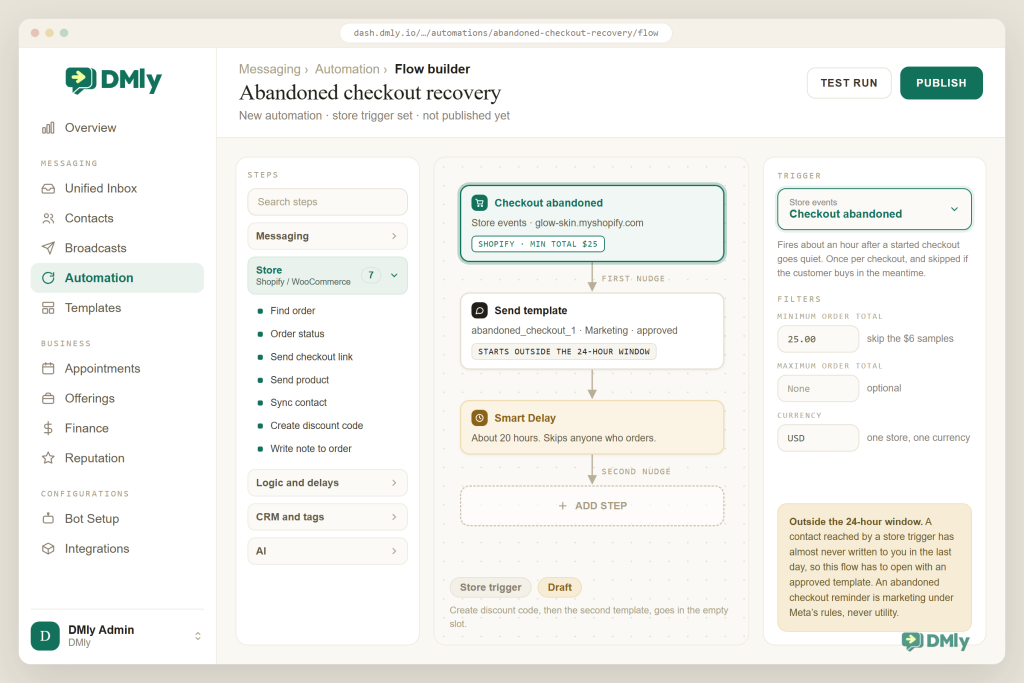
{{order.number}}and{{order.tracking_url}}→ publish. - Build the abandoned checkout recovery. New flow → trigger Checkout abandoned → filters (a minimum order total, your currency) → the marketing template with
{{order.checkout_url}}(or the checkout-link step with a template fallback) → Smart Delay of about 20 hours → Create discount code → second template with{{discount.code}}→ end. Two messages, then stop. - Test with real events, then go live gradually. Place a test order, start and abandon a test checkout, and watch the inbox and the flow logs. Publish, then add restock alerts, review requests and post-purchase follow-ups one at a time over the following weeks, watching your quality rating as volume grows.
The takeaway: connect, consent, templates, ready-made flows, then your own recovery flow. In that order you’re sending useful messages within days and never blocked waiting on a build.
Best Practices for Shopify WhatsApp Automation
- Start with utility, earn marketing Confirmations and tracking are wanted messages that build a healthy quality rating. Add nudges and offers once the number has a track record.
- Filter your triggers A minimum order total on the recovery flow keeps you from spending a marketing message chasing a $6 sample. Currency filters keep multi-currency stores tidy.
- Two nudges, then stop One reminder, one reminder with a code, then a tag and silence. Restraint keeps blocks and reports low, which keeps your messaging limit climbing.
- Write like a person, with the specifics “Your Aurora Hoodie (M) has shipped, tracking here, expected Thursday” beats “Your order has been updated”. The variables exist so you can use them.
- Time by the customer’s clock Store events fire when they happen; nudges and broadcasts should respect the recipient’s timezone and your quiet hours.
- Keep consent visible Consent source in a custom field, opt-out keywords left alone, and a “Reply STOP to opt out” line in every marketing template.
- Give the AI boundaries Product and policy questions from your knowledge sources; order lookups from the Find Order step; anything about refunds or address changes handed to a person.
- Watch two numbers weekly Quality rating and messaging limit tier under Bot Setup → WhatsApp → Configuration. They tell you whether customers want what you’re sending.
Shopify WhatsApp Automation Mistakes to Avoid
- Connecting the store and hoping the history triggers something. It won’t, by design. Test with a live order after connecting.
- Sending a promotional “utility” template. A discount line in a shipping notice gets the template reclassified as marketing, or rejected. Keep transactional messages transactional.
- Discounting in the first recovery message. You’ll recover a few carts and train the rest of your customers to abandon on purpose.
- Forgetting the phone number. Email-only checkouts leave DMly nothing to match on WhatsApp, and Instagram and Messenger contacts can’t be created from a store event at all.
- One flow that does everything. Six small flows are easier to test, pause and fix than one giant one. Use tags to pass state between them.
- Ignoring the 500-contact cap on product events. For a hot restock, split the waitlist into tags or you’ll message the first 500 and wonder about the rest.
- Deleting the store webhooks by hand. On WooCommerce that silently stops all events; disconnect from inside DMly instead. On Shopify, revoking the custom app does the same.
- Treating WhatsApp as a broadcast cannon. The stores that get restricted are the ones blasting bought lists. Segments, consent and restraint are the whole game.
Running WooCommerce Too? What Carries Over
If you also run, or are moving to, WooCommerce, almost all of this Shopify WhatsApp automation carries over. DMly documents the same store events and store steps for both platforms, apart from the five delivery updates, which come from Shopify’s fulfilment tracking, and the flows are identical once the store is connected. The differences are on the store side: WooCommerce connects with a REST API key (consumer key and secret, over HTTPS) rather than a custom app; because Woo has no checkout object, an order that sits pending and unpaid for about an hour is what counts as an abandoned checkout; and Payment failed does fire on WooCommerce when an order moves to “failed”. Our WooCommerce WhatsApp automation guide and our Shopify vs WooCommerce comparison cover the rest, and the WooCommerce docs page has the field-by-field setup.
Final Thoughts
Shopify WhatsApp automation is really two things: a store connection good enough that your order data becomes triggers, filters and variables, and a WhatsApp setup disciplined enough that Meta keeps letting you send. Get both right and the boring, high-value messages (confirmations, tracking, restock alerts) run themselves, the recovery flow quietly earns back a share of the seven in ten checkouts that stall, and the AI absorbs most of the questions in between.
DMly is built for exactly that: a native Shopify and WooCommerce connection with 18 store events and real order variables, the omnichannel inbox the replies land in, AI agents that answer and hand over, and no markup on WhatsApp. Connect the store, submit three templates, switch on the ready-made flows, and build the rest one automation at a time.
Frequently Asked Questions
Do I need to install an app from the Shopify App Store to connect DMly?
No. DMly connects through a custom app you create in your own Shopify admin: you grant it the Admin API permissions (orders, customers, products, price rules, checkouts), enable Protected customer data access, and paste the Admin API access token and API secret key into Integrations → Commerce → Shopify in DMly. The connection is direct; nothing goes through Zapier or a middleware service.
Will connecting my store send messages about old orders?
No. The first sync imports your products, customers and the last 90 days of orders so your contacts are complete, but that backfill never fires automations. Only events that happen after the connection start flows.
Do customers have to opt in before I message them about their order?
Yes. Meta’s Business Messaging Policy requires opt-in before business-initiated messages and requires you to honour opt-outs. Collect WhatsApp consent with the phone number at checkout or right after, store the source in a custom field, and let DMly handle the opt-out keywords, which add an Unsubscribe tag and stop every automated message.
What does Shopify WhatsApp automation cost to run?
Meta bills per delivered template message by category and country. Ordinary replies inside the 24-hour window carry no charge until 1 October 2026, and utility templates delivered inside an open window are free until the same date; from then on both are billed at your market’s utility rate, as our guide to the October WhatsApp pricing change explains. DMly adds no markup on WhatsApp, so you pay Meta’s standard rates on top of your DMly plan.
Can the AI answer “where is my order?” on its own?
Order lookups come from the flow builder’s Find Order and Order Status steps rather than the AI agent’s built-in tools. DMly’s ready-made Order Status Self-Service template asks for the order number, looks it up, replies with the status and tracking link, and hands over to a person if nothing matches. The AI agent handles product and policy questions around it.
Does the abandoned-checkout trigger fire immediately?
No. It fires when a started checkout goes quiet for about an hour, once per checkout, and it skips anyone who completed the purchase in the meantime. Because the customer usually hasn’t messaged you, the flow must start with an approved marketing template or the checkout-link step with a template fallback.
Does all of this work with WooCommerce too?
Yes. WooCommerce connects with a REST API consumer key and secret over HTTPS, syncs the same data and exposes the same store events and store steps, apart from the five delivery updates, which only Shopify’s fulfilment tracking feeds. The main difference is on the store side: an unpaid pending order counts as an abandoned checkout. Payment failed fires from both.
Writing about WhatsApp automation, bookings and growth for local business.
Turn WhatsApp into your busiest channel.
Start free and run message, bookings, payments and reviews in one place.
