
Every restaurant asks its guests the same question at the door: “Do you have a reservation?” Reservation reminders on WhatsApp let you ask a better question a day earlier: “Are you still coming?”
The door question can only ever get you good news or bad news on the night. If the answer is “we booked for four, but there are six of us”, the host is juggling chairs during service. If nobody comes to the door at all, the table for four by the window just sits there, set and empty, while the walk-ins you turned away eat somewhere else.
Asked the day before, the same question has a useful answer. A guest who can’t make it tells you while you can still give the table to someone else. A guest whose party has grown tells you while you can still move them. And a guest who simply forgot is reminded, on the app they already check all day.
In this guide, we’ll look at when to send restaurant reminders around a real service, what to put in them, eight messages you can copy, how to handle the replies (including the one-word reply that needs a person), how to refill a cancelled table, what it costs, and how to set it all up in DMly.
What Reservation Reminders on WhatsApp Do for a Restaurant
Reservation reminders on WhatsApp are short, automatic messages sent to a guest before their booking, confirming the day, time and party size and giving them an easy way to change or cancel. They do two jobs at once: they remind people who forgot, and they flush out the cancellations early enough for the table to be sold again.
That second job is the one that matters most for a restaurant. A clinic that loses a 3pm appointment loses an hour. A restaurant that loses a 7:30pm table for four on a Saturday loses the whole turn, because by 7:30 the people who would have taken it have gone elsewhere. A cancellation at lunchtime on Saturday is almost free. The same cancellation at 7:45 is the full cost of the table.
So a restaurant reminder isn’t really a memory aid. It’s a request for an early answer. The best ones make “no” as easy to say as “yes”.
How restaurant reminders differ from appointment reminders
If you’ve read our general guide to automatic appointment reminders on WhatsApp, most of the machinery is the same. What changes is the shape of the booking.
| A salon or clinic appointment | A restaurant reservation | |
| How far ahead people book | Days or weeks | Often the same day, sometimes an hour before |
| Who the booking is for | One person | A party, and the number can change |
| What a late cancellation costs | One slot | The whole table for the turn, on your busiest nights |
| Common replies to a reminder | “Can I move it?” | “Running late”, “we’re six now”, “can we come at 9?” |
| Who reads the replies | A receptionist at a desk | A host in the middle of service |
| What the reminder should add | What to bring, how to prepare | How long you hold the table, where to park, what to do if plans change |
Each of those rows changes a setting or a sentence further down this page.
When to Send a Restaurant Reservation Reminder
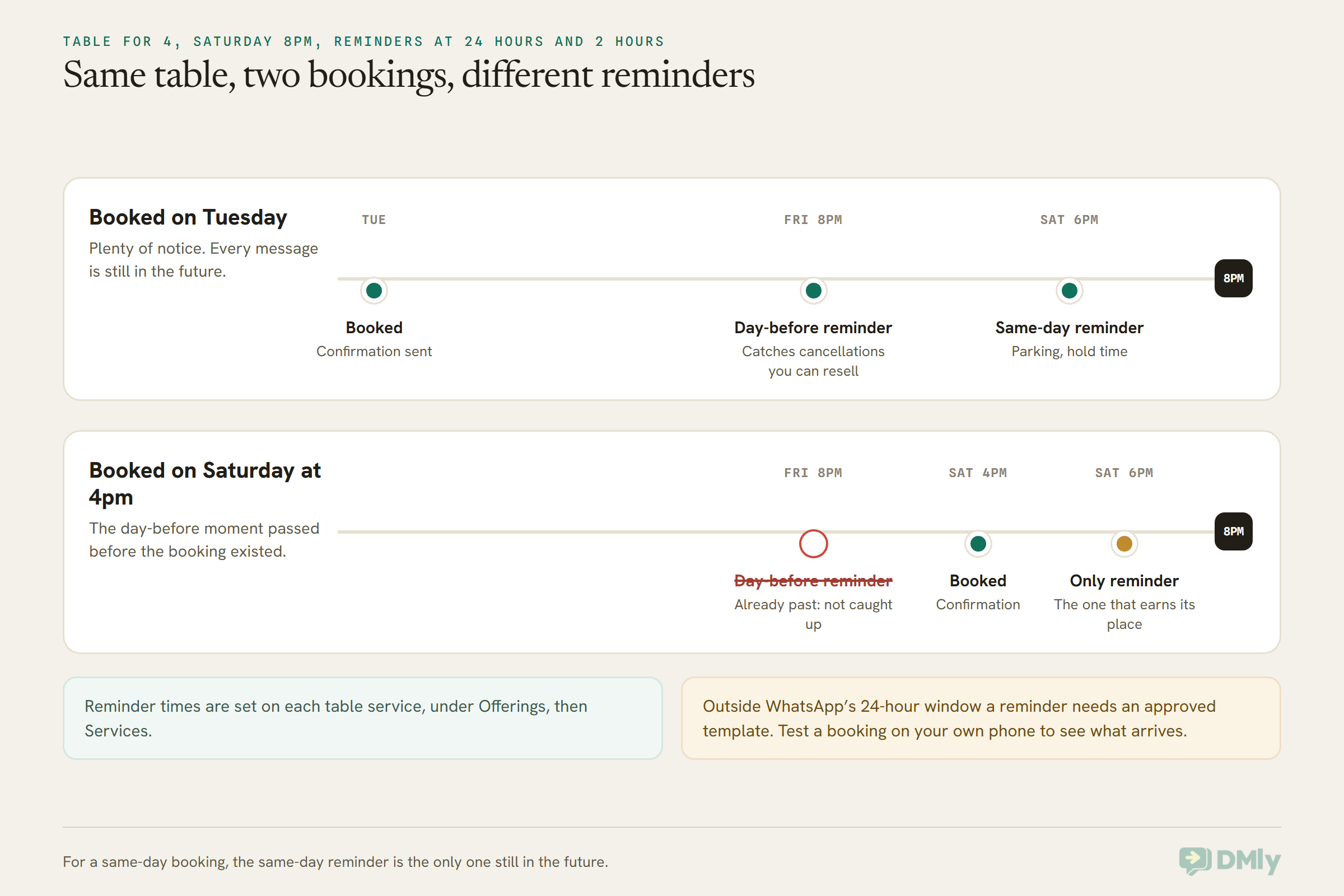
Most restaurants do best with two reminders: one the day before and one a couple of hours before the booking, on top of the instant confirmation. The day-before reminder catches the cancellations you can resell. The same-day one catches the forgetful and gives late-running guests a thread to reply to.
There’s no single right answer, so here’s how to think about each one.
The confirmation, straight away
The moment someone books, they should get a message that says the booking exists. This is the one that stops the “did that go through?” phone call. In DMly it goes out automatically when a booking is confirmed, so you don’t build it; you only decide what it says (more on that below).
The day-before reminder
Twenty-four hours ahead is the classic choice and it suits dinner well: a guest booked for 8pm Saturday hears from you at 8pm Friday, when they’re probably already thinking about the weekend. If your guests tend to book lunch, think about whether 24 hours before a 12:30 lunch (12:30 the previous day, in the middle of their working day) is when they’ll actually read it. Some restaurants prefer a reminder the evening before instead, which you can approximate with a longer lead time on lunch services.
The same-day reminder
Two or three hours before is enough. Its job is different: directions, parking, how long you hold the table, and a quick way to tell you they’re running late. It’s also the only reminder a same-day booking is likely to get, which brings us to the trap.
Same-day bookings and the reminder that never comes
Restaurants take far more short-notice bookings than most businesses. Someone books at 4pm for 8pm tonight. Their day-before reminder was due at 8pm yesterday, before the booking existed.
DMly’s documentation is clear that a reminder that misses its moment is skipped and not caught up later, because the booking time is fixed. As far as the docs describe, that means a booking made inside your first reminder’s lead time simply gets the reminders that are still in the future. The confirmation still goes, so the guest isn’t left in silence, but it’s another reason to keep a same-day reminder: for last-minute bookings, it’s the only one. Book a test table for later today on your own phone and you’ll see exactly which messages arrive.
How many is too many?
Two reminders plus a confirmation is plenty for an ordinary table. A third adds cost and annoyance without adding many early answers. If you take bookings weeks ahead for set events, such as a tasting menu night or a festive sitting, a reminder a few days before can be worth adding, because that’s when people realise they double-booked their weekend.
Whatever you choose, remember that WhatsApp only delivers a message outside its 24-hour window as an approved template, which you pay Meta for, and that restaurants currently have a gap there, covered in the next section. We’ll come back to cost later.
How Restaurant Reservation Reminders Work in DMly
In DMly, restaurant reservation reminders come from the table service the guest booked: you set the reminder times once on each service, and every booking made against it is reminded automatically. You don’t need to build a flow for the basic version.
Here’s the short version of how the pieces fit.
- Your tables are services. Reservations in DMly run on the appointments system. Most restaurants make each table size a service, such as “Table for 2” and “Table for 4”, with a duration that matches how long you hold a table. Fixed sittings, like a Sunday lunch at 1pm, work better as a class with a set number of places. Our guide to WhatsApp automation for restaurants walks through that setup.
- Reminder times live on the service. Open Offerings, then Services, edit the table service and set its reminder times, for example a day before and two hours before. This trips people up because it isn’t under Appointments. Set them on every table service, including the large-group ones.
- The 24-hour window decides delivery. Inside an open window, if the guest messaged you recently, the reminder goes as an ordinary message. Outside it, WhatsApp needs an approved template. At the time of writing, restaurant workspaces don’t get DMly’s
dmly_appointment templates, so a table reminder can’t go out on WhatsApp once the window has closed. Book a test table from a phone that hasn’t messaged you, and see what your workspace does today. - Every booking route is covered. A booking from your booking page, a booking your host adds by hand, and a booking made in the chat by a flow or the AI assistant all end up as the same kind of booking record, reminded the same way.
Bookings taken by phone or at the door
When someone phones, your host adds the booking from the Calendar view with New appointment. Two details decide whether that guest gets reminders on WhatsApp:
- A phone number. If they’re a new guest, choose Create new client and type their name and phone. Without a phone number there’s nothing to send a WhatsApp reminder to.
- The Notify client switch. This decides whether the confirmation goes out. Leave it on unless you have a reason not to.
If you take bookings through another platform, those bookings don’t exist in DMly, so DMly can’t remind them. Reminders only cover reservations made in DMly.
Bookings from your booking page
A new visitor to your booking page only has to give a first name and an email address. The rest of the form is up to you, under Settings, then Booking Fields. Switch the phone question on. When a guest leaves it blank, or WhatsApp refuses the send, DMly uses email for the confirmation and reminders instead, which is fine but isn’t the point.
One honest limit: the booking form questions come from a fixed list. You can switch each one on or off and change its label, but you can’t add a question of your own. So “how many guests?” isn’t a question you can add. Let the service name do that job instead (“Table for 2”, “Table for 4”, “Table for 6 to 8”), and if you take one-to-one style table bookings, relabel the appointment-only Additional Notes question to something like “Anything we should know? (occasion, high chair, accessibility)”.
What the guest actually receives
There are two places the wording comes from, and it’s worth knowing both.
- The service’s own Reminder message. Each service has a Confirmation message, a Reminder message and a Cancellation message, and DMly’s variables reference lists tokens you can use inside them, such as
{{appointment.service}},{{appointment.date}},{{appointment.time}}and{{appointment.cancel_url}}. - The template used outside the window. In Workspace Settings, Settings, Notification settings, on the Client & staff messages tab, the reminder card has two template pickers: one “with join link” for online bookings and one for “in person / no link”. The in-person one is the one a restaurant uses. The dropdown also lists any of your own approved templates, but don’t count on one to fill the restaurant gap until you have tested it.
The docs don’t spell out how DMly fills the variables of a custom template you choose in that dropdown, or exactly how the service’s Reminder message relates to the template once the window has closed, so send yourself a test booking outside the window before you rely on anything here.
How it works, if you’re curious
When a booking is confirmed, DMly schedules its reminders from the service’s reminder times. At each one it checks the booking again. A reminder is skipped, not retried, in two cases:
- the booking is no longer confirmed (it was cancelled, or a pay-before hold never cleared);
- the guest has opted out of messages.
One thing to test rather than assume. When a host takes over a chat with Pause bot reply, or a flow uses Handover to Human, DMly stops automations and sequences for that guest until someone selects Resume bot reply. Whether booking reminders also wait is worth checking on a test booking before a busy weekend. Either way, make “resume the bot when you’re done” part of how your team closes a chat.
Two more rules from the docs. Reminders never notify your team; the staff member on the booking gets their own new-booking message when it’s made, and that’s all. And if a template isn’t approved when a reminder falls outside the window, the message is dropped rather than sent as plain text. DMly would rather leave a visible gap than pretend a message went.
What a Restaurant Reservation Reminder Should Say
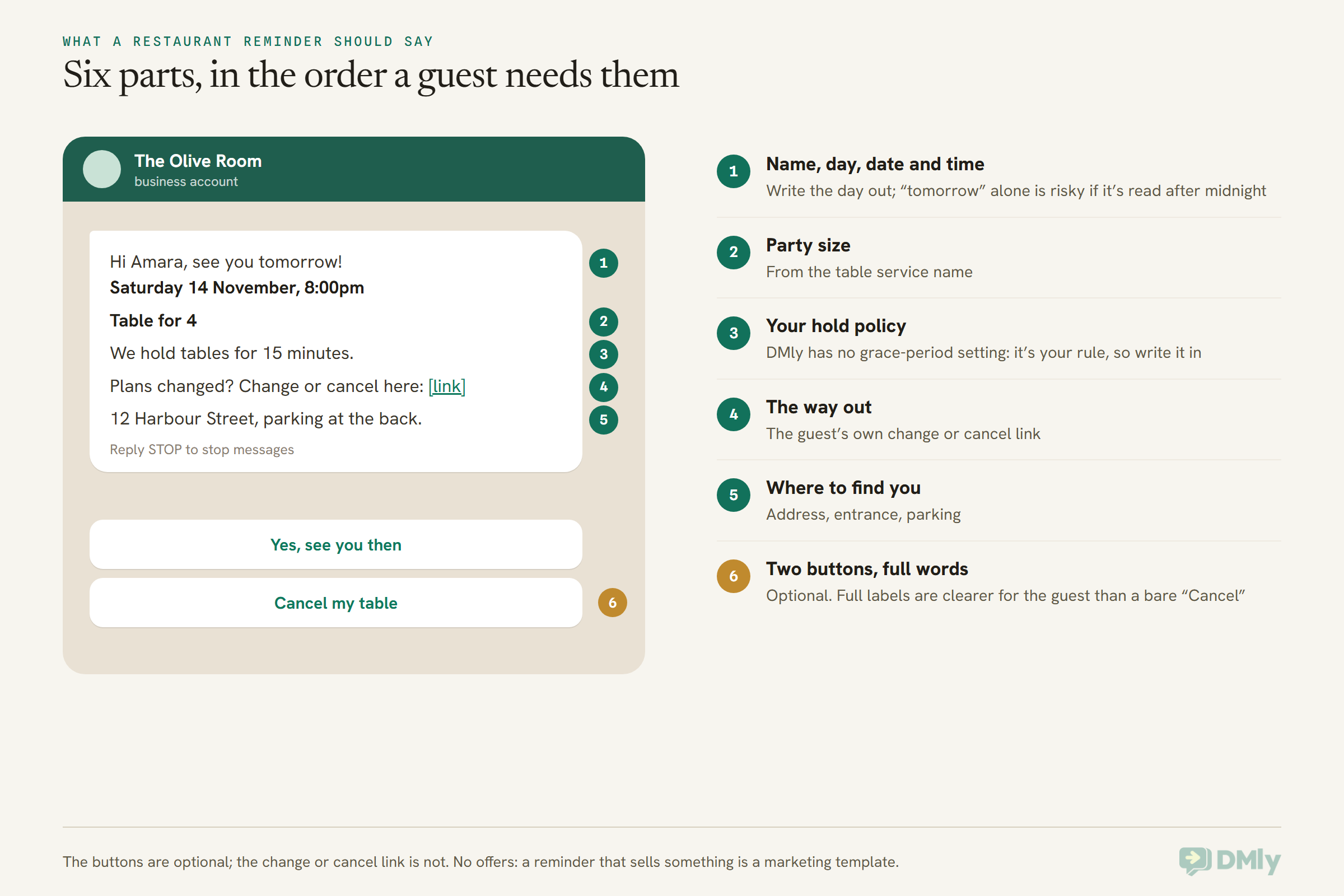
A good restaurant reservation reminder says who it’s for, when, how many, how long you’ll hold the table, and how to change or cancel, in that order, in under five short lines. Anything else should earn its place.
The must-haves
- The guest’s name and the full date. “Tomorrow” is fine as a greeting but write the day and date as well. A message read after midnight, or forwarded to a friend, still needs to make sense.
- The party size. If your services are named by table size, the service name already says it. Guests whose party has changed will tell you, which is exactly what you want.
- How long you hold the table. DMly has no setting for a grace period; it’s your policy, so put it in the words. “We hold tables for 15 minutes” saves a lot of awkward conversations at the door.
- The way out. A link to change or cancel. In DMly every booking has its own private manage page, and the tokens
{{appointment.cancel_url}}and{{appointment.reschedule_url}}open it on cancelling or rescheduling.
The nice-to-haves
- Where to find you. Address, the entrance if it’s not obvious, parking, the nearest station. This belongs in the same-day reminder more than the day-before one.
- Anything the guest must do. “Please let us know about allergies before you arrive”, a dress code, or a reminder that the set menu is served at one time. Keep it to one line.
What to leave out
The tempting addition is a little promotion: “Don’t forget to try our new dessert menu!” Leave it out. Meta’s rules say a Utility template must be non-promotional and specific to the guest, and a template with mixed content is treated as marketing. Our explainer on marketing, utility and authentication templates covers the categories in full. Three things follow if your reminder slides into marketing:
- it costs more, at Meta’s marketing rate;
- it needs the guest’s marketing opt-in, not just a booking; and
- Meta does not currently deliver marketing templates to WhatsApp users with US phone numbers at all, so your American guests would get no reminder.
Keep the reminder boring and keep the offers for a separate, opted-in message.
Two smaller things to leave out. Don’t put the table number in the reminder; if your tables are set up as staff members, {{appointment.staff}} would print “Table 7”, and you may want to move them. And don’t ask for allergy details in a template; ask the guest to message you, and let a person read it.
Restaurant Reservation Reminder Templates to Copy
These reservation reminder templates cover the day before, the same day, large groups and set sittings, plus the replies your host will send most often. Messages that go out after the 24-hour window closes need an approved template, and we’ve noted the category Meta is likely to give each one. Replies inside an open window are ordinary messages and need no approval. For a wider set of examples across industries, see our appointment reminder message templates.
Placeholders in square brackets are where your variables go. When you build your own template, Meta wants text around every variable and a sample value for each one.
1. The day-before reminder
Hi [Name], just a reminder of your table at [Restaurant] tomorrow, [day, date] at [time]: [table “” not found /]
. We hold tables for 15 minutes. If your plans change, you can change or cancel here: [link]. See you soon!
Buttons: Yes, see you then / Cancel my table
Category: Utility. It’s about the guest’s own booking and sells nothing.
2. The same-day reminder
See you tonight, [Name]! Your table for [table “” not found /]
is at [time]. We’re at [address]; [parking or entrance note]. Running late? Just reply here and we’ll do our best to hold your table.
Category: Utility. The “reply here” line matters: it tells the guest this chat is where a person will answer.
3. The large-group reminder
Hi [Name], we’re looking forward to hosting your group of [number] on [day, date] at [time]. If your numbers have changed, please reply by [time] tomorrow so we can set the right table. To change or cancel: [link].
Category: Utility. For groups, the reminder’s real job is the head count, so ask for it directly and give a deadline you can actually act on.
4. The set sitting or event reminder
Hi [Name], your place at [event name] is confirmed for [day, date]. Doors open at [time] and the first course is served at [time] for everyone, so please arrive on time. Can’t come? Cancel here and we’ll offer your place to the waitlist: [link].
Category: Utility. Mentioning the waitlist turns “cancel” into a kindness rather than an awkward message.
5. Reply to “running late”
No problem, thanks for letting us know! We’ll hold your table until [time]. If it’s going to be later than that, send us a message and we’ll see what we can do.
Category: none needed. The guest just messaged you, so the window is open and this is an ordinary reply.
6. Reply to “there are more of us now”
Thanks for the heads-up! Let me check we have a table for [new number] at [time]. I’ll message you back in a few minutes.
Category: none needed. Then book the bigger table by hand and cancel the old booking, telling the guest first so the cancellation message doesn’t worry them.
7. Reply when a guest cancels
Thanks for letting us know, [Name], that really helps. Your booking is cancelled. Would another night suit you? Here are our open times: [booking link]
Category: none needed if it’s a reply inside the window. Offering another night is fine here because the guest is already talking to you about their booking.
8. The one that is not a reminder
Hi [Name], see you tomorrow at [time]! While you’re here, try our new [dish], and show this message for 10% off desserts.
Category: Marketing. This is what a reminder becomes when an offer creeps in. Send the offer separately to guests who opted in, and keep the reminder as number 1.
Templates in more than one language
If your guests speak different languages, build one template per language. Meta lets several templates share a name as long as each is in a different language. DMly’s booking page itself speaks 16 languages, including Arabic and Spanish, though your own service names and descriptions stay exactly as you wrote them.
Confirm and Cancel Replies: Letting Guests Answer a Reminder
Guests will answer your reservation reminders on WhatsApp, often within minutes, so decide in advance what each kind of reply does and who reads it. The replies are the whole point: every “can’t make it” that arrives the day before is a table you can sell again.
The one-word reply
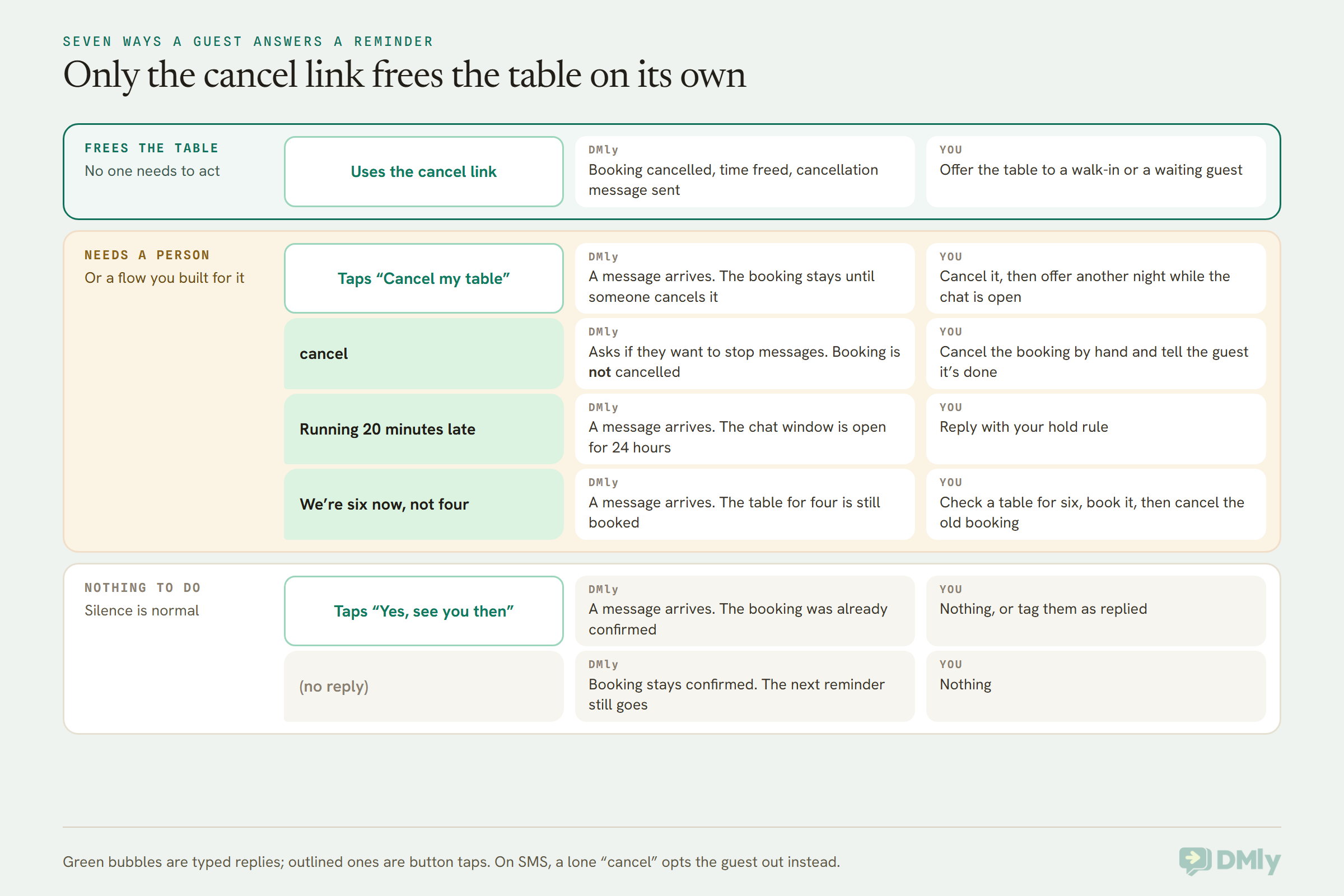
Start with the reply that needs a person. On WhatsApp and DMly’s other chat channels, a guest who types just “cancel” is not opted out. DMly asks first: it replies “Do you want to stop hearing from us? Reply STOP to stop all messages, or STOP OFFERS to stop promotions only”, nothing is muted, and the message still reaches your automations. SMS is the exception: there, a text of just “cancel” opts the guest out straight away.
For a restaurant, the catch is that the guest meant their table. What happens instead:
- the guest gets a question about stopping messages, which isn’t what they asked;
- the booking is not cancelled, so the table stays blocked; and
- on SMS, the guest is opted out completely, and DMly refuses even manual replies until they’re resubscribed.
Two things protect you. First, put the change or cancel link in the reminder so most guests never need to type. Second, watch the Inbox for one-word replies after a reminder, cancel those bookings by hand and tell the guest it’s done. A tapped button titled “Cancel” is just an answer to DMly, not an opt-out, but Meta’s own reservation example uses “Cancel reservation”, and a full label such as “Cancel my table” is clearer for the guest.
Buttons or a link?
You can give guests two ways to answer, and they suit different restaurants.
- The link only. The simplest version. The guest taps the change or cancel link, and the manage page does the work: cancelling frees the time and sends the cancellation message, with no flow to build. It respects your cancellation deadline automatically.
- Quick reply buttons. Friendlier, and a tap opens a fresh 24-hour window so your host can chat freely afterwards. But a tap is only a message: on its own it changes nothing about the booking. To make “Cancel my table” actually cancel, you either have a person do it or build a flow that runs DMly’s Cancel Appointment step.
Our guide to two-way appointment reminders on WhatsApp covers the button build step by step, including the Smart Delay “Until event” wait that follows a booking if it moves and skips itself if it’s cancelled. Two restaurant-specific notes on top of it. Keep to two or three buttons: Meta collapses more than three behind a “See all options” button. And a template that mixes a quick reply with another kind of button can’t be read on WhatsApp desktop, which matters for guests who book from work.
Let the AI handle “can we come at 9 instead?”
The replies your buttons didn’t predict are the ones that eat a host’s evening: “can we push to 8:30?”, “is there anything earlier on Sunday?”. If you use DMly’s AI assistant, its booking tools can check real open times, reschedule and cancel bookings, and the documentation’s firm advice is to switch on Check available times on any booking assistant, so it never offers a table you don’t have. Keep Hand over to a human on as well, for anything about allergies, complaints or big groups.
Who reads the replies during service
This is the part restaurants underestimate. Replies to reminders land in the DMly Inbox like any other message. If your team uses the DMly mobile app, replies on an existing thread push to the person assigned to that chat, or to the whole team when nobody is assigned. Decide who that is on a Saturday night: usually the host or the manager on duty, with the phone at the host stand rather than in a pocket.
Remember that reminders themselves never notify your team. Your host only hears about a reminder when a guest replies to it.
Turning a Cancelled Table Into a Booked One
A reminder only pays for itself when the table it frees gets booked again, so make the freed time visible to the next guest straight away. Here’s how that works for each kind of booking.
Ordinary tables
When a booking is cancelled, through the guest’s link, by your host on the Calendar, or by a flow, DMly releases the time. Your booking page only ever offers times that are genuinely free, so the next person who opens it can take the table. There’s no waitlist for one-to-one bookings, so if you keep a list of guests who asked for a full night, message them yourself.
Fixed sittings
Sittings set up as a class get something ordinary tables don’t: a waitlist. When a booked guest cancels their place, DMly promotes the first party on the waitlist and messages them automatically; for a paid sitting, the promoted guest gets a checkout link instead. One catch: guests on a waitlist have no booking yet, so they get no reminders. Their first message from you is the promotion.
A place in a class can be cancelled but never moved to another time, so for sittings, leave any “reschedule” wording out of the reminder.
Set a cancellation deadline you can live with
The cancellation and reschedule deadlines, under Appointments, Settings, Booking policy, decide how late a guest can cancel or move a table themselves. Both start at 0, which means a guest can cancel through their link right up to the booking time. For most restaurants that’s actually fine: you’d rather hear “can’t make it” at 7:15 than nothing at all. Some set a few hours so late changes come through a person. These deadlines are workspace-wide, not per service, and they only limit the guest; your team can always cancel or move a booking from the Calendar. Sittings have their own cancellation deadline on the Class tab.
Big Groups, Deposits and No-Shows
Reminders cut forgotten bookings, but they can’t make a guest come, so for big tables and busy nights many restaurants pair them with a deposit and a clear no-show rule. We’ll cover deposits for restaurant bookings properly in a separate guide; here’s what affects your reminders.
- Paid bookings are reminded only once paid. If a table service is set to Pay before booking, DMly holds the time while the guest pays: 30 minutes by card or 60 by bank transfer by default (you can change both under Slot held for payment), and two hours for a booking your host adds by hand, and nothing else happens until the money clears: no confirmation, no reminders. If they never pay, the hold lapses and the table goes back on sale.
- A deposit can be part of the price. A pay-before service can take a percentage deposit instead of the full price; DMly doesn’t collect the balance, so take it on the night.
- No-show fees need a mark. A no-show fee is only charged when someone marks the booking a no-show, so it only works if your team marks them.
Marking matters for another reason. About a day after a booking’s time, DMly closes any booking still sitting at Confirmed. By default it counts it as completed, which fires everything a completed visit fires, including thank-you or review flows, even for a party that never came. If you thank guests or ask for reviews after a meal, set Appointments nobody marked (under Appointments, Settings, Booking policy) to Wait for review, and mark arrivals and no-shows before you lock up. Our guide to reducing appointment no-shows goes further into the follow-up.
What Reservation Reminders on WhatsApp Cost
Reservation reminders on WhatsApp cost what Meta charges for a Utility template in your guest’s country, for each reminder delivered outside the 24-hour window. The replies around them usually cost very little.
- The reminders themselves. Each reminder sent on a template is a delivered Utility message, billed by Meta at the rate for the guest’s country. Meta’s rates differ widely by market, so check the current rate card for your guests’ countries rather than relying on a number in a blog post.
- Replies inside the window. Since 1 October 2026, Meta charges for ordinary replies inside the window, but every business number gets 1,000 of those free each month. A restaurant chatting with guests about late arrivals and bigger tables is very unlikely to pass that. Utility templates sent inside an open window are now charged too, with no free allowance. Our page on the WhatsApp pricing change on 1 October explains both.
- What guests send you. Inbound messages, including button taps, are never charged.
- DMly. DMly adds no markup to Meta’s message rates. Each plan includes a monthly allowance of broadcast and template messages, 10,000 on the entry plan, and every confirmation and reminder you send on a template is a template message.
The sum to do is simple. Multiply your monthly bookings by the number of reminders you send outside the window, then compare that to what a single empty table costs you on a Saturday. For most restaurants one rescued table a month pays for the lot, which is also the argument for sending two reminders rather than four. If you want to understand when a reminder lands inside or outside the window, our explainer on how WhatsApp’s 24-hour messaging window works covers it.
Restaurant Reminders in Six Markets
The setup is the same everywhere. What changes is how your guests use their phones. These six restaurants are illustrations, not customers.
A steakhouse in Chicago, USA
Plenty of American guests don’t use WhatsApp, so the steakhouse leaves the email fallback in place and also ticks SMS on the reminder card in Notification settings, which lets an event go out by text. That needs an SMS provider connected to DMly, and the team ran a test booking to see whether guests who do use WhatsApp then get both. Its reminders stay strictly Utility, because a marketing template wouldn’t reach US numbers at all.
A family restaurant in Pune, India
Almost every guest is on WhatsApp, and many book by phone. The host adds each phone booking from the Calendar with the guest’s mobile number, so phone bookers get exactly the same reminders as online ones. Large weekend family tables get the group reminder asking for the final head count by noon.
A grill house in Lagos, Nigeria
Friday and Saturday nights fill with groups, and numbers change constantly. The day-before reminder asks for the head count, and the host’s reply templates for “we’re more now” are saved and ready. For big tables on peak nights the restaurant takes a deposit, through a gateway such as Paystack, so those guests are reminded only once they’ve paid.
A gastropub in Manchester, UK
Sunday lunch runs as a fixed sitting with a waitlist, and it books out. The sitting reminder mentions the waitlist so people who can’t come cancel instead of staying away, and the next party is promoted automatically. Weekday tables run as ordinary bookings with a same-day reminder that mentions the car park at the back.
A seafood restaurant in Dubai, UAE
Guests include residents and visitors. The restaurant sets the booking page to a fixed timezone, so “8pm” always means 8pm in Dubai, writes the time and “(Dubai time)” into the reminder, and keeps Arabic and English templates. DMly writes appointment times in the contact’s own timezone, so the team tests a booking from a phone set to another timezone before trusting it for visitors.
A ramen bar in Manila, Philippines
Tables turn fast and many bookings are made the same afternoon. The ramen bar sets its reminder two hours before and keeps the hold policy short (“we hold tables for 10 minutes”), because a same-day reminder is the only one most of its guests ever receive.
Setting Up Reservation Reminders on WhatsApp in DMly
Setting up reservation reminders on WhatsApp in DMly takes about an hour once your tables are bookable: set the times on each table service, check the template, write your words, and test with a real booking. If you’re starting from scratch, our guide to setting up DMly in 30 minutes gets the channel and bookings in place first.
- Connect your WhatsApp number. Reminders and confirmations go out over a connected channel, and DMly submits its system templates to Meta when you connect a live number.
- Check what happens outside the window. At the time of writing, restaurant workspaces don’t get DMly’s
dmly_appointment templates, so reminders that fall outside WhatsApp’s 24-hour window don’t go out on WhatsApp. Test a booking for tomorrow from a phone that hasn’t messaged you, and decide how you’ll reach those guests. - Set reminder times on every table service. Offerings, then Services: open each table service (and each sitting) and set its reminder times, for example 24 hours and 2 hours before.
- Write the service’s words. Use the service’s Reminder message to say what your guests need, with the tokens for the date, time and cancel link.
- Check Notification settings. Workspace Settings, Settings, Notification settings, Client & staff messages: make sure the reminder card is on, WhatsApp is ticked, and the default WhatsApp number is right. If many guests don’t use WhatsApp and you have an SMS provider connected, you can tick SMS too; test whether WhatsApp guests then receive both. Press Save.
- Collect phone numbers. Switch the phone question on in Booking Fields, and make a phone number part of every booking your host adds by hand.
- Set your booking policy. Choose your cancellation and reschedule deadlines, and set Appointments nobody marked to Wait for review if you thank guests or ask for reviews after a meal.
- Decide who answers. Pick the person who watches replies during each service, and teach the team to select Resume bot reply after taking over a chat.
- Test it twice. Book a table for tomorrow and one for later today from your own phone, outside any open chat with your number. Check what arrives, when, and what the wording looks like.
Before you go live, test it as a guest would. Reply “Cancel my table” to one test reminder and use the link on the other, and check both end with the table back on your booking page.
Why a Reservation Reminder Didn’t Arrive
When a guest says they never got a reminder, the cause is almost always one of six settings, not a fault. Work down this table.
| What you see | Likely cause | What to do |
| No reminders for anyone | The reminder card is off in Notification settings, or the guests hadn’t messaged you in the last 24 hours, so there was no template to send on | Check the card is on with WhatsApp ticked and saved, and see the note on the 24-hour window above |
| No reminders for one table size | That service has no reminder times | Set them under Offerings, Services |
| No reminder for one guest | They opted out (perhaps by replying STOP, or “cancel” by SMS), or a person paused the bot on their chat | Check their contact page; resume the bot if a person took over, and test whether a paused chat affects reminders |
| A paid table got nothing | The deposit or payment never cleared, so the booking was never confirmed | Check the booking’s status; a lapsed hold is released |
| A same-day booking got only one reminder | The earlier reminder’s time had already passed when they booked | Expected; keep a same-day reminder |
| Reminder went by email | No phone number on the booking, or WhatsApp refused the send | Switch on the phone question; add phone numbers to hand-added bookings |
If none of those fit, check the guest’s phone number is in full international form, then see DMly’s guide to messages that didn’t send.
Frequently Asked Questions
Do reservation reminders on WhatsApp need an approved template?
Yes, for any reminder sent more than 24 hours after the guest last messaged you, which is most of them; without one the reminder is dropped rather than sent as plain text. At the time of writing, restaurant workspaces don’t get DMly’s dmly_ appointment templates, so test a booking outside the window before you rely on WhatsApp reminders.
How far before a reservation should a restaurant send a reminder?
A day before and two or three hours before suits most restaurants. The day-before one catches cancellations early enough to resell the table; the same-day one helps with directions and late arrivals, and it’s the only one a same-day booking gets.
Can guests cancel a reservation from the reminder?
Yes. Put the guest’s change or cancel link in the reminder and they can cancel in two taps, within your cancellation deadline, which frees the table straight away. Quick reply buttons work too, but a tap only sends a message; someone or something has to cancel the booking.
What happens if a guest replies “cancel”?
On WhatsApp and DMly’s other chat channels, a reply of just “cancel” neither opts the guest out nor cancels the booking: DMly asks whether they want to stop messages, and the message still reaches your automations. Cancel the table by hand and let them know. On SMS, a lone “cancel” does opt the guest out straight away.
Can I put a special offer in a reservation reminder?
Best not. A reminder with an offer is a marketing message to Meta, which costs more, needs marketing opt-in and isn’t delivered to US numbers at all. Keep the reminder plain and send offers separately to guests who opted in.
Do phone bookings get WhatsApp reminders too?
Yes, if your host adds them in DMly with the guest’s phone number. A booking added by hand gets the same confirmation and reminders as one made online. Bookings that live only in another system, or in a paper book, can’t be reminded.
Can I see who confirmed before service starts?
Replies arrive in your Inbox, so you can see who answered. A “yes” tap doesn’t change the booking’s status, because the booking was already confirmed, so if you want a list, have a flow tag guests who tap the confirm button.
The Question at the Door, Asked Early
Go back to the host stand. “Do you have a reservation?” is a question you’ll keep asking, but it shouldn’t be the first time you find out who’s coming. Reservation reminders on WhatsApp move the real question to the day before, when the answer still changes something.
If you do nothing else this week:
- set a day-before and a same-day reminder time on every table service;
- test a reminder for a guest who hasn’t messaged you in the last day;
- put your hold policy and the cancel link in the words;
- watch for one-word “cancel” replies and cancel those tables by hand; and
- decide who reads the replies on Friday and Saturday nights.
Do that, and the empty table by the window becomes a table you sold twice. If you’d like to run bookings, reminders and the replies from one inbox, you can start a free DMly trial and have your first table service reminding guests today.
Writing about WhatsApp automation, bookings and growth for local business.
Turn WhatsApp into your busiest channel.
Start free and run message, bookings, payments and reviews in one place.
