
How to Send Two-Way Appointment Reminders on WhatsApp: Confirm, Reschedule or Cancel in Chat
The reminder went out on schedule. It was delivered, it was read, and then she replied: “sorry, can we do thursday instead?” That message is the moment almost every appointment reminder system in the world stops being automated, because a two-way reminder is a different piece of engineering from a one-way one, and hardly anybody builds the second half.
What happens next is usually a person seeing the reply the following morning, opening a calendar, moving the booking, typing a confirmation, and hoping the original slot gets filled. The automation saved you the reminder and cost you the reply.
This guide is only about that second half. Sending reminders at all, how many and when, is covered in our guide to WhatsApp appointment reminders. Here we are answering one question: how do you let somebody confirm, move or cancel their booking inside the chat, and what actually happens to the booking when they do.
Why a One-Way Reminder Ends the Moment It Works
The problem is structural, not lazy: the reminder and the reply are two different kinds of message with two different rule sets, and the second one usually has nothing waiting for it.
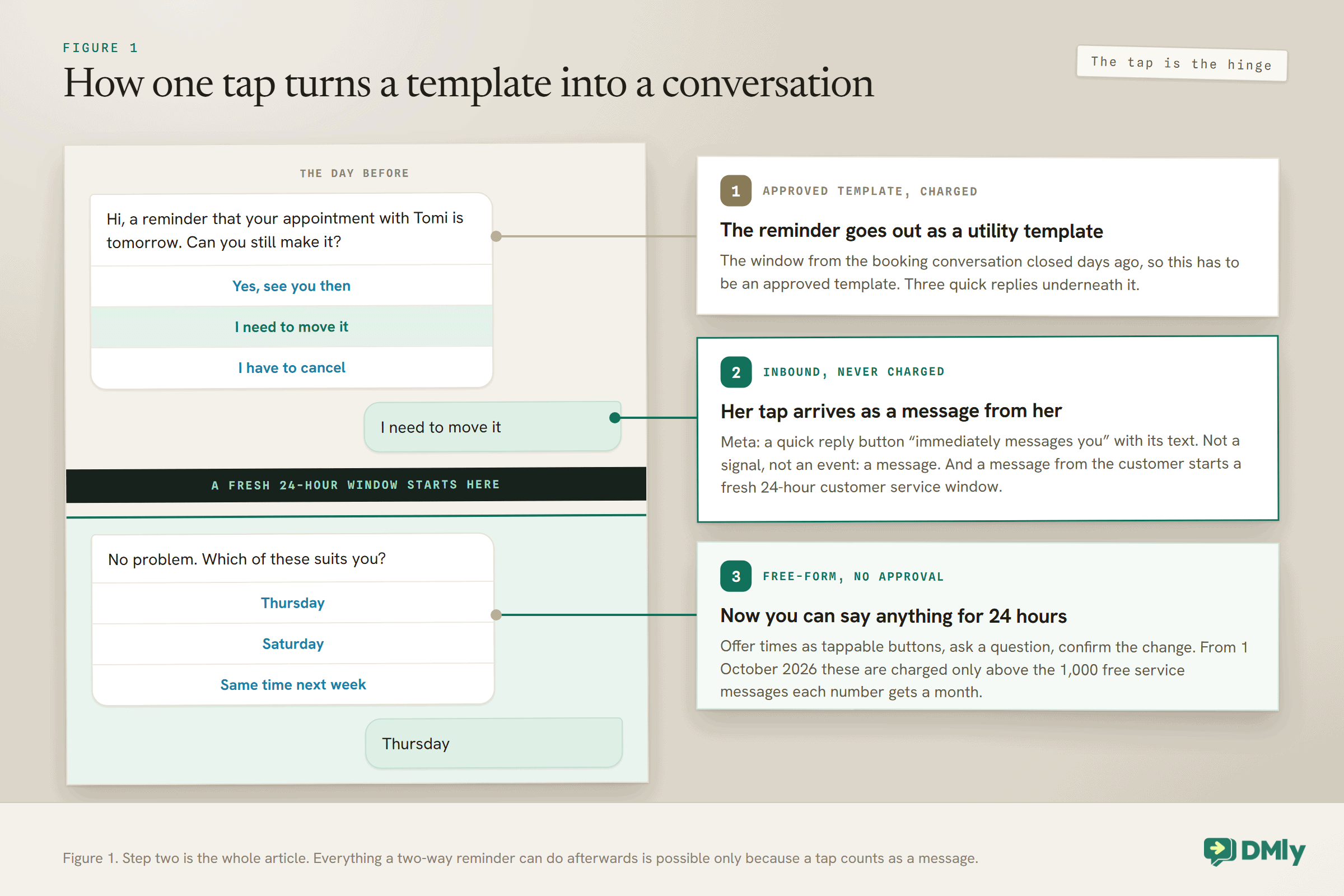
A reminder sent the day before an appointment almost always lands outside WhatsApp’s 24-hour customer service window, because the booking conversation happened days ago. Outside that window you can only send an approved template. So the reminder goes out as a template, correctly, and everything about it works.
The reply comes back as an ordinary inbound message. It is free-form text, in the customer’s own words, arriving at whatever time suits them, and it can say almost anything: “yes”, “yep see you then”, “can we do thursday”, “sorry I need to cancel”, “is parking free?”. If your automation is a single template send with nothing after it, that message lands in an inbox and waits for a human.
There is one more thing making it worse, and it is worth knowing before you design anything. In DMly, a reminder is skipped rather than retried if the booking is no longer confirmed, the contact has opted out, or the bot is paused for them. The meeting time is fixed, so a missed window cannot be caught up later. A reminder system that quietly does nothing is harder to notice than one that fails loudly.
The Mechanism: A Quick-Reply Button Is a Message From Them
Everything in this guide rests on one fact from Meta’s own documentation, and once you have it, the design writes itself.
Meta describes quick reply buttons on a template as custom text-only buttons that immediately message you with the specified text string when tapped. Not a signal, not an event: a message, from the customer, to you.
And on the same platform, elsewhere in the same documentation: when a WhatsApp user messages you, a 24-hour timer called a customer service window starts, and if they message again before it expires, the timer resets to 24 hours.
Put those two sentences together and you have the whole trick. A customer tapping “Reschedule” on your reminder has just opened a fresh 24-hour window. From that instant you can send free-form text, ask questions, offer three alternative times as tappable buttons, and confirm the change, none of which needs template approval and none of which was possible a second earlier.
That is why a two-way reminder is built out of a template with buttons rather than a template with a phone number in it. The button is not a nicer way of saying “call us”. It is the thing that unlocks the conversation.
What a Two-Way Reminder Template Can and Cannot Carry
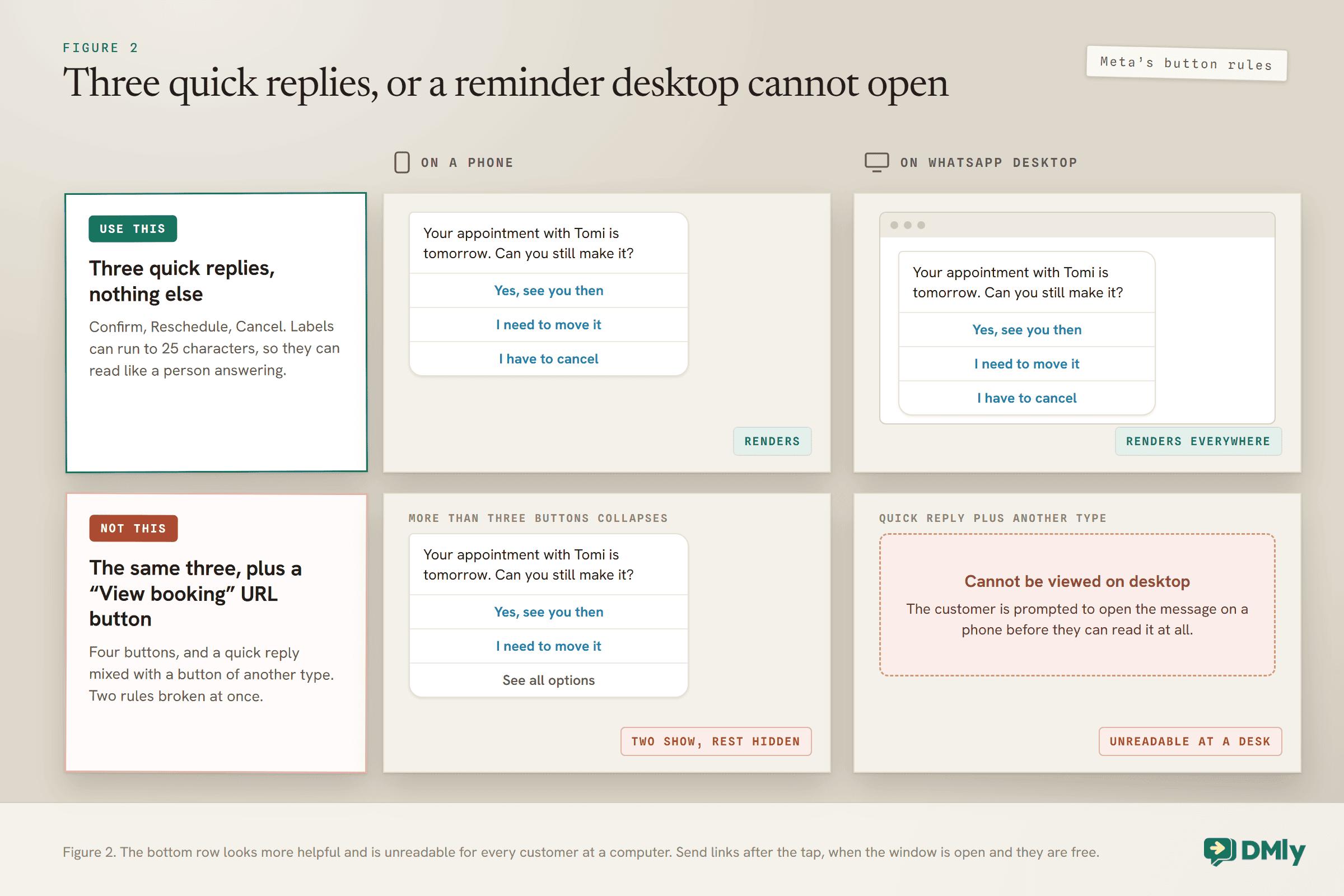
There is a right shape for a two-way reminder template, and the obvious design is not it. The obvious design is three quick replies plus a “View booking” link button, and Meta’s own reference explains why that is a mistake.
The rules, from Meta’s template components documentation:
- Up to ten buttons in total per template, with per-type limits: up to ten quick replies, at most two URL buttons, one phone number button, one copy-code button.
- Quick reply labels are up to 25 characters. More room than the twenty you get on an in-window interactive message.
- More than three buttons collapses. Two appear in the delivered message and the rest hide behind a “See all options” button.
- Quick replies must be grouped, not interleaved. Quick reply, quick reply, URL, phone is valid. Quick reply, URL, quick reply is rejected by the API as an invalid combination.
- And the one that decides the design: templates with four or more buttons, or with a quick reply button alongside one or more buttons of another type, cannot be viewed on WhatsApp desktop clients. People who receive one are prompted to open the message on a phone instead.
Read that last rule against a salon’s customer base and it settles the question. Adding a “View booking” URL button next to your three quick replies means every customer sitting at a desk gets told to pick up their phone before they can even read the reminder. For the sake of a link they did not ask for.
So the shape is three quick replies and nothing else: Confirm, Reschedule, Cancel. Twenty-five characters each is enough for “Yes, see you then”, “I need to move it” and “I have to cancel”, which read better than one-word buttons anyway. If you want to offer a link, send it as an ordinary message after they have tapped something, when the window is open and a link costs you nothing.
What Actually Happens to the Booking When Each Button Is Pressed
This is the part most guides skip, and it is where the honest answer is more interesting than the marketing one. Three buttons, three quite different jobs.
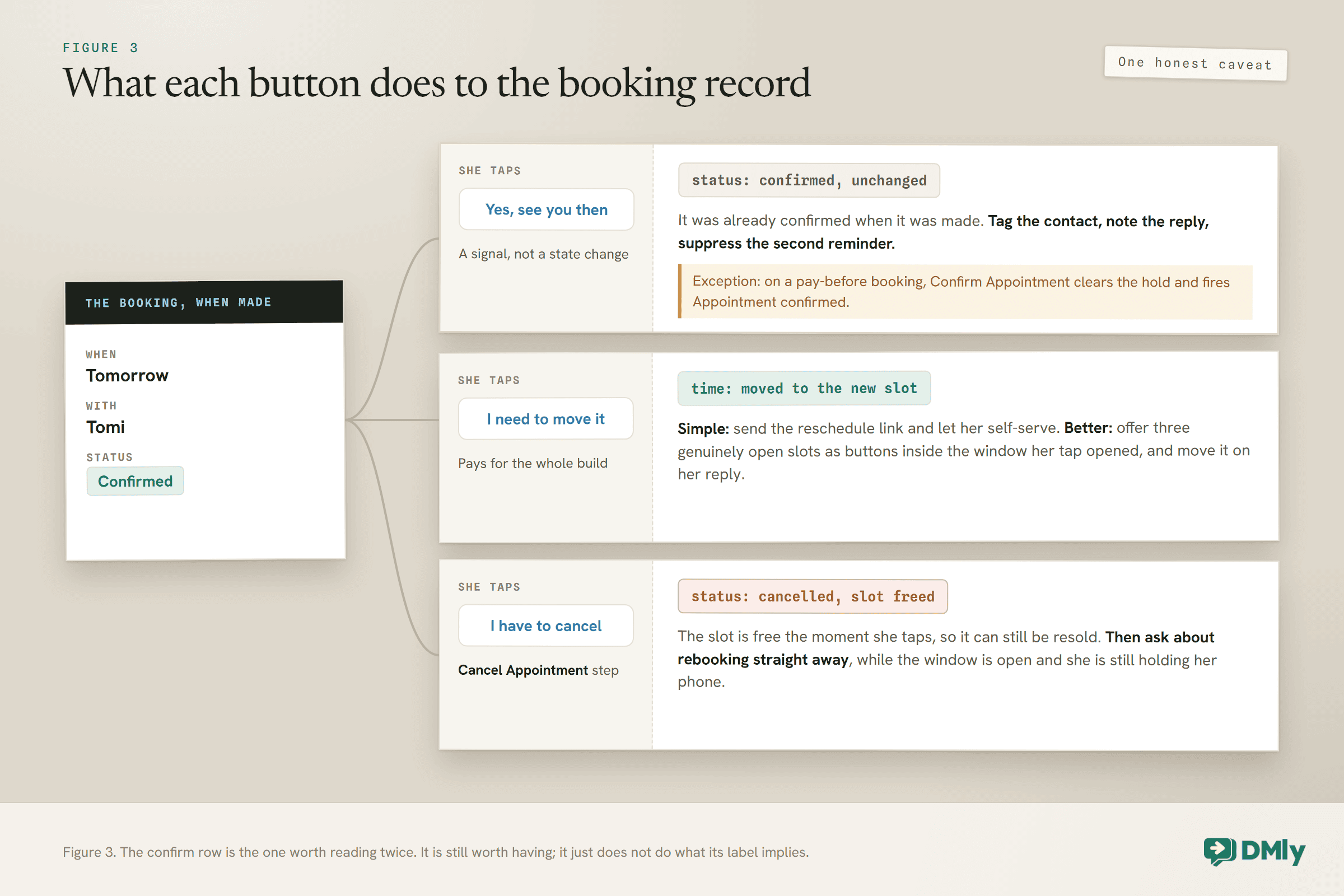
Confirm does less than you think, and that is fine. For an ordinary booking there is no unconfirmed state to move out of: the booking was already confirmed when it was made. So a customer tapping “Yes, see you then” is not changing a status, and it is worth being clear-eyed about that rather than promising a state change that does not happen. What the tap is genuinely worth is a signal: tag the contact, drop a note on the booking so your front desk can see at a glance who has answered, and stop sending them the second reminder. That is real value, and it is not the same as the booking becoming more confirmed than it was.
There is one case where confirming does change the record, and it is worth knowing because the trigger has a misleading name. DMly’s Appointment confirmed event fires only when a pay-before hold clears its payment, whether the gateway confirms it, somebody records the payment, or a flow’s Confirm Appointment step confirms it. It fires on top of Appointment booked rather than instead of it. So if you take a deposit at booking, “confirmed” is a real transition and you can build on it. If you do not, it is not.
Reschedule is the one that pays for the whole build. Two routes. The simple one sends them a reschedule link, which is a step in the flow builder’s Appointments group and gives them the same self-service page they would have got by email. The better one keeps them in the chat: because their tap opened the window, you can offer three genuinely open slots as tappable buttons and move the booking on their reply. Whether you can offer real slots rather than guesses is the whole question, and it is what the AI route below solves.
Cancel is the one people are afraid of and should not be. A cancellation at nine in the evening is a slot you can resell. A no-show the next morning is not. The flow builder has a Cancel Appointment step, so the booking is cancelled in your calendar the moment they tap, and the good version of this flow immediately asks whether they would like to rebook, while the window is open and they are still holding their phone. Our guide to reducing appointment no-shows covers the wider argument.
One trap on recurring bookings, and it is a bad one: If a customer cancels through their own booking-management link and the booking is part of a recurring series, they see a checkbox reading “Cancel all upcoming in this series” and it is ticked by default. Left as it is, it cancels that date and every later one. Somebody meaning to skip a single visit can silently cancel six months of standing appointments. Reschedule behaves differently and always moves a single date, for you and for them, so there is no way to shift a whole series at once; you cancel what is left and book a fresh one.
The Step That Makes a Two-Way Reminder Safe
The moment customers can move and cancel bookings from inside a chat, your reminder schedule has to keep up with them, and this is where most home-made builds fall over.
The failure is familiar to anyone who has received it: a reminder for an appointment you cancelled yesterday, in the same thread where you cancelled it. It happens because the reminder was scheduled as “wait 23 hours from now” at the moment the booking was made, and nothing looked at the booking again afterwards.
DMly’s Smart Delay step has an Until event mode that anchors the wait to the appointment itself rather than to a stopwatch: before the appointment, at its start time, or after it, each with an offset. Two behaviours come with it and both matter here:
- It re-reads the appointment when the step runs. So if the booking is rescheduled after the flow started, the reminder still lands at the right time relative to the new slot. You do not have to cancel and rebuild anything.
- It grows a SKIPPED output that takes over when waiting has become pointless. The documented cases are an appointment that has been cancelled, completed, marked a no-show, or whose payment hold failed or expired. Wire SKIPPED to a step of its own if you want to do something in that case, or leave it dangling and the run simply ends there.
That second one is the whole safety mechanism. A customer who taps Cancel is not just freeing a slot; they are putting the booking into a state that makes every later reminder in the flow skip itself automatically.
One warning from the documentation worth repeating, because it produces a spectacular failure. If the anchor cannot be resolved, because there is no appointment in scope or its date has already passed, Smart Delay does not wait at all: the flow continues down its main output immediately. Put an Until-event delay in a keyword-reply flow and the reminder after it fires instantly. Check that the trigger really carries an appointment before you rely on the wait.
Building a Two-Way Reminder: Two Routes That Both Work
There is a deterministic version and an assistant version, and the honest answer is that most businesses should start with the first and add the second.
Route one: buttons and branches. An automation on the Appointment reminder due trigger, or one starting from the booking with an Until-event Smart Delay, sends the reminder template. Three quick replies come back as three inbound messages carrying their exact text, so a keyword-triggered flow or a condition step routes each to its own branch. Confirm tags and notes. Reschedule sends the reschedule link, or offers slots. Cancel runs the Cancel Appointment step and asks about rebooking. It is completely predictable, it is easy to explain to your team, and it handles exactly the three cases you drew.
Route two: an assistant with real booking tools. DMly’s AI Reply step has a set of booking tools you switch on individually, and they act on your actual Appointments data rather than on the prompt. The relevant ones here are Check available times, Reschedule an appointment, Cancel an appointment, View upcoming appointments and List staff for a service. There is a ready-made AI Appointment Booking bot that arrives with the full set already switched on.
The advantage is that route two handles the ninety per cent of replies your three buttons did not anticipate: “can we do thursday instead”, “is Tomi in on Saturday”, “move it to the same time next week”. The customer types a sentence and the assistant reads the real diary.
The documentation carries one warning about it that is worth quoting nearly verbatim, because it is the difference between a working agent and an angry customer: switch on Check available times always, on any booking agent, because without it the agent invents plausible times and you get a double booking. Everything else on that list is optional. That one is not.
If you are building the booking side from scratch rather than adding to it, our guides to WhatsApp appointment booking and to building a WhatsApp AI booking chatbot cover the ground underneath this one.
Five Settings That Decide Whether Any of This Works
Every one of these has stopped a working build from working, and none of them is where you would look first.
1. Reminder times are set on the service, not on Appointments. The duration, price, payment mode and reminder times all live at Offerings and then Services. The Appointments hub manages bookings, staff, availability and the booking page. Almost everybody looks in the wrong place first.
2. The cancellation and reschedule deadlines are workspace-wide. Cancellation deadline (hours) and Reschedule deadline (hours) sit under Appointments, Settings, Booking policy, they apply to everything you sell rather than per service, and both start at zero, which means a client can cancel or reschedule right up to the start time. If you have a service where that is unacceptable, note that you cannot fix it for that service alone.
3. An unapproved template is dropped, not downgraded. Outside the 24-hour window, which is where most reminders land, a message only goes out on an approved template. If the template is not approved yet, the message is dropped rather than sent as plain text. Inside an open window it still goes out as text. So a reminder flow can look perfect and send nothing, silently, because a template is still pending. Check template status before you trust a schedule, and see our guide to WhatsApp message templates for what gets approved.
4. Past bookings close themselves. Roughly a day after its time has passed, a booking still sitting at confirmed or pending is closed off: as completed under the default setting, which fires Appointment completed even if the client never came, or as Needs review if you have set Appointments nobody marked (Appointments, Settings, Booking policy) to Wait for review. If a thank-you or review request runs on completion, choose Wait for review and mark each appointment, so a no-show is never thanked. The client’s manage link goes read-only, and a reschedule is refused even before that sweep runs: once the time has passed, the link answers that it could not reschedule. Two-way reminders are a before-the-appointment tool and there is no after-the-fact version of them.
5. Class seats cancel but do not reschedule. If you run classes as well as one-to-one appointments, the reschedule button belongs only on the one-to-one reminder. A class place can be cancelled, which frees it for somebody else, but it cannot be moved to another time.
What a Two-Way Reminder Costs From 1 October
Cheaper than the one-way version people are worried about, and the arithmetic is worth knowing before you decide how many reminders to send.
Three kinds of message are involved and they are priced very differently. The reminder itself is a utility template sent outside the window, and it has always been charged. The customer’s tap is an inbound message, and inbound messages are never charged. Everything you send after the tap is a free-form service message, which from 1 October 2026 is charged only above the 1,000 free service messages every business phone number gets each month.
So for a clinic sending 400 reminders a month, the reminders are the bill and the entire two-way conversation on top of them is very likely free. Adding buttons to a reminder you were already sending costs nothing at all. Our guide to the WhatsApp pricing change on 1 October has the full picture.
The one place to be careful is the number of reminder templates. Four reminders per booking is four charged templates whether anybody reads them or not, and a two-way reminder that gets answered is a reason to send fewer, not more: if somebody has confirmed, the later reminder is a message to a person who has already told you they are coming.
What Not to Do
Four ways to build this that look reasonable and are not.
Do not put a phone number button on the reminder. It moves the interaction to a channel with no record, no automation and somebody’s afternoon in it, and it triggers the desktop rendering problem into the bargain.
Do not ask people to reply with a number. “Reply 1 to confirm, 2 to reschedule, 3 to cancel” was necessary on SMS and is obsolete on WhatsApp. People reply “2 please” or “number 3” or “the second one”, and each variation is a branch you did not build.
Do not send the same reminder to somebody who already answered. Beyond the cost, it reads as not listening. Wire the confirm branch to suppress whatever comes after it.
Do not skip the fallback branch. A good proportion of people will type rather than tap, and that reply matches none of your three buttons. Send them to an assistant, or to a person, but send them somewhere. A conversation that ends in silence after the customer has answered your question is worse than never asking.
Frequently Asked Questions
What is a two-way reminder on WhatsApp?
An appointment reminder that the customer can act on inside the chat, usually by tapping a button to confirm, reschedule or cancel, rather than one that only tells them something. The mechanism is that a quick-reply button on a template immediately messages you when tapped, which opens a fresh 24-hour window and lets the rest of the conversation happen as ordinary text.
Can I put buttons on a reminder sent the day before?
Yes. A reminder sent the day before is outside the 24-hour window so it has to be an approved template, and templates can carry buttons. Quick-reply buttons are the ones you want, up to ten of them, with labels of up to 25 characters.
How many buttons should a reminder template have?
Three quick replies, and nothing else. Meta’s own reference says a template with four or more buttons, or with a quick reply alongside a button of another type, cannot be viewed on WhatsApp desktop clients, and recipients are told to open it on a phone instead. A “View booking” link button beside your three quick replies breaks the message for everybody at a computer.
Does tapping a button cost the customer anything?
No, and it costs you nothing either. Messages from a customer to a business are never charged. What is charged is the reminder template that carried the button, and any templates you send later outside the window.
What happens to the booking when somebody taps Confirm?
On an ordinary booking, nothing changes in the record, because it was already confirmed when it was made. Use the tap to tag the contact, note the reply and suppress the next reminder. On a pay-before booking it is different: the Confirm Appointment step clears the payment hold, which is a real transition and fires the Appointment confirmed trigger.
Can an AI assistant actually move a booking, or only talk about it?
It can move it. DMly’s booking tools include Reschedule an appointment and Cancel an appointment alongside Check available times and List staff for a service, and they act on your real Appointments data rather than on the prompt. The ready-made AI Appointment Booking bot arrives with the whole set switched on.
Will a reminder still go out if the customer rescheduled?
Yes, at the new time, provided the wait uses Smart Delay in Until-event mode. That mode re-reads the appointment when the step runs, so a booking moved after the flow started is still reminded correctly. Its SKIPPED output covers the other direction: a cancelled, completed or no-show booking skips the reminder rather than sending it.
What if somebody types instead of tapping?
Their message arrives as ordinary text matching none of your buttons, so you need a fallback branch. The best version puts an assistant on it that reads what they meant; the simplest hands the conversation to a person. Doing nothing leaves a customer who answered your question in silence.
Can customers reschedule a class the same way?
No. A class place can be cancelled, which frees the seat, but it cannot be rescheduled to another session. Keep the reschedule button on your one-to-one reminders only.
Why did my reminder not send at all?
Four common causes, none of which produces an error you would notice. The template is not approved yet, in which case the message is dropped rather than sent as text. The booking is no longer confirmed. The contact has opted out. Or the bot is paused on that conversation. Reminders are skipped rather than retried, and the meeting time is fixed, so nothing catches up later.
Can I change the cancellation deadline for one service only?
No. Cancellation deadline and reschedule deadline are workspace-wide settings under Appointments, Settings, Booking policy, not per-service, and both default to zero hours, which lets a client cancel or reschedule right up to the start time.
Writing about WhatsApp automation, bookings and growth for local business.
Turn WhatsApp into your busiest channel.
Start free and run message, bookings, payments and reviews in one place.
