
A WhatsApp CRM for tutoring centres usually starts life as a whiteboard. There’s one in most centre offices: three columns drawn in marker, “Enquired”, “Trial booked”, “Joined”, and a sticky note for every family who messaged this month. Name, child, subject, a phone number written sideways.
It works beautifully for about three weeks. Then the notes curl. One falls behind the radiator. Someone moves a family to “Joined” and forgets the trial never happened. A new receptionist asks which of the Mrs Okafors is the chemistry one, and nobody is sure. By results day, the board tells you what was true in August.
The board was never the problem. The idea is right: every family has a place in your enrolment journey, and you should be able to see it at a glance. What fails is the paper. In this guide, we’ll look at what a WhatsApp CRM does for a tutoring centre (or tutoring center, if you’re in the US), who the contact should be when the parent pays and the student attends, how to build the enrolment pipeline, what to store as a field, a tag or a stage, how tutors share the work, how lessons, classes and packages show up on the record, how to bring your existing families in, and what you can measure at the end of term.
What Is a WhatsApp CRM for Tutoring Centres?
A WhatsApp CRM for tutoring centres is one record per family, built around the WhatsApp conversation, that shows where each family sits in your enrolment journey and holds everything you know about them: the student’s details, their tutor, their lessons, their package and every message. The chat and the record sit side by side, so whoever answers a parent can see the whole story before they type.
CRM stands for customer relationship management. In plain words, it’s a contact list that remembers. If you want the general idea first, our guide to WhatsApp CRM for small businesses covers it. This page is about the version that fits a tutoring business, the way our guide to WhatsApp CRM for salons covers a salon’s.
It’s also worth saying what this page isn’t. The messages that run on their own across the tutoring year (the instant enquiry reply, lesson reminders, parent updates, the exam countdown) are covered in WhatsApp automation for tutors. Automation is what you send. The CRM is what you know, and where each family is. You need both, but the record comes first, because every automation reads from it.
Here’s how the CRM compares with what most centres use today:
| Whiteboard or spreadsheet | WhatsApp Business app labels | A WhatsApp CRM | |
| Where the family is in enrolment | If someone updated it | A coloured label, one phone | A pipeline stage, visible to the whole team |
| Student details | In a separate sheet | In your head | Fields on the family’s record |
| Messages | On someone’s personal phone | On one shared phone | On the record, across WhatsApp, Instagram and more |
| Lessons and packages | A diary and a receipt book | Not tracked | Bookings, credits and invoices on the same record |
| “How many enquiries joined?” | An afternoon with a calculator | Not answerable | A filter and an export |
Parent or Student: Who Is the Contact in a Tutoring CRM?
In a tutoring CRM the contact is usually the parent, because the parent holds the phone, pays, and decides whether lessons continue; the student lives on the parent’s record as details. That one decision shapes everything else, so make it on purpose.
In DMly a contact is one person, owned by your workspace, across every channel they use. When Nkechi messages you on WhatsApp, she becomes a contact. Her daughter Aisha, who’s in Year 10 and needs help with chemistry, becomes information on Nkechi’s record: a student name, a year group, a subject, an exam date.
There are three common shapes, and most centres have all three.
One parent, one child
The simple case. The parent is the contact, and the child’s details sit in custom fields on that record. Messages open with the parent’s name and mention the child in the content, which is what reads as personal rather than mail-merged.
Two parents who both want to hear from you
Give each parent their own contact. DMly lets you link contacts as family, with a relationship type of Parent, Child, Spouse, Guardian, Sibling or Other. Linking isn’t merging. Each parent keeps their own conversation, their own opt-out and their own invoices, which matters a great deal when parents are separated and pay for different things. Merge is only for two records that turn out to be the same person.
Older students and adult learners
An adult learner is their own contact, full stop. A teenager with their own phone can be a contact too, linked to the parent as their Child, but whether you message a minor directly is a safeguarding decision for your centre and the rules where you work. Write the policy down. The parent stays on the record either way.
The catch with two children. A contact sits in one pipeline stage at a time. If Nkechi’s son Tobi starts a trial while Aisha is already enrolled, the family can’t be in “Enrolled” and “Trial booked” at once. Most centres let the stage follow the family’s newest open opportunity and add a tag such as trial: second child so nothing gets lost. Store each child’s details in their own clearly named fields (more on naming below).
The Student Enrolment Pipeline: Stages for a Tutoring Centre
A student enrolment pipeline is the set of stages a family moves through, from first enquiry to enrolled student and beyond, shown as columns you can see and filter. It’s the whiteboard, rebuilt so it can’t lose its notes.
In DMly you’ll find it under Contacts, then Pipeline View. Every workspace starts with three columns, Lead, Engaged and Customer, and you can rename them, add your own, recolour them and reorder them. Contacts you haven’t placed yet sit in No Stage. Deleting a stage never deletes the families in it; they just move back to No Stage.
Here’s a pipeline that fits most tutoring centres. Change the names to the words your team already uses.
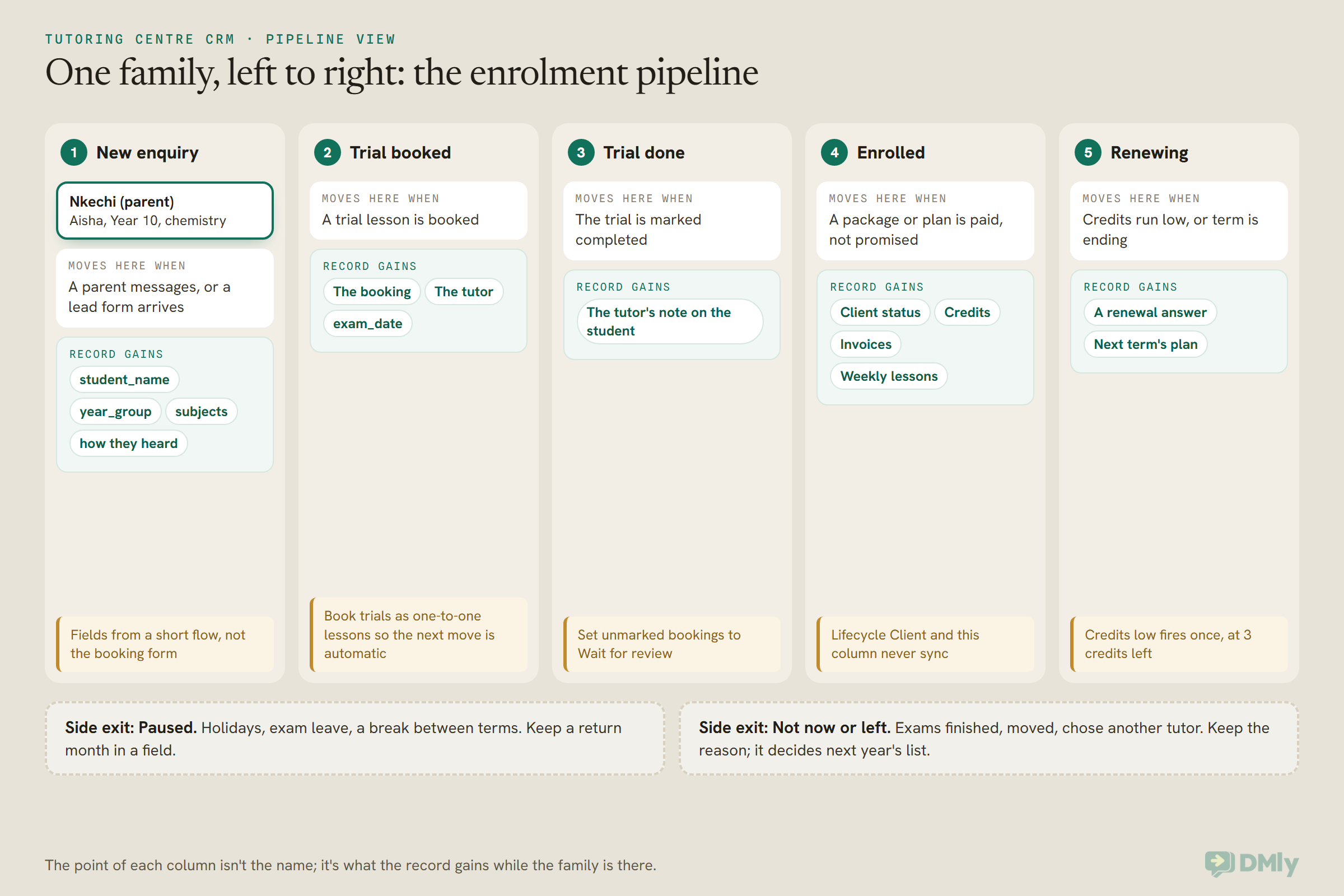
A few things make a pipeline like this work in practice:
- Name stages after events, not hopes. “Trial done” is a fact someone can check. “Warm” is a mood. If two people could disagree about whether a family belongs in a column, the column needs a better name.
- Keep the side exits. A family who pauses for exam leave isn’t lost, and a family whose child finished their exams isn’t a failure. Both are lists you’ll want next year, and the reason they left is what tells you whether to message them.
- Don’t confuse the pipeline with “client”. DMly also has a separate lifecycle setting, Lead or Client, that turns on the money side of a record (credits, invoices, amount due). A family becomes a Client automatically when you invoice them, take a payment or start a subscription. Dragging them into a column called “Customer” or “Enrolled” doesn’t do that, and becoming a Client doesn’t move their card. The two never sync, and the default column names make it easy to forget.
- Use the board as a working view, not the whole list. The pipeline board shows up to 300 contacts, favouring the most recently active. A big centre will have more families than that, and the rest are still there on List View, where you can filter by stage and page through everyone.
If you want the general version of this, with lead scoring and sales follow-ups, our guide to building a WhatsApp sales pipeline that maintains itself goes deeper. A tutoring pipeline is simpler, because the moments that move a family are so clear.
Moving Families Through the Pipeline Without Dragging Every Card
The best tutoring pipelines move most families on their own, because the events that change a family’s stage (a booking, a completed trial, a paid package) already happen inside the same system. You drag the odd card. The rest follows from what actually happened.
There are several ways a family’s stage can change in DMly: dragging the card, picking a stage on the contact, the contact form, a CSV import, the API, the AI agent’s Move CRM stage tool, and the Update Contact Stage step in an automation. The last one is where the time savings live. Here’s how each move can happen without anyone remembering to do it.
New enquiry: the first message, and the first few facts
When a parent messages for the first time, an automation can place them in “New enquiry” and ask two or three quick questions: the student’s name, year group and subject. A User Input step can save each answer straight to a custom field. If an AI assistant handles your first replies, it can be given a tool to set custom fields and another to move the stage itself. Our guide to the AI admissions assistant covers that route.
One detail catches people out here. DMly’s booking form questions come from a fixed list. You can switch each one on or off and change its label, but you can’t add your own, so there’s no “Which subject?” or “Year group?” question to add to the booking page. Collect those in the chat before you send the booking link, and the record is complete before the trial is even booked.
Trial booked: let the booking move the card
If the trial is booked inside the conversation (a Book Meeting step offers times as buttons), the very next step can be Update Contact Stage to “Trial booked”. If parents book on your public booking page instead, an automation on the Appointment booked trigger can do the same.
Trial done: the move that needs one setting changed
Book trials as one-to-one appointments, not as seats in a group class. That’s the difference between a pipeline that moves itself and one that doesn’t, and the next section explains why.
With a one-to-one trial, an automation on Appointment completed can move the family to “Trial done” and assign the conversation to the tutor who taught it. But check one setting first. About a day after an appointment, DMly closes off any booking nobody marked, and by default it counts it as completed, which fires that same trigger even if the student never turned up. A no-show trial would quietly arrive in “Trial done”. Go to Appointments, then Settings, then Booking policy, and set Appointments nobody marked to Wait for review. Unmarked bookings then wait for a person, and your pipeline stays honest.
The tutor’s own note about the student, the two specific sentences that prove someone paid attention, is a person’s job. Write it on the family’s Notes tab or as an internal note on the conversation, where the whole team can see it and the parent never will.
Enrolled: paid, not promised
Move a family to “Enrolled” when they pay, not when they say yes. Several things can start that automation: Invoice paid, Payment succeeded, Subscription created or Credits issued. Because those fire for any invoice or payment, add a condition step that checks the family’s current stage is “Trial done” before moving them, so a returning family’s top-up doesn’t send them backwards. (There’s also a Contact converted to client trigger, but it only fires the first time a contact becomes a client, so a second child’s enrolment won’t fire it.)
Renewing, paused and left
“Renewing” can follow the Credits low trigger, which fires once when a balance drops to 3 or fewer credits. “Paused” and “Not now” are usually a person’s call after a conversation, so drag those cards and fill in the reason field while you’re there.
When a stage changes, something can happen
The Pipeline stage changed trigger starts an automation when a family moves between stages, and you can narrow it to the stage they came from and the stage they went to. That’s how “moved to Enrolled” can assign the family to their tutor and send a welcome, without anyone remembering. The messages themselves are the automation side of things, and our tutors guide has those.
Two moves that start nothing. Bulk-setting a stage on a group of contacts and importing a CSV with a stage column both change stages without starting any automation, by design, so a 300-family import can’t fire 300 welcome messages. A move to the stage a family is already in starts nothing either. If you bulk-move families, do any follow-up by hand.
Custom Fields: What a Tutoring Centre CRM Should Store
Custom fields are the extra boxes you add to every record for the details DMly has no built-in box for, such as the student’s name, year group, subject and exam date. You define the list once for your workspace, under Settings, then Custom fields, and each family’s values are filled in by your team, a flow, the AI or an import.
Each field has one of five types: text, number, email, phone or date. Here’s a starting list for a tutoring centre. Keep the names short, lower case and identical everywhere.
| Field name | Type | Why a tutoring centre wants it |
| student_name | text | So messages to the parent can mention the child by name |
| year_group | text | Lists by stage of school: “Year 11”, “Grade 8”, “SS2” |
| subjects | text | “maths, chemistry”; segments use “contains” |
| exam_board | text | AQA or Edexcel, CBSE or ICSE, WAEC or NECO, SAT or ACT |
| exam_date | date | Can start a countdown automation on or before the day |
| tutor | text | Lets you build a list per tutor (the reason is in the tutors section) |
| lesson_format | text | “online” or “in centre”; different reminders, different links |
| branch | text | For centres with more than one site |
| referral_source | text | Your booking form can fill it in for you |
| left_reason | text | “exams finished”, “moved”, “cost”; decides who hears from you next year |
| second_student_name | text | For families with two children; add second_year_group and so on |
Four rules save hours of cleanup later:
- Define the field before anything writes to it. The segment builder only lists fields you’ve defined in Settings. A value saved under a name you never defined still sits on the record, but no list will ever find it. That includes the four fields a booking form fills in (
preferred_name,identification_number,addressandreferral_source), so define any of those you want to use. - Type names exactly. The editor on a contact is a name and value box. It doesn’t offer your list to pick from. Capitals don’t matter, but a typo like “year_grup” creates a brand-new field on that one family, and nothing warns you.
- Use the date type for dates. A date field is checked when you save it, and it can start an automation on the day (or a set number of days before). A date typed into a text field can’t.
- Keep sensitive details out. Learning needs, diagnoses and family circumstances deserve more care than a free-text box shared with every teammate. More on that in the privacy section.
Fields also come back out. A message can include {{custom.student_name}}, which becomes “Aisha” when it reaches Nkechi, and a condition step in a flow can branch on a field, for example sending the online lesson link only when lesson_format is “online”.
Field, Tag or Stage? Where Each Detail Belongs
Use a stage for where a family is in your journey, a custom field for a fact that has a value, and a tag for a yes-or-no label or a list you want to freeze in time. Most messy CRMs are messy because these three got mixed up.
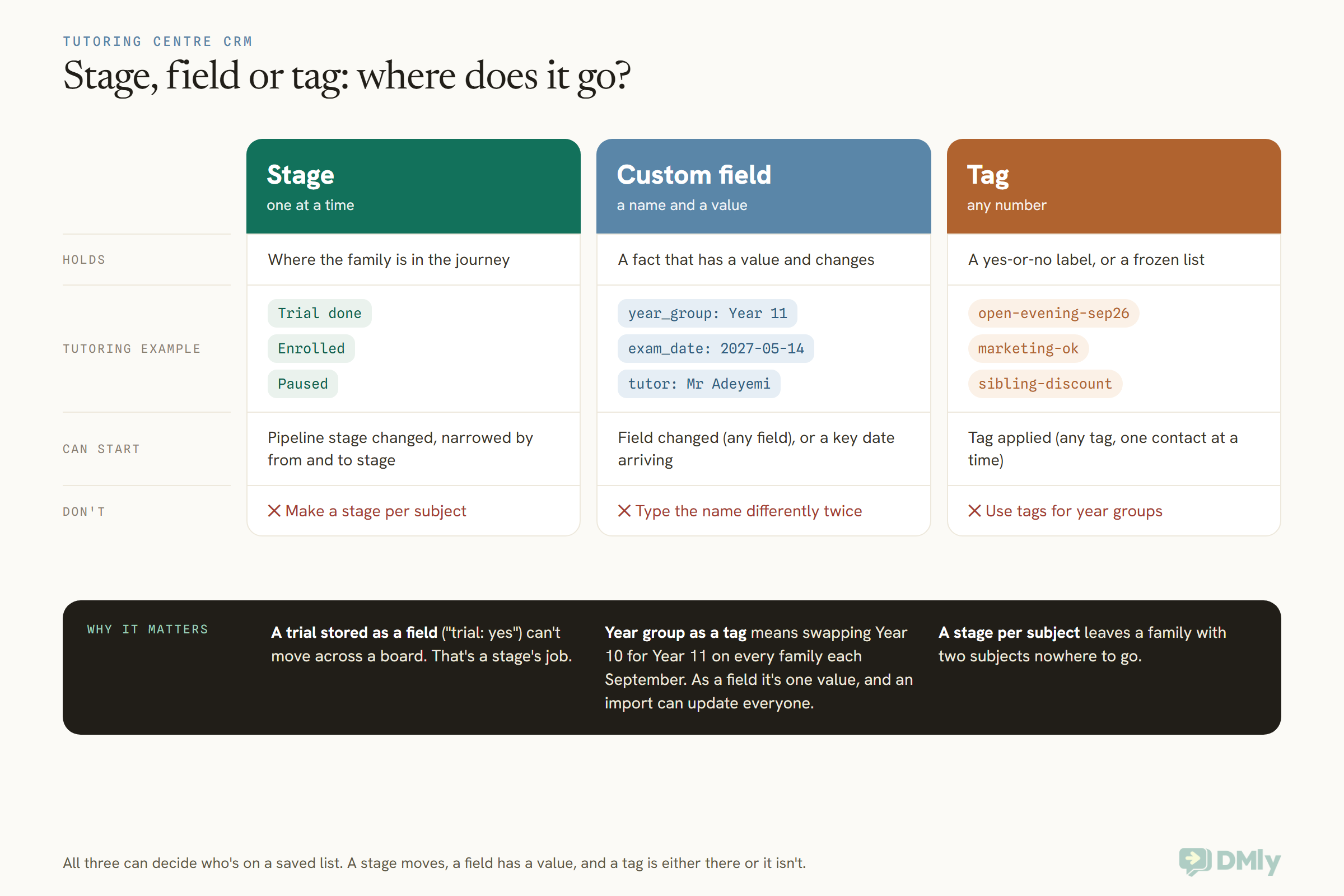
Why does it matter? Because a year group stored as a tag needs someone to remove “Year 10” and add “Year 11” for every family every September, and they won’t. Stored as a field, it’s one value to update (and an import can update every family at once). A trial stored as a field (“trial: yes”) can’t move across a board. And a stage for every subject leaves a family with two subjects nowhere to go.
Tags shine for two jobs. The first is yes-or-no labels such as marketing-ok for families who agreed to promotional messages. The second is freezing a group in time: “everyone who came to the September open evening” is a tag, because a saved list would change as people’s details change. DMly creates tags as you type them, and deleting a tag removes it from every family who had it.
Saved lists that update themselves
A segment is a saved list that rebuilds itself every time you use it. Pick it as the audience for a broadcast and it reaches whoever matches on the day. Here are segments a tutoring centre actually uses:
- Year 11 maths, enrolled: stage is Enrolled, custom field
year_groupis “Year 11”,subjectscontains “maths”. - Running low: credit balance at most 2, for a personal check-in before the next block.
- Enquiries gone quiet: stage is New enquiry and 14 days or more since last activity.
- Mr Adeyemi’s families: custom field
tutoris “Mr Adeyemi”, for a cover-lesson notice. - Booked online, never enrolled: source contains “Booking Portal” and lifecycle stage is Lead.
- Next September’s maybe-list: stage is Not now and
left_reasonis “cost” (a different message from families who simply finished their exams).
Two details in the builder are worth knowing. The basic Contact tags filter needs a family to have all the tags you pick, not any of them; for “either of these”, use a condition group set to ANY. And segments can’t filter on bookings, attendance or who a conversation is assigned to; there’s no rule for those, which is one reason the tutor goes in a field. Our guide to customer segmentation by spending, activity and interests walks through the builder in detail.
Tutors, Assignment and Who Sees What
In a tutoring centre CRM, each family should have one clear owner, usually their tutor or the person handling their enrolment, and each teammate should see what their job needs and nothing more. DMly handles this with three separate tools: assignment, staff records and roles.
Assignment: one owner per family
Assigning a conversation in the inbox assigns that whole contact, across every channel they use. One family, one owner. The new owner gets a notification, and the inbox can be filtered to “mine” or “unassigned”, which is how a team divides the day.
Two things surprise centres. First, assignment doesn’t hide anything: everyone who can open the inbox still sees every conversation. Second, replying takes the conversation by default, so when the receptionist answers a quick question about parking, Mr Adeyemi’s family quietly becomes hers. If ownership matters to you, an admin can change Who owns the conversation after a reply to “Only claim it if nobody owns it” or “Replying never changes the owner”. For a centre where each family has a tutor, one of those is usually right. Our shared team inbox guide covers the inbox side in more depth.
Tutors as bookable staff
A tutor who takes bookings is a staff member under Appointments, then Staff, with their own working hours, timezone and the services they teach. A staff member doesn’t need a DMly login, which suits a contractor who only teaches. But an active staff member without a login still takes a seat on your plan, the same as a teammate who signs in. Count your tutors and desk staff together before you pick a plan.
A client’s record also has a primary staff member in its client details. It’s a useful label, but the segment builder doesn’t offer it, so if you’ll ever want “every family Ms Rao teaches”, keep the tutor custom field as well.
Roles: what each person can touch
Every teammate has a base role. Admin can do everything. Member can do the day-to-day work but not the destructive or admin jobs: deleting, importing or exporting contacts, issuing refunds, seeing or changing the whole team’s appointments, and more. Viewer can look but not change anything.
When none of those fits, an admin can build a custom role from 68 permissions in 13 modules, under Workspace Settings, then Team Members, then Team Roles. A centre often ends up with two:
- Tutor: the inbox, contacts and their own appointments; no exports, no deleting, no refunds, and phone numbers masked if your safeguarding policy prefers it.
- Front desk: everything a tutor has, plus booking for other tutors and managing class batches.
If you run more than one branch, each with its own WhatsApp number, a member’s Profiles setting can limit them to the conversations that arrive on their branch’s number. Admins always see everything.
Cover lessons and handovers
When a tutor is off sick, the cover tutor opens the family’s record and reads the notes before the lesson, not after. Inside a conversation, typing @ and a teammate’s name in an internal note notifies them, so “@Ms Rao Aisha’s mock is on the 14th, she’s nervous about organic chemistry” lands with the person who needs it. Notes are only ever visible to your team.
One-to-One Lessons vs Group Classes on the Record
One-to-one lessons and group classes both appear on a family’s record, but they behave differently in DMly: a one-to-one booking can drive your pipeline and automations, while marking a class seat attended or no-show starts nothing. If your centre runs both, this is the section to read twice.
A one-to-one lesson takes a tutor’s time slot. A class has a capacity, several students booking the same session, and an optional waitlist. Both show on the family’s Appointments tab, which can filter to classes. Both get reminders. Where they differ is what each one can set off:
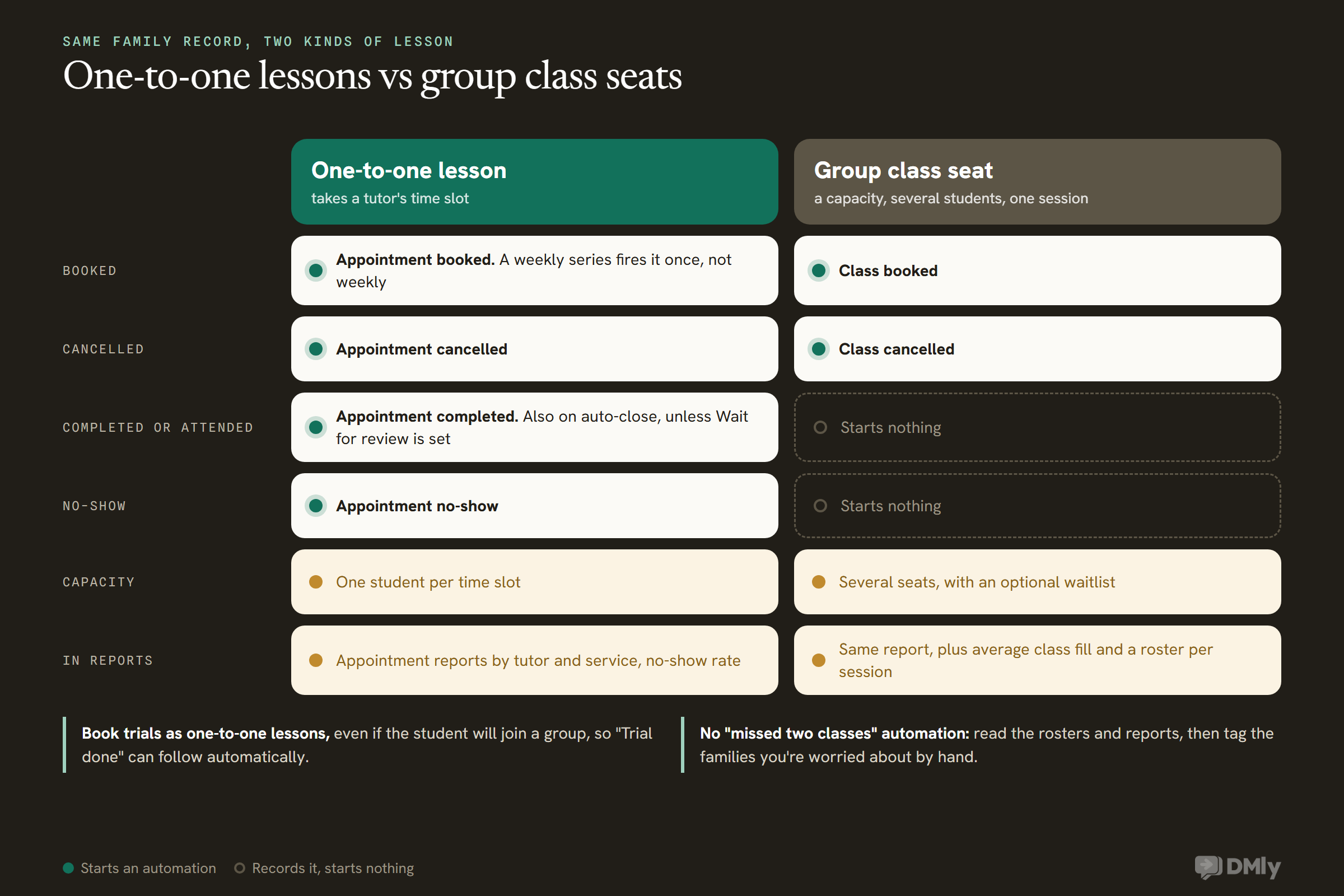
What this means for your CRM:
- Book trial lessons as one-to-one appointments, even if the student will go on to join a group, so “Trial done” can follow automatically. If you run a group taster session instead, plan to move those families’ cards by hand afterwards.
- Don’t build “missed two classes” automations on class seats. Marking a seat attended or no-show on the roster records it on the booking, but it starts no automation, and no segment rule reads attendance. To spot students drifting away from a group, read the session rosters and the Appointment reports, then tag the families you’re worried about by hand.
- Weekly one-to-one lessons are usually a series booked by staff from the calendar. A series fires Appointment booked once for the whole run, not once a week, and a series never takes payment, so collect the package separately.
- Course groups can be enrolled together. A batch under Appointments, then Batches, enrols a named group into a class session, or every later session in its series, in one action. It’s handy for a cohort that moves up together each term. Our article on class capacity and waitlists explains how full sessions refill.
Lesson Packages and Credits on the Family’s Record
A lesson package sold through DMly shows on the family’s record as a credit balance, with a permanent history of every lesson that used one, so “how many lessons do we have left?” has one answer everybody can see. How you price and sell packages is covered in our tutors guide. Here’s what the record shows, and what it doesn’t.
You create a package as a plan under Offerings, then Plans: a 10-lesson block as a one-time plan, or a monthly plan that rebills. Each lesson service gets a Credit cost, and each booking takes that many credits off the balance. Once a family is a client, their record shows Available credits, Amount due and Lifetime value, with a credits history underneath.
A few behaviours are worth knowing before a parent asks:
- Credits are one pool. A family’s balance is a single number. Ten maths credits can be spent on a chemistry lesson. If that matters, check bookings yourself.
- Cancelling doesn’t give a credit back. If your policy refunds a lesson cancelled in good time, re-issue the credit with Add credits on the family’s record.
- A short balance doesn’t stop a booking. A family with no credits left can still book; no credit is taken. If packages must be paid in advance, someone has to check.
- The history can’t be edited. Every credit added, spent or expired is a permanent line. Mistakes are fixed with an opposite entry, which is exactly what you want when a parent disputes how many lessons are left.
- Packages bought offline still belong on the record. A family who paid cash at the desk gets their credits through Add credits, with an optional package name and expiry date, and the payment can be logged with Record payment.
The balance is also usable elsewhere. A segment can use Credit balance as a rule, and a message can include the live balance with {{credit.balance}}, worked out at the moment it’s sent.
Bringing Your Existing Families Into the CRM
You can bring your current families in from a spreadsheet with a CSV import, which creates each contact with its tags, pipeline stage and custom fields, and sends nothing to anyone. That last part surprises people, and it’s good news on day one.
An import never starts automations. No welcome message, no tag-based flow, nothing. The success message says so. It’s what makes it safe to import 400 families on a Sunday night. It also means any welcome or follow-up has to be sent another way, such as a broadcast to the imported families once you’re ready.
Before you upload, tidy the spreadsheet against these rules:
- Every row needs a name and a phone number. Rows without either are skipped. Put the parent’s name and number in those columns, not the student’s.
- Stage names must match exactly. A
stagevalue that doesn’t match one of your pipeline stages isn’t created and isn’t reported; the family simply arrives with no stage. Create your stages first, then copy their names into the sheet. - Custom fields go in one column as JSON, like
{"student_name":"Aisha","year_group":"Year 10"}. Define each field in Settings first so your lists can find it. - Tags replace, they don’t add. If a family already exists in DMly, the import matches them by phone or email and replaces their tags with what the file says. A blank tags column strips every tag. Carry existing tags in the file if you re-import.
- Only tick the consent box if it’s true. The importer asks whether everyone in the file agreed to marketing messages and how. That declaration is recorded on each family’s consent history.
After the import, look for doubles. DMly doesn’t match people across channels automatically, so a parent who WhatsApps you and also messages your Instagram arrives as two contacts. When two records share a phone number or email, a Possible duplicates button appears on the profile, and you can merge them; for pairs that share neither, tick both on the contacts list and choose Merge. Opt-outs always survive a merge.
Reporting in a WhatsApp CRM for Tutoring Centres
A WhatsApp CRM for tutoring centres should tell you, at the end of every term, how many families enquired, how many booked a trial, how many enrolled, and how each tutor’s lessons went. DMly answers some of those directly and some with a little setup, and it’s better to know which before results day.
| The question | Where the answer is |
| How many families are in each stage right now? | Contacts, List View, filtered by stage; the export includes each family’s stage |
| How many enquiries this term became enrolments? | Not a built-in report: tag enquiries by term as they arrive, or log every stage change to a Google Sheet (below) |
| Where do our families come from? | Contact sources on the Overview page; the Source rule in a segment |
| How is each tutor’s diary going? | Reports, Appointments: bookings, completed, no-show rate and revenue, filtered by staff and service |
| Are our classes full? | The same report’s average class fill, and each session’s roster |
| How fast do we answer parents? | Reports, Team: first response and resolution time per teammate |
| What came in, and what’s still owed? | Reports, Finance |
The gap worth planning around is history. The pipeline shows where every family is today, not how they got there, and DMly has no built-in conversion or time-in-stage report. Two simple fixes:
- Tag each enquiry with its term as it arrives, for example enquiry-autumn-26, using an automation on the first message. At the end of term, a segment of that tag plus stage Enrolled gives you the number that joined.
- Keep a stage log. An automation on Pipeline stage changed can use a Send to Google Sheets step to add a row each time a family moves, with the date and new stage. That sheet becomes your conversion report. (Remember that bulk moves and imports don’t fire it.)
If you advertise with Facebook lead forms, there’s one more option. DMly can report each lead’s pipeline stages and client conversion back to Meta through Meta Conversion Leads, so your ads look for more parents like the ones who enrolled. It only covers people who came in through a lead form, and your plan needs to include Meta Ads.
Keeping Children’s Information Safe in the CRM
A tutoring CRM holds details about children, so store only what you need, keep sensitive details out of free-text fields and chat threads, and make sure each teammate can reach only what their job requires. The tools help, but the policy is yours.
- Decide what never goes in a field. Diagnoses, learning support plans, family circumstances and anything a parent told you in confidence belong in whatever system your safeguarding policy names, not a box every teammate can read. If a parent shares something sensitive in the chat, a person should handle it.
- Use documents for documents. Signed consent forms or registration forms can go on the family’s Files & letters tab, which is private storage. Anyone who can open the record can view what’s there, and uploading or deleting needs a separate permission that Members don’t have by default.
- Answer data requests properly. When a parent asks for everything you hold, the contact’s Privacy tab has Download all data, a ZIP of their record, messages, bookings, invoices and consent history. When they ask you to delete it, deleting the contact removes the lot; it can be restored for 30 days, then it’s gone.
- Know your local rules. GDPR in the UK and EU, the NDPA in Nigeria, the DPDP Act in India and state and federal rules in the US all say something about children’s data. Read your own country’s guidance, and don’t treat a CRM setting as legal advice.
One WhatsApp detail belongs here too, because it changes the record. If a parent replies to a lesson message with just the word “cancel”, DMly doesn’t cancel the lesson, and on WhatsApp it doesn’t opt the family out either. It asks first: “Reply STOP to stop all messages, or STOP OFFERS to stop promotions only.” If they reply STOP, the family is opted out, and from then on even your team’s manual replies are refused until they opt back in. STOP OFFERS stops promotions only, so lesson reminders and receipts still go. (On SMS, a bare “cancel” opts them out at once.) Word your messages so parents reply with “change” or a button instead, and if a family opts out by mistake, phone them and resubscribe them with their agreement. Our guide to WhatsApp opt-in and consent covers recording consent properly.
How Six Tutoring Centres Might Run Their CRM
These are illustrative centres, not customers, each showing one pattern from this guide.
A SAT and AP centre in Houston
Most families enquire in late spring. The centre tags each enquiry with its season and keeps a stage log in a Google Sheet. In August, the owner compares this year’s enquiry-to-enrolled count with last year’s from one sheet, rather than guessing. Because WhatsApp doesn’t currently deliver marketing templates to US (+1) numbers, its promotional messages go by SMS or email, and WhatsApp carries the conversations parents start.
A CBSE and JEE coaching centre in Hyderabad
Three branches, one WhatsApp number each. Front-desk staff are limited to their own branch’s number through the Profiles setting, while the director sees everything. A branch field lets the head office send a timetable change to one site’s families without touching the others.
A WAEC and JAMB tutorial centre in Lagos
Many families have two or three children at the centre. The parent is the contact, with numbered student fields, and the pipeline follows the family’s newest open trial. A sibling tag makes it easy to see which families qualify for the centre’s sibling arrangement, and the front desk records cash payments with Record payment so the balance on WhatsApp matches the receipt book.
A GCSE and A level centre in Birmingham
Group classes for most subjects, one-to-one trials for everyone. Because class attendance starts no automation, the centre manager reads the rosters every Friday and tags any student who’s missed two sessions in a row, then calls the parent personally. The tutors’ custom role masks phone numbers, in line with the centre’s safeguarding policy.
A Quran and Arabic learning centre in Sharjah
Families pay for monthly plans. The record’s credit balance and the {{credit.balance}} token answer “how many classes are left this month?” without anyone checking a ledger. Teachers are bookable staff without logins, so the owner counted them as seats before choosing a plan.
An online maths tutoring company in Penang
Every lesson is online and families span three timezones. Each tutor’s staff record carries their own timezone, and a lesson_format field decides which reminder carries the video link. The “Not now” column, with its left_reason field, gives the owner a short, honest list of families worth hearing from again next year.
Setting Up a WhatsApp CRM for Tutoring Centres in DMly
Setting up a WhatsApp CRM for tutoring centres in DMly takes an afternoon if you do it in the right order: fields and stages first, then lessons and tutors, then permissions, then your families, then the automations that move them. Doing it in this order means nothing you build later has to be rebuilt. CRM and pipelines are on every DMly plan, including Starter.
Step 1: Connect your WhatsApp number
Connect the number families already use, plus Instagram or Facebook if parents message you there. Every channel feeds the same records.
Step 2: Define your custom fields
Go to Settings, then Custom fields. Add the fields from the table above, with the right types. Agree the spellings with your team now.
Step 3: Build your pipeline
Go to Contacts, then Pipeline View. Rename Lead, Engaged and Customer, add the stages you need, and put them in the order families actually move.
Step 4: Set up lessons and tutors
Under Offerings, then Services, create a one-to-one trial lesson, your regular lesson services, and any group classes (set the type to Class). Add each tutor under Appointments, then Staff, with working hours, timezone and the services they teach. If you sell packages, create them under Offerings, then Plans, and set each lesson’s credit cost.
Step 5: Change one booking setting
Go to Appointments, then Settings, then Booking policy, and set Appointments nobody marked to Wait for review, so a missed trial never counts as a completed one.
Step 6: Invite your team with the right roles
Under Workspace Settings, then Team Members, build your Tutor and Front desk roles in Team Roles, then invite people by email. Decide who owns a conversation after a reply in the conversation settings.
Step 7: Import your families
Prepare the CSV against the rules above and import it from the contacts page. Then check for duplicates and merge them.
Step 8: Build the stage moves
Add Update Contact Stage steps to your enquiry and booking flows, and automations on Appointment completed, a payment trigger and Credits low, as described above. Add a Pipeline stage changed automation for anything that should happen when a family moves, and a stage log if you want term-end numbers.
Step 9: Save your segments
Under Contacts, then Segments, save the handful of lists you’ll use every term. Name them after the question they answer, so the right one is obvious when you pick a broadcast audience in June.
If you want to see how all of this fits the rest of an education business, our page on DMly for education and tutoring shows the wider picture.
Frequently Asked Questions
What should a WhatsApp CRM for tutoring centres include?
At minimum: one record per family that holds the student’s details, the full message history and the family’s bookings and payments; a pipeline from enquiry to enrolled; custom fields you can build lists from; a way to assign each family to a tutor; and reports on enrolments and lessons. DMly covers all of these. If you also need gradebooks, homework tracking or a learning platform, run those in a dedicated education tool alongside your CRM; DMly doesn’t do them.
Should the parent or the student be the contact?
For children, the parent, because they hold the phone and pay. The student’s details go in custom fields on the parent’s record. Adult learners are their own contact. Older teenagers can have their own contact linked to the parent, if your policy allows messaging them directly.
Can I track two children from the same family separately?
Partly. Each child’s details can sit in their own fields on the parent’s record, and each child’s lessons show on the Appointments tab. But a contact has one pipeline stage at a time, so the family can’t sit in two columns at once. Most centres let the stage follow the newest trial and use a tag for the other child.
Does marking attendance in a group class update the CRM?
It records attendance on that class booking and can award loyalty points, but it doesn’t start any automation, and you can’t build a list from attendance. One-to-one lessons are different: marking one completed or a no-show can start an automation.
How do I see how many enquiries became enrolments?
There’s no built-in conversion report. Tag each enquiry with its term when it arrives and count the tagged families in the Enrolled stage at term end, or log every stage change to a Google Sheet with an automation and count from there.
Can tutors see only their own students?
Not by assignment alone: assigning a family to a tutor doesn’t hide it from anyone else in the inbox. A Member only sees their own appointments by default, a custom role can mask phone numbers, and the Profiles setting can limit someone to one branch’s number. If your policy needs tighter separation than that, keep sensitive details out of DMly entirely.
Will importing my spreadsheet send messages to parents?
No. A CSV import starts no automations at all, so nobody is messaged. It does replace tags on families who already exist, so carry their current tags in the file if you’re re-importing.
The Whiteboard, Rebuilt
The whiteboard in your office had the right idea. Every family in a column, every column a step closer to a student who’s learning. It just couldn’t hold on to anything.
A WhatsApp CRM for tutoring centres is that board with the memory added: the notes don’t curl, the trial that never happened can’t sneak into “Joined”, the new receptionist can see which Mrs Okafor is the chemistry one, and on results day it tells you what’s true today rather than what was true in August.
Start small. Define your fields, draw your five columns and import your families. Let the bookings and payments move the cards. By the end of your first term, you’ll have something the whiteboard never gave you: an honest count of how many families enquired, and how many stayed.
Writing about WhatsApp automation, bookings and growth for local business.
Turn WhatsApp into your busiest channel.
Start free and run message, bookings, payments and reviews in one place.
