
A cancelled seat is only lost money if nobody refills it, and refilling it by hand is a job nobody does at nine in the evening. That is the whole argument for a waitlist, and once it is switched on the argument is over.
What is left is the configuration, which is where the surprises live. Class capacity sits in more than one place, one switch is not where you would look for it, and the booking window can make a session that is visibly listed refuse to be booked without ever saying why.
The loop itself is explained somewhere else: If you want the case for waitlists and the loop end to end, from a client joining a full session through to a promoted seat being paid for, that is in our guide to online class booking systems, which also covers the money: per seat, packs and memberships. This page is the operating manual underneath it, for the person who has to set it up and then answer questions about it.
What a Class Is, and Why It Needs Different Machinery
A one-to-one appointment takes a staff member’s slot; a class takes a seat out of a fixed number in one slot that several people share. Class capacity is that number, and everything awkward about class booking follows from it. Everything awkward about class booking follows from that one structural difference, and it is worth stating before any of the settings make sense.
The consequences are not small. A 1:1 booking is contended by time, so two people simply cannot have four o’clock. A class booking is contended by count, so twelve people can all have six o’clock and the thirteenth cannot, which is a completely different failure to design for. It is also why one-to-one appointments have no waitlist at all: there is nothing to queue for when the constraint is a person’s diary rather than a number of chairs.
That same difference is why a class carries its own policy rather than inheriting your appointment one. Its cancellation deadline lives on its own settings tab, its booking window is separate, and it cannot be rescheduled where an appointment can. If you run both sides of a business, the mistake to avoid is assuming a setting you configured for haircuts is also governing the Tuesday evening class. Our appointment booking guide covers the one-to-one half.
Class Capacity Is Per Session, Not Per Class
Capacity is the seat count for one session rather than a total for the class as a concept. Ten places on Tuesday’s yoga and ten on Thursday’s are twenty seats, not a shared pool of ten, and each session carries its own number.
Everything else about a class is configured on the service, under Offerings and then Services, with the type set to Class. Price, duration and payment mode live there and apply to every session in the series. That is worth knowing before you build anything: a class whose price differs by session is two services rather than one.
The customer-facing behaviour at the boundary is fixed, and worth recognising when somebody messages you about it. A full session tells the client Sorry, that class is now full. Somebody already booked is told You’re already booked for this class, because the same contact can only ever hold one seat in a session, which quietly prevents the double booking that happens when a person forgets and tries again.
Cancelling a session and cancelling a seat are different actions: Cancelling a session stops it taking any further bookings at all. Cancelling a seat frees one place. Only the second one triggers a promotion from the queue, which is obvious once said and not at all obvious at eight in the morning when somebody is trying to fix a schedule.
How the Class Capacity Waitlist Actually Works
It is off by default, it promotes strictly first in first out, and it acts on its own when a seat frees. Nobody in your business has to do anything, which is the point and also the thing to be comfortable with before you switch it on.
With the waitlist on, a client trying to book a full session is added to the queue instead and told so straight away: this session is full, so they have been added to the waitlist and will hear if a place opens up. Joining fires the Joined class waitlist trigger, so anything else you want to send can hang off that.
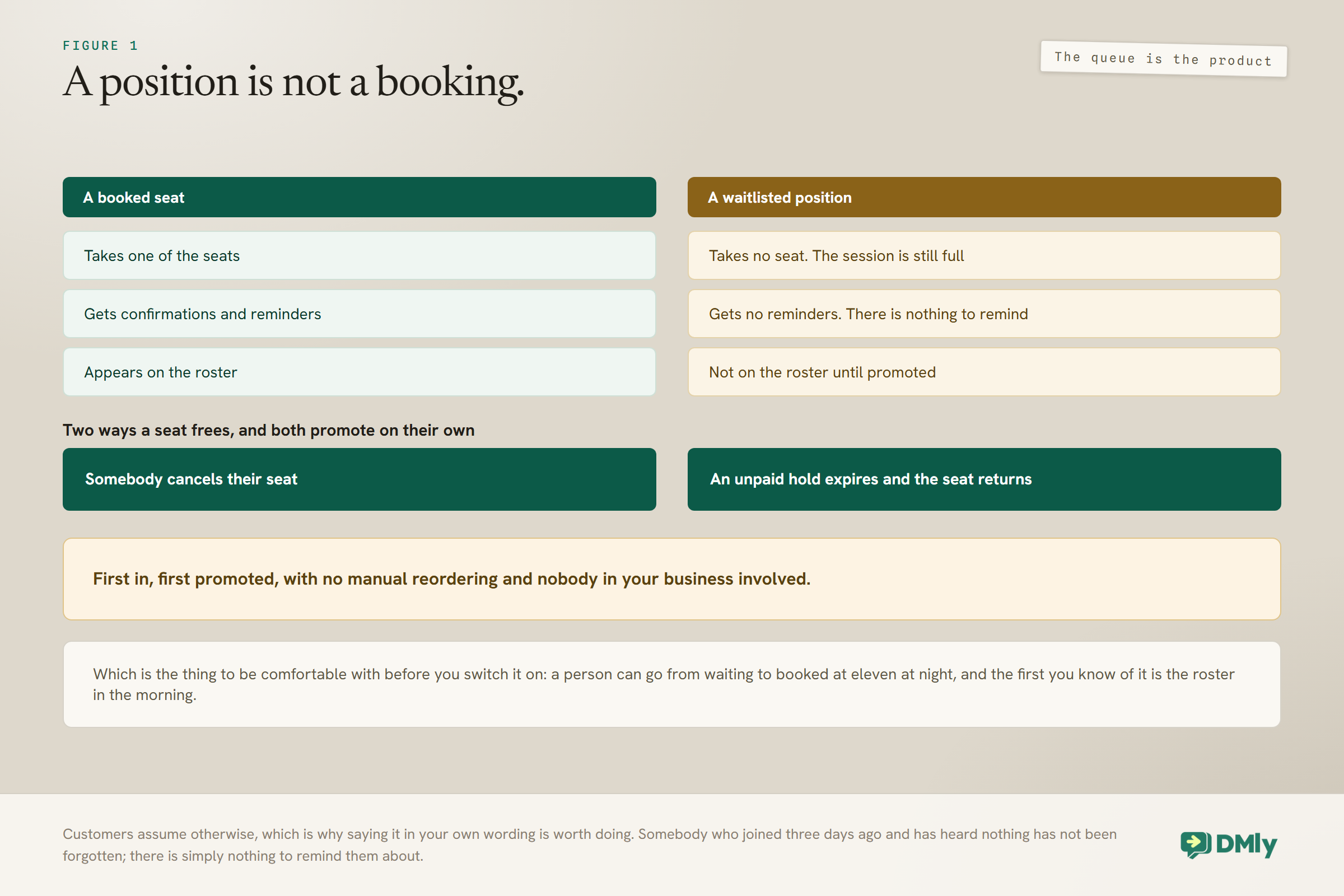
A seat frees in one of two ways, and both promote automatically. Somebody cancels their seat, or an unpaid hold expires on a pay-before class and the seat that was never confirmed returns to the pool. Either way the person at the front of the queue is promoted, and a person can go from waitlisted to booked at eleven at night with nobody involved.
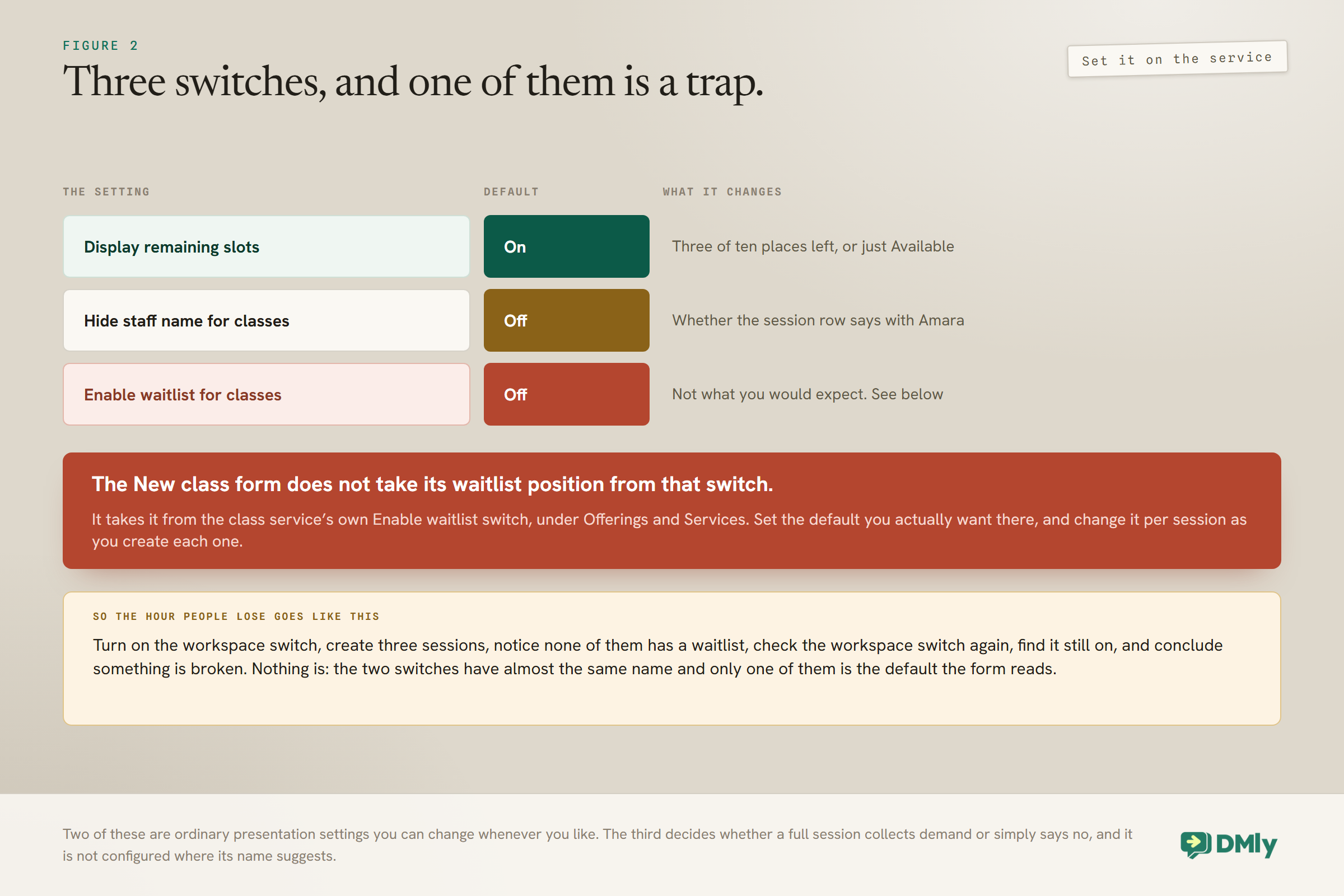
The switch that is not where you would look for it: There are two waitlist switches and they do different jobs. The workspace one, Enable waitlist for classes under the Class settings tab, is described as defaulting new class sessions to allow a waitlist, and it is off by default. It is not where the New class form on the calendar gets its starting position. That comes from the class service’s own Enable waitlist switch under Offerings and Services. Set the default you actually want there, and change it per session as you create each one. Turning on the workspace switch and wondering why new sessions keep appearing without a waitlist is the standard way to lose an hour.
What a Waitlisted Person Does Not Get
A waitlisted client holds a position, not a booking, and the difference shows up in every system that touches them. Saying it plainly in your own wording is worth doing, because customers assume otherwise.
- They take up no seat. The session is still full at its capacity, and the queue sits outside that number rather than inside it.
- They get no reminders. Reminders belong to bookings, and this is not one. Somebody who joined a waitlist three days ago and heard nothing has not been forgotten; there is simply nothing to remind them about.
- They are not on the roster. Until they are promoted they do not appear as an attendee, which is the right behaviour and occasionally a surprise to whoever prints the list.
The thing they do get is a position, and position is the whole product. First in, first promoted, with no manual reordering, which is what makes it defensible when somebody asks why the other person got the seat.
Paid Classes and the Promotion Hold
A promotion off a paid waitlist is not a free seat. On a pay-before class the promoted client gets a checkout inside a payment hold rather than a confirmed place, and the seat is theirs only when the money clears.
That is the right design and it has a consequence worth planning for. If they do not pay inside the window, the seat passes to the next person in the queue rather than being lost between the two of them. So a paid waitlist moves more slowly than a free one, and a queue of three on a paid class is not the same asset as a queue of three on a free one.
The payment side of this behaves exactly as it does on a one-to-one booking, including the fifteen-minute hold and the fact that nothing else fires until the payment clears. Our guide to taking payments on WhatsApp covers the gateway setup.
Recurring Sessions, and the Decision You Cannot Undo From the Calendar
A recurring schedule publishes a whole term in one go, inheriting the class capacity and waitlist settings from the moment you created it. Which means the capacity you type at creation is more of a decision than it looks.
There is no screen for editing a series after it exists: Changing capacity, the location or the host across later occurrences is available over the API rather than from the calendar. You can cancel a single session or that session and every later one, and you can enrol a batch into the whole series, but you cannot open a term and change its seat count. If you are not sure whether the room holds twelve or fourteen, find out before you publish the term rather than afterwards.
Two smaller behaviours are worth knowing because they look like bugs and are not. A monthly series clamps rather than overflows, so a class on the 31st lands on the last day of a shorter month instead of skipping into the next one. And times hold their wall clock across a daylight-saving change, so a six o’clock class stays at six o’clock rather than drifting by an hour twice a year.
The Booking Window That Produces a Dead End
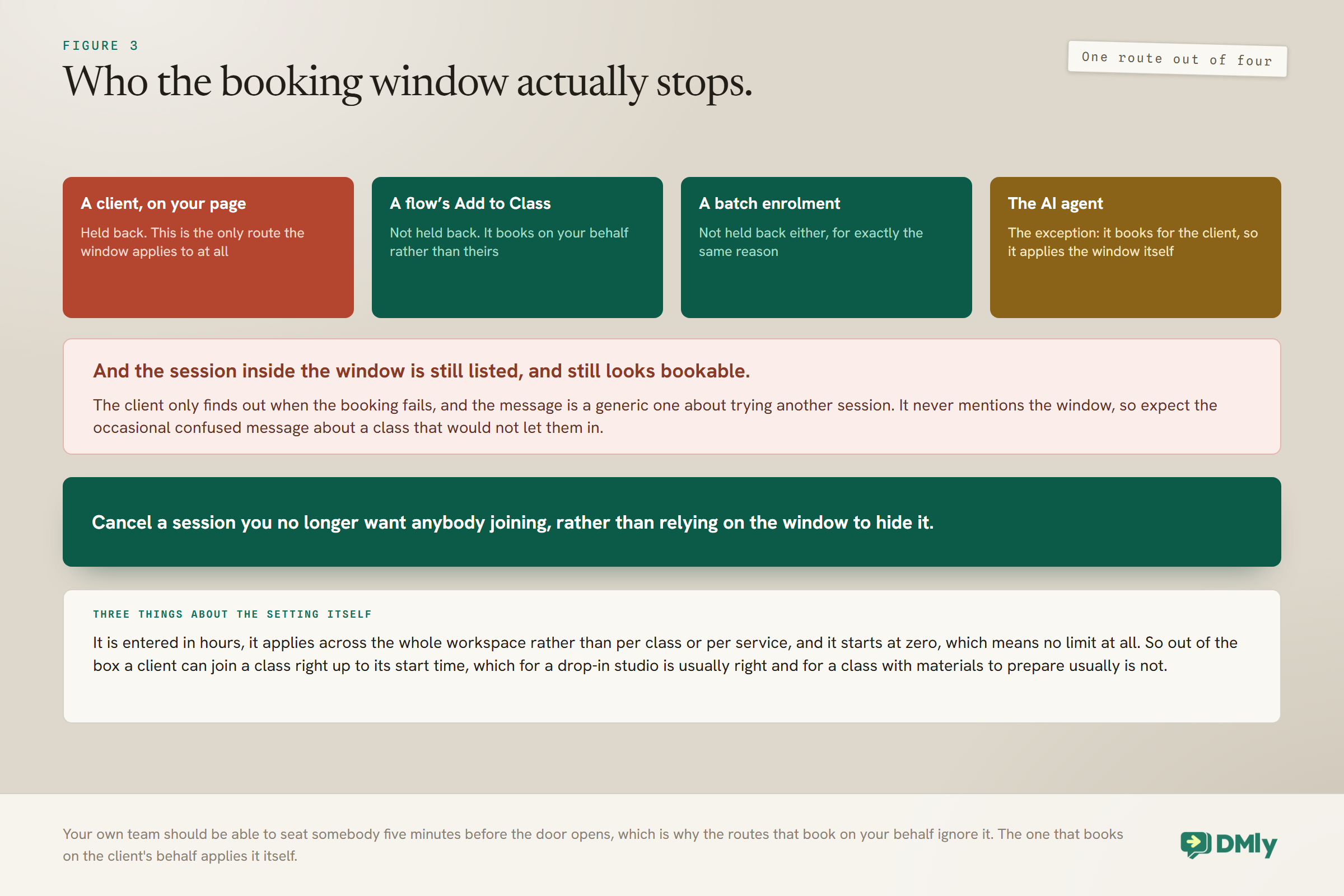
The booking window stops clients signing up for a class starting within a set number of hours, it applies across the whole workspace, and out of the box it is set to zero. So by default a client can join a class right up to its start time, which for a drop-in studio is usually what you want and for a class with materials to prepare is usually not.
And here is the part that generates support messages: A session inside the window is still listed on your public booking page and still looks bookable. The client only finds out when the booking fails, and the message they get is a generic one about not being able to complete the booking and trying another session. It never mentions the window. So expect the occasional confused client, and consider cancelling a session you no longer want anybody joining rather than relying on the window to hide it.
The window also applies less widely than it reads. It only holds back a client booking themselves on your booking page. A flow’s Add to Class step and a batch enrolment both book on your behalf, so neither is held back by it, which is exactly right: your own team should be able to seat somebody five minutes before the door opens. The AI agent is the exception among the bot paths: because it books on the client’s behalf rather than yours, it applies the same window itself and offers a later session instead of seating somebody inside it.
Batch Enrolment, and What It Ignores
Enrolling a batch seats a group of people at once, and once a session belongs to a series the enrol dialogue offers to apply it to the entire series. That is how a term-long course gets its cohort in one action rather than twelve.
Because a batch books on your behalf it ignores the booking window, as above. Treat that as a feature with a matching responsibility: it is the right way to seat somebody who has paid you at the door, and the wrong way to fill a class you have already prepared for a smaller number.
The Roster, and What Happens After
The roster is the list of who is actually coming, and it is the only place the waitlist stops being an abstraction. Promoted clients appear on it; waitlisted ones do not, until they are promoted.
Marking attendance after the session is what turns a class business into one with numbers. A no-show on a paid class is a different conversation from a no-show on a pass, and both are different from a late cancellation that the waitlist refilled, which is the outcome you are actually optimising for. Our note on the metrics worth tracking covers instrumenting that without a spreadsheet.
How a Class Takes Your Instructor Out of the Diary
Every scheduled session with a staff member as its host comes out of that person’s availability, and this is the only step of the calculation that catches it. Which matters because of how class seats are recorded.
Class seats are booked against the session rather than against the host. So twelve seats on Tuesday’s six o’clock do not appear as twelve bookings in the instructor’s diary; they appear as one session that occupies her. That is the right model, and it means the thing to check when somebody says the instructor is double-booked is the session rather than the seats.
It also means that the whole five-part availability calculation, which subtracts notice rules, connected calendar busy time, existing bookings and buffers, blocks and time off, has a fifth step just for hosted classes. If your yoga teacher is offering one-to-one slots at six o’clock on a Tuesday when she is teaching, the answer is almost always that the class is not scheduled with her as host.
One more class-only behaviour worth knowing before term starts: If you run sessions online, a class gets one video meeting for the whole session and every seat shares it. Seats never get their own personal meeting, which is obviously right for a class and occasionally surprises somebody who expected a private link. The join link travels in the confirmations and reminders exactly as it does on a one-to-one booking.
Clients Cannot Reschedule a Class Seat
A class seat can be cancelled but never moved, and that is deliberate rather than a missing feature. A client who wants Thursday instead of Tuesday cancels Tuesday and books Thursday.
The reason is the queue. A seat that is “probably moving” is a seat the waitlist cannot have, and a class runs when it runs, so there is nothing to move it to within the same session. The effect on your side is tidy: at any moment every seat is either taken or free, and the number on the page is true.
Classes also carry their own cancellation deadline, separate from your one-to-one bookings, on the class settings tab. That deadline is a real trade rather than a formality. A tight one protects your planning and gives the waitlist very little time to work; a loose one refills more seats and leaves you less certain about numbers. For an evening class, a few hours out usually catches the school-run cancellations while leaving the queue time to do something about them.
Automating Around the Queue
Three triggers cover the whole lifecycle, and each one deserves a different message. The queue works without any of them; the messages are what make it feel like a service rather than a lottery.
- Joined class waitlist. Fires the moment somebody joins. The built-in note already tells them they are on the list, so use this for the thing the note cannot say: roughly how often seats free up on this class, and that they do not need to check back.
- Class seat opened. The promotion. On a free class it is a confirmation; on a paid class it is an offer with a deadline, and it should read like one, because a message that sounds like a confirmation and is actually a checkout will lose seats.
- Class full. Internal, to you. It is the signal that you could open another session while the demand is still there rather than discovering it a month later.
Whatever you send after a class starts more than 24 hours later needs an approved WhatsApp template, exactly as everywhere else. Reminders, follow-ups and next-term messages all fall into that, so get them approved before the term starts rather than during it.
Testing It Before a Real Term
Six checks, and the fourth is the one people skip. Do them on a test class with a capacity of one, which makes the whole thing fast.
- Book the single seat, then try to book it again as a second contact and confirm the waitlist message appears rather than a failure.
- Cancel the seat and confirm the waitlisted contact is promoted automatically, with whatever message you attached.
- On a paid class, get promoted and then do not pay. Confirm the seat passes to the next person in the queue rather than sitting in limbo.
- Try to book a session inside your booking window from the public page, and read the message the client actually gets. That is the one you will be explaining.
- Check the roster shows the promoted client and not the waitlisted one.
- Try to reschedule a class seat as a client, and confirm the option is simply not there.
The Numbers Worth Watching
Four numbers, and the first one is the one most studios never look at. None of them is about class capacity itself, because the seat count is a room measurement rather than a result.
- Waitlist depth on a full class. A class that is full every week with four people waiting is not a scheduling success. It is a second session you have not opened yet.
- Refill rate. Of the seats freed by a cancellation, how many were retaken before the session ran. This is the number the whole feature exists to move.
- Promotion-to-payment rate on paid classes. A low one usually means the offer read like a confirmation, or the hold was too short for the hour of day it landed in.
- Cancellations inside your deadline against outside it. If most of them arrive too late for the queue to work, your deadline is set for your planning rather than for your revenue, which may be the right call and should at least be a decision.
Mistakes Worth Avoiding
- Setting the workspace waitlist switch and expecting new sessions to inherit it. They take their starting position from the class service instead.
- Publishing a term before you are sure of the seat count. There is no screen to change it across a series afterwards.
- Relying on the booking window to hide a session. It stays listed and looks bookable, and the failure message never explains itself.
- Writing the paid promotion like a confirmation. It is an offer with a deadline, and the seat moves on if nobody pays.
- Turning off the remaining-slots display. It is on by default for a reason, and three of ten places left does real work on a page that would otherwise just say available.
- Promising a client you will move their seat. Class bookings cancel; they do not reschedule.
Frequently Asked Questions
Is class capacity set per session or per class?
Per session. Each session carries its own seat count, so ten places on Tuesday and ten on Thursday are twenty seats rather than a shared pool. Price, duration and payment mode are the things that live on the service and apply to every session.
Why do my new class sessions not have a waitlist?
Because the New class form takes its starting position from the class service’s own Enable waitlist switch under Offerings and Services, not from the workspace-level Enable waitlist for classes setting. Set it on the service, and change it per session as you create each one.
How does the waitlist decide who gets the seat?
First in, first promoted, automatically, with no manual reordering. A seat frees either because somebody cancelled it or because an unpaid hold expired, and in both cases the person at the front of the queue is promoted without anybody in your business doing anything.
Does a waitlisted client get reminders?
No. They hold a position rather than a booking, so they take up no seat, receive no reminders and do not appear on the roster until they are promoted.
What happens if a promoted client on a paid class does not pay?
The seat passes to the next person in the queue rather than being lost. Promotion off a paid waitlist gives them a checkout inside a payment hold rather than a confirmed place, so the seat is only theirs once the money clears.
Can I change the capacity of a whole recurring series?
Not from the calendar. Changing capacity, location or host across later occurrences is available over the API rather than through a screen, so decide the number before you publish the term. You can cancel a session or the whole rest of the series, and you can enrol a batch across it.
Why did a client fail to book a session that was clearly listed?
Almost certainly the booking window. A session starting within your window is still listed and still looks bookable, and the failure message is generic and never mentions the window. Note that the window only holds back clients booking themselves: a flow’s Add to Class step and a batch enrolment are not affected, while the AI agent applies it itself and offers a later session.
Let the Queue Do the Work
The temptation with a waitlist is to manage it, and the whole value of it is that you do not. Somebody joins at nine, a seat frees at eleven, and the room is full again before anybody in your business has read a message about it.
So set the switch on the service rather than the workspace, decide your class capacity before you publish the term, write the paid promotion as the offer it actually is, and then leave it alone. Watch the depth of the queue rather than the length of it, because a class that is permanently full with four people waiting is telling you to open another one.
Writing about WhatsApp automation, bookings and growth for local business.
Turn WhatsApp into your busiest channel.
Start free and run message, bookings, payments and reviews in one place.
