
How to Build a WhatsApp AI Appointment Booking Chatbot
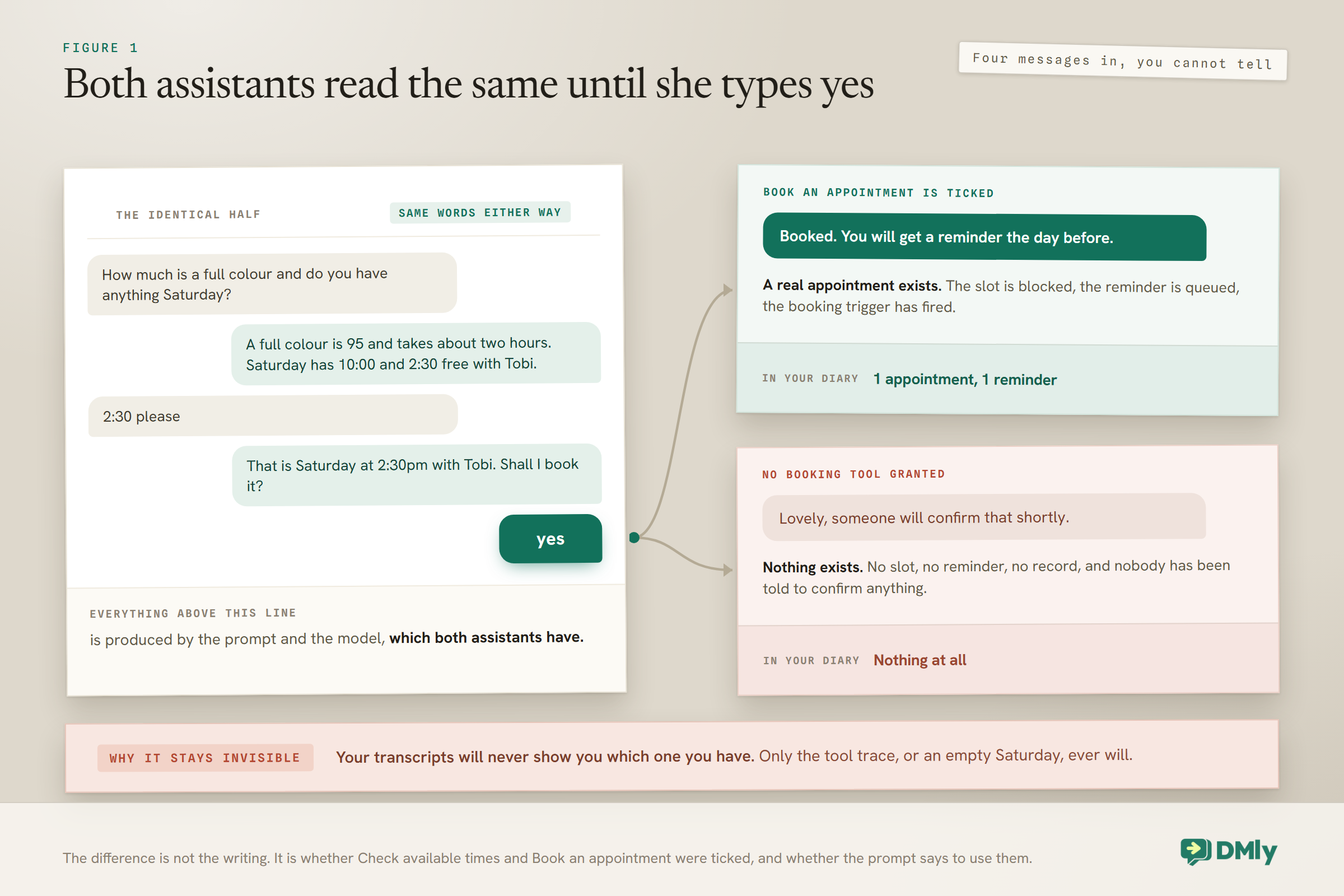
Read the first four messages of any booking conversation and you cannot tell what you are dealing with. The greeting is warm, the price is right, the tone is yours. Then the customer types “yes, 2:30 please”, and one of two things happens. Either a real appointment appears in your diary, or the assistant says something friendly and hollow like “lovely, someone will confirm that shortly”, and the conversation quietly dies. Nobody confirms. On Monday she books somewhere else.
That single moment is the whole subject of this guide. A WhatsApp AI appointment booking chatbot is worth building only if it survives the word yes, and whether it does has almost nothing to do with how well it writes. It comes down to three things you cannot see in the chat: which tools it has been given, which diary those tools are reading, and what happens when it hits a limit halfway through a booking.
What follows is the build of a WhatsApp AI appointment booking chatbot, and then the parts that decide whether it holds up in week two: the one gate to check before you start, the fastest way to get a working agent, the prompt that makes it use its tools instead of its imagination, how to test it when the obvious testing tool is missing, and the limits that quietly stop it. If you are still deciding whether an assistant belongs on your WhatsApp at all, our guide to WhatsApp AI chatbots for small businesses makes that case. This page assumes you have decided and want the booking build.
The Four Things It Has to Be Able to Do
A WhatsApp AI appointment booking chatbot books appointments because it can reach into your diary; anything without that reach can only discuss them. Four capabilities separate the two, and missing any one of them produces the dead end above.
- Read your service list. It needs to know what you sell, how long each thing takes and who performs it, rather than inventing plausible-sounding options from the prompt.
- Read genuine availability. Not a guess, and not “we open at nine”. It has to ask for real open slots, which is also the only thing standing between you and a double booking.
- Write the appointment. The booking is created from the conversation, in your calendar, without anyone retyping it later.
- Know when to stop. Complaints, refunds, anything medical and anything with a judgement call in it should reach a person quickly, with the conversation intact.
In DMly all four are switches on one step. You are not writing a chatbot so much as writing a job description and then granting permissions, and the permissions are the half people forget.
The one that is on by default and earns its place: Hand over to a human arrives switched on, and it is the tool worth keeping even if you switch on nothing else. When it fires, the bot pauses and the assistant stops its turn there and then, rather than carrying on talking over the colleague who has just picked the chat up.
The Gate to Check Before You Build a WhatsApp AI Appointment Booking Chatbot
This is cheap to check now and expensive to discover late, and it is not about the assistant at all.
The gate is the diary the assistant is going to read. An agent pointed at a messy calendar produces confident, well-written mistakes, and it produces them faster than a human could. Three things have to be true first:
- Your services carry true durations and buffers. If a colour and cut genuinely takes two hours and twenty minutes, the service has to say so, because the agent trusts it completely. One thing catches almost everyone out: services live under Offerings, not under Appointments. The Appointments area manages bookings, staff and the booking page, while the duration, buffers, notice rules, price and payment mode are edited at Offerings, Services. Our WhatsApp appointment booking guide covers setting them up properly.
- Your staff are switched on twice. Accepts bookings and Active (available for booking) are two separate switches, and DMly only offers a person’s slot when both are on. A staff row can look completely normal with one of them off, and the symptom is an assistant that says there is nothing free on a day you know is empty.
- Working hours are real. Open slots are what is left after DMly subtracts working hours, time off, buffers, notice rules, busy time from a connected calendar and existing bookings. Every one of those is a place an optimistic setting turns into a customer sitting in your reception.
The gate is not glamorous, and it is the actual project. The assistant on top is an afternoon.
Building the Agent, in an Afternoon
Build your WhatsApp AI appointment booking chatbot from the ready-made template rather than an empty canvas, because it arrives with the booking tools already ticked and the tools are the part people forget. DMly ships four AI bot templates, and one of them is built for exactly this job.
- Install the AI Appointment Booking bot. Go to Automations and create a new one; the template picker opens by itself. Filter by the goal Book appointments or search for it by name. It arrives as a draft, a three-step flow of trigger, AI Reply and end, with a prompt and a tool set already in place. Nothing runs until you turn it on. If the flow builder is new to you, the beginner’s guide to no-code WhatsApp automation walks the canvas from zero.
- Check what it preloaded. The appointment template arrives with Get contact info plus the full appointment set: list services, list staff, check availability, book, view, reschedule and cancel, and Hand over to a human. The class booking template is a different card with the class equivalents, so pick the one that matches what you sell.
- Add or remove tools to match how you actually work. The absolute minimum for booking is List bookable services, Check available times and Book an appointment. Add List staff for a service if customers ask for people by name. Keep Reschedule and Cancel on if you would rather have a clean cancellation at 9pm than a no-show at 9am. CRM and booking tools share one checkbox list, so the same agent can tag and take notes as it goes.
- Point it at your knowledge, or accept that it will not read anything. Every new step starts on No knowledge, and none of the four templates changes that. If you want it answering “do you do balayage on short hair?” as well as booking, build a collection under Settings, AI Knowledge and then choose it on the step. Leave the selector alone and there is no warning at all; the agent simply never searches.
- Write the prompt. The template’s prompt is a genuine starting point rather than a blank box, but it is written for a generic business. The next section has a booking prompt you can paste and edit, and it matters more than which model you pick.
- Set the fallback message. If the provider errors or returns nothing, this is what the customer receives. Leave it empty and they receive nothing at all, and the only record is a system note in the conversation that they will never see. On a booking bot, silence lands on somebody who was mid-way through giving you money.
- Turn it on, then publish the flow. These are two different actions and the gap between them is a trap, which the testing section below covers.
The Prompt That Makes It Use Its Tools
Ticking a box makes a tool available; the prompt is what makes the agent reach for it. That sentence is worth reading twice, because it explains the single most common complaint about booking agents, which is that availability is switched on and the thing still guesses.
Here is a working booking prompt. Paste it, then change every bracketed part to your own reality. The tokens fill themselves in: {{business_name}} becomes your workspace name and {{first_name}} becomes the customer’s first name.
Three lines in there do most of the work. Answer first, then offer stops the assistant replying to a price question with a booking pitch, which is the thing that makes automated chat feel like a salesperson rather than a receptionist. Never invent is the most valuable sentence in the whole prompt, because it pushes the model toward its tools and away from its imagination. And the explicit handover list is what stops a booking bot cheerfully attempting a complaint.
A word on models, since people spend longer on this than it deserves. All four supported providers can run a WhatsApp AI appointment booking chatbot, because the work is done by tools rather than by what the model happens to know. The only choice that genuinely narrows is document reading: Claude and DeepSeek cannot search documents at all, whatever you select in the knowledge picker. If you want your price list answered as well as your diary booked, that leaves OpenAI or Gemini.
Where your documents can and cannot go: Knowledge sources are PDF, TXT and MD files up to 20 MB, plus web pages, FAQs and pasted text. There is no CSV, DOCX or XLSX, which catches out anyone whose price list is a spreadsheet. There is no training step either: a source is searchable on the next reply as soon as its status reads ready.
What a Working Booking Conversation Looks Like
This is the target, and the thing to notice is the order rather than the wording. The assistant answers the question first, checks before it offers, and confirms before it writes anything into your diary.
Three tools fired in that exchange: it read the service, it asked for genuine open times, and then it created the appointment. A chatty bot with no tools produces an exchange that looks almost identical right up to the last line, which is why reading your own transcripts is not a test.
How to Test a WhatsApp AI Appointment Booking Chatbot Before a Customer Finds It
There are two testing routes and most guides only mention the one you may not have. Which applies to you depends on your plan, so start by opening the step and looking at its tabs.
If you can see a Playground tab, use it. It runs your configuration against a test message and shows you the reply plus a Tool calls trace of which tools the agent actually reached for. Nothing is sent to a contact and nothing is written to a real record, because tool calls run against demo data. It is the fastest way to catch the classic failure: you ask “can you check what is on my file?”, the trace shows no contact lookup, and you now know your prompt is not telling the agent to look anything up.
If you cannot see it, that is expected rather than broken. On a plan that does not allow you to connect your own AI provider key, the Configuration and Playground tabs disappear from the step. Only Prompt, Built-in Tools and Functions remain, and the model is managed for you. Everything still works, including knowledge and the booking tools; you simply have no sandbox.
The documented substitute is Preview, on the automation row’s menu, which opens a panel called Try this bot. It gives you a link that starts a real conversation with this automation the way a customer reaches it, a QR code for opening it on your phone, and a footer naming the trigger and the first keyword to send. On WhatsApp the link even pre-types the keyword. The trade-off is that this is genuinely real: whatever you send lands in your Inbox as a live conversation, and a booking it makes is a booking. Use a test service, or be ready to cancel yourself out of your own diary.
The green badge that means nothing: Turning an automation on and publishing its flow are two separate actions, and an automation can be on with an unpublished flow. When it is, the row still shows a green Active badge and the bot answers nobody. Preview is the one place that tells you: it reads “This automation is on, but its flow is not published, so it will not reply.” If your booking bot has gone quiet for no reason, check this before you check anything else.
The Six Conversations to Run Before You Trust It
These six expose a badly configured booking agent in about ten minutes, and every one of them is invisible until a customer finds it. Use the wording a real person would use, typos included, rather than the tidy phrasing you had in your head when you wrote the prompt.
- The straightforward booking. “can i book a cut for saturday”. It should check availability, offer real times and confirm before it writes anything.
- The price question with no booking intent. “how much is a trim”. It should answer the price and stop, not launch into a booking sequence. This one fails more often than the first.
- The impossible request. Ask for a time you know is full, or a Sunday if you close Sundays. It should say so plainly and offer the nearest real alternative rather than inventing one.
- The named-person request. “is Tobi free thursday”. This is what List staff for a service exists for, and a booking agent without it will answer confidently and wrongly.
- The change of mind. Book, then immediately ask to move it. Either it reschedules with the right tool or it hands over cleanly. Both are acceptable; pretending to move it is not.
- The complaint. “my last cut was awful”. It must hand over, not apologise and carry on selling. If it tries to resolve this itself, your handover list needs tightening.
One thing the trace will not tell you, and it confuses people every time: knowledge search and web search never appear in it. They run inside the provider rather than inside DMly, so an agent that has just answered perfectly from your uploaded price list shows a completely empty Tool calls list. The only visible sign is that when the answer came from a source ingested from a web address, the assistant appends that address to the end of its reply as a plain link, at most two per reply.
What Happens When It Runs Out of Room
Every limit on a WhatsApp AI appointment booking chatbot is generous for a normal booking and every one of them is reached eventually, so it is worth knowing what the customer sees when it happens.
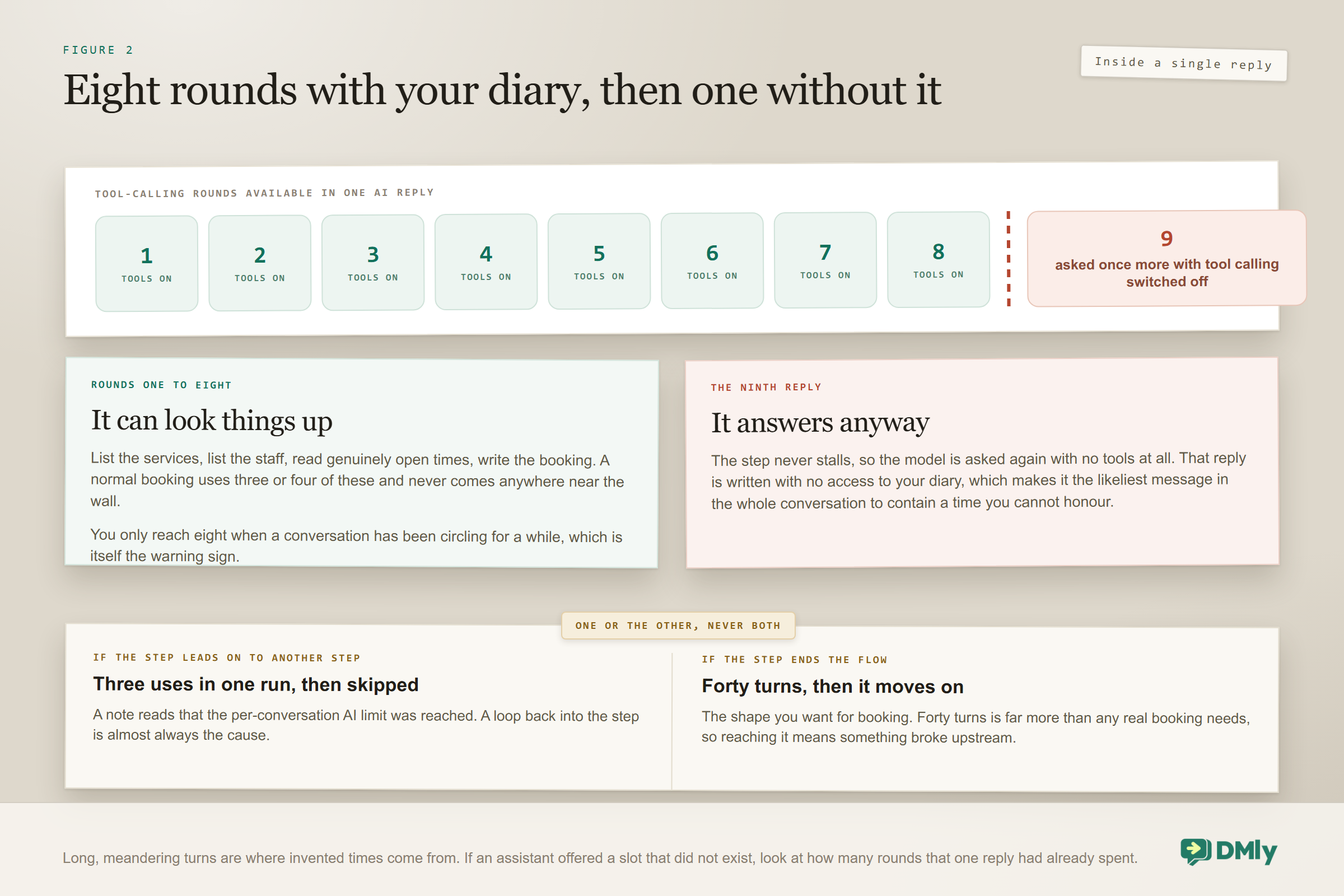
Eight tool-calling rounds per reply. Plenty for list services, list staff, check times and book, with room to spare. What matters is the behaviour at the ceiling: past eight rounds the model is asked once more with tool calling switched off, so it always produces a reply. That is a sensible design choice and also a warning, because the reply it produces at that point is the one written with no access to your diary. It is the single most likely message in the whole conversation to contain an invented time.
Three uses, or forty turns, depending on where the step sits. A step is subject to one of these, never both. A mid-flow step, meaning one whose exit leads on to another step, can fire three times in a run and is then skipped with a note reading “per-conversation AI limit reached”. A conversational step, meaning one whose exit leads to an End step, a note, or nothing at all, answers up to forty turns instead and then moves on with a note saying a teammate should take it from here. For a booking bot you almost always want the conversational shape, and forty turns is far more than any real booking needs.
Your monthly AI reply allowance. This is the one worth setting a reminder about. Replies on DMly’s shared AI count against a monthly allowance that comes with your plan; replies on your own connected provider key are never counted. When you reach the cap, the next AI turn is skipped rather than failed, and a system note appears in the conversation saying the limit was reached and resets next month. The customer gets nothing.
There is no usage counter to watch: DMly does not show a running “AI replies used this month” figure anywhere in the app. Your allowance is shown when you pick or change a plan, and after that the first sign you have reached it is a conversation note on a customer who did not get answered. If your booking volumes are seasonal, either connect your own provider key, which is un-metered, or diary a check in your busy months.
Taking a Deposit When the Bot Takes the Booking
If no-shows are your problem, a deposit does more than any reminder, and the mechanics change what your assistant should say. Payment is a property of the service rather than of the appointment, and it is set at Offerings, Services, not anywhere in Appointments. There are three modes.
No payment required is the default. The booking confirms immediately and money is never mentioned. Pay after the appointment confirms the booking first, then messages a checkout link. Treat that one as an invoice you have sent rather than money you have collected: if no gateway is connected, or the gateway errors, or the message fails to deliver, the booking stays confirmed and unpaid, nothing rolls back and nothing warns you.
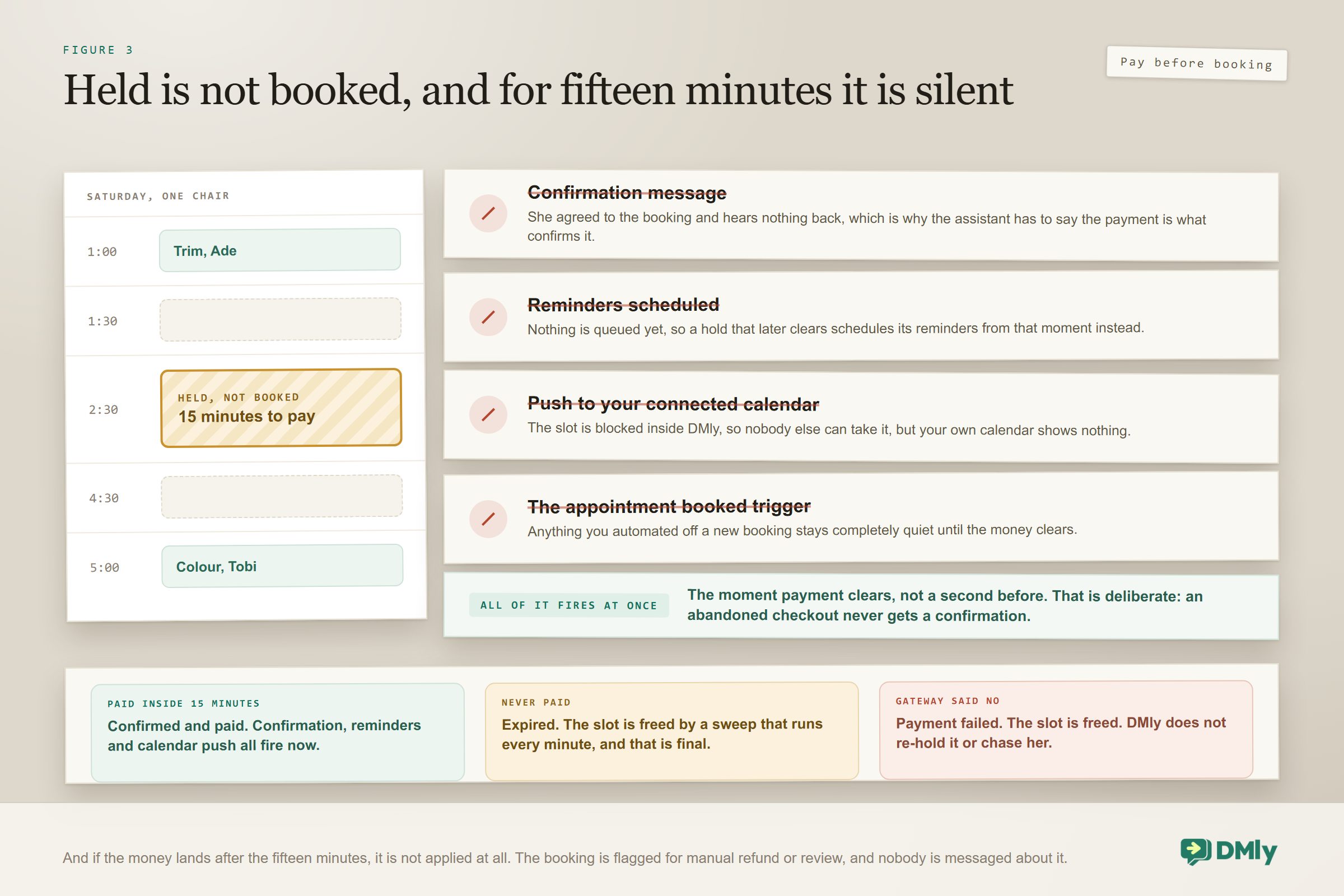
Pay before booking is the one that actually prevents no-shows, and it is the one your assistant has to describe carefully. The slot is held for fifteen minutes rather than booked, and during that hold almost nothing else happens:
- No confirmation message to the customer.
- No reminders scheduled.
- No push to your connected calendar.
- No
appointment_bookedtrigger, so anything you have automated off a booking stays completely quiet.
All of it fires the moment payment clears, and not before. That is deliberate, because it means somebody who abandons checkout never receives a confirmation for an appointment they do not have. The held slot is genuinely blocked meanwhile, so nobody else can take it while they pay.
For a WhatsApp AI appointment booking chatbot, the practical consequence is a wording change. A pay-before booking is not confirmed at the moment the customer agrees to it. Say so in the message. A customer who believes she is booked and later finds the hold expired is worse off than one who was told plainly to finish paying within fifteen minutes.
Three edges are worth knowing before you switch pay-before on, because each one has caught somebody out.
- A service priced at zero makes every payment mode inert. Free consultations cannot take a deposit, whatever the mode says, and the editor tells you so.
- Bookings you make yourself from the calendar never take payment. No hold, no link, no checkout, whatever the service says. Convenient when a regular rings up, and a hole in your deposit policy if your staff use it out of habit.
- With no gateway connected, your assistant releases the slot and hands off. This one is specific to booking in chat and it is the right behaviour: rather than holding a slot that can never be paid for, the AI chatbot lets it go and passes the customer to a person. Connect the gateway before you switch a live service to pay-before. Our guide to setting up WhatsApp payments covers that side.
And one that is genuinely unpleasant when it happens: if a payment arrives after the fifteen minutes have run out, it is not applied to the booking, because the slot may already have gone to somebody else. DMly flags the booking for manual refund or review with a timestamped note, and nobody is messaged automatically. You have taken money without giving an appointment, and you will only find out by reading the note.
The Publish Check That Stops Two Bots Answering the Same Message
A WhatsApp AI appointment booking chatbot with no keyword answers every message, and only one automation ever answers a given message. That is the rule behind a refusal that surprises people on their first publish, and it is a good rule, because the alternative is two bots silently competing.
If another automation on the same channel already replies to everything, publishing yours is refused with wording that names the other flow and explains that the older of the two would answer every time while yours would never reply. The fix is exactly what it suggests: give one of them a specific keyword, or pause the other before publishing.
The trap on the way back: The keyword check only compares against automations that are Active at the moment you publish. So if you pause an old bot to get the new one live, turning the old one back on later does not re-run the check, and from then on one of the two answers nothing. Before you reactivate anything, filter the automation list by Active and confirm nothing else already answers the same trigger.
The Settings Reference
Most of the quality of a WhatsApp AI appointment booking chatbot lives in the prompt; most of its reliability lives in these. The defaults are sensible enough that the main job is knowing they exist.
| Setting | Default | Why it matters for booking |
| Conversation history | 12 messages, capped at 50 | A booking conversation that wanders needs more history than a one-shot question. Only real messages count; internal notes are never shown to the assistant |
| Max tokens | 500 | Ample. A reply offering three times should be short anyway. Raise it if replies get cut off mid-sentence |
| Typing delay before reply (on the step) | 0 seconds, capped at 5 | Stops an instant reply feeling robotic. This is the per-step control, on the Prompt tab |
| Wait before an AI reply (workspace-wide) | 0 seconds, maximum 5 | A floor rather than an override, set under Conversation settings. The longer of the two wins, and the real pause never exceeds five seconds either way |
| Let the AI reply (workspace-wide) | On | The kill switch for every AI step in the workspace at once. Off, each flow still runs and the AI step is skipped with a note. Worth knowing before you debug a single flow for an hour |
| AI Knowledge | No knowledge | Off until you choose. There is no warning if you leave it; the agent just silently never searches your documents |
| Web search | Off | Leave it off for a booking agent. Your prices, hours and diary are not on the open web, and searching makes it slower |
| Tool-calling rounds | 8 per reply | Past eight, the model answers once more with tools switched off, which is the reply most likely to invent a time |
| Conversational turn limit | 40 turns | Applies to a step that ends the flow. Far more than a booking needs, so reaching it means something went wrong upstream |
| Mid-flow step limit | 3 uses per run | Applies instead of the 40 when the step leads on to another step. A loop back into the AI step is the usual cause |
| Fallback message | Preset text | Clear it and the customer receives nothing at all, which on a booking reads as being ignored mid-transaction |
If you only act on one row today, make it the last one. Silence is a worse failure than an apology, and an empty fallback produces silence.
What a WhatsApp AI Appointment Booking Chatbot Costs to Run
There are two billing routes and the choice is worth making deliberately rather than by default.
Replies on DMly’s shared AI count against your plan’s monthly AI replies allowance. This is the simplest way to start, needs no account anywhere else, and is what a fresh step uses until you change it. Connecting your own provider key instead makes replies un-metered by DMly, on the plans that allow it, and you pay OpenAI, Anthropic, Google or DeepSeek directly for what you use.
Two practical notes. If your plan later moves to one that does not allow your own keys, a key you already connected stays saved but stops being used, and the step quietly falls back to the shared AI, metered again. And if the provider you picked is disconnected, the step does not break either; it falls back to the first provider you still have connected, or to the shared AI.
For booking specifically the volumes are usually modest, because each conversation is short by design: a question, two or three offered times, a confirmation. The larger running cost is normally the messaging rather than the model, which our breakdown of what a WhatsApp chatbot costs goes through, and the current plan prices are on the pricing page.
Six Ways Booking Agents Go Wrong
Each of these is common, each turns up in an otherwise well-run WhatsApp AI appointment booking chatbot, and each is fixable in an afternoon.
Switching the tools on without saying so in the prompt. Availability is enabled and the agent still guesses, because nothing told it to look. Ticking a box grants an ability; the prompt is what makes it reach for one.
Service durations that flatter you. The agent trusts your service settings completely and has no way to know the hour is really ninety minutes. This is the most expensive mistake on the list, because it books real customers into time you do not have.
A staff member switched on once instead of twice. Accepts bookings and Active are separate, and with one of them off the row looks fine while that person is never offered. The symptom is an assistant saying a genuinely empty day is full.
No handover list. Without explicit instructions an assistant will attempt a complaint, a refund and a medical question, in your name, at midnight. Name the categories in the prompt.
An empty fallback message. Silent failure is the worst kind on a channel where the customer can see the conversation just stopped, and it is worse still mid-booking.
Publishing without running the six conversations. Every mistake above shows up in about ten minutes of testing, and stays invisible until a customer trips over it. If the Playground is not on your plan, Preview is the substitute; there is no version of this where not testing is fine. When it does hand over, the conversation lands in your shared inbox with the full thread intact, so whoever picks it up is not starting from nothing.
Frequently Asked Questions
Can a WhatsApp AI appointment booking chatbot really book, or does it only collect requests?
It genuinely books, provided it has been given the tools. The Book an appointment tool creates a real appointment in your calendar from the conversation, and Check available times means the slot it offers is one that actually exists. Without those two, the assistant can only take a request for a person to action later, which is the difference between a booking chatbot and a very polite form. The tools are checkboxes on the AI Reply step, so this is a configuration job rather than a coding one.
Will it double book?
Not if Check available times is switched on, because that tool reads genuine open slots rather than guessing. The likelier cause of a clash is underneath the assistant: service durations that are too short, missing buffers, working hours that do not match reality, or a staff member who is switched on in one place and off in the other. Fix those and the agent inherits the fix, because it reads exactly the same availability engine as your booking page.
Which AI model should I use for a booking bot?
Any of the four supported providers, since the work is done by tools rather than by the model’s own knowledge. The one thing that narrows the choice is documents: OpenAI and Gemini can search a knowledge base, Claude and DeepSeek cannot read documents at all. So if you want the agent quoting your price list as well as booking, it is OpenAI or Gemini. DeepSeek also cannot use web search, which matters less for a booking agent than it sounds.
Why is my agent offering times that are not free?
Almost always because Check available times is not switched on, in which case it is inventing plausible times from the prompt. If the tool is on, look at the reply that went wrong: past eight tool-calling rounds in a single turn, the model is asked once more with tool calling switched off, and that answer is written with no access to your diary at all. Long, meandering turns are where invented times come from.
Can the chatbot take a deposit when it books?
Yes, but the assistant is not what decides it. Payment is a property of the service, set at Offerings, Services, and there are three modes: no payment, pay after the appointment, and pay before booking. Pay before is the one that prevents no-shows: the slot is held for fifteen minutes and only becomes a real appointment when payment clears. Have your assistant say that out loud, because during the hold no confirmation is sent at all.
Why can I not see the Playground tab?
Because your plan does not allow connecting your own AI provider key. When that is the case the Configuration and Playground tabs are hidden and the model is managed for you; only Prompt, Built-in Tools and Functions remain. Nothing is broken and everything still works, including the booking tools and knowledge. Use Preview on the automation row instead, which gives you a link that starts a real conversation with the bot the way a customer reaches it.
How long does it take to build?
An afternoon, if your services, staff and hours are already accurate. If they are not, fixing those is the real project and the assistant is an hour on top. That order matters more than anything else in this guide, because an AI agent pointed at a messy calendar does not produce obvious errors. It produces confident, well-written, plausible ones.
My bot has stopped replying and nothing looks wrong. Where do I look?
In this order. Open Preview on the automation row: if the flow is on but was never published, that is the only place it says so, and the row will still show a green Active badge. Then open the conversation itself and read the system notes, because a spent monthly AI allowance, a provider error and the workspace AI switch being turned off all leave one there. Then check whether another automation was reactivated that answers the same trigger, since the collision check does not re-run when you switch a paused flow back on.
Give an assistant your real calendar, let it answer, offer and book on WhatsApp, and hand over the moment a person is needed.
Start With the Diary, Not the Chatbot
The instinct is to spend the afternoon on the prompt, because that is the part that feels like the product. It is not where the value is. A WhatsApp AI appointment booking chatbot with honest durations, correctly switched-on staff and three booking tools ticked will beat a beautifully written one that has to guess, every single time, and it will beat it on the only measure that counts, which is whether the appointment is really in the diary on Saturday.
So do it in this order. Get the diary honest. Install the appointment template so the tools arrive ticked. Name in the prompt the moments the assistant should step aside. Run the six conversations, in the Playground if you have one and in Preview if you do not. Then let it work the Saturday enquiries that arrive at nine in the evening, which you were never going to answer anyway.
Writing about WhatsApp automation, bookings and growth for local business.
Turn WhatsApp into your busiest channel.
Start free and run message, bookings, payments and reviews in one place.
