
How to Get Your Google Review Link (and Send It Automatically)
Copy the link you currently send customers when you ask for a review and look at it properly. If it is the Google Maps listing, the page with the photos, the opening hours and the map, it is a perfectly good page and it is not a Google review link, because tapping it does not open the box where somebody types a review. It opens a page from which they have to find “Reviews”, then tap the empty stars, and only then do the thing you asked them to do.
The extra taps do not sound like much. Applied to a customer standing in a car park with one hand full of shopping, it can be the difference between a five-star review and an intention.
This guide is about the link itself and the plumbing around it: where yours actually lives, how to prove that you have the right one, where Google itself says to put it, and how to send it automatically so nobody has to remember. Whether to ask, when to ask and what to say are covered in our complete guide to Google review automation.
Three Links You Might Send, and Only One Is a Google Review Link
Before finding the right one, it is worth being able to recognise the two wrong ones, because neither produces an error.
Your Maps listing. Copied from the address bar while looking at your own business on Google Maps. It shows the customer everything about you and asks them for nothing.
Your website, or your booking page. Sent with the words “please leave us a Google review” attached, which is a request with no destination. The customer now has to go and find you on Google themselves.
The review link. Tapping it takes the customer to the star rating and the text box, on the profile they are being asked to review. It is generated by Google, it is specific to your business, and it is the only one of the three that does the job.
One thing that applies to all three, and it is worth knowing before you blame the link: customers have to be signed into a Google account to leave a review. Google says so directly, and it also says the account can be set up with a non-Gmail address. So a customer who taps a perfect link and sees a sign-in prompt is having a normal experience, not a broken one.
Where Your Google Review Link Actually Lives
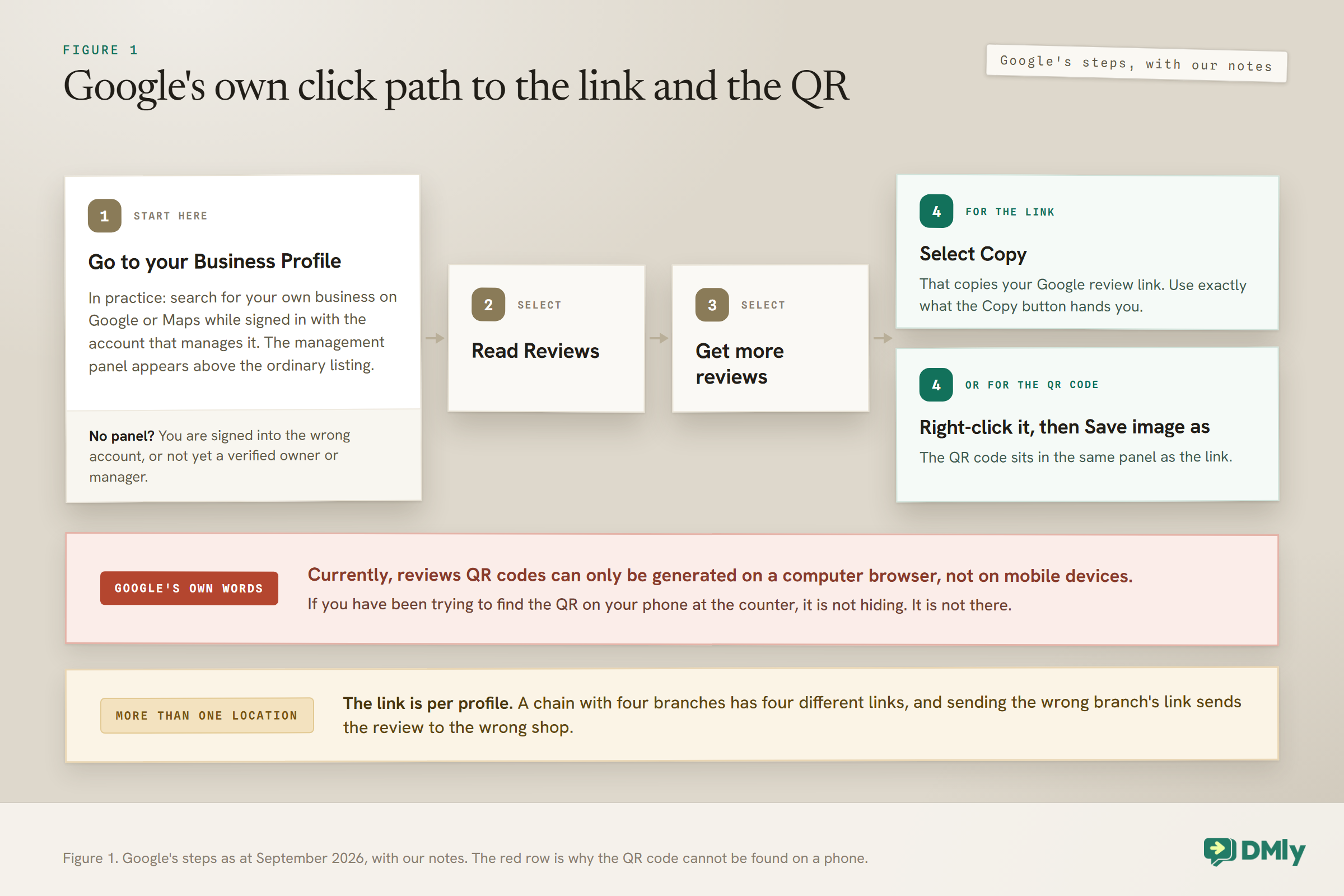
It is three clicks from your own Business Profile, and this is the current path as Google publishes it.
Google’s instruction begins “Go to your Business Profile”, which in practice means searching for your own business on Google or Maps while signed in with the account that manages it, so that the management panel appears above the ordinary listing. If you see the panel, you are in the right account. If you do not, you are either signed into the wrong account or you are not yet a verified owner or manager of the profile, and that is the problem to fix first.
From there:
- Select Read Reviews.
- Select Get more reviews.
- Select Copy to copy the review link.
- To take the QR code instead, right-click it and choose Save image as.
One constraint in Google’s own words, and it explains a lot of wasted time: currently, reviews QR codes can only be generated on a computer browser, not on mobile devices. If you have been trying to find the QR on your phone at the counter, it is not hiding. It is not there.
Two notes on what you get. Google does not publish the link’s pattern on this help page, so the honest instruction is to use exactly what the Copy button hands you rather than trying to construct one from a template you found somewhere. And if you manage more than one location, the link is per profile: a chain with four branches has four different links and sending the wrong branch’s link to a customer sends their review to the wrong shop.
If You Cannot Get to the Profile at All
Some businesses discover at this point that they do not control their own Google Business Profile, and there is no Google review link to copy until they do.
The tell is simple. Search your own business while signed in with the account you think manages it. If the management panel appears, you are an owner or manager and the previous section applies. If instead you see an ordinary listing with a “Claim this business” or “Own this business” option, somebody else holds it, or nobody does.
Google’s own tip is worth knowing before you panic: if you look for your profile and cannot find that claim button, you might already be the owner. You may simply be signed into another account, so check that one first.
If somebody else genuinely holds it, such as a former web designer, a marketing agency or an ex-employee, Google publishes a request route. Go to business.google.com/add, enter your business name and address, choose your business from the list, and when the message appears saying somebody else may manage this profile, select Request Access and fill in the form. You get an email confirmation, and the current owner is notified and has three days to respond. Google notes separately that a service-area business, one that works at the customer’s location with no shop or office, has to go through support instead, describing the issue as a transfer of ownership.
The owner has three days to respond, so it is worth starting today rather than the week you decide to run a review campaign. Nothing else on this page works until you manage the profile.
How to Prove You Have the Right Google Review Link
Do not take the link’s word for it, and do not test it while signed into the account that owns the business, because that is not what your customer sees.
Open a private or incognito window, paste the link, and look at what loads. You want the star rating and a text box, on your business, once you are signed in. Here is what anything else means:
- A map and opening hours means you have the listing, not the review form.
- A sign-in prompt is correct behaviour and not a fault. Sign in as any account other than the owner’s and check that the review box is what appears next.
- Somebody else’s business, or one of your other branches, means you copied the link from the wrong profile.
- An error or a dead page can mean the link was retyped or truncated somewhere between Google and wherever you pasted it. Copy it again from the source.
Then do it once more on a phone, in a private tab, signed in as any account other than the owner’s, and check the review box appears there too. Once per link. It is a much better use of your time than wondering later why a campaign produced nothing.
Where Google Itself Says to Put It
Worth knowing, because it settles a question people worry about: Google is not squeamish about businesses asking.
On the same help page that gives you the link, Google lists where to use it: on your receipts, in thank-you emails, at the end of a chat interaction, and printed as a QR code displayed in your store. It adds, in its own words, that you can also send review requests through email, a WhatsApp message, or a Facebook post.
Two of those are worth pulling out. “At the end of a chat interaction” is Google describing the moment a chat with a customer wraps up. And WhatsApp is named by Google itself, which is a useful thing to have in writing the next time somebody tells you that asking for reviews on WhatsApp is against Google’s rules. It is not. What is against the rules is a different thing entirely, and it has its own section below.
Wiring the Send: By Hand, In a Flow, and On the Counter
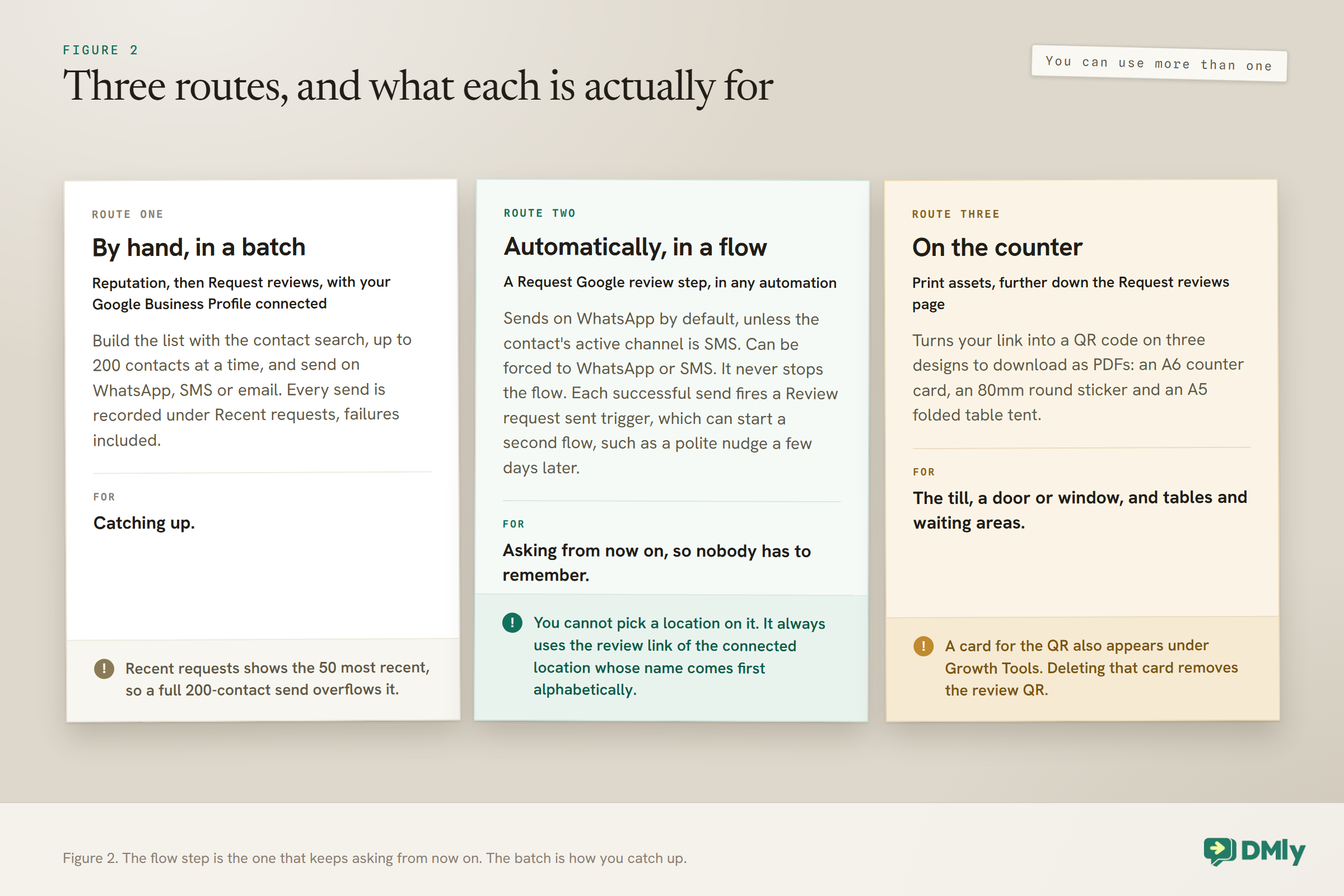
Once you have the Google review link, the next problem is that a human being has to remember to send it, and people forget. Three routes, and you can use more than one.
By hand, in a batch. In DMly, with your Google Business Profile connected, this lives under Reputation and then Request reviews. Build the recipient list with the contact search, up to 200 contacts at a time, pick WhatsApp, SMS or email, and send. If you have more than one WhatsApp number connected, a Send from picker appears so you choose which one it comes from. Every send is recorded under Recent requests with the contact, channel, date and status, including the failures. That table shows the 50 most recent requests, so a full 200-contact send overflows it and you will not see the earliest rows.
The reason the WhatsApp route works at all is worth understanding rather than taking on trust. If you ask for a review after the customer’s 24-hour window has closed, a free-form message would simply be blocked. So the request goes out on a template which, once approved, can deliver outside the 24-hour window. If templates are new to you, our guide to WhatsApp message templates explains why, and the 24-hour messaging window explains what closes.
Automatically, in a flow. A Request Google review step can go into any automation. It has two settings: Send on, which is set to the contact’s active channel by default and can be forced to WhatsApp or SMS, and the review template to use. On the default setting, DMly sends on WhatsApp unless the contact’s active channel is SMS. The behaviour worth knowing is that the step never stops a flow: whether the request sends, is skipped or fails, the run continues to the next step, so it is safe to drop into the middle of a longer sequence. Each successful send fires a Review request sent trigger, which you can use to start a second flow, such as a polite nudge a few days later.
On the counter. Print assets, further down the same Request reviews page, turns your link into a QR code and gives you three ready-made designs to download as PDFs: an A6 counter card for the till, an 80mm round sticker for a door or window, and an A5 folded table tent for tables and waiting areas. One caution from the documentation: the QR is stored as a growth tool on the connected Google profile, so a card for it also appears under Growth Tools, and deleting that card removes the review QR. Download the designs from Print assets, and leave the growth tool alone.
If You Have More Than One Location
Every extra branch adds its own link to keep straight, and the mistakes are quiet ones.
Each location has its own Business Profile and therefore its own Google review link. So a review left through the wrong link lands on the wrong branch’s rating.
Three habits keep it straight. Label the links by branch the moment you copy them, in a shared document, rather than trusting anybody to remember which is which. Print the QR codes separately per site and never let a counter card travel between branches, because the sticker on the door of the Croydon shop pointing at the Bromley profile can go unnoticed until somebody reads a review that mentions the wrong street. And in the product, note that requests are scoped to whichever location is selected in the Switch location picker at the top of the page, so a batch sent while the wrong branch is selected uses the wrong link.
The flow step needs care too. You cannot pick a location on it, and it always uses the review link of the connected location whose name comes first alphabetically. For branch-specific requests, send from Request reviews with the right location selected.
Your Tracked Link and Your Raw Link Are Not the Same Link
There are two versions of your Google review link in play and they behave differently, which matters the first time you try to work out whether any of this is working.
The Review link at the top of the Request reviews page is your raw Google review link. Copy it into a receipt, an email signature, a poster or your social bio. It works anywhere and it is not tracked: nothing counts opens on it.
The link inside a request DMly sends is different. It is a short tracked redirect that forwards to your Google review page and records the first open. That is where the Opened number in your dashboard comes from, and it is the reason a request sent through the product tells you something that a link on a receipt cannot.
The QR from Print assets is the tracked kind too, which is a genuine reason to use it rather than the raw QR you saved out of Google: same destination, but you find out whether anybody is scanning it.
The rule of thumb: raw for anywhere you cannot measure anyway, tracked for anything you want an answer about.
What the Numbers Do and Do Not Mean
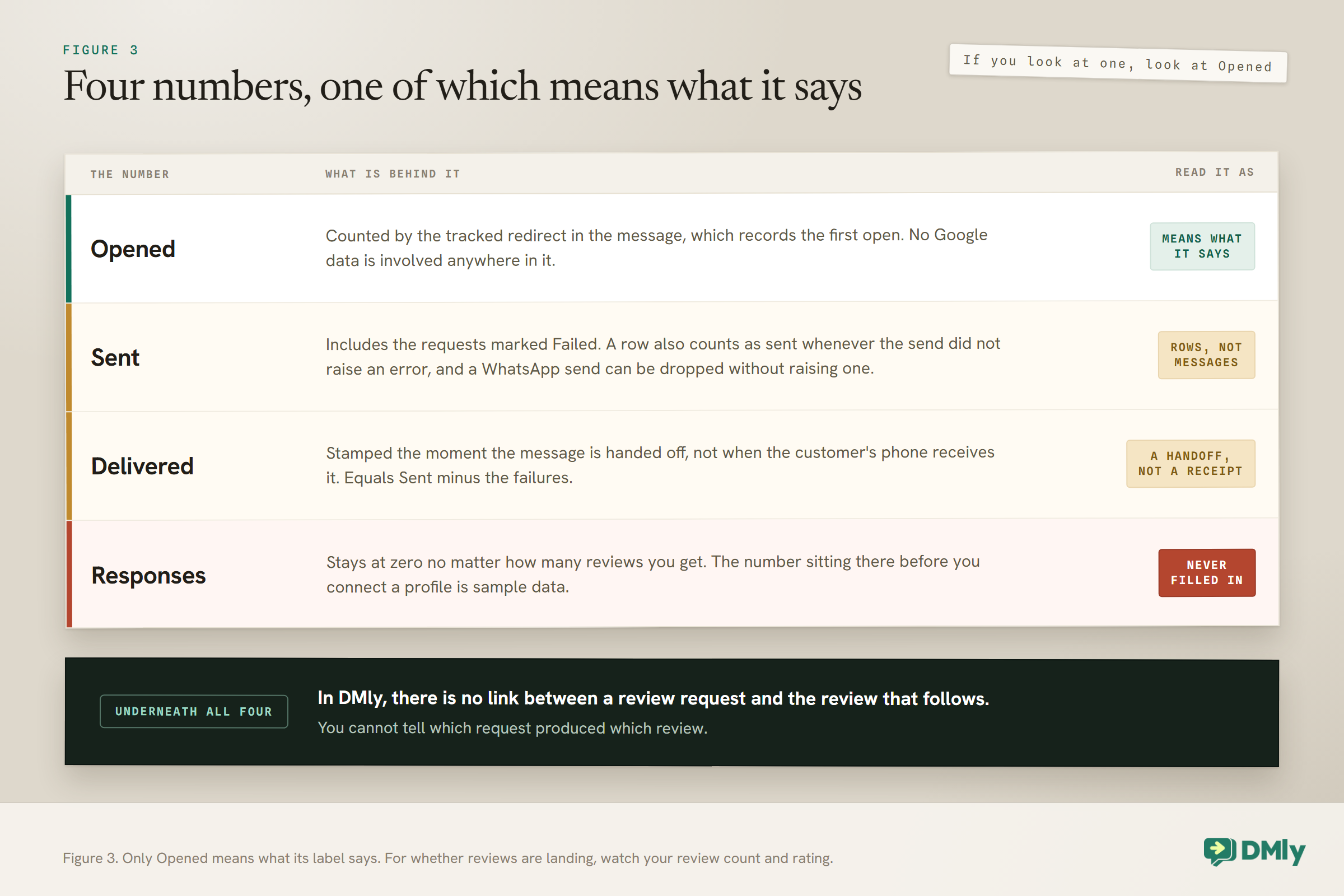
This is the section to read before you make a decision on the strength of a dashboard, because three of the four numbers on it do not mean what their labels say.
Opened is real. It is counted by the tracked redirect in the message, which records the first open. No Google data is involved anywhere in it. If you look at one number, look at this one.
Sent counts rows, not messages. It includes the requests marked Failed, so the contacts the product has just told you could not be reached are inside the number. A row also counts as sent whenever the send did not raise an error, and a WhatsApp send can be dropped without raising one. Read it as “a request row exists”, not “it went”.
Delivered is a handoff, not a receipt. It is stamped the moment the message is handed off, not when the customer’s phone receives it, and it equals Sent minus the failures.
Responses is never filled in. It stays at zero no matter how many reviews you get. The number sitting there before you connect a profile is sample data.
And the fact underneath all four, which is the one worth carrying away: in DMly, there is no link between a review request and the review that follows. To find out whether reviews are actually landing, look at your reviews and your average rating over time, not at a request dashboard.
The Rules That Can Undo All of This
Google’s rules forbid paying for reviews, in any form, and asking only the customers you expect to be happy.
Google’s position appears on two of the help pages behind this article and it is not softly worded. Offering incentives, such as free or discounted goods or services, in exchange for customers posting reviews, changing reviews or removing negative ones, is strictly prohibited. The consequences sit under Business Profile restrictions for policy violations, which is a different and worse category of problem than a slow month for reviews.
Note the breadth of that sentence. It is not only about buying five stars. Offering a discount to somebody in exchange for taking down a one-star review is on the same list.
Google’s policy for reviews on Maps also bars businesses from discouraging negative reviews, selectively soliciting positive ones, or pressuring customers to review while on the premises, so do not send your link only to the customers who have told you they were happy.
Why a Request Says Sent and Nothing Arrives
A confusing failure, because the request still reads Sent.
A request can be recorded as Sent, with no error anywhere, and deliver nothing at all. These are two of the documented causes:
- The review request template is not approved yet, and the customer has not messaged you in the last 24 hours. Without an open window and without an approved template, there is nothing WhatsApp will deliver. Check the template’s status before you run a campaign.
- Meta rejects the send for its own reasons at delivery time.
Separately, a request is marked Failed and nothing is attempted when the contact has no identity on the channel you picked, has no valid email address for an email send, or has opted out. Opted-out contacts are never sent a request on any channel. Nothing is retried automatically in any of these cases: fix the contact or pick a different channel and send again.
Your logs are where the real outcome is recorded, and together with Opened they are the two things that reflect what actually happened. If you run a salon or a clinic and want the whole review loop built into the rest of your automations rather than bolted beside them, our guide to WhatsApp automation for salons and the Google Business Profile automation guide cover the wider setup.
Frequently Asked Questions
Where do I find my Google review link?
Open your Business Profile by searching your own business while signed in with the account that manages it, select Read Reviews, then Get more reviews, then Copy. The same panel carries the QR code, which you take by right-clicking it and choosing Save image as.
Why can I not find the review QR code on my phone?
Because it is not there. Google states that reviews QR codes can currently only be generated on a computer browser, not on mobile devices. Generate it once on a laptop and save the image.
Is my Maps listing URL the same as my review link?
No. A Maps listing opens a page about your business, from which the customer still has to find Reviews and then Write a review. The review link opens the star rating and the text box instead.
How do I know I have copied the right link?
Open it in a private browsing window, so you are not signed in as the owner, and check that, once signed in with another account, you land on the star rating and text box for your business. Then test it once on a phone as well.
Does a customer need a Google account to leave a review?
Yes. Google says customers must be signed into a Google account to leave a review, and that the account can be created with a non-Gmail address. A sign-in prompt after tapping your link is normal, not a broken link.
Can I send review requests on WhatsApp?
Yes, to customers who have opted in to WhatsApp messages from you, and Google names WhatsApp itself as one of the ways to send a review request, alongside email and a Facebook post. Once its template is approved, the request can deliver even after the 24-hour window has closed.
Can I offer a discount to customers who leave a review?
No. Google treats offering incentives such as free or discounted goods or services in exchange for posting, changing or removing reviews as fake and misleading content, and it is strictly prohibited.
How many review requests can I send at once?
Up to 200 contacts in a single manual send. The Recent requests table shows the 50 most recent rows, so a full 200-contact send overflows it and the earliest rows will not be listed.
Can I tell which request produced which review?
No. DMly has no link between a request and the review that follows. What you can measure is opens on the tracked link, and separately your average rating over time.
What is the difference between the tracked link and the raw link?
The raw link is your Google review URL, which you can copy anywhere and which counts nothing. The link inside a request the product sends is a short tracked redirect that forwards to the same place and records the first open, which is what feeds the Opened number. The printed QR from print assets counts its own scans.
How does the October pricing change affect review requests?
DMly submits the WhatsApp review request as a utility template, though Meta decides the final category, and Meta already charges for utility templates sent outside the 24-hour window. From 1 October 2026 Meta also starts charging for utility templates sent inside an open window, and for service messages past 1,000 a month per number, as our guide to the WhatsApp pricing change explains.
Writing about WhatsApp automation, bookings and growth for local business.
Turn WhatsApp into your busiest channel.
Start free and run message, bookings, payments and reviews in one place.
