
Let Customers Connect WhatsApp, Instagram and TikTok Without Leaving Your App
There is one email nobody who sells software enjoys sending: “To finish setting up, please log in to this other website with these details, find the Channels page, click Connect, and come back to us when it says green.” Every word of it is a chance for the customer to stall. They have never heard of the other website. They are not sure which password you mean. The login screen does not look like your product. A week later the onboarding call goes ahead with nothing connected, and you do the clicking for them over a shared screen.
If you run an agency or build software on DMly’s agency layer, that email is now optional. Channel Connect, part of DMly’s Agency API, lets a customer connect WhatsApp from your app, along with Instagram, TikTok, Messenger and Telegram, with a button you put wherever you like. For the first four they approve the connection on Meta’s or TikTok’s own screens, choose the account, and come straight back to your product with the channel live; for Telegram they paste a bot token into your app and your backend does the rest. Your backend learns the result and carries on.
This guide walks through what the customer sees, the four calls your backend makes, the statuses and errors you will meet, the WhatsApp details that catch people out, and a worked example. For the wider picture of reselling DMly under your own brand, start with our guide to white-label WhatsApp software for agencies.
What Channel Connect Does
It moves the “connect your accounts” step out of DMly’s dashboard and into your product, for workspaces your agency already owns.
On DMly’s agency layer, each of your customers has their own workspace, which the Agency API calls a sub-account. Until now, getting their WhatsApp number or Instagram account into that workspace meant either the customer signing in to the dashboard, or you doing it for them. Channel Connect adds a third route. Your server asks DMly to start a connection for one sub-account and gets back a link. You send the customer to it. They authorize with Meta or TikTok on a page that carries your agency’s name, pick the number, Page or account, and are returned to an address in your app. Your server then asks DMly how it went and, if it worked, receives the id of the new channel.
The customer never signs in to DMly and never sees its dashboard. Channel Connect is available to every agency on the Agency API; there is nothing to request. The only setup is registering the addresses customers may return to.
It sits on the Agency API, which is separate from the workspace REST API most integrations use: a different base address (https://dash.dmly.io/api/agency/v1), a different kind of key (agency keys start dmly_ag_), and its own webhooks. Once a channel is connected, sending and receiving messages on it is the job of the workspace API, covered in our developer guide to the DMly API.
What Your Customer Actually Sees
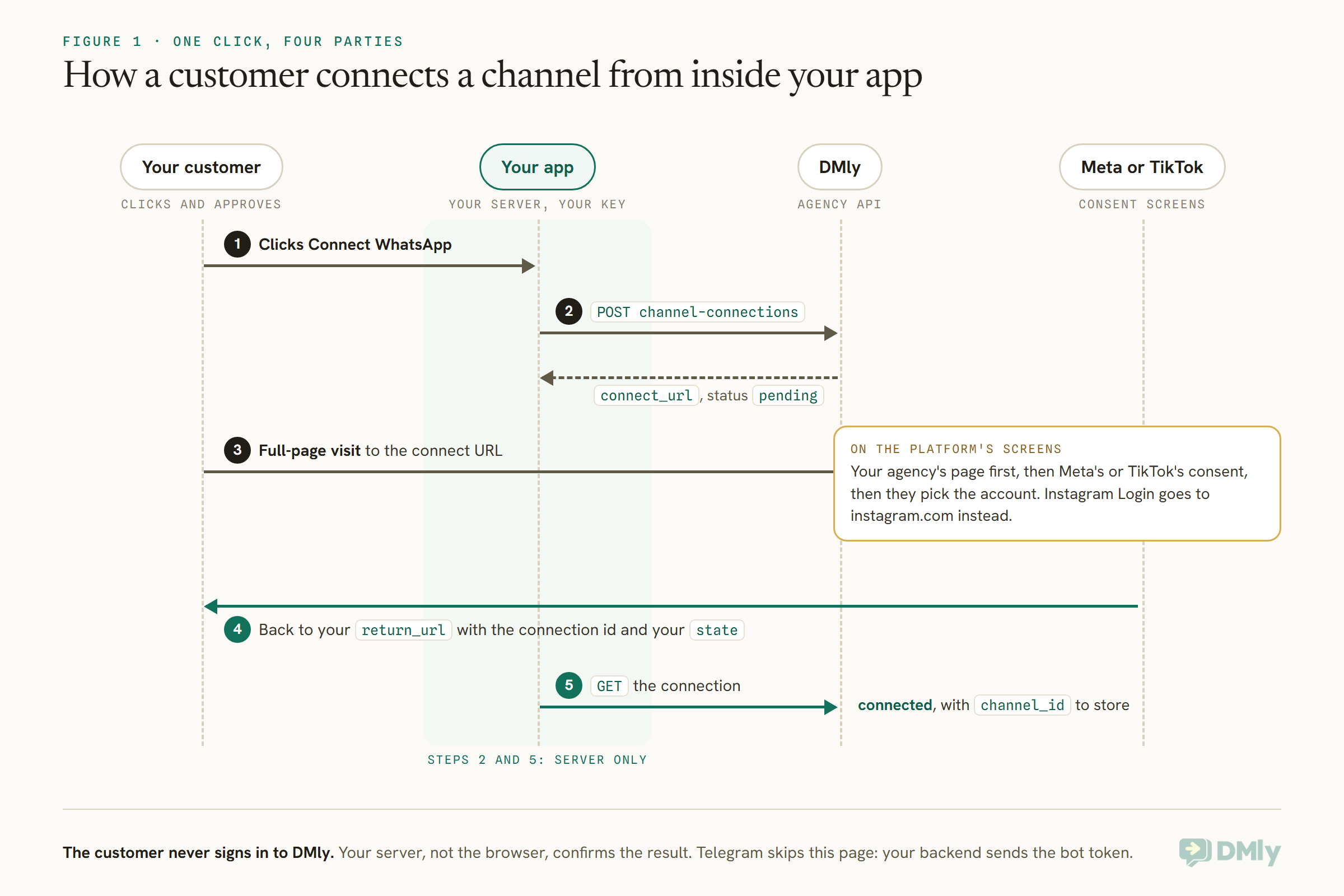
Your button, a page with your name, the platform’s own consent screens, then your app again.
Say your customer runs a cleaning company and uses your scheduling product. On your Integrations page they click Connect WhatsApp. Their browser opens a page showing your agency’s app name, or your agency name, with a button that reads Continue to Meta, or Continue to TikTok, or for Instagram Login Continue to Instagram. Nothing on it comes from the DMly dashboard. If you have set up a verified custom domain for your agency, the page is served from it; if not, from your agency subdomain; failing both, from DMly’s own domain.
From there they are on Meta’s or TikTok’s screens, signing in with their own account and approving the permissions. Then they choose what to connect: the WhatsApp number, the Facebook Page, the Instagram account. (With Instagram Login there is nothing to choose: one sign-in is one account.) When they finish, they land on the address in your app that you named when you started the connection.
One detail is worth knowing before a customer asks about it. Meta’s and TikTok’s consent screens show the name of the app the customer is authorizing, and that app is DMly’s, not yours. The branded page before it is yours; the platform’s own screens are not something DMly or you can rename. A line on your Integrations page saying “you’ll approve the connection on Meta’s own screen” saves a support question.
The customer has to finish in the same browser they started in, and within 30 minutes. If they wander off for lunch halfway through, the session expires and they start again.
Which Channels You Can Connect This Way
Five channels and six ways in. Instagram has two routes, with or without a Facebook Page; Telegram connects with a bot token your backend sends.
| Channel | platform value | How the customer connects |
whatsapp | Meta’s Embedded Signup, then they pick the number | |
| Instagram (with a Page) | instagram | Facebook Login, then they pick the professional account linked to one of their Pages |
| Instagram (no Page needed) | instagram_login | Signs in on instagram.com with the Instagram account itself; one login is one account |
| TikTok | tiktok | TikTok login with a TikTok Business account |
| Messenger | facebook | Facebook Login, then they pick the Page |
| Telegram | none | No hosted page: your app collects the bot token and sends it from your backend |
Three limits shape what you promise customers. Instagram needs a professional account either way, and a personal account cannot connect. With a Facebook Page, use instagram; without one, use instagram_login, which takes Business and Creator accounts. Both give the customer the same kind of Instagram channel, covered in its own section below. TikTok only allows messaging on Business accounts, so a personal account fails with a clear error, and TikTok does not offer Business Messaging in every region. WhatsApp numbers have to be able to send once connected, which depends on the number and the customer’s Meta account, not on the connection itself.
For Messenger and for Instagram through Facebook Login, the consent screen asks for the same permissions as a connection made in the dashboard, including comment permissions, so comment automations work on the channel. Only the messaging permissions are required: a customer who unticks the others still connects for direct messages, but your comment-to-DM features will not work for them. If those features are part of what you sell, say so next to the button. Our guide to Instagram DM automation covers what the channel can do once it is in.
What You Need Before You Build
An agency key on your server, a workspace for each customer, and a list of return addresses.
- An agency API key. Mint one in your agency console under API Keys. It is shown once, so store it in your server’s secret store straight away. Send it as the
x-api-keyheader (aBearertoken in the Authorization header is accepted too). It is not the same as a workspace key and the two are not interchangeable. - A sub-account per customer. Channel Connect connects a channel to an existing workspace, identified by its id. You create workspaces from the agency console or through the Agency API’s provisioning call, which sets up the owner and the workspace on the plan you choose.
- A plan with room for the channel. If the customer’s plan does not allow the platform, starting a connection is refused; if it allows the platform but has no room for another channel of that kind, the connection fails with
channel_limit_reached. Raising the plan or granting an add-on fixes both. - Registered return URLs. The addresses in your app that customers may come back to.
How to Connect WhatsApp From Your App, Step by Step
Four calls: register return addresses once, start a session, send the customer, read the result.
Step 1: Register your return URLs (once)
Tell DMly every address a customer may be sent back to. Up to 20 HTTPS addresses, with no query string, fragment or credentials in them. Matching is exact, path and trailing slash included, and the call replaces the whole list each time, so send all of them together.
curl -X PUT https://dash.dmly.io/api/agency/v1/channel-connect/settings
  -H "x-api-key: dmly_ag_xxxxxxxxxxxx"
  -H "Content-Type: application/json"
  -d '{"return_urls": ["https://app.tidyroute.example/integrations/callback"]}'
Removing an address also stops any unfinished session that was going to return to it, so take care when tidying the list during a busy day.
Step 2: Start a connection from your backend
When the customer clicks your button, your server creates a session for their sub-account. The platform is whatsapp, instagram, instagram_login, tiktok or facebook; the return_url must be one you registered; state is your own value, returned to you unchanged.
curl -X POST https://dash.dmly.io/api/agency/v1/workspaces/{workspace}/channel-connections
  -H "x-api-key: dmly_ag_xxxxxxxxxxxx"
  -H "Content-Type: application/json"
  -H "Idempotency-Key: fresh-corners-connect-whatsapp-1"
  -d '{
    "platform": "whatsapp",
    "return_url": "https://app.tidyroute.example/integrations/callback",
    "state": "cust_2207"
  }'
The response carries the session’s id, its status (pending), an expires_at time 30 minutes out, and a connect_url. Only this call returns the connect_url; reading the session later never does.
The Idempotency-Key header is optional but worth sending. If your request times out and you send it again with the same key and the same body, DMly returns the same session instead of creating a second one. The same key with a different body, or for a different sub-account, is refused with a conflict, so use a fresh key when you genuinely want a new session.
Step 3: Send the customer to the connect URL
Open the connect_url as a top-level navigation: an ordinary link or a redirect. Not an iframe, and not a background request, because Meta’s and TikTok’s screens need the full window. From here the customer is on the branded page and then the platform’s consent screens.
Step 4: Read the result when they come back
The browser returns to your return_url with connection_id and state in the query string. Match state to the customer who started, then ask DMly for the result from your server. Do not trust the query string on its own: it tells you which session to check, not how it went.
curl https://dash.dmly.io/api/agency/v1/workspaces/{workspace}/channel-connections/{connection}
  -H "x-api-key: dmly_ag_xxxxxxxxxxxx"
When status is connected, channel_id holds the new channel. Store it against your customer and show them the good news. You can list every channel on a sub-account at any time with GET /workspaces/{workspace}/channels, which never includes tokens.
The Statuses You Will See
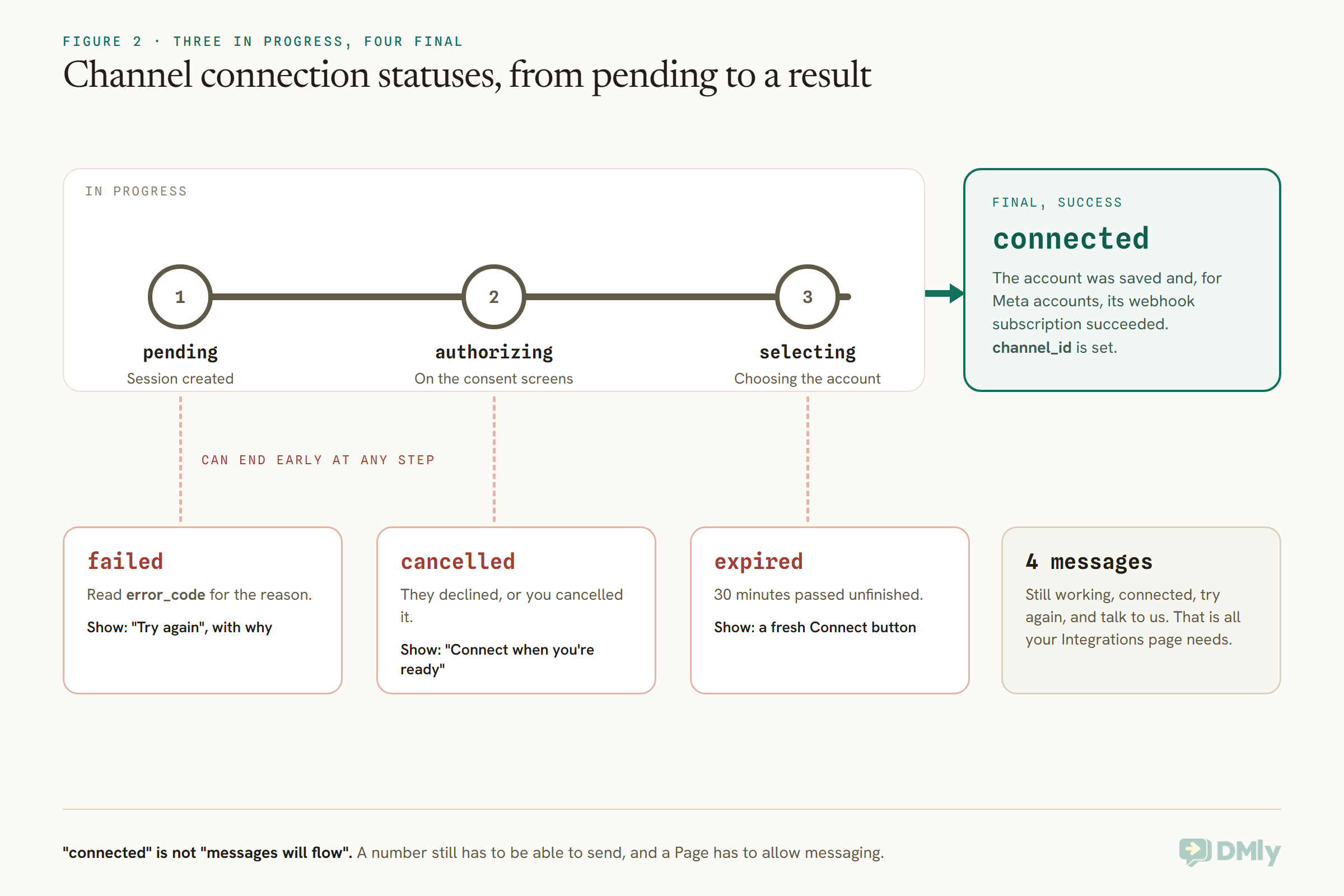
Seven statuses, three of them in progress and four final.
| Status | What it means | What to show the customer |
pending | Created; they have not continued to Meta or TikTok yet | Nothing yet, they are on their way |
authorizing | On Meta’s or TikTok’s consent screens | “Finishing up with Meta” if they come back early |
selecting | Approved; choosing the account | Same as above |
connected | Done; channel_id is set | A success state and what happens next |
failed | Something went wrong; see error_code | A message built from the error code |
cancelled | They declined, or you cancelled it | “No problem, connect whenever you’re ready” |
expired | 30 minutes passed without finishing | A fresh Connect button |
A word of caution about the happy status. connected means the account was saved and, for Meta accounts, that its webhook subscription worked. It does not promise messages will flow: a WhatsApp number still has to be able to send, a Page has to allow messaging, and Meta’s and TikTok’s usual messaging rules still apply. Our explainer on the WhatsApp Business app and the API covers the rules a newly connected number lives under.
If a customer abandons the flow and you want to tidy up, POST /workspaces/{workspace}/channel-connections/{connection}/cancel ends the session and discards its temporary credentials. It is safe to call more than once and it never disconnects a channel that already connected.
The Errors Your Support Team Will See
Most failures are fixable by the customer in two minutes. A few are yours, and a few belong to Meta or TikTok.
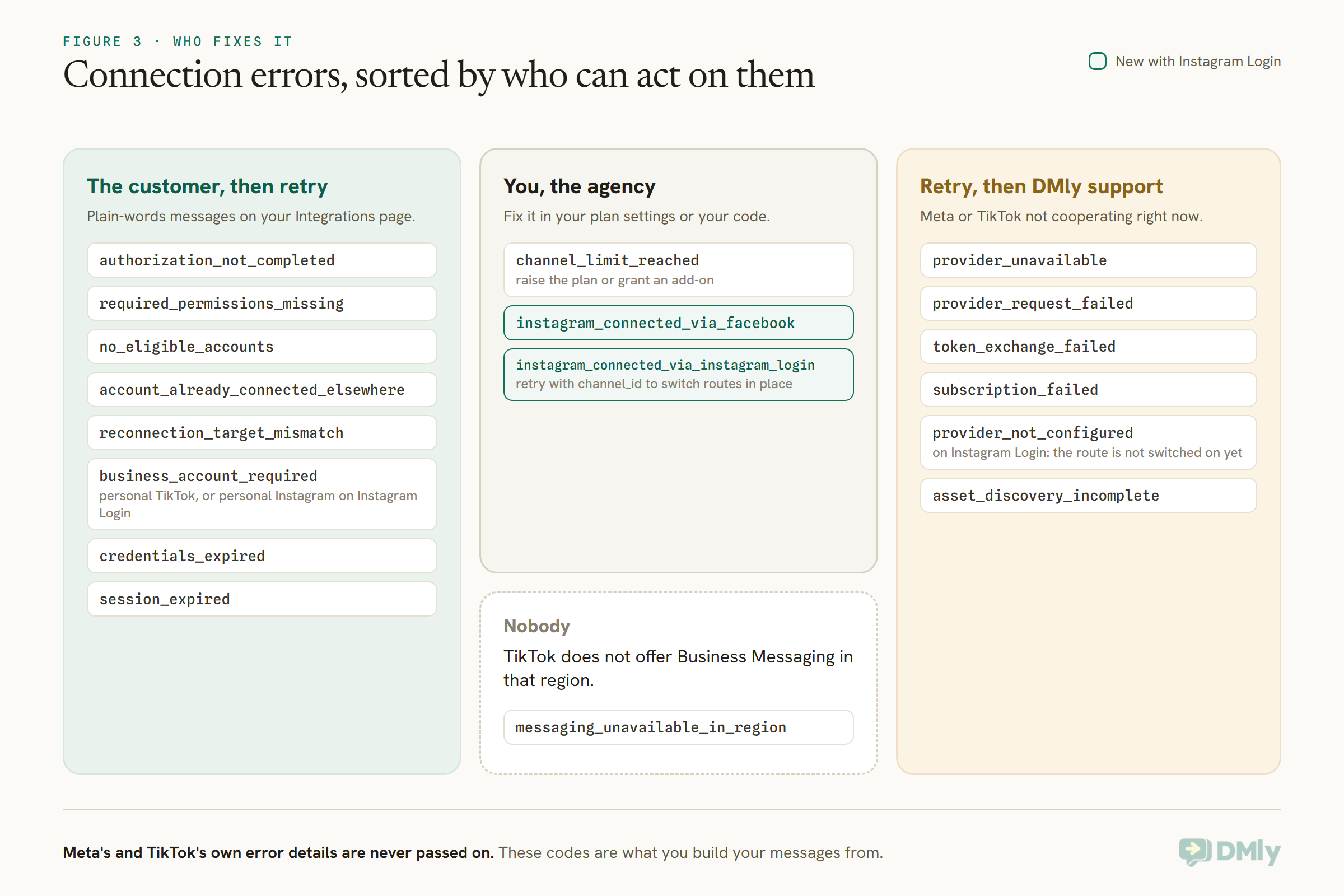
When a session ends failed, the error_code tells you why. Meta’s and TikTok’s own error details and tokens are never passed to you, so these codes are what you build your messages from. It helps to sort them by who can fix them.
The ones customers hit most often deserve plain words in your product:
authorization_not_completed: they declined or closed the consent screens. “Looks like the connection wasn’t finished. Want to try again?”required_permissions_missing: they unticked a permission messaging needs. Ask them to start again and leave every permission ticked.no_eligible_accounts: there was nothing to connect: no WhatsApp number, no Page, or (on theinstagramroute) no professional Instagram account linked to a Page. They set the account up in Meta first, or, for Instagram, use the Instagram Login route instead.account_already_connected_elsewhere: that number, Page or account is connected to another DMly workspace. It has to be disconnected there first, which often means a previous provider or an old test workspace.business_account_required: a personal TikTok account, or a personal Instagram account on Instagram Login. They switch it to a Business account (or, on Instagram, a Business or Creator account) in the app and try again.instagram_connected_via_facebookandinstagram_connected_via_instagram_login: that Instagram account is already a channel in this workspace through the other route. Retry withchannel_idset to that channel to switch it over in place.channel_limit_reached: the customer’s plan has no room for another channel of that kind. That one is yours to fix with a plan change or an add-on.
The provider_ codes and token_exchange_failed are Meta or TikTok not cooperating at that moment; retry, and if it repeats, contact DMly support. On Instagram Login, provider_not_configured means the route is not switched on yet, which is also one for DMly support. messaging_unavailable_in_region means TikTok does not offer Business Messaging in the account’s region, and nothing on your side or DMly’s can change that.
Starting a connection can also be refused before any session exists: a 403 when the sub-account is suspended (or Channel Connect is switched off for your agency), and a 422 when the return URL is not registered or the plan does not allow the platform. Those are worth logging loudly, because they are configuration problems rather than customer ones.
Instagram: With a Facebook Page or Without One
Two routes, one result: an Instagram channel with DMs, bots and comment automation. Pick the route by whether the customer has a Facebook Page.
Plenty of small businesses run Instagram without ever having made a Facebook Page, and until now that meant a detour before they could connect. With "platform": "instagram_login" they skip it. The hosted page offers Continue to Instagram, says plainly that no Facebook Page is needed, and sends the customer to instagram.com to sign in with the Instagram account itself.
{
  "platform": "instagram_login",
  "return_url": "https://app.tidyroute.example/integrations/callback",
  "state": "cust_2207"
}
A few things are different from the Facebook Login route, and worth knowing before you design the button:
- One login, one account. There is no picker. Whichever Instagram account the customer signs in with is the one that connects.
- A fresh sign-in every time. The page forces a new Instagram login rather than reusing whoever is already signed in on that browser. That matters for you: if a member of your team is testing on a shared machine, their own Instagram session is never attached to a customer’s workspace by accident.
- Business or Creator accounts. Any professional account works. A personal account ends with
business_account_required. - The messaging permission is required. If the customer unticks it, the session ends with
required_permissions_missing. - Same channel, same limits. The result is an ordinary Instagram channel. It counts against the same Instagram allowance on the customer’s plan as one connected through a Page, so
channel_limit_reachedapplies in the same way.
Once connected, the channel does what an Instagram channel does in DMly: direct messages arrive in the shared inbox, bots and automations run on it, and comment automation works, including comment-to-DM. The customer’s experience after the connection is the same whichever route they took.
One account, one channel. A workspace can hold each Instagram account as a messaging channel only once. If the account is already connected through its Facebook Page, an instagram_login session fails with instagram_connected_via_facebook; the reverse fails with instagram_connected_via_instagram_login. To move a channel from one route to the other, start the new session with channel_id set to the existing channel. It switches in place and keeps its id, so its automations and conversation history stay with it.
Which route to offer? If you know the customer has a Page, the Facebook Login route lets them connect Messenger in the same sitting. If you do not know, offering Instagram Login as the default and “Connect through your Facebook Page” as a second option suits most small businesses, because it asks for nothing they might not have.
WhatsApp: Embedded Signup and Coexistence
A WhatsApp connection runs through Meta’s Embedded Signup, and you can keep the customer’s WhatsApp Business app working alongside it.
For whatsapp, the customer goes through Meta’s Embedded Signup and then picks the number. Many small businesses already run their customer conversations from the WhatsApp Business app on a phone, and do not want to give that up. For them, add "coexistence": true when you create the session; it is refused for any other platform.
{
  "platform": "whatsapp",
  "return_url": "https://app.tidyroute.example/integrations/callback",
  "coexistence": true
}
Meta’s signup then asks the customer to scan a code with the WhatsApp Business app instead of registering the number from scratch. The number stays on the app, and DMly sends and receives through the Cloud API alongside it. Once connected, DMly asks Meta for the app’s contacts and recent chat history, which Meta only allows within 24 hours of onboarding, and they appear in the Inbox as they arrive. Meta decides which numbers qualify; a number that does not is turned away on Meta’s own screens, and your session ends cancelled or failed. The connection’s coexistence field echoes what you asked for, so you can show the right next steps.
Coexistence has trade-offs of its own, from what stops working on the phone to the clocks that can disconnect a number. Our WhatsApp coexistence guide covers them; it is worth linking from your Integrations page for customers choosing between the two routes.
Messenger: Connecting a Facebook Page
Messenger connects through Facebook Login, the same way as Instagram, and the customer picks the Page.
Start the session with "platform": "facebook". The customer signs in with Facebook Login, approves the permissions and chooses the Facebook Page whose Messenger conversations should come into the inbox. Everything else is the same as the other hosted channels: the same statuses, the same return to your app, the same server-side read of the result, and the same reconnect by channel_id.
Three Messenger details are worth putting in front of the customer. The consent screen asks for the same permissions as a dashboard connection, including comment permissions, so comment automations work on the Page; only the messaging permissions are required, so a customer who unticks the rest still connects for direct messages. The Page itself has to allow messaging, because connected only means the Page was saved and Meta agreed to send its messages to DMly. And a customer with no Page to pick ends with no_eligible_accounts; they create or get admin access to the Page in Meta first, then try again.
For a customer whose Instagram account is linked to their Page, Messenger and Instagram travel together: one Facebook Login, two buttons. Offering both side by side on your Integrations page is the natural layout.
Telegram: Connecting a Bot From Your Backend
Telegram has no consent screen, so there is no hosted session: your app collects the bot token and your backend connects it.
The customer creates a bot with Telegram’s BotFather and copies the token it gives them. Your app collects that token, ideally on a short form that explains where to find it, and your backend sends it to DMly.
curl -X POST https://dash.dmly.io/api/agency/v1/workspaces/{workspace}/channels/telegram
  -H "x-api-key: dmly_ag_xxxxxxxxxxxx"
  -H "Content-Type: application/json"
  -d '{"bot_token": "123456789:AA...", "name": "Fresh Corners Cleaning"}'
DMly checks the token with Telegram, creates the channel, points the bot’s webhook at DMly and returns the channel straight away: 201 for a new bot, 200 if the same bot was already connected, in which case a new token refreshes the channel in place. There are no statuses to poll and no return URL, because the whole thing happens in one request. The name is optional.
Two failures come back as a 422 on the token: a token Telegram rejects, usually a copy-and-paste slip, and a bot that is already connected to another DMly workspace. DMly never returns the token to you, so treat the copy your app collected as sensitive and do not keep it longer than the request. Like the hosted channels, the Telegram call needs Channel Connect enabled for your agency, which it is for every agency on the Agency API.
Reconnecting a Channel That Stopped Working
Tokens expire and permissions get revoked. Reconnecting keeps the same channel id, so nothing breaks on your side.
When a customer’s connection needs refreshing, perhaps because a token expired or they removed a permission in Meta, start a new session with the existing channel’s id as channel_id. The customer goes through the same screens and must pick the same number, Page or Instagram account; choosing a different one fails with reconnection_target_mismatch. The same call is how an Instagram channel changes route: pass its channel_id with the other Instagram platform value. Because the channel keeps its id, every reference your product holds to it carries on working.
A “Reconnect” button next to each connected channel, wired to this call, is one of the most useful things you can add. It turns a support ticket into a thirty-second fix the customer does themselves.
Webhooks: Hearing About It Without Waiting
Subscribe your agency webhook to the connection events, and use them as a backstop rather than the main path.
Your agency webhook can subscribe to four events: channel.connection.completed, channel.connection.failed, channel.connection.cancelled and channel.connection.expired. The payload is the connection as the read call returns it, without the connect_url. DMly sends them within about a minute of the session ending, at least once, so deduplicate on the envelope’s id.
Two points keep them in their place. They report how onboarding ended, not later problems such as a token expiring next month. And reading the status when the customer returns to your app is still the quickest way to show them the result. Webhooks earn their keep for the customer who closes the tab before coming back, and for keeping your own records straight. If you are weighing webhooks against polling more generally, our comparison of APIs, webhooks, Zapier and n8n explains the difference.
Five Security Rules That Matter Here
An agency key can act on every customer you have. Treat this integration accordingly.
- Keep the agency key on your server. Create sessions from your backend only, never from the browser or a mobile app.
- Check ownership before you start a session. The key can act on every sub-account you own, so your backend must confirm the signed-in customer owns the workspace before creating a session for it. Otherwise one customer could connect their account to another customer’s workspace.
- Treat the
connect_urlas a secret. Anyone holding it can start that connection. Do not log it, put it in analytics, or send it by email; hand it to the customer’s browser and nowhere else. - Use
statefor matching only. It can be up to 500 characters and comes back unchanged on the return URL, in status responses and in webhooks. Put an internal reference in it, never a secret or personal data. - Confirm results on the server. The query string on your return URL tells you which session to check, not the outcome. Always read the connection before you mark anything as connected.
A Worked Example: TidyRoute and Fresh Corners Cleaning
An agency runs a scheduling app for cleaning companies. Here is one customer connecting WhatsApp and Instagram in an afternoon.
TidyRoute is a made-up scheduling product for cleaning companies, run by an agency on DMly’s agency layer. Each cleaning company that signs up gets a DMly sub-account behind the scenes, branded as TidyRoute. Fresh Corners Cleaning, a five-person company, has just signed up and wants its WhatsApp number and Instagram account in the shared inbox so the office manager can answer quote requests from one screen.
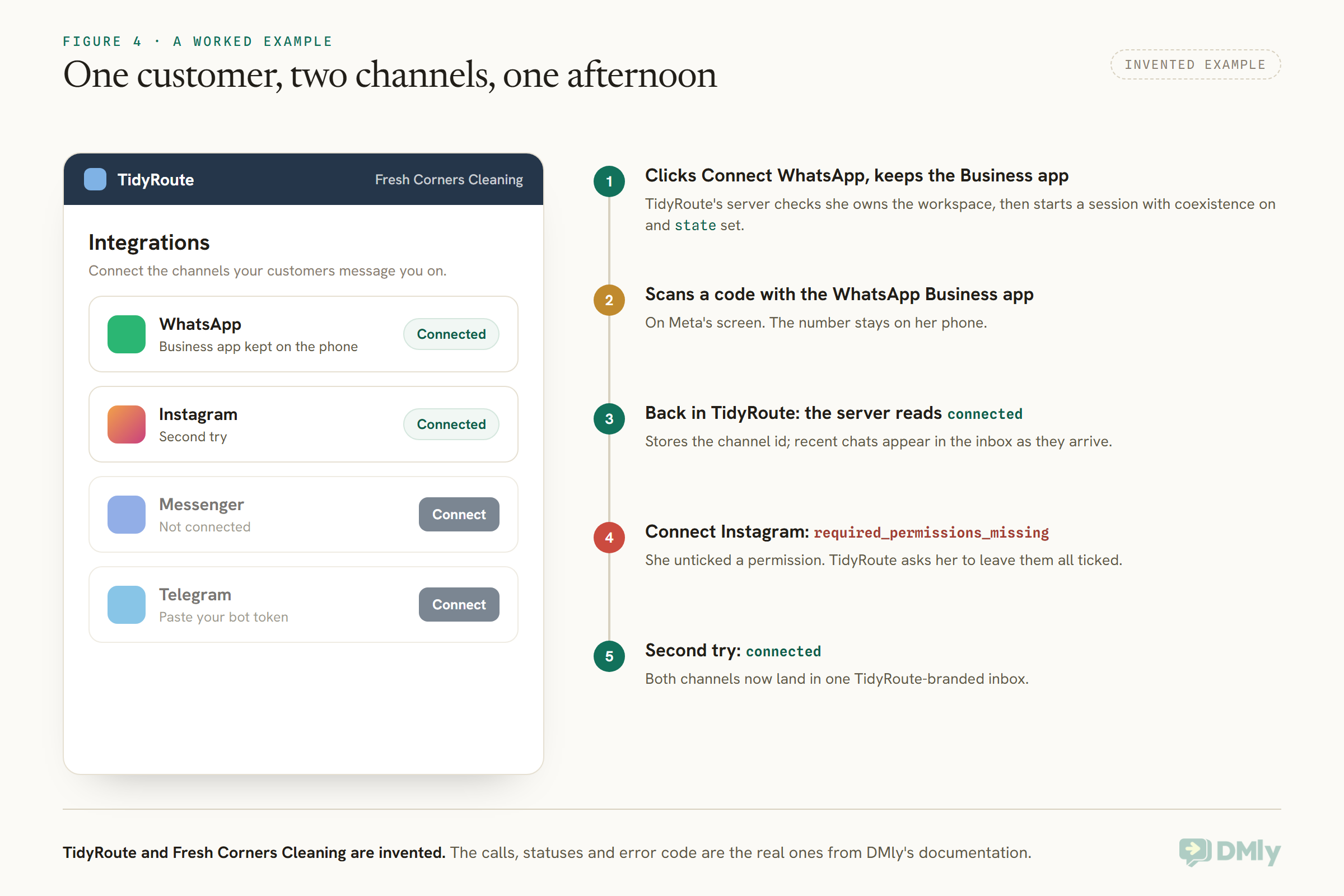
The office manager opens Integrations in TidyRoute and clicks Connect WhatsApp. TidyRoute shows a choice first: “Keep using the WhatsApp Business app on your phone?” She does, so TidyRoute’s server, after checking she owns the Fresh Corners workspace, starts a whatsapp session with coexistence set to true and state set to its internal reference for the company. It redirects her browser to the connect_url.
She sees a page with TidyRoute’s name, continues to Meta, approves, and scans a code with the WhatsApp Business app on her phone. Back in TidyRoute, the server reads the session: connected, with a channel_id. TidyRoute stores it and shows a success message that also explains recent chats from the app will appear in the inbox as Meta passes them across.
Next she clicks Connect Instagram. On Meta’s permissions screen she unticks one box out of caution, and the session ends failed with required_permissions_missing. TidyRoute’s message, written from the error table, tells her which step to repeat and why every permission matters. Her second attempt connects. Within an afternoon, with no email to TidyRoute support and no second login, both channels land in one inbox under TidyRoute’s name.
Designing the Page Where Customers Connect WhatsApp From Your App
The API is the easy half. The page your customers click on decides whether they finish.
- One button per channel, with the channel’s name in it: “Connect WhatsApp”, not “Add channel”. Show what is already connected, with its name, and a Reconnect button beside each.
- Say what is about to happen. “You’ll approve this on Meta’s own screen, then come straight back here. It takes about two minutes.” That sentence prevents most abandoned sessions.
- Ask the coexistence question before WhatsApp, in the customer’s terms: keep using the WhatsApp Business app on your phone, or move the number fully to the shared inbox.
- Set expectations for each channel. Instagram needs a Business or Creator account, and a Facebook Page only on the Page route; Messenger needs a Page the customer manages; TikTok needs a Business account; Telegram needs a bot token from BotFather, with a short how-to beside the field. Say so before they click, not after it fails.
- Write a message for each error you expect, built from the error code, and give a support route for the rest.
- Handle the customer who closes the tab. Use the webhook to update their Integrations page, so the next time they open it they see “Connected” or “Try again”, not a spinner.
If you are pricing this as part of a managed service, our guide to pricing WhatsApp automation services covers how agencies charge for setup and ongoing work. Self-service channel connection changes that maths: the setup hour you used to bill, or absorb, mostly disappears.
What Channel Connect Does Not Do
A few things stay in the dashboard or outside DMly’s control.
- It does not connect personal Instagram accounts, on either route. The customer switches to a Business or Creator account first.
- It does not rename Meta’s or TikTok’s consent screens. They show the name of the app being authorized, which DMly controls.
- It does not create workspaces, assign plans or send messages. Provisioning is elsewhere in the Agency API, and messaging is the workspace API.
- It does not watch the channel after onboarding. The webhooks report how the connection ended; later problems such as an expired token surface elsewhere, and the fix is a reconnect.
- It cannot make TikTok available where TikTok does not offer Business Messaging, or make Meta accept a number that does not qualify for coexistence.
Frequently Asked Questions
Can my customers connect WhatsApp from my app without logging in to DMly?
Yes. With Channel Connect your backend starts a session, your customer authorizes with Meta on a page carrying your agency’s name, and they return to your app. They never sign in to DMly.
Which channels does Channel Connect support?
WhatsApp, Instagram, TikTok and Messenger through hosted sessions, and Telegram by sending a bot token from your backend. Instagram connects either through a linked Facebook Page or, with no Page at all, through Instagram Login.
Can a customer connect Instagram without a Facebook Page?
Yes. Start the session with "platform": "instagram_login". The customer signs in on instagram.com with a Business or Creator account, and the channel gets DMs, bots and comment automation like any other Instagram channel.
Will my customers see DMly anywhere?
Not on the connect page, which shows your agency’s name and can be served from your custom domain. Meta’s and TikTok’s own consent screens show the name of the app being authorized, which DMly controls.
Can a customer keep using the WhatsApp Business app?
Yes, if Meta accepts the number for coexistence. Start the session with "coexistence": true; the customer scans a code with the app, and the number stays on their phone while DMly works alongside it.
How long does a customer have to finish?
30 minutes from when you start the session, in the same browser. After that it ends expired and you start a new one.
What happens if a token expires later?
Start a new session with the channel’s id as channel_id. The customer picks the same account and the channel keeps its id, so nothing changes in your product.
Do I need a separate DMly plan to use Channel Connect?
It is available to every agency on the Agency API. Each customer’s own plan still decides which channels and how many they can connect.
Delete That Email
The “please log in to this other website” email was never really about a missing feature; it was about a second product the customer did not choose. With Channel Connect, connecting WhatsApp, Instagram and TikTok becomes a button in the product they did choose, followed by Meta’s or TikTok’s own screens and a quick trip back. To let customers connect WhatsApp from your app, build the four calls, write a kind message for each error, add a Reconnect button, and most of your customers will connect their channels before your onboarding call ever happens. To see how the rest of the agency layer fits together, start with our guide to white-label WhatsApp software for agencies.
Writing about WhatsApp automation, bookings and growth for local business.
Turn WhatsApp into your busiest channel.
Start free and run message, bookings, payments and reviews in one place.
