
WhatsApp Business Account Hacked? How to Recover It and Prevent a Takeover
A WhatsApp Business account hacked by a stranger rarely announces itself. There’s no alarm and no email from WhatsApp saying “someone is in”. What you usually get first is a reply to a message you never sent.
It arrives from one of your regulars: “Hi, quick one. Was that you asking me for the six-digit code? I sent it over, hope that’s OK.” You scroll up, and there it is. Your business name, your logo, your number, politely asking a customer to forward a code that just landed on their phone. You didn’t write it. Someone else is using your account to try to steal theirs.
That moment is frightening, but it’s also fixable, and most of the fix is in your hands, today, without waiting on anyone. In this guide, we’ll look at how to tell a takeover from the problems that look like one, the three ways into a business account, how to get the number back on the WhatsApp Business app step by step, what to do when the account behind an API number (your Meta business portfolio) is the part that’s been taken, how to lock down DMly and the other tools you’ve connected, what to tell your customers, and the short list of habits that stop it happening again.
Every recovery step here comes from WhatsApp’s and Meta’s own help pages, read in October 2026, and they’re linked in the sources at the end. Where those pages don’t say something, we’ll tell you rather than guess.
Is Your WhatsApp Business Account Hacked, or Is It Something Else?
Your WhatsApp Business account is probably hacked if messages are going out that nobody on your team sent, your phone suddenly says your number was registered on a new device, or you’re asked for a two-step verification PIN or password you never set. On the API side, the signs are different: new admins you didn’t add to your Meta business portfolio, ad campaigns you didn’t create, spend you can’t explain.
Plenty of other problems feel like a hack and aren’t. Getting this right first saves you hours, because each one has a different fix and a different page.
| What you’re seeing | What it most likely is | Where the fix lives |
| Your phone shows “Your phone number was registered with WhatsApp on a new device” | Someone registered your number elsewhere, using a code they got from you, your carrier or a customer | This guide: recover on the Business app |
| Customers report messages from you asking for codes or money | A takeover, or an impostor using your name and photo on a different number | This guide: check which, then recover or report |
| A login you don’t recognise on WhatsApp Web, or chats read that you didn’t open | A linked device someone left logged in, or one they added | This guide: linked devices |
| New people with full control in your Meta business portfolio, strange ads, unexplained spend | A compromised business portfolio, usually through one person’s Facebook login | This guide: the API section |
| WhatsApp says your account is banned, or Meta has restricted your number | An enforcement action, not a takeover | WhatsApp Business account banned |
| Templates paused, quality rating red, sends failing | Account health, not access | WhatsApp quality rating, messaging limits and bans |
Bans are a genuinely different problem: Meta has acted against the account, and the route back is an appeal. A takeover is someone else holding your keys, and the route back is taking them back. Sometimes the two collide, because an account used by a scammer can collect reports quickly. That’s one more reason to move fast.
The Three Ways Into a WhatsApp Business Account
There are three ways into a business’s WhatsApp: the phone number itself, the Meta business portfolio that owns an API number, and the tools you’ve connected to it. Each has its own key and its own lock, and a takeover can come through any one of them.
Which doors you have depends on how you run WhatsApp. If you use the free WhatsApp Business app on a phone, the first door is the one that matters most. If your number runs on the WhatsApp Business Platform (the API) through a tool like DMly, the second and third matter more. Our guide to the three types of WhatsApp accounts explains the difference if you’re not sure which you have, and WhatsApp Business app vs API covers why a business might run one, the other, or both.
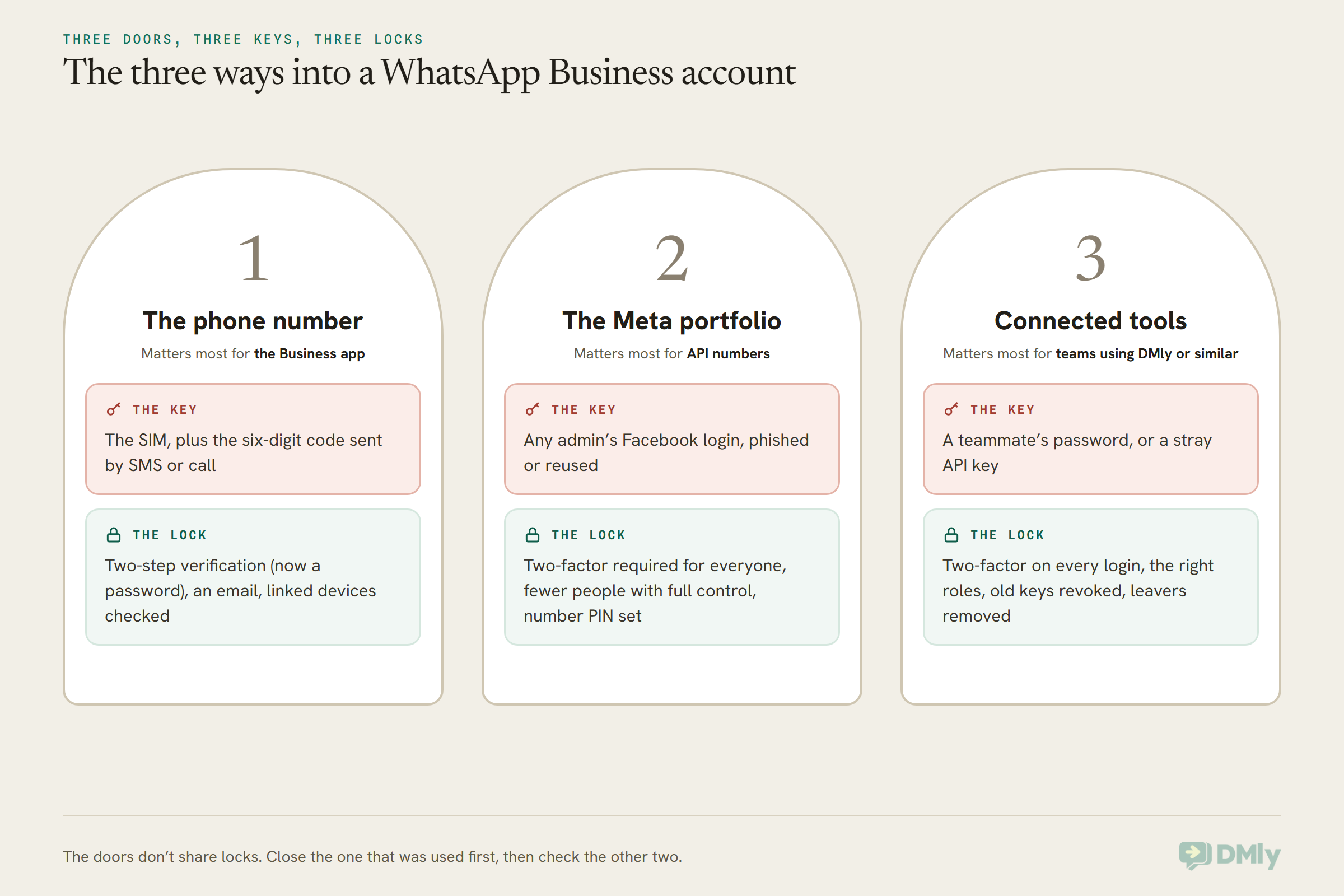
One thing worth knowing up front: the doors don’t share locks. Turning on two-step verification in the WhatsApp app does nothing for a phished Facebook login, and two-factor authentication on Facebook does nothing for a SIM that’s been swapped. That’s why a good recovery checks all three, even when you’re sure which one was used.
How a WhatsApp Business Account Gets Hacked
Most WhatsApp Business account takeovers don’t involve any clever hacking at all: someone gets hold of a code, a SIM or a login that a person handed over without realising what it was. These are the routes WhatsApp’s and Meta’s help pages describe, in plain words.
The six-digit code scam
To register a phone number on WhatsApp, you need the six-digit code WhatsApp sends to that number by SMS or call. So a scammer types your number into WhatsApp on their own phone, which sends a code to you, and then messages you pretending to be a supplier, a customer, a delivery company or “WhatsApp Support”, asking you to read it back. The moment you do, they can register your number on their device.
WhatsApp’s own page on this is blunt: never share your WhatsApp verification code with anyone, not even friends or family. If a code arrives that you didn’t ask for, WhatsApp says it often just means someone mistyped their own number. It can also be a takeover attempt. Either way, the code stays with you.
The nasty twist in the opening story is that once a scammer has one account, they use it to ask that account’s contacts for their codes. Your customers trust your business name, which is exactly why it’s valuable to them.
SIM swaps and lost phones
If someone persuades your mobile provider to move your number to a SIM they hold (a SIM swap), the registration code goes to them, not you. A lost or stolen phone has the same effect if the SIM is still inside. WhatsApp’s help page for this case starts with your carrier, not with WhatsApp, because without a SIM carrying your number there’s no way to recover the account.
A linked device somebody forgot about
WhatsApp Web and the desktop apps are linked devices. A browser on a shared shop laptop, a former employee’s computer, or a scan of your QR code by someone standing at the counter can all leave a session open that reads and sends from your account. This is the quietest kind of access, because your phone keeps working normally.
A phished Facebook login (the API route)
If your number runs on the API, it belongs to a WhatsApp Business account inside a Meta business portfolio (the thing that used to be called Business Manager). Meta says portfolio compromises usually happen when one person’s account is hacked or accessed through malware or phishing. One admin clicking a fake “your Page has been flagged” link can be enough to hand over everything that admin could reach.
People who should no longer have access
The least dramatic route is also one of the commonest in small businesses: the old manager still has full control of the portfolio, the agency you stopped working with still has a login, the receptionist who left still knows the PIN. Nobody needs to hack anything when the keys were never collected.
Fake “WhatsApp Support”
WhatsApp says its support team will never ask for your PIN, payment details or sensitive personal information, and that in-app support messages come only from an account with a verified badge and the label Official Support Account. Anyone else claiming to be WhatsApp Support and asking for a code is, in WhatsApp’s words, likely a scam. We’ll come back to this when we get to contacting support, because people are most vulnerable to it right after a takeover, when they’re looking for help.
How to Recover a Hacked WhatsApp Business Account on the Business App
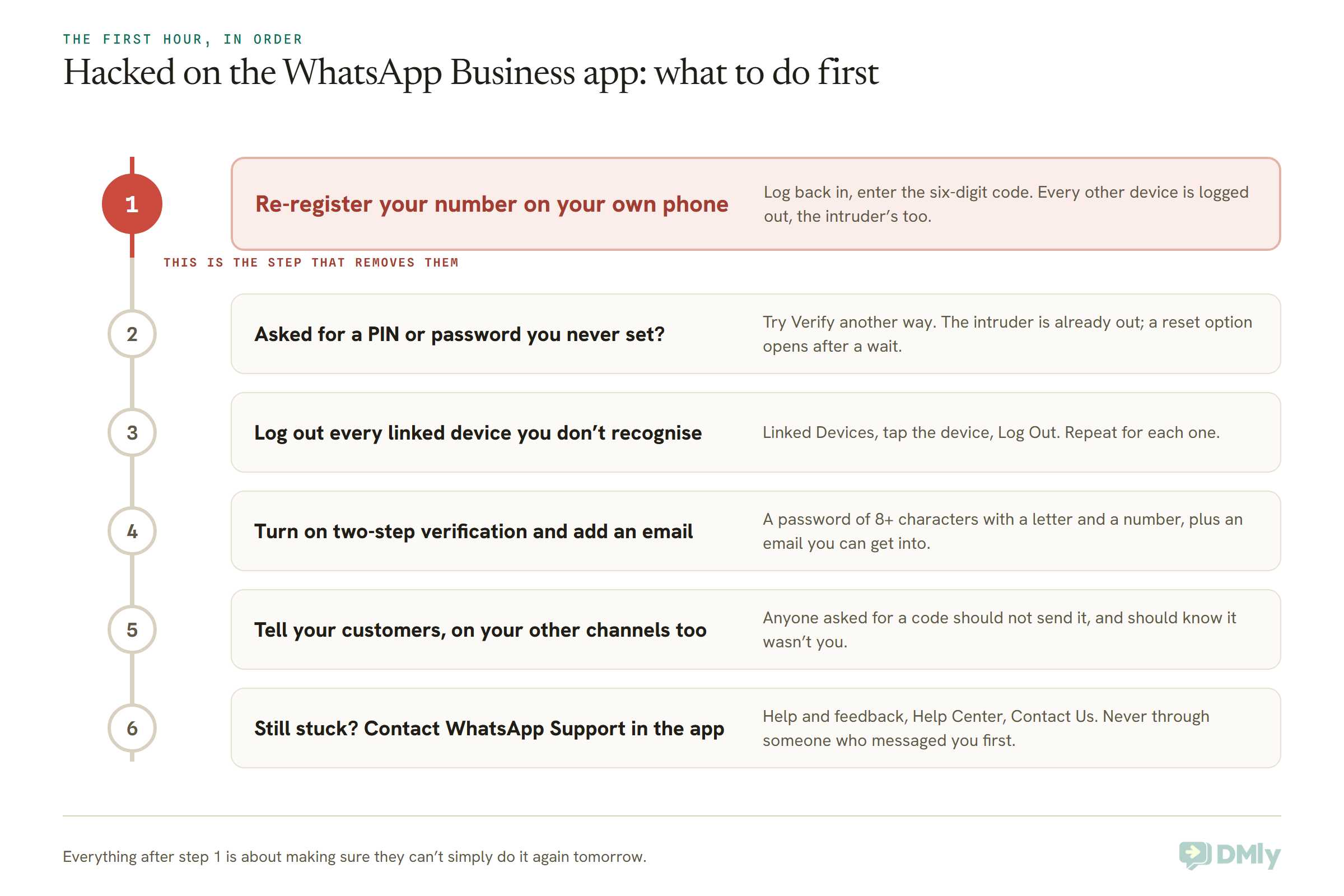
To recover a WhatsApp Business account that someone has taken over, open WhatsApp on your own phone with your SIM in it, tap Log back in, and re-register your number with the six-digit code WhatsApp sends you. Re-registering logs every other device out of the account, including the intruder’s. That single step is the whole fix in most cases, and it’s the only thing that removes someone who’s already in.
WhatsApp’s help pages are written for WhatsApp in general rather than the Business app specifically, but the Business app registers a number the same way, with a code sent to that number. The menu paths below are from WhatsApp’s own instructions; labels can differ slightly between phone types and app versions.
Step 1: Re-register your number
If your phone shows “Your phone number was registered with WhatsApp on a new device”, WhatsApp’s instructions are to tap Log back in, then Continue. If you’re asked, enter your full international phone number and tap Next, then Ok. Then enter the six-digit code you receive by SMS or phone call.
When you re-register with that code, WhatsApp automatically logs out every device that was logged into the account. The person who took it is out.
Two things WhatsApp is careful to say here, and both matter to a business owner:
- Changing a password won’t remove them. WhatsApp says passwords, two-step verification and its other security features protect an account you still have. If someone else has already taken it over, re-registering with the code is the only way to remove them.
- They can’t read your old chats. Messages are end-to-end encrypted and stored on your device, so someone who re-registers your account on a new phone can’t read your past conversations. They can, however, send new messages as you while they’re in, which is why speed matters.
Step 2: If it asks for a PIN or password you didn’t set
Sometimes the intruder turns on two-step verification while they’re in, so that when you try to log back in, WhatsApp asks for a PIN or password you’ve never seen. This is the moment people panic. Don’t. WhatsApp’s compromised-account page makes the key point: whether you know the PIN or not, anyone using your account is logged out once you enter the six-digit code from your SMS.
So the intruder is out either way. What’s left is getting yourself fully back in, and WhatsApp’s pages describe two routes:
- Verify another way. On the login screen, tap Verify another way and choose email, SMS or voice call, then enter the code you receive. This works best if you’d already added an email to the account before the takeover.
- Wait, then reset. If you can’t complete two-step verification, a reset option unlocks after a wait. WhatsApp’s compromised-account page says to wait 7 days and try again; its newer password page says the reset option unlocks “after a few days”. The reset can’t be undone. If it’s been less than 30 days since you last logged in, it deletes any messages you received since then; after more than 30 days, it deletes your messages and your profile.
If you have to wait, the wait itself isn’t the danger. The danger is a scammer contacting you during it, offering to “speed things up”. Nobody can, and WhatsApp says its support will never ask for your PIN.
If your SIM was swapped, or the phone is lost or stolen
You can’t re-register without the SIM, so start with your mobile provider. WhatsApp’s steps for a lost or stolen phone are: call your provider as soon as possible and ask them to block the SIM, request a new SIM with the same phone number, activate it, put it in a phone, and then re-register in WhatsApp. Once you’ve re-registered, the lost or stolen device is logged out automatically.
WhatsApp also lists what it can’t do here: it can’t deactivate your account for you, because it has no way to verify you own the number; it can’t locate your phone; and you can’t log out of WhatsApp remotely from WhatsApp Web or desktop. The SIM is the key, so getting the SIM back is the job.
Step 3: Check your linked devices
After you’re back in, check what else is connected. In WhatsApp, open the menu and tap Linked Devices. Tap any device you don’t recognise and tap Log Out, and repeat for each one. If you use WhatsApp Web on a shared computer, WhatsApp suggests unticking Stay logged in on this browser before you scan the QR code, so the session ends when the tab or browser closes.
Don’t expect a history of who was in. WhatsApp says plainly that it can’t tell you who accessed your account, or when, or from where.
Step 4: Turn on WhatsApp Business two-step verification, now with a password
WhatsApp Business two-step verification is the lock that stops a stolen code being enough on its own. WhatsApp is in the middle of changing it: its help pages say the old six-digit two-step PIN is being upgraded to a password, because passwords are longer and harder to guess. The password needs at least 8 characters, at least one letter and at least one number.
WhatsApp’s Android steps are: open the menu, then Settings, Account, Two-step verification, and switch it on. Create the password, confirm it, add an email address you can access (or skip), and choose whether to trust the device. Adding a password from Settings, Account, Password also switches two-step verification on. If you still have the old six-digit PIN, the same Password screen lets you replace it.
While you’re there, add an email address under Settings, Account, Email address. WhatsApp says a verified email lets you get back into your account even when you can’t receive an SMS or a call, which is exactly the situation a SIM swap puts you in.
WhatsApp’s security tips page also lists passkeys (signing in with your phone’s fingerprint, face or screen lock), app lock and a strict account setting for people who think they’re being targeted. All useful. None of them, WhatsApp notes, can restore lost access or remove someone already in. They’re for after you’ve recovered, not instead of recovering.
If your number runs in co-existence mode
Some businesses use the same number on the Business app and on an API tool at the same time, which Meta calls co-existence. Our WhatsApp coexistence guide explains how that works. If that’s you, the phone app is still very much alive, so everything in this section applies to it, and so does everything in the API section below. Neither WhatsApp’s pages nor DMly’s docs describe what a hijack of the phone app does to the API side of a co-existence number, so secure both and check both.
Don’t report your own account first
It’s tempting to hit Report on the account that’s sending scam messages in your name. WhatsApp warns against reporting a compromised account you’re trying to recover: it might ban it for violating the Terms of Service, and you could lose access to the account or its data. Recover first. If someone is pretending to be you on a different number, that’s an impostor, and reporting and blocking that number is exactly right; WhatsApp says a report sends it up to five of the last messages that account sent you.
Contacting WhatsApp Support Without Falling for a Fake One
WhatsApp says there are only two ways to reach its support: the Contact Us chat inside the app, and the contact form on WhatsApp’s website. It no longer answers support emails at all. Search “WhatsApp Business account hacked” and you’ll still find pages listing support addresses to write to; WhatsApp says any WhatsApp support email address you see recommended on a website, a blog or by an AI assistant is out of date.
- In the app: tap the menu, then Settings, Help and feedback, Help Center, Contact Us, and describe the problem. Screenshots help.
- If you can’t get into the app: use the contact form on the Contact WhatsApp page of WhatsApp’s website. Replies come from an address ending in @support.whatsapp.com.
Inside the app, support messages come only from WhatsApp’s official account, marked with the verified badge and the label Official Support Account. WhatsApp also says that some support replies may be written by AI and are labelled as such. Whatever channel you use, WhatsApp will never ask for your PIN, payment details or full name. If “support” asks for a code, you’re talking to the scammer again.
Be realistic about what support can do. WhatsApp says it can’t deactivate accounts for others, can’t block or unblock contacts on your behalf, and can’t say who accessed your account. The re-registration in Step 1 is still the thing that actually gets you back.
WhatsApp Business Account Hacked on the API: Recovering Your Meta Business Portfolio
If you’ve had your WhatsApp Business account hacked on the API side, the thing that was taken is usually your Meta business portfolio, through one person’s Facebook login, and the first move is to contact Meta Support while you secure that person’s account. An API number doesn’t live on a phone, so the six-digit code trick doesn’t apply in the same way. The portfolio does: it owns your WhatsApp Business account, your number, your templates, your Pages and your ad accounts.
The signs Meta lists
Meta’s page on hacked portfolios says you may get security alerts about new logins or changed settings, or suddenly find you can’t get into your portfolio, Page or ad accounts. It lists four signs to look for:
- New users or admins added without approval, or unexpected changes to people’s access.
- New or reactivated ad accounts or campaigns nobody on your team created.
- Sudden, unexplained increases in ad spend, invoices or charges.
- Posts with copy, images or targeting that don’t look like your business.
Contact Meta Support, and secure the personal account
Meta’s advice is to contact Meta Support immediately if you believe your portfolio has been compromised, from Meta Business Support Home. In parallel, deal with the way in. If someone’s personal Facebook account was hacked, Facebook’s help centre sends them to facebook.com/hacked, opened on a device they’ve used to log in to Facebook before.
Take back control of who has access
Once you’re in, go through the people with access as if you were seeing them for the first time. Meta’s best-practice page gives a clear list:
- Remove anyone you don’t recognise, and anyone whose email address isn’t connected to your business (Meta specifically flags public email domains).
- Remove people who haven’t logged in for 90 days, especially those with full control.
- Remove people without passkeys or two-factor authentication until they’ve set them up.
- Keep full control to the people who genuinely need it; Meta suggests ten or fewer. It also recommends that two active people have full control, so one compromised account can’t lock everyone else out, and sensitive changes get a second approval.
- Review shared credit lines and remove any sharing you don’t recognise.
Two downloads help you see what happened. People with full control can export a file of everyone’s permissions from the People tab in Meta Business Suite’s settings, including when each person was last active and whether they have two-factor on. And you can download your business history, a file of important events in the portfolio, from the People or Business info tab.
Require two-factor authentication for everyone
Meta lets you require two-factor authentication for people in your business portfolio. Only people with full control can change it. In Meta Business Suite, go to Settings, then Business portfolio info, scroll to Business options, and set Two-factor authentication to Admins only or Everyone. It takes effect immediately, and anyone without two-factor is asked to set it up next time they try to get in. Meta says it automatically requires two-factor for some portfolios older than 90 days, in which case you can’t switch it off.
Meta’s own tips for avoiding two-factor lockouts are worth following too: use an authenticator app and back it up, save your recovery codes, and update your phone number in your Facebook settings if it changes. Its Security Checkup (in Security Centre) lists any recommended tasks for your portfolio; work through all of them.
The two-step verification PIN on your API number
An API number has its own six-digit two-step verification PIN, separate from the WhatsApp app’s new passwords. Meta’s developer docs say it’s required whenever the number is registered for Cloud API, and that there’s no API call to switch it off. If you don’t know it, or you think someone else changed it, you can reset it in WhatsApp Manager: open your business settings, select WhatsApp Accounts and your WhatsApp Business account, open Settings, then WhatsApp Manager, find the number, open its Settings, choose Two-step verification and select Change PIN.
Meta’s docs also show that changing the PIN, and turning off two-step verification through a reset email, both raise a “security” event to the app connected to the account. DMly’s docs don’t say whether DMly shows those events, so don’t rely on DMly to tell you the PIN changed; if you see a reset email you didn’t ask for, treat it as a warning sign.
One more limit to know: Meta allows 10 registration attempts per number in a rolling 72 hours. After that, the number can’t be registered again for 72 hours. So if you’re re-entering a PIN in a tool and it keeps failing, stop and reset the PIN in WhatsApp Manager rather than guessing.
System users and access tokens
If you or a developer connected the number with your own Meta app (rather than a guided signup), it probably runs on a system user and an access token. Meta’s docs explain that an admin system user has full access to every WhatsApp Business account the portfolio owns or has been shared. After a compromise, check the System Users list in your business settings for any you didn’t create, and ask whoever built the integration to issue a fresh token and retire the old one.
Locking Down Your DMly Login and Your Connected Tools
DMly can’t recover your WhatsApp or Meta account, because Meta owns both, but it gives you the levers to make sure nobody else is working your inbox in the meantime. If you run WhatsApp through DMly, a stolen DMly password is its own door: whoever has it can read and send from the shared inbox. Here’s what DMly documents, and what it doesn’t have.
If you think someone is in your DMly login
DMly’s security docs say changing your password is the right first move. It isn’t just a new password: it signs out every other browser session the next time that session loads a page, signs out every DMly mobile app sign-in straight away (including your own phone, so you’ll sign in again there), and clears every “remember me” cookie. Using the emailed Forgot your password? link does the same, which matters if you’ve already been locked out.
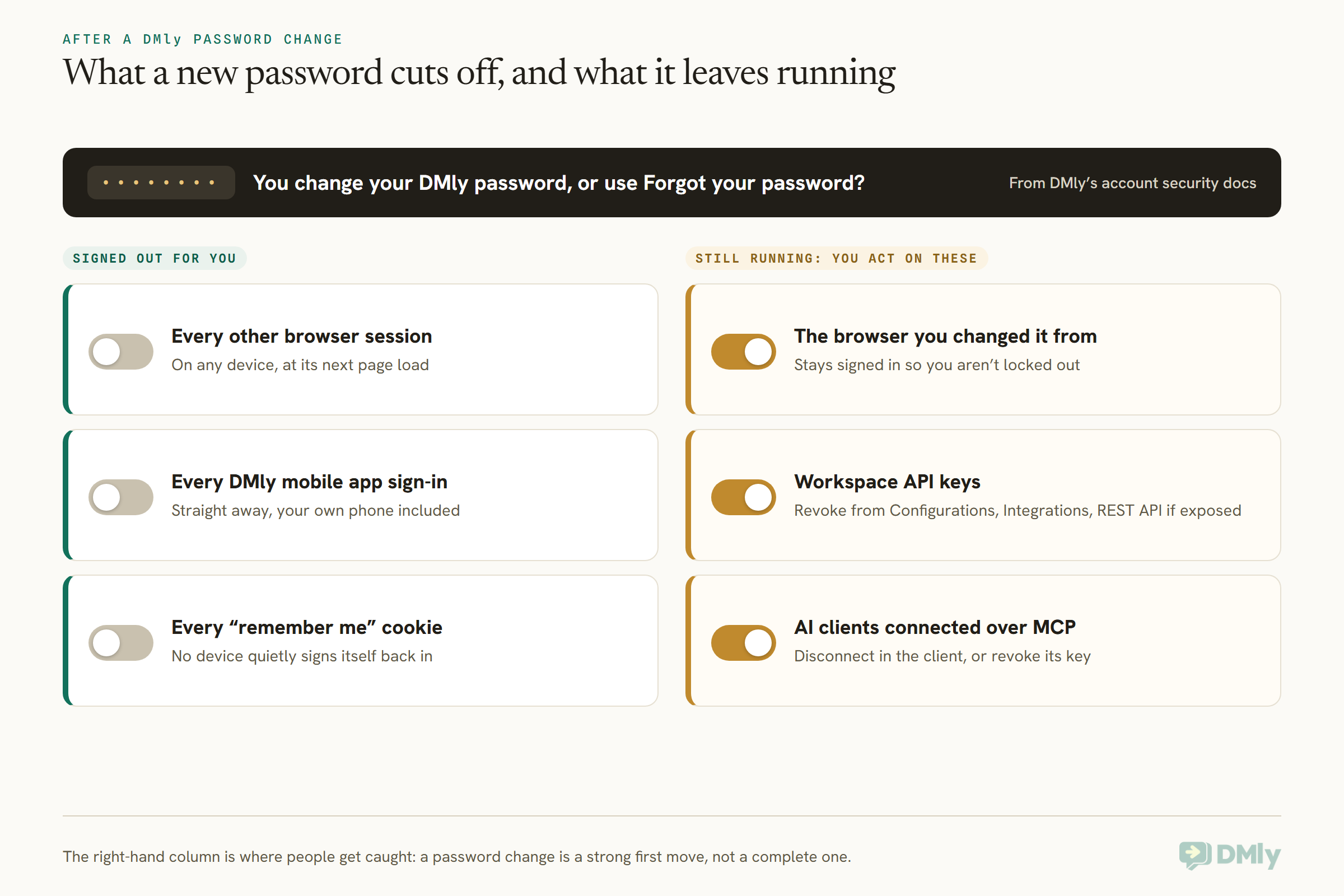
Notice the right-hand column. A password change does not touch workspace API keys, which are workspace credentials rather than your login, and it doesn’t cut off an AI client already connected over MCP (if you’ve connected something like Claude, our guide to connecting Claude to WhatsApp, CRM, bookings and invoices with MCP explains what that connection is). If a key might be exposed, revoke it from Configurations, Integrations, REST API; DMly’s API docs say revocation takes effect immediately. For an MCP connection, DMly says to disconnect it in the client that holds it, or revoke the API key it uses.
DMly’s own “belt and braces” advice during a suspected compromise is three moves: change your password, then turn on Single active session so the next sign-in anywhere evicts everything else too, then turn on two-factor authentication so a stolen password isn’t enough on its own.
Turn on two-factor authentication on every DMly login
Two-factor in DMly lives on each person’s own profile, not in workspace settings. Open Edit Profile from your account menu, find Two Factor Authentication (it shows a red Disabled badge until you switch it on) and select Enable. Scan the QR code with an authenticator app such as Google Authenticator, type the six-digit code into Code, select Confirm, and store the recovery codes it shows you somewhere safe, such as a password manager. They’re the only way back in if you lose the authenticator app.
Be clear about one limit: DMly has no workspace-wide switch that forces every member to use two-factor, and no admin can turn it on for someone else. Each person turns it on for their own login. So ask your team to do it, and check with them that they have.
Remove people, and give everyone the right role
When someone leaves, or you’re not sure who has access, go to Workspace Settings, Team Members, open the menu on their row and remove them. DMly says they lose access straight away and the seat is freed. Everyone else should have the smallest role that lets them do their job: Member is the everyday inbox role and can’t touch channels, API keys, the team or the audit log; Viewer is read-only; Admin can do everything. Only the workspace owner sees the Security page, which holds one thing: deleting the workspace.
If several people are sharing one login or one phone to answer customers, a takeover of that one login takes everything. Giving each person their own seat is the security fix as much as the workflow one; our guide to a shared team inbox for WhatsApp covers how seats and assignment work.
Read the audit log, and know its limits
DMly keeps an audit log at Workspace Settings, Settings, Audit log, visible to the owner and Admins. Each row shows when, who, the action, a summary and the IP address it came from. It records specific high-value actions: contact deletions and bulk changes, bulk automation deletions, an agency opening your workspace, every write an AI client makes over MCP, and some money actions such as a change to the bank account used for manual transfers.
DMly is honest that it’s a partial record. Most everyday admin changes aren’t logged (removing a team member isn’t), actions made through the REST API write no row, entries are kept for 180 days, and there’s no export. So use it to check for the things it covers, and don’t read an empty log as proof nothing happened. DMly also has no list of signed-in devices and no IP allowlist, so the password change and single active session above are your tools for cutting off sessions.
What “Unauthorized” on your WhatsApp channel means
If your WhatsApp channel in DMly shows Unauthorized, DMly’s docs say the access token has stopped working and the number needs reconnecting; DMly emails the workspace admin when it happens. That isn’t, by itself, a sign of a takeover. But if it appears at the same time as unexpected changes in your Meta portfolio, sort out the portfolio first, then reconnect from Integrations, Channels. And if the number shows Not registered on Bot Setup, WhatsApp, Configuration, register it with the six-digit PIN, resetting the PIN in WhatsApp Manager first if you’re not sure what it is.
What to Tell Your Customers While You Recover
Tell customers quickly, plainly and on more than one channel that messages from your number asking for codes or money weren’t from you, and that they should not send anything. WhatsApp’s own advice after a takeover is to warn friends and family, because the person in your account can impersonate you in chats and groups. For a business, your customers are the people being impersonated to: with a WhatsApp Business account hacked, they’re the real targets, and you’re the name being used.
Use whichever channels you still control: your Instagram or Facebook Page, your email list, a banner on your website, an SMS if you have the numbers, and WhatsApp itself once you’re back in. Three short messages you can adapt:
1. While the number is still compromised (post on your other channels)
Important: someone has taken over our WhatsApp number, [number]. If you get a message from it asking for a code, a payment or your details, please don’t reply or send anything. We’re getting it back now and will post here when it’s safe. You can reach us meanwhile at [other channel].
2. Once you’re back in (to customers who were messaged)
Hi [Name], it’s [Your name] from [Business]. Our WhatsApp was taken over for a few hours [today / yesterday] and some messages were sent that weren’t from us. If you received one asking for a six-digit code, please don’t send it, and if you already did, follow WhatsApp’s steps to log back in to your account. We’ll never ask you for a WhatsApp code. Sorry for the worry.
3. A standing line for your profile or website
[Business] will never ask you for a WhatsApp verification code, your password or a payment by message. If anyone does, using our name, it isn’t us.
A practical note if you’re on the API: replying inside an open 24-hour customer service window is a normal message, but anything you send to someone outside that window has to be an approved template, and Meta decides which category the template falls into. If you need to reach a lot of people quickly, your other channels will usually be faster than waiting for a new template to be approved.
How to Prevent a WhatsApp Business Account Takeover
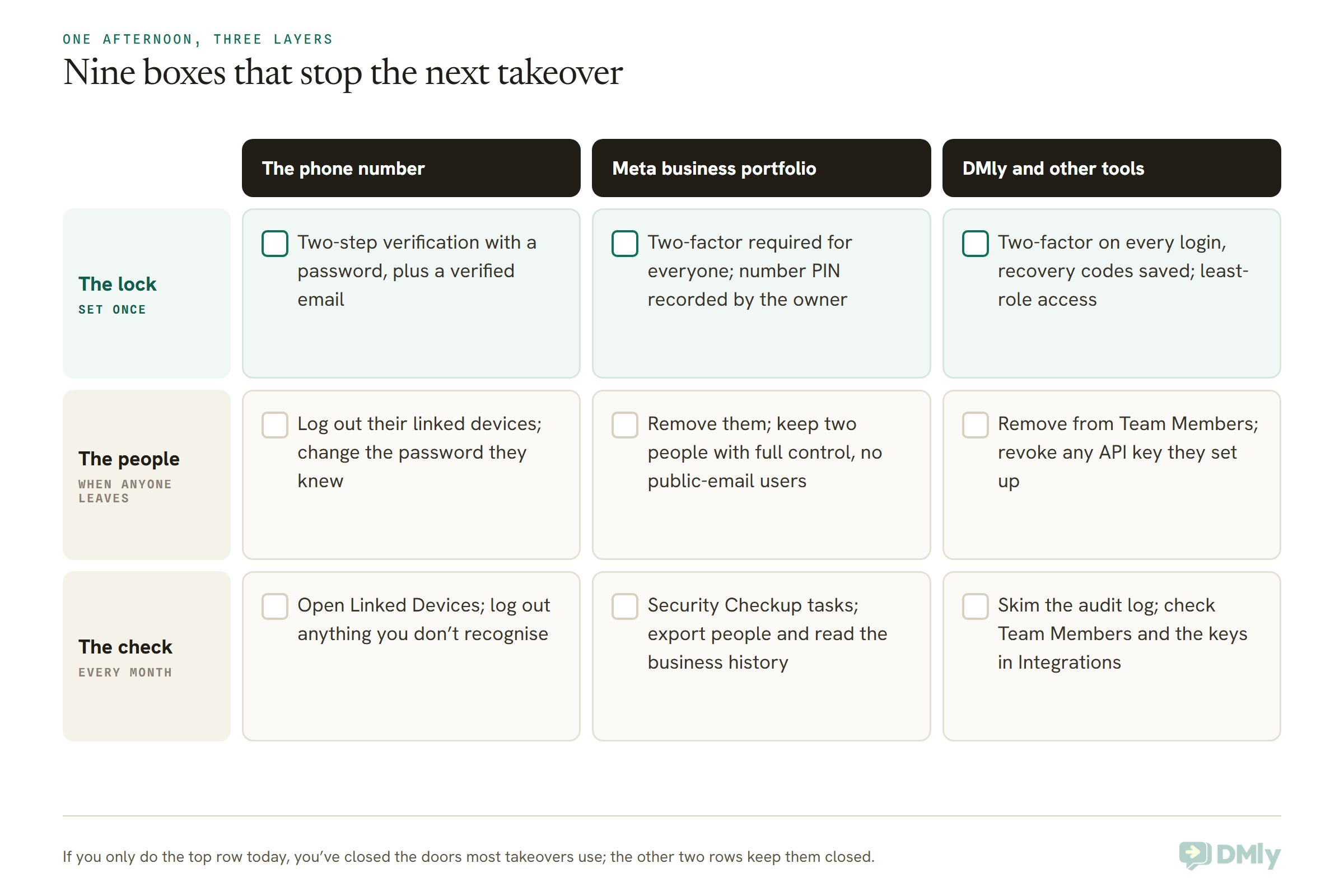
To prevent a WhatsApp Business account takeover, put a lock on each of the three doors and collect the keys from anyone who no longer needs them. None of this is expensive or technical. Most of it is a one-off afternoon, plus a habit of checking when people come and go.
On the phone and the number
- Turn on two-step verification with a password, and add a verified email. Replace any old six-digit PIN with a password when the app offers it.
- Treat the registration code like the key to the shop. Nobody legitimate, including WhatsApp, a supplier or a customer, ever needs it.
- Ask your mobile provider what protection it offers against SIM swaps on your business line. Providers differ, so it’s a question worth asking directly.
- Check Linked Devices regularly, and untick Stay logged in when you use WhatsApp Web on a shared computer.
- Write down who holds the two-step password and where it’s kept. Our guide to deleting a WhatsApp Business account, and when not to covers the related handover problem when the person who set it up leaves.
On the Meta business portfolio
- Require two-factor authentication for everyone, not just admins.
- Keep two trusted people with full control, and as few others as possible.
- Remove people who left, people inactive for 90 days, and anyone signed in with a public email address that isn’t your business’s.
- Record the number’s two-step verification PIN somewhere the business owns, and know how to reset it in WhatsApp Manager.
- Work through Security Checkup in Security Centre whenever it shows tasks.
In DMly and your other tools
- Ask every teammate to turn on two-factor authentication in Edit Profile and save their recovery codes. Check that they did.
- Give each person their own login and the smallest role they need. No shared passwords.
- Name API keys after what uses them, and revoke any you don’t recognise or no longer use.
- When someone leaves, remove them from Team Members the same day.
- Skim the audit log once a month for deletions and bulk changes you didn’t expect.
Six Businesses, Six Different First Moves
Every WhatsApp Business account hacked in the six cases below was entered through a different door, so each one starts somewhere different. These are illustrative situations, not real customers, spread across the markets we hear from most.
- A dental practice in Texas, Business app. The front-desk phone shows the “registered on a new device” message after a “patient” asked for a code. First move: re-register on the practice phone with the six-digit code, which logs the intruder out. Then turn on two-step verification with a password and an email, and post a notice on the practice’s Facebook Page.
- A boutique in Jaipur, Business app. The owner’s phone suddenly loses signal and WhatsApp stops working on it. That’s the shape of a SIM swap. First move: call the mobile provider, block the SIM and get a replacement with the same number, then re-register. WhatsApp can’t do the carrier’s part.
- A salon in Lagos, API number through DMly. A stylist who left months ago still had full control of the Meta business portfolio, and an unknown admin appears. First move: contact Meta Support from Business Support Home, remove the unknown admin and the old stylist, require two-factor for everyone, then reset the number’s PIN in WhatsApp Manager.
- A gym in Manchester, managed by an agency. Ads the gym never approved start running. First move: Meta Support, then the people export and business history download to see who was added and when, then fewer people with full control and two trusted owners.
- A restaurant in Dubai, WhatsApp Web on the till laptop. Chats are being read and answered from somewhere else, but the phone works fine. First move: open Linked Devices and log out everything unfamiliar, then stop staying logged in on the shared laptop.
- A tutoring centre in Singapore, DMly login. A teammate’s DMly password was reused from another site. First move: that teammate changes their password (which signs out their other sessions), turns on two-factor, and the owner revokes any API key the teammate had set up, because a password change doesn’t touch keys.
Frequently Asked Questions
What should I do first if I’ve had my WhatsApp Business account hacked?
Open WhatsApp on your own phone with your SIM in it, tap Log back in, and re-register your number with the six-digit code WhatsApp sends you. Re-registering logs every other device out, including the intruder’s. Then turn on two-step verification, check linked devices and warn your customers.
Can I recover a hacked WhatsApp Business account without the SIM?
No. WhatsApp says it isn’t possible to recover an account without a SIM card with the same phone number. If the SIM was lost, stolen or swapped, ask your mobile provider to block it and issue a new SIM with the same number, then re-register.
The hacker set a two-step verification PIN. Am I locked out for good?
No. Entering the six-digit code from your SMS still logs the intruder out, even if you don’t know the PIN. You can then try Verify another way by email, SMS or voice call, or wait for the reset option: WhatsApp’s pages say 7 days in one place and “a few days” in another. Resetting can’t be undone and may delete recent messages, or your messages and profile if you haven’t logged in for over 30 days.
Will changing my password remove the hacker?
Not on WhatsApp. WhatsApp says passwords and two-step verification protect an account you still have; re-registering with the code is the only way to remove someone who’s already in. In DMly it’s different: changing your password does sign out your other browser sessions and mobile app sign-ins, though not API keys or MCP connections.
Can the hacker read my old customer chats?
WhatsApp says no: messages are end-to-end encrypted and stored on your device, so someone re-registering your account on a new phone can’t read your past conversations. They can send new messages as you while they’re in, which is why customers need warning.
Someone asked me for my WhatsApp verification code. Is it a scam?
Treat it as one. A WhatsApp verification code scam works because whoever has the code can register your number on their device. WhatsApp says never to share the code with anyone, and its support team will never ask for your PIN.
How do I contact WhatsApp Support about a hacked account?
Only through the app (Settings, Help and feedback, Help Center, Contact Us) or the contact form on WhatsApp’s website. WhatsApp doesn’t answer support emails. Real in-app support carries a verified badge and the Official Support Account label.
My Meta business portfolio was hacked. What happens to my WhatsApp API number?
The portfolio owns your WhatsApp Business account, so whoever controls it can reach the number’s settings. Contact Meta Support from Business Support Home, secure the hacked person’s Facebook account at facebook.com/hacked, remove anyone you don’t recognise, require two-factor for everyone, and reset the number’s two-step verification PIN in WhatsApp Manager.
Can DMly recover my hacked WhatsApp account?
No. Meta owns your WhatsApp and Meta accounts, and recovery happens there. What DMly can do is make sure nobody else is working your inbox: password changes that sign out other sessions, single active session, two-factor on every login, roles, removing team members, revoking API keys, and a partial audit log.
The Message You Never Sent, Answered
Go back to that customer’s reply, the one asking whether it was really you who wanted the code. With a WhatsApp Business account hacked, that message is the worst part of the day. It’s also the most useful, because it tells you exactly which door was opened and gives you a reason to act within the hour.
Here’s the whole thing in one place:
- Re-register your number with the six-digit code. That’s what removes the intruder.
- If you’re asked for a PIN you didn’t set, verify another way or wait for the reset; the intruder is already out.
- Log out unknown linked devices, turn on two-step verification with a password, and add an email.
- If it’s an API number, contact Meta Support, clean up who has full control, require two-factor, and reset the number’s PIN.
- In DMly, change the password, switch on two-factor and single active session, remove leavers and revoke keys.
- Answer that customer, and everyone like them, on every channel you have.
Then do the afternoon of prevention, so the next code request lands on a customer who already knows you’d never ask. If you’re bringing your WhatsApp, Instagram and other channels into one team inbox where every person has their own login, two-factor and the right role, you can try DMly free for 7 days. And for the other side of account health, bans, restrictions and the quality rating, the place to start is our guide to WhatsApp quality rating, messaging limits and bans.
Writing about WhatsApp automation, bookings and growth for local business.
Turn WhatsApp into your busiest channel.
Start free and run message, bookings, payments and reviews in one place.
